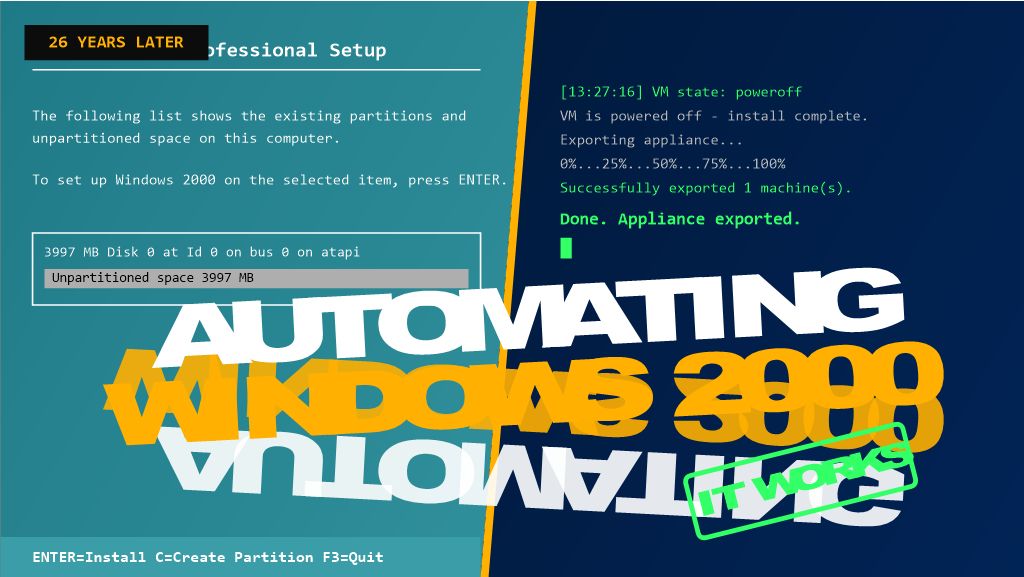
26 years after its release, Windows 2000 Professional still has a place in testing, legacy support, and retro-computing labs — but building a VM for it by hand, every single time, gets old fast. In my latest video, “HOWTO VirtualBox: How to Automate the Creation of an Appliance File,” I walk through a PowerShell script that does the whole job unattended: create the VM, install Windows 2000 Pro with zero clicking through Setup, power it off automatically, and export the finished appliance as a portable .ova file.
Here’s the write-up, including a couple of the gotchas that tripped the script up along the way.
Why Automate This?
A VirtualBox appliance file (.ova) packages a fully configured VM — OS, disk, settings, all of it — into a single portable file you can import anywhere. Building one by hand through the GUI is fine once. Needing a fresh Windows 2000 Pro VM repeatedly for a lab or test environment is a different story, and that’s where scripting the whole pipeline with VBoxManage.exe through PowerShell pays off.
The Twist With Windows 2000
Windows 2000 predates the autounattend.xml mechanism that later Windows versions use, so the assumption going in was that VBoxManage unattended install — the built-in facility that auto-generates a Windows answer file — wouldn’t support it, and that a hand-built winnt.sif + floppy would be needed instead.
Turns out that’s not the case. VBoxManage unattended install does support Windows 2000 — it builds its own answer file, auxiliary ISO, and floppy internally, no manual winnt.sif or floppy-writing tool required. That’s the route this script uses.
What the Script Does
At a high level, Deploy-Win2kProVM.ps1 handles the whole pipeline in one run:
Prompts for a VM name and cleans up any existing VM with that name.
Creates a new VirtualBox VM (Windows2000 guest type, PIIX4 IDE controller, 1 CPU — matches what this OS actually needs).
Creates and attaches a virtual hard disk.
Kicks off VBoxManage unattended install pointed at a standard Windows 2000 Pro install ISO — VBoxManage handles the answer file, auxiliary ISO, and floppy itself, and installs Guest Additions in the same pass.
Polls the VM’s state until it powers itself off.
Exports the finished VM to a .ova appliance file.
The full script is available on GitHub: [link to your GitHub repo]
Gotchas Worth Knowing About Before You Run This
A few things that came up while getting this working, in case they save you the same troubleshooting:
Flag names for unattended install are strict and easy to get wrong. It’s --key, not --product-key. It’s --user-password (or --admin-password, depending on the account type), not --password. VBoxManage errors out immediately with an “Unknown option” message if you get these wrong — worth double-checking against VBoxManage unattended install --help for your installed version.
Windows 2000 needs 1 CPU and --ioapic off. This matches a manually-built VM confirmed to install and boot reliably — modern virtual chipset defaults can trip up an OS this old.
Setup won’t shut down on its own. Without a shutdown command, the VM finishes install and just sits at the desktop, so the polling loop in the script would wait forever. The fix is VBoxManage’s own --post-install-command="shutdown -s -t 0" flag, which runs inside the guest automatically once Setup completes (via the Guest Additions execution channel — hence --install-additions needs to run first).
Downloaded scripts get blocked by Windows. If you see “not digitally signed” when running the .ps1 file, it’s the Mark of the Web from a browser download. Fix it with:
powershell
Unblock-File -Path '.\Deploy-Win2kProVM.ps1'
A genuine product key is required. There’s no way around supplying a real one in the unattended install parameters.
What You End Up With
Run the script, type a VM name, and walk away — no manual clicking through Setup, no hand-built floppy images. A few minutes later, you’ve got a fully installed, Guest-Additions-equipped Windows 2000 Professional VM exported as a ready-to-share .ova.
That exported file also becomes a reusable template — importing it for a fresh copy is far faster than rerunning the whole install.
Watch the Full Video
This post covers the highlights, but the video walks through the whole process live — including the actual errors we hit and fixed along the way. Check it out here: https://youtu.be/Nz2vhgU01qM
If you’ve automated your own VirtualBox workflows, I’d love to hear how — drop a comment on the video or below!
Minisforum MS-A2 HOW TO: Fix the Failed to Update CPU#0 Microcode PSOD with ESXi 8.0.3i ESXi 8.0u3i
HOW TO: Fix “Failed to update CPU#0 microcode” PSOD on ESXi 8.0.3i (Minisforum MS-A2)
In this guide from Hancock’s VMware Half Hour, I demonstrate how to fix the Purple Screen of Death (PSOD) error:
“Failed to update CPU#0 microcode”
This issue occurs when installing or booting VMware ESXi 8.0 Update 3i (ESXi 8.0.3i)
on the Minisforum MS-A2 mini workstation.
ESXi 8.0.3i, released on 2 March 2026, includes security fixes for CVE-2025-15467, an OpenSSL vulnerability. If you are running ESXi and have not
patched yet, you should update as soon as possible.
However, this update also includes new AMD CPU microcode updates, which currently
appear to trigger a PSOD during boot on the Minisforum MS-A2 platform.
The Problem
When booting the ESXi 8.0.3i installer (for example from Ventoy) on the
Minisforum MS-A2, the system may fail during boot with the following PSOD message:
The system has found a problem on your machine and cannot continue.

Failed to update CPU#0 microcode
This prevents ESXi from completing the boot process or installer launch.
Why This Happens
The ESXi 8.0.3i update includes newer AMD microcode updates intended to improve
security and stability. Unfortunately, these updates currently appear to be incompatible with the MS-A2 platform, which results in the microcode update failing
during boot.
When the microcode update fails, ESXi halts the boot process and displays the PSOD.
The Workaround
Until VMware releases a permanent fix, the issue can be worked around by using a kernel boot option during ESXi startup.
Steps to Fix
Boot the ESXi 8.0.3i installer.
When the ESXi boot screen appears, press Shift + O.
This opens the ESXi boot options.
Add the required kernel option shown in the video.
Press Enter to continue booting.
With the boot option applied, ESXi should boot successfully on the Minisforum MS-A2.
Video Walkthrough
Watch the full walkthrough below where I demonstrate the issue and apply the workaround.
What You Will Learn
What changed in ESXi 8.0.3i
Why AMD microcode updates trigger a PSOD
How to reproduce the issue during boot
The Shift + O ESXi boot workaround
How to confirm the fix works successfully
Credits
Huge thanks to members of the VMware community who investigated and documented this issue:
Stephen Wagner
Patrick Kernstock
vAndu
Martin Gustafsson
Their research and testing helped identify the workaround shown in this video.
Minisforum MS-A2: How to Install the New Realtek Driver on VMware ESXi 9.0
Running VMware ESXi 9.0 on the Minisforum MS-A2 is a fantastic option for homelabs and edge deployments, but out of the box you may notice that not all Realtek network interfaces are detected.
In this guide, based on my latest episode of Hancock’s VMware Half Hour, I walk through installing the new Broadcom-compiled Realtek driver (available as an official Broadcom Fling) to unlock additional NIC support.
What This Guide Covers
Why Realtek NICs are limited by default on ESXi 9.0
Where to download the official Broadcom Fling driver
Installing the driver using esxcli
Rebooting safely and verifying NIC availability
Supported Realtek Network Adapters
The driver demonstrated in this guide supports the following Realtek PCIe devices:
RTL8111 – 1GbE
RTL8125 – 2.5GbE
RTL8126 – 5GbE
RTL8127 – 10GbE
Driver Installation Command
Once the driver ZIP has been copied to your ESXi datastore and the host is in maintenance mode, install it using:
After installation, a reboot is required for the new network interfaces to become available.
Video Chapters
00:00 - Start
00:03 - Welcome to Hancock's VMware Half Hour
00:37 - Todays video - HOW TO Install Realtek driver on ESXi 9.0
00:55 - Broadcom Released the Realtek Driver fling in November 2025
01:55 - Minisforum MS-A2 - VCF 9.0 Homelab of the Year 2025 !
02:26 - Available as a Broadcom Fling - Tech Preview - not for production
02:55 - I'm not a fan of Realtek let it be known!
03:11 - Go to Broadcom Fling Portal site to download - https://support.broadcom.com/group/ecx/productdownloads?subfamily=Flings&freeDownloads=true
03:22 - Download the driver don't forget to Accept the Agreement!
03:51 - Enable SSH on Host, and use WinSCP to copy to local datastore
04:31 - Whoops Zoom is broke again!
05:07 - Connect to host using SSH
05:22 - Use lspci to show PCI devices in the host
06:05 - Use grep - lspci | grep Realtek
07:01 - Install the driver using esxcli software component apply -d /VMware-Re-Driver_1.101.00-5vmw.800.1.0.20613240.zip
07:59 - A reboot is required, reboot the server
08:36 - Reboot server
09:20 - The reason for the 10th Outake !
10:01 - Login to ESXi 9.0 using HTML Client
10:51 - Realtek driver is installed and network interfaces are available for use
11:07 - HenryChan1973 this video is for you!
12:23 - Thanks for Watching
Final Thoughts
This Broadcom Fling makes ESXi 8.0 far more usable on modern mini PCs like the Minisforum MS-A2, especially for homelabbers who rely on multi-gig Realtek networking.
Huge thanks to Henrychan1973 for their contribution and support.
If this guide helped you, consider subscribing on YouTube and checking out more VMware content on the blog.
Minisforum MS-A2: How to Install the New Realtek Driver on VMware ESXi 8.0
Running VMware ESXi 8.0 on the Minisforum MS-A2 is a fantastic option for homelabs and edge deployments, but out of the box you may notice that not all Realtek network interfaces are detected.
In this guide, based on my latest episode of Hancock’s VMware Half Hour, I walk through installing the new Broadcom-compiled Realtek driver (available as an official Broadcom Fling) to unlock additional NIC support.
What This Guide Covers
Why Realtek NICs are limited by default on ESXi 8.0
Where to download the official Broadcom Fling driver
Installing the driver using esxcli
Rebooting safely and verifying NIC availability
Supported Realtek Network Adapters
The driver demonstrated in this guide supports the following Realtek PCIe devices:
RTL8111 – 1GbE
RTL8125 – 2.5GbE
RTL8126 – 5GbE
RTL8127 – 10GbE
Driver Installation Command
Once the driver ZIP has been copied to your ESXi datastore and the host is in maintenance mode, install it using:
After installation, a reboot is required for the new network interfaces to become available.
Video Chapters
00:00 - Intro
00:06 - Welcome to Hancock's VMware Half Hour
00:31 - Today’s Video – Minisforum MS-A2
01:01 - Installing the ESXi Realtek Driver for ESXi 8.0
01:16 - Shoutout to member Henrychan1973!
02:03 - HTML Client view of network interfaces
03:00 - Broadcom engineering compiled a driver for ESXi 8.0
04:00 - Driver is available as a Broadcom Fling
05:00 - Download the driver from Broadcom Fling portal
05:44 - WinSCP – Copy driver ZIP to ESXi datastore
06:14 - Put host into maintenance mode
07:11 - Only three interfaces supported out of the box on MS-A2
07:16 - Start an SSH session using PuTTY
07:34 - Using lspci | grep Realtek
08:22 - Supported Realtek PCIe devices
08:35 - Installing the driver using esxcli
09:59 - Whoops! Typo!
10:37 - Can you spot it?
11:08 - Driver installed – reboot required
11:27 - Nano KVM issue accepting root password?
11:41 - Reboot via the GUI
12:30 - MS-A2 restarting
13:42 - Driver installed and Realtek interfaces available
14:54 - Thanks to Henrychan1973!
15:15 - Thanks for watching
Final Thoughts
This Broadcom Fling makes ESXi 8.0 far more usable on modern mini PCs like the Minisforum MS-A2, especially for homelabbers who rely on multi-gig Realtek networking.
Huge thanks to Henrychan1973 !!!
If this guide helped you, consider subscribing on YouTube and checking out more VMware content on the blog.
If you’ve ever attempted a P2V migration using VMware vCenter Converter Standalone 9.0, you’ll know that the product can be as unpredictable as a British summer. One minute everything looks fine, the next minute you’re stuck at 91%, the Helper VM has thrown a wobbly, and the Estimated Time Remaining has declared itself fictional.
And yet… when it works, it really works.
This post is the follow-up to Part 100: HOW TO: P2V a Linux Ubuntu PC, where I walked through the seed conversion. In Part 101, I push things further and demonstrate how to synchronize changes — a feature newly introduced for Linux sources in Converter 9.0.
I won’t sugar-coat it: recording this episode took over 60 hours, spread across five days, with 22 hours of raw footage just to create a 32-minute usable video. Multiple conversion attempts failed, sequences broke, the change tracker stalled, and several recordings had to be completely redone. But I was determined to prove that the feature does work — and with enough perseverance, patience, and the power of video editing, the final demonstration shows a successful, validated P2V Sync Changes workflow.
Why Sync Changes Matters
Traditionally, a P2V conversion requires a maintenance window or downtime. After the initial seed conversion, any new data written to the source must be copied over manually, or the source must be frozen until cutover.
Converter 9.0 introduces a long-requested feature for Linux environments:
Synchronize Changes
This allows you to:
Perform an initial seed P2V conversion
Keep the source machine running
Replicate only the delta changes
Validate the final migration before cutover
It’s not quite Continuous Replication, but it’s closer than we’ve ever had from VMware’s free tooling.
Behind the Scenes: The Reality of Converter 9.0
Converter 9.0 is still fairly new, and “quirky” is an understatement.
Some observations from extensive hands-on testing:
The Helper VM can misbehave, especially around networking
At 91%, the Linux change tracker often stalls
The job status can report errors even though the sync completes
Estimated Time Remaining is not to be trusted
Each sync job creates a snapshot on the destination VM
Converter uses rsync under the hood for Linux sync
Despite all this, syncing does work — it’s just not a single-click process.
Step-by-Step Overview
Here’s the condensed version of the procedure shown in the video:
Start a seed conversion (see Part 100).
Once complete, use SSH on the source to prepare a 10GB test file for replication testing.
Run an MD5 checksum on the source file.
Select Synchronize Changes in Converter.
Let the sync job run — and don’t panic at the 91% pause.
Review any warnings or errors.
Perform a final synchronization before cutover.
Power off the source, power on the destination VM.
Verify the replicated file using MD5 checksum on the destination.
Celebrate when the checksums match — Q.E.D!
Proof of Success
In the final verification during filming:
A 10GB file was replicated
Both source and destination MD5 checksums matched
The Linux VM booted cleanly
Snapshot consolidation completed properly
Despite five days of interruptions, failed jobs, and recording challenges, the outcome was a successful, consistent P2V migration using Sync Changes.
Watch the Full Video (Part 101)
If you want to see the whole process — the setup, the problems, the explanations, the rsync behaviour, and the final success — the full video is now live on my YouTube channel:
This video was one of the most challenging pieces of content I’ve created. But the end result is something I’m genuinely proud of — a real-world demonstration of a feature that many administrators will rely on during migrations, especially in environments where downtime is limited.
Converter 9.0 may still have rough edges, but with patience, persistence, and a bit of luck, it delivers.
Thanks for reading — and as always, thank you for supporting Andysworld! Don’t forget to like, share, or comment if you found this useful.
DIY UnRAID NAS Build – Part 4: Installing a 10GBe Intel X710-DA NIC (Plus an Outtake!)
Welcome back to another instalment of my DIY UnRAID NAS Build series.
If you have been following along, you will know this project is built around an Intel NUC chassis that I have been carefully (and repeatedly!) taking apart to transform into a compact but powerful UnRAID server.
In Part 4, we move on to a major upgrade: installing a 10GBe Intel X710-DA network interface card. And yes, the eagle-eyed among you will notice something unusual at the beginning of the video, because this episode starts with a blooper. I left it in for your entertainment.
A Fun Outtake to Start With
Right from the intro, things get a little chaotic. There is also a mysterious soundtrack playing, and I still do not know where it came from.
If you can identify it, feel free to drop a comment on the video.
Tearing Down the Intel NUC Again
To install the X710-DA NIC, the NUC requires almost complete disassembly:
Remove the back plate
Remove the backplane retainer
Take off the side panels
Open the case
Remove the blanking plate
Prepare the internal slot area
This NUC has become surprisingly modular after taking it apart so many times, but it still puts up a fight occasionally.
Installing the Intel X710-DA 10GBe NIC
Once the case is stripped down, the NIC finally slides into place. It is a tight fit, but the X710-DA is a superb card for a NAS build:
Dual SFP+ ports
Excellent driver support
Great performance in VMware, Linux, and Windows
Ideal for high-speed file transfers and VM workloads
If you are building a NAS that needs to move data quickly between systems, this NIC is a great option.
Reassembly
Next, everything goes back together:
Side panels reinstalled
Back plate fitted
Case secured
System ready for testing
You would think after doing this several times I would be quicker at it, but the NUC still has a few surprises waiting.
Booting into Windows 11 and Driver Issues
Once everything is reassembled, the NUC boots into Windows 11, and immediately there is a warning:
Intel X710-DA: Not Present
Device Manager confirms it. Windows detects that something is installed, but it does not know what it is.
Time to visit the Intel website, download the correct driver bundle, extract it, and install the drivers manually.
After a reboot, success. The NIC appears correctly and is fully functional.
Why 10GBe
For UnRAID, 10GBe significantly improves:
VM migrations
iSCSI and NFS performance
File transfers
Backup times
SMB throughput for Windows and macOS clients
It also future-proofs the NAS for any future network upgrades.
The Mystery Soundtrack
Towards the end of the video I ask again: what is the music playing in the background?
I genuinely have no idea, so if you recognise it, please leave a comment on the video.
Watch the Episode
You can watch the full episode, including all teardown steps, NIC installation, Windows troubleshooting, and the blooper, here:
Thank You for Watching and Reading
Thank you for following along with this NAS build.
Part 5 will continue the series, so stay tuned.
If you have built your own UnRAID NAS or have a favourite NIC for homelab projects, feel free to comment and share your experience.
Hey everyone — welcome back to Andysworld!, where there’s always something bubbling in the pot (usually tech-flavoured, sometimes coffee, sometimes bees).
500 Hacks a Day — Mission Accomplished!
After a consistent streak of daily pwnage, I’ve finally hit 500 hacks a day on TryHackMe! It’s been an epic ride, sharpening my skills and staying sharp in the ever-evolving world of cybersecurity. But… that’s it for now. As much as I’ve loved the challenge, life’s too hectic to keep up the daily grind — and honestly, it’s time to re-balance.
If you’ve not tuned into Hancock’s VMware Half Hour yet, what are you doing? ? The YouTube channel is keeping me plenty busy — but it’s worth every minute. From real-world scenarios to community spotlights and the latest from the VMwareverse, it’s been great to share stories, learn, and laugh with fellow techies around the world.
Catch the next episode if you haven’t already — things are just heating up.
vExpert PRO – 5 Years Strong!
Big news landed this month — I’m proud (and humbled) to announce that I’ve been recognised as a VMware vExpert PRO for the fifth year running. Not only that, but I’ve also picked up the vExpert VCF badge, too!
This recognition means a lot — it’s not just about titles; it’s about community, contribution, and passion. The vExpert family has been a huge part of my journey, and it’s an honour to continue helping others grow and succeed in the ecosystem.
and that’s not forget the Bees !
Beekeeping at Meltonby Honey
Bees are a mixed bag this is to say, some are doing really well, and some are not doing so well, so this month of June, in the June Gap – need to start sorting out and selecting hives to work this Summer, and dare I say it starting Winter preparations, and a week today attend a Bee Health Day, sponsored by DEFRA !
That’s it for now — life’s buzzing, tech is flying, and the blog never sleeps (even if I do). Thanks to everyone who’s been along for the ride so far.
Until next time — stay curious, stay hacking, and don’t forget to say “What’s Occurin’?” ?
If you’ve been following me for a while — either here on Andysworld! or on social — you’ll probably have noticed I’ve got a bit of a thing for TryHackMe. That’s right: the gamified, hands-on cybersecurity platform that lets you “learn hacking the fun way.”
While I’ve worn many hats over the years — from building corporate desktops in the 90s to deploying Thin Clients, backing VMware before it was cool, and even keeping bees in my spare time — I’ve always had a quiet curiosity for cybersecurity.
But in recent years, that curiosity has turned into something more structured. I’ve been diving head-first into daily challenges, CTFs, and red team/blue team rooms on TryHackMe. Every day I log in and test my “hacking” and “penetration” skills. (Legally, of course. Let’s not get too excited.)
Why TryHackMe?
Simple: it’s accessible, addictive, and just plain fun. The platform breaks down complicated security concepts into digestible learning paths and real-world scenarios. Whether you’re into Linux fundamentals, web app hacking, or breaking into Windows environments, there’s something for everyone — and something new to learn every day.
I started with a few easy rooms — some were fun, some had me questioning my life choices — but before long I found myself chasing streaks, solving buffer overflows, exploiting SQL injections, and pivoting through internal networks like it was second nature. It’s part puzzle, part education, and part thrill.
That Daily Streak… and the Climb
I’ll admit it: I got hooked on the daily streak. There’s something about seeing that little flame icon next to your
name that sparks a sense of achievement. Each day I carve out time to complete at least one room, even if it’s a short task or a simple walkthrough. And in doing so, I’ve kept my streak alive and sharpened my skills without ever feeling like it’s a chore.
And here’s the kicker — recently, after being ranked #1,060 out of over 3 million TryHackMe users, I finally cracked the four-digit barrier and rose to #998! Top 1,000 in the world. Not bad for a “beekeeper with a hacking habit,” eh?
Oh — and right now, I’m sitting on a 461-day hacking streak. That’s right. 461 consecutive days of training, solving, cracking, and learning. I’m not far off the 500-day HackStreak badge, and believe me — I will get there. It’s part stubbornness, part obsession, but mostly just a whole lot of fun.
What’s Next?
Honestly, I’d love to get into some deeper reverse engineering, exploit development, and maybe even take on some of the harder red team labs. And who knows — maybe I’ll finally take a proper cert (OffSec, I’m looking at you) just to prove to myself I can.
TryHackMe has rekindled my passion for hands-on learning, just like Experts Exchange did in the early days. It’s reminded me that whether you’re troubleshooting snapshots, spinning up ESXi hosts, or brute-forcing a login page, there’s always more to learn.
Whether you’re an old-school sysadmin like me, a student just starting out, or someone who’s just curious about hacking without getting arrested — I highly recommend giving TryHackMe a spin.
And if you’re already in the game — drop me a message. I’ll see you on the leaderboard ?
Want me to whip up a graphic showing your current rank and streak progress? I can give it that polished blog badge feel.






![[Valid RSS]](http://andysworld.org.uk/images/valid-rss.png "Validate my RSS feed")