Posts Tagged ‘P2V’

HOW TO: Synchronize Changes in a Linux P2V with VMware vCenter Converter Standalone 9.0 (Part 101)

Thursday, November 27th, 2025

If you’ve ever attempted a P2V migration using VMware vCenter Converter Standalone 9.0, you’ll know that the product can be as unpredictable as a British summer. One minute everything looks fine, the next minute you’re stuck at 91%, the Helper VM has thrown a wobbly, and the Estimated Time Remaining has declared itself fictional.

And yet… when it works, it really works.

This post is the follow-up to Part 100: HOW TO: P2V a Linux Ubuntu PC, where I walked through the seed conversion. In Part 101, I push things further and demonstrate how to synchronize changes — a feature newly introduced for Linux sources in Converter 9.0.

I won’t sugar-coat it: recording this episode took over 60 hours, spread across five days, with 22 hours of raw footage just to create a 32-minute usable video. Multiple conversion attempts failed, sequences broke, the change tracker stalled, and several recordings had to be completely redone. But I was determined to prove that the feature does work — and with enough perseverance, patience, and the power of video editing, the final demonstration shows a successful, validated P2V Sync Changes workflow.


Why Sync Changes Matters

Traditionally, a P2V conversion requires a maintenance window or downtime. After the initial seed conversion, any new data written to the source must be copied over manually, or the source must be frozen until cutover.

Converter 9.0 introduces a long-requested feature for Linux environments:

Synchronize Changes

This allows you to:

  • Perform an initial seed P2V conversion

  • Keep the source machine running

  • Replicate only the delta changes

  • Validate the final migration before cutover

It’s not quite Continuous Replication, but it’s closer than we’ve ever had from VMware’s free tooling.


Behind the Scenes: The Reality of Converter 9.0

Converter 9.0 is still fairly new, and “quirky” is an understatement.

Some observations from extensive hands-on testing:

  • The Helper VM can misbehave, especially around networking

  • At 91%, the Linux change tracker often stalls

  • The job status can report errors even though the sync completes

  • Estimated Time Remaining is not to be trusted

  • Each sync job creates a snapshot on the destination VM

  • Converter uses rsync under the hood for Linux sync

Despite all this, syncing does work — it’s just not a single-click process.


Step-by-Step Overview

Here’s the condensed version of the procedure shown in the video:

  1. Start a seed conversion (see Part 100).

  2. Once complete, use SSH on the source to prepare a 10GB test file for replication testing.

  3. Run an MD5 checksum on the source file.

  4. Select Synchronize Changes in Converter.

  5. Let the sync job run — and don’t panic at the 91% pause.

  6. Review any warnings or errors.

  7. Perform a final synchronization before cutover.

  8. Power off the source, power on the destination VM.

  9. Verify the replicated file using MD5 checksum on the destination.

  10. Celebrate when the checksums match — Q.E.D!


Proof of Success

In the final verification during filming:

  • A 10GB file was replicated

  • Both source and destination MD5 checksums matched

  • The Linux VM booted cleanly

  • Snapshot consolidation completed properly

Despite five days of interruptions, failed jobs, and recording challenges, the outcome was a successful, consistent P2V migration using Sync Changes.


Watch the Full Video (Part 101)

If you want to see the whole process — the setup, the problems, the explanations, the rsync behaviour, and the final success — the full video is now live on my YouTube channel:

Part 101: HOW TO: Synchronize Changes using VMware vCenter Converter Standalone 9.0

If you missed the previous part, you can catch up here:
Part 100: HOW TO: P2V a Linux Ubuntu PC Using VMware vCenter Converter Standalone 9.0


Final Thoughts

This video was one of the most challenging pieces of content I’ve created. But the end result is something I’m genuinely proud of — a real-world demonstration of a feature that many administrators will rely on during migrations, especially in environments where downtime is limited.

Converter 9.0 may still have rough edges, but with patience, persistence, and a bit of luck, it delivers.

Thanks for reading — and as always, thank you for supporting Andysworld!
Don’t forget to like, share, or comment if you found this useful.
Part 100: HOW TO: P2V A Linux Ubuntu PC using VMware vCenter Converter Standalone 9.0

Wednesday, November 19th, 2025


HOWTO: P2V a Linux Ubuntu PC Using VMware vCenter Converter Standalone 9.0

Migrating physical machines into virtual environments continues to be a key task for many administrators, homelabbers, and anyone modernising older systems. With the release of VMware vCenter Converter Standalone 9.0, VMware has brought back a fully supported, modernised, and feature-rich toolset for performing P2V (Physical-to-Virtual) conversions.

In this post, I walk through how to P2V a powered-on Ubuntu 22.04 Linux PC, using Converter 9.0, as featured in my recent Hancock’s VMware Half Hour episode.

This guide covers each stage of the workflow, from configuring the source Linux machine to selecting the destination datastore and reviewing the final conversion job. Whether you’re prepping for a migration, building a new VM template, or preserving older hardware, this step-by-step breakdown will help you get the job done smoothly.


Video Tutorial

If you prefer to follow along with the full step-by-step:
Embed your YouTube video here once uploaded.


What’s New in VMware vCenter Converter Standalone 9.0?

  • A refreshed and modern UI
  • Improved compatibility with modern Linux distributions
  • Updated helper VM for Linux conversions
  • Support for newer ESXi and vSphere versions
  • Better overall performance and reliability
  • Linux P2V via passwordless sudo-enabled accounts

This makes it far easier to bring physical Linux workloads into your virtual infrastructure.


Full Tutorial Breakdown (Step-by-Step)

Below is a summary of all the steps demonstrated in the video:

  • Step 1 — Open Converter & Select “Convert Machine”
  • Step 2 — Choose “Powered On”
  • Step 3 — Detect Source Machine
  • Step 4 — Select “Remote Linux Machine”
  • Step 5 — Enter FQDN of the Linux PC
  • Step 6 — Use a passwordless sudo-enabled user account
  • Step 7 — Enter the password
  • Step 8 — Proceed to the next stage
  • Step 9 — Enter ESXi or vCenter Server FQDN
  • Step 10 — Authenticate with username and password
  • Step 11 — Continue
  • Step 12 — Name your destination VM
  • Step 13 — Choose datastore & VM hardware version
  • Step 14 — Go to the next screen
  • Step 15 — TIP: Avoid making unnecessary changes!
  • Step 16 — Next
  • Step 17 — Review settings and click “Finish”
  • Step 18 — Monitor the conversion job
  • Step 19 — Review Helper VM deployment on ESXi
  • Step 20 — Cloning process begins
  • Step 21 — Converter best practices & tips
  • Step 22 — Conversion reaches 98%
  • Step 23 — Conversion reaches 100%
  • Step 24 — Disable network on the destination VM
  • Step 25 — Power on the VM
  • Step 26 — Teaser: Something special about Brother 52 (esxi052)!

Why Disable the Network Before First Boot?

Doing this avoids:

  • IP conflicts
  • Hostname duplication
  • Duplicate MAC address issues
  • Unwanted services broadcasting from the cloned system

After confirming the VM boots correctly, you can safely reconfigure networking inside the guest.


Final Thoughts

VMware vCenter Converter Standalone 9.0 brings P2V workflows back into the modern VMware ecosystem. With full Linux support—including Ubuntu 22.04—it’s easier than ever to migrate physical workloads into vSphere.

If you’re maintaining a homelab, doing DR planning, or preserving old systems, Converter remains one of the most valuable free tools VMware continues to offer.

Stay tuned — the next video showcases something special about Brother 52 (esxi052) that you won’t want to miss!


Don’t Forget!

  • Like the video
  • Subscribe to Hancock’s VMware Half Hour
  • Leave a comment — What P2V tutorial should I do next?

Part 54: HOW TO: Migrate physical, virtual and cloud based workloads with real-time replication to VMware vSphere (ESXi) or Microsoft Hyper-V using OpenText Migrate

Monday, November 25th, 2024

In this video presentation which is part of the Hancock’s VMware Half Hour I will show you HOW TO: Migrate physical, virtual and cloud based workloads with real-time replication to VMware vSphere (ESXi) or Microsoft Hyper-V using OpenText Migrate.

Ten years ago I wrote the following article about the product Double-Take MOVE by Vision Solutions. It’s been acquired in the last ten years, by Carbonite, and now is in the hand of OpenText, and is name going forward will be OpenText Migrate.

HOW TO: Migrate physical, virtual and cloud based workloads with real-time replication to VMware vSphere (ESXi) using Double-Take MOVE

In these uncertain times, when you may be required to migrate workloads between platforms, such as VMware vSphere, Microsoft Hyper-V etc I can highly recommend OpenText Migrate. as one of the best products on the market for your Migration Project.

In this video I will demonstrate the migration of an Linux Ubuntu 22.04 LTS Server from Microsoft Hyper-V to VMware vSphere, and concurrently migrate a Microsoft Windows 2022 Server from VMware vSphere to Microsoft Hyper-V, with very little downtime.

Part 49. HOW TO: Synchronize changes when completing a P2V or V2V with VMware vCenter Converter Standalone 6.4

Saturday, October 19th, 2024

In this video presentation which is part of the Hancock’s VMware Half Hour HOW TO Video Series I will show you HOW TO:  Synchronize changes when completing a P2V or V2V with VMware vCenter Converter Standalone 6.4.

VMware vCenter Converter 6.4.0 Standalone download

This video is based on an article I wrote for Experts Exchange over 10 years ago. So join me for hints and tips of how we create a P2V migration to VMware vSphere. In this video I will show you how we can make changes on the source, and these will be replicated to the destination virtual machine, using the Synchronize option, later we will “cutover” workloads from the source to destination, with limited impact on service.

HOW TO:  Synchronize changes when completing a P2V or V2V with VMware vCenter Converter Standalone 5.1

Part 34: HOW TO: P2V a Windows XP workstation using VMware vCenter Converter Standalone 6.2 or 6.3

Saturday, October 12th, 2024

In this video, I will show you how to perform a Physical to Virtual conversion of a Windows XP physical workstation computer to VMware vSphere Hypervisor 7.0 (ESXi 7.0) using VMware vCenter Converter Standalone 6.2.0.1 Build 8466193 not the latest bug fixed version VMware vCenter Converter Standalone 6.3 Build 20575345 from VMware.

I discuss the 0-day security issues found in VMware vCenter Converter Standalone 6.2.0.1 Build 8466193 which was the reason VMware “pulled” the download from their website on the 2 February 2022.

We have removed vCenter Converter from the list of VMware product downloads. This is a precautionary measure to protect our customers from using legacy technology that does not comply with VMware’s high standards for security and stability. We apologize for any inconvenience this may have caused.

Offering unsupported products based on legacy technology presents potential security and reliability risks to our customers. The last release of vCenter Converter occurred in May 2018, and its support officially ended in December 2019. While we understand some customers may want to use this tool, the risks reached a level where we had no choice but to remove it from the download site.

One of our top goals is to maintain the safety and stability of our customers’ workloads. As part of a technology’s evolution, we must consider the technical standards the customers must comply with. When a straightforward update cannot meet compliance requirements, the product needs to undergo a thorough rebuild. This is the case with vCenter Converter, whose functionality will be migrated to a modern platform based on a reliable technology stack.

Work on a renewed version of vCenter Converter is already in progress. Although we cannot commit to any specific timelines for its release, the updated tool will meet our high standards for security and stability, providing enhanced functionality and supporting the latest technologies available in vSphere virtual machines.

Source
https://blogs.vmware.com/vsphere/2022/02/vcenter-converter-unavailable-for-download.html

On the 11th October 2022 VMware released VMware vCenter Converter Standalone 6.3 Build 20575345, which has the security issue fixed.

I also demonstrate that VMware vCenter Converter Standalone 6.3 Build 20575345 seems to have an issue installing on a Windows XP Service Pack 3 computer unlike VMware vCenter Converter Standalone 6.2.0.1 Build . VMware does not support the installation of VMware vCenter Converter Standalone 6.3 Build 20575345 on legacy operating systems, that are no longer supported by the vendor.

You will have to assess the risk of using VMware vCenter Converter Standalone 6.2.0.1 Build 8466193  in your organisation, or use a different third party tool to create physical to virtual conversions.

The operating system used in this demonstration is Windows XP Professional, but the same procedure can be used for any Windows operating system.

For more guidance and a step by step tutorial with screenshots, which supports this video, please see the following article which this video is based on HOW TO:  P2V a Windows XP computer to VMware vSphere Hypervisor 7.0 (ESXi 7.0)

Windows XP Professional can be P2Ved using VMware vCenter Converter Standalone 6.2.0.1 Build 8466193.

Other reference material which I recommend reading around the use of VMware vCenter Converter Standalone 6.2.0.1 Build 8466193 .

HOW TO:  P2V, V2V for FREE – VMware vCenter Converter Standalone 6.3

HOW TO:  P2V, V2V for FREE – VMware vCenter Converter Standalone 6.2.0.1

HOW TO: FAQ VMware P2V Troubleshooting

 HOW TO: Shrink or Reduce a VMware Virtual Machine Disk (VMDK) using VMware vCenter Converter Standalone v5.5.2

HOW TO: Perform a Physical to Virtual (P2V) Conversion the easy way from a computer backup (image).

Videos

HOW TO:  P2V a Windows operating system computer to VMware vSphere Hypervisor 7.0 (ESXi 7.0)

WinObj v3.14

Part 15: HOW TO: Shrink or Reduce a VMware Virtual Machine Disk (VMDK) using VMware vCenter Converter Standalone v6.2.0.1

Tuesday, September 3rd, 2024

In this video, I will show you how to perform a Virtual to Virtual conversion of a Windows virtual machine to VMware vSphere Hypervisor 7.0 (ESXi 7.0) using VMware vCenter Converter Standalone 6.2.0.1, and in the same conversion process shrink and reduce the size of the virtual disk.

For more guidance and a step by step tutorial with screenshots, which supports this video, please see the following article which this video is based on  HOW TO: Shrink or Reduce a VMware Virtual Machine Disk (VMDK) using VMware vCenter Converter Standalone v5.5.2

Windows XP Professional can be P2Ved using VMware vCenter Converter Standalone 6.2.0.1.

Other reference material which I recommend reading around the use of VMware vCenter Converter Standalone 6.2.0.1.

HOW TO:  P2V, V2V for FREE – VMware vCenter Converter Standalone 6.2.0.1

HOW TO: FAQ VMware P2V Troubleshooting

 HOW TO: Shrink or Reduce a VMware Virtual Machine Disk (VMDK) using VMware vCenter Converter Standalone v5.5.2

Part 14: HOW TO: P2V a Windows operating system computer to VMware vSphere Hypervisor 7.0 (ESXi 7.0)

Tuesday, September 3rd, 2024

In this video, I will show you how to perform a Physical to Virtual conversion of a Windows computer to VMware vSphere Hypervisor 7.0 (ESXi 7.0) using VMware vCenter Converter Standalone 6.2.0.1.

The operating system used in this demonstration is Windows XP Professional, but the same procedure can be used for any Windows operating system.

For more guidance and a step by step tutorial with screenshots, which supports this video, please see the following article which this video is based on HOW TO:  P2V a Windows XP computer to VMware vSphere Hypervisor 7.0 (ESXi 7.0)

Windows XP Professional can be P2Ved using VMware vCenter Converter Standalone 6.2.0.1.

Other reference material which I recommend reading around the use of VMware vCenter Converter Standalone 6.2.0.1.

HOW TO:  P2V, V2V for FREE – VMware vCenter Converter Standalone 6.2.0.1

HOW TO: FAQ VMware P2V Troubleshooting

 HOW TO: Shrink or Reduce a VMware Virtual Machine Disk (VMDK) using VMware vCenter Converter Standalone v5.5.2

HOW TO: Perform a Physical to Virtual (P2V) Conversion the easy way from a computer backup (image).

HOW TO: Migrate physical, virtual and cloud based workloads with real-time replication to VMware vSphere (ESXi) or Microsoft Hyper-V using OpenText Migrate

Friday, August 23rd, 2024

In this video presentation which is part of the [url=”https://github.com/CodheadClub/AwesomeResources/blob/master/Virtualisation.md#andrewhancock”]Hancock’s VMware Half Hour[/url] I will show you HOW TO: Migrate physical, virtual and cloud based workloads with real-time replication to VMware vSphere (ESXi) or Microsoft Hyper-V using OpenText Migrate.

Ten years ago I wrote the following article about the product Double-Take MOVE by Vision Solutions. It’s been acquired in the last ten years, by Carbonite, and now is in the hand of OpenText, and is name going forward will be [url=”https://www.opentext.com/en-gb/products/migrate”]OpenText Migrate.[/url]

[url=”https://www.experts-exchange.com/articles/17312/HOW-TO-Migrate-physical-virtual-and-cloud-based-workloads-with-real-time-replication-to-VMware-vSphere-ESXi-using-Double-Take-MOVE.html”]HOW TO: Migrate physical, virtual and cloud based workloads with real-time replication to VMware vSphere (ESXi) using Double-Take MOVE[/url]

In these uncertain times, when you may be required to migrate workloads between platforms, such as VMware vSphere, Microsoft Hyper-V etc I can highly recommend [url=”https://www.opentext.com/en-gb/products/migrate”]OpenText Migrate.[/url] as one of the best products on the market for your Migration Project.

In this video I will demonstrate the migration of an Linux Ubuntu 22.04 LTS Server from Microsoft Hyper-V to VMware vSphere, and concurrently migrate a Microsoft Windows 2022 Server from VMware vSphere to Microsoft Hyper-V, with very little downtime.

HOW TO: Synchronize changes when completing a P2V or V2V with VMware vCenter Converter Standalone 5.1

Friday, May 3rd, 2013
HOW TO:  Synchronize changes when completing a P2V or V2V with VMware vCenter Converter Standalone 5.1

OR

“Poor Man’s Replication of a Physical or Virtual machine to a VMware vSphere Hypervisor Host (ESXi) for FREE”

I have already written three articles on the use of VMware vCenter Converter Standalone 5.x.

VMware vCenter Converter Standalone primary function is to create physical to virtual copies or conversions of physical computers, we often abbreviate this to P2V. VMware vCenter Converter Standalone can also be used on computers that have already been converted to virtual computers, or virtual computers that already exist in a “Cloud Space”, so we can create copies or conversions of an existing virtual computer, we often  abbreviate this to V2V

VMware vCenter Converter Standalone is an excellent FREE software tool for creating P2Vs or V2Vs, but there is another often “hidden function” which is rarely used by VMware Administrators. The function is called Synchronize. This function can be used to Synchronize changes between a physical or virtual computer, which has already been P2Ved (V2Ved) to another virtual machine on another VMware vSphere Hypervisor (ESXi) host. The same function can be used, to help unattended “cut over times” when completing a P2V (V2V) in Production, you could create the original P2V (V2V) at 9.00am, and then using synchronize, finally sync all changes made during the day, and “cut over” to the virtual machine out of hours, at 23.00pm.

Some of our clients use this software and function, as a free alternative to replication to a second DR site and ESXi host. The ESXi host could be using the FREE VMware vSphere Hypervisor.

In this article, I’ll show you HOW TO:  Synchronize changes when completing a P2V or V2V with VMware vCenter Converter Standalone 5.1. In the example below I’ll be using a virtual machine, creating a V2V and then synchronizing additional changes made to the source virtual machine to the destination VM (our DR copy).

1

Install VMware vCenter Converter Standalone 5.1

Install VMware vCenter Converter Standalone 5.1 on the computer to be synchronized. In this example, I will be installing VMware vCenter Converter Standalone 5.1  on the virtual machine.

  • VMware vCenter Converter Standalone 5.1 – Installing

VMware vCenter Converter Standalone 5.1 - Installing

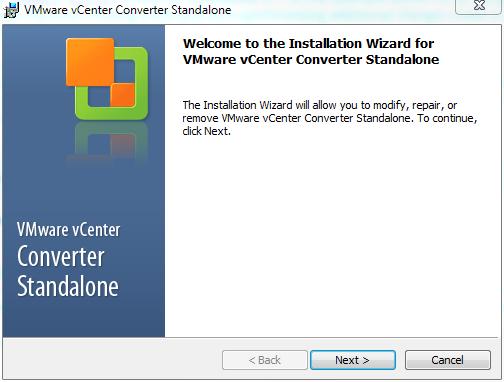
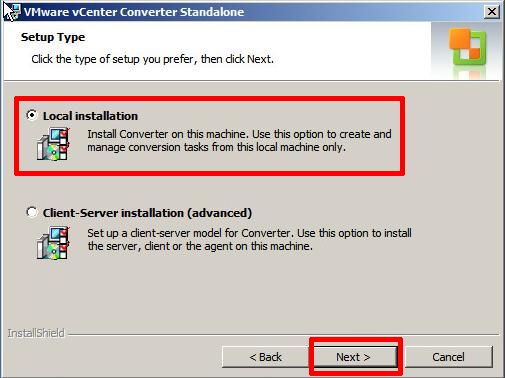
It is a very easy installation, click Next and follow the wizard, agreeing to the terms of the license agreement, select the default installation folder, and select Local installation
  • VMware vCenter Converter Standalone 5.1 – Local Installation

VMware vCenter Converter Standalone 5.1 - Local Installation

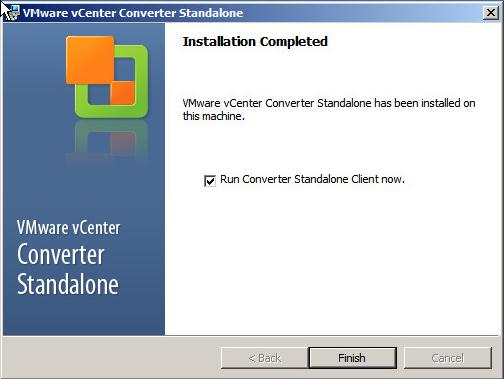
Click Next, and follow the installation wizard to the end, and Click Finish.
  • VMware vCenter Converter Standalone 5.1 – Finish

VMware vCenter Converter Standalone 5.1 - Finish

If you left the Tick in the Box for Run Converter Standalone Client now. VMware vCenter Converter Standalone will start, otherwise you will need to click the icon on your desktop.

2

Creating a P2V (V2V in this example) for synchronization

  • VMware vCenter Converter Standalone 5.1 – Welcome Screen

VMware vCenter Converter Standalone 5.1 - Welcome Screen

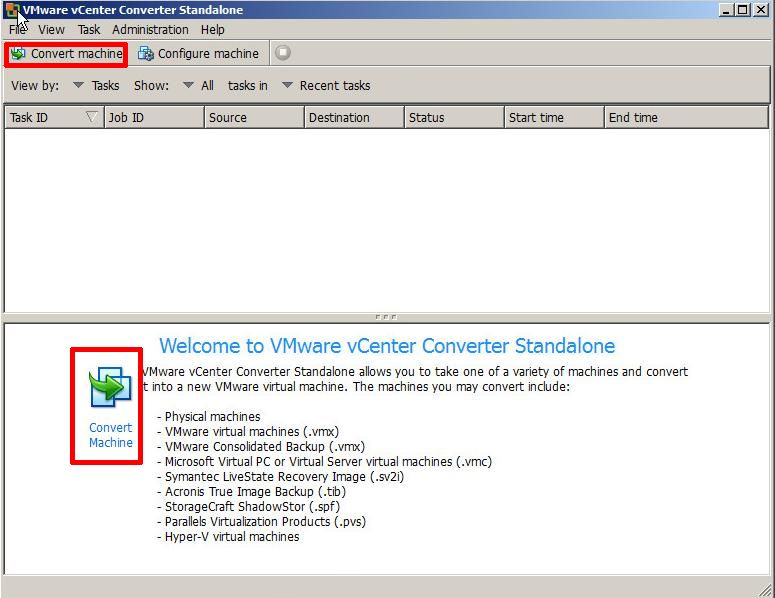
At the Welcome to VMware vCenter Converter Standalone, welcome screen click the Convert machine button. (This machine could be a physical or virtual machine, VMware vCenter Converter Standalone does not care what machine type it is.)
  • VMware vCenter Converter Standalone 5.1 – Convert Machine

VMware vCenter Converter Standalone 5.1 - Convert Machine

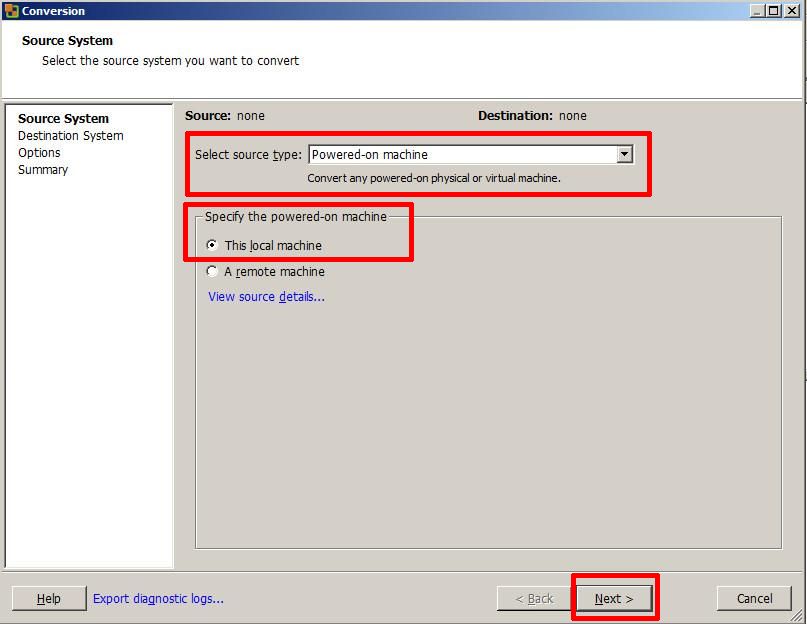
Select the Default option

Select source type: Powered-on-machine

Specify the powered-on machine: This local machine

followed by Next to continue, converter will identify the source machine.

  • VMware vCenter Converter Standalone 5.1 – Specify vCenter Server

VMware vCenter Converter Standalone 5.1 - Specify vCenter Server

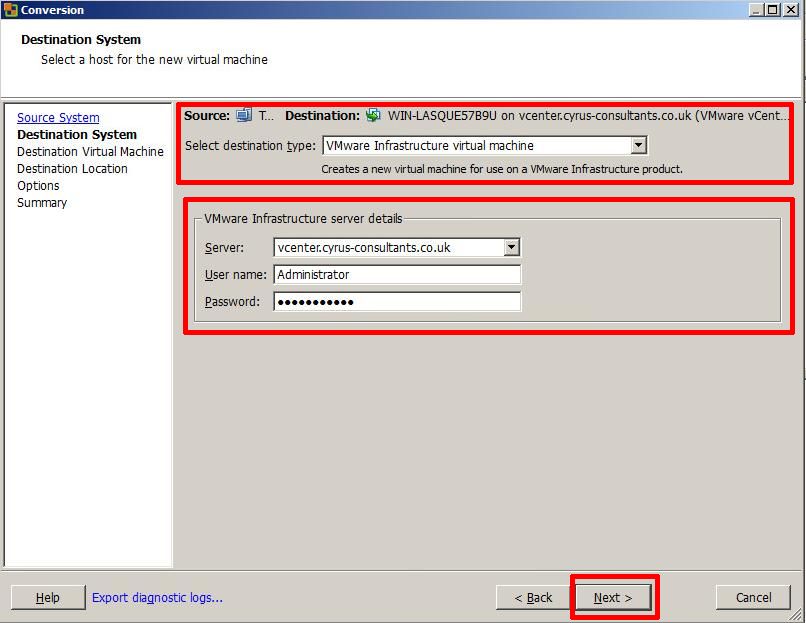
Select destination type: VMware Infrastructure machine

Enter the destination server, username and password, in this example, I’m using our VMware vSphere vCenter server details, but if you wanted to synchronize/replicate to a standalone VMware vSphere Hypervisor (ESXi) host, you would enter the VMware vSphere Hypervisor (ESXi)  host details here, e.g. root username and password.

  • VMware vCenter Converter Standalone 5.1 – Specify Destination Machine name

VMware vCenter Converter Standalone 5.1 - Specify Destination Machine name

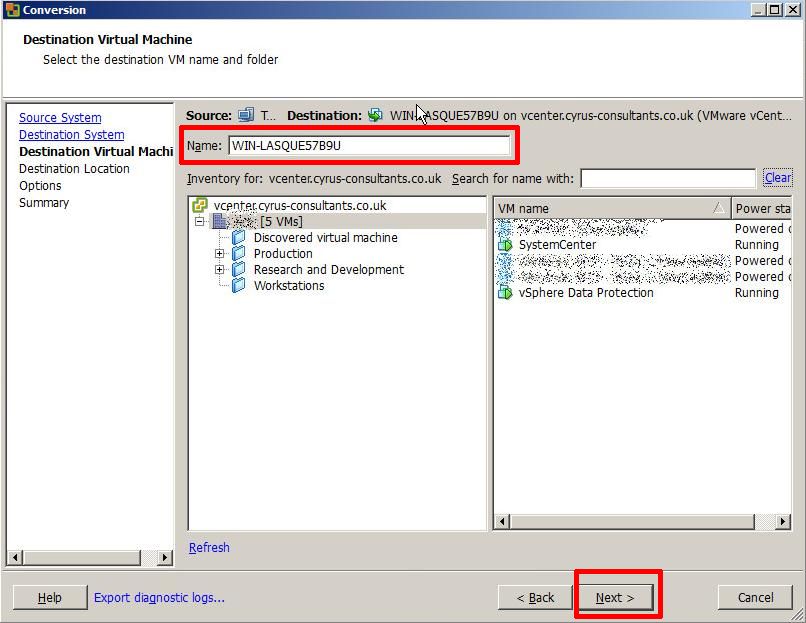
Specify the destination name of the machine followed by Next
  • VMware vCenter Converter Standalone 5.1 – Specify Destination Location

VMware vCenter Converter Standalone 5.1 - Specify Destination Location

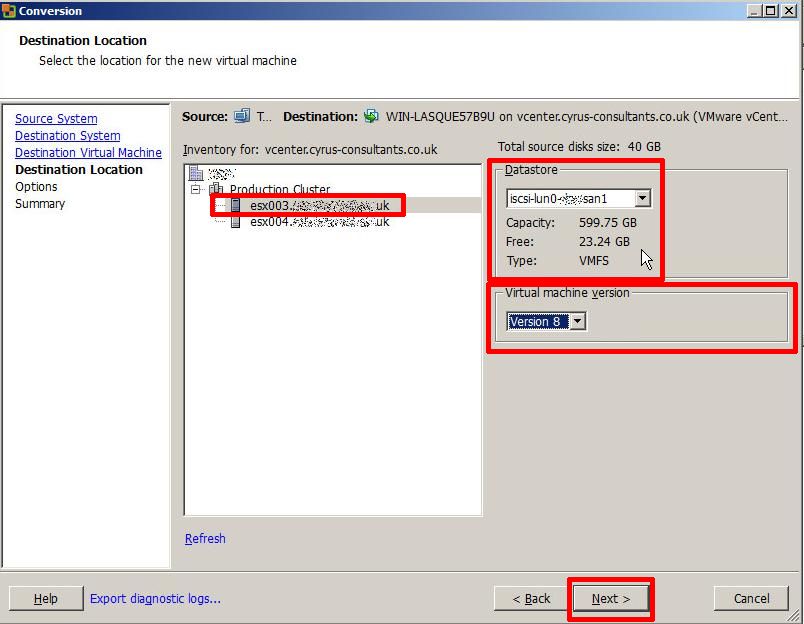
Specify the destination location for the machine followed by Next, if you are using a VMware vSphere vCenter Server and have a VMware Cluster created, you will have additional options to specify which VMware vSphere Hypervisor (ESXi) host to create the new virtual machine, also specify the datastore location. Ensure the virtual machine version matches the original VM, in this example v8.0.
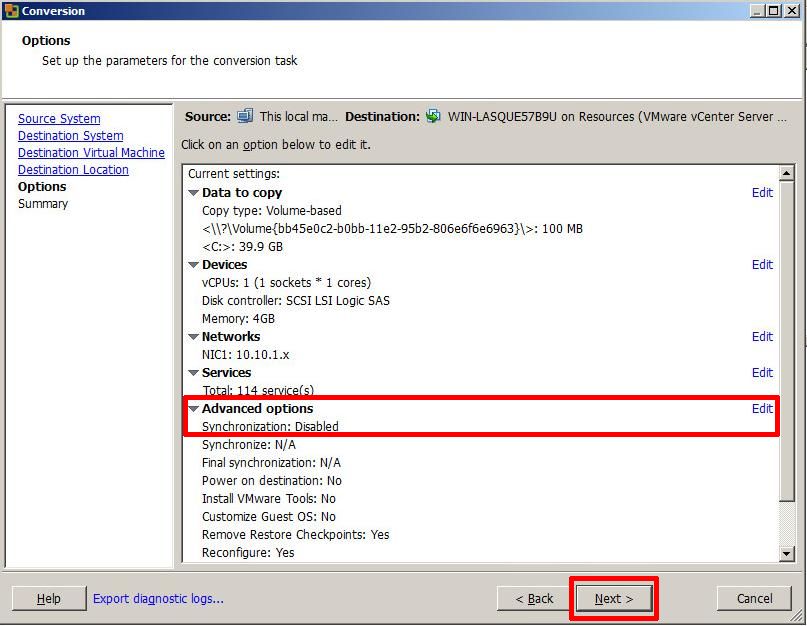
  • VMware vCenter Converter Standalone 5.1 – Enable Synchronize

VMware vCenter Converter Standalone 5.1 - Enable Synchronize

If you click Next at this point, the P2V (V2V) will complete as normal.

To enable the Synchronize function, you MUST select Edit

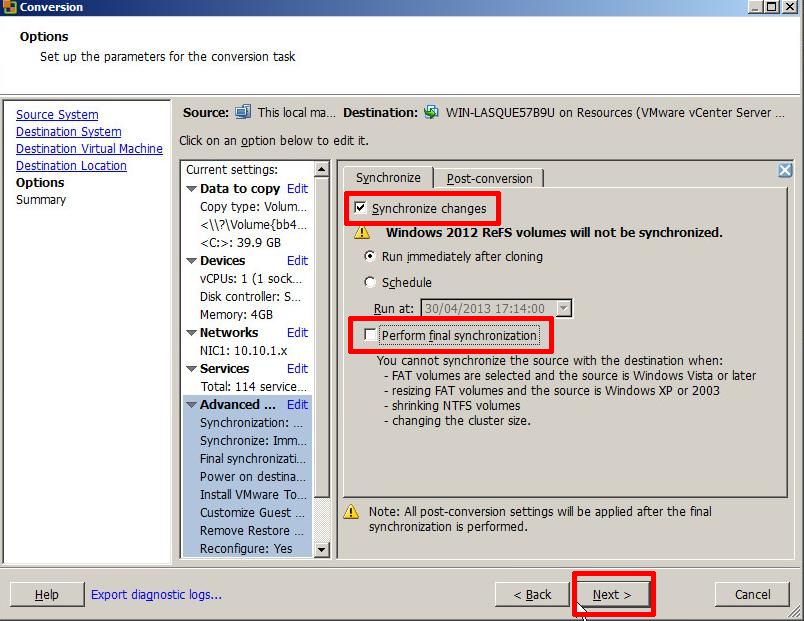
  • VMware vCenter Converter Standalone 5.1 – Enable Synchronise

VMware vCenter Converter Standalone 5.1 - Enable Synchronise

Ensure Synchronize changes is selected and ticked.

Ensure Perform final synchronization is Un-ticked.

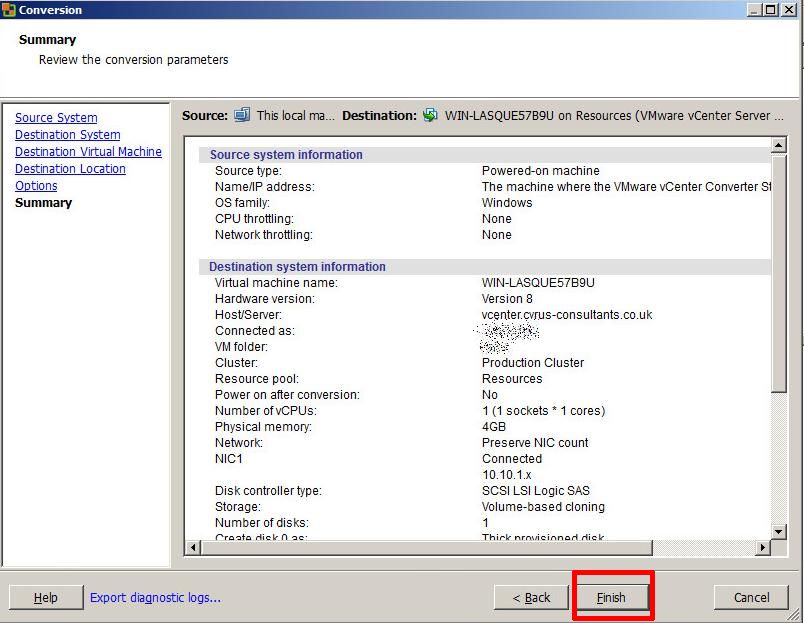
If you wanted to perform, a Scheduled Synchronize, select and set the Schedule Option. Select Next to continue, review the Summary screen, and select Finish.

  • VMware vCenter Converter Standalone 5.1 – Summary Screen

VMware vCenter Converter Standalone 5.1 - Summary Screen

A P2V job will be submitted and the P2V conversion will start.
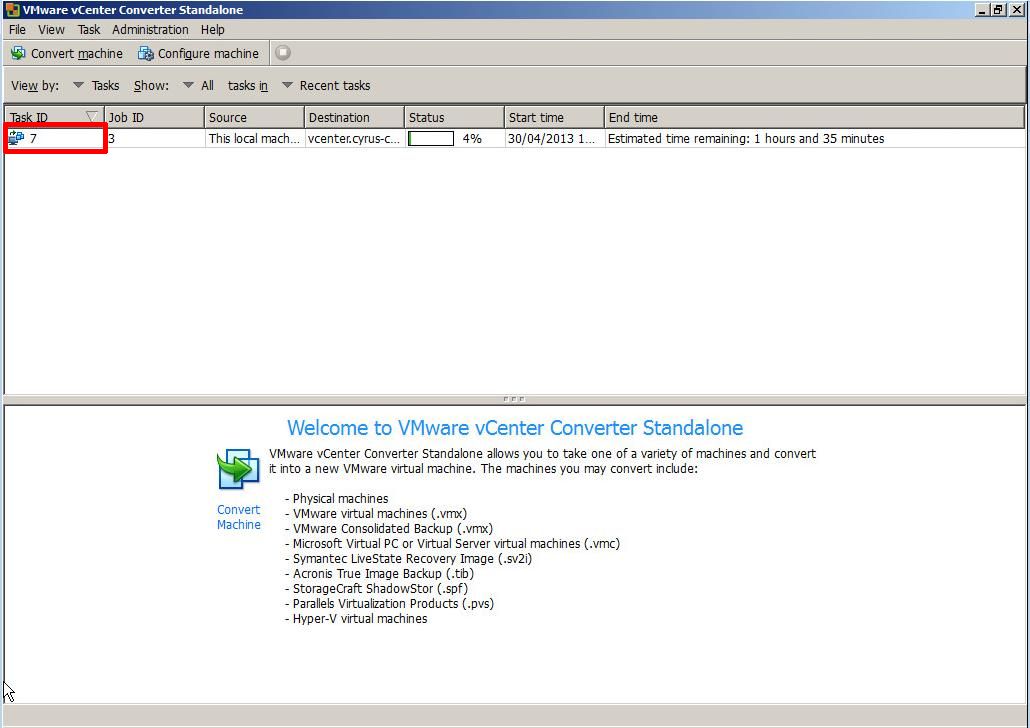
  • VMware vCenter Converter Standalone 5.1 – P2V Job Submitted

VMware vCenter Converter Standalone 5.1 - P2V Job Submitted

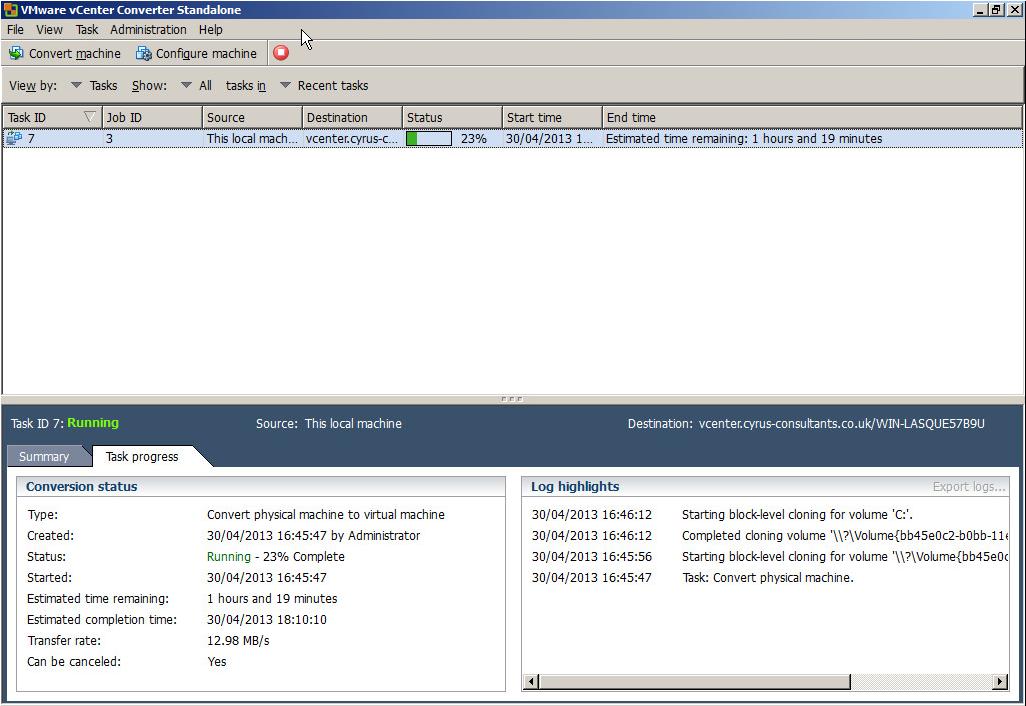
If you click the Task Id, you can check on the Task Progress.
  • VMware vCenter Converter Standalone 5.1 – Task Progress

VMware vCenter Converter Standalone 5.1 - Task Progress

3

Synchronize Changes

Once the initial P2V (V2V) conversion has completed, or “seeded” a new virtual machine, you can use the Synchronize function to replicate any changes that occur on the source machine to the virtual machine, the source machine could be a physical or virtual machine. (You can check the virtual machine by disconnecting networking, and powering up the virtual machine).

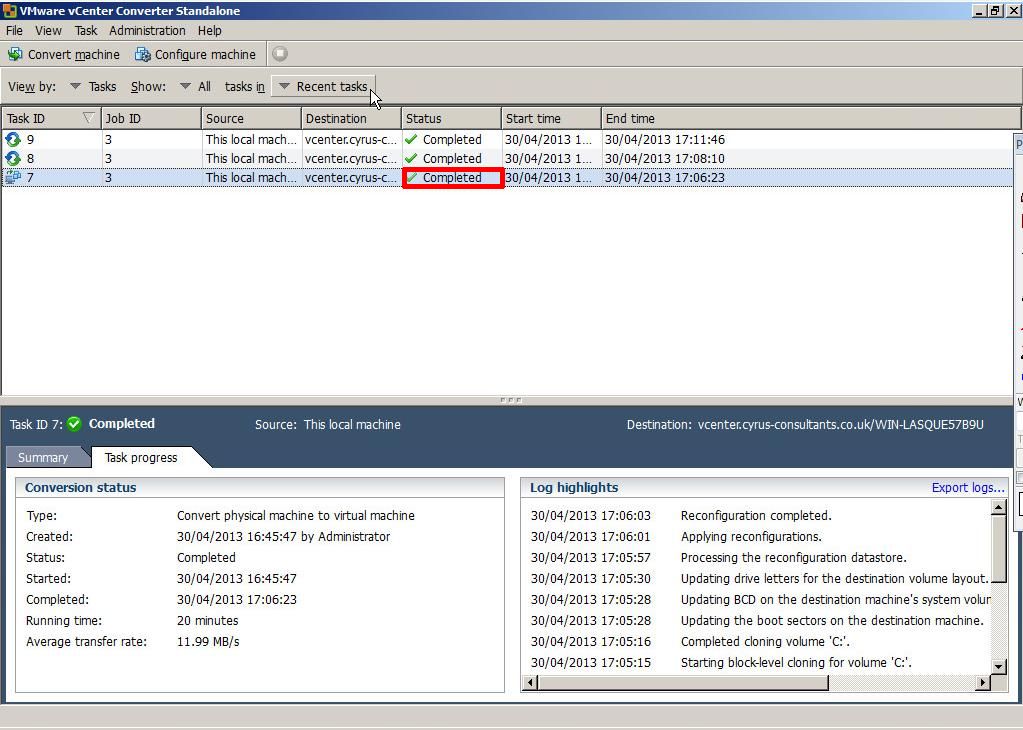
  • VMware vCenter Converter Standalone 5.1 – Job Status

VMware vCenter Converter Standalone 5.1 - Job Status

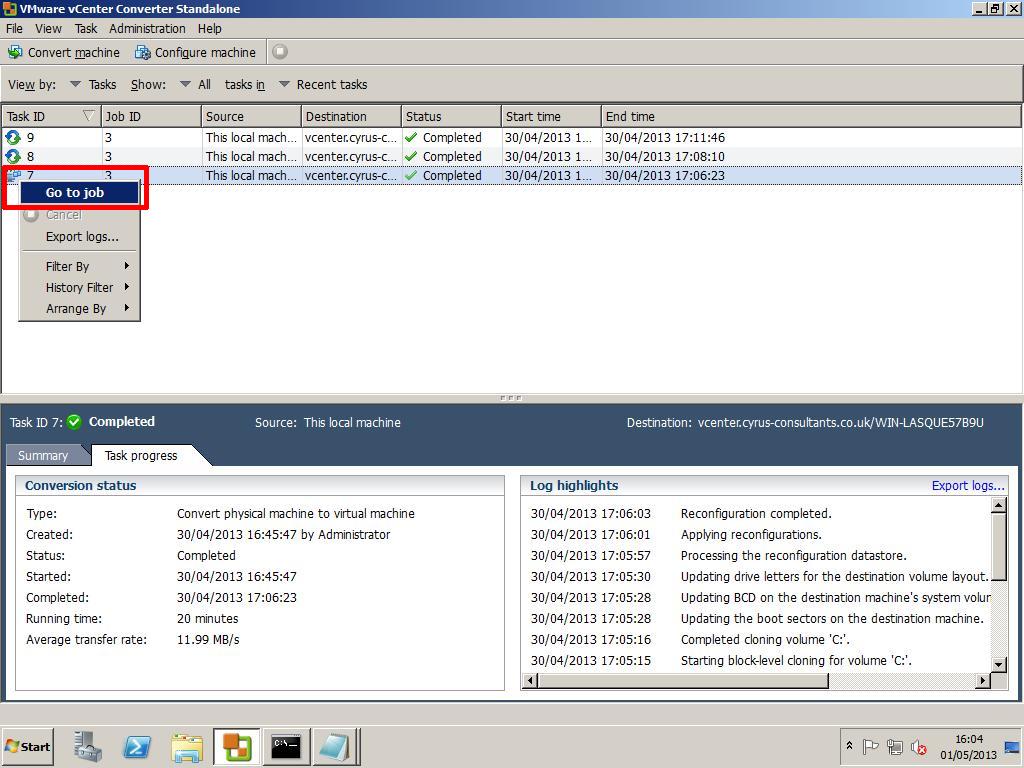
The Job Status should state Completed. Right Click the Task Id and select Go to job
  • VMware vCenter Converter Standalone 5.1 – Go to Job

VMware vCenter Converter Standalone 5.1 - Go to Job

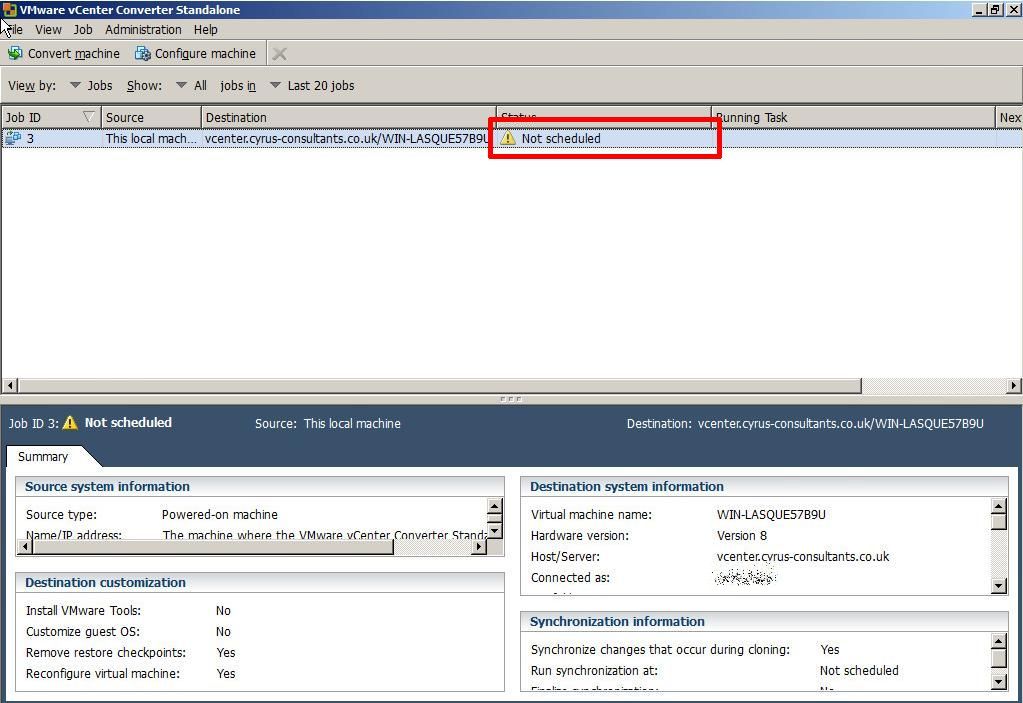
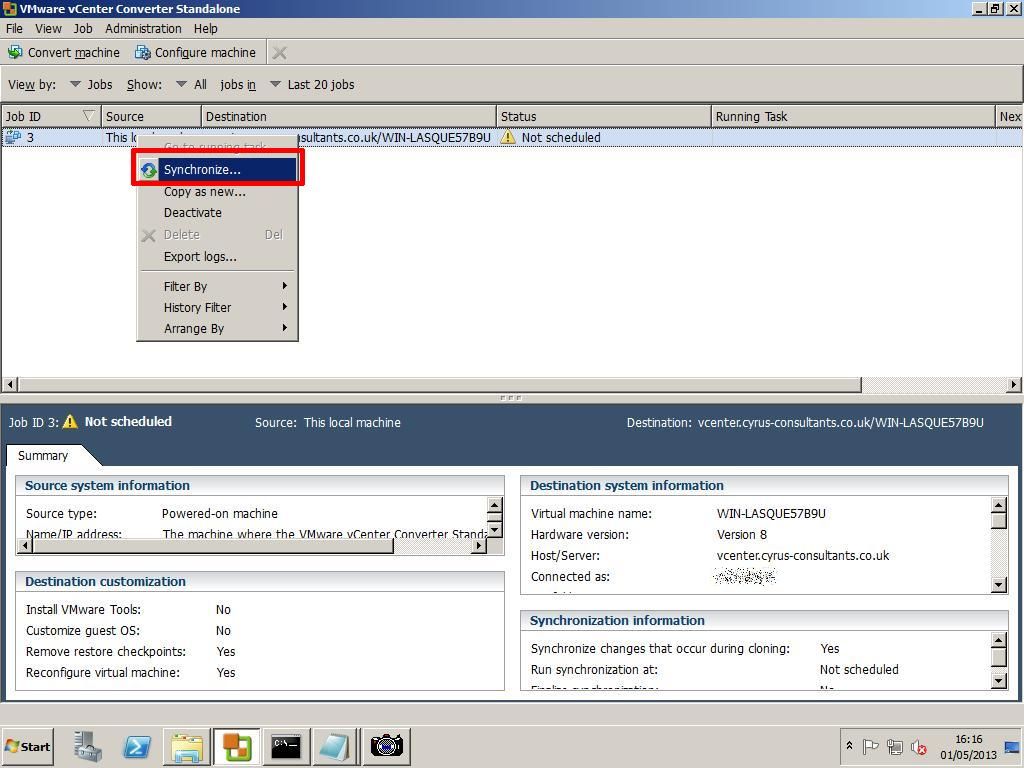
You will notice that the Status states Not Scheduled, this is because we did not set a schedule.
  • VMware vCenter Converter Standalone 5.1 – Not Scheduled

VMware vCenter Converter Standalone 5.1 - Not Scheduled

Right Click the Job Id, and select Synchronize.
  • VMware vCenter Converter Standalone 5.1 – Synchronize

VMware vCenter Converter Standalone 5.1 - Synchronize

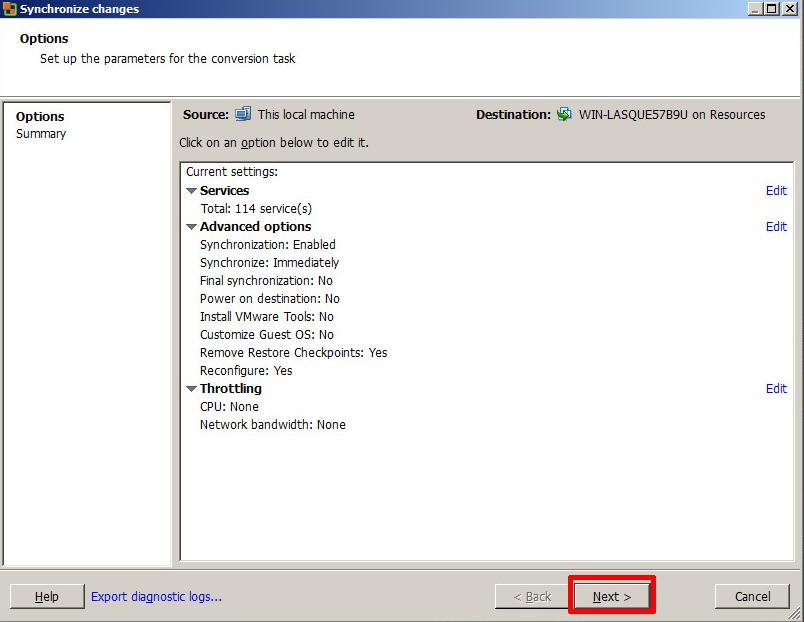
Click Next
  • VMware vCenter Converter Standalone 5.1 – Synchronize changes

VMware vCenter Converter Standalone 5.1 - Synchronize changes

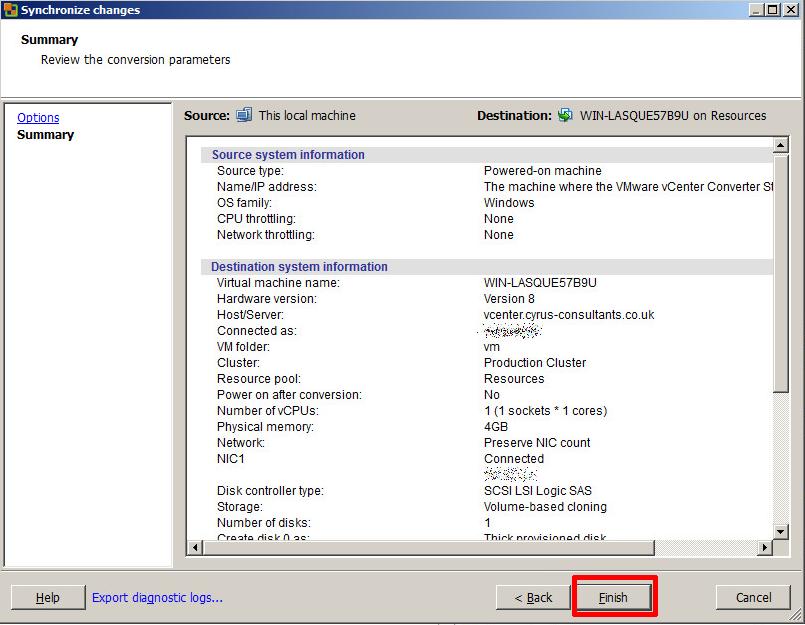
Check the Summary page and Click Finish
  • VMware vCenter Converter Standalone 5.1 – Finish

VMware vCenter Converter Standalone 5.1 - Finish

Click the View by Jobs
  • VMware vCenter Converter Standalone 5.1 – Synchronize Task Progress

VMware vCenter Converter Standalone 5.1 - Synchronize Task Progress

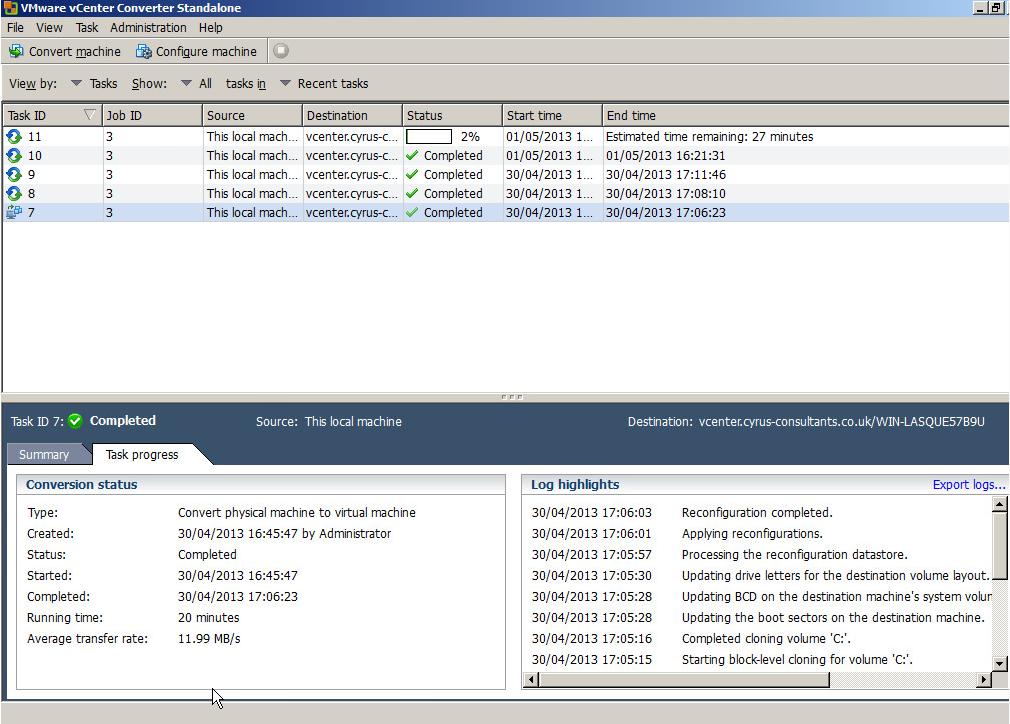
You will notice your Synchronize Job is Running, and it will have a new Synchronize icon, next to the job. All changes in the source machine will be synchronized or replicated to the virtual machine.

Congratulations you have successfully created a P2V (V2V) and Synchronized (replicated) your machine to a virtual machine.

HOW TO: P2V, V2V for FREE – VMware vCenter Converter Standalone 5.1

Thursday, May 2nd, 2013

HOW TO:  P2V, V2V for FREE – VMware vCenter Converter Standalone 5.1

If you need to complete a Physical to Virtual (P2V), Virtual to Virtual (V2V) conversion to a VMware product (VMware Workstation, Player or vSphere) for FREE, then there is some good news…VMware vCenter Converter Standalone 5.1 was released on 25 April 2013, and this latest version has new support for the following:-

  • Support for virtual machine hardware version 9
  • Guest operating system support for Microsoft Windows 8 and Microsoft Windows Server 2012
  • Guest operating system support for Red Hat Enterprise Linux 6
  • Support for virtual and physical machine sources with GUID Partition Table (GPT) disks
  • Support for virtual and physical machine sources with Unified Extensible Firmware
  • Interface (UEFI)
  • Support for EXT4 file system

Also fixes numerous issues with crashing and conversion issues, when converting physical or virtual computers to VMware vSphere vCenter Server 5.1 and VMware Hypervisor ESXi 5.1.

  • VMware vCenter Converter Standalone v5.1

VMware vCenter Converter Standalone v5.1

While I would recommend and use VMware vCenter Converter Standalone 5.1, there are other commercial products that do exist, and I have used.

If you have a large estate of physical machines to migrate, these products have a scheduler and can perform automated workflows, but these are commerical products and not FREE like VMware vCenter Converter Standalone 5.1

NETIQ Platespin Migrate

Acronis vmProtect

Storagecraft Shadow Protect

Symantec System Recovery Server Edition

If the operating system is Windows 2003, Windows 2000 or Windows NT 4.0, select and earlier version of VMware vCenter Converter Standalone version 3.0.3 or 4.0, support for early operating systems has been removed now from v5.1.

if you have recently upgraded to vSphere vCenter Server 5.1, and are looking for the Convert/Import vCenter plugin which existed with 4.x, it’s now longer available, and has been removed, and you will need to use  VMware vCenter Converter Standalone 5.1 for your conversions.

Download VMware vCenter Converter 5.1 here
VMware vCenter Converter Standalone 5.1 Documentation
VMware vCenter Converter Standalone 5.1 User Guide


If you have issues, you may want to consult the following articles and guides

Best Practice Video Guide here

Some Videos I’ve develeoped to show the VMware vCenter Converter process.

A Tutorial video by me:- Restore a Virtual Machine using the FREE VMware vCenter Converter to VMware vSphere 4.x, 5.0 ESXi 4.x, ESXi 5.0, ESX 4.0

A Tutorial video by me:- Backup VMware vSphere 4.x, 5.0 ESXi 4.x, ESXi 5.0, ESX 4.0 for FREE using VMware vCenter Converter

A Tutorial video by me:- VMware vCenter Converter Standalone 5.0 Convert monolithic sparse to monolithic flat for use with VMware vSphere 4.x 5.0 ESXi 4.x 5.0