Posts Tagged ‘Drivers’

Minisforum MS-A2 HOW TO: Install the NEW Realtek driver on ESXi 9.0

Wednesday, January 14th, 2026

Minisforum MS-A2: How to Install the New Realtek Driver on VMware ESXi 9.0

Running VMware ESXi 9.0 on the Minisforum MS-A2 is a fantastic option for homelabs and edge deployments, but out of the box you may notice that not all Realtek network interfaces are detected.

In this guide, based on my latest episode of Hancock’s VMware Half Hour, I walk through installing the new Broadcom-compiled Realtek driver (available as an official Broadcom Fling) to unlock additional NIC support.


What This Guide Covers

  • Why Realtek NICs are limited by default on ESXi 9.0
  • Where to download the official Broadcom Fling driver
  • Installing the driver using esxcli
  • Rebooting safely and verifying NIC availability

Supported Realtek Network Adapters

The driver demonstrated in this guide supports the following Realtek PCIe devices:

  • RTL8111 – 1GbE
  • RTL8125 – 2.5GbE
  • RTL8126 – 5GbE
  • RTL8127 – 10GbE

Driver Installation Command

Once the driver ZIP has been copied to your ESXi datastore and the host is in maintenance mode, install it using:

esxcli software component apply -d path VMware-Re-Driver_1.101.00-5vmw.800.1.0.20613240.zip

After installation, a reboot is required for the new network interfaces to become available.


Video Chapters

00:00 - Start
00:03 - Welcome to Hancock's VMware Half Hour
00:37 - Todays video - HOW TO Install Realtek driver on ESXi 9.0
00:55 - Broadcom Released the Realtek Driver fling in November 2025
01:55 - Minisforum MS-A2 - VCF 9.0 Homelab of the Year 2025 !
02:26 - Available as a Broadcom Fling - Tech Preview - not for production
02:55 - I'm not a fan of Realtek let it be known!
03:11 - Go to Broadcom Fling Portal site to download - https://support.broadcom.com/group/ecx/productdownloads?subfamily=Flings&freeDownloads=true
03:22 - Download the driver don't forget to Accept the Agreement!
03:51 - Enable SSH on Host, and use WinSCP to copy to local datastore
04:31 - Whoops Zoom is broke again!
05:07 - Connect to host using SSH
05:22 - Use lspci to show PCI devices in the host
06:05 - Use grep - lspci | grep Realtek
07:01 - Install the driver using esxcli software component apply -d /VMware-Re-Driver_1.101.00-5vmw.800.1.0.20613240.zip
07:59 - A reboot is required, reboot the server
08:36 - Reboot server
09:20 - The reason for the 10th Outake !
10:01 - Login to ESXi 9.0 using HTML Client
10:51 - Realtek driver is installed and network interfaces are available for use
11:07 - HenryChan1973 this video is for you!
12:23 - Thanks for Watching

Final Thoughts

This Broadcom Fling makes ESXi 8.0 far more usable on modern mini PCs like the Minisforum MS-A2, especially for homelabbers who rely on multi-gig Realtek networking.

Huge thanks to Henrychan1973 for their contribution and support.

If this guide helped you, consider subscribing on YouTube and checking out more VMware content on the blog.

– Andrew Hancock
Hancock’s VMware Half Hour
Minisforum MS-A2 HOW TO: Install the NEW Realtek driver on ESXi 8.0

Sunday, January 11th, 2026


Minisforum MS-A2: How to Install the New Realtek Driver on VMware ESXi 8.0

Running VMware ESXi 8.0 on the Minisforum MS-A2 is a fantastic option for homelabs and edge deployments, but out of the box you may notice that not all Realtek network interfaces are detected.

In this guide, based on my latest episode of Hancock’s VMware Half Hour, I walk through installing the new Broadcom-compiled Realtek driver (available as an official Broadcom Fling) to unlock additional NIC support.


What This Guide Covers

  • Why Realtek NICs are limited by default on ESXi 8.0
  • Where to download the official Broadcom Fling driver
  • Installing the driver using esxcli
  • Rebooting safely and verifying NIC availability

Supported Realtek Network Adapters

The driver demonstrated in this guide supports the following Realtek PCIe devices:

  • RTL8111 – 1GbE
  • RTL8125 – 2.5GbE
  • RTL8126 – 5GbE
  • RTL8127 – 10GbE

Driver Installation Command

Once the driver ZIP has been copied to your ESXi datastore and the host is in maintenance mode, install it using:

esxcli software component apply -d path VMware-Re-Driver_1.101.00-5vmw.800.1.0.20613240.zip

After installation, a reboot is required for the new network interfaces to become available.


Video Chapters

00:00 - Intro
00:06 - Welcome to Hancock's VMware Half Hour
00:31 - Today’s Video – Minisforum MS-A2
01:01 - Installing the ESXi Realtek Driver for ESXi 8.0
01:16 - Shoutout to member Henrychan1973!
02:03 - HTML Client view of network interfaces
03:00 - Broadcom engineering compiled a driver for ESXi 8.0
04:00 - Driver is available as a Broadcom Fling
05:00 - Download the driver from Broadcom Fling portal
05:44 - WinSCP – Copy driver ZIP to ESXi datastore
06:14 - Put host into maintenance mode
07:11 - Only three interfaces supported out of the box on MS-A2
07:16 - Start an SSH session using PuTTY
07:34 - Using lspci | grep Realtek
08:22 - Supported Realtek PCIe devices
08:35 - Installing the driver using esxcli
09:59 - Whoops! Typo!
10:37 - Can you spot it?
11:08 - Driver installed – reboot required
11:27 - Nano KVM issue accepting root password?
11:41 - Reboot via the GUI
12:30 - MS-A2 restarting
13:42 - Driver installed and Realtek interfaces available
14:54 - Thanks to Henrychan1973!
15:15 - Thanks for watching

Final Thoughts

This Broadcom Fling makes ESXi 8.0 far more usable on modern mini PCs like the Minisforum MS-A2, especially for homelabbers who rely on multi-gig Realtek networking.

Huge thanks to Henrychan1973 !!!

If this guide helped you, consider subscribing on YouTube and checking out more VMware content on the blog.

– Andrew Hancock
Hancock’s VMware Half Hour

Part 4: DIY UnRAID NAS – Insert new 10GBe NIC

Saturday, November 22nd, 2025


DIY UnRAID NAS Build – Part 4: Installing a 10GBe Intel X710-DA NIC (Plus an Outtake!)

Welcome back to another instalment of my DIY UnRAID NAS Build series.
If you have been following along, you will know this project is built around an Intel NUC chassis that I have been carefully (and repeatedly!) taking apart to transform into a compact but powerful UnRAID server.

In Part 4, we move on to a major upgrade: installing a 10GBe Intel X710-DA network interface card. And yes, the eagle-eyed among you will notice something unusual at the beginning of the video, because this episode starts with a blooper. I left it in for your entertainment.


A Fun Outtake to Start With

Right from the intro, things get a little chaotic. There is also a mysterious soundtrack playing, and I still do not know where it came from.
If you can identify it, feel free to drop a comment on the video.


Tearing Down the Intel NUC Again

To install the X710-DA NIC, the NUC requires almost complete disassembly:

  • Remove the back plate
  • Remove the backplane retainer
  • Take off the side panels
  • Open the case
  • Remove the blanking plate
  • Prepare the internal slot area

This NUC has become surprisingly modular after taking it apart so many times, but it still puts up a fight occasionally.


Installing the Intel X710-DA 10GBe NIC

Once the case is stripped down, the NIC finally slides into place. It is a tight fit, but the X710-DA is a superb card for a NAS build:

  • Dual SFP+ ports
  • Excellent driver support
  • Great performance in VMware, Linux, and Windows
  • Ideal for high-speed file transfers and VM workloads

If you are building a NAS that needs to move data quickly between systems, this NIC is a great option.


Reassembly

Next, everything goes back together:

  • Side panels reinstalled
  • Back plate fitted
  • Case secured
  • System ready for testing

You would think after doing this several times I would be quicker at it, but the NUC still has a few surprises waiting.


Booting into Windows 11 and Driver Issues

Once everything is reassembled, the NUC boots into Windows 11, and immediately there is a warning:

Intel X710-DA: Not Present

Device Manager confirms it. Windows detects that something is installed, but it does not know what it is.

Time to visit the Intel website, download the correct driver bundle, extract it, and install the drivers manually.

After a reboot, success. The NIC appears correctly and is fully functional.


Why 10GBe

For UnRAID, 10GBe significantly improves:

  • VM migrations
  • iSCSI and NFS performance
  • File transfers
  • Backup times
  • SMB throughput for Windows and macOS clients

It also future-proofs the NAS for any future network upgrades.


The Mystery Soundtrack

Towards the end of the video I ask again: what is the music playing in the background?
I genuinely have no idea, so if you recognise it, please leave a comment on the video.


Watch the Episode

You can watch the full episode, including all teardown steps, NIC installation, Windows troubleshooting, and the blooper, here:


Thank You for Watching and Reading

Thank you for following along with this NAS build.
Part 5 will continue the series, so stay tuned.

If you have built your own UnRAID NAS or have a favourite NIC for homelab projects, feel free to comment and share your experience.

Regards,
Andy

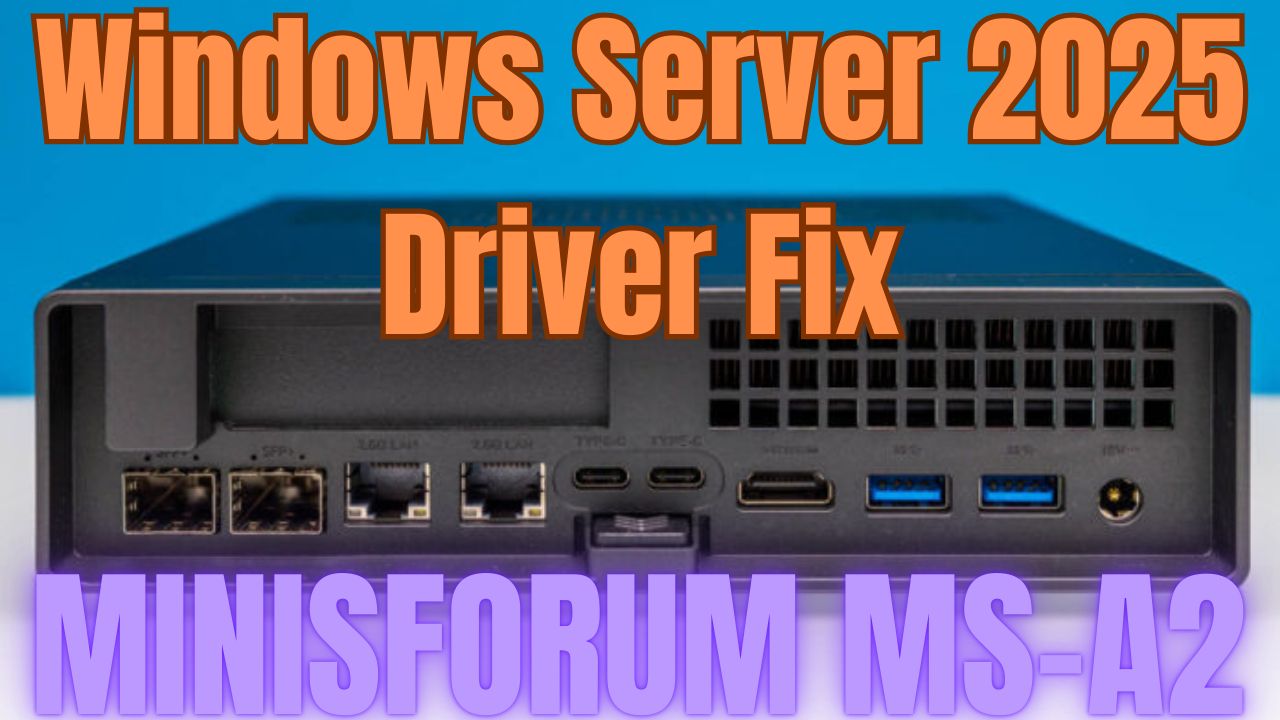
Minisforum MS-A2 Windows Server 2025 Driver Fix Minisforum MS-A2 Series Part 13 Ultimate #homelab

Monday, August 18th, 2025

Minisforum MS-A2 Windows Server 2025 Driver Fix Minisforum MS-A2 Series Part 13 Ultimate #homelab

In this episode of the Minisforum MS-A2 Ultimate #homelab series, I walk you through fixing missing drivers in Windows Server 2025 on the MINISFORUM MS-A2. From troubleshooting Device Manager issues to installing the AMD chipset drivers, PSP device, SMBus controller, GPU drivers, and Microsoft Pluton driver, this video will help you get your MS-A2 running smoothly on Server 2025.


Along the way, I also highlight some community contributions, share key tips like disabling power saving mode, and test the latest AMD Software: PRO Edition 25.Q2 for GPU support.

What you’ll learn in this video:

How to fix missing drivers in Windows Server 2025 on the Minisforum MS-A2
Which drivers are required: AMD PSP, SMBus, GPU, Microsoft Pluton
Why you must disable power saving mode for stability
How to install AMD Software: PRO Edition 25.Q2 for GPU support

Special thanks to the community:

LoCo (Scott Fell) for the T-shirt
Jason Macialek
Mark Howell

Perfect for homelab enthusiasts, VMware users, and anyone testing Windows Server 2025 on Minisforum MS-A2.

 Don’t forget to like, comment, and subscribe for more VMware + homelab content from Hancock’s VMware Half Hour!

Barebone Minisforum MS-A2 https://amzn.to/3GEoiOA
Crucial DDR5 RAM 96GB Kit (2x48GB) 5600MHz SODIMM https://amzn.to/3Uatfl4
Crucial DDR5 RAM 128GB Kit (2x64GB) 5600MHz SODIMM,https://amzn.to/3Uhef4U
Samsung 990 PRO with Heatsink https://amzn.to/4ePjYsr
Crucial P310 NVMe 1TB 2230 M.2 SSD https://amzn.to/44x055Y
NFHK M.2(A+E Key) 2230MM to NVME M-Key Extension Card Adapter for Motherboard NVME SSD Hard Drive Port Extension 2230/2242/2260/2280MM https://amzn.to/3Ix7rxz
MINISFORUM DEG1 Docking Station, PCIe x16 (PCIe4.0x4), Force Power On, ATX/SFX Power https://amzn.to/41pIYAQ
Purchases made through some store links may provide some compensation to Hancock’s VMware Half Hour

Enjoying the content? Support me with an espresso coffee! Buy Me an Espresso Coffee! – https://buymeacoffee.com/einsteinagogo
Donate – https://www.paypal.com/paypalme/AndrewHancock
Want to support British beekeeping? Get RAW PURE honey here! https://meltonbyhoney.com/ Sorry UK only, unless demand increases to international destinations!


Follow Hancock’s VMware Half Hour for more:
YouTube – www.youtube.com/@UCaqYL_WmGJohUoM-CAJk-DQ
Twitter – https://twitter.com/einsteinagogo
LinkedIn- https://www.linkedin.com/in/andrewhancock/