Archive for the ‘vExpert’ Category

PART 3: DIY Unraid NAS: Power Testing & Stability Checking with OCCT

Sunday, November 16th, 2025


PART 3 – DIY Unraid NAS: Power Testing & Stability Checking with OCCT

Welcome back to Part 3 of the DIY Unraid NAS series!
In Part 1, we unboxed and assembled the hardware.
In Part 2, we ran a quick Windows 11 installation test (and of course, everything that could go wrong… went Pete Tong).

Now that the system boots and behaves under a “normal” workload, it’s time to get serious. Before committing this Intel NUC–powered machine to Unraid full-time, we need to ensure it’s electrically stable, thermally stable, and capable of running 24/7 without surprises.

This stage is all about power draw, thermals, and stress testing using OCCT — a powerful tool for validating hardware stability.


Why Power & Stability Testing Is Essential for a NAS

A NAS must be:

  • Reliable
  • Predictable
  • Stable under load
  • Able to handle long uptimes
  • Capable of sustained read/write operations
  • Tolerant of temperature variation

Unlike a desktop, a NAS doesn’t get breaks. It runs constantly, serving files, running Docker containers, hosting VMs, and performing parity checks. Any weakness now — PSU spikes, hot VRMs, faulty RAM — will eventually show up as file corruption or unexpected reboots.

That’s why stress testing at this stage is non-negotiable.


Using OCCT for a Full-System Torture Test

OCCT is typically used by overclockers, but it’s perfect for checking new NAS hardware.
It includes tests for:

1. CPU Stability

Pushes the CPU to 100% sustained load.
Checks:

  • Thermal throttling
  • Cooling capacity
  • Voltage stability
  • Clock behaviour under load

A NAS must not throttle or overheat under parity checks or rebuilds.

2. Memory Integrity Test

RAM is the most overlooked component in DIY NAS builds.
Errors = silent data corruption.

OCCT’s memory test:

  • Fills RAM with patterns
  • Reads, writes, and verifies
  • Detects bit-flip issues
  • Ensures stability under pressure

Memory integrity is vital for Unraid, especially with Docker and VMs.

3. Power Supply Stress Test

OCCT is one of the few tools capable of stressing:

  • CPU
  • GPU (if present)
  • Memory
  • All power rails

simultaneously.

This simulates worst-case load and reveals:

  • Weak PSUs
  • Voltage drops
  • Instability
  • Flaky power bricks
  • VRM overheating

Not what you want in a NAS.

4. Thermal Behaviour Monitoring

OCCT provides excellent graphs showing:

  • Heat buildup
  • Fan curve response
  • Temperature equilibrium
  • VRM load
  • Stability over time

This shows whether the NUC case and cooling can handle long running services.


Test Results: Can the Intel NUC Handle It?

After running OCCT, the system performed exceptionally well.

CPU

  • No throttling
  • Temperatures within acceptable limits
  • Clock speeds held steady

RAM

  • Passed memory integrity tests
  • No bit errors
  • Stable under extended load

Power Delivery

  • No shutdowns or brown-outs
  • The power brick handled peaks
  • VRMs stayed within thermal limits

Thermals

  • Fans behaved predictably
  • Temperature plateau was stable
  • No unsafe spikes

In other words:
This machine is ready to become an Unraid NAS.


Why Validate Hardware Before Installing Unraid?

Because fixing hardware problems AFTER configuring:

  • Shares
  • Parity
  • Docker containers
  • VMs
  • Backups
  • User data

…is painful.

Hardware validation now ensures:

  • No silent RAM corruption
  • No thermal issues
  • No unexpected shutdowns
  • No nasty surprises during parity builds
  • The system is reliable for 24/7 operation

This step protects your data, your time, and your sanity.


What’s Coming in Part 4

With the hardware:

  • Burned in
  • Power-tested
  • Thermally stable
  • Verified by OCCT

We move to the exciting part:
Actually installing Unraid!

In Part 4, we will:

  • Prepare the Unraid USB boot device
  • Configure BIOS for NAS use
  • Boot Unraid for the first time
  • Create the array
  • Assign drives
  • Add parity
  • Begin configuring shares and services

We’re finally at the point where the NAS becomes… a NAS!

Stay tuned — the best parts are still ahead.


Part 2: Building a DIY NVMe NAS with the Intel NUC 11 Extreme (Beast Canyon) – Testing hardware with Windows 11 (and When Things Go Pete Tong!)

Sunday, November 16th, 2025

Welcome back to Part 2 of our DIY Unraid NAS adventure!
In Part 1, we unboxed the hardware, checked the spec, and got ready to build a tiny but mighty home-brew NAS around the Intel NUC “Skull” chassis.

Before committing this machine to Unraid full-time, I wanted to run a quick hardware test — and what better way than to throw a Windows 11 installation at it? Simple, right?

Well… maybe not.
As usual, things went a bit Pete Tong along the way! ?


Booting the NUC – and Immediate Problems

The video starts with the NUC firing up nicely… until I discover the mouse isn’t working.
Not ideal when you’re trying to install an OS.

After poking around, I realise the issue is down to the NanoKVM I use for remote access.
The trick?
Switch the KVM to HID mode only — suddenly the mouse returns from the dead.

Lesson learned:
Tiny KVMs can cause BIG installation headaches.


Ventoy + Windows 11 ISO = Let’s Try This Again

Once the input devices were behaving, I booted Ventoy from USB and selected the Windows 11 ISO.

This part should be smooth.
Except it wasn’t.

Windows 11 booted fine…
The setup loaded…
Language and keyboard selected…
Version chosen…
Installation begins…

Then:
“Windows 11 installation has failed.”

No reason.
No explanation.
Just a failure screen and a shrug.

Excellent.


If At First You Don’t Succeed – Install Again

Time for round two.

Ventoy ? Windows 11 ISO ? Setup ? Install
Copying files…

YES!
It finally completes.

That warm feeling of success lasted a whole ten seconds before Windows restarted to continue configuration — and hit me with another set of “what now?!” delays.

Still, persistence wins.
Eventually we get to:

  • Keyboard setup

  • Feature selection

  • Updates

  • Account creation

  • Security questions

  • More updates

  • Even more updates

Whoever said installing Windows 11 only takes 10 minutes was telling porkies.


Finally… Windows 11 Desktop

After the second attempt, repeated reboots, KVM issues, updates, and the bizarre initial failure, we finally land on a clean, working Windows 11 desktop.

Why bother with all this before Unraid?

Because hardware burn-in testing NOW can save hours (or days) of pain LATER.

And, despite the chaos, the system:

  • Booted reliably

  • Handled disk I/O without any red flags

  • Passed the Windows installation stress test

  • Proved the RAM and NVMe are behaving

  • Survived the “Hancock Troubleshooting Gauntlet”™

So we can move into Part 3 with confidence!

Part 1: Building a DIY NVMe NAS with the Intel NUC 11 Extreme (Beast Canyon)

Saturday, November 15th, 2025


Part 1: The Hardware Build

Welcome to AndysWorld.org.uk! Today, we’re diving into a project that’s perfect for anyone looking to build a powerful, yet compact, DIY Network-Attached Storage (NAS) solution. In this post, I’ll walk you through the first part of building a ‘MEGA’ NVMe NAS using the Intel NUC 11 Extreme (Beast Canyon). This mini-PC packs a punch with its powerful hardware, making it a great choice for a NAS build, especially when combined with UnRAID to handle storage and virtualization.


Why Choose the Intel NUC 11 Extreme for a NAS?

If you’ve been looking into NAS setups, you know the balance between power, size, and expandability is crucial. The Intel NUC 11 Extreme (Beast Canyon) checks all the right boxes, offering:

  • Compact Form Factor: It’s a small but powerful solution that doesn’t take up much space.

  • High-Performance NVMe Support: NVMe drives provide incredibly fast data transfer speeds—perfect for a NAS that needs to handle heavy workloads.

  • Flexibility for Virtualization: With UnRAID, you can set up multiple virtual machines, containers, and storage arrays, making it a versatile solution for any home or small office.

For this build, we’re focusing on using NVMe storage for high-speed access to files and a 64GB Kingston Fury DDR4 RAM kit to ensure smooth performance under load.


What You’ll Need for This Build:

  • Intel NUC 11 Extreme (Beast Canyon)

  • 64GB Kingston Fury DDR4 RAM

  • 2 x 512GB XPG GAMMIX NVMe SSDs

  • UnRAID Operating System

  • A few basic tools for assembly (screwdriver, anti-static mat, etc.)

If you’ve never worked with the Intel NUC before, don’t worry! I’ll guide you through every step of the assembly process. Let’s get into it!


Step-by-Step Build Process:

1. Unboxing the Intel NUC 11 Extreme

First things first, let’s unbox the Intel NUC 11 Extreme (Beast Canyon). When you open the box, you’ll find the compact, sleek chassis, which packs quite a punch for such a small form factor. This NUC is equipped with an 11th Gen Intel Core i7 processor and can support a variety of high-speed storage options, including NVMe SSDs.

2. Installing the RAM and NVMe Drives

With the NUC unboxed, the next step is to install the Kingston Fury RAM and XPG GAMMIX NVMe SSDs. Be careful during installation—especially with the tiny NVMe screws! The NUC has an easy-to-access compute board where both the RAM and NVMe drives will fit.

  • Installing the RAM: Simply slot the 64GB Kingston Fury DDR4 RAM sticks into the dedicated slots, making sure they’re fully seated.

  • Installing the NVMe SSDs: These go directly onto the motherboard and can be secured using small screws. Be sure to handle them gently as the connectors are quite delicate.

3. Reassembling the NUC

Once the RAM and NVMe drives are installed, it’s time to reassemble the NUC. This involves:

  • Reattaching the fan tray and shroud

  • Reinstalling the side and back panels

At this stage, everything should feel secure and ready for the next steps.


Why NVMe Storage for a NAS?

NVMe drives are game-changers when it comes to NAS storage. Here’s why:

  • Speed: NVMe offers lightning-fast read/write speeds compared to SATA SSDs or traditional HDDs. For anyone who works with large files or needs to serve data quickly, NVMe is a must.

  • Future-Proofing: With more applications and data being handled in the cloud, having NVMe in your NAS ensures your storage solution is ready for the future.

  • Reliability: NVMe drives are more reliable than traditional spinning hard drives, with less moving parts and faster data recovery times.


What’s Next?

Now that we’ve completed the hardware installation, in the next post, we’ll dive into setting up UnRAID on the NUC. UnRAID will allow us to easily configure our storage arrays, virtual machines, and containers—all from a user-friendly interface. Stay tuned for Part 2, where we’ll cover configuring the software, optimizing the NAS, and making sure everything runs smoothly.


Helpful Resources:

To help you along the way, I recommend checking out the blog posts from two experts in the field:


Wrapping Up

This build was just the beginning! The Intel NUC 11 Extreme provides an excellent foundation for a fast, reliable NAS. With NVMe storage and the flexibility of UnRAID, you can build a high-performance system that’s both versatile and compact.

What do you think of this build? Have you used the Intel NUC for similar projects? Drop a comment below or connect with me on social media—I’d love to hear about your experiences!


Follow Andy’s World for More DIY Tech Projects
Don’t forget to check out the latest posts and tutorials on AndysWorld.org.uk to keep up with all things tech and DIY. Happy building!


A Heartfelt Thank You – 3,000 Subscribers on Hancock’s VMware Half Hour

Thursday, August 28th, 2025

I’m truly humbled and overjoyed to share that Hancock’s VMware Half Hour has reached 3,000 subscribers on YouTube!

What started as a passion project — a way to share knowledge, experiences, and insights into VMware, virtualization, and homelab technologies — has grown into a community of like-minded professionals, enthusiasts, and learners from around the world.

Each view, like, comment, and subscription means more to me than I can put into words. Your support has made this journey worthwhile, and it’s your engagement that inspires me to keep producing content. Whether you’ve been here since the very first video or only recently joined the channel, please know that you are a vital part of this milestone.

I created Hancock’s VMware Half Hour to make complex technologies more accessible and approachable, while also providing a space to experiment and have a bit of fun along the way. To see that 3,000 of you have found value in this journey fills me with both gratitude and excitement for what’s ahead.

From the bottom of my heart, thank you for being part of this community. Here’s to more videos, deeper discussions, and continuing to learn and grow together.

If you haven’t already, I’d love for you to subscribe to the channel, share it with friends or colleagues, and let me know what topics you’d like to see covered next. Together, we can keep building this incredible community.

And finally — here’s to the next big milestones: 5,000, 10,000, and beyond…

— Andrew ‘Andy’ Hancock


Hall of Fame – Thank You for 3,000 Members!

thanks . Awaiting for VCF 9.0 videos for learning

— @ajeeshisacsamuel3423

I loved watching your videos, but they seem to be underperforming in search results. ? I can help with that by tweaking some SEO settings. Reach out if you’d like my help!

— @AL-AMINSHEIKHH

Thanks I was wondering how to migrate the vcenter server appliance and now I know. unregister and register using vsphere. Can you set the EVC mode of a host or only a cluster and a VM? thanks

— @alexwells2231

@ thanks for the reply

— @alexwells2231

Thanks my friend, your channel is very valuable ?

— @Amamosni

Great LAB , thanks for the explanation

— @AnasAlwerfally-e3c

YOU ARE MY HERO, your content about vm vsphere is what I need. Thanks sir

— @Andrew-i2f1s

@ Thank you. Wanted to give this a go but went to VMUG today and they’ve stopped lab licensing which is a shame. Thanks for the info though.

— @andreww3575

 @einsteinagogo  thanks for the reply although I don’t think HR would approve of the beer 😉

— @andybailey4466

Great and detailed video, cheers mate! ??

— @Angelos_yu

I love you man, I’ve received a mail from my host telling me to upgrade my ESXi but I was lost with the whole broadcom thing, you saved my life ?

— @AntoineNiveau-ty1vw

Saved me tons of hours, thanks

— @Assah_Bismark

Thank you for video.

— @avinash0072355

Thank you for this video This tutorial just helped me recover my xbox series x as I accidentally used a drive with a diff data size

— @beegeex2jenkins850

Thank you, VMware doco a nightmare to navigate and you’re vid got me sorted 🙂

— @benniemc2002

Thank you Andrew.

— @bgenner59

Hi, thanks for the video Thanks in advance

— @Bob-n2f8x

Very well explanation, thank you very much for the content, really useful!

— @bravazq

Thank you so much, Sir. Finally, my virtual machine it’s running.

— @brayanpachongo

Thanks for these tutorials.

— @brianmorgan7207

Great video! Easy to follow. But, my brother, an Espresso and Pepsi Max at the same time might not be good for blood pressure 🙂

— @chancebingen6760

Thanks for your guide Thanks for rhe videos. I’ll subscibe & like. A source for VMware info may be helpful down the road.”

— @DataOnline_VN

?? @einsteinagogo Thank you sir. i have very minimal hardware like i have an i3 6100 , 12GB ram. Any advices to run these resource hungry programs ?

— @DeekshithAE

Thanks so much, worked flawlessly on my production setup. It is so much easier using vLCM !!

— @FlemmingWiltonHansen

Thanks. This was quite helpful. Side note, your config file has SAN (hostname, fqdn, ip). With this, when you sign in a Microsoft CA, it pulls this all the way through. When you set the SAN in the MSFT CA, you actually dropped the hostname and IP. At least that’s what I’ve observed but I’m not a cert guru.

— @FrostbyteVA

 @einsteinagogo  I actually found how to fix it. Thank you.

— @garychios

Great tutorial, thanks!

— @gerardgajda2236

great video!

— @GoodBoy-zc3ol

I’ve a A2. Great vids. Subscribed ?

— @GPUGear

Thanks for sharing this! I’m with you, adding this plugin just adds complexity, yes you will login to one place ONLY, but how many times you’re sizing luns etc I just dont see the productivity for small environments. Not to mention with updating your vcenter etc things can get melted and plugins might just stop working.

— @hahahaha7023

 @einsteinagogo  That was what i was looking for exactly. Thank you very much Andrew.

— @harbinur

very useful and informative video. thanks

— @harbinur

Very good, thank you!

— @josephtnied

Thanks for the video, how did you download the patch?

— @JulSaraci

Can you use the free version in a production environment or is there something in the eula that doesn’t allow for this? Thanks!

— @kabookeo

 @einsteinagogo  Awesome! Finally, some good news from Broadcom. Yup. Subscribed weeks ago when I found your channel and always like. Do you ship your honey to the US?

— @kabookeo

Excellent video, perfect example of how a tutorial should be done – doesn’t waste time. Thank you!

— @Kimomaru

Thanks for this (and the link in Reddit!) – my old VMware account was well and truly buggered!

— @leopoldbluesky

Thank you so much for your insight! I was looking to run a spp on a hpe proliant dl380 gen 9 remotely but couldn’t seem to get it to run on any of the virtual machines. I now know that I need to be in front of the server in order to run the spp.

— @leviwinkels9465

Well, Mr. Hancock, you are much smarter than I am when it comes to driver manipulation. Awesome job. Based on this video, my device manager is clean, and my OCD is in check. 🙂 Looking at some of your other videos, I think we are in the same industry. I worked for Citrix for fourteen years. I left in 2022 when they were acquired and taken private by two PE firms. I saw the writing on the wall, but never imagined where that writing would take Citrix.
My next project for this A2 is to install an A2000 and utilize GPU-P in Hyper-V. If you have any videos lying around for that, let me know 🙂

— @MarkHowell-wm3dj

Hi, let me know if you find anything regarding Server 2025 and drivers. I need to run Server 2025 for Hyper-V and like you, I have OCD when it comes to not having the drivers installed.
Thanks,
Mark.

— @MarkHowell-wm3dj

Thank you very much for your videos. Thanks again and great job!

— @matteobruno83

Your channel has great content, but I noticed your SEO could use a boost. ? Want me to help you optimize it for better reach? Let me know if you’re interested!

— @MD-AL-AMIN-SHEIKH2

Hello! I was wondering if you had any success with the M.2 (A+E) Key converter ? Thanks in advance!

— @medismailben

? @einsteinagogo  thanks man, solved it

— @Minavenesi839

Great video, Thanks!

— @MJSEdgar

thanks vmware brotha! i just patched my sandbox environment. much appreciated. cheers

— @MotoTrackSide

thank you! it works for me. other tutorials(disable hyper-v in Turn Windows features on or off) are completely out of date.

— @phakedreamer

Hey man, thank you very much for this video. I learned how to update ESXi — really appreciated!

— @PoudandaneOUTCHADEVIN

Thanks for the video

— @refra78

Thanks , great video

— @rikirapper

I want to get one of these, great video. I was super curious if you would replace the wifi card with a small sata SSD for boot drive. I want all the m.2 for storage. and you answered my question. thank you

— @rushunt2131

Thanks for the video. Just curious why you went Veem vs Nutanix move?

— @seanwoods1526

Thanks for the video. Next to build-24723872, I now see “standard.” That didn’t appear before… Should I be worried? Thanks again.

— @Sergiopalm

Thank you so much!

— @Servietsky_

 @einsteinagogo  Thank you!!

— @Servietsky_

Hi there. Thank you for taking the time to make your videos. They have been extremely helpful. So hard to find good VMware walkthroughs, and good teachers! Thx.

— @shavonne4831

Thank you Andrew it was really useful session. Kindly upload more videos on zerto related to journal alerts, rpo etc. There is hardly any available explaining these concepts and how to trouble shoot. Thanks much ??

— @shikvrm537

hi thanks for the video, can i also do this on ESXI 8u3c installed with HPE custom iso? hpe does not care to bring out 8u3d somehow 😀

— @snaporama

 @einsteinagogo  Thanks!

— @Spartan-u1l

Excellent content as usual!

— @stangbanger903

Thanks for the shout out! Awesome video!

— @StephenWagner

Bravo Sir, Thank you for posting

— @theboywholived2

Thanks Hancock’s!

— @TheWillkson

Great video! Just one question: do I need a unique token for each product? For example, here I’m using vCenter 7.0.03, Lifecycle Manager, vROps 8.16, and ESXi 7…

— @tiagoolv5115

super nice ! thank you for the video ! What would be helpful, if you list the commands in the description, like it was before. Anyway, the most comprehensive tutorials about ESXi !

— @tibigrigorescu94

Excellent, thank you.

— @tonyhall699

Many thanks for the great video

— @tuxmsantos

Thank you Andrew Hancock

— @velikadirkozan

Great summarized info! Only thing is after this, on fairly updated versions, it still throws an “System logs on host 10.1.1.4 are stored on non-persistent storage” message, any idea on that one?

— @VictorEstrada

Thanks for this video. Is it possible to create a video on how to monitor vSphere infrastructure by creating customized alerts for and send those via email whenever any configuration changes are made.

— @VikasSharma-ns7sp

 @einsteinagogo  Thank you

— @vinothjijan6114

Excellent video

— @VirtualJamesKing

Hello. Thanks for video. Helpful but 1 question. In your video, when you install, at 6:25, you only have option Upgrade or Install. I have Upgrade, install and preserve datastore and Install and overwrite datastore. If I choose to install preserving datastore, one installation completes my datastore browser is completely empty. Any suggestion? Please take note that the vmware esxi of which I am recovering lost password is version 7.0.2, and that I am installing a 8.0.2 version. Thank for help!

— @WeddingPlannerRome

@einsteinagogo  thank you it just for my home lab for learning, any way I finally upgraded via DCUI incase someone have same problem

— @wilsonsony


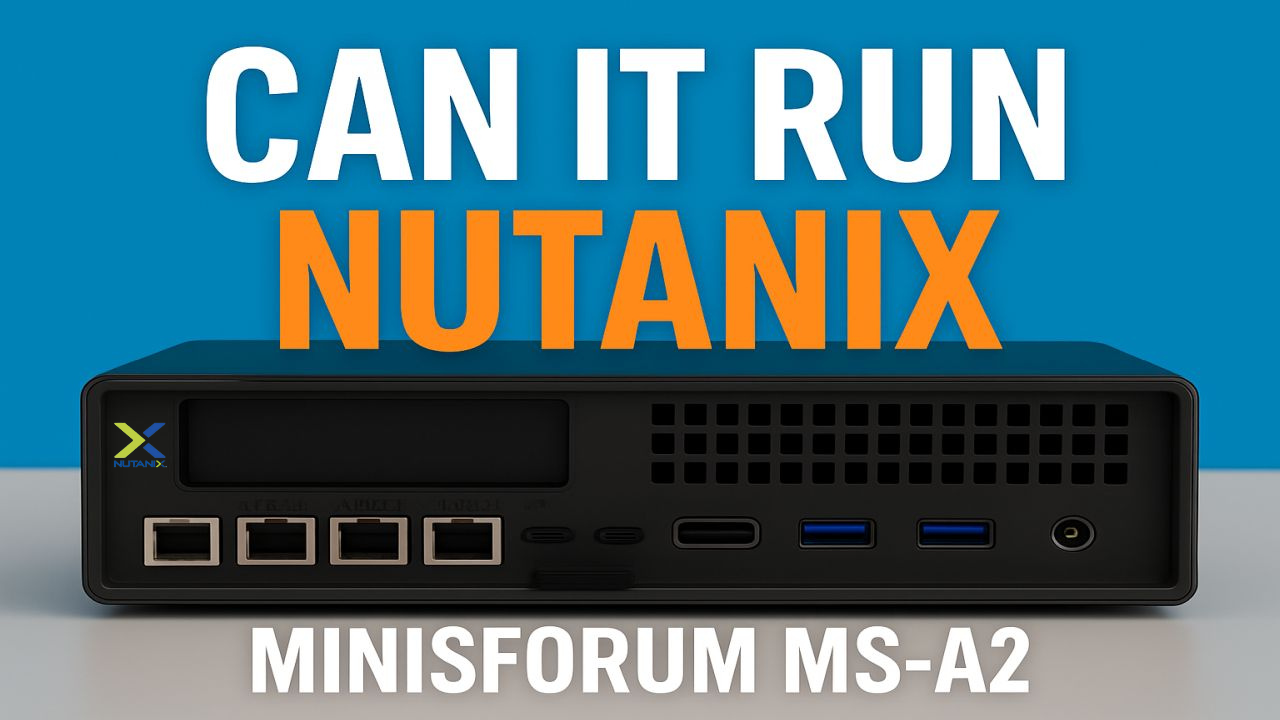
Minisforum MS-A2 Can it Play Nutanix AHV Minisforum MS-A2 Series Part 17 Ultimate #homelab

Sunday, August 24th, 2025

In Part 17 of the Minisforum MS-A2 Ultimate #homelab Series, we put the Minisforum MS-A2 mini PC through its paces to see if it can handle Nutanix CE 2.1 (AHV).

This isn’t just a quick test — we go through the entire process of installing, configuring, and running Nutanix AHV on the MS-A2, step by step. If you’ve ever wondered whether a compact system can run enterprise-grade hyperconverged infrastructure, this video will show you how it’s done.

Here’s what you’ll learn and see in this deep dive:

Preparing the Installer: We boot the MS-A2, then use Rufus to create a USB ISO installer for Nutanix CE.

Kernel Panic Fix: Early in the boot we hit a kernel panic, but don’t worry — you’ll see how to fix it by disabling PSS support, and then boot Nutanix CE cleanly.

Installing Nutanix CE: Once the installer runs, we select hypervisor, CVM, and data devices, configure host and CVM IP addresses, set subnet/gateway, and accept the EULA.

First Boot & Cluster Setup: After rebooting, Nutanix AHV comes up. We SSH into the host and CVM, check VMs with virsh, and run the key cluster creation commands (full details on GitHub).

Cluster Status & Web Access: With the cluster online, we connect to Prism through the external IP, log in, change passwords, and link to the NEXT account.

Upgrades with LCM: Using Lifecycle Manager, we update the cluster to the latest AHV build, confirming the upgrade process works on the MS-A2.

Creating a VM: We upload ISOs (including Guest Tools), create a network subnet, and build our first VM on Nutanix AHV. You’ll see the MS-A2 handle a 4TB allocation (4096G) without issue.

Running Windows Server 2025: Finally, we boot a Windows Server 2025 ISO, walk through installation, and log in with our configured credentials — proving the MS-A2 can run Windows on top of Nutanix AHV.

By the end of this video, you’ll know exactly what to expect when running Nutanix CE 2.1 on the Minisforum MS-A2 — from install quirks and cluster setup to VM deployment.

Minisforum MS-A2 Can it Play XCP-ng 8.3 LTS Minisforum MS-A2 Series Part 16 Ultimate #homelab

Thursday, August 21st, 2025

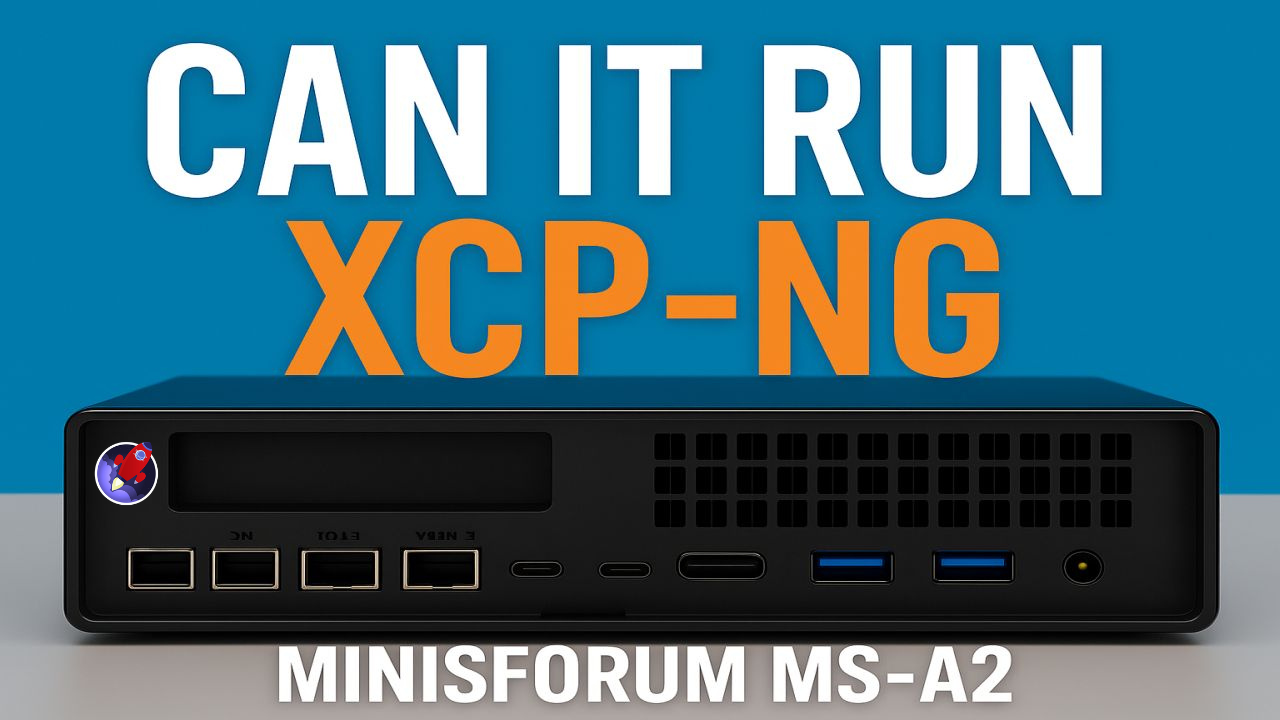
Minisforum MS-A2 Can it Play XCP-ng 8.3 LTS Minisforum MS-A2 Series Part 16 Ultimate #homelab

In this episode of Hancock’s VMware Half Hour, we put the Minisforum MS-A2 through its paces to see if it can run XCP-ng 8.3 LTS – the long-term support release of the popular open-source virtualization platform.

From BIOS tweaks to kernel panic fixes, watch step-by-step as we:

Install XCP-ng 8.3 LTS on the MS-A2

Overcome BIOS issues like PSS and Global C-States causing kernel panics

Configure storage, networking, and system settings during installation

Update and patch XCP-ng with the latest kernel

Deploy Xen Orchestra (XOA) – the XCP-ng equivalent of VMware vCenter Server

Create and run a Windows Server 2025 VM to validate performance

If you’re building a #homelab or exploring alternatives to VMware, this guide will show you how the MS-A2 handles XCP-ng 8.3 LTS as a lightweight and affordable virtualization host.

60 second migrations! Watch & Learn! Minisforum MS-A2 Hyper-V to Proxmox 9.0 Migration Minisforum MS-A2 Series Part 15 Ultimate #homelab

Wednesday, August 20th, 2025

Minisforum MS-A2 Hyper-V to Proxmox 9.0 Migration Minisforum MS-A2 Series Part 15 Ultimate #homelab


In this episode of Hancock’s VMware Half Hour, I walk you through migrating Hyper-V virtual machines to Proxmox 9.0 on the Minisforum MS-A2. 

We’ll cover connecting to the Proxmox server via SSH, exploring datastores, working with VHDX files, and running migration demos—including moving a full VM in under 60 seconds! This step-by-step guide shows how easy it is to transition workloads from Hyper-V into Proxmox for your #homelab or production environment.

Whether you’re testing, learning, or planning a migration, this video gives you the tools and knowledge to make it happen smoothly.

Scripts are here on GitHub – https://github.com/einsteinagogo/Hyper-VtoProxmoxMigration.git

Minisforum MS-A2 Can it Play Proxmox 9.0.3 Minisforum MS-A2 Series Part 14 Ultimate #homelab

Tuesday, August 19th, 2025

So I went to the Dark Today!


Minisforum MS-A2 Can it Play Proxmox 9.0.3 Minisforum MS-A2 Series Part 14 Ultimate #homelab

In this episode of the Minisforum MS-A2 Series, I take the brand-new MS-A2 and put it to the test by installing Proxmox VE 9.0.3. From booting off Ventoy, setting up the U.2 Samsung NVMe, configuring root credentials, and finalizing the installation — all the way to creating and running a Windows Server 2025 VM — we’ll see if the MS-A2 can truly handle Proxmox in a homelab environment.

Along the way, I hit some fun quirks (green screens, missing drivers, and Proxmox guest tools), but by the end we’ve got Windows Server installed and running smoothly.

Minisforum MS-A2 Windows Server 2025 Driver Fix Minisforum MS-A2 Series Part 13 Ultimate #homelab

Monday, August 18th, 2025

Minisforum MS-A2 Windows Server 2025 Driver Fix Minisforum MS-A2 Series Part 13 Ultimate #homelab

In this episode of the Minisforum MS-A2 Ultimate #homelab series, I walk you through fixing missing drivers in Windows Server 2025 on the MINISFORUM MS-A2. From troubleshooting Device Manager issues to installing the AMD chipset drivers, PSP device, SMBus controller, GPU drivers, and Microsoft Pluton driver, this video will help you get your MS-A2 running smoothly on Server 2025.


Along the way, I also highlight some community contributions, share key tips like disabling power saving mode, and test the latest AMD Software: PRO Edition 25.Q2 for GPU support.

What you’ll learn in this video:

How to fix missing drivers in Windows Server 2025 on the Minisforum MS-A2
Which drivers are required: AMD PSP, SMBus, GPU, Microsoft Pluton
Why you must disable power saving mode for stability
How to install AMD Software: PRO Edition 25.Q2 for GPU support

Special thanks to the community:

LoCo (Scott Fell) for the T-shirt
Jason Macialek
Mark Howell

Perfect for homelab enthusiasts, VMware users, and anyone testing Windows Server 2025 on Minisforum MS-A2.

 Don’t forget to like, comment, and subscribe for more VMware + homelab content from Hancock’s VMware Half Hour!

Barebone Minisforum MS-A2 https://amzn.to/3GEoiOA
Crucial DDR5 RAM 96GB Kit (2x48GB) 5600MHz SODIMM https://amzn.to/3Uatfl4
Crucial DDR5 RAM 128GB Kit (2x64GB) 5600MHz SODIMM,https://amzn.to/3Uhef4U
Samsung 990 PRO with Heatsink https://amzn.to/4ePjYsr
Crucial P310 NVMe 1TB 2230 M.2 SSD https://amzn.to/44x055Y
NFHK M.2(A+E Key) 2230MM to NVME M-Key Extension Card Adapter for Motherboard NVME SSD Hard Drive Port Extension 2230/2242/2260/2280MM https://amzn.to/3Ix7rxz
MINISFORUM DEG1 Docking Station, PCIe x16 (PCIe4.0x4), Force Power On, ATX/SFX Power https://amzn.to/41pIYAQ
Purchases made through some store links may provide some compensation to Hancock’s VMware Half Hour

Enjoying the content? Support me with an espresso coffee! Buy Me an Espresso Coffee! – https://buymeacoffee.com/einsteinagogo
Donate – https://www.paypal.com/paypalme/AndrewHancock
Want to support British beekeeping? Get RAW PURE honey here! https://meltonbyhoney.com/ Sorry UK only, unless demand increases to international destinations!


Follow Hancock’s VMware Half Hour for more:
YouTube – www.youtube.com/@UCaqYL_WmGJohUoM-CAJk-DQ
Twitter – https://twitter.com/einsteinagogo
LinkedIn- https://www.linkedin.com/in/andrewhancock/