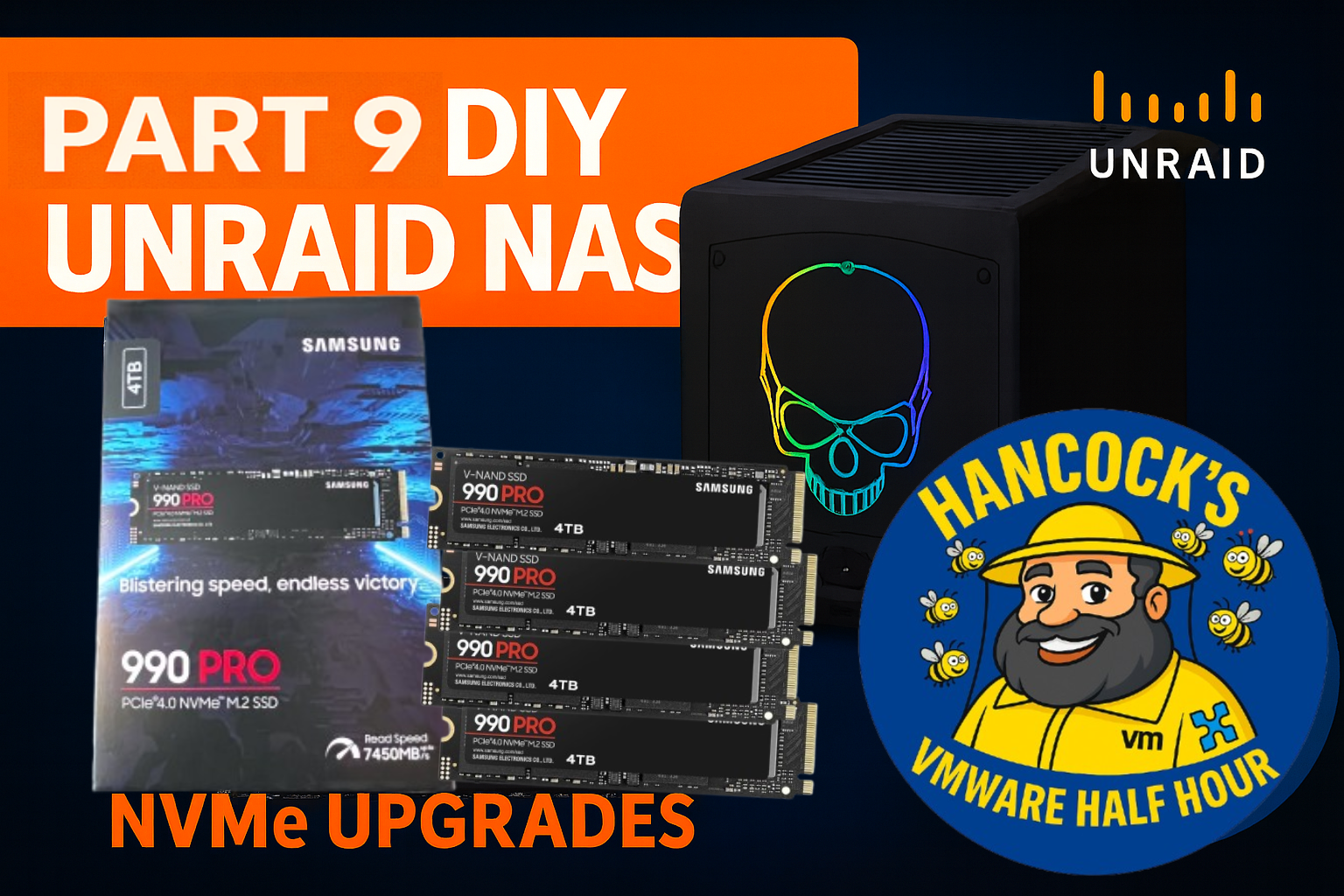
In Part 9 of the DIY UnRAID NAS series, we finally tackle one of the most requested upgrades — NVMe cache expansion.
This episode covers upgrading the UnRAID cache pool using Samsung 990 PRO 4TB NVMe SSDs,
walking through the hardware changes, UnRAID configuration, and the impact on performance.
What’s covered in Part 9
Removing NVMe devices from PCI passthrough
Rebooting and validating UnRAID hardware changes
Why UnRAID is used instead of vSAN in the homelab
Upgrading and rebalancing the NVMe cache pool
Btrfs RAID1 behaviour and live rebalance
Firmware considerations for Samsung 990 PRO NVMe drives
Why NVMe Matters in UnRAID
NVMe cache drives dramatically improve Docker, VM, and application performance in UnRAID.
With fast PCIe 4.0 NVMe devices, write amplification is reduced, cache flushes are faster,
and overall system responsiveness improves — especially under mixed workloads.
Unlike enterprise storage platforms, UnRAID allows flexible cache pool configurations,
making it ideal for homelab experimentation without vendor lock-in.
As always, thanks for watching, and if you’ve got questions about NVMe cache pools,
Btrfs behaviour, or UnRAID design decisions, drop them in the comments.
DIY UNRAID NAS Part 8: Preparing the Zero-Downtime NVMe Upgrade
Welcome back to Hancock’s VMware Half Hour and to Part 8 of the DIY UNRAID NAS build series.
In this episode, I walk through the planning and preparation for a zero-downtime NVMe cache
upgrade on my homelab UNRAID NAS, running on an Intel NUC 11 Extreme.
The goal of this two-part upgrade is to move from a single 512 GB XPG NVMe cache device
to a pair of Samsung 990 PRO 4 TB NVMe SSDs, ending up with a high capacity Btrfs RAID 1
cache pool for VMs, Docker, and PCIe passthrough workloads. Part 8 focuses on the design,
constraints, and first hardware changes. Part 9 completes the migration and final Btrfs rebalance.
Video: DIY UNRAID NAS Part 8
You can watch the full episode on YouTube here:
DIY UNRAID NAS – Part 8: Preparing the Zero-Downtime NVMe Upgrade
What This Episode Covers
Part 8 is all about understanding the current environment, identifying limitations in UNRAID,
and laying the groundwork for a non-destructive storage upgrade. In the video, I cover:
How my UNRAID array and cache devices are currently configured.
The future hardware specifications for the homelab UNRAID NAS.
Plans for using enterprise U.2 NVMe devices in future expansions.
Why we cannot simply create another cache pool in UNRAID to solve this.
A staged plan to replace the old 512 GB XPG NVMe with 4 TB Samsung 990 PRO drives.
How to safely stop Docker and virtual machines before making hardware changes.
Using PCIe passthrough (VMDirectPath I/O) to present NVMe devices directly to a Windows 11 VM.
Updating Samsung 990 PRO firmware from within the passthrough VM using Samsung Magician.
Confirming that all Samsung NVMe drives are genuine and authenticated.
Reviewing the NVMe slot layout in the Intel NUC 11 Extreme (2 x Gen 3 and 2 x Gen 4).
Chapter Breakdown
Here is the chapter list from the video for quick navigation:
00:00 – Intro
00:05 – Welcome to Hancock’s VMware Half Hour
00:47 – This is Part 8 DIY UNRAID NAS
01:21 – Explanation of UNRAID and how I have set up UNRAID
04:20 – Explanation of UNRAID array and cache devices
04:51 – Future specifications for homelab UNRAID NAS
05:54 – Future use of enterprise NVMe U.2 device
09:42 – I have a cunning plan says Andy
12:02 – We cannot create another cache pool
12:56 – Stop Docker and VMs
13:10 – Shutdown ESXi on UNRAID
13:28 – Shutdown Windows 11 on UNRAID
14:22 – New NVMe installed, old XPG removed
15:16 – PCIe passthrough demonstration configuration for UNRAID VMs
17:14 – Restart NAS
17:29 – NVMe devices are enabled for PCI passthrough
18:11 – VMware VM Direct I/O (PCI passthrough) explained
18:46 – Configure Windows 11 VM for PCI passthrough
20:00 – Samsung Magician advising firmware update available
20:48 – Update firmware of Samsung 990 PRO from Windows 11
23:14 – Confirmation that all Samsung NVMe are authenticated
26:22 – NVMe slots in Intel NUC 11 Extreme are 2 x Gen 3 and 2 x Gen 4
27:06 – Remove NVMe devices from Windows 11 VM
The Cunning Plan: A Staged, Non-Destructive NVMe Upgrade
The key challenge in this build is upgrading from a 512 GB NVMe cache to larger 4 TB devices
without wiping the array or losing data. Because UNRAID cannot create an additional cache pool
in this configuration, we need a staged process.
In Part 8, I outline and begin the following upgrade path:
Review the current UNRAID array and cache configuration.
Plan the future target: dual 4 TB NVMe Btrfs RAID 1 cache pool.
Shut down Docker and VM services cleanly.
Power down the NAS and remove the old XPG NVMe.
Install the first Samsung 990 PRO 4 TB NVMe drive.
Boot the system and confirm the new NVMe is detected.
Use PCIe passthrough to present the NVMe to a Windows 11 VM for firmware checks and updates.
Update NVMe firmware using Samsung Magician and validate that the drive is genuine.
The actual Btrfs pool expansion and final dual-drive RAID 1 configuration are completed
in Part 9, where the second 4 TB NVMe is installed and the cache pool is fully migrated.
PCIe Passthrough and Firmware Updates
A significant part of the episode is dedicated to demonstrating PCIe passthrough
(VMDirectPath I/O) from VMware ESXi into UNRAID and then into a Windows 11 virtual machine.
This allows the Samsung 990 PRO NVMe to be exposed directly to Windows for:
Running Samsung Magician.
Checking for and applying firmware updates.
Verifying drive health and authenticity.
This approach is particularly useful in homelab environments where the hardware is
permanently installed in a server chassis, but you still want to access vendor tools
without moving drives between physical machines.
Intel NUC 11 Extreme NVMe Layout
Towards the end of the video, I review the NVMe slot layout inside the Intel NUC 11 Extreme.
This platform provides:
2 x PCIe Gen 4 NVMe slots.
2 x PCIe Gen 3 NVMe slots.
Understanding which slots are Gen 3 and which are Gen 4 is critical when deciding where to place
high performance NVMe devices such as the Samsung 990 PRO, especially when planning for
future workloads and potential enterprise U.2 NVMe expansion.
What Comes Next in Part 9
Part 8 ends with the new 4 TB NVMe installed, firmware updated, and the environment ready
for the next stage. In Part 9, I complete the migration by:
Replacing the remaining 512 GB cache device with a second 4 TB Samsung 990 PRO.
Rebuilding the Btrfs cache pool as a dual-drive RAID 1 configuration.
Verifying capacity, redundancy, and performance.
If you are interested in UNRAID, NVMe-based cache pools, or nested VMware and PCIe
passthrough in a small form factor system like the Intel NUC 11 Extreme, this two-part
upgrade is a practical, real-world example of how to approach it safely.
Related Content
DIY UNRAID NAS build playlist on Hancock’s VMware Half Hour (YouTube).
Previous parts in the series covering hardware assembly, base UNRAID configuration, and initial NVMe installation.
Upcoming parts focusing on performance testing, further storage expansion, and homelab workloads.
PART 3 – DIY Unraid NAS: Power Testing & Stability Checking with OCCT
Welcome back to Part 3 of the DIY Unraid NAS series!
In Part 1, we unboxed and assembled the hardware.
In Part 2, we ran a quick Windows 11 installation test (and of course, everything that could go wrong… went Pete Tong).
Now that the system boots and behaves under a “normal” workload, it’s time to get serious. Before committing this Intel NUC–powered machine to Unraid full-time, we need to ensure it’s electrically stable, thermally stable, and capable of running 24/7 without surprises.
This stage is all about power draw, thermals, and stress testing using OCCT — a powerful tool for validating hardware stability.
Why Power & Stability Testing Is Essential for a NAS
A NAS must be:
Reliable
Predictable
Stable under load
Able to handle long uptimes
Capable of sustained read/write operations
Tolerant of temperature variation
Unlike a desktop, a NAS doesn’t get breaks. It runs constantly, serving files, running Docker containers, hosting VMs, and performing parity checks. Any weakness now — PSU spikes, hot VRMs, faulty RAM — will eventually show up as file corruption or unexpected reboots.
That’s why stress testing at this stage is non-negotiable.
Using OCCT for a Full-System Torture Test
OCCT is typically used by overclockers, but it’s perfect for checking new NAS hardware.
It includes tests for:
1. CPU Stability
Pushes the CPU to 100% sustained load.
Checks:
Thermal throttling
Cooling capacity
Voltage stability
Clock behaviour under load
A NAS must not throttle or overheat under parity checks or rebuilds.
2. Memory Integrity Test
RAM is the most overlooked component in DIY NAS builds.
Errors = silent data corruption.
OCCT’s memory test:
Fills RAM with patterns
Reads, writes, and verifies
Detects bit-flip issues
Ensures stability under pressure
Memory integrity is vital for Unraid, especially with Docker and VMs.
3. Power Supply Stress Test
OCCT is one of the few tools capable of stressing:
CPU
GPU (if present)
Memory
All power rails
simultaneously.
This simulates worst-case load and reveals:
Weak PSUs
Voltage drops
Instability
Flaky power bricks
VRM overheating
Not what you want in a NAS.
4. Thermal Behaviour Monitoring
OCCT provides excellent graphs showing:
Heat buildup
Fan curve response
Temperature equilibrium
VRM load
Stability over time
This shows whether the NUC case and cooling can handle long running services.
Test Results: Can the Intel NUC Handle It?
After running OCCT, the system performed exceptionally well.
CPU
No throttling
Temperatures within acceptable limits
Clock speeds held steady
RAM
Passed memory integrity tests
No bit errors
Stable under extended load
Power Delivery
No shutdowns or brown-outs
The power brick handled peaks
VRMs stayed within thermal limits
Thermals
Fans behaved predictably
Temperature plateau was stable
No unsafe spikes
In other words: This machine is ready to become an Unraid NAS.
Why Validate Hardware Before Installing Unraid?
Because fixing hardware problems AFTER configuring:
Shares
Parity
Docker containers
VMs
Backups
User data
…is painful.
Hardware validation now ensures:
No silent RAM corruption
No thermal issues
No unexpected shutdowns
No nasty surprises during parity builds
The system is reliable for 24/7 operation
This step protects your data, your time, and your sanity.
What’s Coming in Part 4
With the hardware:
Burned in
Power-tested
Thermally stable
Verified by OCCT
We move to the exciting part: Actually installing Unraid!
In Part 4, we will:
Prepare the Unraid USB boot device
Configure BIOS for NAS use
Boot Unraid for the first time
Create the array
Assign drives
Add parity
Begin configuring shares and services
We’re finally at the point where the NAS becomes… a NAS!
Welcome back to Part 2 of our DIY Unraid NAS adventure! In Part 1, we unboxed the hardware, checked the spec, and got ready to build a tiny but mighty home-brew NAS around the Intel NUC “Skull” chassis.
Before committing this machine to Unraid full-time, I wanted to run a quick hardware test — and what better way than to throw a Windows 11 installation at it? Simple, right?
Well… maybe not. As usual, things went a bit Pete Tong along the way! ?
Booting the NUC – and Immediate Problems
The video starts with the NUC firing up nicely… until I discover the mouse isn’t working. Not ideal when you’re trying to install an OS.
After poking around, I realise the issue is down to the NanoKVM I use for remote access. The trick? Switch the KVM to HID mode only — suddenly the mouse returns from the dead.
Lesson learned: Tiny KVMs can cause BIG installation headaches.
Ventoy + Windows 11 ISO = Let’s Try This Again
Once the input devices were behaving, I booted Ventoy from USB and selected the Windows 11 ISO.
This part should be smooth. Except it wasn’t.
Windows 11 booted fine… The setup loaded… Language and keyboard selected… Version chosen… Installation begins…
Then: “Windows 11 installation has failed.”
No reason. No explanation. Just a failure screen and a shrug.
Excellent.
If At First You Don’t Succeed – Install Again
Time for round two.
Ventoy ? Windows 11 ISO ? Setup ? Install Copying files…
YES! It finally completes.
That warm feeling of success lasted a whole ten seconds before Windows restarted to continue configuration — and hit me with another set of “what now?!” delays.
Still, persistence wins. Eventually we get to:
Keyboard setup
Feature selection
Updates
Account creation
Security questions
More updates
Even more updates
Whoever said installing Windows 11 only takes 10 minutes was telling porkies.
Finally… Windows 11 Desktop
After the second attempt, repeated reboots, KVM issues, updates, and the bizarre initial failure, we finally land on a clean, working Windows 11 desktop.
Why bother with all this before Unraid?
Because hardware burn-in testing NOW can save hours (or days) of pain LATER.




![[Valid RSS]](http://andysworld.org.uk/images/valid-rss.png "Validate my RSS feed")