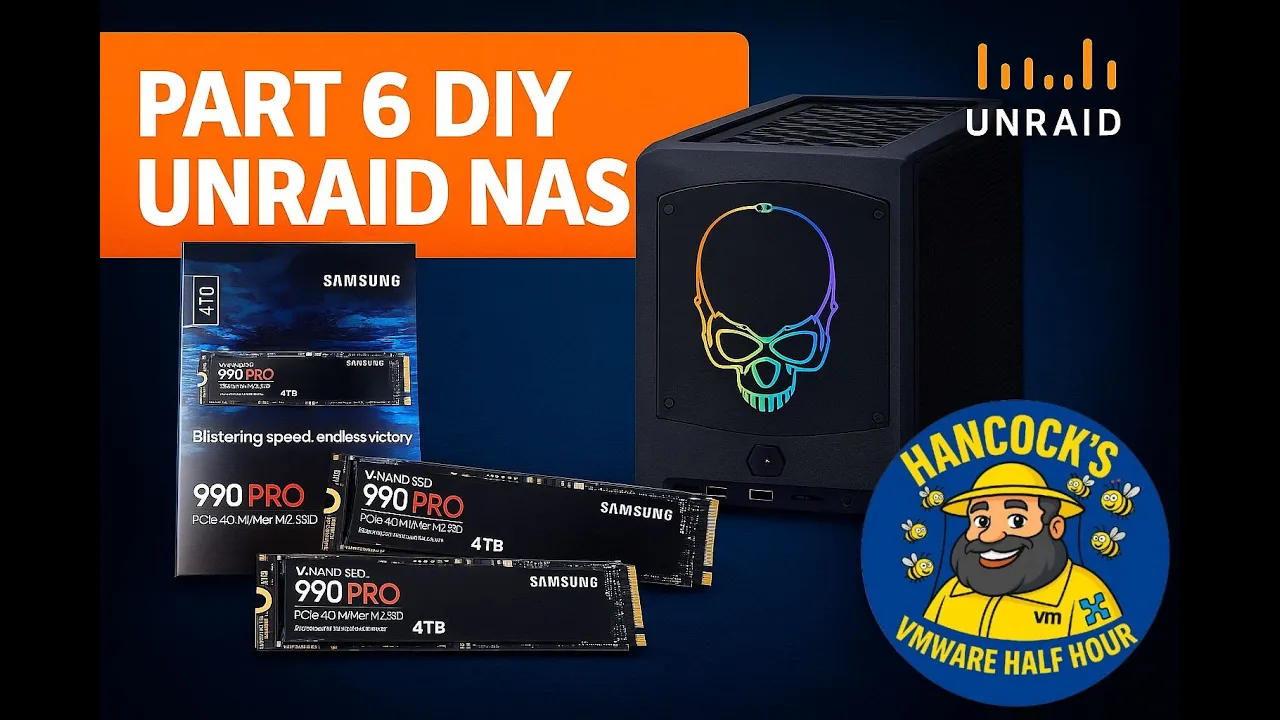
Welcome back to Hancock’s VMware Half Hour and to Part 6 of the DIY UNRAID NAS build series.
In this episode I install two Samsung 990 PRO Gen 4 NVMe M.2 SSDs into the Intel NUC 11 Extreme.
The NUC 11 Extreme has a surprisingly capable NVMe layout, providing:
- 2 × PCIe Gen 4 NVMe slots
- 2 × PCIe Gen 3 NVMe slots
The video walks through verifying the drives, opening the NUC, accessing both NVMe bays, and installing each SSD step-by-step, including the compute board NVMe slot that is a little more awkward to reach.
The episode finishes in Windows 11 where the drives are validated using Disk Manager and Samsung Magician to confirm that both NVMe SSDs are genuine.
What Is Covered in Part 6
- Checking the authenticity of Samsung 990 PRO NVMe SSDs
- Accessing both the bottom and compute-board NVMe slots in the Intel NUC 11 Extreme
- Installing and securing each NVMe stick
- Reassembling the NUC 11 Extreme, including panels, shrouds, NIC and PCIe bracket
- Confirming both NVMe drives in Windows 11
- Using Samsung Magician to verify that the drives are genuine
- Preparing the NVMe storage for use in later parts of the UNRAID NAS series
Chapters
00:00 - Intro
00:07 - Welcome to Hancock's VMware Half Hour
00:29 - In Part 6 we are going to fit Samsung 990 PRO NVMe
01:24 - Intel NUC 11 Extreme has 2 x Gen3, 2 x Gen4 slots
01:45 - Check the NVMe are genuine
04:20 - Intel NUC 11 Extreme - open NVMe bottom panel
05:23 - Install first NVMe stick
06:33 - Remove NVMe screw
07:06 - Insert and secure NVMe stick
07:30 - Secure bottom NVMe panel cover
08:40 - Remove PCIe securing bracket
08:54 - Remove side panel
09:11 - Remove NIC
09:44 - Remove fan shroud
09:59 - Open compute board
12:23 - Installing the second NVMe stick
14:36 - Secure NVMe in slot
16:26 - Compute board secured
19:04 - Secure side panels
20:59 - Start Windows 11 and login
21:31 - Check in Disk Manager for NVMe devices
22:40 - This Windows 11 machine is the machine used in Part 100/101
22:44 - Start Disk Management to format the NVMe disks
23:43 - Start Samsung Magician to confirm genuine
25:25 - Both NVMe sticks are confirmed as genuine
25:54 - Thanks for watching
About This Build
This DIY NAS series focuses on turning the Intel NUC 11 Extreme into a compact but powerful UNRAID NAS with NVMe performance at its core.
The Samsung 990 PRO NVMe drives installed in this part will provide a significant uplift in storage performance and will feature heavily in later episodes when the NAS is tuned and benchmarked.
Support the Series
If you are enjoying the series so far, please consider supporting the channel and the content:
- Like the video on YouTube
- Subscribe to the channel so you do not miss future parts
- Leave a comment or question with your own experiences or suggestions
- Follow along for Parts 7, 8, 9 and beyond
Thank you for watching and for following the build.
Gear Used
- Kingston Fury 64 GB DDR4 RAM –
https://amzn.to/4i7RhZs - 512 GB XPG GAMMIX NVMe SSDs –
https://amzn.to/4o3eLAf - Intel NUC 11 Extreme (Beast Canyon) –
https://amzn.to/4p8aNHh - WERPOWER M.2 to U.2 (SFF-8639) PCIe NVMe SSD Cable – PCIe NVMe U.2 (SFF-8639) –
https://amzn.to/4pbou8m - Samsung 990 EVO Plus, 4 TB, PCIe 4.0 x4 / 5.0 x2, NVMe 2.0, NVMe M.2 (2280), Internal SSD, MZ-V9S4T0BW –
https://amzn.to/4o269Ka - Samsung 990 PRO NVMe M.2 SSD, 4 TB, PCIe 4.0 –
https://amzn.to/4hZx2Ng
More From Hancock’s VMware Half Hour
Enjoy the build and stay tuned for upcoming parts where we continue configuring UNRAID and optimising the NAS.
Do not forget to like, comment and subscribe for more technical walkthroughs and builds.
Support and Honey
- Buy Me an Espresso Coffee –
https://buymeacoffee.com/einsteinagogo - Donate via PayPal –
https://www.paypal.com/paypalme/AndrewHancock - Support British beekeeping with raw, pure honey (UK only for now) –
https://meltonbyhoney.com/
Watch More Playlists
- Latest DIY UNRAID NAS and homelab videos
- VMware and virtualization content
- vSphere 8 series
- vSphere 7 series
- Backup and recovery
- Additional homelab and infrastructure videos
- Older HOW TO series
Follow Hancock’s VMware Half Hour
- YouTube channel –
https://www.youtube.com/@UCaqYL_WmGJohUoM-CAJk-DQ - Twitter –
https://twitter.com/einsteinagogo - LinkedIn –
https://www.linkedin.com/in/andrewhancock/




![[Valid RSS]](http://andysworld.org.uk/images/valid-rss.png "Validate my RSS feed")