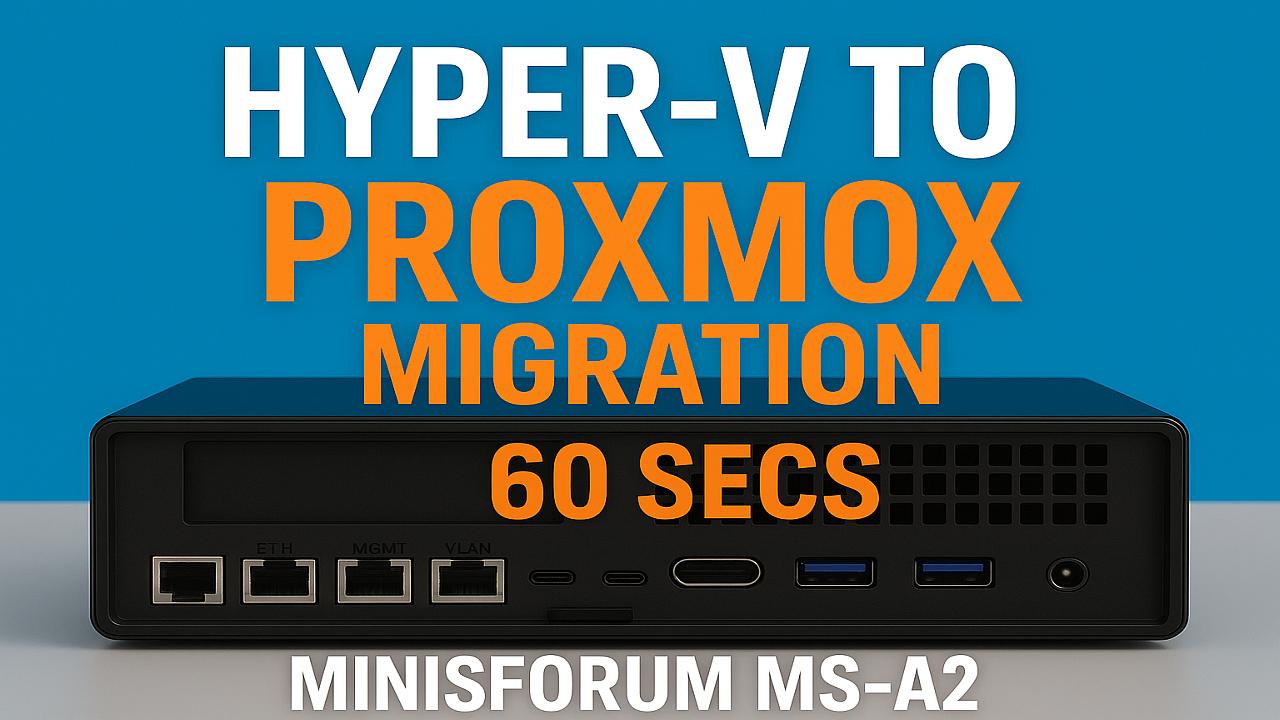
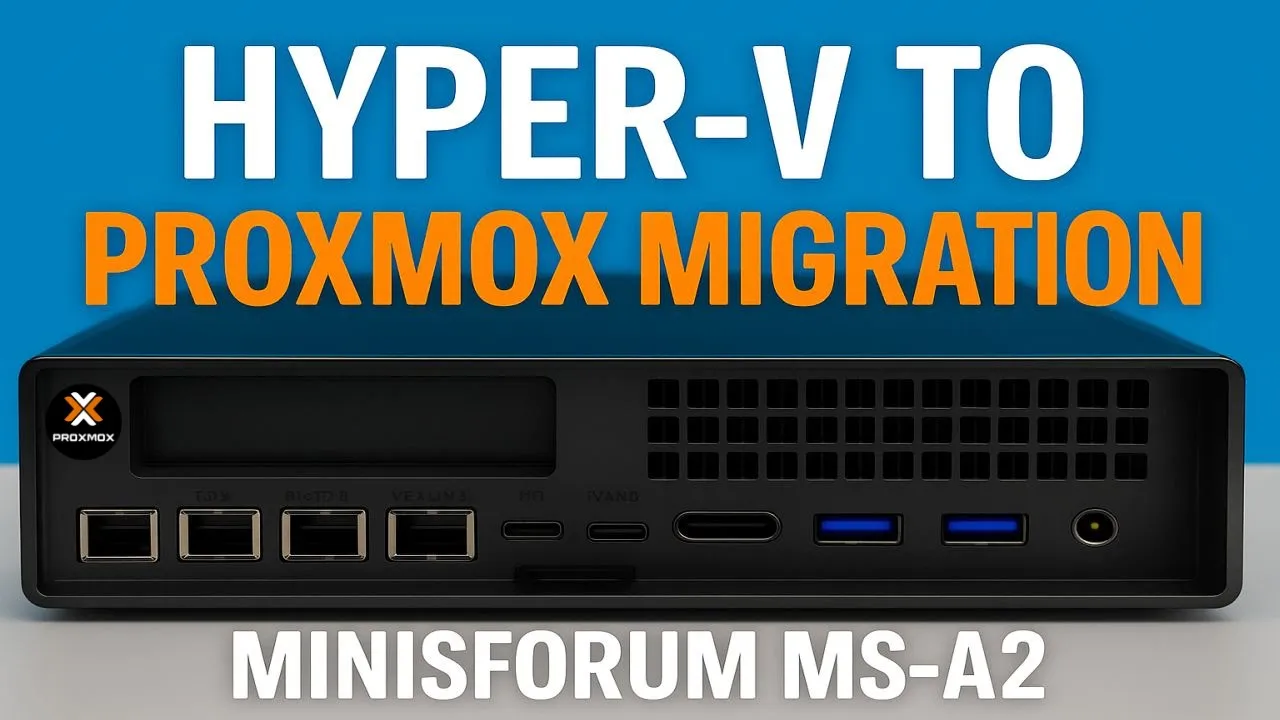
Minisforum MS-A2 Hyper-V to Proxmox 9.0 Migration Minisforum MS-A2 Series Part 15 Ultimate #homelab
In this episode of Hancock’s VMware Half Hour, I walk you through migrating Hyper-V virtual machines to Proxmox 9.0 on the Minisforum MS-A2.
We’ll cover connecting to the Proxmox server via SSH, exploring datastores, working with VHDX files, and running migration demos—including moving a full VM in under 60 seconds! This step-by-step guide shows how easy it is to transition workloads from Hyper-V into Proxmox for your #homelab or production environment.
Whether you’re testing, learning, or planning a migration, this video gives you the tools and knowledge to make it happen smoothly.
Scripts are here on GitHub – https://github.com/einsteinagogo/Hyper-VtoProxmoxMigration.git
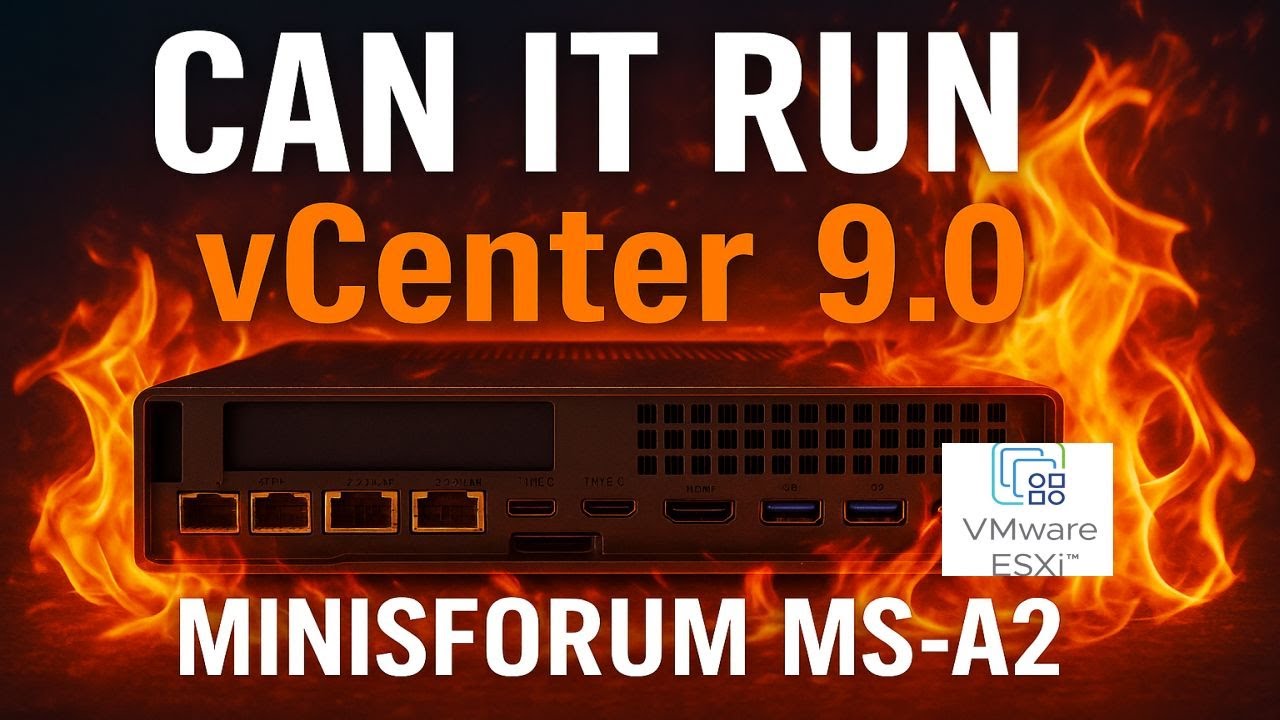
Welcome to Hancock’s VMware Half Hour! In this episode of the Minisforum MS-A2 Series – Part 12 Ultimate #homelab, we take the compact but powerful MS-A2 and push it to the limits by installing VMware vCenter Server 9.0 on ESXi 9.
From installation to configuration and performance benchmarks, I’ll walk you through every step — including DNS setup, deployment options, datastore selection, and SSO configuration. We’ll also run boot speed benchmarks to see just how fast vCenter Server 9.0 can run on the MS-A2. Spoiler: it’s blazing fast! ? It’s on FIRE !
If you’re thinking of building a small, efficient, and powerful #homelab capable of enterprise-level virtualization, this is the video for you.
Minisforum MS-A2 Can it Run ESXi 9.0.0? Minisforum MS-A2 Series Part 11 Ultimate #homelab
Can the Minisforum MS-A2 handle VMware’s latest ESXi 9.0.0?
In Part 11 of the Ultimate #homelab series, we put the MS-A2 to the test with the brand-new VMware vSphere Hypervisor ESXi 9.0. From BIOS boot to creating a demo virtual machine, you’ll see the entire installation process and whether this mini PC can run the latest VMware tech.
Can the powerful Minisforum MS-A2 run VMware vSphere 8.0?
In Part 10 of the Ultimate #homelab series, we put this compact beast to the test by installing VMware vSphere Hypervisor ESXi 8.0.3g and seeing how it performs. From BIOS setup to creating a demo virtual machine, this episode covers the full journey.
What’s Inside This Video:
Installing ESXi 8.0.3g on the Minisforum MS-A2
BIOS configuration & USB boot with Ventoy
Full ESXi setup walkthrough
Creating & running a test VM
Enabling NVMe Memory Tiering with NVMe namespaces
Checking performance and confirming a successful install
If you’ve been wondering whether the MS-A2 can handle serious VMware workloads in a home lab, this is the episode to watch!
In Part 6 of the Minisforum MS-A2 Series, we show you how to migrate VMware ESXi Virtual Machines (VMs) to Microsoft Hyper-V on Windows Server 2025 — using the powerful and compact Minisforum MS-A2 as the ultimate homelab platform.
This video features Veeam Backup & Replication v12.3 to safely back up your ESXi VMs and restore them directly to Hyper-V. It’s a clean and efficient migration method for anyone exploring life after VMware.
Whether you’re planning a full platform switch or testing a hybrid setup, you’ll find practical, step-by-step guidance from backup to restore — with key gotchas and tips throughout.
In this episode, you’ll learn:
Preparing VMware ESXi VMs for migration
Creating backups using Veeam v12.3
Restoring backups to Microsoft Hyper-V
Configuring networking, storage, and integration services
Post-migration testing and optimization
Real-world advice for homelabbers and IT professionals
Perfect for #homelab enthusiasts, sysadmins, and IT pros evaluating alternatives to VMware.
Got questions or want to share your experience? Drop a comment below!
Like this video if it helped you
Subscribe and hit the bell to follow the full MS-A2 homelab journey
Welcome back to another episode of Hancock’s VMware Half Hour! In this video, we take you step-by-step through updating the UEFI BIOS on the Minisforum MS-A2, upgrading from version 1.0.1 to 1.0.2 – all from a very hot #homelab (35°C!).
We walk through downloading the BIOS update, prepping the system (disabling Secure Boot), launching the UEFI shell, and flashing the firmware using EfiFlash.nsh. There’s even a little pop culture nod to Toto and The Wizard of Oz ??, plus a shout-out to VMware vExperts like Daniel Kreiger, William Lam, and Stephen Wagner!
Chapters Included:
Setting up the MS-A2 for flashing
Booting into the UEFI Shell
Running the flash process
Successfully installing BIOS 1.0.2
VMware vExpert tips and how to apply
Post-update validation
Whether you’re a fellow VMware homelabber or just updating your own MS-A2 device, this guide will walk you through it with humour, precision, and heat-induced delirium.
Don’t forget to Like, Subscribe and Share if this helped you out!
If you’ve followed Andysworld.org for any length of time, you’ll know I’m always on the lookout for compact, powerful systems that pack a serious punch — especially for virtualization, homelab testing, and edge computing. The Minisforum MS-A2 just landed on my desk, and I couldn’t wait to tear into it, max out the RAM, and see how this tiny monster performs.
Why the Minisforum MS-A2?
Minisforum has carved out a strong niche in the mini PC market, but the MS-A2 is something different. Designed around the AMD Ryzen 9 9955HX (a 16-core, 32-thread beast), this unit is built for power users: developers, sysadmins, content creators, and homelab enthusiasts like myself.
The MS-A2 offers:
AMD Ryzen 9 9955HX (Zen 4, 5nm, 16C/32T)
Up to 128GB DDR5 SODIMM RAM
Quadruple PCIe Gen4 NVMe M.2 slots
Dual 2.5G Ethernet, Dual 10G SFP+
USB 4.0 / HDMI 2.1 / USB-C
Compact footprint with surprisingly good thermals
With specs like that, it’s an ideal candidate for running Proxmox, VMware ESXi, KVM, or even just as a hyper-efficient workstation.
The Unboxing Experience
Right out of the box, the MS-A2 gives off a premium vibe. The packaging is minimalist but well thought out. Inside you’ll find:
The MS-A2 unit itself (dense, solid, well-built)
120W or 180W power adapter (depending on config)
Mounting hardware
User manual and warranty information
Ports are plentiful and logically laid out. It even includes USB 4.0 and dual LAN ports — a must for virtualized networking setups in a homelab.
Installing 128GB DDR5 RAM
This is where things get exciting.
The MS-A2 officially supports up to 128GB of DDR5 SODIMM RAM (2x 64GB modules). While 64GB used to be the ceiling for mini PCs, the MS-A2 pushes those boundaries.
Here’s how I installed the RAM:
Power Down and Open the Chassis: Remove the bottom screws (Torx) and gently lift the cover. The internals are neatly laid out.
Locate the SODIMM Slots: There are two DDR5 SODIMM slots accessible without needing to remove any other components.
Install 2x 64GB DDR5 4800MHz Modules: I used Kingston DDR5 SODIMMs — click, click, done.
Reassemble and Boot: Replace the cover, screw it down, plug it in, and power on.
Check BIOS/UEFI: The system immediately recognised the full 128GB RAM without issue.
Initial Impressions & Performance Potential
I haven’t fully benchmarked it yet, but early signs are strong. This thing is built for virtualization and power-intensive workflows. With 128GB RAM, you could comfortably run:
Nested vSphere or ESXi environments
A full Proxmox VE cluster in one box
Multiple Linux and Windows VMs for testing
Container platforms like Docker, Podman, or Kubernetes
The dual 2.5G NICs are ideal for setting up a virtualized network or using VLANs for isolated testing.
Thermals remained under control during initial tests, thanks to the robust cooling design. The unit is quieter than expected even under moderate load.
Who Is the MS-A2 For?
If you’re:
A homelab enthusiast looking to consolidate noisy, aging servers
A virtualization geek building a portable test lab
A developer or DevOps engineer running VMs or containers
Or just someone wanting a high-end mini PC that doesn’t take up half a desk…
…the MS-A2 is absolutely worth your consideration.
What’s Next?
In the next blog post, I’ll benchmark this machine with:
Proxmox VE running multiple VMs
VMware ESXi 8.0 (yes, it installs!)
Synthetic CPU, disk, and memory benchmarks
Power draw and thermal tests
And maybe even try some GPU passthrough.
Final Thoughts
The Minisforum MS-A2 is a seriously impressive piece of kit. It proves that small doesn’t have to mean slow or limited. With 128GB DDR5 RAM, Ryzen 9 power, and robust I/O, it’s more than capable of replacing a rackmount server for many use cases — and it’ll fit in your backpack.
Stay tuned for more testing, benchmarks, and homelab setup tips.
Lately, it feels like every VMware vExpert has been posting photos of their compact lab servers — and I’ll be honest, I was starting to feel left out.
So, I joined the club.
I picked up the new Minisforum MS-A2, and I’ve not looked back. This isn’t just another NUC alternative — it’s a serious powerhouse in a tiny chassis, perfect for VMware enthusiasts building or upgrading their vSphere, VVF, or VCF test environments.
Let’s dig into what makes this little beast a perfect addition to any #homelab setup in 2025.
Hardware Highlights – Not Your Average Mini PC
The MS-A2 isn’t just punching above its weight — it’s redefining what’s possible in a compact lab node.
Key Specs:
CPU: AMD Ryzen™ 9 9955HX – 16 cores / 32 threads of Zen 5 power
Memory: Dual DDR5-5600MHz SODIMM slots – up to 96GB officially, but…
Storage:
3× M.2 PCIe 4.0 slots (22110 supported)
Supports U.2 NVMe – great for enterprise-grade flash
Networking:
Dual 10Gbps SFP+ LAN
Dual 2.5GbE RJ45 ports
Wi-Fi 6E + Bluetooth 5.3 (going to replace this with more NVMe storage!)
Expansion:
Built-in PCIe x16 slot (supports split mode – ideal for GPUs, HBAs, or NICs)
This is homelab gold. It gives you the raw compute of a full rack server, the storage flexibility of a SAN box, and the network fabric of a modern datacenter — all under 2L in size.
How I Configured Mine – still sealed in box as I write – video incoming!
I purchased mine barebones from Amazon, and — as of writing — it’s still sealed in the box. Why? I’m waiting for all the parts to arrive.
Most importantly, I’ll be upgrading it with: 128GB of Crucial DDR5-5600 SODIMMs (2×64GB) — pushing beyond the official spec to see just how much performance this little box can handle.
Once everything’s here, I’ll be unboxing and assembling it live on a future episode of Hancock’s VMware Half Hour. Stay tuned if you want a front-row seat to the full setup, testing, and VMware lab deployment.
Perfect for VMware Labs: vSphere 8/9, VVF, and VCF
Whether you’re testing ESXi on bare metal or running full nested labs, this spec ticks every box.
ESXi Bare Metal Capable
The Ryzen 9 9955HX and AMD chipset boot vSphere 8.0U2 and 9.0 Tech Preview cleanly with minimal tweaks. Use community networking drivers or USB NIC injectors if needed.
VVF / VCF in a Box
If you’re exploring VMware Validated Foundation (VVF) or want a self-contained VCF lab for learning:
16C/32T lets you run nested 3-node ESXi clusters + vCenter + NSX-T comfortably
128GB RAM gives breathing room for resource-heavy components like SDDC Manager
Community Validation – I Was Late to the Party
Fellow vExpert Daniel Krieger was ahead of the curve — writing about the MS-A2 months ago in his excellent blog post here: sdn-warrior.org/posts/ms-a2
Seeing both of them validate the MS-A2 pushed me over the edge — and I’m glad I jumped in.
Setup Tips (Soon!)
Once the unboxing is done, I’ll share:
BIOS tweaks: SVM, IOMMU, PCIe bifurcation
NIC setup for ESXi USB fling and 10GbE DAC
Storage layout for vSAN and U.2/NVMe configs
Full nested VCF/VVF deployment guide
Considerations
Still not officially VMware HCL — but community-tested
Ryzen platform lacks ECC memory — standard for most mini-PC builds
PCI passthrough needs thoughtful planning for IOMMU groupings
Ideal Use Cases
Nested ESXi, vSAN, vCenter, NSX labs
VVF deployment simulations
VCF lifecycle manager testing
Tanzu Kubernetes Grid
NSX-T Edge simulations on 10GbE
GPU or high-speed NIC via PCIe slot for advanced lab scenarios
Final Thoughts
The Minisforum MS-A2 with Ryzen 9 9955HX is a serious contender for the best compact homelab system of 2025. Whether you’re diving into vSphere 9, experimenting with VVF, or simulating a full VCF environment, this mini server brings serious firepower.
It may still be in the box for now —
—but soon, it’ll be front and center on Hancock’s VMware Half Hour, ready to power the next chapter of my lab.
Join the Conversation
Got an MS-A2 or similar mini-monster? Share your specs, test results, or VMware experience — and tag it:
Are you tired of dealing with the Raspberry Pi 5 frame buffer issue when running ESXi ARM? In this video, we’ll show you a step-by-step guide on how to fix this frustrating problem and get your Raspberry Pi 5 up and running smoothly with ESXi ARM. Whether you’re a hobbyist or a professional, this tutorial is perfect for anyone looking to troubleshoot and resolve the frame buffer issue on their Raspberry Pi 5. So, what are you waiting for? Let’s dive in and get started!
After much anticipation, The ComputeBlade has finally arrived! This innovative piece of hardware has been making waves in the compact computing and homelab community since its inception as a Kickstarter project, which closed in February 2023. While the Kickstarter campaign was highly successful, the journey to delivery has been anything but smooth.
The ComputeBlade Journey
For those unfamiliar, the ComputeBlade is an ambitious project by Uptime Lab designed to bring powerful, modular computing to a compact blade-style chassis. It offers support for Raspberry Pi Compute Modules (CM4) and similar SBCs, providing a platform for homelab enthusiasts, developers, and small-scale edge computing setups.
However, the project has faced several setbacks that delayed delivery for many backers:
Russian Screws: Supply chain disruptions included sourcing specific screws, which became problematic due to geopolitical tensions.
PoE (Power over Ethernet) Issues: The team encountered complications ensuring consistent and safe PoE functionality.
Certification Challenges: Meeting various regulatory standards across regions added another layer of complexity.
Despite these hurdles, I opted to purchase my ComputeBlades retail, as Kickstarter backers have yet to fully receive their units.
For those interested in the Kickstarter campaign details, you can check it out here.
First Impressions
The retail packaging was sleek, compact, and felt premium. The ComputeBlade itself is a marvel of design, seamlessly blending form and function. Its modularity and expandability immediately stand out, with features such as:
Support for Raspberry Pi CM4: Making it a natural fit for virtualization, containerization, and other development projects.
Hot-Swappable Design: Simplifies maintenance and upgrades.
Integrated Networking: Includes options for advanced network setups, perfect for a homelab.
What’s Next?
Now that the ComputeBlade has arrived, I’m eager to put it through its paces. Over the next few weeks, I’ll be:
Testing Homelab Applications: From running lightweight virtual machines to hosting containers using Docker or Kubernetes.
Evaluating Networking Features: Especially the PoE capabilities and how it handles edge computing scenarios.
Sharing Configurations: I’ll document how I integrate it into my existing homelab setup.
Closing Thoughts
While the journey of the ComputeBlade from Kickstarter to retail has been rocky, the product itself seems poised to live up to its promise. If you’ve been waiting for a scalable and compact compute platform, the ComputeBlade might just be the solution you’ve been looking for.
Stay tuned for my follow-up posts where I dive deeper into its performance and practical applications. If you’re also experimenting with the ComputeBlade, feel free to share your experiences in the comments or reach out via social media.




![[Valid RSS]](http://andysworld.org.uk/images/valid-rss.png "Validate my RSS feed")