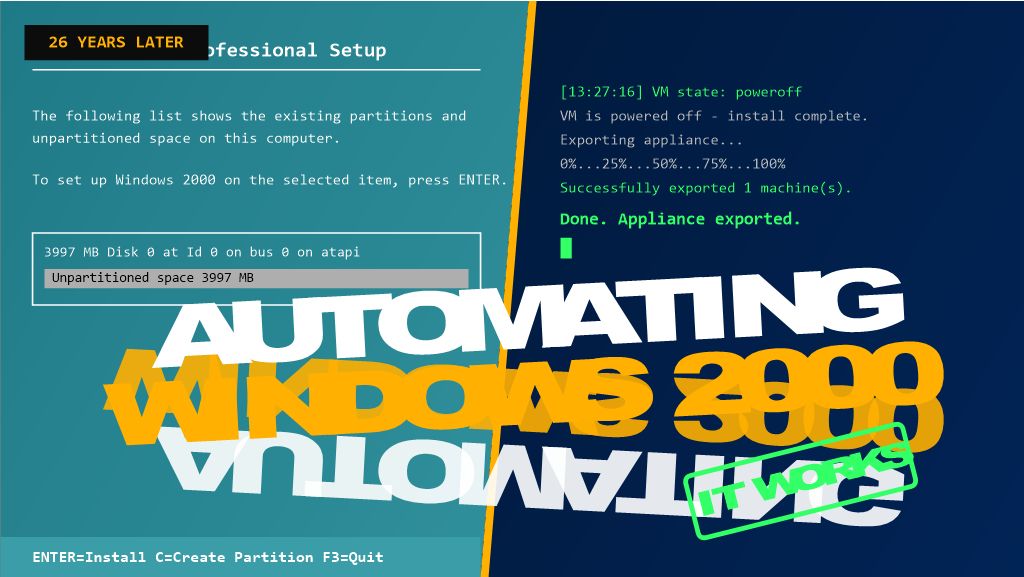
26 years after its release, Windows 2000 Professional still has a place in testing, legacy support, and retro-computing labs — but building a VM for it by hand, every single time, gets old fast. In my latest video, “HOWTO VirtualBox: How to Automate the Creation of an Appliance File,” I walk through a PowerShell script that does the whole job unattended: create the VM, install Windows 2000 Pro with zero clicking through Setup, power it off automatically, and export the finished appliance as a portable .ova file.
This was originally written as an answer to an Experts Exchange question, and it’s part of the Hancock’s VMware Half Hour series — which has expanded beyond core vSphere content into related virtualization tooling like this.
Here’s the write-up, including a couple of the gotchas that tripped the script up along the way.
Why Automate This?
A VirtualBox appliance file (.ova) packages a fully configured VM — OS, disk, settings, all of it — into a single portable file you can import anywhere. Building one by hand through the GUI is fine once. Needing a fresh Windows 2000 Pro VM repeatedly for a lab or test environment is a different story, and that’s where scripting the whole pipeline with VBoxManage.exe through PowerShell pays off.
The Twist With Windows 2000
Windows 2000 predates the autounattend.xml mechanism that later Windows versions use, so the assumption going in was that VBoxManage unattended install — the built-in facility that auto-generates a Windows answer file — wouldn’t support it, and that a hand-built winnt.sif + floppy would be needed instead.
Turns out that’s not the case. VBoxManage unattended install does support Windows 2000 — it builds its own answer file, auxiliary ISO, and floppy internally, no manual winnt.sif or floppy-writing tool required. That’s the route this script uses.
What the Script Does
At a high level, Deploy-Win2kProVM.ps1 handles the whole pipeline in one run:
- Prompts for a VM name and cleans up any existing VM with that name.
- Creates a new VirtualBox VM (
Windows2000guest type, PIIX4 IDE controller, 1 CPU — matches what this OS actually needs). - Creates and attaches a virtual hard disk.
- Kicks off
VBoxManage unattended installpointed at a standard Windows 2000 Pro install ISO — VBoxManage handles the answer file, auxiliary ISO, and floppy itself, and installs Guest Additions in the same pass. - Polls the VM’s state until it powers itself off.
- Exports the finished VM to a
.ovaappliance file.
The full script is available on GitHub: [link to your GitHub repo]
Gotchas Worth Knowing About Before You Run This
A few things that came up while getting this working, in case they save you the same troubleshooting:
- Flag names for
unattended installare strict and easy to get wrong. It’s--key, not--product-key. It’s--user-password(or--admin-password, depending on the account type), not--password. VBoxManage errors out immediately with an “Unknown option” message if you get these wrong — worth double-checking againstVBoxManage unattended install --helpfor your installed version. - Windows 2000 needs
1 CPUand--ioapic off. This matches a manually-built VM confirmed to install and boot reliably — modern virtual chipset defaults can trip up an OS this old. - Setup won’t shut down on its own. Without a shutdown command, the VM finishes install and just sits at the desktop, so the polling loop in the script would wait forever. The fix is VBoxManage’s own
--post-install-command="shutdown -s -t 0"flag, which runs inside the guest automatically once Setup completes (via the Guest Additions execution channel — hence--install-additionsneeds to run first). - Downloaded scripts get blocked by Windows. If you see “not digitally signed” when running the
.ps1file, it’s the Mark of the Web from a browser download. Fix it with:
Unblock-File -Path '.\Deploy-Win2kProVM.ps1'- A genuine product key is required. There’s no way around supplying a real one in the unattended install parameters.
What You End Up With
Run the script, type a VM name, and walk away — no manual clicking through Setup, no hand-built floppy images. A few minutes later, you’ve got a fully installed, Guest-Additions-equipped Windows 2000 Professional VM exported as a ready-to-share .ova.
That exported file also becomes a reusable template — importing it for a fresh copy is far faster than rerunning the whole install.
Watch the Full Video
This post covers the highlights, but the video walks through the whole process live — including the actual errors we hit and fixed along the way. Check it out here: https://youtu.be/Nz2vhgU01qM
If you’ve automated your own VirtualBox workflows, I’d love to hear how — drop a comment on the video or below!



![[Valid RSS]](http://andysworld.org.uk/images/valid-rss.png "Validate my RSS feed")