Posts Tagged ‘Hardware’

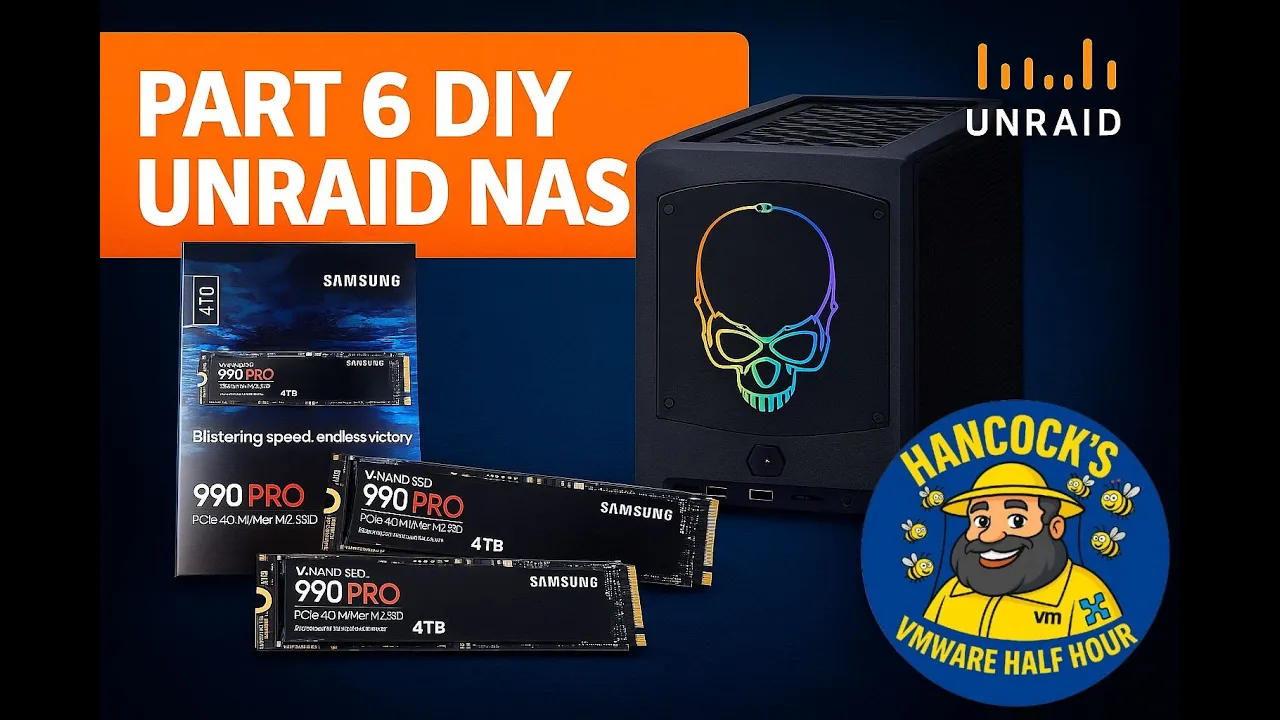
Part 6: DIY NAS – Installing Two Samsung 990 Pro Gen 4 NVMe M.2 SSD in an Intel NUC 11 Extreme

Monday, December 1st, 2025


Welcome back to Hancock’s VMware Half Hour and to Part 6 of the DIY UNRAID NAS build series.

In this episode I install two Samsung 990 PRO Gen 4 NVMe M.2 SSDs into the Intel NUC 11 Extreme.
The NUC 11 Extreme has a surprisingly capable NVMe layout, providing:

  • 2 × PCIe Gen 4 NVMe slots
  • 2 × PCIe Gen 3 NVMe slots

The video walks through verifying the drives, opening the NUC, accessing both NVMe bays, and installing each SSD step-by-step, including the compute board NVMe slot that is a little more awkward to reach.
The episode finishes in Windows 11 where the drives are validated using Disk Manager and Samsung Magician to confirm that both NVMe SSDs are genuine.


What Is Covered in Part 6

  • Checking the authenticity of Samsung 990 PRO NVMe SSDs
  • Accessing both the bottom and compute-board NVMe slots in the Intel NUC 11 Extreme
  • Installing and securing each NVMe stick
  • Reassembling the NUC 11 Extreme, including panels, shrouds, NIC and PCIe bracket
  • Confirming both NVMe drives in Windows 11
  • Using Samsung Magician to verify that the drives are genuine
  • Preparing the NVMe storage for use in later parts of the UNRAID NAS series

Chapters

00:00 - Intro
00:07 - Welcome to Hancock's VMware Half Hour
00:29 - In Part 6 we are going to fit Samsung 990 PRO NVMe
01:24 - Intel NUC 11 Extreme has 2 x Gen3, 2 x Gen4 slots
01:45 - Check the NVMe are genuine
04:20 - Intel NUC 11 Extreme - open NVMe bottom panel
05:23 - Install first NVMe stick
06:33 - Remove NVMe screw
07:06 - Insert and secure NVMe stick
07:30 - Secure bottom NVMe panel cover
08:40 - Remove PCIe securing bracket
08:54 - Remove side panel
09:11 - Remove NIC
09:44 - Remove fan shroud
09:59 - Open compute board
12:23 - Installing the second NVMe stick
14:36 - Secure NVMe in slot
16:26 - Compute board secured
19:04 - Secure side panels
20:59 - Start Windows 11 and login
21:31 - Check in Disk Manager for NVMe devices
22:40 - This Windows 11 machine is the machine used in Part 100/101
22:44 - Start Disk Management to format the NVMe disks
23:43 - Start Samsung Magician to confirm genuine
25:25 - Both NVMe sticks are confirmed as genuine
25:54 - Thanks for watching

About This Build

This DIY NAS series focuses on turning the Intel NUC 11 Extreme into a compact but powerful UNRAID NAS with NVMe performance at its core.
The Samsung 990 PRO NVMe drives installed in this part will provide a significant uplift in storage performance and will feature heavily in later episodes when the NAS is tuned and benchmarked.


Support the Series

If you are enjoying the series so far, please consider supporting the channel and the content:

  • Like the video on YouTube
  • Subscribe to the channel so you do not miss future parts
  • Leave a comment or question with your own experiences or suggestions
  • Follow along for Parts 7, 8, 9 and beyond

Thank you for watching and for following the build.


Gear Used


More From Hancock’s VMware Half Hour

Enjoy the build and stay tuned for upcoming parts where we continue configuring UNRAID and optimising the NAS.
Do not forget to like, comment and subscribe for more technical walkthroughs and builds.


Support and Honey


Watch More Playlists


Follow Hancock’s VMware Half Hour

Part 5: DIY UNRAID NAS: Making Use of the Free Internal USB Headers

Sunday, November 30th, 2025


Welcome back to Andysworld!*™ and to Part 5 of my DIY UNRAID NAS series.

In this instalment, I explore a small but very useful upgrade: using the free internal USB headers inside the Intel NUC Extreme 11th Gen to hide the UnRAID boot USB neatly inside the chassis. This keeps the build clean, reduces the risk of accidental removal, and makes the system feel much more like a dedicated appliance.


Why Move the UnRAID USB Inside the NUC?

UNRAID must boot from a USB flash drive. Most people leave it plugged into an external port on the back of the system, but the NUC Extreme includes internal USB 2.0 header pins.

By using those internal headers, we can:

  • Keep the USB drive inside the case
  • Free up an external USB port
  • Reduce the chance of accidental removal or damage
  • Improve the overall look and tidiness of the build
  • Make the system feel more like a self-contained NAS appliance

Credit and Hardware Used

This idea came from a very useful Reddit thread:

Reddit source: https://tinyurl.com/yd95mu37
Credit: Thanks to “JoshTheMoss” for highlighting the approach and the required cable.

Adapter Cable

The adapter used in this build was purchased from DeLock:

Adapter product page: https://www.delock.com/produkt/84834/merkmale.html

This adapter converts the internal USB header on the motherboard to a standard USB-A female connector, which is ideal for plugging in the UnRAID boot drive.


What Happens in Part 5

In this episode I:

  • Open up the Intel NUC Extreme 11th Gen chassis
  • Locate the unused internal USB header on the motherboard
  • Prepare the UnRAID USB stick, wrapping it in Kapton tape for additional insulation and protection
  • Install the DeLock internal USB adapter
  • Route and position the cable neatly inside the chassis
  • Connect the USB stick to the internal adapter (with the usual struggle of fitting fingers into a very small case)
  • Confirm that the system still boots correctly from the now-internal USB device
  • Give a short preview of what is coming next in Part 6

Video Chapters

00:00 – Intro
00:07 – Welcome to Hancock's VMware Half Hour
00:47 – Using the free internal USB headers
01:05 – Reddit Source – https://tinyurl.com/yd95mu37
01:17 – Kudos to "JoshTheMoss"
02:32 – The Reddit Post
02:44 – Purchased from – https://www.delock.com/produkt/84834/merkmale.html
02:59 – Intel NUC Extreme 11th Gen close-up
03:58 – Internal USB header left disconnected
04:36 – USB flash drive is used for UnRAID
04:49 – Wrapped USB flash drive in Kapton Tape
05:31 – Fit the cable with fat fingers
07:09 – Part 6 – NVMe Time
07:51 – 4 × 4 TB Samsung 990 PRO NVMe Gen 4
08:25 – Thanks for watching

Watch the Episode

Embedded video:


Follow the DIY UNRAID NAS Series on Andysworld!*™

This project is progressing nicely, and each part builds on the last. In Part 6, I move on to storage performance and install 4 × 4 TB Samsung 990 PRO Gen 4 NVMe SSDs for serious throughput.

If you are interested in homelab builds, UNRAID, VMware, or just general tinkering, keep an eye on the rest of the series here on Andysworld!*™.

Thanks for reading and for supporting the site.

Part 4: DIY UnRAID NAS – Insert new 10GBe NIC

Saturday, November 22nd, 2025


DIY UnRAID NAS Build – Part 4: Installing a 10GBe Intel X710-DA NIC (Plus an Outtake!)

Welcome back to another instalment of my DIY UnRAID NAS Build series.
If you have been following along, you will know this project is built around an Intel NUC chassis that I have been carefully (and repeatedly!) taking apart to transform into a compact but powerful UnRAID server.

In Part 4, we move on to a major upgrade: installing a 10GBe Intel X710-DA network interface card. And yes, the eagle-eyed among you will notice something unusual at the beginning of the video, because this episode starts with a blooper. I left it in for your entertainment.


A Fun Outtake to Start With

Right from the intro, things get a little chaotic. There is also a mysterious soundtrack playing, and I still do not know where it came from.
If you can identify it, feel free to drop a comment on the video.


Tearing Down the Intel NUC Again

To install the X710-DA NIC, the NUC requires almost complete disassembly:

  • Remove the back plate
  • Remove the backplane retainer
  • Take off the side panels
  • Open the case
  • Remove the blanking plate
  • Prepare the internal slot area

This NUC has become surprisingly modular after taking it apart so many times, but it still puts up a fight occasionally.


Installing the Intel X710-DA 10GBe NIC

Once the case is stripped down, the NIC finally slides into place. It is a tight fit, but the X710-DA is a superb card for a NAS build:

  • Dual SFP+ ports
  • Excellent driver support
  • Great performance in VMware, Linux, and Windows
  • Ideal for high-speed file transfers and VM workloads

If you are building a NAS that needs to move data quickly between systems, this NIC is a great option.


Reassembly

Next, everything goes back together:

  • Side panels reinstalled
  • Back plate fitted
  • Case secured
  • System ready for testing

You would think after doing this several times I would be quicker at it, but the NUC still has a few surprises waiting.


Booting into Windows 11 and Driver Issues

Once everything is reassembled, the NUC boots into Windows 11, and immediately there is a warning:

Intel X710-DA: Not Present

Device Manager confirms it. Windows detects that something is installed, but it does not know what it is.

Time to visit the Intel website, download the correct driver bundle, extract it, and install the drivers manually.

After a reboot, success. The NIC appears correctly and is fully functional.


Why 10GBe

For UnRAID, 10GBe significantly improves:

  • VM migrations
  • iSCSI and NFS performance
  • File transfers
  • Backup times
  • SMB throughput for Windows and macOS clients

It also future-proofs the NAS for any future network upgrades.


The Mystery Soundtrack

Towards the end of the video I ask again: what is the music playing in the background?
I genuinely have no idea, so if you recognise it, please leave a comment on the video.


Watch the Episode

You can watch the full episode, including all teardown steps, NIC installation, Windows troubleshooting, and the blooper, here:


Thank You for Watching and Reading

Thank you for following along with this NAS build.
Part 5 will continue the series, so stay tuned.

If you have built your own UnRAID NAS or have a favourite NIC for homelab projects, feel free to comment and share your experience.

Regards,
Andy

Part 1: Building a DIY NVMe NAS with the Intel NUC 11 Extreme (Beast Canyon)

Saturday, November 15th, 2025


Part 1: The Hardware Build

Welcome to AndysWorld.org.uk! Today, we’re diving into a project that’s perfect for anyone looking to build a powerful, yet compact, DIY Network-Attached Storage (NAS) solution. In this post, I’ll walk you through the first part of building a ‘MEGA’ NVMe NAS using the Intel NUC 11 Extreme (Beast Canyon). This mini-PC packs a punch with its powerful hardware, making it a great choice for a NAS build, especially when combined with UnRAID to handle storage and virtualization.


Why Choose the Intel NUC 11 Extreme for a NAS?

If you’ve been looking into NAS setups, you know the balance between power, size, and expandability is crucial. The Intel NUC 11 Extreme (Beast Canyon) checks all the right boxes, offering:

  • Compact Form Factor: It’s a small but powerful solution that doesn’t take up much space.

  • High-Performance NVMe Support: NVMe drives provide incredibly fast data transfer speeds—perfect for a NAS that needs to handle heavy workloads.

  • Flexibility for Virtualization: With UnRAID, you can set up multiple virtual machines, containers, and storage arrays, making it a versatile solution for any home or small office.

For this build, we’re focusing on using NVMe storage for high-speed access to files and a 64GB Kingston Fury DDR4 RAM kit to ensure smooth performance under load.


What You’ll Need for This Build:

  • Intel NUC 11 Extreme (Beast Canyon)

  • 64GB Kingston Fury DDR4 RAM

  • 2 x 512GB XPG GAMMIX NVMe SSDs

  • UnRAID Operating System

  • A few basic tools for assembly (screwdriver, anti-static mat, etc.)

If you’ve never worked with the Intel NUC before, don’t worry! I’ll guide you through every step of the assembly process. Let’s get into it!


Step-by-Step Build Process:

1. Unboxing the Intel NUC 11 Extreme

First things first, let’s unbox the Intel NUC 11 Extreme (Beast Canyon). When you open the box, you’ll find the compact, sleek chassis, which packs quite a punch for such a small form factor. This NUC is equipped with an 11th Gen Intel Core i7 processor and can support a variety of high-speed storage options, including NVMe SSDs.

2. Installing the RAM and NVMe Drives

With the NUC unboxed, the next step is to install the Kingston Fury RAM and XPG GAMMIX NVMe SSDs. Be careful during installation—especially with the tiny NVMe screws! The NUC has an easy-to-access compute board where both the RAM and NVMe drives will fit.

  • Installing the RAM: Simply slot the 64GB Kingston Fury DDR4 RAM sticks into the dedicated slots, making sure they’re fully seated.

  • Installing the NVMe SSDs: These go directly onto the motherboard and can be secured using small screws. Be sure to handle them gently as the connectors are quite delicate.

3. Reassembling the NUC

Once the RAM and NVMe drives are installed, it’s time to reassemble the NUC. This involves:

  • Reattaching the fan tray and shroud

  • Reinstalling the side and back panels

At this stage, everything should feel secure and ready for the next steps.


Why NVMe Storage for a NAS?

NVMe drives are game-changers when it comes to NAS storage. Here’s why:

  • Speed: NVMe offers lightning-fast read/write speeds compared to SATA SSDs or traditional HDDs. For anyone who works with large files or needs to serve data quickly, NVMe is a must.

  • Future-Proofing: With more applications and data being handled in the cloud, having NVMe in your NAS ensures your storage solution is ready for the future.

  • Reliability: NVMe drives are more reliable than traditional spinning hard drives, with less moving parts and faster data recovery times.


What’s Next?

Now that we’ve completed the hardware installation, in the next post, we’ll dive into setting up UnRAID on the NUC. UnRAID will allow us to easily configure our storage arrays, virtual machines, and containers—all from a user-friendly interface. Stay tuned for Part 2, where we’ll cover configuring the software, optimizing the NAS, and making sure everything runs smoothly.


Helpful Resources:

To help you along the way, I recommend checking out the blog posts from two experts in the field:


Wrapping Up

This build was just the beginning! The Intel NUC 11 Extreme provides an excellent foundation for a fast, reliable NAS. With NVMe storage and the flexibility of UnRAID, you can build a high-performance system that’s both versatile and compact.

What do you think of this build? Have you used the Intel NUC for similar projects? Drop a comment below or connect with me on social media—I’d love to hear about your experiences!


Follow Andy’s World for More DIY Tech Projects
Don’t forget to check out the latest posts and tutorials on AndysWorld.org.uk to keep up with all things tech and DIY. Happy building!


Minisforum MS-A2 – The Ultimate #Homelab Server for VMware vSphere, VVF, and VCF?

Monday, June 30th, 2025

Lately, it feels like every VMware vExpert has been posting photos of their compact lab servers — and I’ll be honest, I was starting to feel left out.

So, I joined the club.

I picked up the new Minisforum MS-A2, and I’ve not looked back. This isn’t just another NUC alternative — it’s a serious powerhouse in a tiny chassis, perfect for VMware enthusiasts building or upgrading their vSphere, VVF, or VCF test environments.

Let’s dig into what makes this little beast a perfect addition to any #homelab setup in 2025.

Hardware Highlights – Not Your Average Mini PC
The MS-A2 isn’t just punching above its weight — it’s redefining what’s possible in a compact lab node.

Key Specs:
CPU: AMD Ryzen™ 9 9955HX – 16 cores / 32 threads of Zen 5 power

Memory: Dual DDR5-5600MHz SODIMM slots – up to 96GB officially, but…

Storage:

3× M.2 PCIe 4.0 slots (22110 supported)

Supports U.2 NVMe – great for enterprise-grade flash

Networking:

Dual 10Gbps SFP+ LAN

Dual 2.5GbE RJ45 ports

Wi-Fi 6E + Bluetooth 5.3 (going to replace this with more NVMe storage!)

Expansion:

Built-in PCIe x16 slot (supports split mode – ideal for GPUs, HBAs, or NICs)

This is homelab gold. It gives you the raw compute of a full rack server, the storage flexibility of a SAN box, and the network fabric of a modern datacenter — all under 2L in size.

How I Configured Mine – still sealed in box as I write – video incoming!
I purchased mine barebones from Amazon, and — as of writing — it’s still sealed in the box. Why? I’m waiting for all the parts to arrive.

Most importantly, I’ll be upgrading it with:
128GB of Crucial DDR5-5600 SODIMMs (2×64GB) — pushing beyond the official spec to see just how much performance this little box can handle.

Once everything’s here, I’ll be unboxing and assembling it live on a future episode of Hancock’s VMware Half Hour. Stay tuned if you want a front-row seat to the full setup, testing, and VMware lab deployment.

Perfect for VMware Labs: vSphere 8/9, VVF, and VCF
Whether you’re testing ESXi on bare metal or running full nested labs, this spec ticks every box.

ESXi Bare Metal Capable
The Ryzen 9 9955HX and AMD chipset boot vSphere 8.0U2 and 9.0 Tech Preview cleanly with minimal tweaks. Use community networking drivers or USB NIC injectors if needed.

VVF / VCF in a Box
If you’re exploring VMware Validated Foundation (VVF) or want a self-contained VCF lab for learning:

16C/32T lets you run nested 3-node ESXi clusters + vCenter + NSX-T comfortably

128GB RAM gives breathing room for resource-heavy components like SDDC Manager

PCIe 4.0 + U.2 = blazing fast vSAN storage

Dual 10Gb SFP+ = NSX-T overlay performance lab-ready

Community Validation – I Was Late to the Party
Fellow vExpert Daniel Krieger was ahead of the curve — writing about the MS-A2 months ago in his excellent blog post here:
sdn-warrior.org/posts/ms-a2

Then vExpert William Lam added his voice to the conversation with a guide to running VMware Cloud Foundation (VCF) on the MS-A2:
williamlam.com/2025/06/vmware-cloud-foundation-vcf-on-minisforum-ms-a2.html

Seeing both of them validate the MS-A2 pushed me over the edge — and I’m glad I jumped in.

Setup Tips (Soon!)
Once the unboxing is done, I’ll share:

BIOS tweaks: SVM, IOMMU, PCIe bifurcation

NIC setup for ESXi USB fling and 10GbE DAC

Storage layout for vSAN and U.2/NVMe configs

Full nested VCF/VVF deployment guide

Considerations
Still not officially VMware HCL — but community-tested

Ryzen platform lacks ECC memory — standard for most mini-PC builds

PCI passthrough needs thoughtful planning for IOMMU groupings

Ideal Use Cases
Nested ESXi, vSAN, vCenter, NSX labs

VVF deployment simulations

VCF lifecycle manager testing

Tanzu Kubernetes Grid

NSX-T Edge simulations on 10GbE

GPU or high-speed NIC via PCIe slot for advanced lab scenarios

Final Thoughts
The Minisforum MS-A2 with Ryzen 9 9955HX is a serious contender for the best compact homelab system of 2025. Whether you’re diving into vSphere 9, experimenting with VVF, or simulating a full VCF environment, this mini server brings serious firepower.

It may still be in the box for now —
—but soon, it’ll be front and center on Hancock’s VMware Half Hour, ready to power the next chapter of my lab.

Join the Conversation
Got an MS-A2 or similar mini-monster? Share your specs, test results, or VMware experience — and tag it:

#VMware #vSphere #VCF #VVF #homelab #MinisforumMSA2 #10GbE #vExpert

HOW TO: Fix Raspberry Pi CM5 framebuffer Issue with ESXi 8.0.3 ARM NOW!

Saturday, June 14th, 2025

Are you tired of dealing with the Raspberry Pi 5 frame buffer issue when running ESXi ARM? In this video, we’ll show you a step-by-step guide on how to fix this frustrating problem and get your Raspberry Pi 5 up and running smoothly with ESXi ARM. Whether you’re a hobbyist or a professional, this tutorial is perfect for anyone looking to troubleshoot and resolve the frame buffer issue on their Raspberry Pi 5. So, what are you waiting for? Let’s dive in and get started!

These Arrived Today: The ComputeBlade – A New Era in Compact Computing

Thursday, December 5th, 2024

After much anticipation, The ComputeBlade has finally arrived! This innovative piece of hardware has been making waves in the compact computing and homelab community since its inception as a Kickstarter project, which closed in February 2023. While the Kickstarter campaign was highly successful, the journey to delivery has been anything but smooth.

The ComputeBlade Journey

For those unfamiliar, the ComputeBlade is an ambitious project by Uptime Lab designed to bring powerful, modular computing to a compact blade-style chassis. It offers support for Raspberry Pi Compute Modules (CM4) and similar SBCs, providing a platform for homelab enthusiasts, developers, and small-scale edge computing setups.

However, the project has faced several setbacks that delayed delivery for many backers:

  1. Russian Screws: Supply chain disruptions included sourcing specific screws, which became problematic due to geopolitical tensions.
  2. PoE (Power over Ethernet) Issues: The team encountered complications ensuring consistent and safe PoE functionality.
  3. Certification Challenges: Meeting various regulatory standards across regions added another layer of complexity.

Despite these hurdles, I opted to purchase my ComputeBlades retail, as Kickstarter backers have yet to fully receive their units.

For those interested in the Kickstarter campaign details, you can check it out here.

First Impressions

The retail packaging was sleek, compact, and felt premium. The ComputeBlade itself is a marvel of design, seamlessly blending form and function. Its modularity and expandability immediately stand out, with features such as:

  • Support for Raspberry Pi CM4: Making it a natural fit for virtualization, containerization, and other development projects.
  • Hot-Swappable Design: Simplifies maintenance and upgrades.
  • Integrated Networking: Includes options for advanced network setups, perfect for a homelab.

What’s Next?

Now that the ComputeBlade has arrived, I’m eager to put it through its paces. Over the next few weeks, I’ll be:

  1. Testing Homelab Applications: From running lightweight virtual machines to hosting containers using Docker or Kubernetes.
  2. Evaluating Networking Features: Especially the PoE capabilities and how it handles edge computing scenarios.
  3. Sharing Configurations: I’ll document how I integrate it into my existing homelab setup.

Closing Thoughts

While the journey of the ComputeBlade from Kickstarter to retail has been rocky, the product itself seems poised to live up to its promise. If you’ve been waiting for a scalable and compact compute platform, the ComputeBlade might just be the solution you’ve been looking for.

Stay tuned for my follow-up posts where I dive deeper into its performance and practical applications. If you’re also experimenting with the ComputeBlade, feel free to share your experiences in the comments or reach out via social media.

Exploring ESXi ARM Fling v2.0 with the Turing Pi Mini ITX Board

Tuesday, November 26th, 2024

As an avid enthusiast of VMware’s innovations, I’m diving headfirst into the ESXi ARM Fling v2.0, which is built on the robust VMware vSphere Hypervisor ESXi 8.0.3b codebase. The ARM architecture has always intrigued me, and with this latest version, VMware has pushed the boundaries of what’s possible with ESXi on ARM devices. It’s a playground full of potential for anyone experimenting with lightweight, power-efficient infrastructures.


The Turing Pi Journey

After much anticipation, my Turing Pi Mini ITX boards have arrived! These boards are compatible with the Raspberry Pi Compute Module 4, offering a modular, scalable setup perfect for ARM experimentation. With a few Compute Module 4s ready to go, I’m eager to bring this setup to life. However, finding a suitable case for the Turing Pi board has proven to be a bit of a challenge.

Case Conundrum

While Turing Pi has announced an official ITX case for their boards, it’s currently on preorder and comes with a hefty price tag. For now, I’ve decided to go with a practical and versatile option: the Streamcom Mini ITX OpenBench case. Its open-frame design is functional, and it’ll keep the board accessible during testing and configuration.

I’m also considering crafting my own custom case. Using laser-cut wood or acrylic is an appealing option, offering the opportunity to create something unique and tailored to my specific requirements. But for now, the OpenBench case will do nicely as I explore the ESXi ARM Fling.

Why ESXi ARM Fling v2.0?

The ESXi ARM Fling project is an exciting venture for anyone who loves to experiment with virtualization. Running ESXi on ARM hardware offers several advantages:

  • Energy efficiency: ARM boards consume far less power compared to traditional x86 systems.
  • Cost-effectiveness: Affordable hardware like the Raspberry Pi Compute Module 4 makes it accessible to a wider audience.
  • Flexibility: The compact form factor of ARM devices is ideal for edge computing, IoT, or even small-scale home labs.

The v2.0 update introduces enhanced support, better performance, and bug fixes, making it an excellent choice for exploring the ARM ecosystem.

What’s Next?

With the hardware in hand and the ESXi ARM Fling v2.0 ready to install, I’m planning to dive into:

  1. Setting up and configuring the Turing Pi board with ESXi.
  2. Testing the system’s stability, performance, and scalability using multiple Raspberry Pi Compute Modules.
  3. Exploring practical use cases, such as lightweight Kubernetes clusters or edge computing applications.

I’ll share updates on the build process, challenges, and performance insights in future posts. For now, I’m excited to get started and see what this setup can achieve.

Stay tuned for more! If you’ve experimented with the ESXi ARM Fling or have tips for working with the Turing Pi board, I’d love to hear from you.