In this post, we’re going to walk through how to create a customised VMware ESXi 8.0 ISO with the Realtek network driver injected. This is particularly useful for homelab users running ESXi on consumer or whitebox hardware where Realtek NICs are common.
With the release of the ESXi 8.0 Realtek Driver Fling, Realtek-based systems can once again be used for lab and learning environments without unsupported hacks.
What You Will Learn
What ESXi depot files and image profiles are
How to inject (slipstream) the Realtek driver into ESXi 8.0
How to build a custom ESXi ISO and ZIP bundle
Manual and scripted methods using PowerShell
Prerequisites
Before starting, ensure you have the following:
PowerShell 7 (required)
VMware PowerCLI (or VMware Cloud Foundation PowerCLI)
Python 3.12
ESXi 8.0 depot ZIP file
Realtek Driver Fling ZIP file
Note: ESXi 8.0.3e and 8.0.3f depot files are publicly available. Later versions such as 8.0.3g and 8.0.3h require a valid Broadcom support contract. I do not distribute depot files or customised ISOs.
If you prefer automation, a PowerShell script called Hancocks-VMware-Half-Hour-ESXi-Customizer1.ps1 is available from GitHub and automates the entire process.
As shown in the video, even scripts can break — troubleshooting is part of the learning process.
Installation and Verification
Boot your ESXi host using the custom ISO
Complete the ESXi installation
Verify that the Realtek NIC is detected during install
If the driver has been injected correctly, the Realtek network adapter will be visible and usable within ESXi.
Important Notes
I do not provide ESXi depot files
I do not provide customised ESXi ISOs
I have no rights to distribute Broadcom software
This guide is intended for lab and homelab use only
Final Thoughts
This is a major step forward for the homelab community. With the Realtek Driver Fling, ESXi 8.0 is once again a viable option on affordable hardware.
Thanks for reading, and as always — happy virtualising!
Minisforum MS-A2: How to Install the New Realtek Driver on VMware ESXi 9.0
Running VMware ESXi 9.0 on the Minisforum MS-A2 is a fantastic option for homelabs and edge deployments, but out of the box you may notice that not all Realtek network interfaces are detected.
In this guide, based on my latest episode of Hancock’s VMware Half Hour, I walk through installing the new Broadcom-compiled Realtek driver (available as an official Broadcom Fling) to unlock additional NIC support.
What This Guide Covers
Why Realtek NICs are limited by default on ESXi 9.0
Where to download the official Broadcom Fling driver
Installing the driver using esxcli
Rebooting safely and verifying NIC availability
Supported Realtek Network Adapters
The driver demonstrated in this guide supports the following Realtek PCIe devices:
RTL8111 – 1GbE
RTL8125 – 2.5GbE
RTL8126 – 5GbE
RTL8127 – 10GbE
Driver Installation Command
Once the driver ZIP has been copied to your ESXi datastore and the host is in maintenance mode, install it using:
After installation, a reboot is required for the new network interfaces to become available.
Video Chapters
00:00 - Start
00:03 - Welcome to Hancock's VMware Half Hour
00:37 - Todays video - HOW TO Install Realtek driver on ESXi 9.0
00:55 - Broadcom Released the Realtek Driver fling in November 2025
01:55 - Minisforum MS-A2 - VCF 9.0 Homelab of the Year 2025 !
02:26 - Available as a Broadcom Fling - Tech Preview - not for production
02:55 - I'm not a fan of Realtek let it be known!
03:11 - Go to Broadcom Fling Portal site to download - https://support.broadcom.com/group/ecx/productdownloads?subfamily=Flings&freeDownloads=true
03:22 - Download the driver don't forget to Accept the Agreement!
03:51 - Enable SSH on Host, and use WinSCP to copy to local datastore
04:31 - Whoops Zoom is broke again!
05:07 - Connect to host using SSH
05:22 - Use lspci to show PCI devices in the host
06:05 - Use grep - lspci | grep Realtek
07:01 - Install the driver using esxcli software component apply -d /VMware-Re-Driver_1.101.00-5vmw.800.1.0.20613240.zip
07:59 - A reboot is required, reboot the server
08:36 - Reboot server
09:20 - The reason for the 10th Outake !
10:01 - Login to ESXi 9.0 using HTML Client
10:51 - Realtek driver is installed and network interfaces are available for use
11:07 - HenryChan1973 this video is for you!
12:23 - Thanks for Watching
Final Thoughts
This Broadcom Fling makes ESXi 8.0 far more usable on modern mini PCs like the Minisforum MS-A2, especially for homelabbers who rely on multi-gig Realtek networking.
Huge thanks to Henrychan1973 for their contribution and support.
If this guide helped you, consider subscribing on YouTube and checking out more VMware content on the blog.
Minisforum MS-A2: How to Install the New Realtek Driver on VMware ESXi 8.0
Running VMware ESXi 8.0 on the Minisforum MS-A2 is a fantastic option for homelabs and edge deployments, but out of the box you may notice that not all Realtek network interfaces are detected.
In this guide, based on my latest episode of Hancock’s VMware Half Hour, I walk through installing the new Broadcom-compiled Realtek driver (available as an official Broadcom Fling) to unlock additional NIC support.
What This Guide Covers
Why Realtek NICs are limited by default on ESXi 8.0
Where to download the official Broadcom Fling driver
Installing the driver using esxcli
Rebooting safely and verifying NIC availability
Supported Realtek Network Adapters
The driver demonstrated in this guide supports the following Realtek PCIe devices:
RTL8111 – 1GbE
RTL8125 – 2.5GbE
RTL8126 – 5GbE
RTL8127 – 10GbE
Driver Installation Command
Once the driver ZIP has been copied to your ESXi datastore and the host is in maintenance mode, install it using:
After installation, a reboot is required for the new network interfaces to become available.
Video Chapters
00:00 - Intro
00:06 - Welcome to Hancock's VMware Half Hour
00:31 - Today’s Video – Minisforum MS-A2
01:01 - Installing the ESXi Realtek Driver for ESXi 8.0
01:16 - Shoutout to member Henrychan1973!
02:03 - HTML Client view of network interfaces
03:00 - Broadcom engineering compiled a driver for ESXi 8.0
04:00 - Driver is available as a Broadcom Fling
05:00 - Download the driver from Broadcom Fling portal
05:44 - WinSCP – Copy driver ZIP to ESXi datastore
06:14 - Put host into maintenance mode
07:11 - Only three interfaces supported out of the box on MS-A2
07:16 - Start an SSH session using PuTTY
07:34 - Using lspci | grep Realtek
08:22 - Supported Realtek PCIe devices
08:35 - Installing the driver using esxcli
09:59 - Whoops! Typo!
10:37 - Can you spot it?
11:08 - Driver installed – reboot required
11:27 - Nano KVM issue accepting root password?
11:41 - Reboot via the GUI
12:30 - MS-A2 restarting
13:42 - Driver installed and Realtek interfaces available
14:54 - Thanks to Henrychan1973!
15:15 - Thanks for watching
Final Thoughts
This Broadcom Fling makes ESXi 8.0 far more usable on modern mini PCs like the Minisforum MS-A2, especially for homelabbers who rely on multi-gig Realtek networking.
Huge thanks to Henrychan1973 !!!
If this guide helped you, consider subscribing on YouTube and checking out more VMware content on the blog.
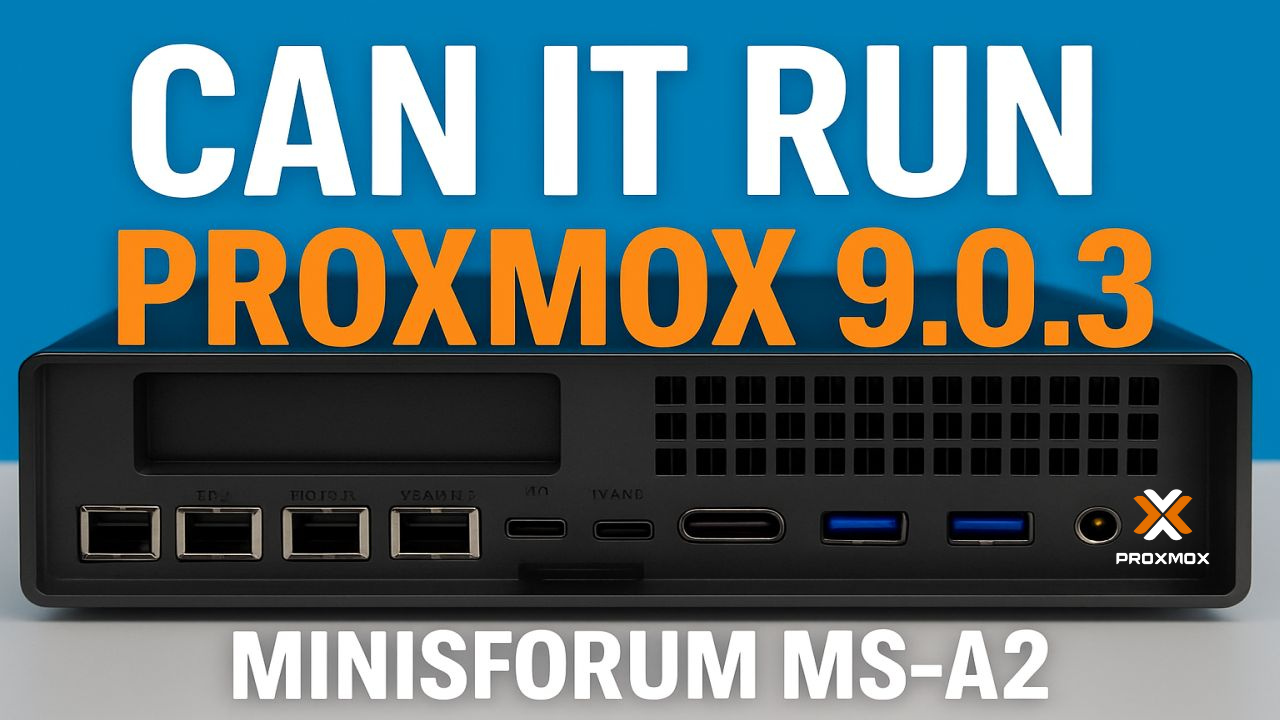
Minisforum MS-A2 Can it Play Proxmox 9.0.3 Minisforum MS-A2 Series Part 14 Ultimate #homelab
In this episode of the Minisforum MS-A2 Series, I take the brand-new MS-A2 and put it to the test by installing Proxmox VE 9.0.3. From booting off Ventoy, setting up the U.2 Samsung NVMe, configuring root credentials, and finalizing the installation — all the way to creating and running a Windows Server 2025 VM — we’ll see if the MS-A2 can truly handle Proxmox in a homelab environment.
Along the way, I hit some fun quirks (green screens, missing drivers, and Proxmox guest tools), but by the end we’ve got Windows Server installed and running smoothly.



![[Valid RSS]](http://andysworld.org.uk/images/valid-rss.png "Validate my RSS feed")