Archive for the ‘VMware’ Category

HOW TO: Synchronize changes when completing a P2V or V2V with VMware vCenter Converter Standalone 5.1

Friday, May 3rd, 2013
HOW TO:  Synchronize changes when completing a P2V or V2V with VMware vCenter Converter Standalone 5.1

OR

“Poor Man’s Replication of a Physical or Virtual machine to a VMware vSphere Hypervisor Host (ESXi) for FREE”

I have already written three articles on the use of VMware vCenter Converter Standalone 5.x.

VMware vCenter Converter Standalone primary function is to create physical to virtual copies or conversions of physical computers, we often abbreviate this to P2V. VMware vCenter Converter Standalone can also be used on computers that have already been converted to virtual computers, or virtual computers that already exist in a “Cloud Space”, so we can create copies or conversions of an existing virtual computer, we often  abbreviate this to V2V

VMware vCenter Converter Standalone is an excellent FREE software tool for creating P2Vs or V2Vs, but there is another often “hidden function” which is rarely used by VMware Administrators. The function is called Synchronize. This function can be used to Synchronize changes between a physical or virtual computer, which has already been P2Ved (V2Ved) to another virtual machine on another VMware vSphere Hypervisor (ESXi) host. The same function can be used, to help unattended “cut over times” when completing a P2V (V2V) in Production, you could create the original P2V (V2V) at 9.00am, and then using synchronize, finally sync all changes made during the day, and “cut over” to the virtual machine out of hours, at 23.00pm.

Some of our clients use this software and function, as a free alternative to replication to a second DR site and ESXi host. The ESXi host could be using the FREE VMware vSphere Hypervisor.

In this article, I’ll show you HOW TO:  Synchronize changes when completing a P2V or V2V with VMware vCenter Converter Standalone 5.1. In the example below I’ll be using a virtual machine, creating a V2V and then synchronizing additional changes made to the source virtual machine to the destination VM (our DR copy).

1

Install VMware vCenter Converter Standalone 5.1

Install VMware vCenter Converter Standalone 5.1 on the computer to be synchronized. In this example, I will be installing VMware vCenter Converter Standalone 5.1  on the virtual machine.

  • VMware vCenter Converter Standalone 5.1 – Installing

VMware vCenter Converter Standalone 5.1 - Installing

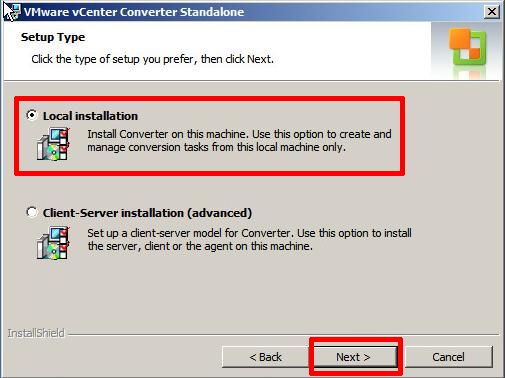
It is a very easy installation, click Next and follow the wizard, agreeing to the terms of the license agreement, select the default installation folder, and select Local installation
  • VMware vCenter Converter Standalone 5.1 – Local Installation

VMware vCenter Converter Standalone 5.1 - Local Installation

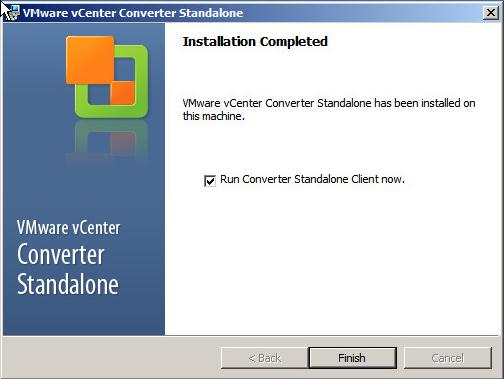
Click Next, and follow the installation wizard to the end, and Click Finish.
  • VMware vCenter Converter Standalone 5.1 – Finish

VMware vCenter Converter Standalone 5.1 - Finish

If you left the Tick in the Box for Run Converter Standalone Client now. VMware vCenter Converter Standalone will start, otherwise you will need to click the icon on your desktop.

2

Creating a P2V (V2V in this example) for synchronization

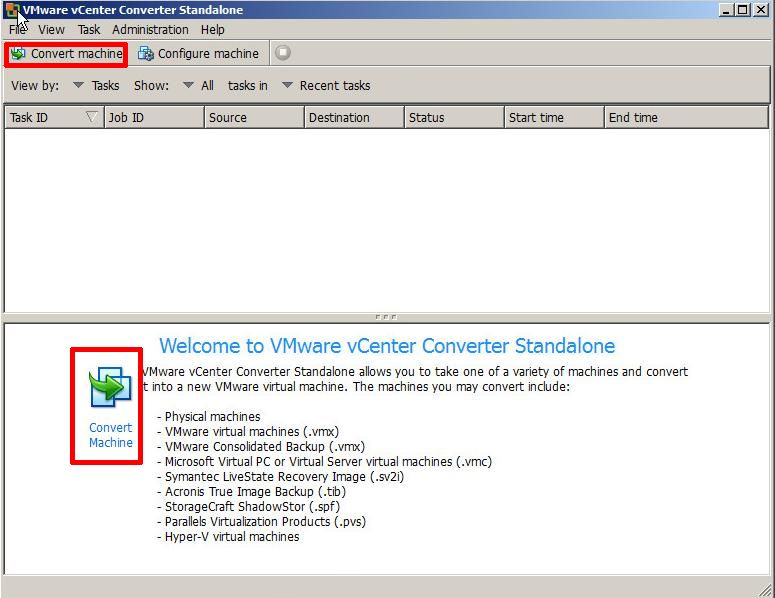
  • VMware vCenter Converter Standalone 5.1 – Welcome Screen

VMware vCenter Converter Standalone 5.1 - Welcome Screen

At the Welcome to VMware vCenter Converter Standalone, welcome screen click the Convert machine button. (This machine could be a physical or virtual machine, VMware vCenter Converter Standalone does not care what machine type it is.)
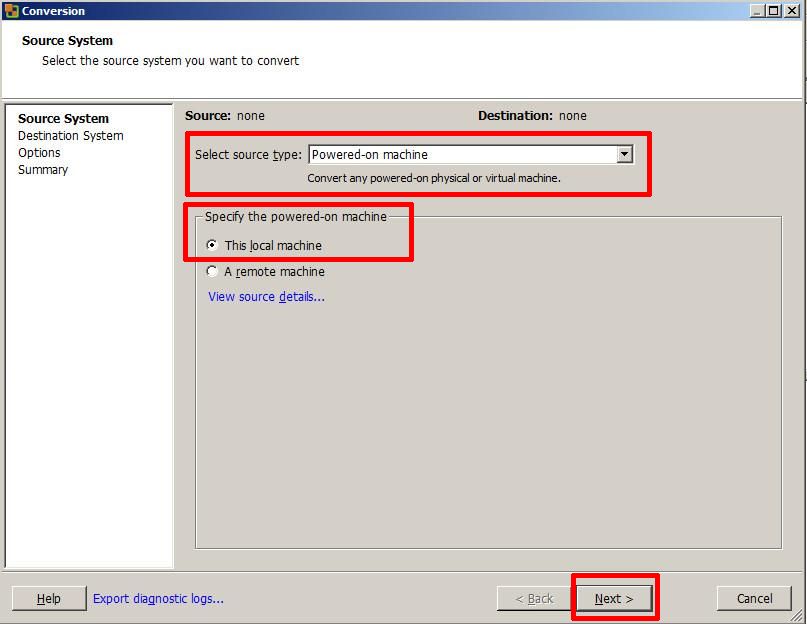
  • VMware vCenter Converter Standalone 5.1 – Convert Machine

VMware vCenter Converter Standalone 5.1 - Convert Machine

Select the Default option

Select source type: Powered-on-machine

Specify the powered-on machine: This local machine

followed by Next to continue, converter will identify the source machine.

  • VMware vCenter Converter Standalone 5.1 – Specify vCenter Server

VMware vCenter Converter Standalone 5.1 - Specify vCenter Server

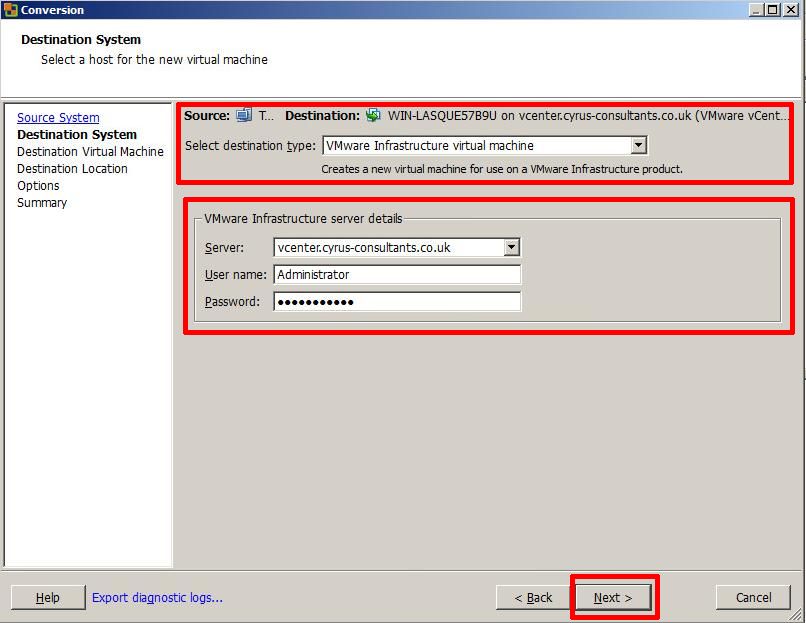
Select destination type: VMware Infrastructure machine

Enter the destination server, username and password, in this example, I’m using our VMware vSphere vCenter server details, but if you wanted to synchronize/replicate to a standalone VMware vSphere Hypervisor (ESXi) host, you would enter the VMware vSphere Hypervisor (ESXi)  host details here, e.g. root username and password.

  • VMware vCenter Converter Standalone 5.1 – Specify Destination Machine name

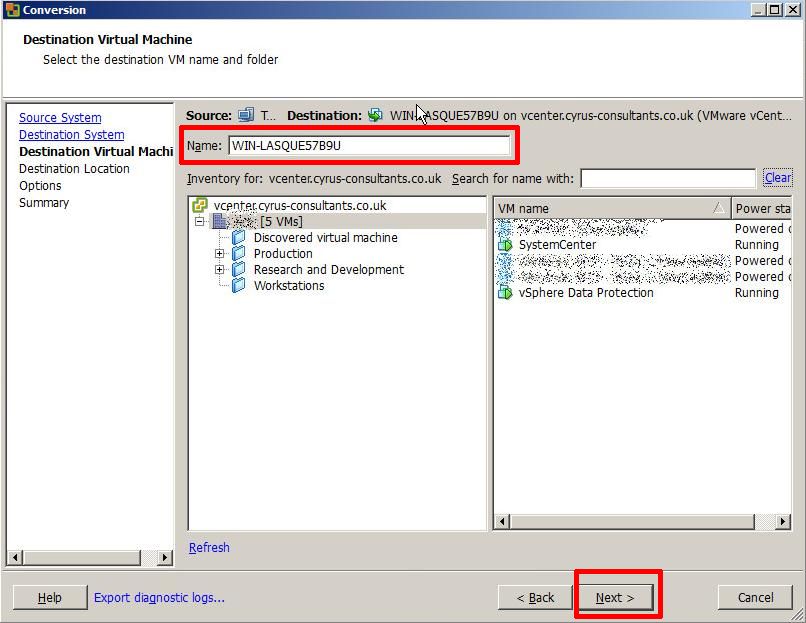
VMware vCenter Converter Standalone 5.1 - Specify Destination Machine name

Specify the destination name of the machine followed by Next
  • VMware vCenter Converter Standalone 5.1 – Specify Destination Location

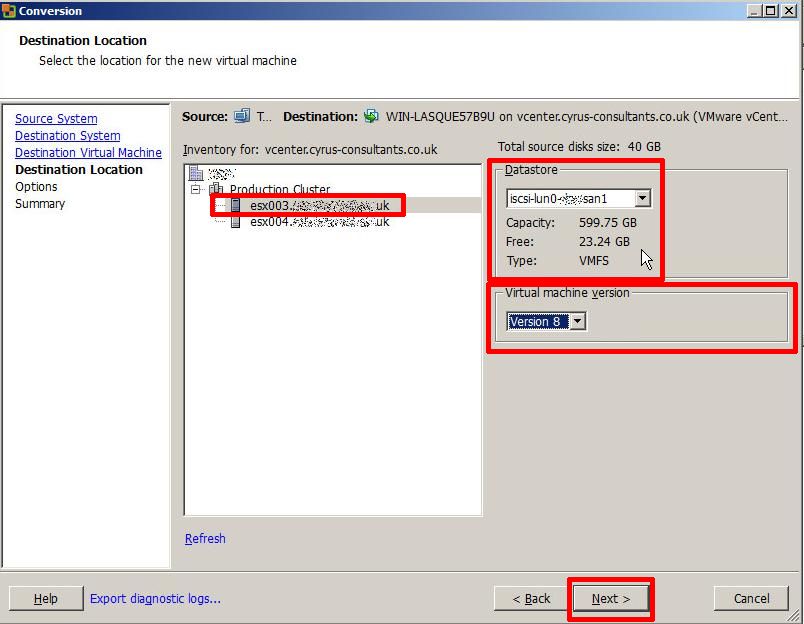
VMware vCenter Converter Standalone 5.1 - Specify Destination Location

Specify the destination location for the machine followed by Next, if you are using a VMware vSphere vCenter Server and have a VMware Cluster created, you will have additional options to specify which VMware vSphere Hypervisor (ESXi) host to create the new virtual machine, also specify the datastore location. Ensure the virtual machine version matches the original VM, in this example v8.0.
  • VMware vCenter Converter Standalone 5.1 – Enable Synchronize

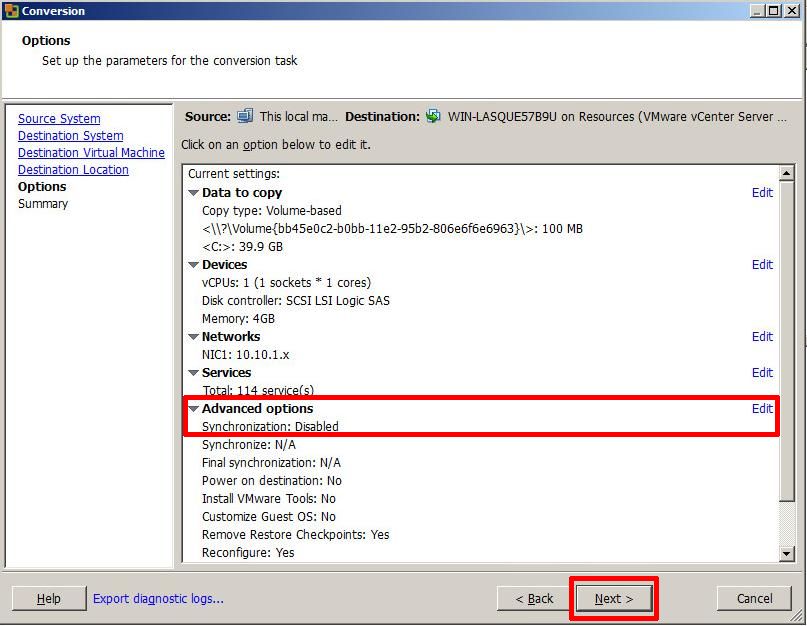
VMware vCenter Converter Standalone 5.1 - Enable Synchronize

If you click Next at this point, the P2V (V2V) will complete as normal.

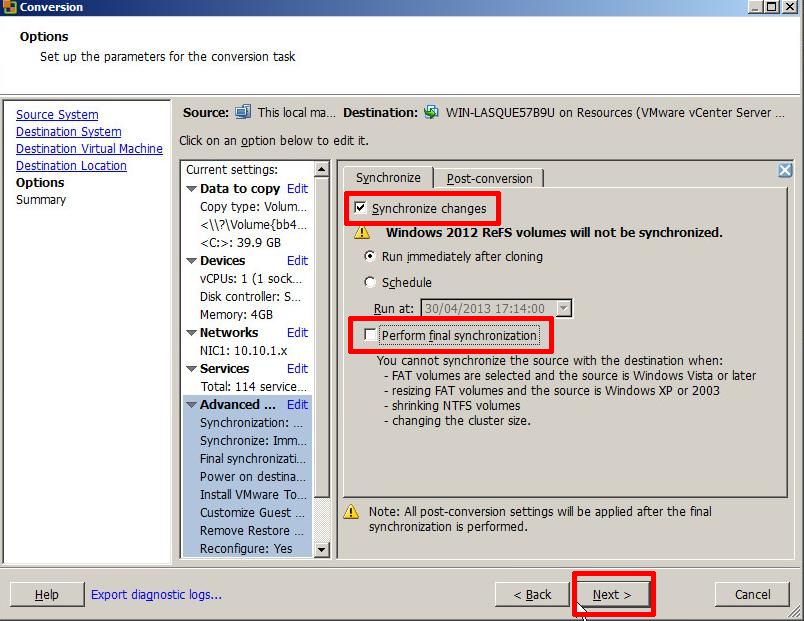
To enable the Synchronize function, you MUST select Edit

  • VMware vCenter Converter Standalone 5.1 – Enable Synchronise

VMware vCenter Converter Standalone 5.1 - Enable Synchronise

Ensure Synchronize changes is selected and ticked.

Ensure Perform final synchronization is Un-ticked.

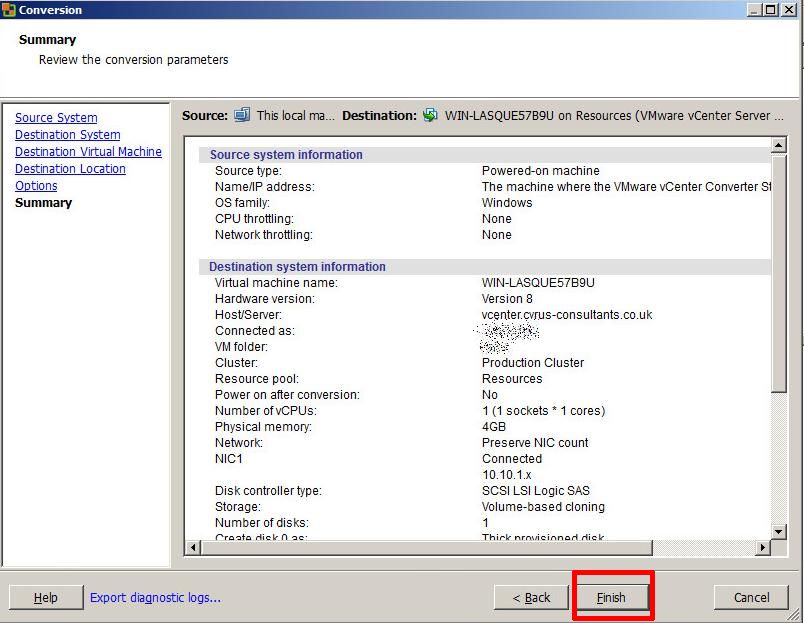
If you wanted to perform, a Scheduled Synchronize, select and set the Schedule Option. Select Next to continue, review the Summary screen, and select Finish.

  • VMware vCenter Converter Standalone 5.1 – Summary Screen

VMware vCenter Converter Standalone 5.1 - Summary Screen

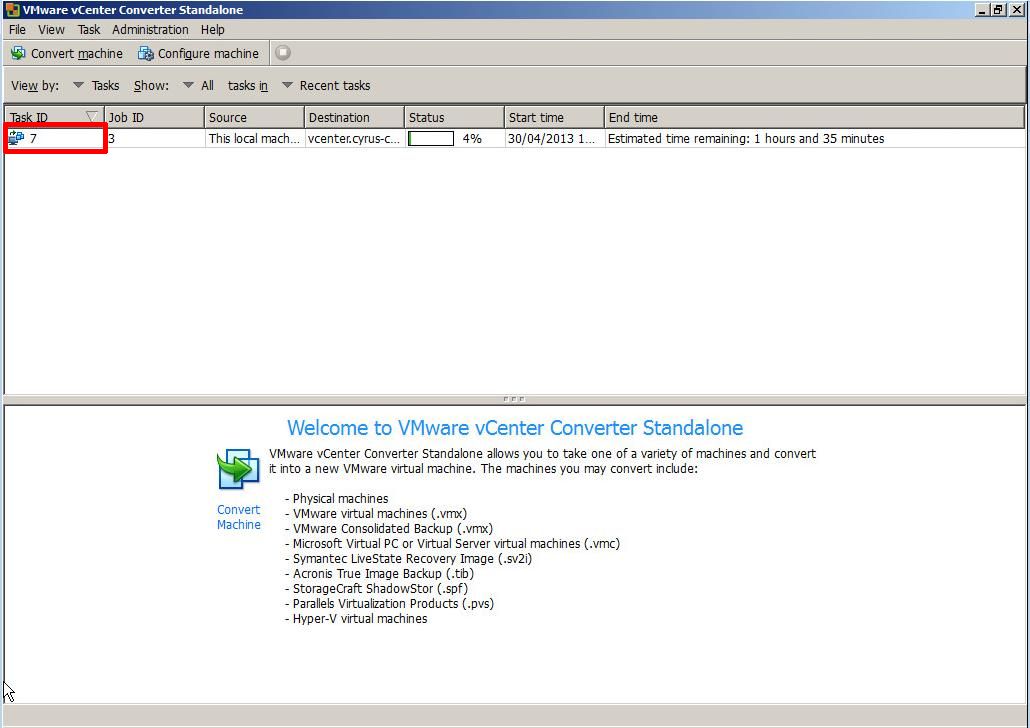
A P2V job will be submitted and the P2V conversion will start.
  • VMware vCenter Converter Standalone 5.1 – P2V Job Submitted

VMware vCenter Converter Standalone 5.1 - P2V Job Submitted

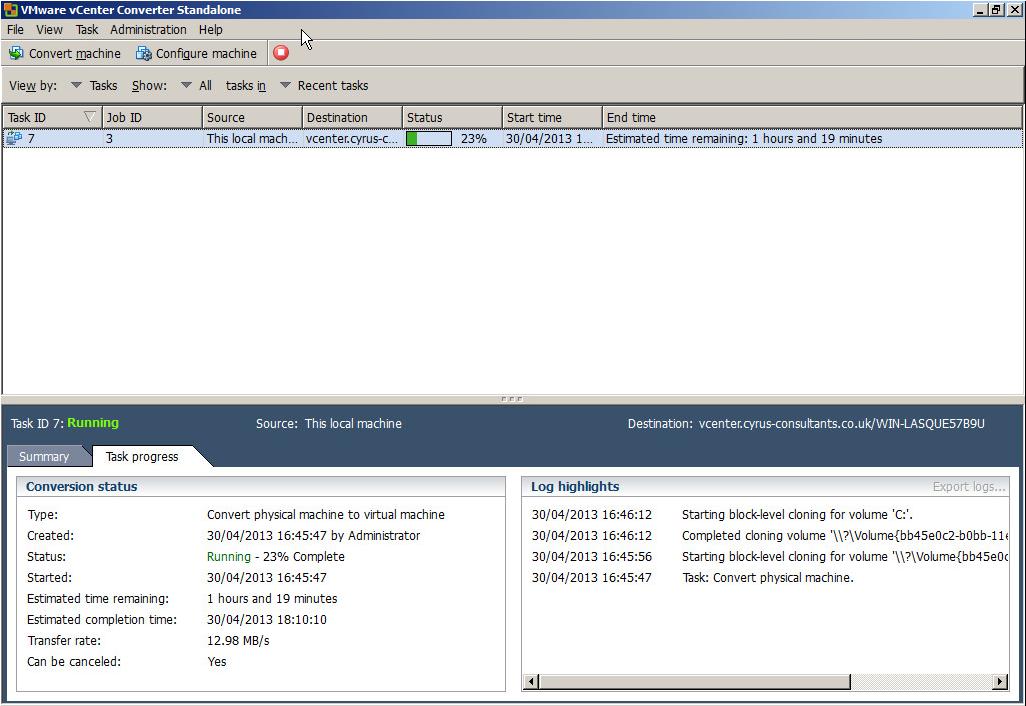
If you click the Task Id, you can check on the Task Progress.
  • VMware vCenter Converter Standalone 5.1 – Task Progress

VMware vCenter Converter Standalone 5.1 - Task Progress

3

Synchronize Changes

Once the initial P2V (V2V) conversion has completed, or “seeded” a new virtual machine, you can use the Synchronize function to replicate any changes that occur on the source machine to the virtual machine, the source machine could be a physical or virtual machine. (You can check the virtual machine by disconnecting networking, and powering up the virtual machine).

  • VMware vCenter Converter Standalone 5.1 – Job Status

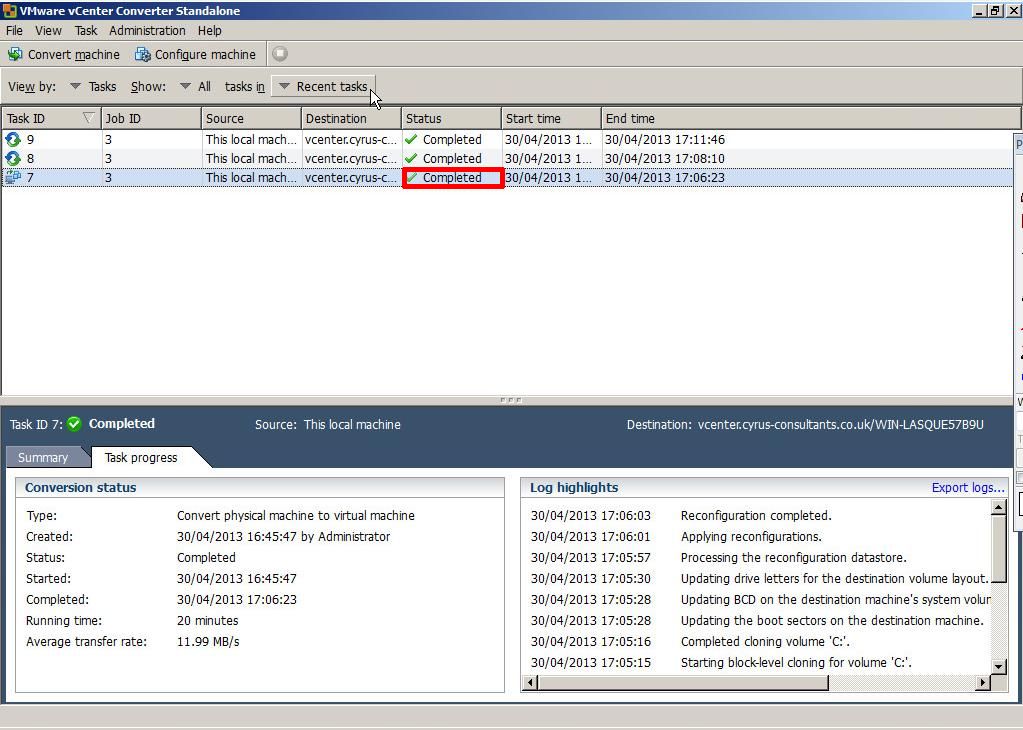
VMware vCenter Converter Standalone 5.1 - Job Status

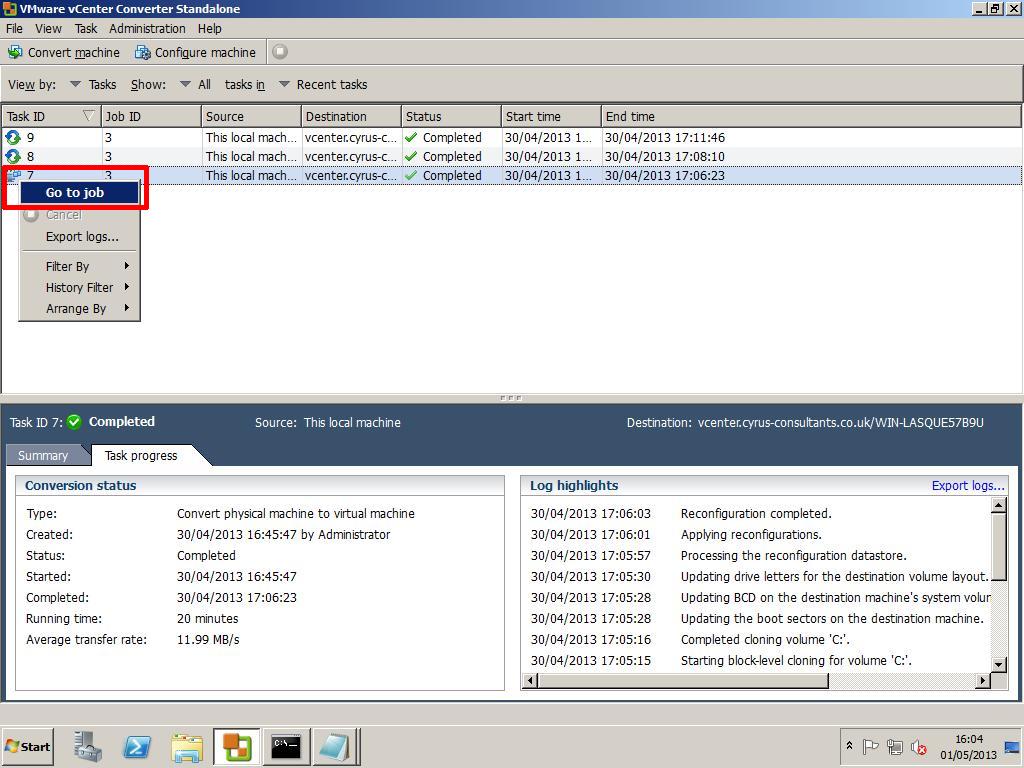
The Job Status should state Completed. Right Click the Task Id and select Go to job
  • VMware vCenter Converter Standalone 5.1 – Go to Job

VMware vCenter Converter Standalone 5.1 - Go to Job

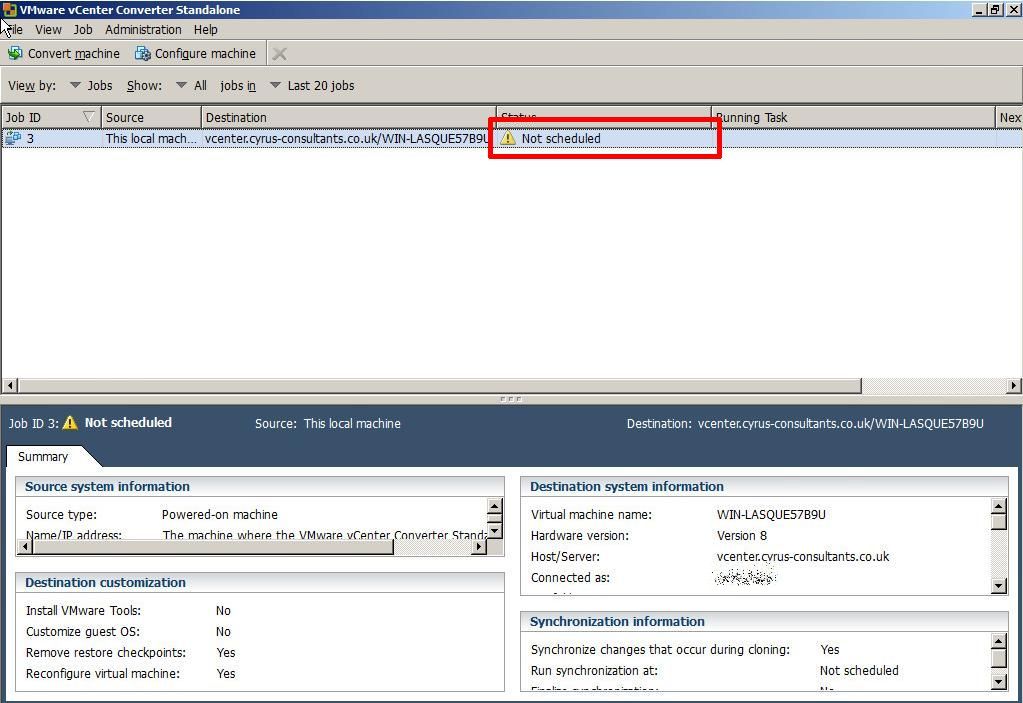
You will notice that the Status states Not Scheduled, this is because we did not set a schedule.
  • VMware vCenter Converter Standalone 5.1 – Not Scheduled

VMware vCenter Converter Standalone 5.1 - Not Scheduled

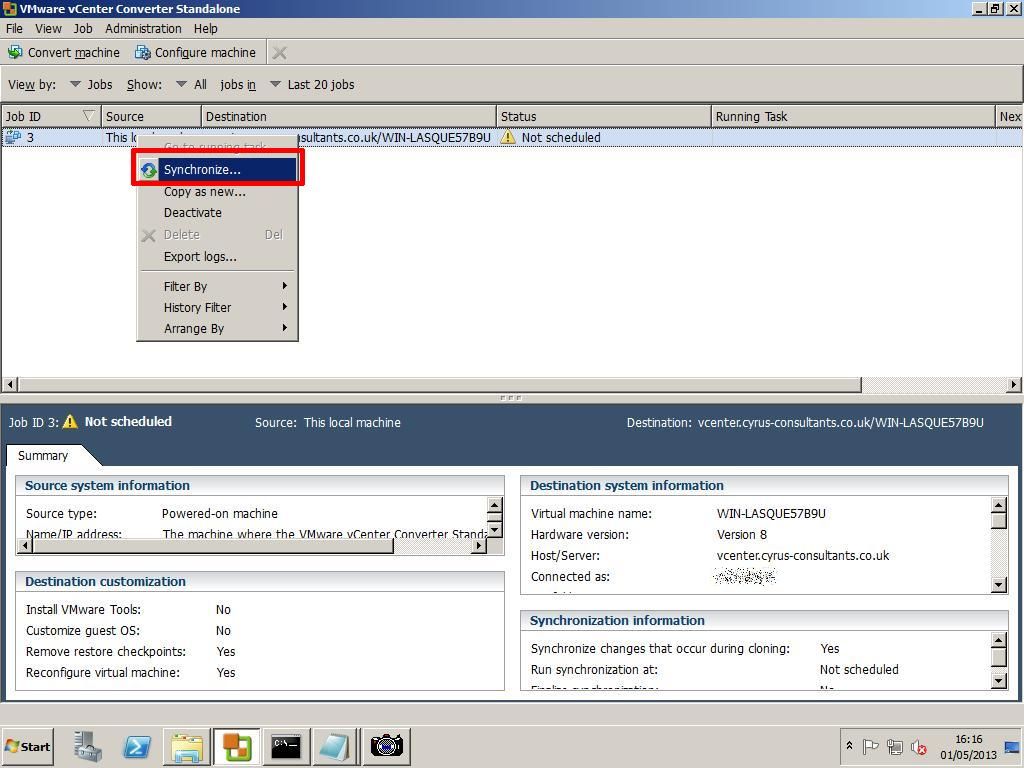
Right Click the Job Id, and select Synchronize.
  • VMware vCenter Converter Standalone 5.1 – Synchronize

VMware vCenter Converter Standalone 5.1 - Synchronize

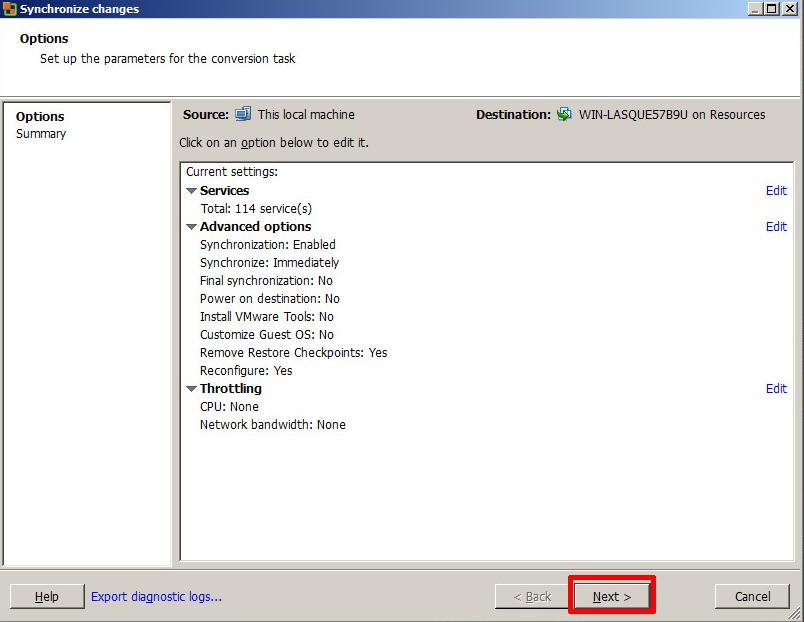
Click Next
  • VMware vCenter Converter Standalone 5.1 – Synchronize changes

VMware vCenter Converter Standalone 5.1 - Synchronize changes

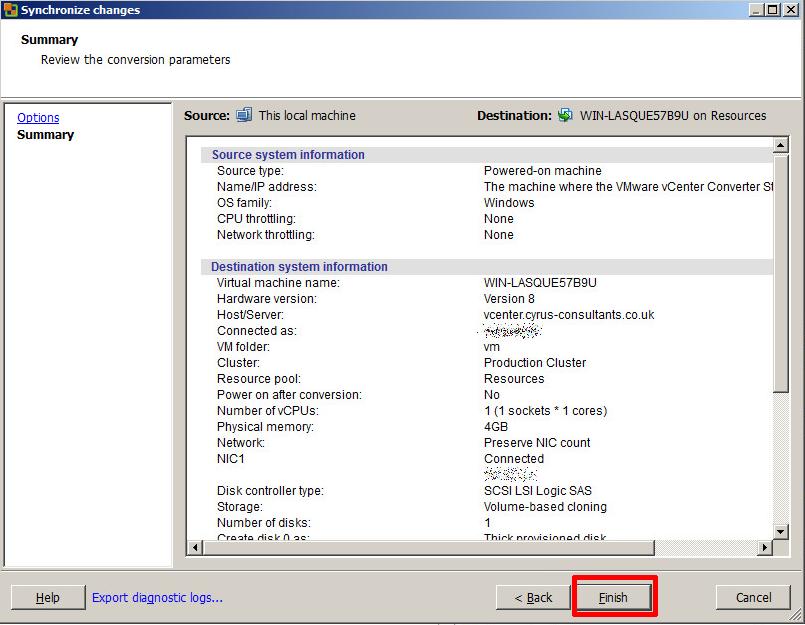
Check the Summary page and Click Finish
  • VMware vCenter Converter Standalone 5.1 – Finish

VMware vCenter Converter Standalone 5.1 - Finish

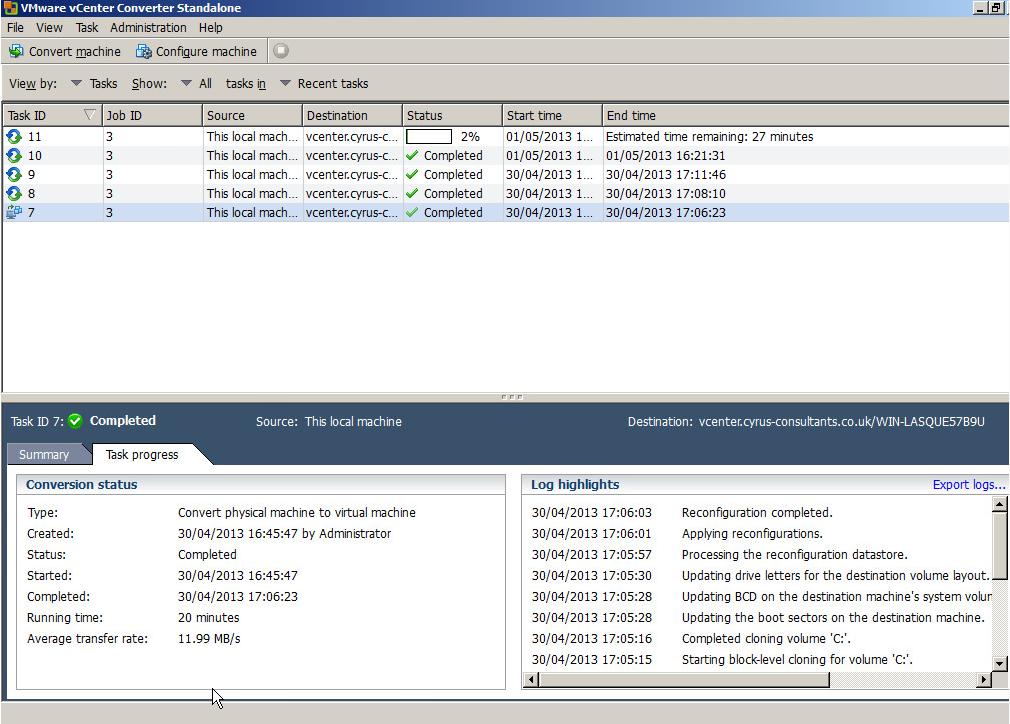
Click the View by Jobs
  • VMware vCenter Converter Standalone 5.1 – Synchronize Task Progress

VMware vCenter Converter Standalone 5.1 - Synchronize Task Progress

You will notice your Synchronize Job is Running, and it will have a new Synchronize icon, next to the job. All changes in the source machine will be synchronized or replicated to the virtual machine.

Congratulations you have successfully created a P2V (V2V) and Synchronized (replicated) your machine to a virtual machine.

HOW TO: P2V, V2V for FREE – VMware vCenter Converter Standalone 5.1

Thursday, May 2nd, 2013

HOW TO:  P2V, V2V for FREE – VMware vCenter Converter Standalone 5.1

If you need to complete a Physical to Virtual (P2V), Virtual to Virtual (V2V) conversion to a VMware product (VMware Workstation, Player or vSphere) for FREE, then there is some good news…VMware vCenter Converter Standalone 5.1 was released on 25 April 2013, and this latest version has new support for the following:-

  • Support for virtual machine hardware version 9
  • Guest operating system support for Microsoft Windows 8 and Microsoft Windows Server 2012
  • Guest operating system support for Red Hat Enterprise Linux 6
  • Support for virtual and physical machine sources with GUID Partition Table (GPT) disks
  • Support for virtual and physical machine sources with Unified Extensible Firmware
  • Interface (UEFI)
  • Support for EXT4 file system

Also fixes numerous issues with crashing and conversion issues, when converting physical or virtual computers to VMware vSphere vCenter Server 5.1 and VMware Hypervisor ESXi 5.1.

  • VMware vCenter Converter Standalone v5.1

VMware vCenter Converter Standalone v5.1

While I would recommend and use VMware vCenter Converter Standalone 5.1, there are other commercial products that do exist, and I have used.

If you have a large estate of physical machines to migrate, these products have a scheduler and can perform automated workflows, but these are commerical products and not FREE like VMware vCenter Converter Standalone 5.1

NETIQ Platespin Migrate

Acronis vmProtect

Storagecraft Shadow Protect

Symantec System Recovery Server Edition

If the operating system is Windows 2003, Windows 2000 or Windows NT 4.0, select and earlier version of VMware vCenter Converter Standalone version 3.0.3 or 4.0, support for early operating systems has been removed now from v5.1.

if you have recently upgraded to vSphere vCenter Server 5.1, and are looking for the Convert/Import vCenter plugin which existed with 4.x, it’s now longer available, and has been removed, and you will need to use  VMware vCenter Converter Standalone 5.1 for your conversions.

Download VMware vCenter Converter 5.1 here
VMware vCenter Converter Standalone 5.1 Documentation
VMware vCenter Converter Standalone 5.1 User Guide


If you have issues, you may want to consult the following articles and guides

Best Practice Video Guide here

Some Videos I’ve develeoped to show the VMware vCenter Converter process.

A Tutorial video by me:- Restore a Virtual Machine using the FREE VMware vCenter Converter to VMware vSphere 4.x, 5.0 ESXi 4.x, ESXi 5.0, ESX 4.0

A Tutorial video by me:- Backup VMware vSphere 4.x, 5.0 ESXi 4.x, ESXi 5.0, ESX 4.0 for FREE using VMware vCenter Converter

A Tutorial video by me:- VMware vCenter Converter Standalone 5.0 Convert monolithic sparse to monolithic flat for use with VMware vSphere 4.x 5.0 ESXi 4.x 5.0

What’s your Cloud Cred?

Monday, April 15th, 2013

VMware have launched a CloudCredibility website, what’s your Cloud Cred?, you get points for completing various Cloud Tasks (some with a VMware twist!).

I’m currently in team vExperts2 – (there are only 6 of us at present, hopefully more will join!)

My Team Members are:-

LucD – http://lucd.info

Andreas Peetz – http://www.v-front.de

Ed Czerwin

nielsengelen – http://foonet.be

Chris …

Update: I got 50 Cloud Cred Points for blogging this!

HOW TO: Connect to the VMware vSphere Hypervisor 5.1 (ESXi 5.1) using the vSphere Client

Tuesday, February 26th, 2013
In my previous VMware Articles, most featured Intermediate VMware Topics. My next series of articles will concentrate on topics for the VMware Novice; this is the second article in this series.

In this series of basic VMware articles for the Novice, I’ll be showing you the basic VMware skills required to install, configure and deploy virtual machines using VMware’s FREE VMware vSphere Hypervisor (ESXi).

This article will show you how to connect and complete some basic configuration of the VMware vSphere Hypervisor 5.1 on a computer. VMware vSphere Hypervisor 5.1 is also known as ESXi 5.1.

If you have missed the first article in the series, it’s here: HOW TO: Install and Configure VMware vSphere Hypervisor 5.1 (ESXi 5.1)

1

Download Tools to Manage the ESXi Host Server

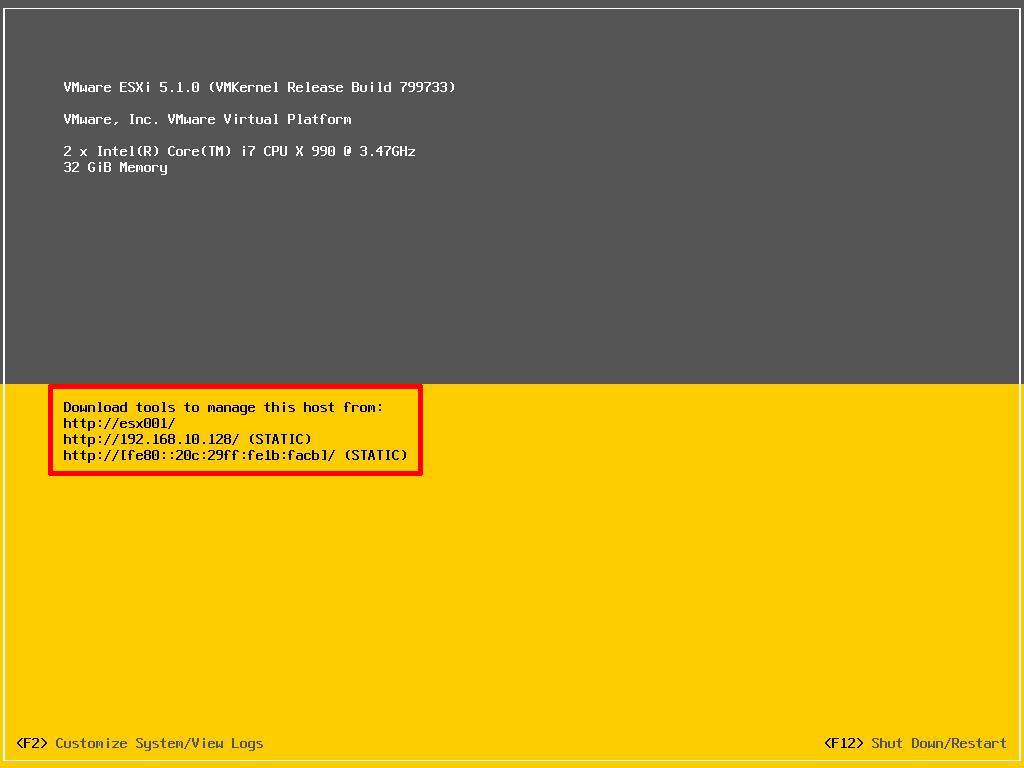
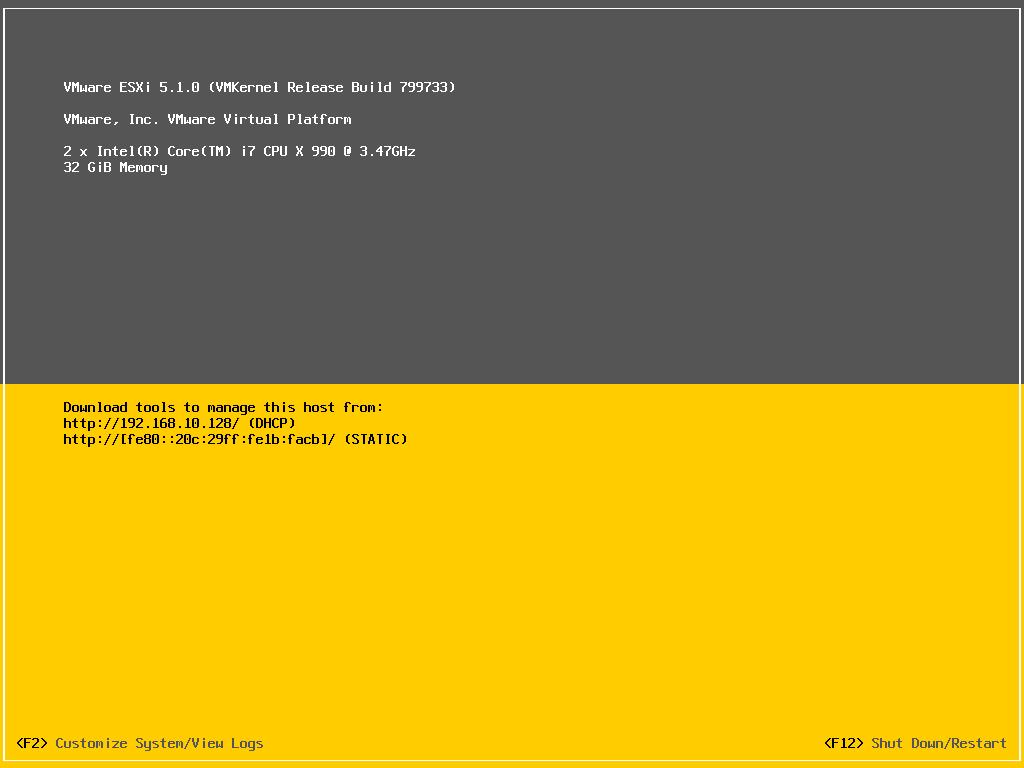
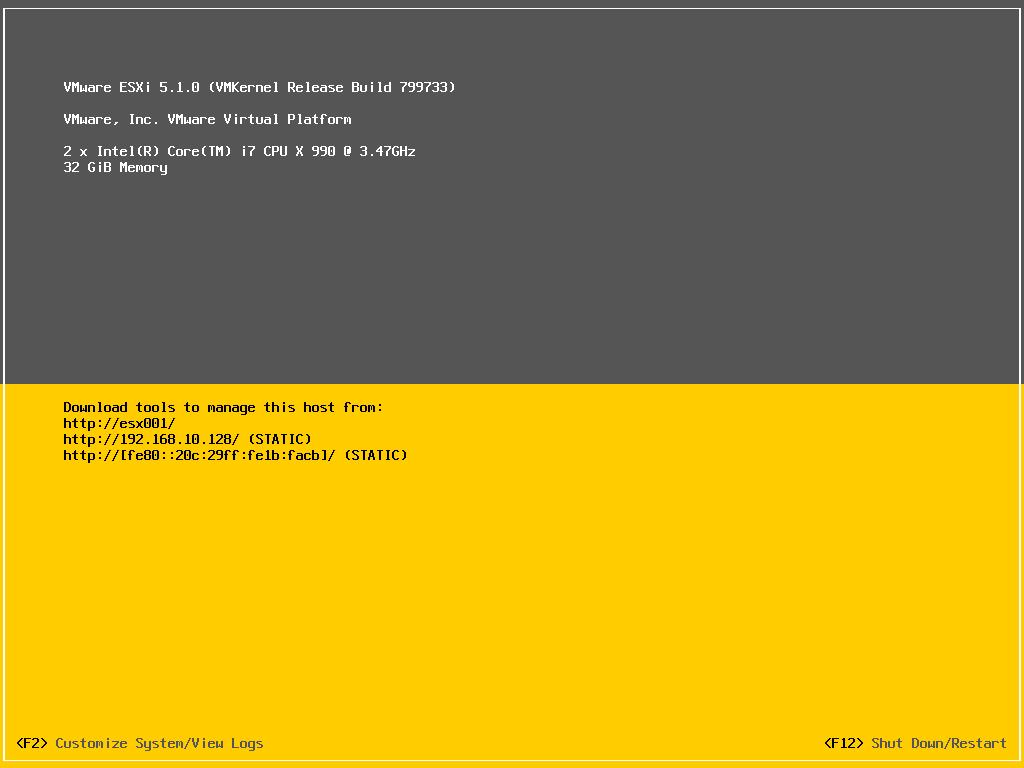
  • ESXi 5.1 DCUI (console) when Server has completed the Boot process

ESXi 5.1 DCUI (console) when Server has completed the Boot process

When the VMware vSphere Hypervisor (ESXi 5.1) server is fully BOOTED and started the above screen is displayed. This screen is called the Direct Console User Interface (DCUI). The majority of the management is performed remotely from another Windows computer using software tools called the VMware vSphere Client. You cannot manage or install virtual machines from the ESXi 5.1 server console; this must be completed remotely from another computer.

You can obtain the VMware vSphere Client software package (VMware-viclient-all-5.1.0-786111.exe) from the VMware website, as detailed in the first article of this series:
HOW TO: Install and Configure VMware vSphere Hypervisor 5.1 (ESXi 5.1) or you can download the software from the VMware vSphere Hypervisor (ESXi 5.1) .

Make a note of the IP Address of the server which is displayed on the console, and using a web browser, browse to the web URL http://192.168.10.128. (This is the IP Address displayed on the console screen; your IP address will be different).

The following screen will be displayed, because VMware’s SSL certificate has been “self-signed” the warning is normal. Click Continue to this website. In this example we are using Internet Explorer 10.

  • Connecting to vSphere Hypervisor ESXi 5.1

Connecting to vSphere Hypervisor ESXi 5.1

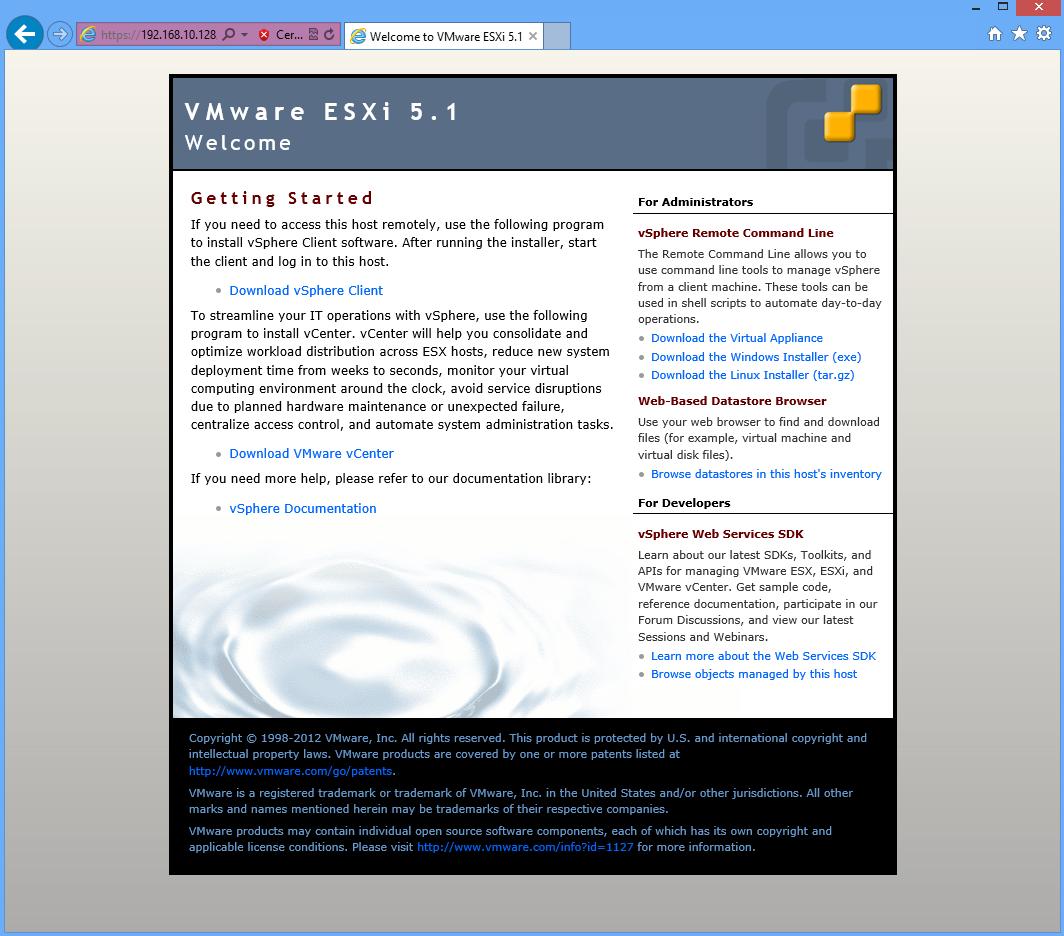
After clicking continue, the Welcome to VMware ESXi 5.1 screen will be displayed:
  • Welcome to VMware ESXi 5.1 screen

Welcome to VMware ESXi 5.1 screen

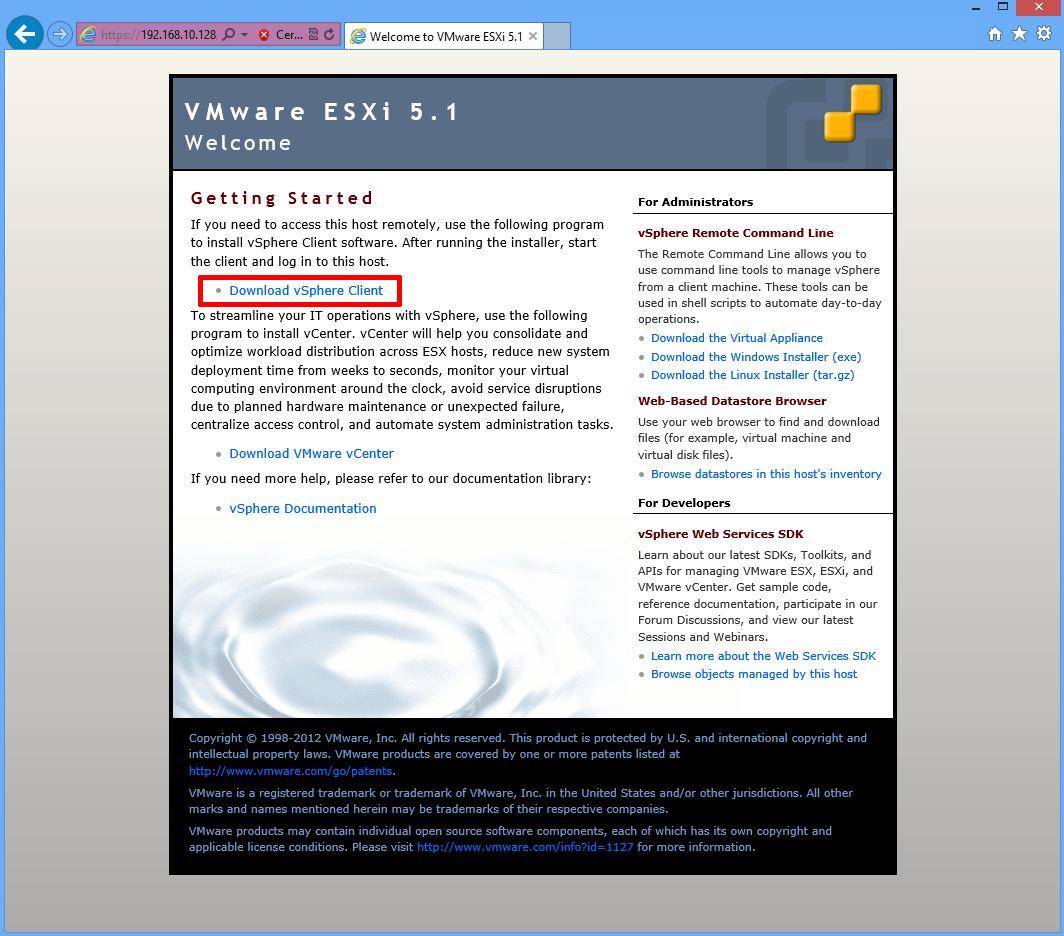
Click Download vSphere Client
  • Click Download vSphere Client

Click Download vSphere Client

This link used to download the vSphere Client from the ESXi Host server, but has recently been replaced to a VMware Link (http://vsphereclient.vmware.com/vsphereclient/7/8/6/1/1/1/VMware-viclient-all-5.1.0-786111.exe), so you can either download direct from VMware, or find the link through your ESXi 5.1 server. This does test that your ESXi 5.1 Host basic networking is working correctly.

For the sake of this article, we are going to download the vSphere Client from VMware, using the web link included on the Welcome to VMware ESXi 5.0 page. At the following prompt click Save.

  • Do you want to run or save VMware-viclient-all-5.1.0-786111.exe 347MB from vsphereclient.vmware.com?

Do you want to run or save VMware-viclient-all-5.1.0-786111.exe 347MB from vsphereclient.vmware.com?

Depending upon your Internet download speed, this can take between two and 30 minutes, as it is approximately 350MB in size.

2

Installing the VMware vSphere Client

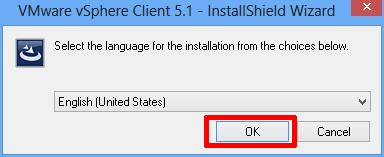
Once the download has been completed click Run. The setup files will be extracted, and the VMware vSphere 5.1 Client InstallShield Wizard will appear.

  • VMware vSphere 5.1 Client InstallShield Wizard

VMware vSphere 5.1 Client InstallShield Wizard

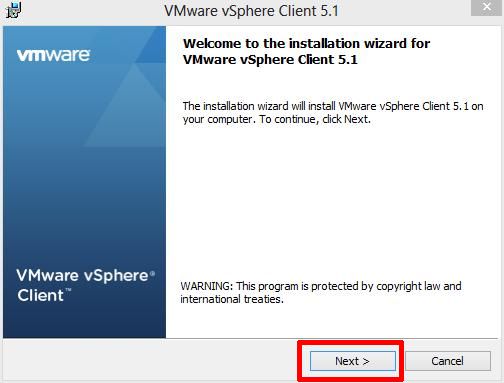
Click OK to Continue. The following Welcome screen will appear, Click Next to Continue.
  • Welcome to the installation wizard for VMware vSphere Client 5.1

Welcome to the installation wizard for VMware vSphere Client 5.1

That is followed by Next to Continue on the End-User Patent Agreement screen
  • End-User Patent Agreement screen

End-User Patent Agreement screen

Select “I agree to the terms of the license agreement” on the VMware End User License Agreement screen and Click Next to Continue.
  • VMware End User License Agreement

VMware End User License Agreement

Select the Destination Folder. We recommend the Default location C:\Program Files (x86)\VMware\Infrastrucuture\ followed by Next to Continue. (The VMware vSphere Client in this Tutorial is being installed on a 64-bit version of Windows, so this is the reason for the x86 reference. Your location could read C:\Program Files\VMware\Infrastrucuture\).
  • Select Destination Folder

Select Destination Folder

Click Install to Continue at the Ready to Install the Program screen
  • Ready to Install the Program

Ready to Install the Program

Click Finish to Complete the installation of the VMware vSphere Client.
  • Installation Completed

Installation Completed

3

Connecting to the VMware vSphere Hypervisor ESXi 5.1 server

Click the VMware vSphere Client icon on your computer Desktop, or click Start > Programs > VMware > VMware vSphere Client icon

  • VMware vSphere Client icon

VMware vSphere Client icon

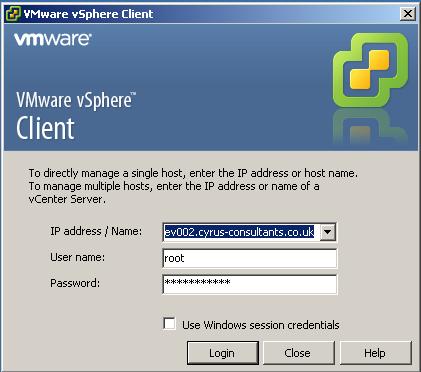
Using the VMware vSphere Client, login and connect to the VMware vSphere Hypervisor ESXi 5.1 server, using the IP address or hostname of the ESXi server, using the root username and password credentials.

In this tutorial the IP address of the ESXi 5.1 server is displayed on the console in Step 1. The IP address is 192.168.10.128. Enter the IP address, and username root, followed by the password. Click Login.

  • VMware vSphere Client logon.jpg

VMware vSphere Client logon.jpg

A Security Warning will appear, stating an untrusted SSL certificate is installed on your server. This is normal, because it’s a VMware “self-signed” certificate and can be replaced. (We will cover this in a later article in the series). Click Ignore and Tick the box to Install.
  • Security Warning

Security Warning

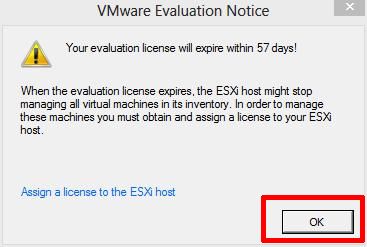
Click OK to acknowledge the VMware Evaluation Notice
  • VMware Evaluation Notice

VMware Evaluation Notice

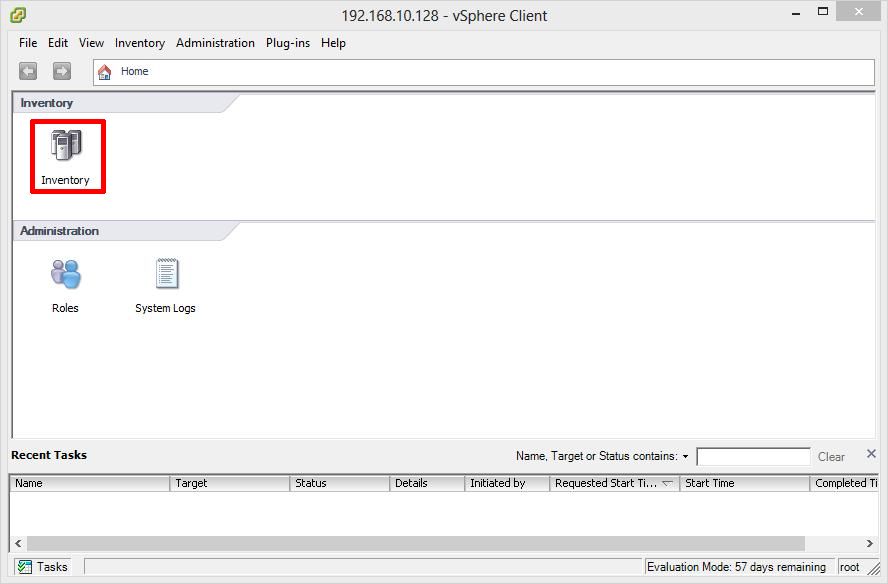
You are now connected to the VMware vSphere Hypervisor ESXi 5.1 Server. Click the Inventory icon, to see the server’s Inventory.
  • vSphere Client Connected to ESXi 5.1 Server

vSphere Client Connected to ESXi 5.1 Server

The following Inventory is displayed. You will notice it states The ESXi host does not have persistent storage. To store virtual machines (often referred to as Guests or VMs, the VMs must be stored and reside on an ESXi host datastore. The VMware vSphere Hypervisor ESXi server has a compatible filing system called VMFS (similar to Microsoft Windows NT/2000/XP/2003/2008/2012/7/8, which has its own filing system called NTFS). There are two versions of VMFS: VMFS-3 for earlier versions of vSphere e.g. 3.x and 4.x, and WMFS-5 for vSphere 5.x.

4

Conducting a simple task using the VMware vSphere Client

In this step, we will complete a simple task using the vSphere Client, this task is to Create a new VMFS datastore, so we can store VMs. This is the minimum configuration requirement for your ESXi host.

  • Click here to create a datastore

Click here to create a datastore

Click “Click here to create a datastore…”

At the Add Storage screen select Disk/LUN followed by Next to Continue, personally we feel the dialgoue box should be called Add New Storage e.g. it’s storage which has never been allocated or presented for use with a VMware server.

  • Select Disk/LUN

Select Disk/LUN

At the next screen select the actual Disk or LUN, pay special attention to the sizes shown. The size should match the size of disk, LUN or array size you have created for your VMFS datastore, followed by Next to Continue. In this tutorial we are going to select the 40GB Disk/LUN, the first entry in the list.
  • Select the Disk or LUN

Select the Disk or LUN

At the VMFS file system version select VMFS-5. Only select VMFS-3 if you require mixed-mode support with versions of ESX/ESXi less than 5.0. Click Next to Continue.
  • File System version

File System version

The Current Disk Layout will be shown. If this is a used disk, it could show other partition types. (NTFS, FAT32, Linux, Swap, ext2, ext3) Click Next to Continue. This is a new disk in this tutorial, so A new partition will be created and used.
  • Current Disk Layout

Current Disk Layout

At the next screen enter the name for the datastore (do not use / \ * # ! @ (non-alpha numeric characters); it will accept them, but you will have issues later. The dash and underscore are okay.) followed by Next to Continue
  • Enter datastore name

Enter datastore name

There are many different types of naming conventions. We like to use name of the server followed by underscore (_) local for local disk, iscsi for iscsi disk, nfs for nfs storage, fibre for fibre channel, a number to indicate disk or LUN id number, followed by VMFS type, e.g. 3 or 5. For example: esxdev009_local1_vmfs5
  • Enter datastore name

Enter datastore name

At the Disk/LUN – Formatting screen, select Maximum available space, and click Next to Continue.
  • Maximum Available Space

Maximum Available Space

Check the Summary screen for the datastore you are about to create and Click Finish to create the datastore.
  • Datastore Summary

Datastore Summary

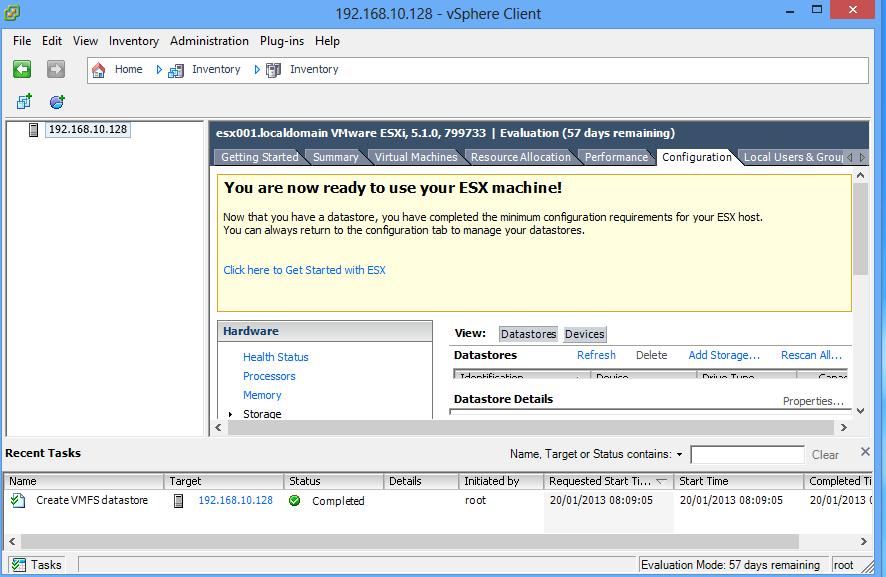
You are now ready to use your ESXi server.

  • Ready – ESXi

Ready - ESXi

Congratulations you have successfully installed the VMware vSphere Client, Connected to your VMware vSphere Hypervisor 5.1 server, and Created your first VMware VMFS-5 datastore ready to store Virtual Machines.

In the next article in the series, we will connect and continue to configure the VMware vSphere Hypervisor 5.1.

HOW TO: Install and Configure VMware vSphere Hypervisor 5.1 (ESXi 5.1)

Sunday, January 20th, 2013
In my previous VMware Articles, most featured Intermediate VMware Topics, my next series of articles will concentrate on topics for the VMware Novice.

In these series of basic VMware articles, I’ll be showing you the basic skills required to install, configure and deploy virtual machines using VMware’s FREE VMware vSphere Hypervisor.

This article will show you how to install and configure the VMware vSphere Hypervisor 5.1 on a computer. VMware vSphere Hypervisor 5.1 is also known as ESXi 5.1.

The FREE version of ESXi 5.1 is limited to 32GB per server.

  • ESXi 5.1 will install and run only on servers with 64-bit x86 CPUs.
  • ESXi 5.1 requires a host machine with at least two cores.
  • ESXi 5.1 supports only LAHF and SAHF CPU instructions.
  • ESXi 5.1 requires the NX/XD bit to be enabled for the CPU in the BIOS.

A full list of the ESXi 5.1 Hardware Requirements can be found in the VMware ESXi 5.1 Install Guide

Check the VMware Hardware Compatability Lists (HCL), to discover if your computer is certified for use with ESXi 5.1.

If your computer is not listed on the VMware HCL, it may still be possible to install and run VMware ESXi 5.1 on your laptop, desktop, or server. The HCL exists because the server vendor and VMware have certified and tested ESXi 5.1 will function correctly, on the servers listed on the HCL.

Register with VMware.com and Download VMware vSphere Hypervisor 5.1

Open the following link in your web browser
https://my.vmware.com/web/vmware/evalcenter?p=free-esxi5&lp=default
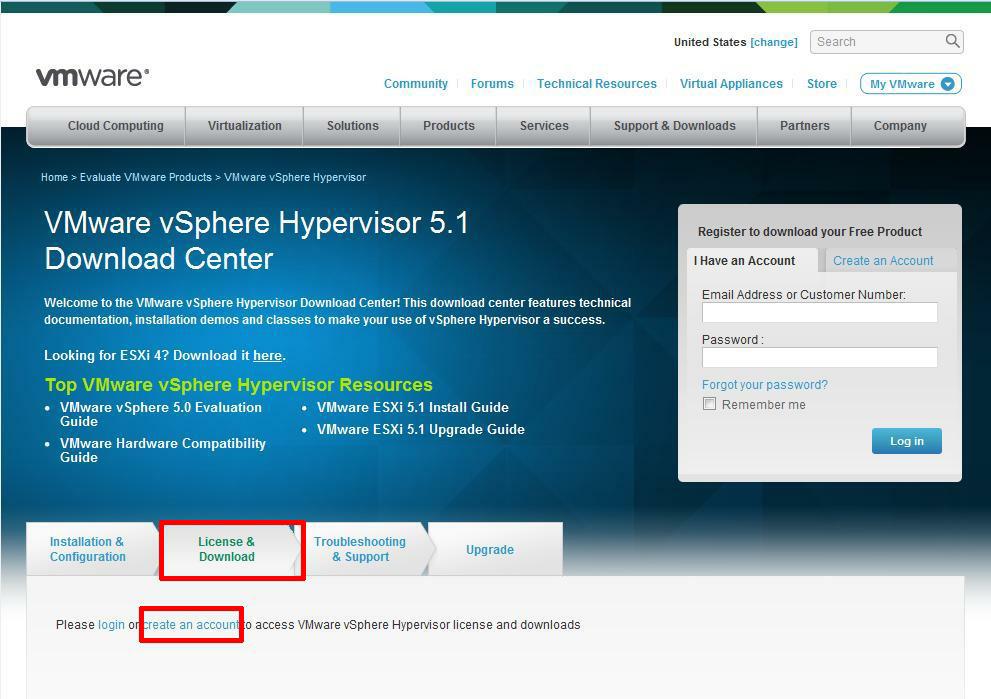
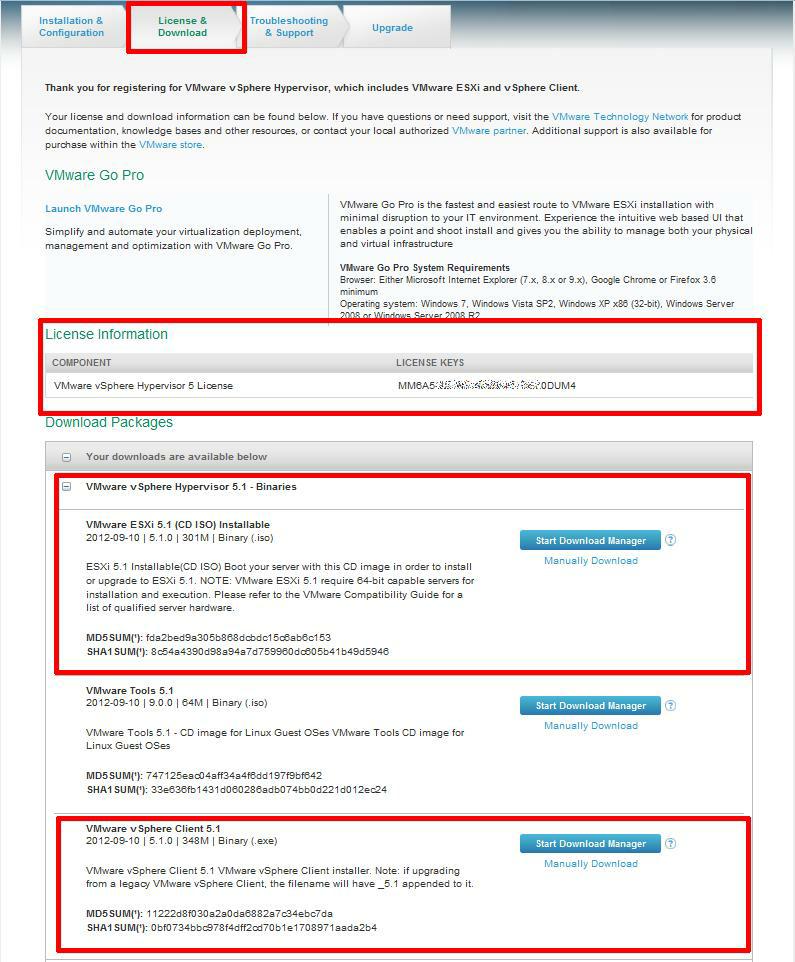
Click the License and Download Tab

  • VMware Download Center

VMware Download Center

Click Create an Account, to Create an Account and Login to the VMware Download Center. VMware will email you an Activation link which needs to be opened to create the account.

The following page will be displayed when you have successfully logged into the VMware Download Center.

  • VMware Download Center

VMware Download Center

Pay special attention to the FREE License information which is displayed, and record this License Number, this will be required in a later article.

Click the download link for VMware ESXi 5.1 (CD ISO) Installable to download the software required to install ESXi 5.1 and also download the VMware vSphere Client 5.1. The VMware vSphere Client 5.1 software is the client software that allows us to connect and manage the ESXi 5.1 server, this will be required in a later article.

Either use the Download Manager or Manually Download button (which uses your web browser). The CD ISO is only 301MB so should not take too long to download. We have a very slow internet connection, at approx 350 kB/sec, and it takes us approximately 10 minutes to download.

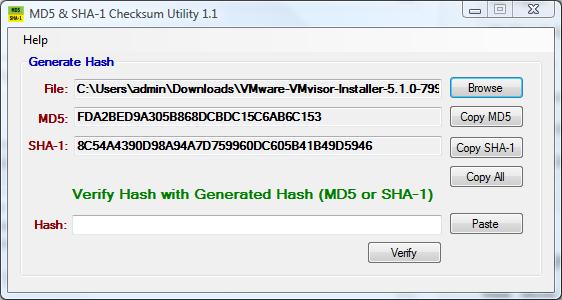
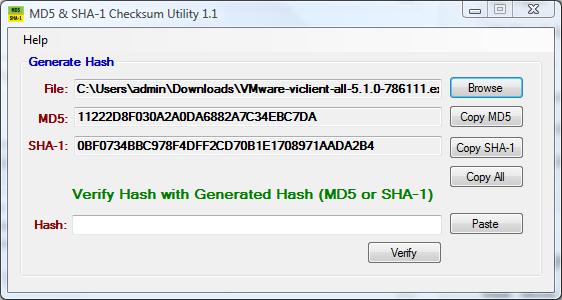
Once the downloads have been completed using your favourite MD5 and SHA1 checksum utility, confirm the downloads have been downloaded correctly, using the published MD5 and SHA1 checksums from the VMware website.  We use the MD5 & SHA-1 Checksum Utiliy 1.1 from http://raylin.wordpress.com/downloads/md5-sha-1-checksum-utility/.

Many VMware vSphere Hypervisor 5.1 installations fail due to corrupt downloads.

  • MD5 & SHA1 checksum confirmed with published checksums for VMware-VMvisor-Installer-5.1.0-799733.x86_64.iso

MD5 & SHA1 checksum confirmed with published checksums for VMware-VMvisor-Installer-5.1.0-799733.x86_64.iso

  • MD5 & SHA1 checksum confirmed with published checksums for VMware-viclient-all-5.1.0-786111.exe

MD5 & SHA1 checksum confirmed with published checksums for VMware-viclient-all-5.1.0-786111.exe

Installing VMware vSphere Hypervisor 5.1 (ESXi 5.1)

Write (Burn) the VMware-VMvisor-Installer-5.1.0-799733.x86_64.iso downloaded in Step 1, to a blank CDROM, using your favourite CD writing software. We use ISO Recorder (http://alexfeinman.com/isorecorder.htm). If you are using remote server utilities, e.g. HP iLo or Dell iDRAC,. you can attach the virtual CDROM drive in the server to the VMware-VMvisor-Installer-5.1.0-799733.x86_64.iso ISO, so there is no requirement to write a CDROM.

This is a step which is often missed, ensure the BIOS BOOT order is set to BOOT from the CDROM Device or ATAPI device in the server, otherwise the computer will not BOOT from the CDROM.

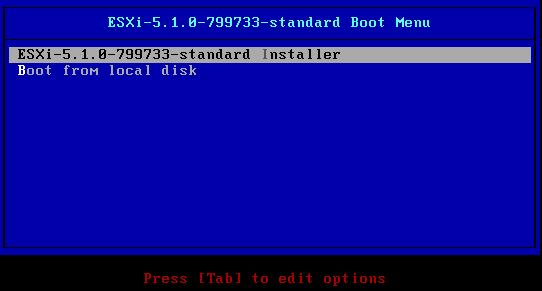
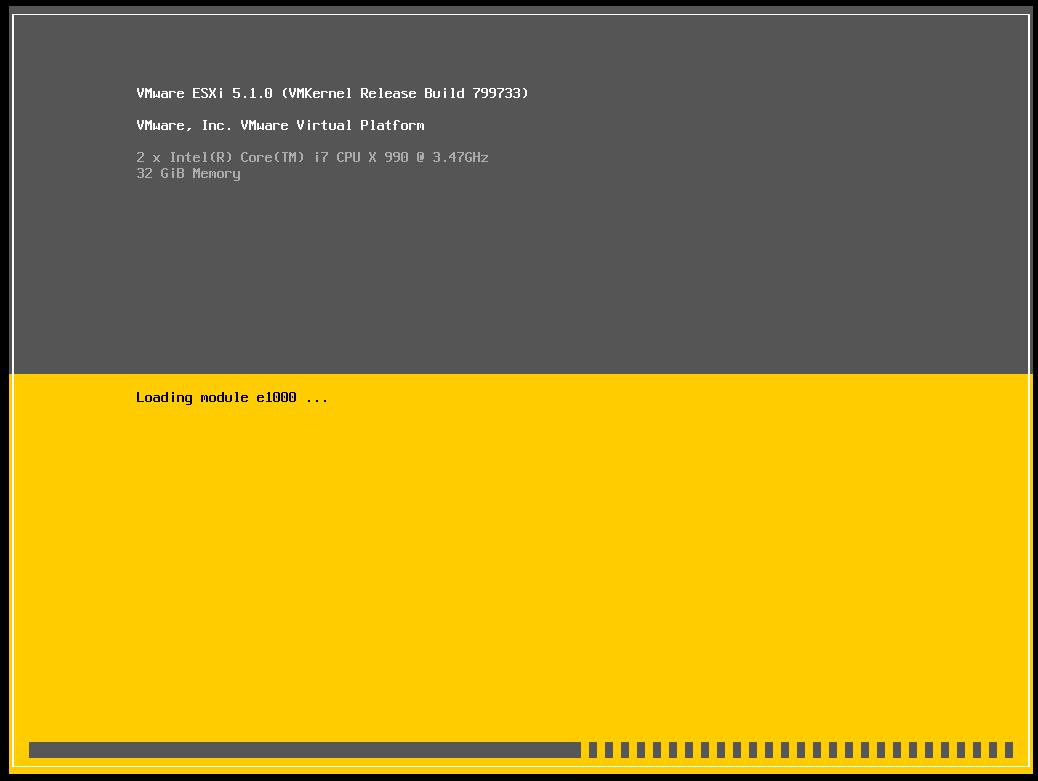
Power on the Computer, the computer will BOOT from the CDROM, and the following BOOT screen will be displayed

  • ESXi 5.1 BOOT from CDROM

ESXi 5.1 BOOT from CDROM

The default option is to BOOT ESXi-5.1.0-799733-standard Installer after 10 seconds, hit any key will pause the BOOT process.
  • VMware ESXi 5.1 Startup

VMware ESXi 5.1 Startup

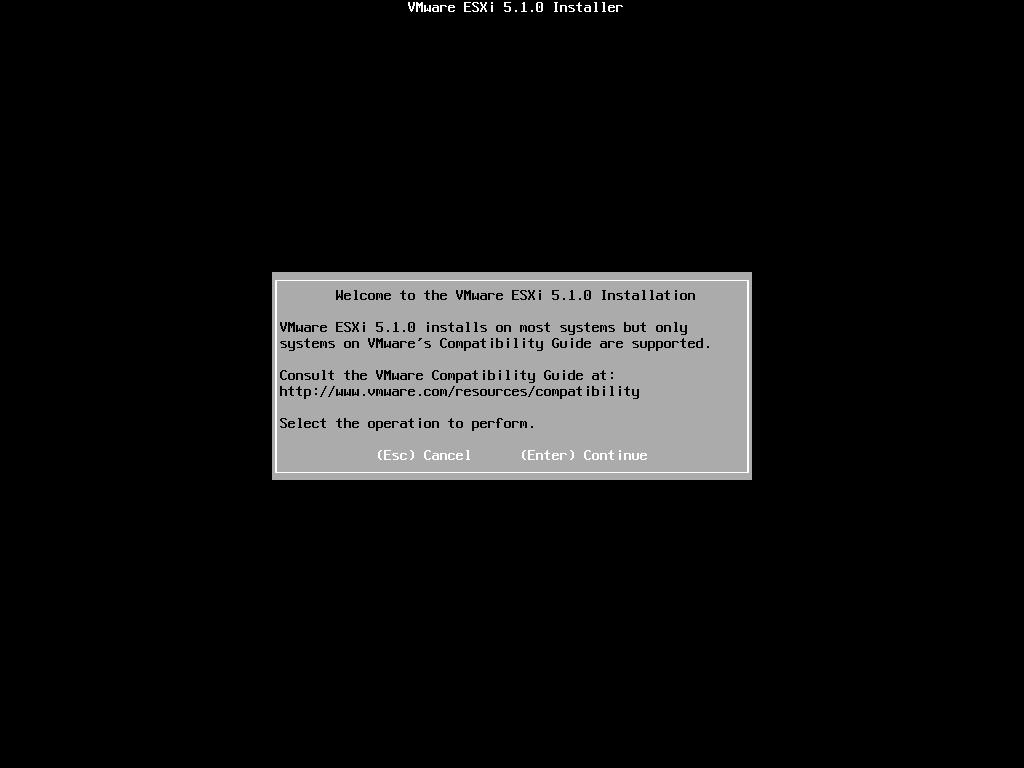
At the Welcome to the VMware ESXi 5.1.0 Installation screen Hit Enter to Continue the installation.
  • Welcome to the VMware ESXi 5.1.0 Installation screen

Welcome to the VMware ESXi 5.1.0 Installation screen

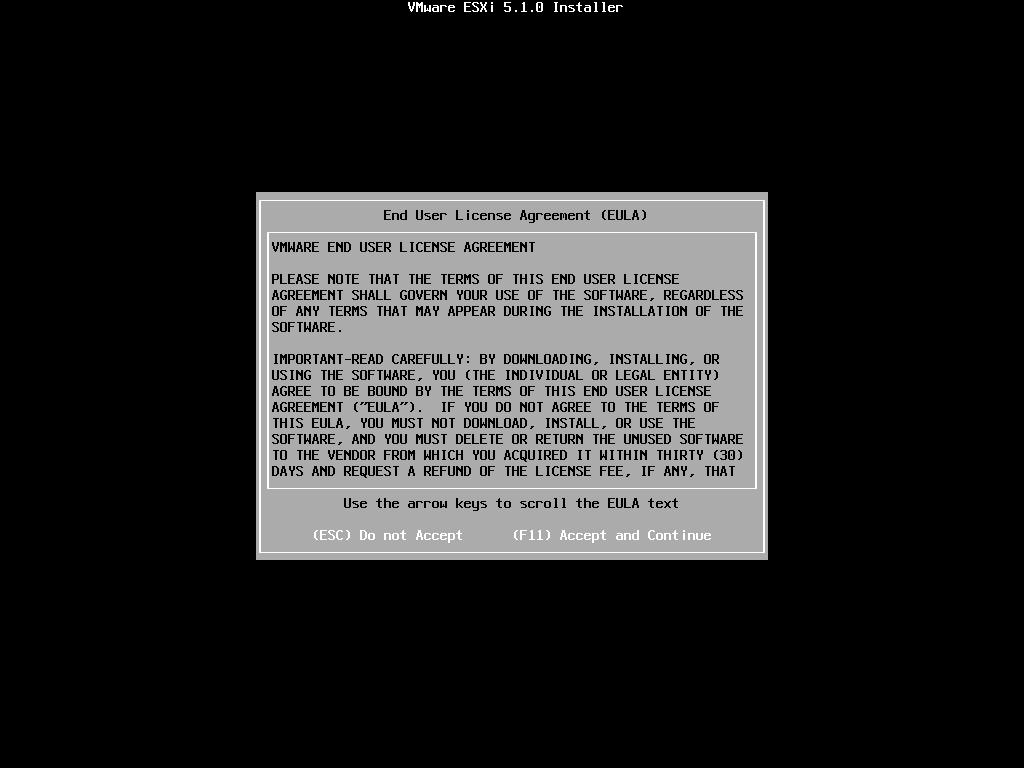
Press F11 (Function Key 11) to Accept the VMware End User License Agreement (EULA)
  • Press F11 (Function Key 11) to Accept the VMware End User License Agreement (EULA)

Press F11 (Function Key 11) to Accept the VMware End User License Agreement (EULA)

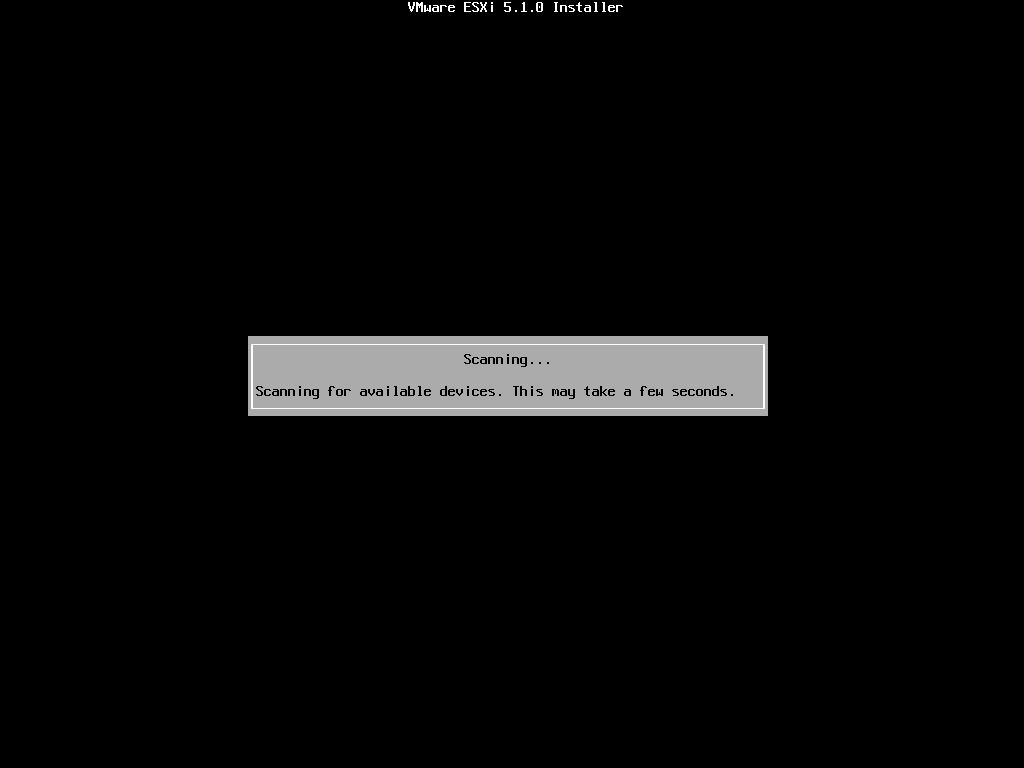
The ESXi installer will scan the computer storage controller for available devices to install ESXi.
  • Scanning for available devices

Scanning for available devices

ESXi can be installed on a USB flash drive, SD card attached to the computer, local SATA, local RAID Array, or Fibre Channel or iSCSI LUN. All these are supported options. As the footprint for ESXi is very small only 1GB is required for the ESXi OS installation.

We have written an Article here on How to Backup an ESXi installation on an USB Flash Drive or SD card, for security or redundancy. After you have completed the ESXi 5.1 installation, shutdown the server, remove the USB flash drive or SD card, and duplicate it using our Article.

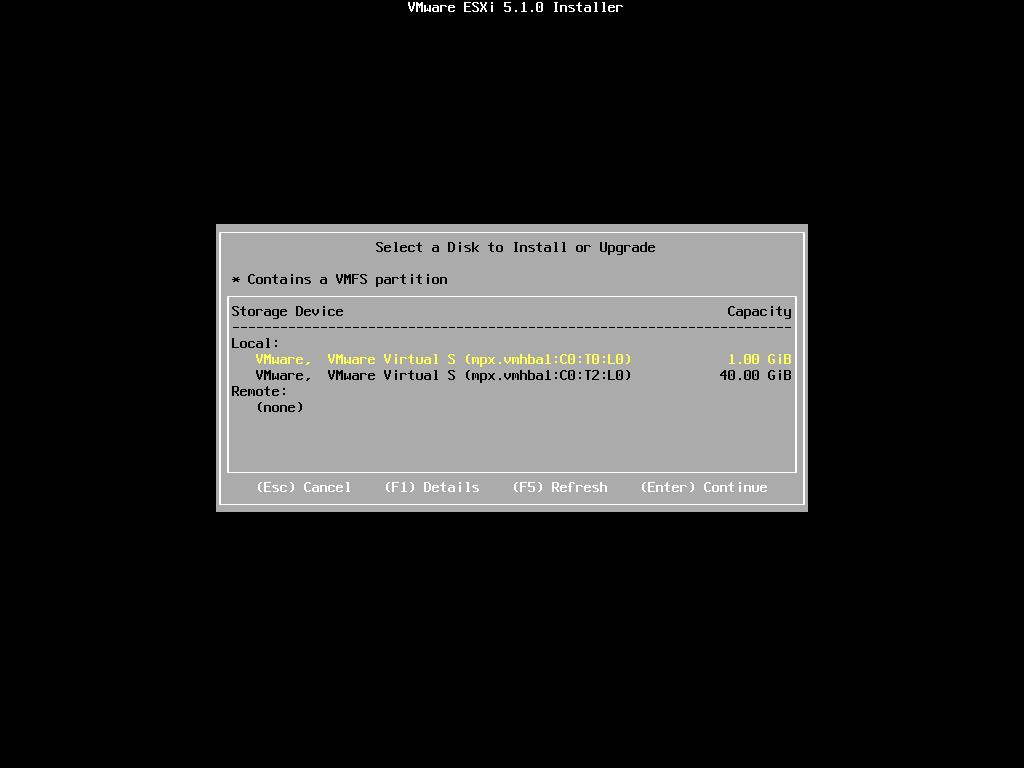
When prompted select a disk to install ESXi on, in the following example, we have two disks connected to this computer, a single 1GB disk, and a 40GB disk. We are going to use the small disk for the OS. The larger 40GB disk will be used later for the storage of virtual machines.

  • Select a Disk to Install

Select a Disk to Install

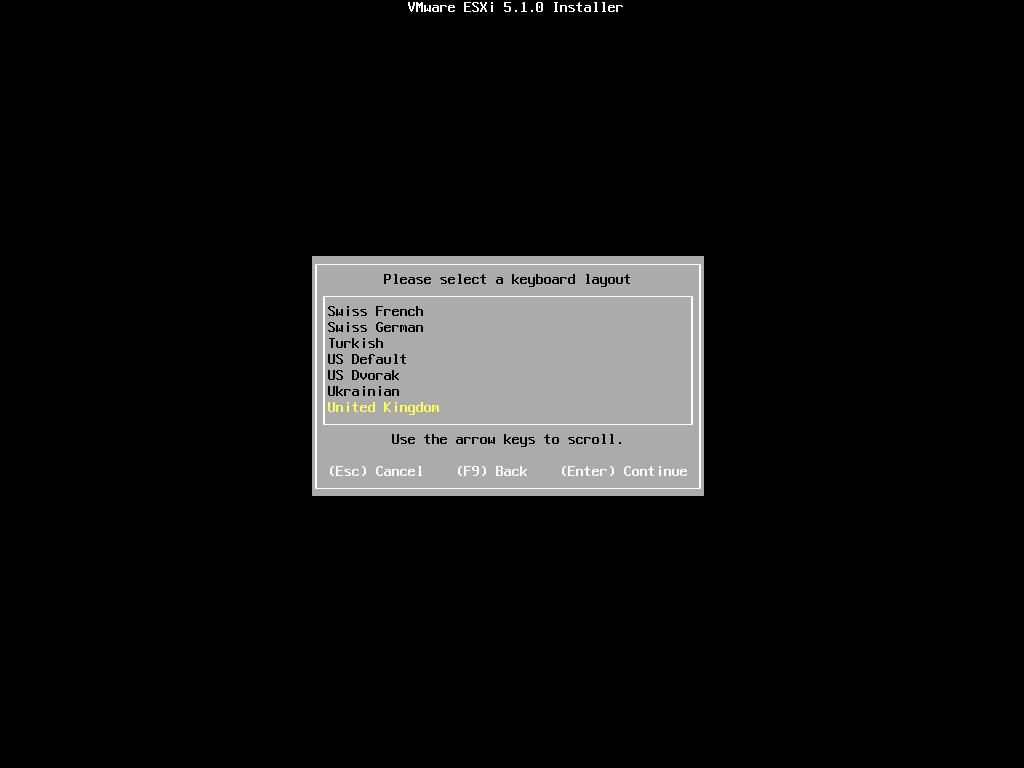
When prompted, select the keyboard layout and hit Enter to continue.
  • Please select a keyboard layout

Please select a keyboard layout

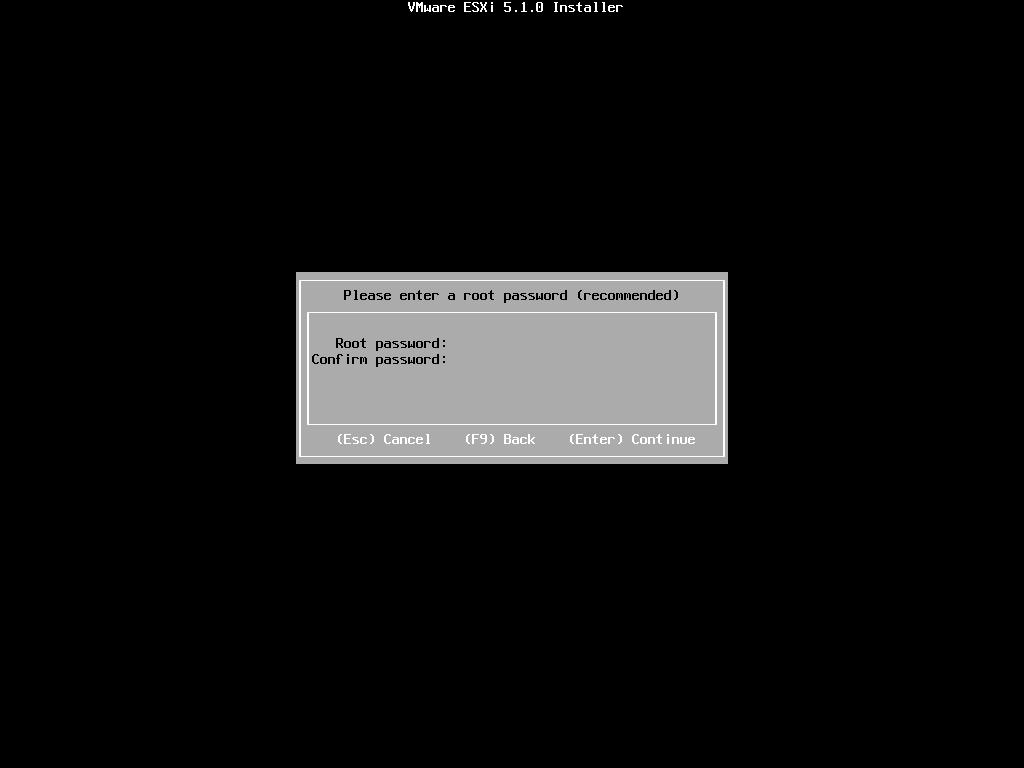
When prompted enter a root password, confirm the password and hit Enter to continue
  • Enter a root password

Enter a root password

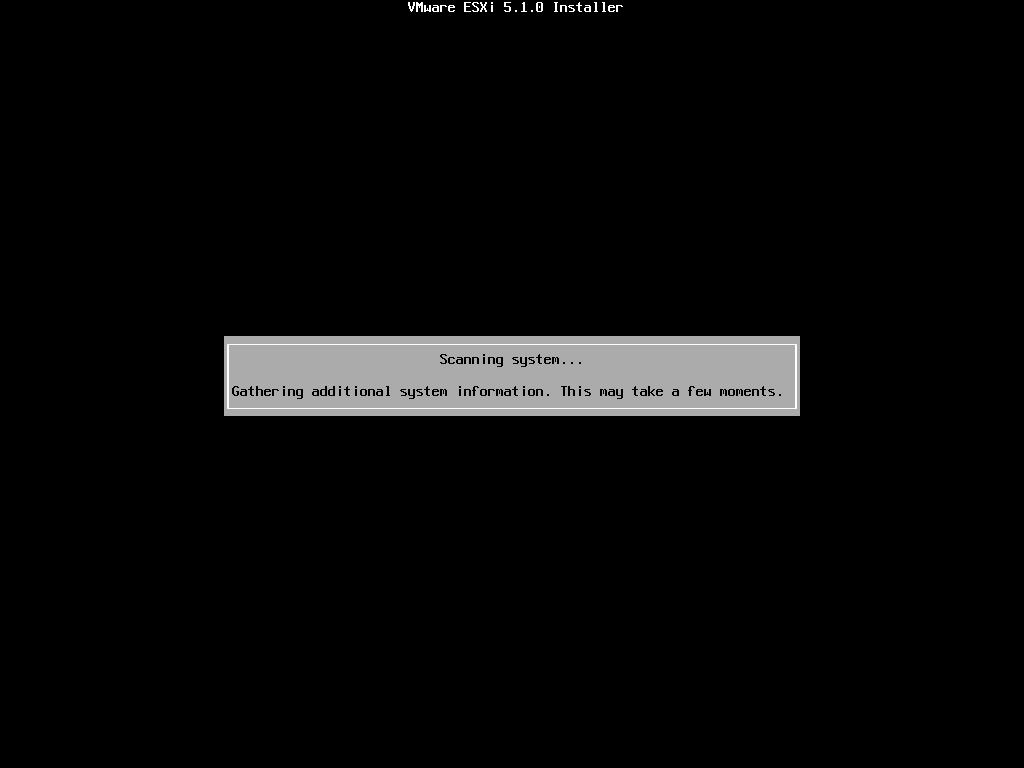
The following will be displayed
  • Gathering additional system information

Gathering additional system information

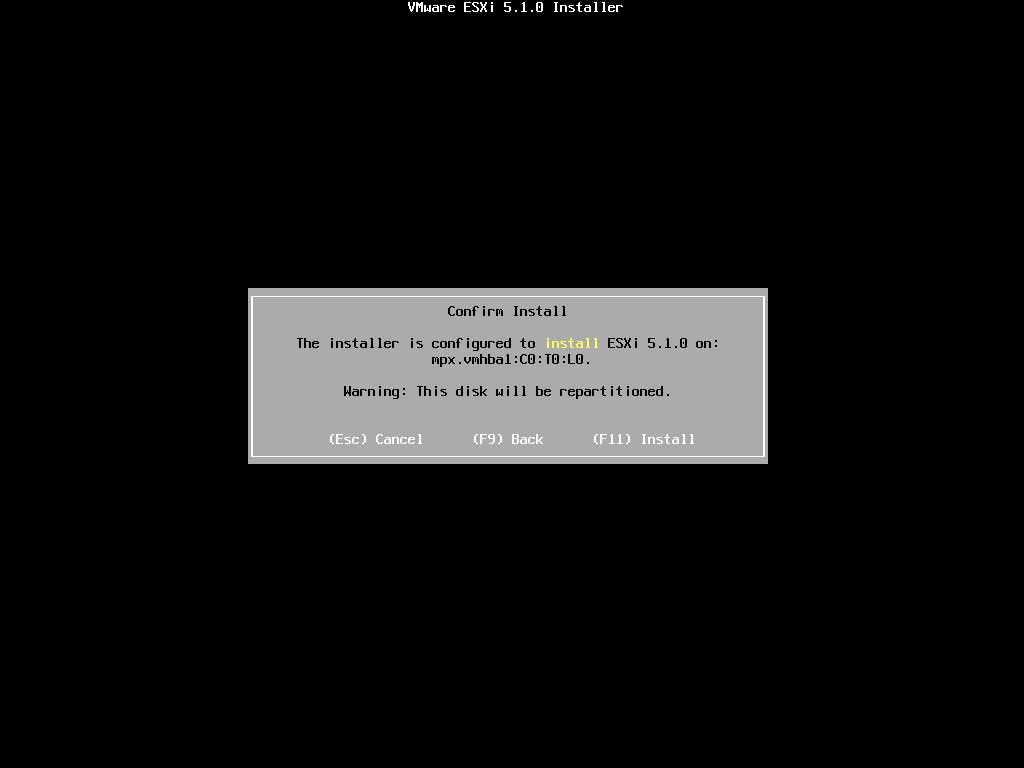
When prompted Confirm the Installation on the selected disk and press F11 (Install)
– Function Key 11
All data will be erase, as the disk will be repartitioned.
  • Confirm Install

Confirm Install

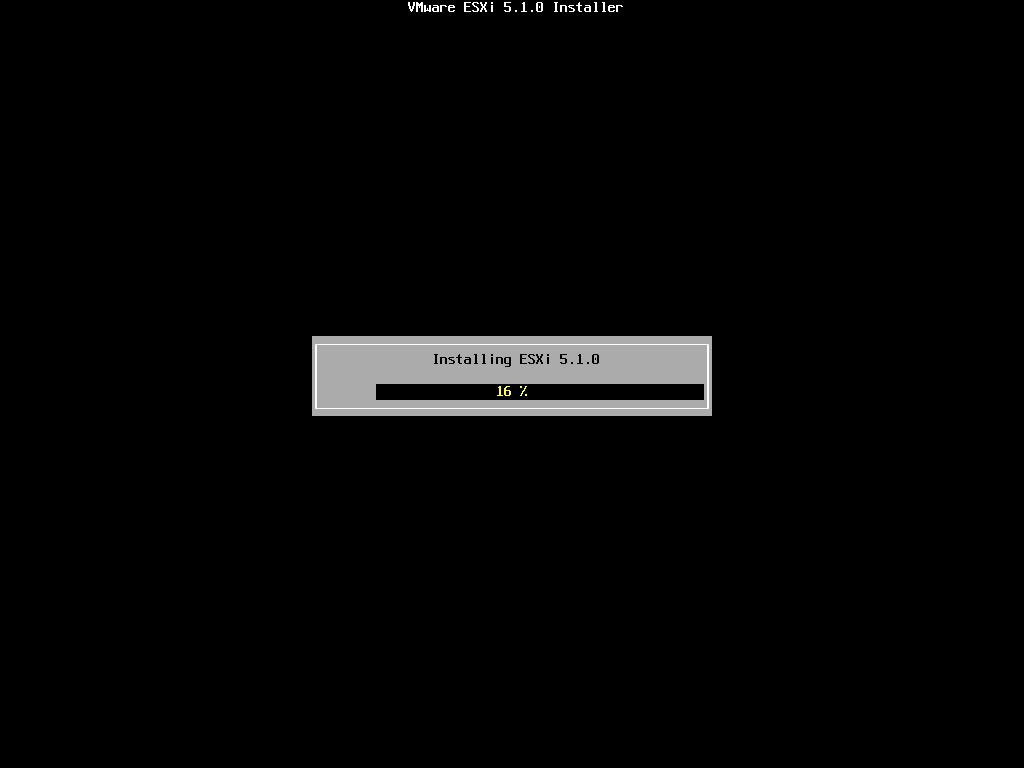
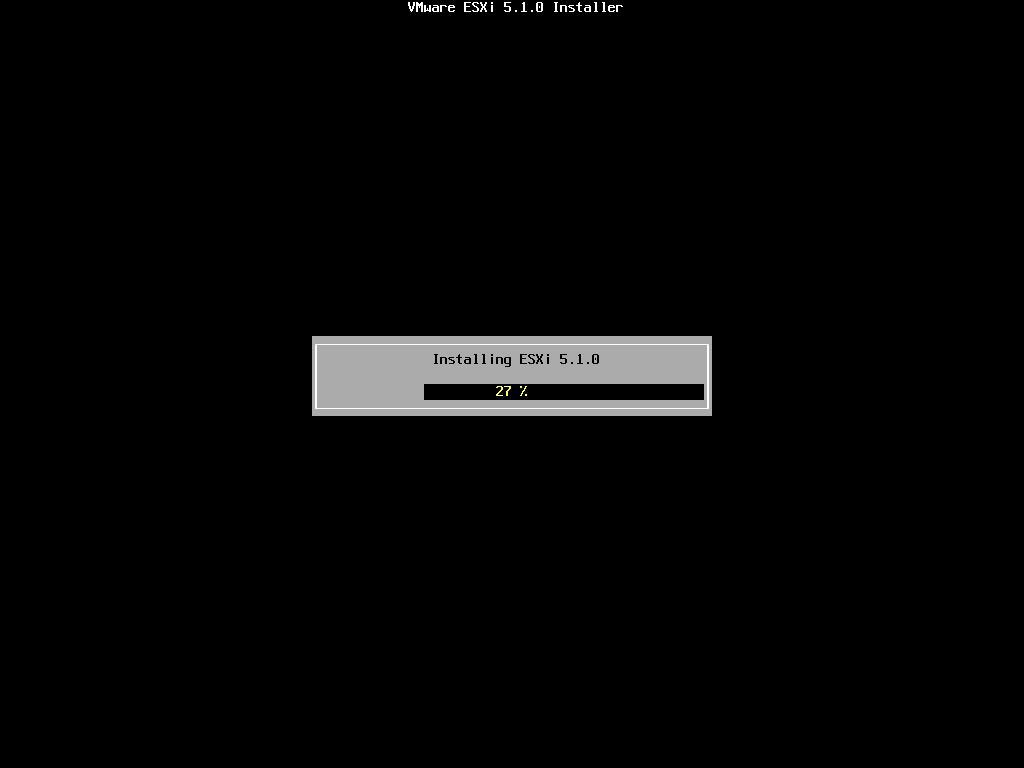
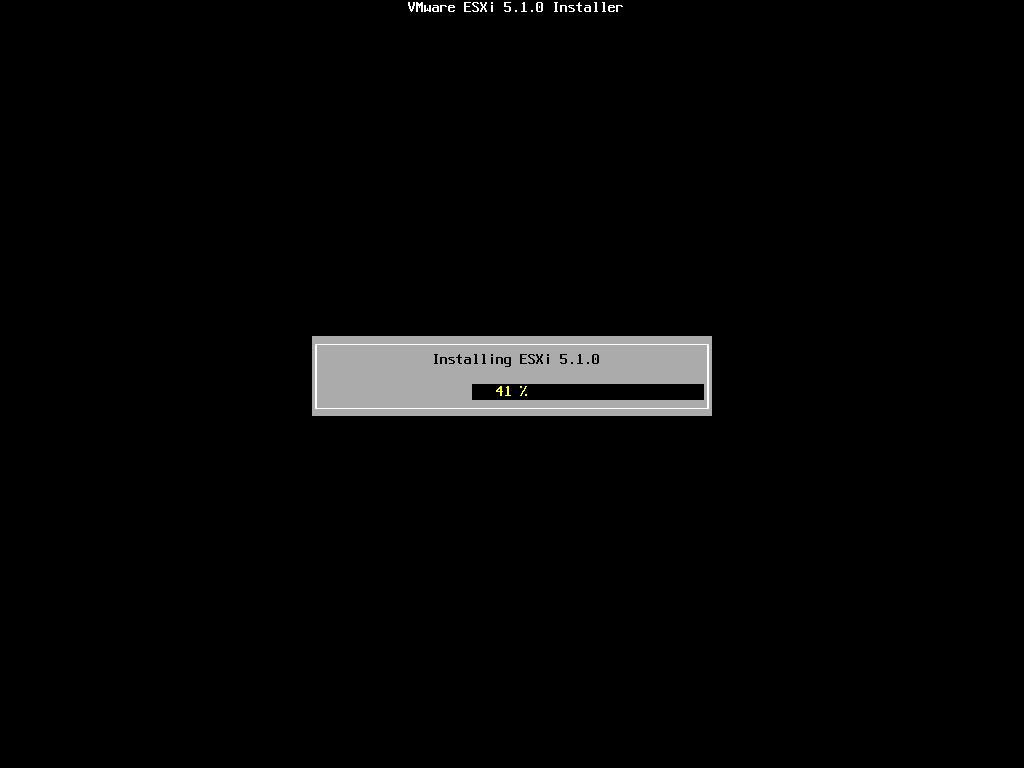
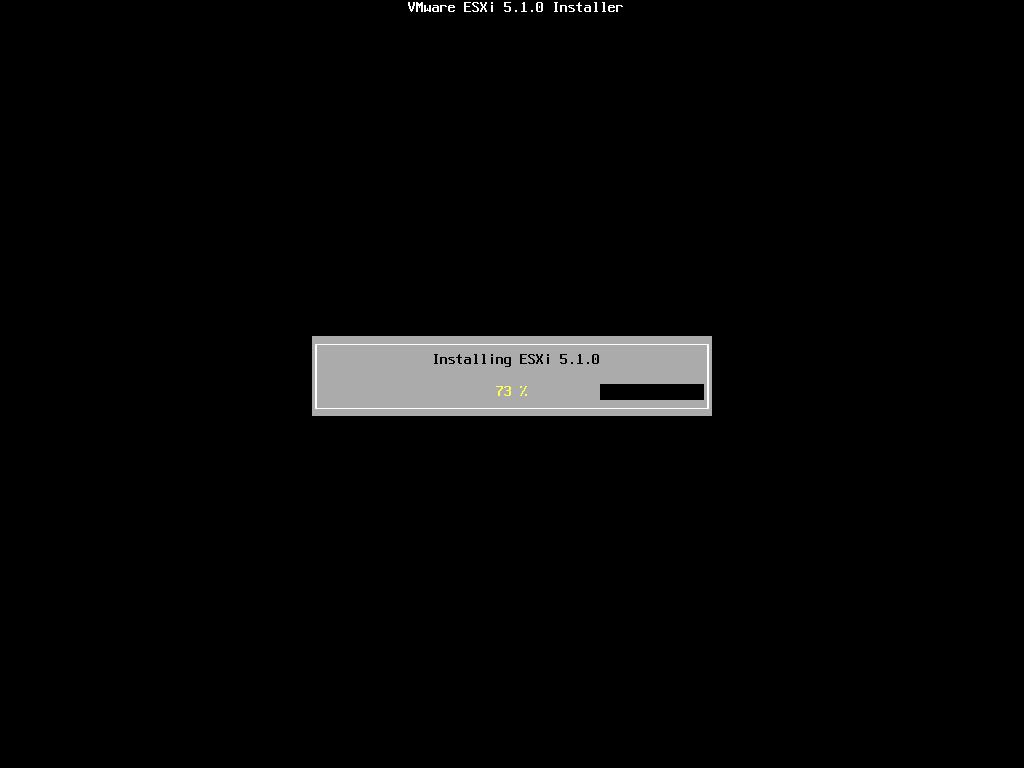
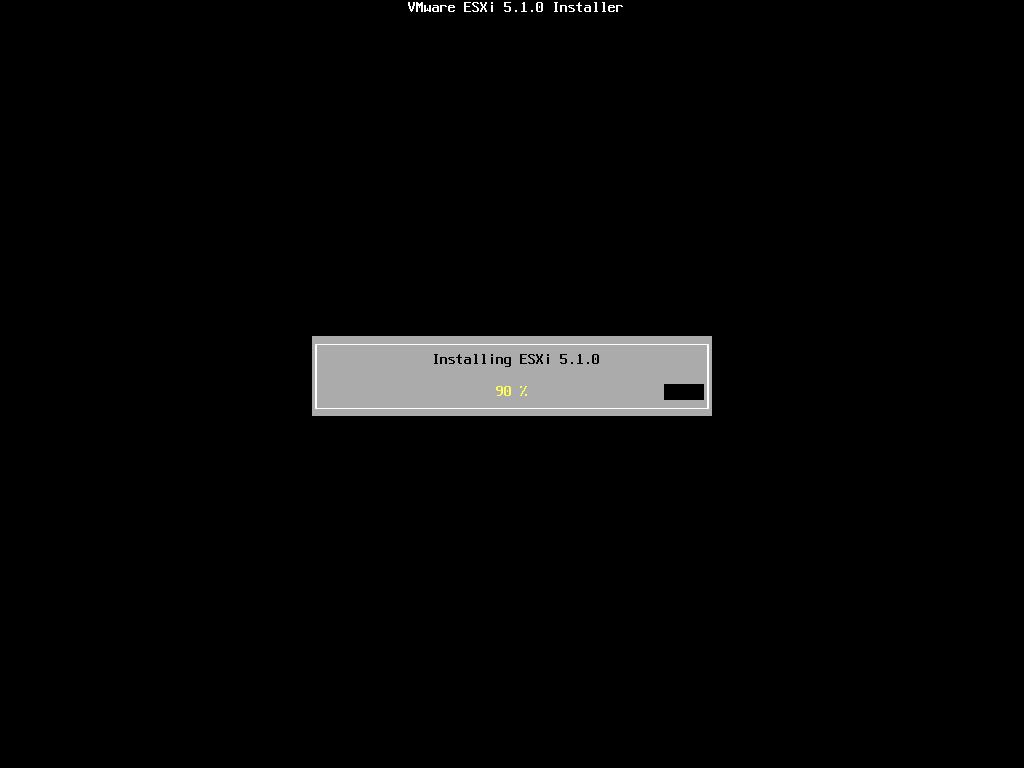
The Progress Bar will confirm installation progress.
  • The Progress Bar will confirm installation progress.

The Progress Bar will confirm installation progress.

  • The Progress Bar will confirm installation progress.

The Progress Bar will confirm installation progress.

  • The Progress Bar will confirm installation progress.

The Progress Bar will confirm installation progress.

  • The Progress Bar will confirm installation progress.

The Progress Bar will confirm installation progress.

  • The Progress Bar will confirm installation progress.

The Progress Bar will confirm installation progress.

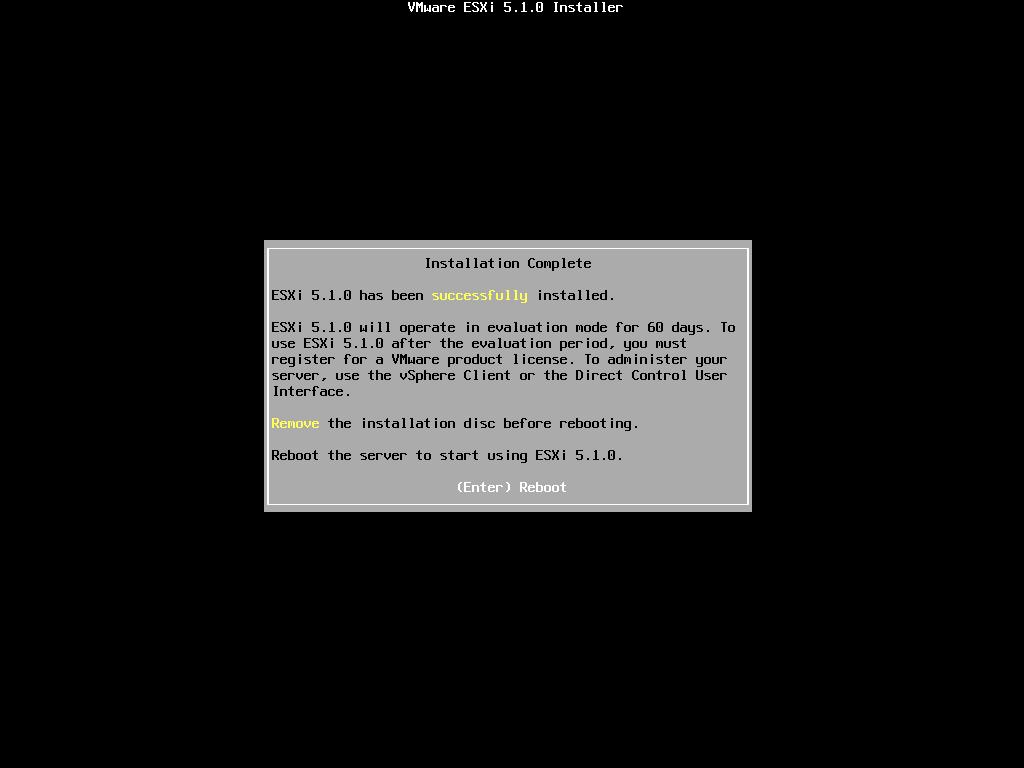
The installation only takes approximately 5-10 minutes, depending upon speed of storage. When the installation has completed the following screen will be displayed.
  • Installation Complete

Installation Complete

Remove the CDROM installation disk before rebooting. Hit Enter to Reboot. After hitting Enter the follow screen will be displayed and the computer will reboot.
  • Rebooting Server

Rebooting Server

ESXi 5.1.0 will operate in evaluation mode for 60 days. This is the same mode as a FULLY LICENSED ESXi 5.0 server. If you wish to evaluate all the bells and whistles that ESXi 5.0 has to offer, do not register your FREE license. for 60 days, this will allow you to evaluate ESXi 5.0 server fully. On day 59/60, Apply your FREE license to continue using the product, or you will not be able to power on any virtual machines.

Configuring VMware vSphere Hypervisor 5.1 (ESXi 5.1)

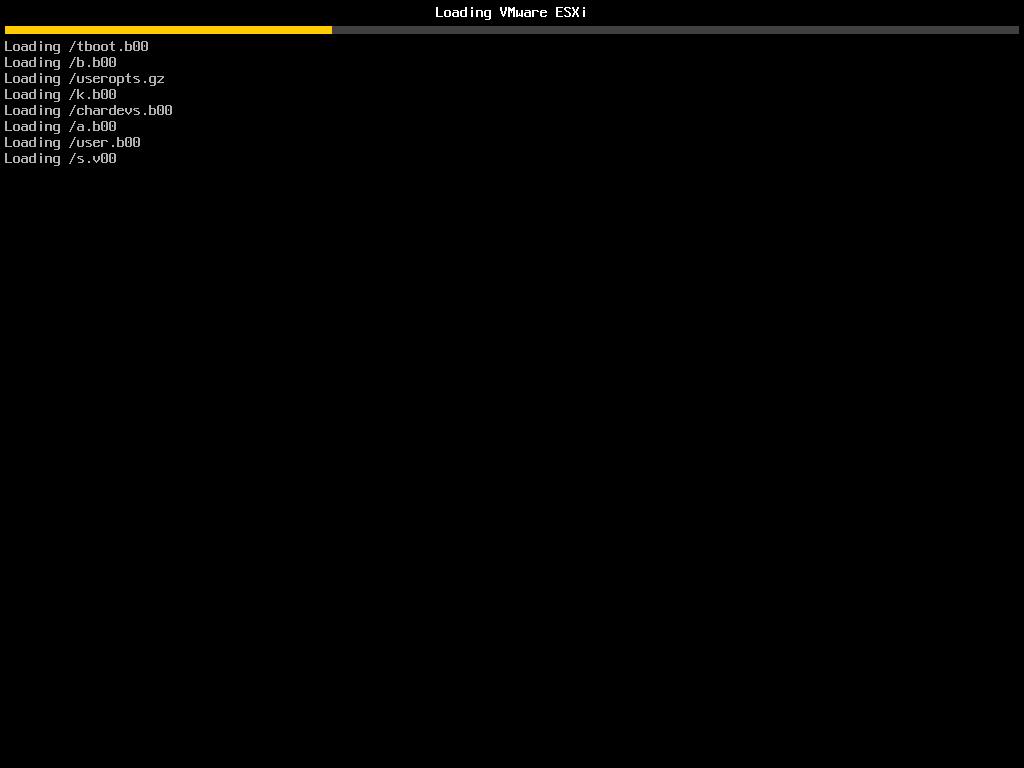
The following screen is displayed when VMware ESXi 5.1.0 first boots

  • Loading VMware ESXi

Loading VMware ESXi

  • VMware ESXi 5.1 Startup

VMware ESXi 5.1 Startup

The server is fully booted when it displays the following screen
  • ESXi 5.1.0 fully booted

ESXi 5.1.0 fully booted

The default server configuration is to use DHCP, if you do not have a DHCP server issuing IP Addresses on your network you will need to assign an IP Address. We recommend you use a static IP Address for your ESXi Host Server.

Press F2 to Customize System, you will be prompted to enter the root username and password.

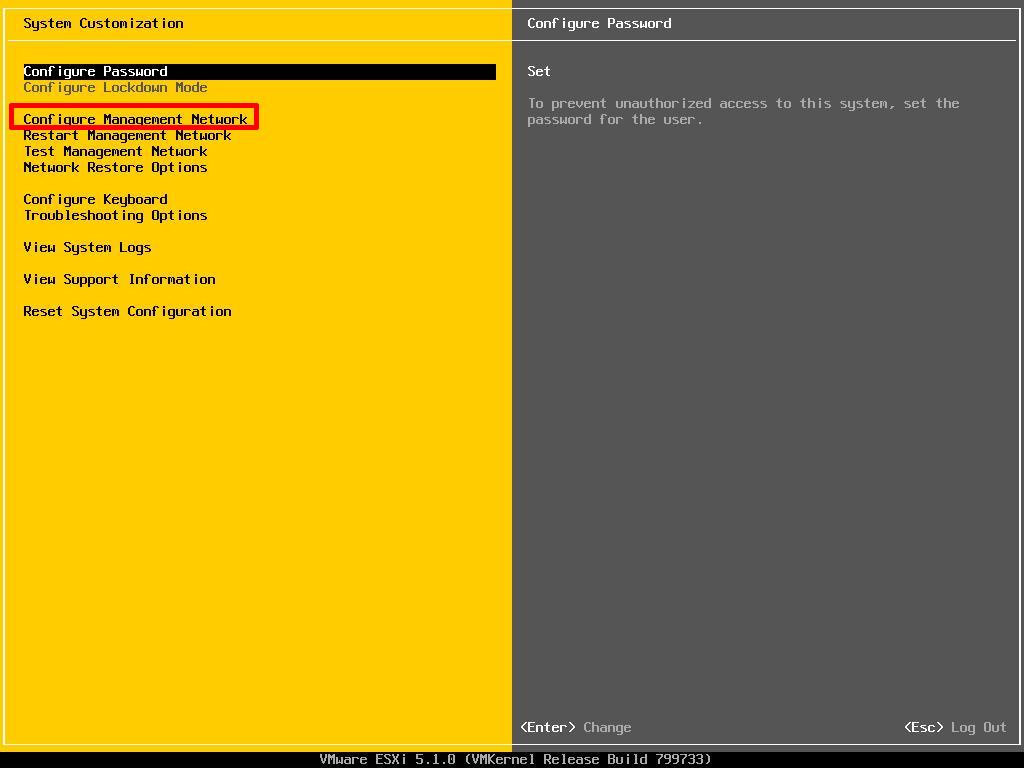
  • Customize System > Configure Management Network

Customize System > Configure Management Network

Select Configure Management Network to change Network Parameters.
Select IP Configuration
  • Select IP Configuration

Select IP Configuration

Set the Static IP address and network configuration, Subnet Mask and Default Gateway, it’s important to set the correct Default Gateway, as this will be used later. Hit Enter to confirm and save the configuration.
  • Set static IP address

Set static IP address

Select DNS Configuration, enter the correct DNS information for your network, and enter a hostname for your server. Hit Enter to save the configuration.
  • DNS Configuration

DNS Configuration

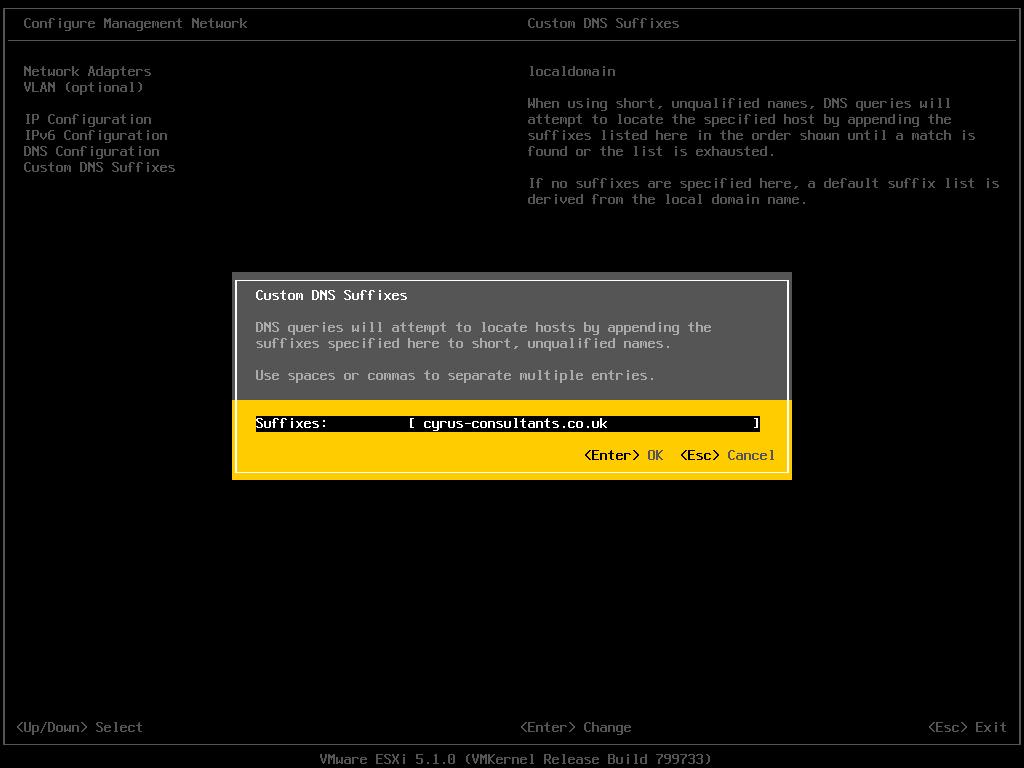
Select Custom DNS Suffixes
Enter your DNS suffix (the domain name for your network). Make sure you have created a DNS A Record in your DNS, so that this server can be resolved correctly through forward and reverse lookups.
  • Custom DNS Suffixes

Custom DNS Suffixes

Hit Enter to save your configuration.

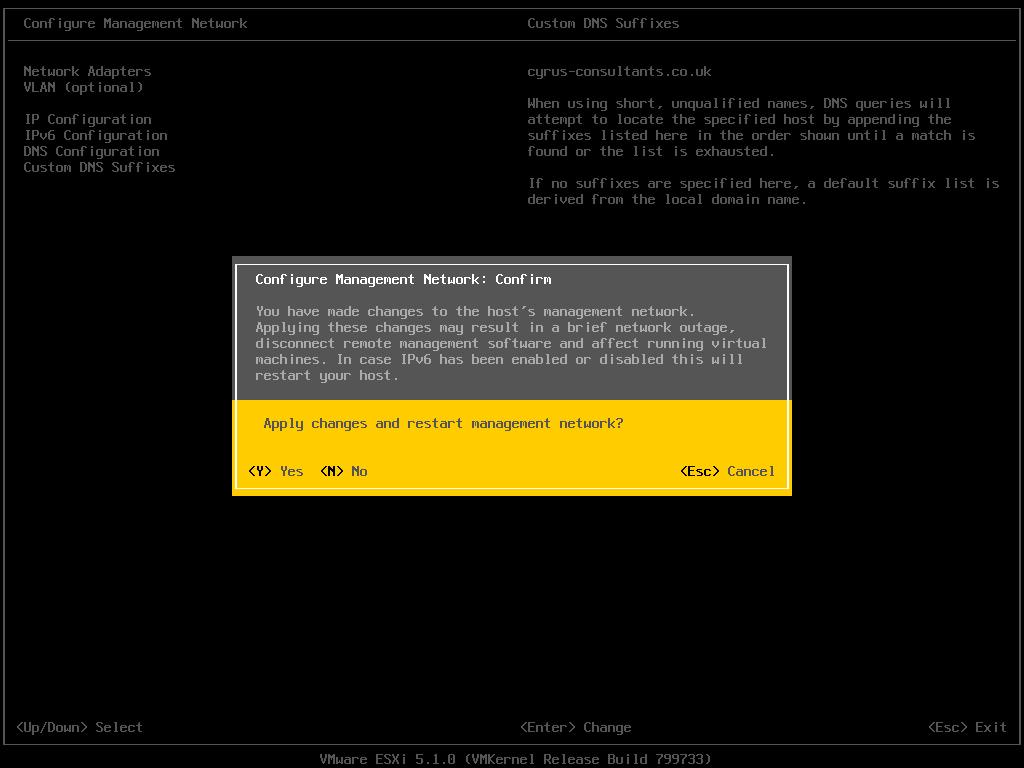
Press Escape, the following screen will appear, select Y(es) to apply changes.

  • Apply Changes and Restart Network Management.

Apply Changes and Restart Network Management.

Press Escape to Logout and return to the console screen.

You will notice on the console screen, the server now has a hostname configured, and correct static IP Address.

  • Console Screen

Console Screen

Congratulations you have successfully installed and configured VMware vSphere Hypervisor 5.1.

In the next article in the series, we will connect and continue to configure the VMware vSphere Hypervisor 5.1.

Part 2 of the Series has now been published here

HOW TO: Connect to the VMware vSphere Hypervisor 5.1 (ESXi 5.1) using the vSphere Client
It’s Official – 9th Annual Expert Awards – @ExpertsExchange – Andy is the Expert of the Year, again for the Second Year!

Thursday, January 3rd, 2013

expertoftheyear2012c
expertoftheyear2012

It’s official, I received 7 emails last night, I’ve won six awards this year at Experts Exchange.com.in the 9th Annual Expert Awards, this is my second year as  Expert of the Year.

expertoftheyear2012b

I started the year with 4,688,803 points, and ranked 84th.

This year I totaled overall 5,369,940 this year and I’m currently Ranked 29th! I’ve been ahead for most of the year, with a clear, 2,500,000 points over 2nd place! 250,000 points ahead in the Articles (Authors), and No.1 in VMware and Virtualisation Zones. (by 5,500,000 and 2,000,000 points ahead of the No.2!)

expertoftheyear2012a

All this answering questions on VMware and Virtualisation ONLY!

A Happy VMware & Virtualisation year to you!

New Desktop Computer Part III: What is Andy going to do with 48GB of RAM in his Desktop PC?

Sunday, December 16th, 2012

48GB of RAM in a Desktop PC, that’s a server I here you say, other than virtualisation with VMware Player 5.0 or VMware Workstation 9.0, or Client Hyper-V in Windows 8.0, or Oracle Virtualbox 4.0, it does seem a bit extreme, even the latest games, or Adobe Photoshop, you will be hard pushed to utilise all the memory.

Those that are old enough, once upon a time, in year DOS! we used a driver called – ramdrive.sys, that you could load into system memory, and turn some system memory into a ramdrive. RAM was expensive years ago, and only a few kilobytes or megabytes could be used as a ramdrive, but system access was almost instantaneous.

about eight years ago, a company wrote a ramdrive driver for Windows 2000 for clients, to use as a Windows 2000 profile drive for the storage of user profiles for a large terminal server project, to speed up the logon and logoff of users. I’ve been searching for an updated version since, that works with the modern Windows OS, now I’ve found one.

Now with the cost of memory for desktop PCs falling, the following company DR Dataram have produced a new RAMDisk for modern operating systems, and it’s FREE, and allows you to create RAMDisks up to 4GB, if you want to create RAMDisks larger than 4GB, you will need to part with 18.99 USD! It supports Windows XP, Windows 7 and Windows 8, Windows Server 2008 and Windows Server 2012.

Install the software, specift the size

Install the software, specify the size

Specify Load, Save and Autosave options

Specify Load, Save and Autosave options

and Hey Presto! you’ve got a ramdrive, out of system memory, and the magic of a ramdrive compared to an SSD, checkout the following benchmarks!

Performance of DR Dataram RAMDisk versus 4 x SATA 3 Kingston 200v+ SSDs in RAID 10

Comparison SSD versus RAMDisk

Comparison SSD versus RAMDisk

and for the geeks in the audience, that like IOPS

Comparison of IOPS

Comparison of IOPS

Comparison of IOPS - the numbers!

Comparison of IOPS - the numbers!

So, this Christmas if you want a fast data disk for your OS, spend your money on RAM for your computer, and bin that SSD (they wear out anyway!)

HOW TO: Tag and Configure a storage device as a Solid State Disk (SSD) in VMware vSphere 5.0 or 5.1 (ESXi 5.0 or ESXi 5.1)

Thursday, November 29th, 2012
In VMware vSphere 5.x (ESXi 5.x) there is a new feature called Host Cache Configuration. This new feature allows the VMware vSphere Administrator to configure the VMware vSphere 5.x (ESXi 5.x) host server to use a cache on a Solid State Disks (SSD) for the virtual machine’s swapfile for better performance, because the SSD has much faster latency than a traditional mechanical disk. This is also known in VMware Administrator circles as Swap to Host Cache or Swap to SSD. Once Host Cache Configuration has been enabled, the virtual machines will be swapping to SSD, but this swapfile is not a true swap file, and the entire virtual machine swap file (.vswp)  is not stored on the SSD.However, not all SSD devices are correctly tagged as SSD. This tutorial shows how to tag a Non-SSD storage device as SSD, if you want to experiment with Host Cache Configuration but do not have a SSD to hand. This is not supported by VMware, tagging a non-SSD as a SSD.

The same procedure can be followed to tag a SSD, correctly, if it’s not recognized by the VMware ESXi server.

With the current fall in prices for consumer SSDs, it can give a real performance boost to a VMware ESXi 5.x server which is short on memory. Consumer SSDs e.g. Kingston SSDNow V+200 Drive Model SVP200S37A/60G are generally cheaper than server memory. We recently purchased this model for £29.99 GBP.

The commands we will be using in this Tutorial, are the esxcli commands, these commands can be executed on the ESXi shell, through the vMA or PowerCLI esxcli remote version. In this tutorial I’ll be logging into the ESXi server, and executing the commands on the ESXi shell.

1. Connect to the VMware vSphere Hypervisor (ESXi) or VMware vSphere vCenter Server

Using the VMware vSphere Client, Login and Connect to the ESXi server, using IP address or hostname of the ESXi server, using root username and password credentials. If you have a VMware vSphere vCenter server, you could also specify IP address or hostname of the vCenter server.

  • Using the VMware vSphere Client, Login and Connect to the ESXi server

Using the VMware vSphere Client, Login and Connect to the ESXi server

2. Check and record the storage device name to be tagged as a SSD

Check there is a VMFS volume already formatted on the storage device, you want to present to the Host ESXi server, as a SSD and record the device name for later in Step 4.

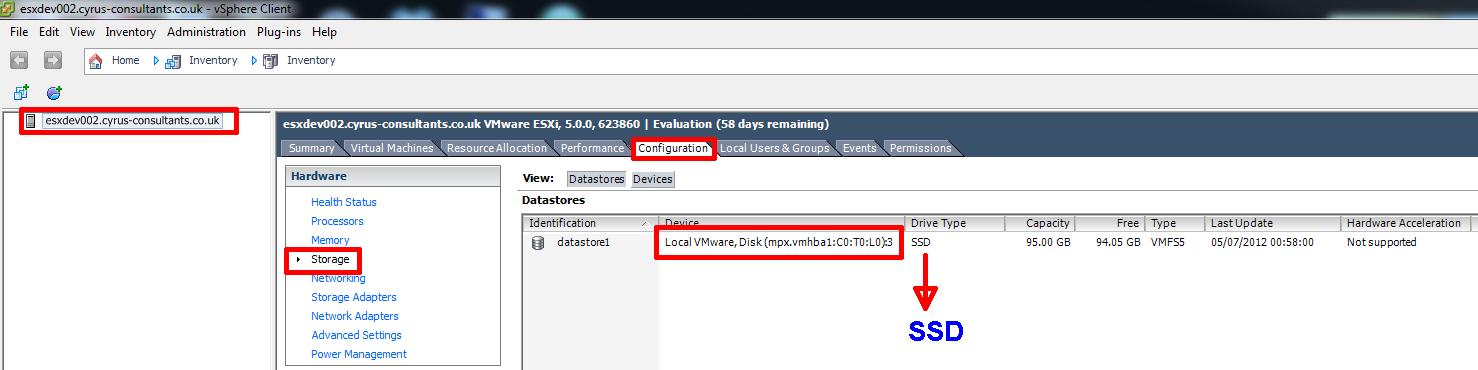
Select Host > Configuration > Storage

  • storage device to configure as SSD

storage device to configure as SSD

In the example above, the local storage device mpx.vmhba1:C0:T0:L0 is a local disk, formatted with the datastore name datastore1 as VMFS5. Record the storage device name mpx.vmhba1:C0:T0:L0.

3. Logon to ESXi console (shell) via PuTTY

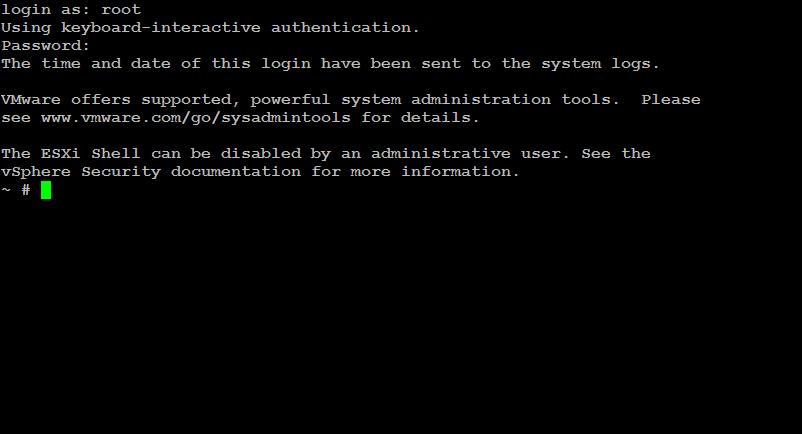
Using PuTTY a free telnet and SSH client or another SSH client Login and Connect to the VMware Hypervisor ESXi server, using IP address or hostname of the VMware Hypervisor ESXi server, using root username and password credentials.

  • putty SSH terminal session

putty SSH terminal session

  • logged in as root to ssh terminal session

logged in as root to ssh terminal session

4. Create a new SATP rule

At the console or SSH session type the following commands to create a new SATP rule.

esxcli storage nmp satp rule add --satp VMW_SATP_LOCAL --device mpx.vmhba1:C0:T0:L0 --option=enable_ssd

using the device name recorded in Step 2 above. The console will return a new line. To check the rule has been created correctly type the following commands

esxcli storage nmp satp rule list | grep enable_ssd

the following screenshot should be displayed

  • Confirmation of rule creation

Confirmation of rule creation

confirming the creation of the rule.

5. Claim storage device

At the console or SSH session type the following commands

esxcli storage core claiming reclaim -d mpx.vmhba1:C0:T0:L0

using the device name recorded in Step 2 above.

I have seen the following error messages when trying to claim devices, either restart the server or use the “unclaim” device command.

  • Unable to unclaim path vmhba1:C0:T0:L0 on device mpx.vmhba1:C0:T0:L0. Some paths may be left in an unclaimed state. You will need to claim them manually using the appropriate commands or wait for peri

Unable to unclaim path vmhba1:C0:T0:L0 on device mpx.vmhba1:C0:T0:L0. Some paths may be left in an unclaimed state. You will need to claim them manually using the appropriate commands or wait for peri

you can unclaim the device by specifying the device name.

esxcli storage core claiming unclaim --type device --device device_name

6. Reload the claim rules

I usually reload the claim rules and run the rules using the following commands:

esxcli storage core claimrule load
esxcli storage core claimrule run

7. Confirm device is Tagged as SSD

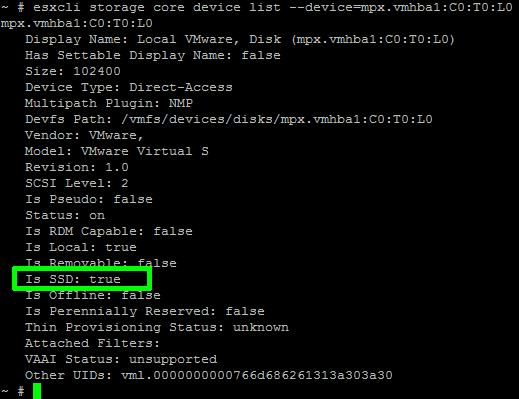
Use the following command at the console, to check if the device has successfully been tagged as a SSD

esxcli storage core device list --device=mpx.vmhba1:C0:T0:L0

The following output will be displayed for the device.

  • local device tagged as SSD

local device tagged as SSD

Check the output states “Is SSD: true”

You have successfully configured and tagged a local device as a SSD. If you now repeat Step 2 above, you will see the device now states SSD.

  • storage device to configure or tagged as SSD

storage device to configure or tagged as SSD

In my next Article, I show you how to configure Host Cache Configuration.

Further reading can be found here in the VMware
vSphere 5 Documentation Center :- Tag Devices as SSD

New Project, so new Desktop Computer! So meet my new Processor!

Monday, November 12th, 2012

I’ve got a new project to complete, more on that over the next coming months (secret squirrel stuff! cannot say any more at present) , so it’s time to build a new desktop computer, it’s been a while the last desktop computer I purchased was in 2007, and that was an Dell XPS 720 H2C, which had an Intel Core 2 Extreme Processor QX6850.

It’s rather strange building a physical computer, because I deal alot with the virtual.

The processor on the new Desktop computer has an Intel Core i7 990X Extreme Edition (Gulftown)  processor. It has 6 Cores and 12 Threads.

When VMware Snapshots go wrong – Snapshot Hell!

Friday, October 12th, 2012

this is the worst case of Snapshot Hell, I’ve ever seen! It’s not the largest snapshot, the total is only approx 83GB in snapshots, but the number of snapshot files!

A Total of 79 snapshots per virtual machine disk, see screenshots (I’ve obscured the server name for privacy!)

According to this VMware Knowledge Base article the maximum number of snapshots is 32 in a snapshot chain.

snapshop1snapshop2snapshop3