Archive for the ‘VMware’ Category

Virtualisation Snapshot Hell!

Monday, September 9th, 2013

Whatever you call them in VMware circles, they are known as “Snapshots”, in Microsoft circles, Hyper-V they are known as “Checkpoints”.

Snapshots are evil things, I wrote an Article last year on Experts Exchange called – HOW TO: VMware Snapshots :- Be Patient,

the following two clients, clearly had not read my article, but they have now!

VMware vSphere Exchange Virtual Machine with two snapshots, one snapshot size of 250GB, with a parent disk of 500GB

VMware vSphere Exchange Virtual Machine with two snapshots, one snapshot size of 250GB, with a parent disk of 500GB. Exchange performance would have been poor, this snapshot has been present for many months, and eventually took 33 hours to delete, ,merge and commit the snapshot, with 33 hours of Exchange downtime!

Microsoft Hyper-V Virtual Machine

Microsoft Hyper-V Virtual Machine, with 9 nested snapshots, totally 170GB, more of an issue, performance is poor, and deleting these snapshots will cause issues, and delay!

The one thing you need to know about Snapshots, is if you use them, or find a virtual machine using one is Be Patient, if you decide to delete them!!!

or Ask an Expert First!!!!

It can take a very long time, for the process to complete and merge the child (delta) disk into the parent disk.

“The man. The crown jewel of EE. An immovable pillar of patience.” @ExpertsExchange

Monday, August 19th, 2013

eeple2An article written about me, which has been posted on the Experts Exchange Company Blog, it starts…

The man. The crown jewel of EE. An immovable pillar of patience. These are just a few of the names that Experts Exchange community members have bestowed upon Andrew Hancock (known on the site as hanccocka). While Andrew joined …..

You can read the full article here – EE’s Top Expert Pens Series of VMware for Beginners Articles

Apple OS X Mavericks (OSX 10.9) Developer Preview 3 on VMware vSphere 5.1 (ESXi 5.1)

Tuesday, July 9th, 2013

Yesterday, I managed to get Apple OS X Mavericks (OSX 10.9) Developer Preview 3 installed and working on VMware vSphere 5.1 (ESXi 5.1).

osx109onvmwareesxi1osx109onvmwareesxi2

CloudCred – Pimped my Car!

Thursday, June 13th, 2013
pimpedmycar

I thought I'd pimp my car with a CloudCred sticker! - NICE!

VMware vEXPERT 2013 New Logo

Thursday, June 13th, 2013

My new badge…what more can I say here it is:-

vmware-vexpert-2013-400x57

I’m a VMware vExpert 2013 for the third year #vExpert

Wednesday, May 29th, 2013

No email as yet, but I’ve just heard via twitter, my name appears on the vExpert 2013 title holders announced in this document published yesterday evening?

vExpert 2013 awardees announced

Thanks again John Troyer, Corey Romero, and the VMware Social Media & Community Team

VMware vExpert 2011

HOW TO: Enable SSH Remote Access on a VMware vSphere Hypervisor 5.1 (ESXi 5.1)

Tuesday, May 28th, 2013
In my previous VMware Articles, most featured Intermediate VMware Topics. My next series of articles will concentrate on topics for the VMware Novice; this is the fifth article in this series.

If you would like to read the other articles in this series,  they are listed here for your convenience.

HOW TO: Install and Configure VMware vSphere Hypervisor 5.1 (ESXi 5.1)

HOW TO: Connect to the VMware vSphere Hypervisor 5.1 (ESXi 5.1) using the vSphere Client

HOW TO: Create an ISO CD-ROM/DVD-ROM image (*.iso), and MD5 checksum signature, for use with VMware vSphere Hypervisor 5.1 (ESXi 5.1)

HOW TO: Upload an ISO CD-ROM/DVD-ROM image to a VMware datastore for use with VMware vSphere Hypervisor 5.1 (ESXi 5.1) using the vSphere Client, and checking its MD5 checksum signature is correct.

In this series of basic VMware articles for the Novice, I’ll be showing you the basic VMware skills required to install, configure and deploy virtual machines using VMware’s FREE VMware vSphere Hypervisor (ESXi).

In this article we will show you HOW TO: Enable SSH Remote Access on a VMware vSphere Hypervisor 5.1 (ESXi 5.1) so you can remotely connect to the VMware vSphere Hypervisor 5.1 (ESXi 5.1) server remotely via SSH (PuTTY).

1

Connect to the VMware vSphere Hypervisor 5.1 (ESXi 5.1) or vSphere vCenter Server using the vSphere Client

Please refer to my Andysworld! article on HOW TO: Connect to the VMware vSphere Hypervisor 5.1 (ESXi 5.1) using the vSphere Client

  • vSphere-Client-Connected-to-ESXi

vSphere-Client-Connected-to-ESXi

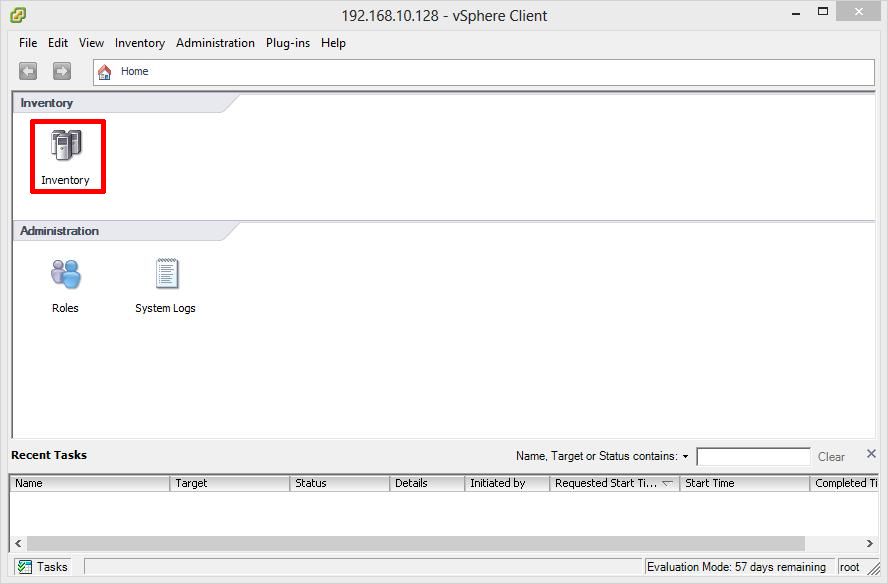
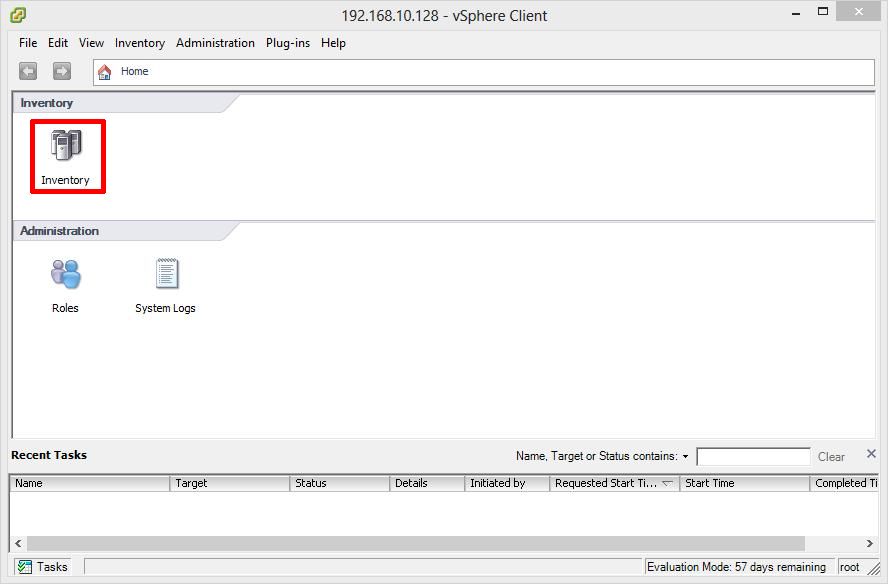
Once connected to the “default hypervisor home page”, click the Inventory icon, to see the server’s Inventory.
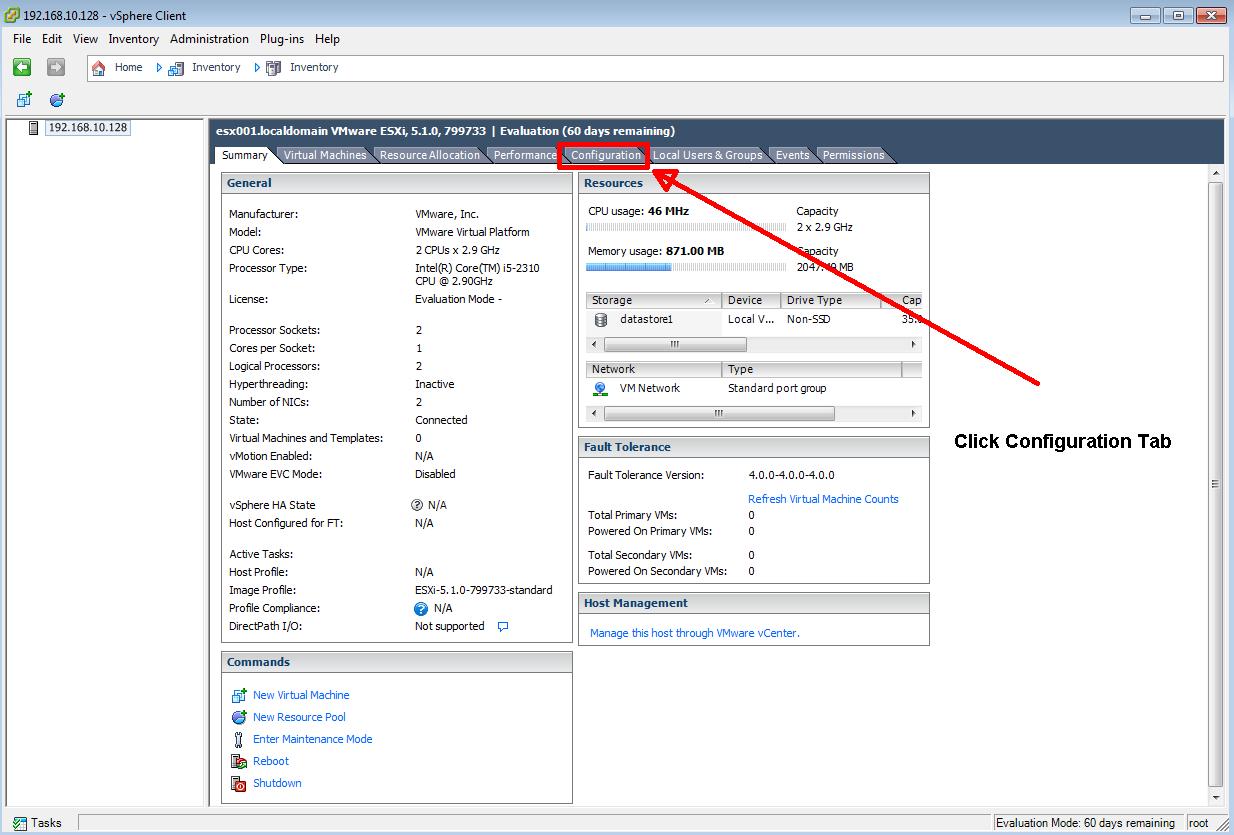
  • Click Configuration Tab

Click Configuration Tab

Click the Configuration Tab.
  • Click Security Profile

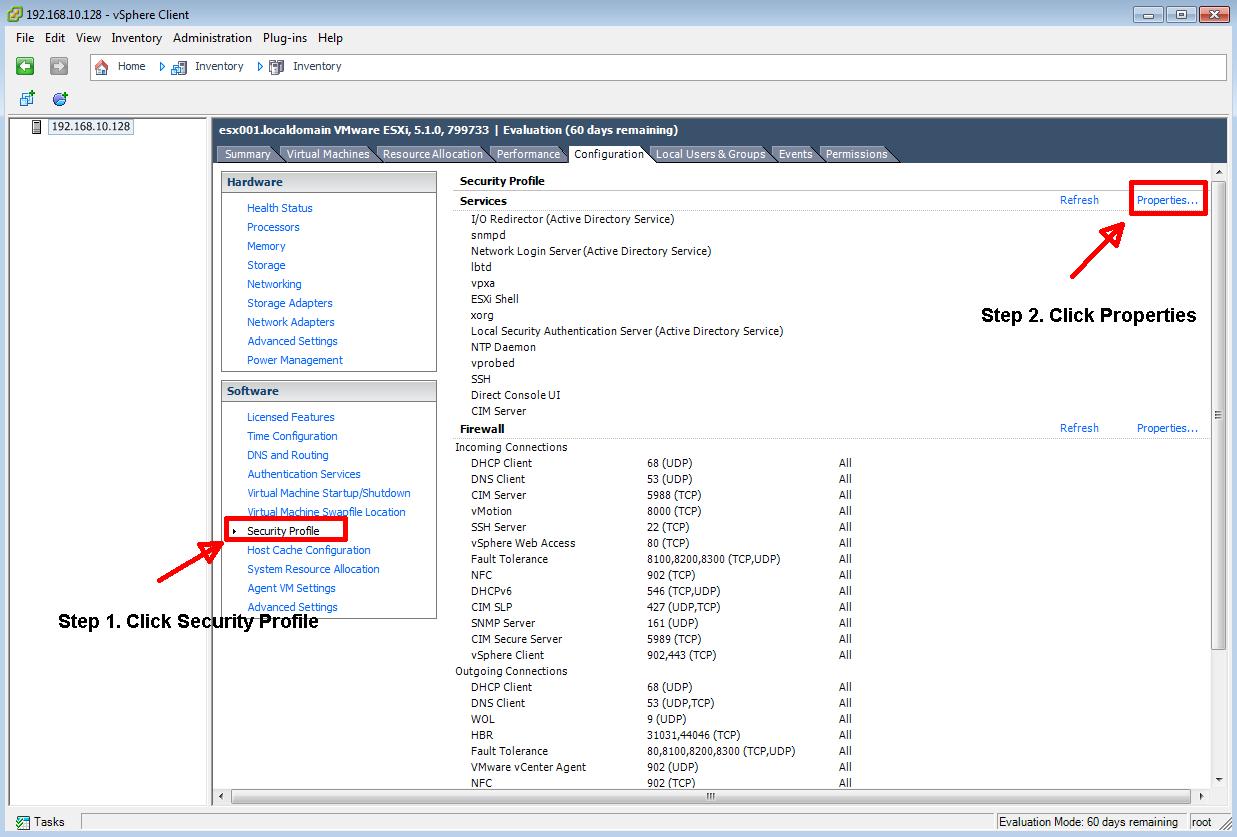
Click Security Profile

Click Security Profile, followed by Properties
  • Service Properties

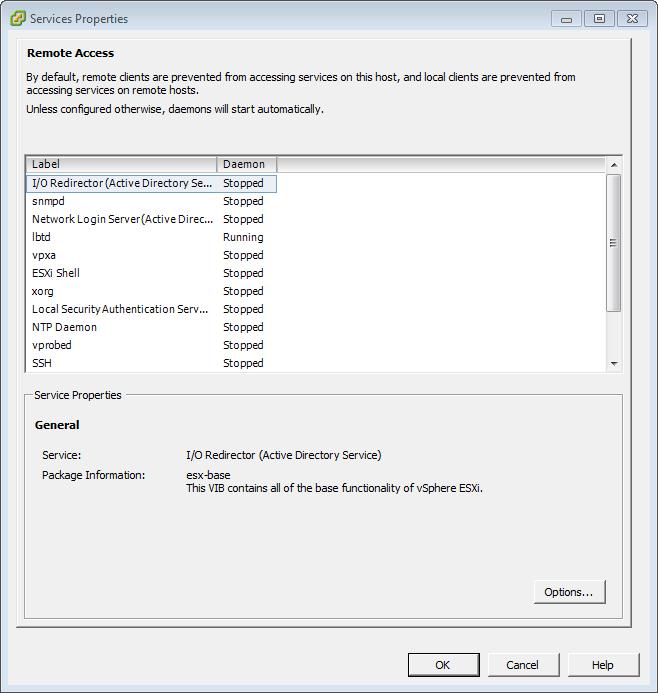
Service Properties

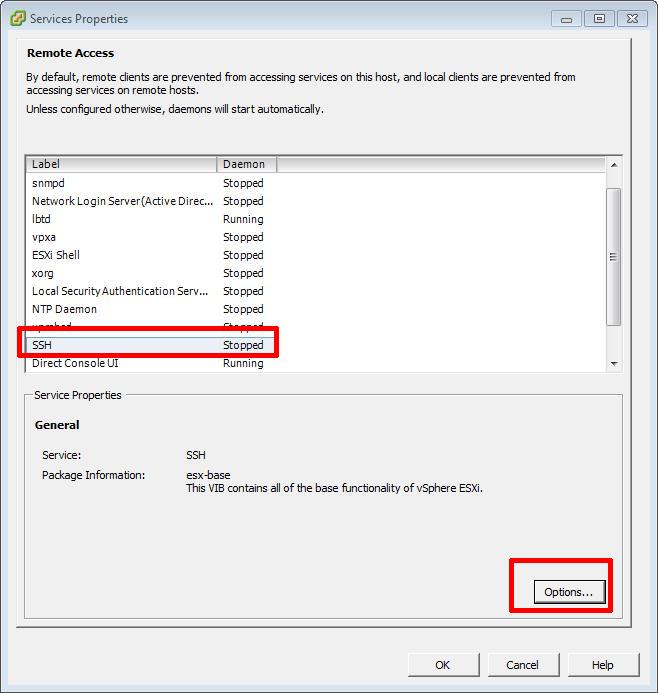
The Security Service Properties will be displayed.
  • SSH Options

SSH Options

Click the SSH label followed by Options button, you will notice the daemon service is currently stopped, this is the default.
  • SSH (TSM-SSH) Options – Click Start

SSH (TSM-SSH) Options - Click Start

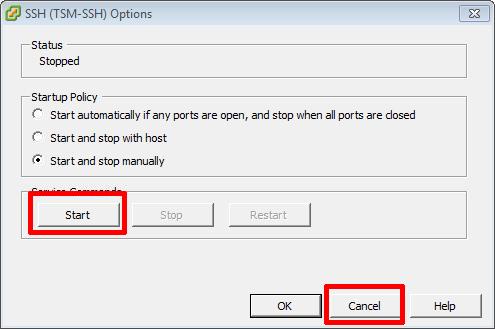
The SSH (TSM-SSH) Options will be displayed. Click Start to start the SSH deamon. You can change the options here if you wish to Start and stop the SSH daemon service with the host, or Start automatically if any ports are open, and stop when all ports are closed. Check with your Security IT Policy which is best for you. Opening SSH ports long term can be considered a security risk.
  • SSH Daemon Running

SSH Daemon Running

You will notice the SSH Daemon Status has changed to Running
. Click OK to continue, and Click OK to return to Inventory.

Confirm using PuTTY, you can connect to the server successfully.

In vSphere 4 1, 5.0 and 5.1, when you have enabled Remote SSH management of hosts from the vSphere Client, you may notice that that a Configuration Issues warning yellow box appears on the Summary page of the host ESXi server.

  • Configuration Issues, SSH and ESXi shell enabled Configuration Issues, SSH and ESXi shell enabled

    Configuration Issues, SSH and ESXi shell enabled  Configuration Issues, SSH and ESXi shell enabled

This Configuration Issues warning yellow box only appears when Remote SSH and/or ESXi shell has been enabled.

Please refer to my Andysworld! Article on HOW TO: Suppress Configuration Issues and Warnings Alert displayed in Summary status for ESXi 4.1 U2 or ESXi 5.0 after enabling SSH or ESXi Shell

Congratulations, you have successfully Enable SSH Remote Access on a VMware vSphere Hypervisor 5.1 (ESXi 5.1)

HOW TO: Upload an ISO CD-ROM/DVD-ROM image to a VMware datastore for use with VMware vSphere Hypervisor 5.1 (ESXi 5.1) using the vSphere Client, and checking its MD5 checksum signature is correct.

Tuesday, May 28th, 2013
In my previous VMware Articles, most featured Intermediate VMware Topics. My next series of articles will concentrate on topics for the VMware Novice; this is the fourth article in this series.If you would like to read the other articles in this series,  they are listed here for your convenience.

HOW TO: Install and Configure VMware vSphere Hypervisor 5.1 (ESXi 5.1)

HOW TO: Connect to the VMware vSphere Hypervisor 5.1 (ESXi 5.1) using the vSphere Client

HOW TO: Create an ISO CD-ROM/DVD-ROM image (*.iso), and MD5 checksum signature, for use with VMware vSphere Hypervisor 5.1 (ESXi 5.1)

In this series of basic VMware articles for the Novice, I’ll be showing you the basic VMware skills required to install, configure and deploy virtual machines using VMware’s FREE VMware vSphere Hypervisor (ESXi).

In this article we will show you HOW TO: Upload an ISO CD-ROM/DVD-ROM image to a VMware datastore for use with VMware vSphere Hypervisor 5.1 (ESXi 5.1) using the vSphere Client, and checking its MD5 checksum signature is correct. There are other third party tools, that can be used to upload ISO image files, these include:-

The above applications, require additional installation and configuration, in this article we will use the VMware vSphere Client.

1

Connect to the VMware vSphere Hypervisor 5.1 (ESXi 5.1) or vSphere vCenter Server using the vSphere Client

Please refer to my EE article on HOW TO: Connect to the VMware vSphere Hypervisor 5.1 (ESXi 5.1) using the vSphere Client

  • vSphere Client Connected to ESXi 5.1 Server

vSphere Client Connected to ESXi 5.1 Server

Once connected to the “default hypervisor home page”, click the Inventory icon, to see the server’s Inventory.
  • Inventory

Inventory

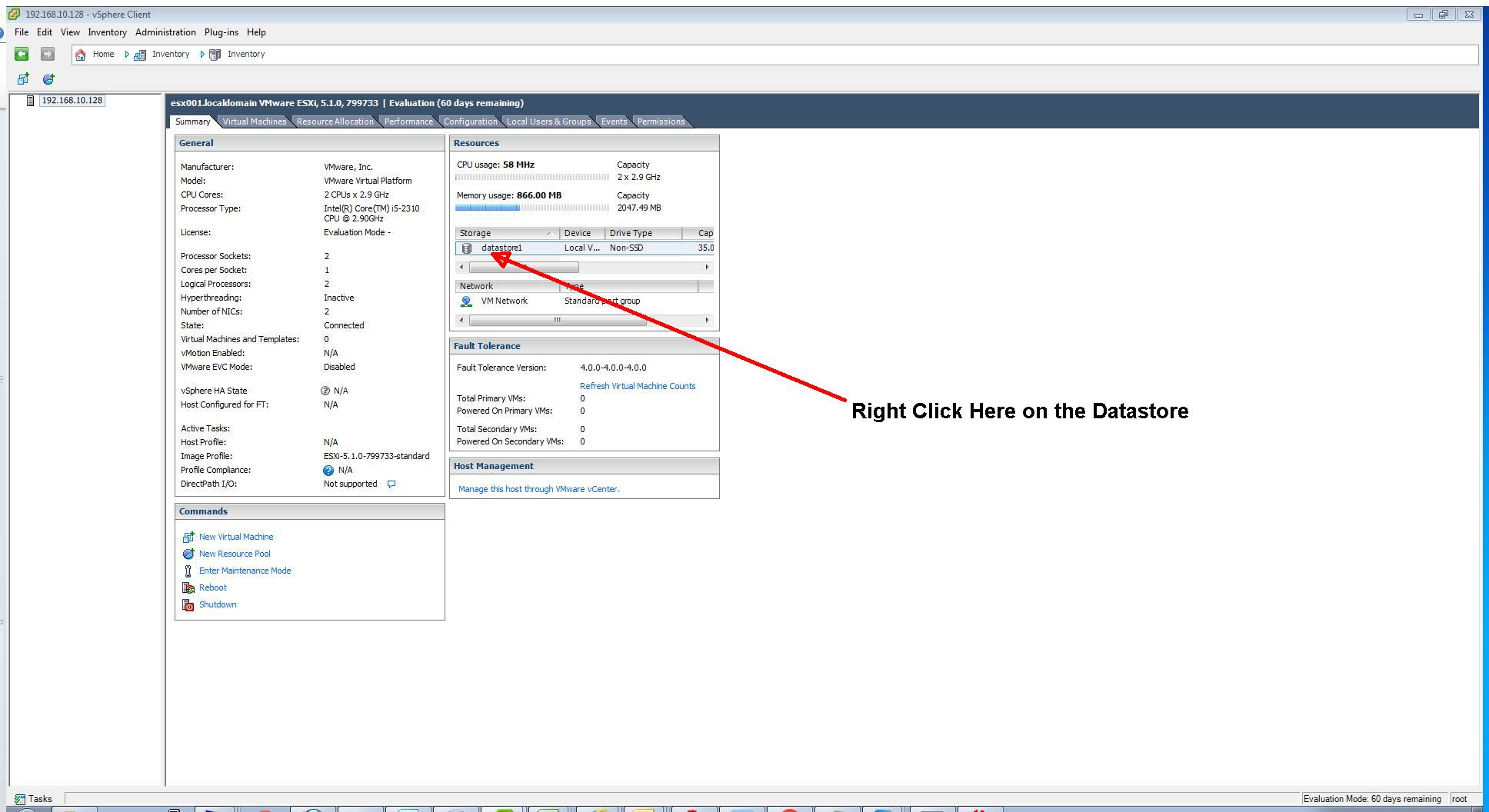
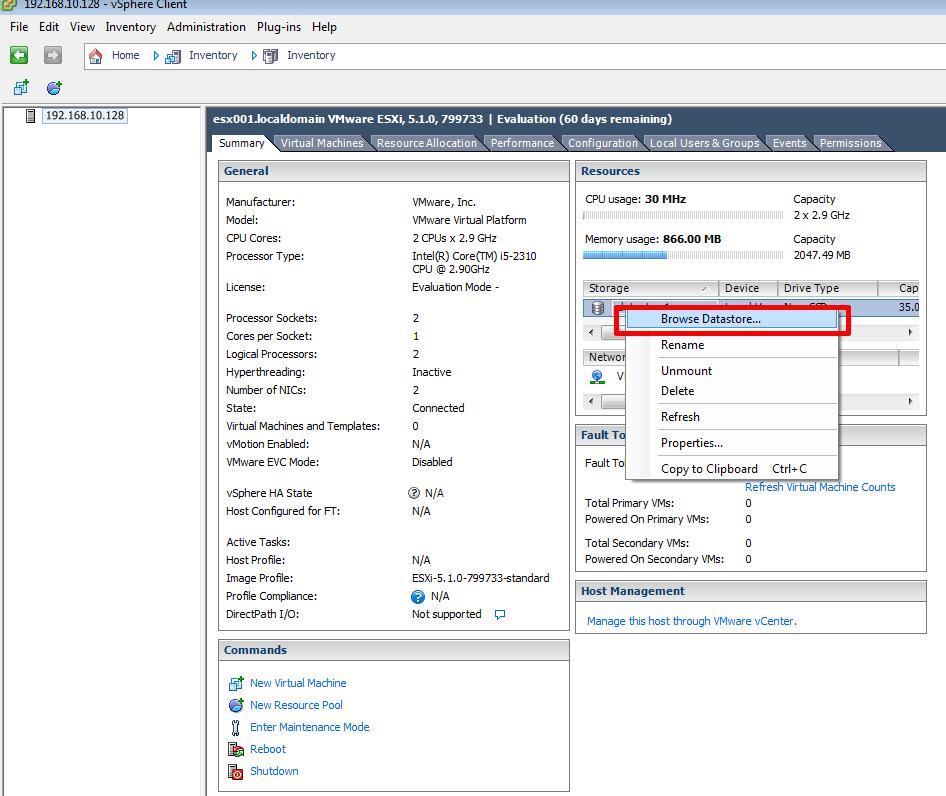
Right Click on the datastore. In this example the datastore name is datastore1. This is the default name given to the datastore on installation, it can be changed. Please refer to Step 4 Conducting a simple task using the VMware vSphere Client in my Andysworld! article  HOW TO: Connect to the VMware vSphere Hypervisor 5.1 (ESXi 5.1) using the vSphere Client
  • Right Click and select Browse Datastore

Right Click and select Browse Datastore

Right Click the datastore name ‘datastore1’ and select Browse Datastore.
  • Datastore Browser window

Datastore Browser window

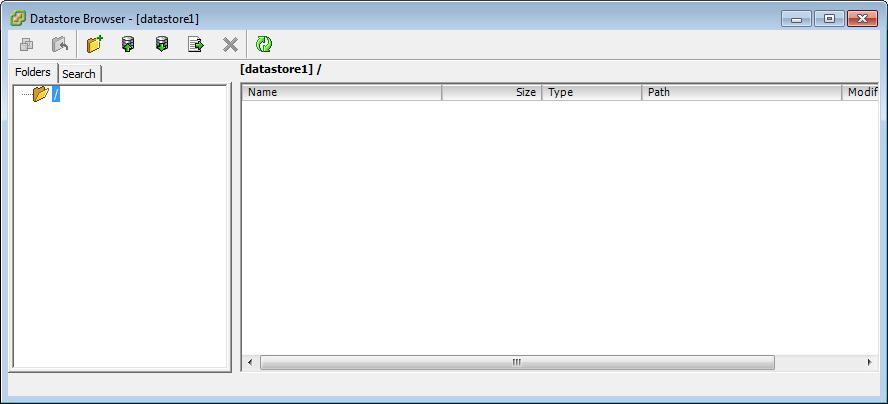
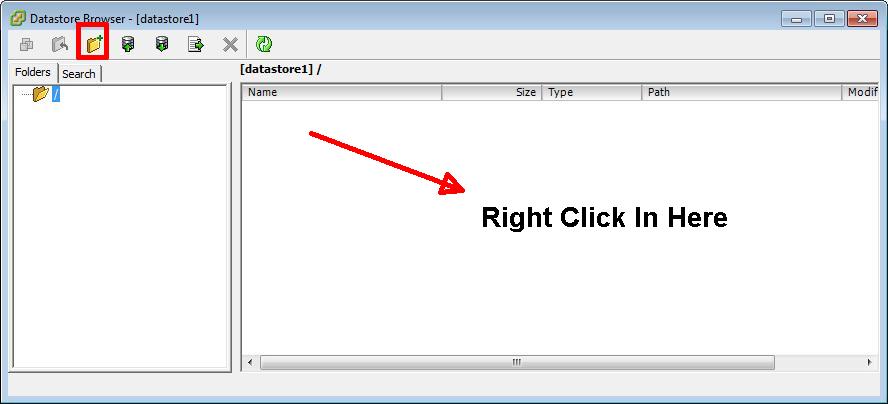
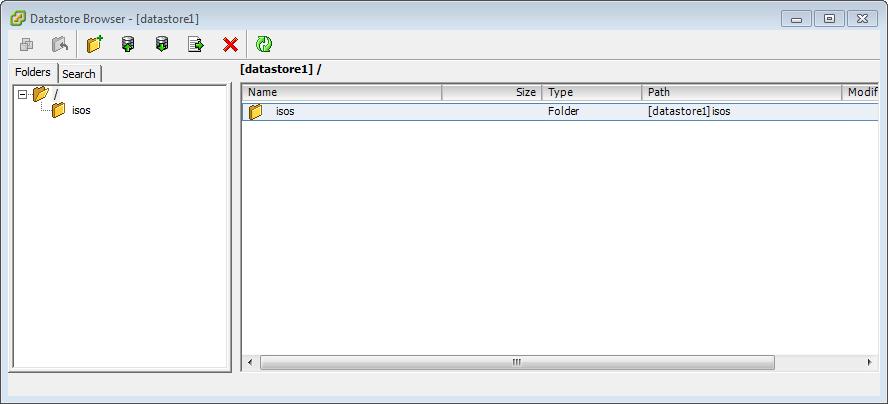
The Datastore Browser window will be opened, and you can browse the files and folders, that are located on the datastore. If no virtual machines or files are present, this will be empty. To organise your ISO image files, we would recommend you create a folder called isos. Either select the ‘Create A New Folder’ icon, on the ribbon bar, or right-click in the right-hand empty panel, and select New Folder.
  • Create Folder in datastore

Create Folder in datastore

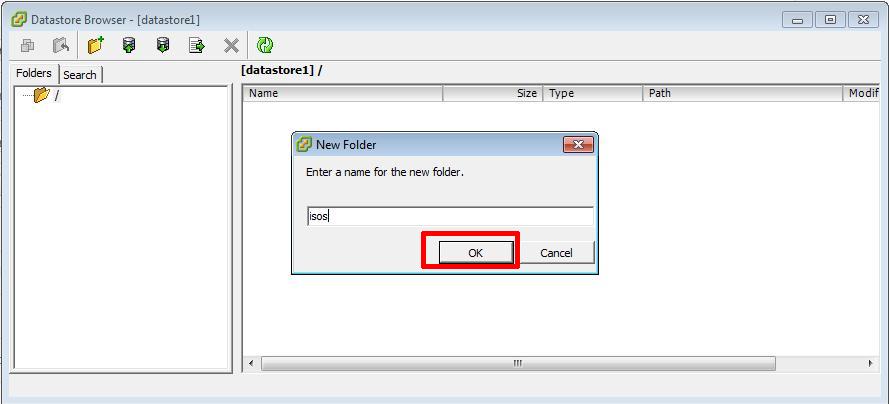
Enter folder name – isos, and Click OK
  • Enter Foldername – isos

Enter Foldername - isos

The isos folder will be shown in the datastore
  • datastore1 with isos folder

datastore1 with isos folder

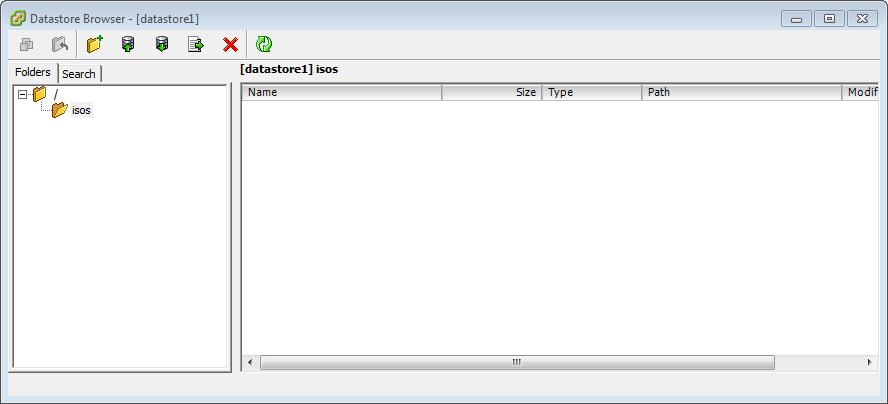
Select and Double-Click the isos folder to change folders.
  • isos folder

isos folder

2

Uploading the ISO CD-ROM/DVD-ROM image to the datastore ‘datastore1’

Please refer to my Andysworld! Article HOW TO: Create an ISO CD-ROM/DVD-ROM image (*.iso), and MD5 checksum signature, for use with VMware vSphere Hypervisor 5.1 (ESXi 5.1)

  • Upload files to this datastore

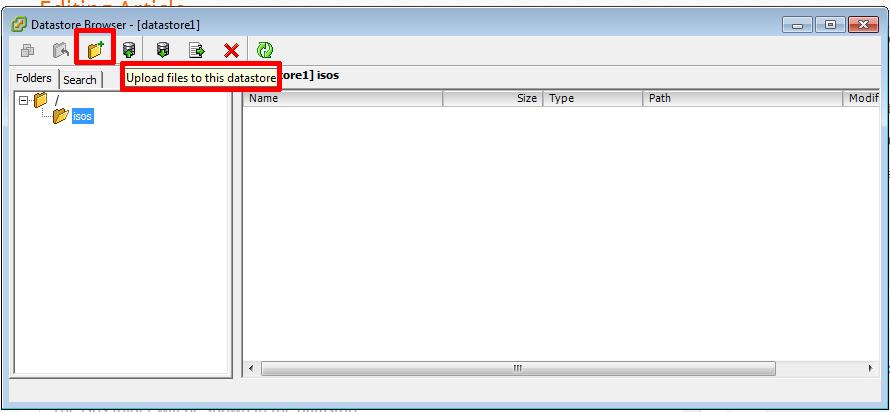
Upload files to this datastore

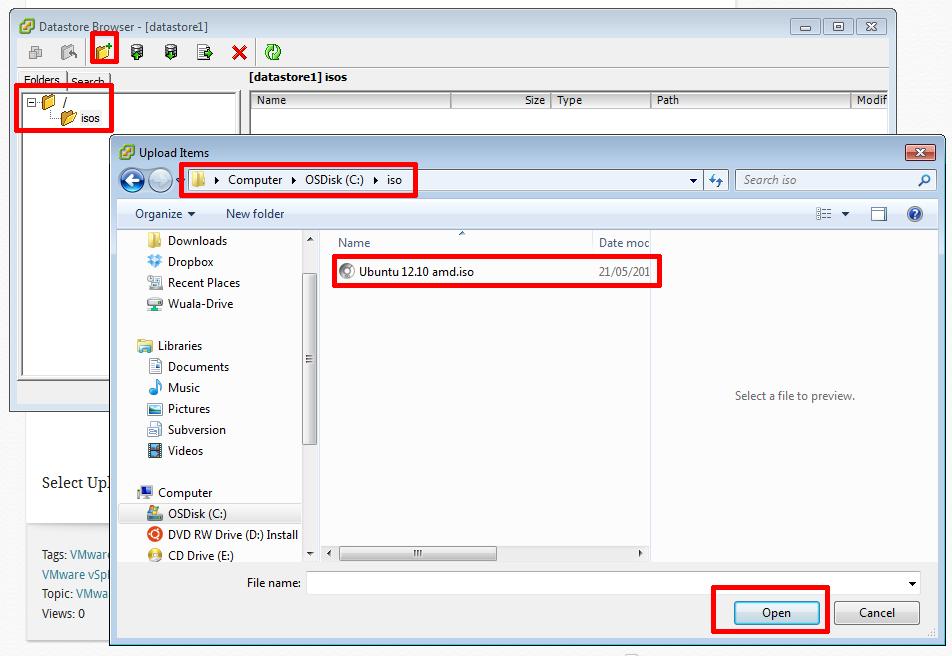
Select the ‘Upload files to this datastore’ icon on the ribbon bar.
  • Select Upload Files

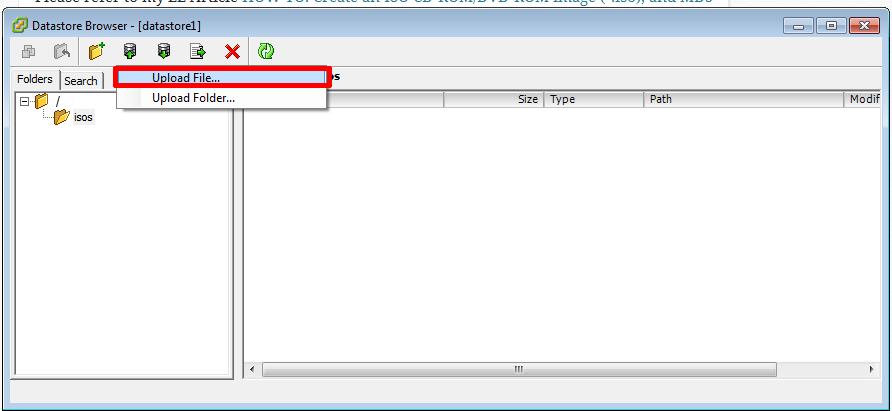
Select Upload Files

Select Upload File…
  • Browse to location of the stored iso image file on your computers hard disk

Browse to location of the stored iso image file on your computers hard disk

Browse to location of the stored iso image file on your computers hard disk, in my example, we have stored the iso image file, in c:isos, from our previous EE Article, the filename is Ubuntu 12.10 amd.iso. Click OK to continue and upload the file.
  • Select Yes to the Upload/Downloading Operation Warning

Select Yes to the Upload/Downloading Operation Warning

Select Yes to the Upload/Downloading Operation Warning.
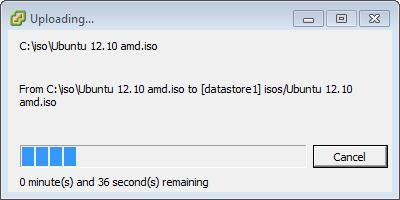
  • Uploading…

Uploading...

The ISO image file, e.g. Ubuntu 12.10 amd.iso will be upload to datastore1 in the folder isos. This can take several minutes depending upon size and speed of connection to the VMware vSphere Hypervisor 5.1 (ESXi 5.1) host server.
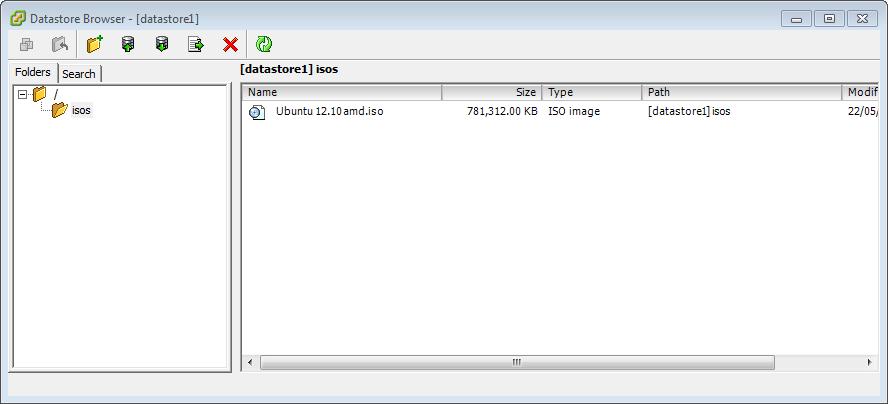
  • datastore1 with iso image

datastore1 with iso image

datastore1 with the ISO image uploaded and stored in the folder isos. Click the X in the top right hand corner to Close the Datastore Browser.

3

Confirming the upload of the ISO image file has been transferred successfully using the MD5 checksum signature

To complete the following step SSH must be enabled and running on your VMware vSphere Hypervisor 5.1 (ESXi 5.1) host server, if SSH is not running you will receive a connection refused message.

To Enable SSH on your VMware vSphere Hypervisor 5.1 (ESXi 5.1) host server, please see my Andysworld! article HOW TO: Enable SSH Remote Access to a VMware vSphere Hypervisor 5.1 (ESXi 5.1)

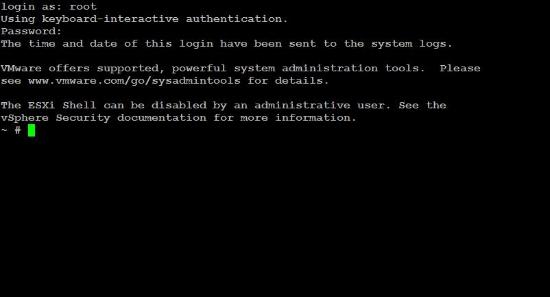
Connect to the VMware Hypervisor ESXi server via SSH. Using PuTTY a free telnet and SSH client or another SSH client Login and Connect to the VMware Hypervisor ESXi server, using IP address or hostname of the VMware Hypervisor ESXi server, using root username and password credentials. This can also be performed if you have access to the console.

  • PuTTY SSH terminal session

PuTTY SSH terminal session

  • logged in as root to ssh terminal session

    logged in as root to ssh terminal session

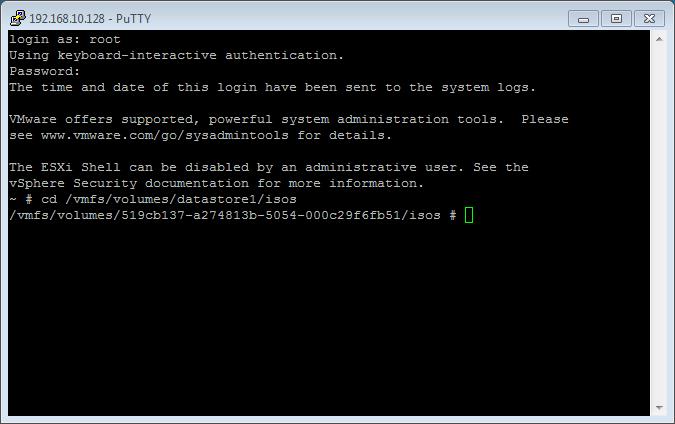
You will need to change folder or directories to the location of the iso image file. The VMware VMFS datastores are mapped here /vmfs/volumes. Use the following command to change to the datastore1 datastore and isos folder.
cd /vmfs/volume/<datastore name>/<folder name>
  • change folders

change folders

example :- cd /vmfs/volumes/datastore1/isos
type cd /vmfs/volumes/datastore1/isos in the SSH session window.
  • md5sum

md5sum

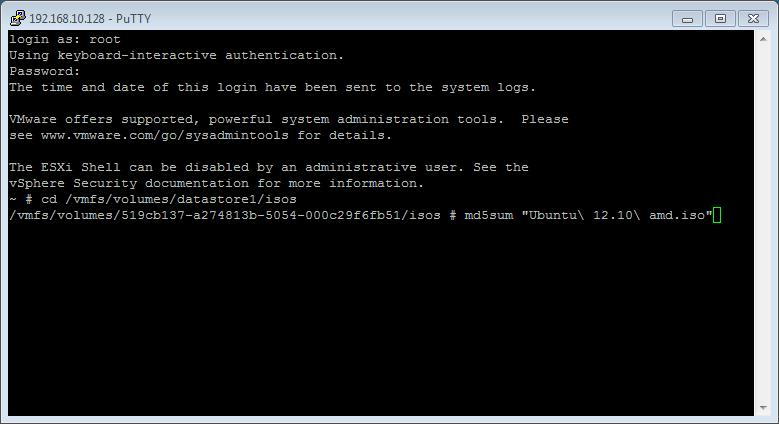
When you have successfully changed folders to the location of the isos image file which has been uploaded, use the following command to check the MD5 checksum signature.
md5sum <filename>
example md5sum Ubuntu 12.10 amd.iso
  • MD5 Checksum Signature

MD5 Checksum Signature

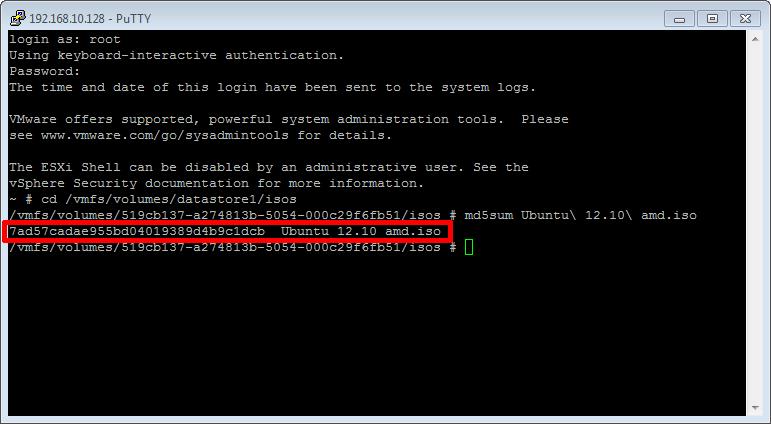
type md5sum Ubuntu 12.10 amd.iso in the SSH session window. After several minutes, and the time taken, depends on the size of the ISO image file, and speed of host processor and storage, a MD5 checksum signature will be displayed. The number displayed next to the filename – 7ad57cadae955bd04019389d4b

9c1dcb – is the MD5 checksum signature. Compare this number with the original number computed before the ISO image file was uploaded, if they match, the transfer was successful. If they do not match, repeat Step 2 above.Congratulations, you have successfully uploaded an ISO CD-ROM/DVD-ROM image to a VMware datastore for use with VMware vSphere Hypervisor 5.1 (ESXi 5.1) using the vSphere Client, and checked its MD5 checksum signature is correct.

HOW TO: Create an ISO CD-ROM/DVD-ROM image (*.iso), and MD5 checksum signature, for use with VMware vSphere Hypervisor 5.1 (ESXi 5.1)

Wednesday, May 22nd, 2013
In my previous VMware Articles, most featured Intermediate VMware Topics. My next series of articles will concentrate on topics for the VMware Novice; this is the third article in this series.
If you would like to read the other articles in this series,  they are listed here for your convenience.

HOW TO: Install and Configure VMware vSphere Hypervisor 5.1 (ESXi 5.1)

HOW TO: Connect to the VMware vSphere Hypervisor 5.1 (ESXi 5.1) using the vSphere Client

In this series of basic VMware articles for the Novice, I’ll be showing you the basic VMware skills required to install, configure and deploy virtual machines using VMware’s FREE VMware vSphere Hypervisor (ESXi).

This article will show you how to create an ISO CD-ROM/DVD-ROM image (*.iso), and MD5 checksum signature, for use with VMware vSphere Hypervisor 5.1 (ESXi 5.1).

What is an ISO? (Andy’s Laymen Definition)
An ISO is an image or bit copy of a CD-ROM/DVD-ROM, the ISO is a file, similar to a compressed archived file, this *.iso file contains the data from a CD-ROM/DVD-ROM. The ISO file is a virtual CD-ROM/DVD-ROM. Using an *.iso file has many advantages, some are listed below:-

  • The original CDROM/DVD-ROM can be stored securely, and is no longer required, after an ISO image has been created.
  • Multiple virtual machines can use the same *.iso concurrently.
  • Computers without a CD-ROM/DVD-ROM reader can use the data stored on the *.iso file.
  • Installing OS (operating systems) or transferring data is faster.
1

Prerequisites

  • An original operating system CD-ROM/DVD-ROM
2

Install ISO Recorder

Download ISO Recorder from http://alexfeinman.co/isorecorder.htm We like to use ISO Recorder, because it is a small lightweight application, which integrates into the shell of your OS (operating system). e.g. you right click the CD-ROM/DVD-ROM reader and the option is there to create an ISO.

There are several versions of ISO Recorder to download, ensure you download the correct version for your OS, and the correct version for your processor, as there are 32-bit and 64-bit versions available.

After you have downloaded the correct version, Double-Click the installer program (*.msi) you have download, we will install the Windows 7 64 bit version, which has the filename ISORecorder31x64.msi

  • Welcome to the ISO Recorder Setup Wizard

Welcome to the ISO Recorder Setup Wizard

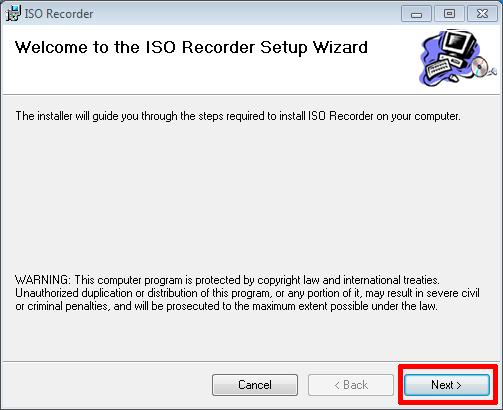
At the Welcome to the ISO Recorder Setup Wizard dialogue page, Click Next and continue
  • Select Installation Folder.jpg

Select Installation Folder.jpg

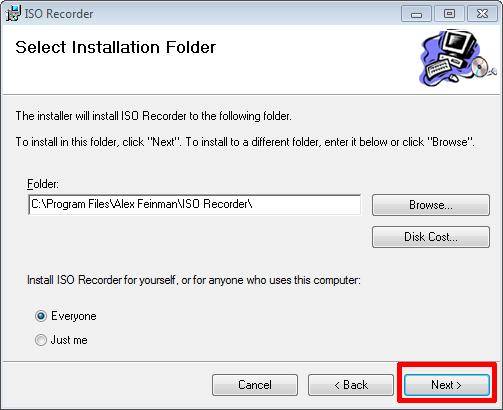
At the Select Installation Folder dialogue page select the defaults, and Click Next to continue.
  • Confirm Installation

Confirm Installation

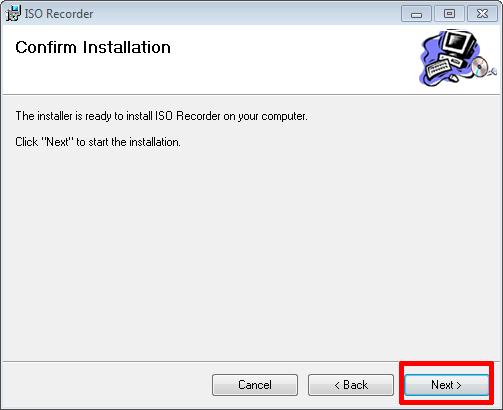
Confirm installation at the Confirm Installation dialogue page, and Click Next to continue.
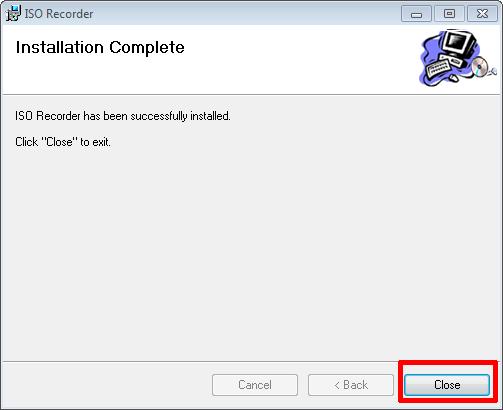
  • Installation Complete

Installation Complete

The installer will Complete the software installation, it only takes a few seconds to complete. Click Close to complete the installation.

3

Create an ISO image file

  • My Computer

My Computer

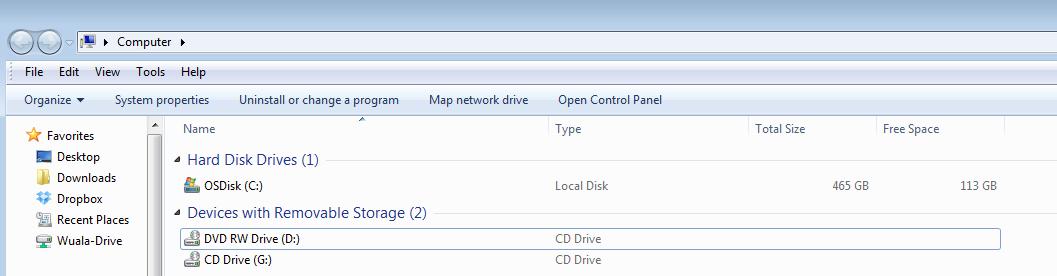
Select My Computer.
  • CD-ROM Inserted

CD-ROM Inserted

Insert an original operating system CD-ROM/DVD-ROM into your optical media device.  In this example, we are using an Ubuntu 12.10 DVD-ROM.
  • Right Click the CD-ROM/DVD-ROM

Right Click the CD-ROM/DVD-ROM

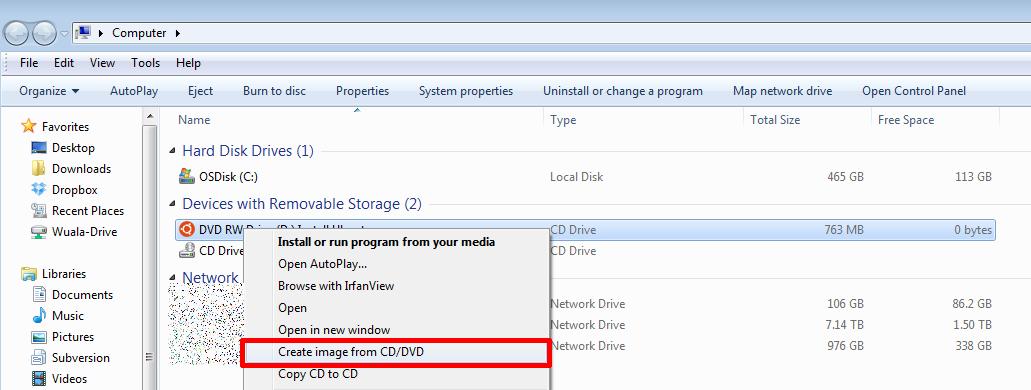
Right-Click the CD-ROM/DVD-ROM, and select Create image from CD/DVD.
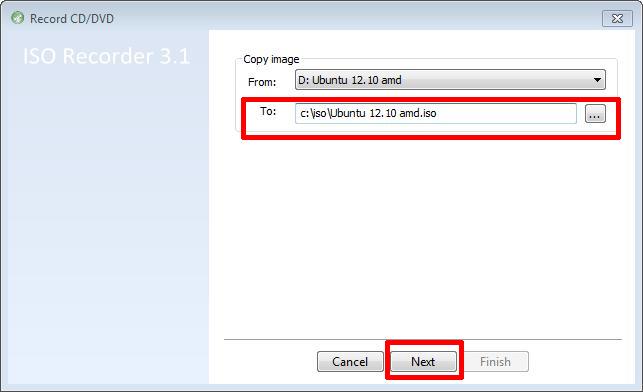
  • Select Destination for ISO image file

Select Destination for ISO image file

Select a filename and destination folder on your computers hard drive to store the ISO image file and Click Next to continue, this will create an ISO image file.
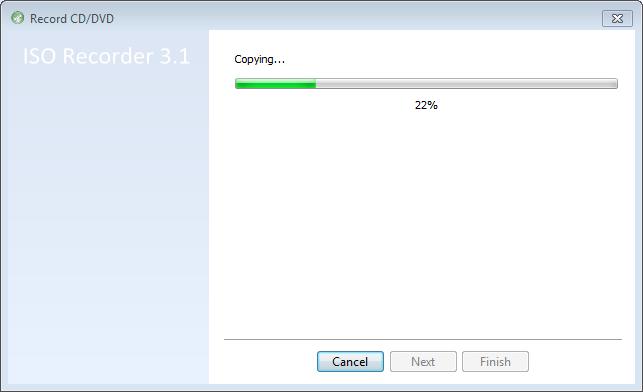
  • 22 percent complete …

22 percent complete ...

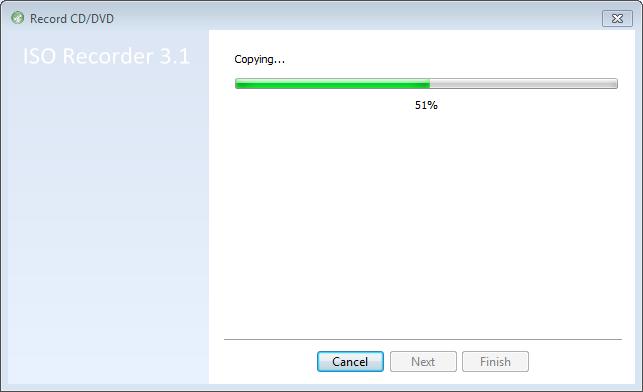
  • 51 percent complete…

51 percent complete...

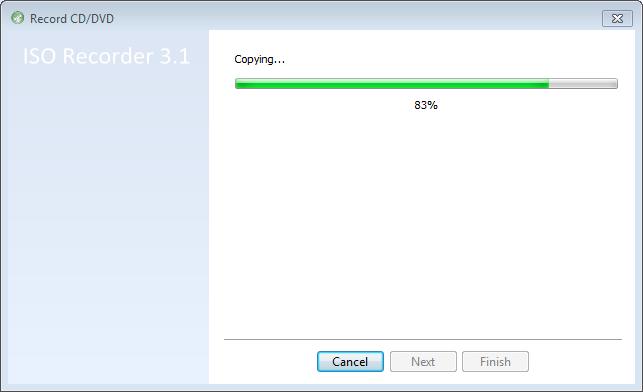
  • 83 percent complete…

83 percent complete...

The data will be copied from the CD-ROM/DVD-ROM, and the ISO image will be created. This can take several minutes to complete.
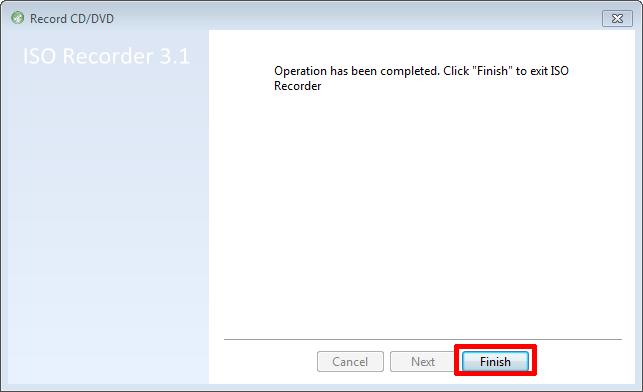
  • Completed – Finish

Completed - Finish

Select Finish to complete the operation. The ISO image file has been created.

4

Creating a MD5 checksum signature of the ISO image file

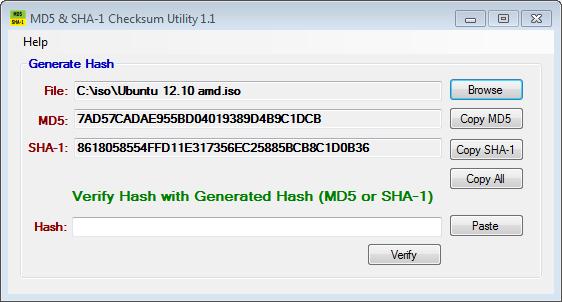
We will use the MD5 & SHA-1 Checksum Utility to create a MD5 checksum signature for our freshly created ISO image file. This is important, so we can compare these signatures, once we have completed the transfer to our VMware host servers, and confirm the ISO image file has not been corrupted in transfer.

  • MD5 SHA-1 Checksum Utility

MD5 SHA-1 Checksum Utility

Double-Click and start the MD5 & SHA-1 Checksum Utility application. Click browse and select your freshly created ISO image file.
  • MD5

MD5

Shortly after selecting the ISO file, the application will start calculating the MD5 and SHA-1 checksums for the file, this can take a few minutes depending upon the size of the ISO image file, which needs to be read.

The MD5 checksum for my Ubuntu 12.10 amd.iso is:-

MD5 Checksum: 7AD57CADAE955BD04019389D4B9C1DCB
SHA-1 Checksum: 8618058554FFD11E317356EC25885BCB8C1D0B36

Generated by MD5 & SHA-1 Checksum Utility @ http://raylin.wordpress.com/downloads/md5-sha-1-checksum-utility

Please note the MD5 checksum value for use with the  VMware vSphere Hypervisor 5.1 (ESXi 5.1)

Congratulations you have successfully created your first ISO (*.iso), and created a MD5 checksum signature for use with VMware vSphere Hypervisor 5.1 (ESXi 5.1).

In my next Article in this series, we will show you HOW TO: Upload and Check the MD5 signature of an ISO CD/DVD image to a VMware datastore using the vSphere Client, for use with VMware vSphere Hypervisor 5.1 (ESXi 5.1)

I’m now a VMware Savant at @ExpertsExchange

Saturday, May 18th, 2013

It finally happened on the 1st May 2013. In the Gaming-World, I’ve leveled-up!

vmwaresavant

My Experts Exchange Savant Certificate

ee-1stmay2013

Before 1st May 2013: - VMware Prodigy

ee-3rdmay2013

After 1st May 2013: Note change! VMware Savant

I’ve now joined a very exclusive club, it was going to happen sooner or later, I’m now a VMware Savant at Experts-Exchange.com. As of this post, there are only 11 out of 119,793, and I’m now number 12! Here are the other Experts and their Zones.

angelIII – MS SQL Server

capricorn1 – Microsoft Access Database

Sembee – Exchange Email Server

mlmcc – Crystal Reports Software

objects – Java Programming Language

Ray_Paseur – PHP Scripting Language

rorya – Microsoft Excel Spreadsheet Software

CEHJ – Java Programming Language

zorvek – Microsoft Excel Spreadsheet Software

CodeCruiser – Microsoft Visual Basic.Net

DatabaseMX– Microsoft Access Database

and finally me!

hanccocka – VMware (yes the 1st VMware Savant!)