If you don’t want to read the blog the tech preview video is here
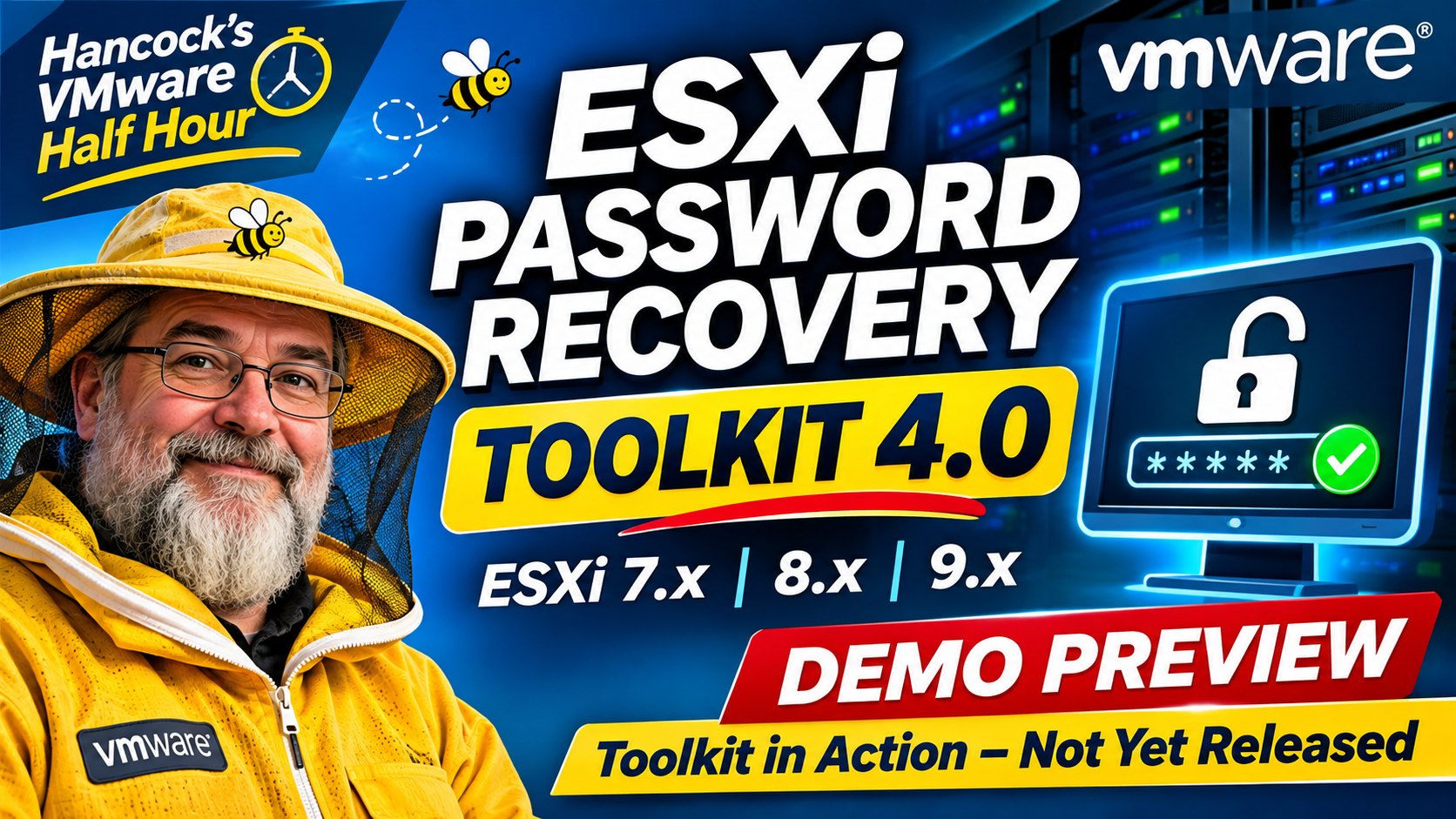
The beginnings of a rather long project! This was my original announcement back in March 2026.
This has been a considerably longer project than I originally anticipated!
You might reasonably ask why I decided to develop an ESXi password recovery utility in the first place. Well, there’s a rather significant gap in the VMware vSphere Hypervisor (ESXi) product: **there is no officially supported root password reset facility in ESXi 7.x, 8.x or 9.x.**
If you lose or forget the root password, the officially supported recovery approach is to reinstall ESXi. Broadcom documents the available recovery methods in its knowledge base article:
[Methods to recover the ESXi host root password]
For those of us who have been around VMware for a while, this isn’t an entirely new problem.
Many moons ago (25 years, in fact!), there were bootable utilities available that could help reset passwords on ESX/ESXi installations. Unfortunately, those utilities were no longer maintained or developed. More recently, changes to ESXi, including the introduction of configuration encryption, have made password recovery considerably more complicated.
There are still various documents and guides scattered across the internet describing parts of the recovery process, but finding a reliable, repeatable solution that works across multiple ESXi releases is another matter entirely.
Why did I develop the toolkit?
The original motivation came from a specific client requirement. They needed to recover the root passwords on several ESXi hosts. For reasons I won’t go into here, reinstalling the hosts, as recommended by Broadcom, simply wasn’t an option.
Within a month, we received another request for exactly the same functionality.
That was the catalyst for the original project and the reason I started developing the ESXi Password Recovery Toolkit.
The initial version, which I deliberately held back from release, was a fairly straightforward Bash script. It relied on a VMware ESXi installer ISO to perform the recovery process.
However, as the project developed, I started to have reservations about continuing to rely on proprietary VMware/Broadcom binaries and components.
Recent developments surrounding VMware’s VDDK (Virtual Disk Development Kit), including the wider discussion around its availability and Broadcom’s approach to third-party integration, reinforced my thinking. I wanted something that was more self-contained, relied on open-source components and didn’t depend on VMware/Broadcom binaries to do its job.
A complete re-engineering – Version 4.0
Over recent months, I’ve therefore taken a completely different approach.
Rather than simply updating the original Bash script, I’ve effectively started again.
**Hancock’s VMware Half Hour – ESXi Password Recovery Toolkit 4.0 has been completely re-engineered.**
The new toolkit uses a Debian-based Live bootable CD-ROM environment and has been rewritten to use open-source utilities and modules.
This is a significant departure from the original implementation. It provides a much more self-contained recovery environment without the dependency on VMware installer media.
I’ve also spent considerable time testing the new implementation across multiple generations of VMware hypervisor:
– VMware ESXi 7.x
– VMware ESXi 8.x
– VMware ESX/ESXi 9.x
This hasn’t been a case of simply getting a script to execute. The important part has been validating the complete recovery process across different releases and builds.
What started as a relatively small utility to address a couple of client requirements has evolved into a much larger engineering project.
And that’s the story behind version 4.0. More details on the toolkit, its development and the testing results will follow.