It’s Official – 9th Annual Expert Awards – @ExpertsExchange – Andy is the Expert of the Year, again for the Second Year!

January 3rd, 2013

expertoftheyear2012c
expertoftheyear2012

It’s official, I received 7 emails last night, I’ve won six awards this year at Experts Exchange.com.in the 9th Annual Expert Awards, this is my second year as  Expert of the Year.

expertoftheyear2012b

I started the year with 4,688,803 points, and ranked 84th.

This year I totaled overall 5,369,940 this year and I’m currently Ranked 29th! I’ve been ahead for most of the year, with a clear, 2,500,000 points over 2nd place! 250,000 points ahead in the Articles (Authors), and No.1 in VMware and Virtualisation Zones. (by 5,500,000 and 2,000,000 points ahead of the No.2!)

expertoftheyear2012a

All this answering questions on VMware and Virtualisation ONLY!

A Happy VMware & Virtualisation year to you!

Merry Chrimbles!

December 23rd, 2012

Merry Chrimbles everyone, and don’t eat too much this Christmas!

from everyone in Andysworld!

New Desktop Computer Part IV:- Complete – 7 TFLOPS

December 18th, 2012

it’s been a long and difficult birth for this PC, lots of testing and unknowns, to get this created, but here it is:-
andysnewpc12

So what does this computer do, well at idle it consumes approx 200 watts (measured) of electricity, at full load, it uses approx 850 watts (measured) of electricity  to drive an Intel Core i7 990X Extreme Edition processor, and two nVidia SLI GTX 590 3GB DDR5 RAM, that’s a total of 4 GPUs, and the machine’s number crunching performance is approx 7 TFLOPS. (GPU+CPU combined)  The GTX 590 were one of the worlds fastest graphics cards, recently surpassed by the nVidia GTX 690.

Yes, this rig runs very hot, and may need to be water cooled at a later date, or change of case and fans, or radiator based cooling for the CPU, still under testing and development……work in progress!

New Desktop Computer Part III: What is Andy going to do with 48GB of RAM in his Desktop PC?

December 16th, 2012

48GB of RAM in a Desktop PC, that’s a server I here you say, other than virtualisation with VMware Player 5.0 or VMware Workstation 9.0, or Client Hyper-V in Windows 8.0, or Oracle Virtualbox 4.0, it does seem a bit extreme, even the latest games, or Adobe Photoshop, you will be hard pushed to utilise all the memory.

Those that are old enough, once upon a time, in year DOS! we used a driver called – ramdrive.sys, that you could load into system memory, and turn some system memory into a ramdrive. RAM was expensive years ago, and only a few kilobytes or megabytes could be used as a ramdrive, but system access was almost instantaneous.

about eight years ago, a company wrote a ramdrive driver for Windows 2000 for clients, to use as a Windows 2000 profile drive for the storage of user profiles for a large terminal server project, to speed up the logon and logoff of users. I’ve been searching for an updated version since, that works with the modern Windows OS, now I’ve found one.

Now with the cost of memory for desktop PCs falling, the following company DR Dataram have produced a new RAMDisk for modern operating systems, and it’s FREE, and allows you to create RAMDisks up to 4GB, if you want to create RAMDisks larger than 4GB, you will need to part with 18.99 USD! It supports Windows XP, Windows 7 and Windows 8, Windows Server 2008 and Windows Server 2012.
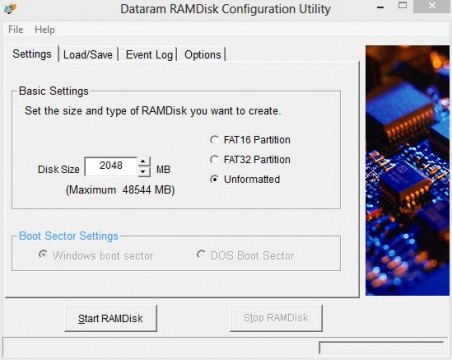
Install the software, specift the size

Install the software, specify the size
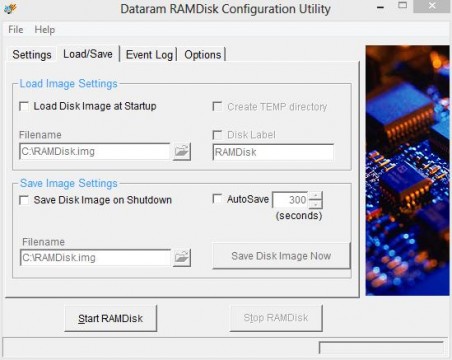
Specify Load, Save and Autosave options

Specify Load, Save and Autosave options

and Hey Presto! you’ve got a ramdrive, out of system memory, and the magic of a ramdrive compared to an SSD, checkout the following benchmarks!

Performance of DR Dataram RAMDisk versus 4 x SATA 3 Kingston 200v+ SSDs in RAID 10
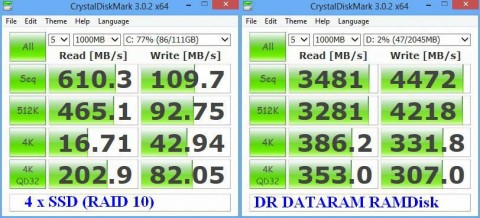
Comparison SSD versus RAMDisk

Comparison SSD versus RAMDisk

and for the geeks in the audience, that like IOPS
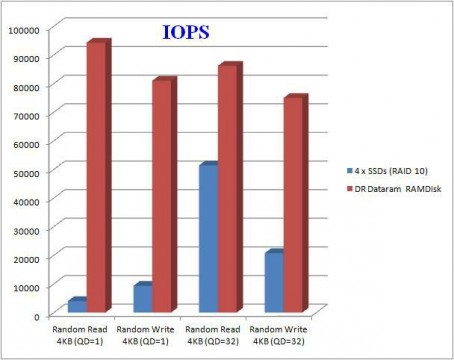
Comparison of IOPS
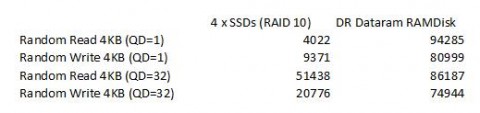
Comparison of IOPS

Comparison of IOPS - the numbers!

Comparison of IOPS - the numbers!

So, this Christmas if you want a fast data disk for your OS, spend your money on RAM for your computer, and bin that SSD (they wear out anyway!)

@ExpertsExchange introduce New Experts Ranks: Ace and Prodigy

December 13th, 2012

I was quite surprised to receive two emails from Experts Exchange late last night, Congratulations, you have earned a new rank! and noticed my new Eeple (avatar).

eeple1

Experts Exchange have introduced two new Ranks

Prodigy – 5,000,000 points

Ace – 3,000, 000 points

see here for details

So, I now have two new ranks,

Prodigy – VMware (the 1st Expert!), Ace – Virtualisation (the 1st Expert!), I also get two new T-Shirts for these as well!

eeple

Happy Sound Check Day!

December 12th, 2012

Happy Sound Check Day everyone!

hanccocka is hooked on @ExpertsExchange

December 5th, 2012

My Bio has recently been published on the Experts Exchange Company Blog

it reads…

Andrew Hancock (a.k.a- hanccocka) first joined Experts Exchange in 2003 at the prompting of another Experts Exchange expert, Richard Quadling.

Brother and Sister together at last!

December 2nd, 2012

angus-and-tillyAngus and Tilly, together at last, or the ground is frozen solid, and it’s too cold!

Polytunnel at the Allotments

December 2nd, 2012

Yesterday, I helped, erect the community polytunnel at the allotments. Mr Mantis helped out as well, and dug the trenches!

dec011212gpaa-20for more details see the Allotment Website

HOW TO: Tag and Configure a storage device as a Solid State Disk (SSD) in VMware vSphere 5.0 or 5.1 (ESXi 5.0 or ESXi 5.1)

November 29th, 2012
In VMware vSphere 5.x (ESXi 5.x) there is a new feature called Host Cache Configuration. This new feature allows the VMware vSphere Administrator to configure the VMware vSphere 5.x (ESXi 5.x) host server to use a cache on a Solid State Disks (SSD) for the virtual machine’s swapfile for better performance, because the SSD has much faster latency than a traditional mechanical disk. This is also known in VMware Administrator circles as Swap to Host Cache or Swap to SSD. Once Host Cache Configuration has been enabled, the virtual machines will be swapping to SSD, but this swapfile is not a true swap file, and the entire virtual machine swap file (.vswp)  is not stored on the SSD.However, not all SSD devices are correctly tagged as SSD. This tutorial shows how to tag a Non-SSD storage device as SSD, if you want to experiment with Host Cache Configuration but do not have a SSD to hand. This is not supported by VMware, tagging a non-SSD as a SSD.

The same procedure can be followed to tag a SSD, correctly, if it’s not recognized by the VMware ESXi server.

With the current fall in prices for consumer SSDs, it can give a real performance boost to a VMware ESXi 5.x server which is short on memory. Consumer SSDs e.g. Kingston SSDNow V+200 Drive Model SVP200S37A/60G are generally cheaper than server memory. We recently purchased this model for £29.99 GBP.

The commands we will be using in this Tutorial, are the esxcli commands, these commands can be executed on the ESXi shell, through the vMA or PowerCLI esxcli remote version. In this tutorial I’ll be logging into the ESXi server, and executing the commands on the ESXi shell.

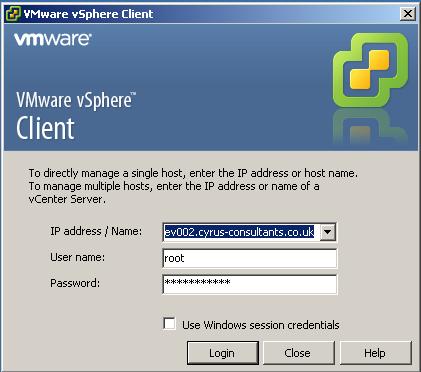
1. Connect to the VMware vSphere Hypervisor (ESXi) or VMware vSphere vCenter Server

Using the VMware vSphere Client, Login and Connect to the ESXi server, using IP address or hostname of the ESXi server, using root username and password credentials. If you have a VMware vSphere vCenter server, you could also specify IP address or hostname of the vCenter server.

  • Using the VMware vSphere Client, Login and Connect to the ESXi server

Using the VMware vSphere Client, Login and Connect to the ESXi server

2. Check and record the storage device name to be tagged as a SSD

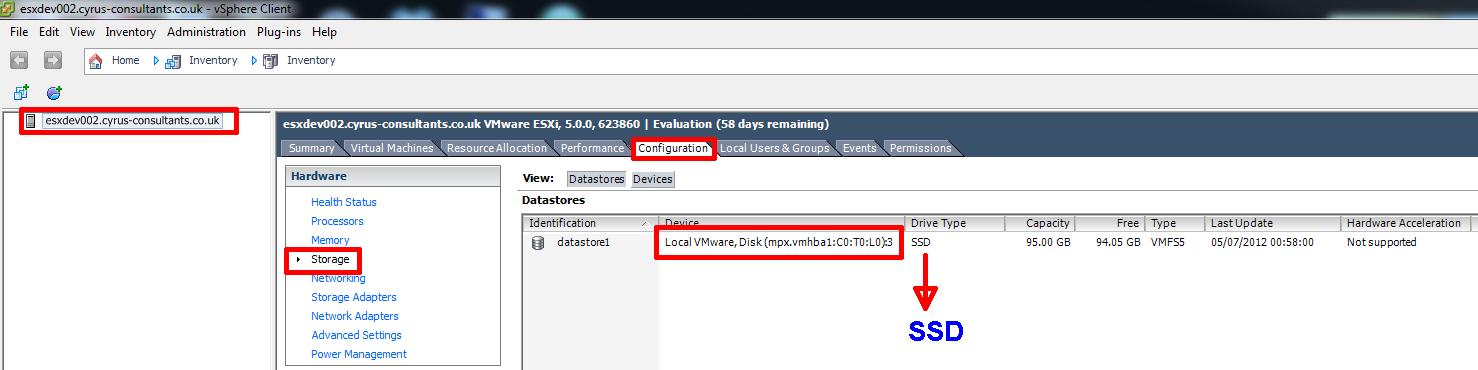
Check there is a VMFS volume already formatted on the storage device, you want to present to the Host ESXi server, as a SSD and record the device name for later in Step 4.

Select Host > Configuration > Storage

  • storage device to configure as SSD

storage device to configure as SSD

In the example above, the local storage device mpx.vmhba1:C0:T0:L0 is a local disk, formatted with the datastore name datastore1 as VMFS5. Record the storage device name mpx.vmhba1:C0:T0:L0.

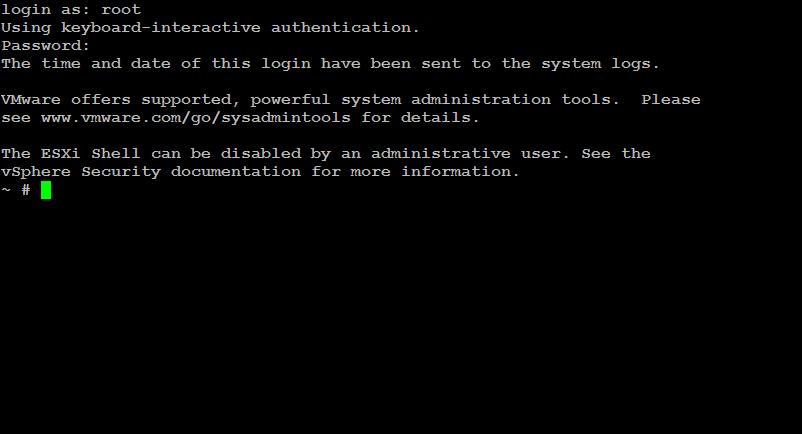
3. Logon to ESXi console (shell) via PuTTY

Using PuTTY a free telnet and SSH client or another SSH client Login and Connect to the VMware Hypervisor ESXi server, using IP address or hostname of the VMware Hypervisor ESXi server, using root username and password credentials.

  • putty SSH terminal session

putty SSH terminal session

  • logged in as root to ssh terminal session

logged in as root to ssh terminal session

4. Create a new SATP rule

At the console or SSH session type the following commands to create a new SATP rule.

esxcli storage nmp satp rule add --satp VMW_SATP_LOCAL --device mpx.vmhba1:C0:T0:L0 --option=enable_ssd

using the device name recorded in Step 2 above. The console will return a new line. To check the rule has been created correctly type the following commands

esxcli storage nmp satp rule list | grep enable_ssd

the following screenshot should be displayed

  • Confirmation of rule creation

Confirmation of rule creation

confirming the creation of the rule.

5. Claim storage device

At the console or SSH session type the following commands

esxcli storage core claiming reclaim -d mpx.vmhba1:C0:T0:L0

using the device name recorded in Step 2 above.

I have seen the following error messages when trying to claim devices, either restart the server or use the “unclaim” device command.

  • Unable to unclaim path vmhba1:C0:T0:L0 on device mpx.vmhba1:C0:T0:L0. Some paths may be left in an unclaimed state. You will need to claim them manually using the appropriate commands or wait for peri

Unable to unclaim path vmhba1:C0:T0:L0 on device mpx.vmhba1:C0:T0:L0. Some paths may be left in an unclaimed state. You will need to claim them manually using the appropriate commands or wait for peri

you can unclaim the device by specifying the device name.

esxcli storage core claiming unclaim --type device --device device_name

6. Reload the claim rules

I usually reload the claim rules and run the rules using the following commands:

esxcli storage core claimrule load
esxcli storage core claimrule run

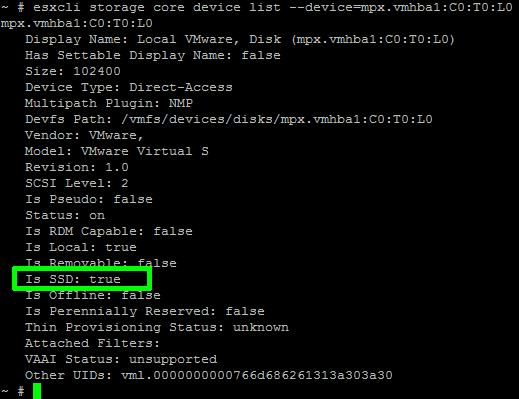
7. Confirm device is Tagged as SSD

Use the following command at the console, to check if the device has successfully been tagged as a SSD

esxcli storage core device list --device=mpx.vmhba1:C0:T0:L0

The following output will be displayed for the device.

  • local device tagged as SSD

local device tagged as SSD

Check the output states “Is SSD: true”

You have successfully configured and tagged a local device as a SSD. If you now repeat Step 2 above, you will see the device now states SSD.

  • storage device to configure or tagged as SSD

storage device to configure or tagged as SSD

In my next Article, I show you how to configure Host Cache Configuration.

Further reading can be found here in the VMware
vSphere 5 Documentation Center :- Tag Devices as SSD