
Red Admiral, Vanessa atalanta on Echinacea purpurea
Lindsey took this picture in the garden!
Red Admiral, Vanessa atalanta on Echinacea purpurea
Lindsey took this picture in the garden!

Andy at the Tate, St Ives
This was taken in July 2011, at the Tate Gate, St Ives, Cornwall.
This installation is by – Martin Creed, Half the Air in a Given Space, which sees the spectacular sea-facing galleries filled with hundreds of balloons!
A continuation of this article – Tweaking ESXi 4.1U1 – Adding un-supported hardware to VMware vSphere ESXi 4.1 U1 – Adding a QLE-220 to ESXi 4.1 U1.

No official support for the Qlogic QLE-220 in ESXi 5.0, vSphere GUI client before tweak
Because I’m also now testing Production VMware vSphere 5.0 (ESXi 5.0), and also need to connect the ESXi 5.0 servers to the fibre channel SAN using the same Qlogic QLE-220 4GB fibre channel cards. These are the PCI-E cards that fit in the HP ProLiant MicroServer quite nicely. As these Qlogic cards were NOT supported in ESXi 4.1, it’s unlikely they are supported in ESXi 5.0, and they are NOT, and not included on the HCL (Hardware Compatibility List).
Again, trying to get ahead of the curve, it will not be long, before I’m asked the same question as before with ESXi 4.x.
“ESXi 5.0 does not “see my network interface card, or storage controller.”
“How do I add this mass storage controller, network interface card, fibre channel HBA to ESXi?”
A.Andy’s Thoughts
It is my understanding, that rather than a single oem.tgz, which contains the simple.map Vendor and Device IDs of ESXi 4.x, the simple.map file has been broken down into likewise individual mapping files, /etc/vmware/driver.map.d reveals 60 individual map files which contain the Vendor Id and Device Ids similar to the original simple.map of ESXi 4.x.

ESXi 5.0 contents of /etc/vmware/driver.map.d
The file I need to modify is the qla2xxx.map file, to add the Vendor ID and Device ID. I may also have to alter the pci.ids files as well, but it’s unlikely!
the console command lspci -v reveals the same vendor ID and device ID

console output of lspci -v on ESXi 5.0
When ESXi 5.0 boots up you can see the individual driver modules files being extracted from their tarbal archives and loaded into ramdrive memory. These tarballs contain the mapping PCI ID mapping file and also the drivers for the device. All that is required is to add your new qla2xxx.map file (modified mapping file) into the scsi-qla.v00 tarballed file.
B. Adding the device to the mapping file
I’ve completed this by, extracting the original contents, including sub directories, copying my new mapping file, and creating a new archive.

Modifying the qla2xxx.map file to add additional Vendor and Device ID

Qlogic QLE-220 in ESXi 5.0, vSphere GUI client after tweak
Viola! An un-supported Qlogic QLE-220 added and working in ESXi 5.0.
I’ve decided to write this article, because I get many queries about ESXi does not “see my network interface card, or storage controller.”
How do I add this mass storage controller, network interface card, fibre channel HBA to ESXi?
Usually storage controllers, network interface cards are already supported within VMware vSphere ESXi 4.1 U1, they been tested and verfied by Vendors and VMware, ESXi 4.x can have limited support for hardware, check the HCL to check it it’s supported. But with a few tweaks, you can successfully add the unsupported storage, network interface card to ESXi 4.x.
This is un-supported by VMware, your mileage and stability of your OS could be affected. Unfortunately, this cannot be discussed on some IT Technology websites, due to breach of their policy, possibly it is classified as “hacking” – this is a grey area.
I have some Qlogic QLE-220 4GB Fibre Channel PCI-Express cards, these are not listed on the VMware Hardware Compatibility List. You can quickly deduce if the hardware is not supported because ESXi 4.x, will not load the drivers at Bootup, and the devices will be missing from Network or Storage Adaptors.
From previous experience I know that the Qlogic QLE-220 uses the same driver as the qla2xxx.o (module driver), the reason it is not recognised in ESXi 4.x, is because the PCI ID is not present in the “simple.map” file on ESXi. (you may need to add you module!)

ESXi 4.1 U1 Storage Adaptors listed in vSphere GUI Client before tweak
A. Finding the PCI ID
I need to find the PCI ID for the un-supported network or storage device. The PCI ID can be obtain in two ways, you could check the The PCI ID Repository, and check if the device has been added and available (Qlogic QLE-220 is here http://pci-ids.ucw.cz/read/PC/1077/5432). The PCI ID is in two parts, the first four characters are the Vendor ID, and the second four characters are the Device ID. But as I’ve got to install this in the ESXi server, it can be verfied by using the lspci -v command. With these devices, ESXi is able to recognize the devices and thus includes the device name.

output from lspci -v
from the output of lspci -v
000:002:00.0 Fibre Channel Serial bus controller: QLogic Corp SP232-based 4Gb Fibre Channel to PCI Express HBA
Class 0c04: 1077:5432
Vendor Id: 1077, Device Id: 5432
B. Adding the device to the mapping file
These values needed to be added to files called “simple.map and pci.ids”, which is contained in a file called oem.tgz. This is how we add the vendor and device id

simple.map modified with vendor id and device id

pci.ids already contains a description for my device!
At ESXi bootup, you will see the driver load, Fibre Channel adaptors always take a while to load the modules.
The following vSphere GUI client Storage Adaptors screenshots confirms the drivers have been loaded

ESXi 4.1 U1 Storage Adaptors listed in vSphere GUI Client after tweak
I just need to find some fibre cable, 4GB FC Switches, and spare LUNs for testing!
At the ESXi console you can also use esxcfg-module -l (-q) to check for the module loaded (driver). You can also use this to load the module for testing.
I’ll be investigating ESXi 5.0 later this week.
UPDATE A few hours this afternoon (Tue 20th), tweaking ESXi 5.0, to provide support for the Qlogic QLE-220, and understanding how to add un-supported hardware to ESXi 5.0.
Windows 8 Preview vcpu-0:NOT_IMPLEMENTED! error in your Hypervisor!

Microsoft Windows 8 Developer vcpu-0:NOT_IMPLEMENTED!
Avoid the vcpu-0:NOT_IMPLEMENTED! error in your Hypervisor, and use the following:-
VMware Workstation 8.0 Download (trial)
http://downloads.vmware.com/d/info/desktop_end_user_computing/vmware_workstation/8_0

Microsoft Windows 8 Developer Preview Boot
Oracle Virtualbox 4.0
http://www.virtualbox.org/
Microsoft Hyper-V Server 2008 R2 with Service Pack 1 (SP1)
http://technet.microsoft.com/en-us/evalcenter/dd776191.aspx
from an earlier post….
“But this has some good news, because I managed to salvage a 3300uF 16v Capacitor from this broken power supply to repair the power supply in my Humax FoxSAT-HD STB!”
It would appear that Humax have used rubbish cheap Foxcon capacitors in the STB, and after 24 months, it will stop working with the “GCOD – Green Circle of Death”, when if you turn on your STB, it will just sit there, with green leds rotating in a circle, The fix is to replace
C23 – 680 uF 25 volts (this is the 12v line to the LNB)
C12 – 2200uF 10 volts
as a quick fix, I’ve just replaced C12, with a 3300uF 16v cap, and I now have a working STB, but I’ve got some Panasonic Caps, on order from Boot Ferrule Man.


It’s a very quick fix, if you can use a soldering iron and solder sucker!
And on occasion, I have to deal with the physical world of computing, when the power supply in PC Workstation No.2 decided to go bang, and then tripped the circuit breaker for the sockets in the house! (the computer was not even powered up, but it has a smart power supply, Wake on LAN, low power etc so although plugged into AC, it’s “on”.)
I’ve been disassembling the PC Workstation No.2, little service vacuum out the dust from heatsinks, fans, hard drives, and replacing the PSU with a new working supply from the spares cupboard.
Checking the broken power supply to check which side of the power supply decided to go bang, (AC or DC) fuse had not blown inside the power supply, but here are the photographs from the broken power supply. I think you’ll see the fault immediately.

Capacitor cap blown-out


But this has some good news, because I managed to salvage a 3300uF 16v Capacitor from this broken power supply to repair the power supply in my Humax FoxSAT-HD STB! (but that’s another blog!)
All the HP ProLiant MicroServers I’ve purchased without CDROM/DVDROM drives, so how did I manage to install all the operating systems, Microsoft Windows Server 2008 R2, Oracle Solaris 11 Express, FreeNAS, VMware ESXi 4.0 and ESXi 5.0 quickly and easily onto the servers.
Well quite simply, I made my USB External Hard Disk bootable, and copied the ISOs onto the USB External Hard Disk, connected to the HP ProLiant MicroServers, and booted the ISO CDROM from the USB External Hard Disk.
This has the following advantages
1. The read time is much faster than conventional CDROM/DVDROM and USB flash drive.
2. No requirement to burn an ISO image to a CDROM.
3. Keeps all your ISOs in one place.
If you’ve downloaded the software already from the internet, as a download, you already have the ISO ready to configure, otherwise download and install ISORecorder, a brilliant little application, which just creates an ISO image.
Next you’ll need one of the follow applications, and these applications will do the rest, just make sure you set the computer’s BIOS to boot from USB!
1. UNetbootin (Download Link)

UNetbootin
2. YUMI Multiboot MultiSystem (Download Link)

YUMI Multiboot MultiSystem
I’ve categorised this blog post as Vintage, well I think Microsoft Windows NT Workstation 4.0 and Microsoft Windows NT Server 4.0, deserve Vintage status, it’s over 15 years since it’s release, and I still remember the day, when I was the only Senior Analyst in a new job, that had installed Windows New Technology, so the first task of the day (week) was to sit with a pile of floppy disks, because they had not purchased the CDROM version, and install on 10 computers, I was still waiting for my “Top Secret Security Clearance” to be approved, so I was locked in the Datacentre! On reflection now, it would seems a very odd place to lock someone on a Ministry Of Defence site, that did not have clearance! If I needed to take a comfort break, I had to be escorted around the site!

Windows NT 4.0 License Agreement
If you’ve never read the Windows NT 4.0 License Agreement, it states 8. “…. Java Technology is not fault tolerant and is not designed, manufactured, or intended for use or resale as on-line control equipment in hazardous environments or nuclear facilities, aircraft navigation or communication systems…..”.
So Windows NT Workstation 4.0 is not supposed to be used for a messaging system? (best not say anymore about that!).
Windows NT Workstation 4.0 and Microsoft Windows NT Server 4.0 install so fast in a virtual environment, after many many many, manual installations and deployments on physcal servers and workstations, installation is over in 60 seconds. (it’s just rather anyonying that SP6 is require to install VMware Tools!, all of 32MB!).
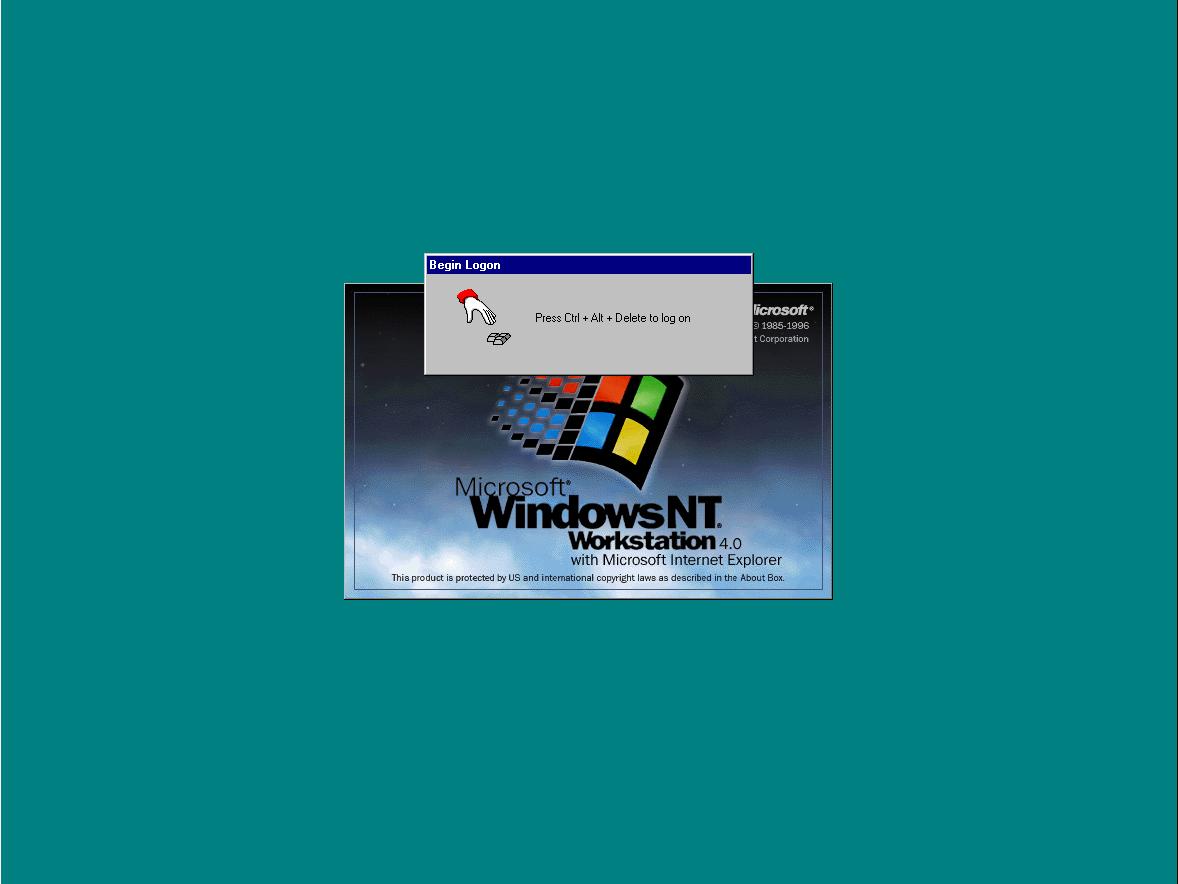
Microsoft Windows NT Workstation 4.0

Microsoft Windows NT Server Version : 4.0
You are probably wondering at this point, why am I installing and testing Microsoft Windows NT Workstation 4.0 and Microsoft Windows NT Server 4.0 on VMware ESXi 5.0!
Ah, well good reason, Boot Ferrule Man, who works in the Semiconductor Industry, one of their semiconductor robots, lets call him “Cheese”, which is controlled by an NT 4.0 PC with SSD installed in 1995, has gone wrong! So I’m just testing the media! (well okay, ISOs, the media is archived!).
Told you it had a reason!!!
and final shout-out, All the very Best Steve. I wish you and your family well.
![[Valid RSS]](http://andysworld.org.uk/images/valid-rss.png "Validate my RSS feed")


