Posts Tagged ‘USB’

Part 5: DIY UNRAID NAS: Making Use of the Free Internal USB Headers

Sunday, November 30th, 2025


Welcome back to Andysworld!*™ and to Part 5 of my DIY UNRAID NAS series.

In this instalment, I explore a small but very useful upgrade: using the free internal USB headers inside the Intel NUC Extreme 11th Gen to hide the UnRAID boot USB neatly inside the chassis. This keeps the build clean, reduces the risk of accidental removal, and makes the system feel much more like a dedicated appliance.


Why Move the UnRAID USB Inside the NUC?

UNRAID must boot from a USB flash drive. Most people leave it plugged into an external port on the back of the system, but the NUC Extreme includes internal USB 2.0 header pins.

By using those internal headers, we can:

  • Keep the USB drive inside the case
  • Free up an external USB port
  • Reduce the chance of accidental removal or damage
  • Improve the overall look and tidiness of the build
  • Make the system feel more like a self-contained NAS appliance

Credit and Hardware Used

This idea came from a very useful Reddit thread:

Reddit source: https://tinyurl.com/yd95mu37
Credit: Thanks to “JoshTheMoss” for highlighting the approach and the required cable.

Adapter Cable

The adapter used in this build was purchased from DeLock:

Adapter product page: https://www.delock.com/produkt/84834/merkmale.html

This adapter converts the internal USB header on the motherboard to a standard USB-A female connector, which is ideal for plugging in the UnRAID boot drive.


What Happens in Part 5

In this episode I:

  • Open up the Intel NUC Extreme 11th Gen chassis
  • Locate the unused internal USB header on the motherboard
  • Prepare the UnRAID USB stick, wrapping it in Kapton tape for additional insulation and protection
  • Install the DeLock internal USB adapter
  • Route and position the cable neatly inside the chassis
  • Connect the USB stick to the internal adapter (with the usual struggle of fitting fingers into a very small case)
  • Confirm that the system still boots correctly from the now-internal USB device
  • Give a short preview of what is coming next in Part 6

Video Chapters

00:00 – Intro
00:07 – Welcome to Hancock's VMware Half Hour
00:47 – Using the free internal USB headers
01:05 – Reddit Source – https://tinyurl.com/yd95mu37
01:17 – Kudos to "JoshTheMoss"
02:32 – The Reddit Post
02:44 – Purchased from – https://www.delock.com/produkt/84834/merkmale.html
02:59 – Intel NUC Extreme 11th Gen close-up
03:58 – Internal USB header left disconnected
04:36 – USB flash drive is used for UnRAID
04:49 – Wrapped USB flash drive in Kapton Tape
05:31 – Fit the cable with fat fingers
07:09 – Part 6 – NVMe Time
07:51 – 4 × 4 TB Samsung 990 PRO NVMe Gen 4
08:25 – Thanks for watching

Watch the Episode

Embedded video:


Follow the DIY UNRAID NAS Series on Andysworld!*™

This project is progressing nicely, and each part builds on the last. In Part 6, I move on to storage performance and install 4 × 4 TB Samsung 990 PRO Gen 4 NVMe SSDs for serious throughput.

If you are interested in homelab builds, UNRAID, VMware, or just general tinkering, keep an eye on the rest of the series here on Andysworld!*™.

Thanks for reading and for supporting the site.

What’s in your Man Bag?

Tuesday, February 9th, 2010

After a few folk on-site recently have been laughing at my “hand bag”. I keep telling them it’s a man bag which I keep my notebook in and a few other things! I’m always complaining to Lindsey about not being able to find her keys in her many bags that she uses, it’s prompted me to take a photograph of the items in my man bag!

Contents of my man bag!

Contents of my man bag!

Contents Include:-

  • Sony Vaio T1XP Mini Notebook and Sony Vaio Case.
  • Sony Vaio T1XP charger and mains cable.
  • Tom Tom GO 520 in hard case.
  • SanDisk cruzer mini 1GB flash drives (2).
  • SanDisk cruzer micro clear body 4GB flash drives (2).
  • SanDisk cruzer micro 4GB flash drive (encrypted) (1).
  • hp 4GB flash drive (encrypted).
  • Corsair Survivor GT 64GB flash drive (encrypted) (including chain and dog tag!).
  • 3 3G MF627 USB Modem with 4GB micro SD card inserted. (encrypted).
  • Cisco Aironet 350 AIR-LMC350 (patched 200mW) PCMCIA card.
  • Cisco Aironet 802.11a/b/g PCMCIA Wireless Adaptor.
  • Linksys Dual-Band Wireless 802.11a, 802.11b, 802.11g WPC55AG PCMCIA card.
  • Orinoco 802.11b PCMCIA GOLD Card.
  • Senoa special PCMCIA card!
  • N-type to Wireless LAN card pigtails, various types (3).
  • Canon Ixus IS 850 Digital Camera including case.
  • Flash card case including compact flash, SD, Micro SD, Mini SD, Memory Stick, Memory Pro cards.
  • HP Smart Start CD ROMs and ESXi flash modules.
  • Carrying case full of technical CD ROMs.

I’ll not complain the next time Lindsey has difficulty finding her keys!

That’s alot of tech!

Wireless (WiFi) Remote Control of X10 Modules using USB Remote Access

Sunday, December 20th, 2009
  1. The Active Home Pro software is installed on/in a virtual Windows XP Professional computer, I don’t like cluttering up my main production Workstation which happens to be Vista 64-bit Ultimate.
  2. The CM15PRO Programmable Computer Interface is connected by USB to this computer. The Active Home Pro software is the software that drives the computer interface, I’ve saved the “house file” house.ahx on my NAS (network attached storage) device, so it can be easily shared on my network.
  3. This is the clever Tech bit, USB over Network by Fabula Tech, I’ve been using this software in the virtual work I do for a few years, and it allows you to share a USB device over your network, e.g. you can plug in you USB device on one computer, and connect to it on another via your network. Very handy… USB remote access!
  4. The USB over Network by Fabula Tech is installed on the computer connected to the CM15PRO Programmable Computer Interface. We will call this the server.
USB over network

USB over network

The above snapshot, shows the USB over Network server software running, and the current USB devices attached to the server, which can then be shared, just like any resource, disk, printer etc.

USB over network device shared waiting for connection

USB over network device shared waiting for connection

The device is shared, and is waiting for a client computer to connect to it.

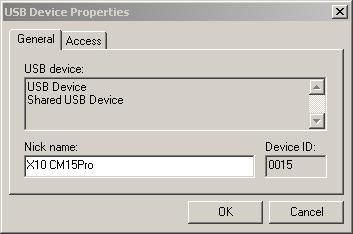
USB device properties

USB device properties

You can give the devices meaningful friendly names, that you’ll remember. On the client computer (remote computer), install another copy of Active Home Pro, making sure the drivers are installed for the CM15Pro. Run the USB over Network client software.

USB over Network client setup

USB over Network client setup

Select USB Device, Add, browser for the computer or enter IP address. You should see, a list of devices that can be connected to.

Client connecting...

Client connecting...

Right click the device, and click connect, if this is the first time you’ve connected to the device, you’ll get the usual, bing-bong tones, and plug N play will start and register the drives.

Now you can use your ActiveHome Pro software on another wireless (WiFi) computer, just open the *.AHX home file, from a shared location.

Client Connected to device

Client Connected to device