HOW TO: Enable Jumbo Frames on a VMware vSphere Hypervisor (ESXi 5.0) host server using the VMware vSphere Client

January 10th, 2012

The original payload size or maximum transmission unit (MTU) of an ethernet frame is 1500 bytes. A jumbo frame has an ethernet frame size of 9000 bytes or over. Common Jumbo Frame sizes are 9000, 9216 bytes (example – HP switches).

Enabling Jumbo Frames may help reduce storage latency and increase storage throughput when used in conjunction with iSCSI or NFS storage network protocols with a VMware vSphere Hypervisor (ESXi 5.0) host server and a storage area network (SAN) or network attached storage (NAS) device.

Before enabling Jumbo Frames on an ESXi 5.0 server, check

(i) ensure the servers network interface card can support jumbo frames. Check with server or network manufacturer.
(ii) network switches support the use of jumbo frames, and enable jumbo frames on the network switches. Not all switches support the use of jumbo frames.
(iii) the SAN or NAS supports jumbo frames, and is enabled accordingly to manufacturers instructions.

The end to end network topology must support jumbo frames, otherwise ethernet frame packets will become fragmented, and performance will be degraded.

Connect to the VMware vSphere Hypervisor (ESXi 5.0) Server

Using the VMware vSphere Client, Login and Connect to the ESXi 5.0 server, using IP address or hostname of the ESXi 5.0 server, using root username and password credentials. If you have a VMware vSphere vCenter server, you could also specify IP address or hostname of the vCenter server.
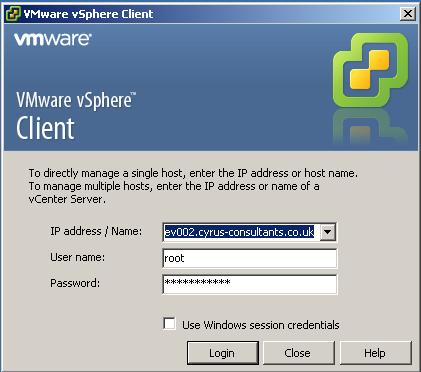
Using the VMware vSphere Client, Login and Connect to the ESXi 5.0 server

Using the VMware vSphere Client, Login and Connect to the ESXi 5.0 server

2

Select the Configuration Tab

Once you are logged into and connected to the host ESXi 5.0 server, Select the Configuration Tab.
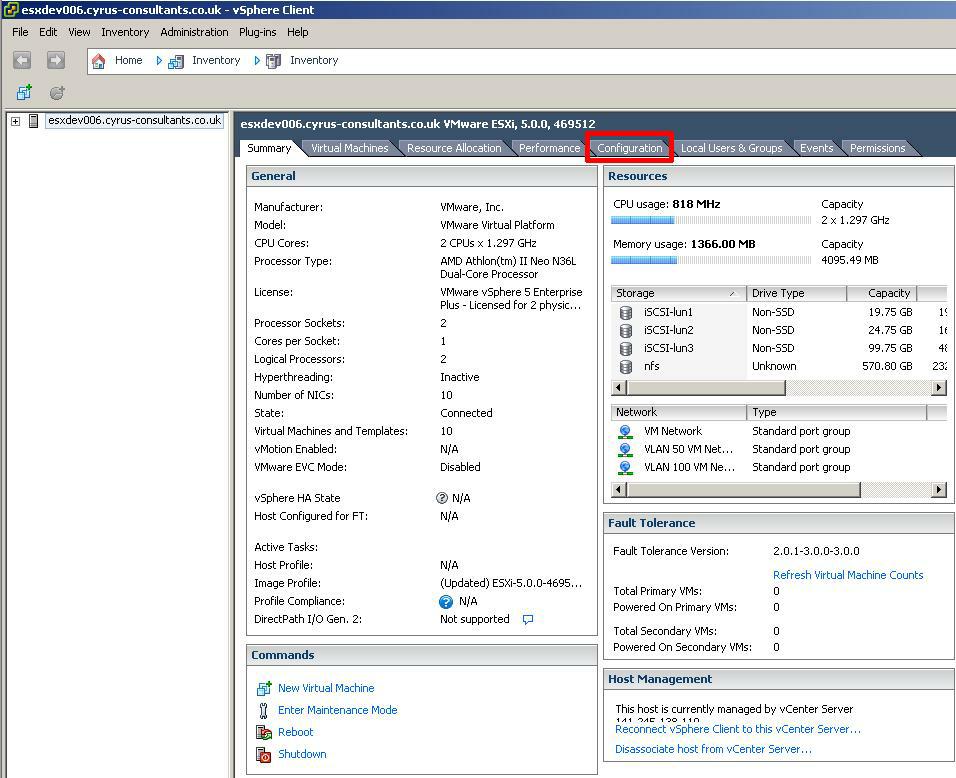
Select the Configuration Tab

Select the Configuration Tab

3

Select the Networking option

Click the Networking option to display the network vSwitches.
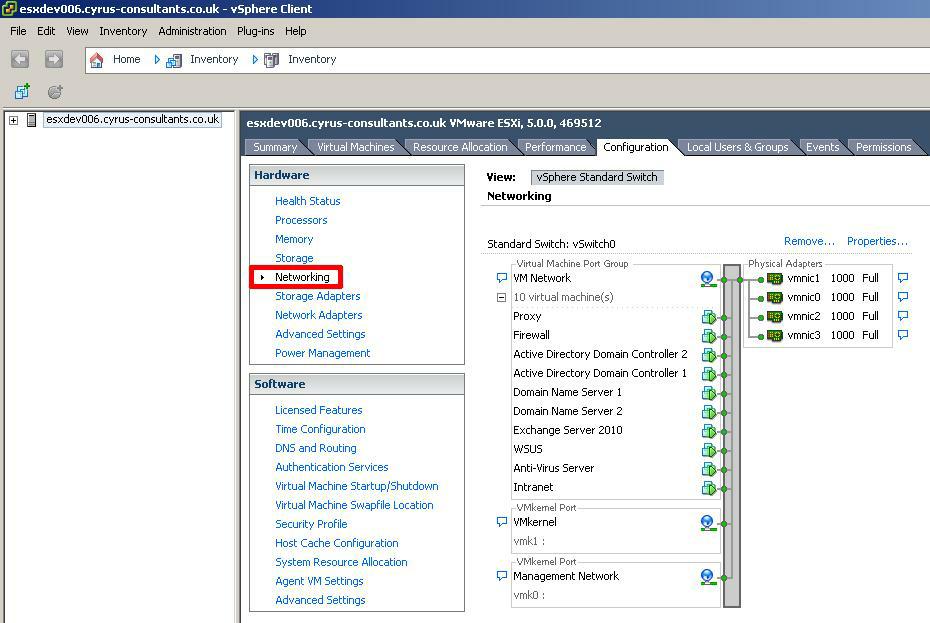
Click the Networking option to display the network vSwitches

Click the Networking option to display the network vSwitches

4

Select the Properties of the vSwitch you wish to enable jumbo frames
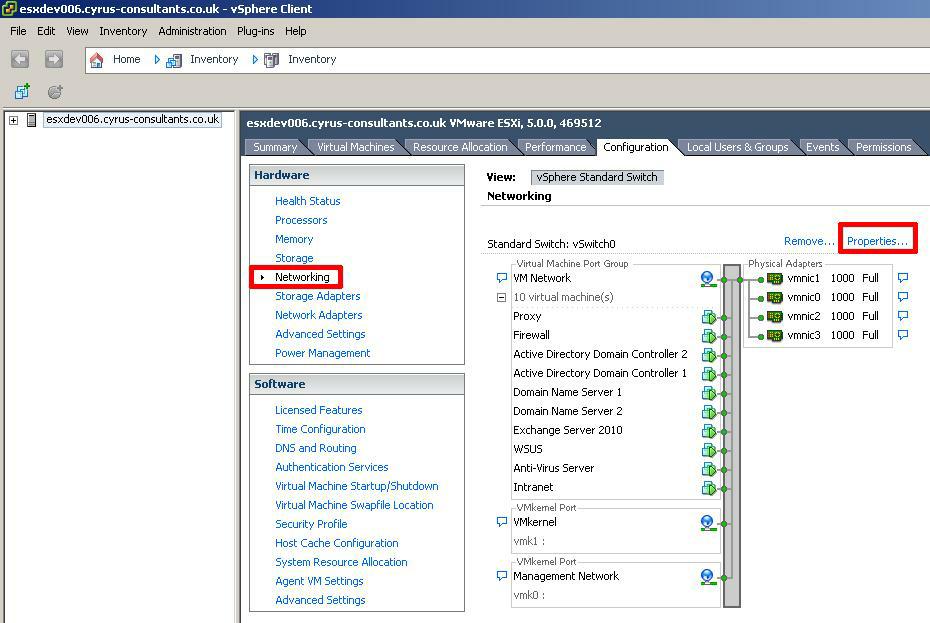
Properties of vSwitch0

Properties of vSwitch0

you can check the existing frame or MTU size of the vSwitch. In this example vSwitch0 is selected.
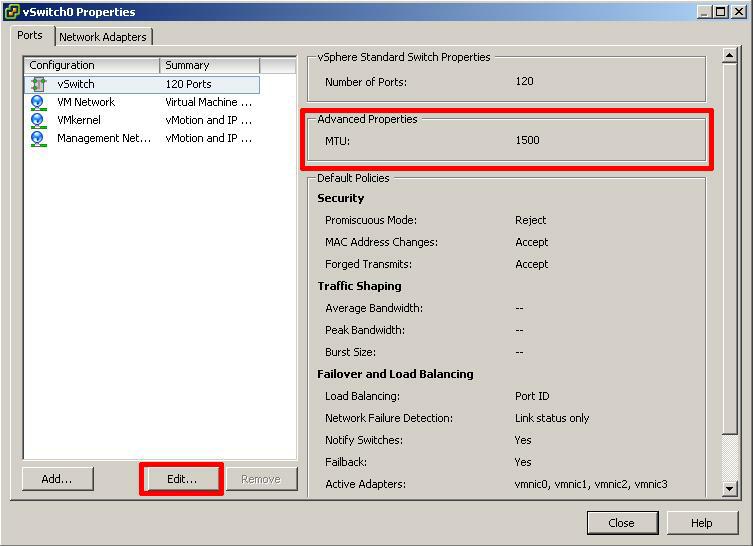
vSwitch0 Properties

vSwitch0 Properties

Click Edit

5

Change MTU value of the selected vSwitch
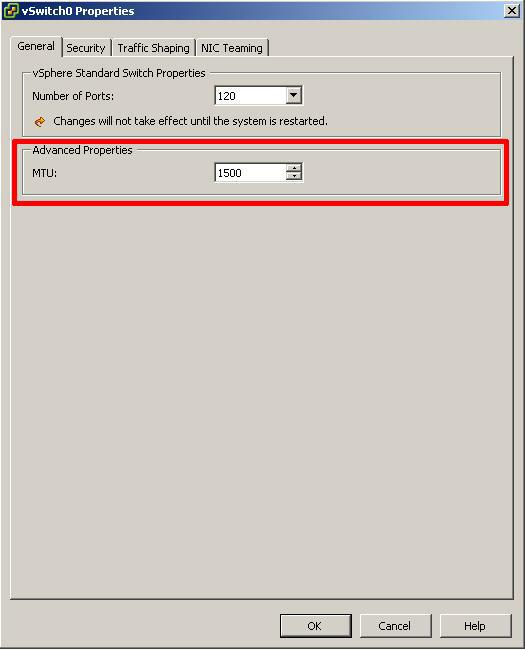
Default MTU size 1500

Default MTU size 1500

The default MTU (frame) size is 1500, enter the MTU (jumbo frame size) either 9000 (9216 if you switch is HP). Check with your network switch and SAN/NAS vendor for correct jumbo frame size.
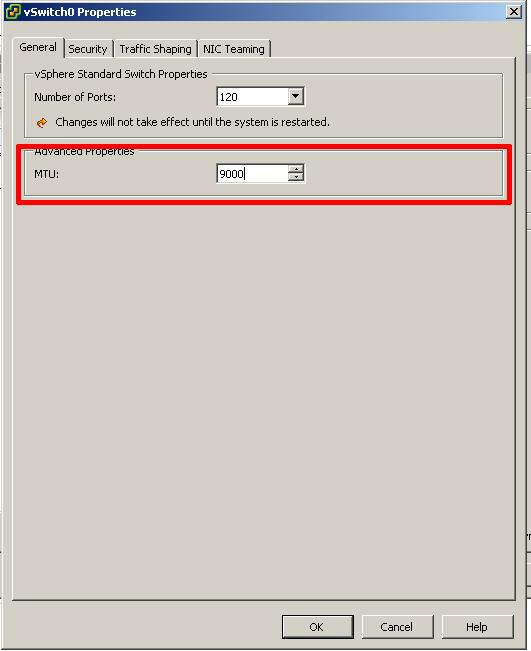
Custom MTU size 9000

Custom MTU size 9000

Click OK and Close.

6

Jumbo Frames have been enabled successfully
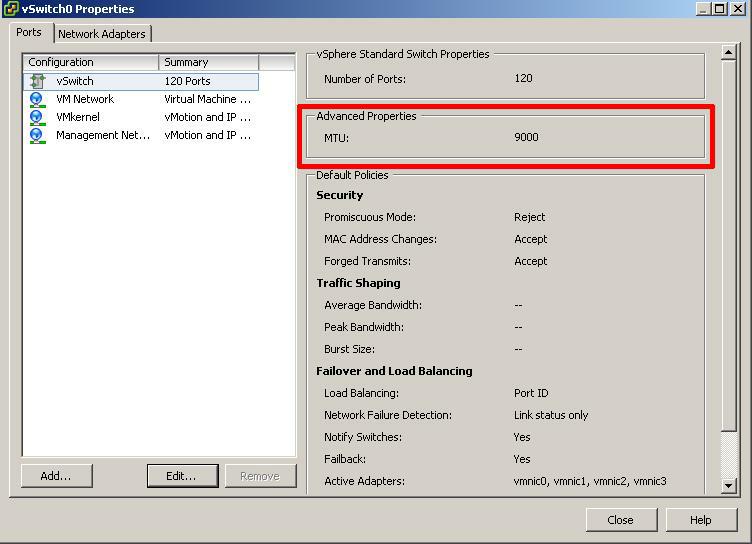
Jumbo Frames configured successfully

Jumbo Frames configured successfully

You have successfully configured your vSwitch for jumbo frames.

7

Test Network Change

Once you have configured jumbo frames, it is important to test this change before commissioning any ESXi 5.0 server into production.

HOW TO: Improve the transfer rate of a Physical to Virtual (P2V), Virtual to Virtual Conversion (V2V) using VMware vCenter Converter Standalone 5.0

January 8th, 2012

VMware vCenter Converter Standalone 5.0 is a FREE tool available from VMware upon registration, the purpose of this software tool is to easily convert physical or virtual computers, images of computers to VMware virtual machines. Server and Workstation operating systems are supported in the conversion.

Download VMware vCenter Converter Standalone 5.0 here
VMware vCenter Converter Standalone 5.0 Documentation
VMware vCenter Converter Standalone 5.0 User Guide

In September 2011, VMware released version 5.0 of VMware vCenter Converter Standalone 5.0, with many new features including partition alignment important for aligning partitions correctly on storage array networks (SAN).

BUT, we’ve noticed that completing conversions using VMware vCenter Converter Standalone 5.0 compared to using VMware vCenter Converter Standalone 4.3, were taking much longer, and the transfer rate of a conversion had become degraded when using version 5.0.

The following modification will improve the transfer rate when using VMware vCenter Converter Standalone 5.0, to similar transfer rates obtained when using VMware vCenter Converter Standalone 4.3 to perform conversions.

It would appear that VMware uses a proprietary VMware protocol called NFC, to image to destination, also by encrypting (SSL) the data payload transfers in version 5.0, this additional overhead causes transfer performance degradation. The result of which is a longer than expected conversion time, when compared to version 4.3.

Turning OFF SSL Encryption in VMware vCenter Converter Standalone 5.0 can improves transfer rates.

(if appropriate for your environment)

To turn OFF SSL Encryption in VMware vCenter Converter Standalone 5.0, please follow the following steps:-

  • Find and Edit converter-worker.xml

this file is location in the following locations

Windows Vista, Windows 7, Windows 2008
%ALLUSERSPROFILE%VMwareVMware vCenter Converter Standalone

Windows XP, Windows 2003, Windows 2000
%ALLUSERSPROFILE%Application DataVMwareVMware vCenter Converter Standalone

  • Change the SSL Key <useSsl> true </useSsl> to false

You may find it easier to edit the file using Microsoft XML Notepad 2007 to edit the XML file. But Notepad or Wordpad can edit the file, just ensure, you make a copy of the original file for backup before making any alterations. Using Microsoft XMP Notepad 2007, you do not have to scroll the contents of the file, and the <useSsl> section is quicker to find and alter, but whatever tool you find most comfortable to use to edit the file, is okay.

Change

<useSsl> true </useSsl>

to

<useSsl> false </useSsl>

save the XML file.

Using Microsoft XML Notepad 2007

Using Microsoft XML Notepad 2007

Using Microsoft XML Notepad 2007 to change to false

Using Microsoft XML Notepad 2007 to change to false

  • Restart Service

For changes to take effect – Restart “VMware vCenter Converter Standalone Worker” service.

  • Results

We have seen performance increases from at least 2x to 6x. So if you want to half the conversion time at least, then alter the encryption setting. If appropriate for your environment.

In the following example, a Windows 2003 Server was converted from Virtual Machine to Virtual Machine (V2V) using VMware vCenter Converter Standalone 5.0 installed on the server to be converted. In the first conversion (TaskId10) the SSL Key was left as the default TRUE, and encryption was used. In the second conversion (TaskId11), the SSL Key was set to false.

As can be seen from the following screenshots Average Transfer rate has increased from 2 MB/s to 6 MB/s and the conversion time has reduced from 1hr 38mins to 33mins.
.

Default encryption value of true 2MB/s transfer rate

Default encryption value of true 2MB/s transfer rate

Default encryption value of false 6MB/s transfer rate

Default encryption value of false 6MB/s transfer rate

A performance increase of 60%! just by chaning a value from true to false.

The Official email – 8th Annual Expert Awards @ExpertsExchange – Expert of the Year

January 6th, 2012

I think the other email was the Experts Exchange Community Newsletter, this is the Official email!

8th-annual-expert-awards-expert-of-the-year1banner-expert-of-the-year

It’s Official – 8th Annual Expert Awards – @ExpertsExchange – Andy is the Expert of the Year!

January 5th, 2012

I received this email today….

I started with zero points, and a ranked outsider at 115,000th, to Expert of the Year with 4,688,803 points, and currently ranked 84th.

all this answering questions on VMware and Virtualisation!

A Happy VMware & Virtualisation year to you!

TOP AWARD! I AM THE Experts Exchange Expert of the Year 2011!

January 2nd, 2012

It’s been fun, a lot of hard work, approximately 3,500 VMware and Virtualisation Questions answered in 2011, and 20,000 posted comments at Experts Exchange. Expert of the Quarter,  Juggernaut and The Ally for Q2 and Q4 2011, and now I’ve just learnt

I AM THE EXPERT OF THE YEAR FOR 2011!


So not bad for 2011, VMware vEXPERT 2011, Experts Exchange EXPERT of the YEAR 2011!

Roll-on 2012!

Happy New Year 2012

January 1st, 2012

Happy New Year 2012

Andysworld! Advent Calendar – Dec 25 – Merry Christmas

December 25th, 2011

merrychristmaslindseyandme

Andysworld! Advent Calendar – Dec 22 – I wonder how large their electric bill is?

December 22nd, 2011

merrychrimbohouse

(not my house, I could not afford the electric bill!)

Andysworld! Advent Calendar – Dec 21 – This got my attention, late last night, Seneye High Temperature Alert!

December 21st, 2011

seneyehighalert

I’m currently evaluating a new product for the Aquarium, it’s called a Seneye. It claims “the biggest innovation in aquatics has arrived”, after the mad panic, of rushing out to the fish house early this morning, it was a false alarm! (Tropical fresh water temperature range is from 22 – 32 Deg C).

It seems to be having teething issues!

Watch out for my review later….

UPDATE: This was caused by a bug in the software, as you can see on the Seneye screenshot, I’m running version 114, Seneye stated “Additional error checking code had been added into the latest version of the seneye connect PC software which should stop these incorrect readings.” I’ve download version 118, and will install shortly.

Andysworld! Advent Calendar – Dec 20 – Andy needs another TDS Meter – dropped mine in a bucket of water!

December 20th, 2011

Looks like I’m going to have to purchase a new TDS meter, I dropped my current TDS meter, in a bucket of reverse osmosis water, and I now know, it’s not waterproof because it’s stopped working! (if you cannot be bothered with all the text, just scroll down and watch the video!)

So the last sentence is probably reading gibberish for the non-fishkeepers or chemists among you, TDSTotal Dissovled Solids – many different definitions, but in simple terms a measure of the combined content of all inorganic and organic substances contained in a liquid.I live in a very hard water area, it’s like liquid rock coming out of the tap, pH is very high, approx 8.5 (alkaline) – that stuff that furs up the kettle, washing machine and dishwasher elements – is the calcium carbonate (chalk) – it just so happens that the Yorkshire Wolds are very chalky, so the water that flows through the chalky hills, ends up with chalk dissolved in it! (different to when we lived on near Dartmoor, the water was acidic, because the water runs off the peaty moors!). So TDS of my tap water is approximately 490.

Problem, I keep many fish from South America, which prefer acidic water conditions, of a pH of approx 6.0 – 7.0 (neutral). Put them in declorinated, mature water of 8.5, and they are not going to be very happy or breed.

The TDS meter allows me to check, the water quality output after it has been “treated” from, the Reverse Osmosis units, it’s not really “treated”, Reverse osmosis (RO) is a membrane technical filtration method that removes many types of large molecules and ions from solutions by applying pressure to the solution when it is on one side of a selective membrane. The result is that the solute is retained on the pressurized side of the membrane and the pure solvent is allowed to pass to the other side. To be “selective,” this membrane should not allow large molecules or ions through the pores (holes), but should allow smaller components of the solution (such as the solvent) to pass freely.

So the water which is output from the RO units, is very pure, with very little inorganic and organic substances, TDS reading of 000 – 001 is obtained. This is almost the equivillent of distilled water, which is used to top batteries in cars, and also used in your iron, to stop it furring up (remember that chalk again!).

RO water it is too pure to sustain proper chemistry to support an aquarium ecosystem, so I re-mineralised with the correct aquarium salts, or blended with existing filtered tap water.

Here’s a quick video, of my Commercial Laboratory quality ELGA Reverse Osmosis Units, in the fish house:-

Apart from the following video, maybe giving you a headache, because of the microphone on the video camera, picks-up the pump noise (it’s not that loud in reality), the noise of running water may want to make you go to the the toilet!

[flv:https://andysworld.org.uk/wp-content/uploads/2011/12/Andys-RO-Works.flv 480 360]

Water is fed through the following stages

  • STAGE 1  – 5 micron Sediment 10″ filter made of 100% pure polypropylene fibres. removes dirt, sand and rust
  • STAGE 2  – 1 micron Sediment 10″ filter made of 100% pure polypropylene fibres. removes dirt, sand and rust
  • STAGE 3 – a granular activated Carbon 10″ filter composed of high – performance activated carbon. removes free chlorine, odour, organic contaminants, pesticides and chemicals.
  • STAGE 4 – a carbon block 10″ filter composed of high performance carbon. removes trihalomethanes, pesticides, volatile organic chemicals and 99.95% of giardia and cryptosporidium cysts
  • STAGE 5 – A ChlorPlus-10 10″ filter designed to remove chlroine and chloramines.

(it is important, as the reverse osmosis membrances are expensive, not to clog them up, or damage them with chlroine.

  • STAGE 6 – Water is fed into the Elga Boost Pump, which has a small water filter (STAGE 7) before water is fed into a small water tank, maintained by a float system, so water is pumped from this tank under pressure. The pressure is approx 8.5 bar, which is double tap water pressure.
  • STAGE 8 – Water is then fed into a Elga Prima 1, which has another pretreatment cartridge (STAGE 9) which protects the RO membranes by removing particulates and chlorine. This unit has two RO membranes. (STAGE 10 & 11)
  • STAGE 12 – Water leaving the  Elga Prima 1, is then fed into a Elga Prima 3, which has another pretreatment cartridge (STAGE 13) which protects the RO membranes by removing particulates and chlorine. This unit has 4 RO membranes. (STAGE 14-16).

Water leaving the Elga Prima 3 has a TDS of approx 0.
