Archive for the ‘computing’ Category

Mac OS X Virtualization Part II – Install Mac OS X 10.7 Lion

Monday, May 30th, 2011

So in Part II of this series of Virtualising Mac OS X opertating systems using VMware Workstation 7.1.4 , I’m going to have a look at the pre-release of Apple Mac OS X “Lion”.

Using VMware Workstation 7.1.4 and the Mac OS X Server option, I was able to install Mac OS X 10.7 “Lion”. This time I’ve boosted the RAM requirement to 4GB and 2 virtual CPUs, so the virtual machine performs better. No installation issues were observed.

Apple Mac OS X Lion 10.7.1

Apple Mac OS X Lion 10.7.1

Apple Snow Leopard Software License Agreement (EULA)

It states under Section 2

2. Permitted License Uses and Restrictions.
A. Single Use License. Subject to the terms and conditions of this License, unless you have purchased a Family Pack or Upgrade license for the Apple Software, you are granted a limited non-exclusive license to install, use and run one (1) copy of the Apple Software on a single Apple-branded computer at a time. You agree not to install, use or run the Apple Software on any non-Apple-branded computer, or to enable others to do so. This License does not allow the Apple Software to exist on more than one computer at a time, and you may not make the Apple Software available over a network where it could be used by multiple computers at the same time.

Mac OS X Virtualization Part I – Install Mac OS X Server 10.6.7 Snow Leopard

Sunday, May 29th, 2011

Following up from my discovery in VMware Workstation 7.1.4

I thought I would trying virtualising a few Mac OS X systems for test and evaluation purposes.

Using VMware Workstation 7.1.4 and the Mac OS X Server option, I was able to install Mac OS X Server 10.6.7 ‘Snow Leopard’.

Apple Snow Leopard Software License Agreement (EULA)

It states under Section 2

2. Permitted License Uses and Restrictions.
A. Single Use License. Subject to the terms and conditions of this License, unless you have purchased a Family Pack or Upgrade license for the Apple Software, you are granted a limited non-exclusive license to install, use and run one (1) copy of the Apple Software on a single Apple-branded computer at a time. You agree not to install, use or run the Apple Software on any non-Apple-branded computer, or to enable others to do so. This License does not allow the Apple Software to exist on more than one computer at a time, and you may not make the Apple Software available over a network where it could be used by multiple computers at the same time.

Mac OS X Server Support in VMware Workstation 7.1.4

Wednesday, May 25th, 2011

I’ve been using VMware Workstation 6.5.3 for what seems like decades, but recently wanted to checkout some new Virtualisation features that are not currently available in VMware Workstation 6.5.3. and only available in VMware Workstation 7.1.4, so rather than break and upgrade my working version of 6.5.3, I thought I would install 7.1.4 on a new workstation in the office for experimental research and development work. In the early hours one morning, as the dawn chorus starts, poking around the code, I found the following…

New Virtual Machine Wizard - We have a Apple Mac OS X selection?

New Virtual Machine Wizard - We have a Apple Mac OS X selection?

Apple Mac OS X support – Interesting!!!

I’ve been able to run Apple Mac OS X on VMware Workstation 6.5.3. See below.

Mac OS X 6.5.2 in VMware Workstatiobn 6.5.3 Virtual Machine

Mac OS X 6.5.2 in VMware Workstatiobn 6.5.3 Virtual Machine

Although never had a specific option to select when creating a Virtual Machine before. It is rumoured that Mac OS X Server support will be available in vSphere 5.0.

Apple Snow Leopard Software License Agreement (EULA)

It states under Section 2

2. Permitted License Uses and Restrictions.
A. Single Use License. Subject to the terms and conditions of this License, unless you have purchased a Family Pack or Upgrade license for the Apple Software, you are granted a limited non-exclusive license to install, use and run one (1) copy of the Apple Software on a single Apple-branded computer at a time. You agree not to install, use or run the Apple Software on any non-Apple-branded computer, or to enable others to do so. This License does not allow the Apple Software to exist on more than one computer at a time, and you may not make the Apple Software available over a network where it could be used by multiple computers at the same time.

Some sites will not allow you to discuss this matter, because, the Apple software license does not allow Mac OS X to be used on hardware that is not “Apple-branded”. So I assume Apple will have to update their EULA in the future?

Time to try out some new installs, tomorrow.

Microsoft Hyper-V Server 2008: R2 testing in VMware Workstation 7.1.4

Tuesday, May 17th, 2011

Carrying on the nested hypervisor theme from the other day, when I tried VMware vSphere Hypervisor (ESXi), free download from VMware, on VMware Workstation 7.1.4, as it’s becoming common place for vendors to allow the use of Hypervisors for free, I downloaded the Microsoft Hyper-V Server 2008: R2 hypervisor for free to also try in VMware Workstation 7.1.4.

Here are the results

Microsoft Hyper-V Server 2008: R2 installs correctly, and looks like it’s going to function, but then Whoops, cannot power on any Virtual Machines!

Well these are the results I would expect from installing Hyper-V in a VMware Workstation 7.1.4 virtual machine, as often nested hypervisors do not function correctly. I just thought I would prove this.

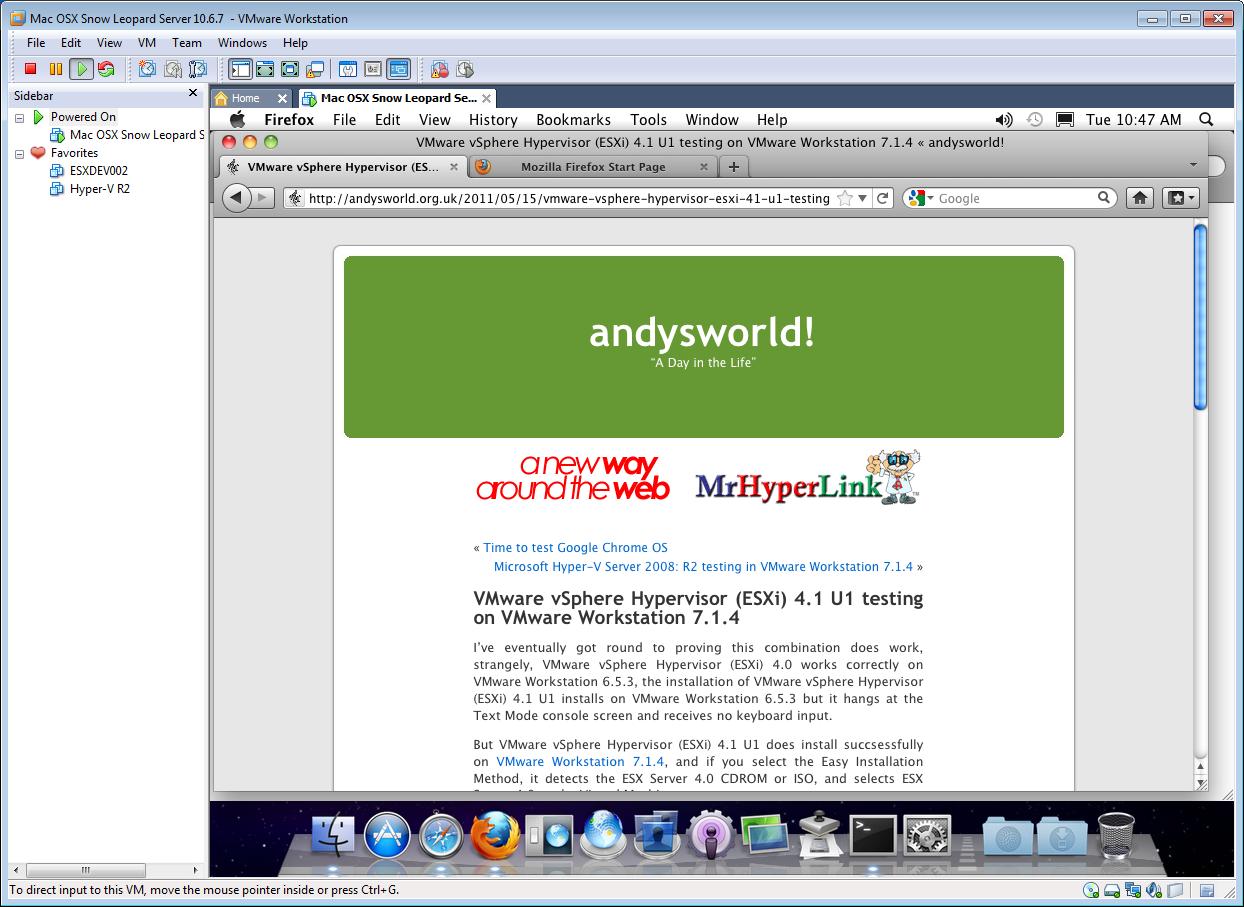
VMware vSphere Hypervisor (ESXi) 4.1 U1 testing on VMware Workstation 7.1.4

Sunday, May 15th, 2011

I’ve eventually got round to proving this combination does work, strangely, VMware vSphere Hypervisor (ESXi) 4.0 works correctly on VMware Workstation 6.5.3, the installation of VMware vSphere Hypervisor (ESXi) 4.1 U1 installs on VMware Workstation 6.5.3 but it hangs at the Text Mode console screen and receives no keyboard input.

But VMware vSphere Hypervisor (ESXi) 4.1 U1 does install succsessfully on VMware Workstation 7.1.4, and if you select the Easy Installation Method, it detects the ESX Server 4.0 CDROM or ISO, and selects ESX Server 4.0 as the Virtual Machine type.

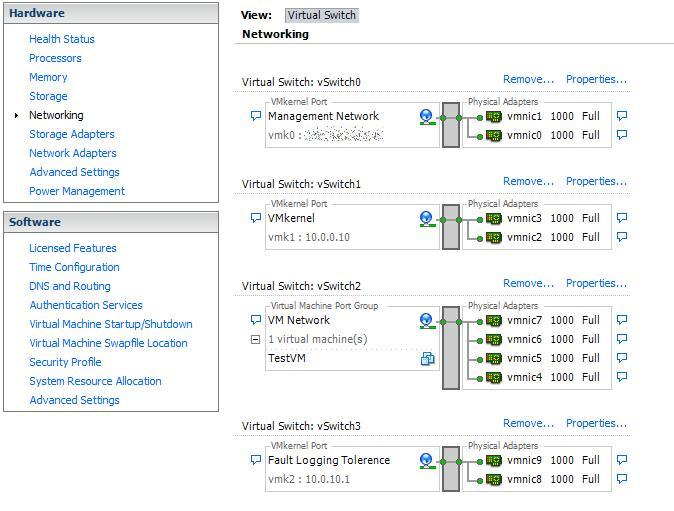
ESXi 4.1 Networking using 10 virtual network interfaces in VMware Workstation 7.1.4

ESXi 4.1 Networking using 10 virtual network interfaces in VMware Workstation 7.1.4

An example above of how a VMware vSphere Hypervisor (ESXi) 4.1 U1 Server should be setup for networking with team network interfaces for Management Interface, VMkernel (NFS and iSCSI traffic), Virtual Machines Network, and Fault Logging Tolerence network (if required).

Ideal for Lab testing VMware ESX 4.1 U1 for VCP Learning, using VMware Workstation 7.1.4.

Time to test Google Chrome OS

Saturday, May 14th, 2011

Okay, I’m going Geek now, you’ve been warned…..

and for some of you Microsoft haters, you’ll enjoy this, as I’m about to go over to the dark side, for a few hours….(I often do, just to refresh the soul!)

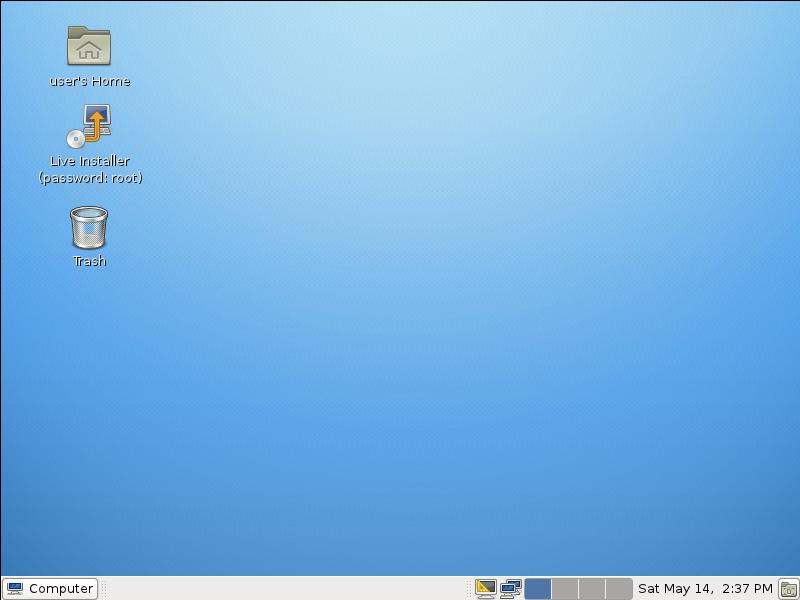
Time to test Chrome OS, as it’s possible Google will take over the desktop world, and in 40 years time, when I’m dribbling down my chin, wondering what ever happened to Microsoft and Microsoft Windows that were acquired by Google 10 years earlier, the youngsters will be using Chrome OS tablets! and I’ll be telling stories of once upon a time we use to use something called Windows on a desktop computer!

Impressions, well, a very small Linux distro, well put togther, fast, easy to install, nice touch installing updates on installation, and runs very well on 512MB!

Only time will tell how compatible the Chrome OS Office applications are with Microsoft Office! I suspect if you are using complicated macros in Word and Excel, and VBA these will not work, but not everyone is a Master of Excel or Word.

Certified VMware Genius – Experts Exchange

Saturday, May 14th, 2011

Friday 13th may be un-lucky for some, but yesterday, I became a Certified VMware Genius at Experts Exchange. Here is a copy of my certificate.

Certified VMware Genius at Experts Exchange

Certified VMware Genius at Experts Exchange

Experts Exchange (EE) is a membership-based online “ask an expert” site for computer and IT related questions that was founded in 1996. Experts Exchange (EE)  enables people with technology problems to quickly and easily solve their problems by collaborating with experts from around the world.  Experts Exchange (EE) is the #1 resource on the web for solving IT related problems, pop over and take a test drive, and meet the Experts.

Checkout How it Works.

Fecking Apple! Poor Service Mobile Me eMail Very Poor

Thursday, May 12th, 2011

(I was going to write s one eye t, but I thought some children follow the blog so maybe not appropriate!)

Apple (Steve Jobs) you’ve really p****d me off now.

What do you notice about the following screenshot?

No email in over 1.5 hours?

No email in over 1.5 hours?

No email since 4.00pm. Now it might be usual for you not to receive emails in a 1.5 hour window, but not me. I checked a little further and found my iPad was not receiving any mail, and couldn’t log into Apple’s Mobile Me email, no error message. So I tried using a notebook and a desktop computer and still couldn’t login to Apple Mobile Me email, all the other options were working iDisk, Gallery etc. Again just the rotating twinky, staring at me on screen for minutes not doing anything.

Apple Mobile Me status indicated that Service Status was normal. So I called Apple Technical Support, that gave me a URL to have a Live Chat with an Engineer.

Nothing like a email from them warning of the Outage for Maintenance!

So I had a little rant, about better off with GMail, Hotmail or Yahoo, that provide better uptime and storage management, this was the response. I’ve never had any issues with Hotmail, Yahoo or Gmail.

So, there you go two weeks extension!

I bet they wouldn’t treat Mr Steve Jobs, Mobile Me Account like this.

Apple – Service – Zero Points.

And on that very note, APPLE if you would like to talk to me about Service Delivery, or Indsutrial Strength IT Servicesjust let me know!

I’m going to Leave Some Fecking Feedback!

Warning to iPhone & Ipad – Big Brother tracks you!

Friday, April 22nd, 2011

You may have read or heard in the Press in the last few days

“The iPhone and iPad collects data that shows when the user was at each location with a timestamp. The information is downloaded to the user’s computer each time the iPad or iPhone is synced. “

I’ve seen fictional programs like Crime Scene Investigation on Channel 5, magically recover location history from phones and GPS devices fitted in cars to provide evidence to convict criminals. – I’ve always thought this was rediculous until now, and just good TV Drama!

So it had me thinking, so I started poking around in the backup data that iTunes stores on your computer.

iTunes stores the backup in the following locations

on a Windows XP Computer

C:\Documents and Settings\<USERNAME>\Application Data\Apple Computer\MobileSync\Backup

on a Vista/Windows 7 computer it’s stored in

C:\Users\<USERNAME>\AppData\Roaming\Apple Computer\MobileSync\Backup\

where <USERNAME> is the user you use to login to your computer.

In the Backup folder is a folder which looks like a GUID (long hex number!) and in that is the files that itunes uses to backup your iphone or ipad and all the settings.

it looks something like this:-

d81725cff6c7b675940b71cbff4471b2f7d83a91

This folder contains many files, with similar filenames, it didn’t take me long to find the file I was looking for, if you search all files for the keywords TABLE Wifi or one of the following keywords Timestamp FLOAT, Latitude FLOAT, Longitude – once you found this file use this file to extract the data. (I’ve since discovered that this file is always appended to when you sync your Apple device, so once you found the file, just use this file to extract the data always).

This log file readily identifies itself as a SQLite format 3 database file, which is good news because using the Firefox 4.0 Add-On, we can examine the data in the database (SQLite Manager Add-on only works with Firefox 4.0, so you’ll need to upgrade!).

Install the SQLite Manager add-on, and use menu option Database/Select Database/Connect Database and open the database file you found above (just change to All files in the pick list).

You should end up with a display as follows

Using SQLite Manager to open Location file from iPhone/iPad

Using SQLite Manager to open Location file from iPhone/iPad

The table we are interested in is called CellLocation, so select Tables, CellLocation

WOW the data is there!

It would seem that the Iphone and iPad 3G version, logs the locations of mobile Cell Locations used by the device, MMC, MNC, Cell Id and LAC,  Latitude and Longitude are logged against a timestamp (number of seconds since January 1 2001).

I would suggest either deleting the file, or using the iTunes option to encrypt databackups on your computer, unless you want this file to be used in evidence against you! (remember if you ever lose you iPhone or iPad, it can be jailbroken and this information can be retreived or synced to another computer for the information to be extracted from your Apple device – so if you get caught, destroy your device!). (just hope your Wife or Girlfriend, doesn’t get hold of the file if you’ve been “playing away!” – enough said!).

My ipad locations since I've owned it!

My ipad locations since I've owned it!

I don’t often turn on 3G on the iPad, I use a E585 – MiFi, but I’m going to check if that makes a difference, because I think it’s the 3G data which is tracked!

iPad on vaction in Japan!

iPad on vaction in Japan!

Tracking is global! (as can be seen from the above when I took the iPad to Japan!)

So how do we get this information into a nice Google Maps display. Simple,

  1. Use SQLite Manager to export the data to a CSV, highlight the table CellLocation, right-click, Select Export Table, CSV (comma), select OK.
  2. Import the CSV into Excel, remove all columns except Latitude and Longitud.
  3. Save the file as a CSV.
  4. Using GPS Visualizer, import the data for a nice location map with your locations highlighted!

SCARY STUFF! BIG BROTHER!

SPAM from M&S security breach, and it’s okay!

Thursday, April 7th, 2011
 Important information from M&S

Important information from M&S

I received this email from Marks and Spencers today (7 April 2011) , it looked like the usual spam message, but after some research, Epsilon – the industry’s leading marketing services firm announced on 4 April 2011, the unauthorized entry into email system, Marks and Spencers are not listed as one of the clients. So it could be spam.

Marks and Spencers state in their email

“We wanted to bring this to your attention as it is possible that you may receive spam email messages as a result. We apologise for any inconvenience this may cause you. We take your privacy very seriously, and we will continue to work diligently to protect your personal information.”

If you have any concerns about this, I would suggest you contact Marks and Spencers Customer Services, as they seem to suggest that receving spam is okay!

phone  Marks and Spencers on: 0845 302 1234;
e-mail Marks and Spencers at: retailcustomer.services@marksandspencer.com or
write to Marks and Spencers at: Marks & Spencer, Retail Customer Services, Chester Business Park, Wrexham Road, Chester CH4 9GA

I’ll be contacting them tomorrow…….(to be continued!)

UPDATE: Just checked headers and domain key sigs of the email, the email is Authentic/Genuine and from Marks and Spencers Ltd.