Archive for the ‘All’ Category

What is Experts-Exchange.com?

Wednesday, January 11th, 2012

I’ve been a little busy of late, writing articles for Experts-Exchange.com, which in the next few months will be releasing EE v.10 (new website version 10!).

But if you’ve been a little puzzled about what I’ve been doing, the following videos may help you understand about what Experts-Exchange.com is all about.

Site Administrator on What Makes EE Different from Experts Exchange on Vimeo.

Experts Exchange Senior Administrator on Community from Experts Exchange on Vimeo.

HOW TO: Backup an ESXi installation on an USB Flash Drive or SD card, for security or redundancy.

Tuesday, January 10th, 2012

How to Backup ESXi installation on a USB flash drive or SD card.

Requirements

1. A valid ESXi installation on a USB flash drive or SD card.
2. A copy of Winimage for Windows.
3. A Windows computer.
4. Optional Blank DVD for making backup.
5. Optional USB flash drive or SD card for flash backup.

1

Download Winimage from the Internet

Using your internet browser, Internet Explorer or Mozilla, download a copy of Winimage from http://www.winimage.com/download.htm.

WinImage is a shareware product. You may copy, distribute, and try it for free, but if you use for longer than the evaluation period, you must register. You will receive a valid license, a registration code and the latest release.

2

Install Winimage

Install Winimage as per the vendors instructions on your Windows computer you need to backup the USB flash drive or SD card.

3

Insert the ESXi USB flash drive or in USB port on computer

Insert the ESXi USB flash drive or SD card inserted in a card reader into the computer you have installed Winimage on.

4

Start Winimage

Winimage Startup

Winimage Startup

Start Winimage from the Start Menu on your Windows computer.

5

From the disk menu

Create Virtual Hard Disk

Create Virtual Hard Disk

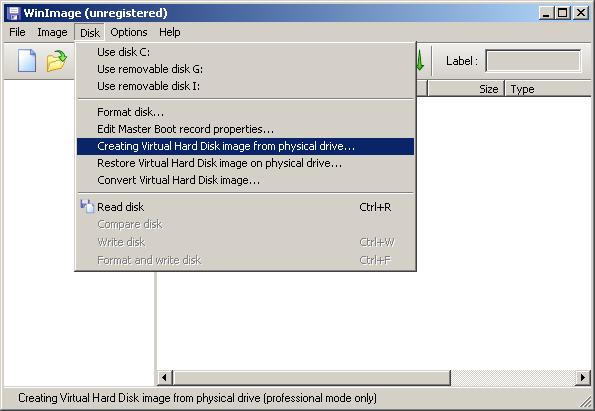
From the disk menu, in Winimage, select Creating Virtual Hard Disk Image from Physical Drive.

6

Select the USB flash drive or SD card

See picture below

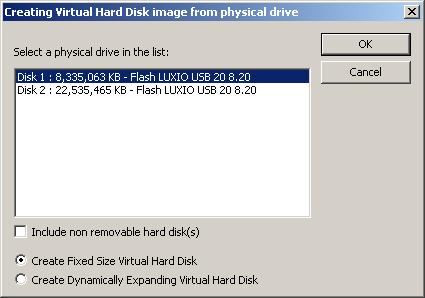
Select a physical drive in the list

Select a physical drive in the list

Select the USB flash drive or SD card, from the list, in this example, I’m using a Flash LUXIO USB flash drive.

7

Select Create Fixed Size Virtual Hard Disk

Select usb flash drive

Select usb flash drive

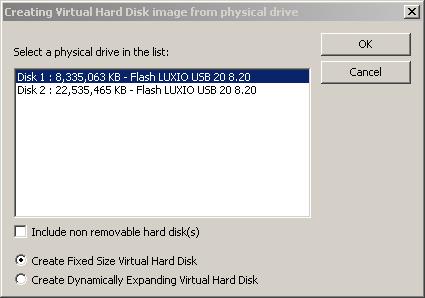
Select the Fixed Size Virtual Hard Disk, ensure there is a dot in this selection. This ensures that the saved backup image is exactly the same size as the flash drive, you are copying example 2GB for a 2GB USB flash drive, 4GB fort a 4GB flash drive.

8

Click OK

Click OK

9

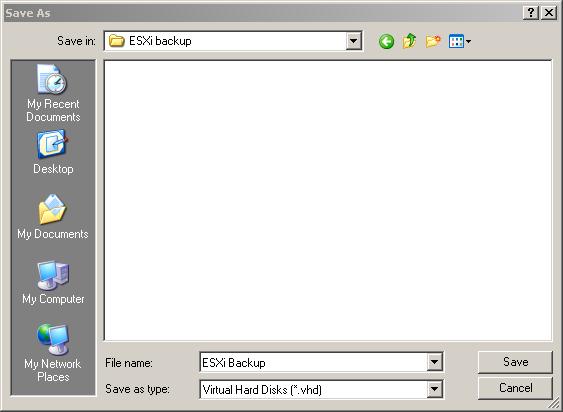
Specify a disk location and select Save

Select save location

Select save location

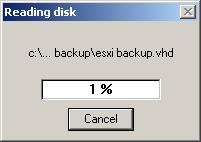
Once you have specified a location, a progress bar will continue on screen showing the progress of the copy.

Progress Bar

Progress Bar

10

Partiton to connect to

When prompted to connect to partition, click okay and Exit Winimage

11

The USB flash drive or SD contents will be saved as a complete image.

The contents will be saved to disk.

12

Complete.

The operation is complete and you can exist Winimage, and Safely remove your USB flash drives or SD cards, from the computer, by selecting the Safely remove hardware icon, in the system Smart tray.

13

Backup to DVD

If you image size is less than the size of a DVD (4.5GB), I also backup the USB/SD card installation image to a DVD, and if you have a spare USB flash drive, it doesn’t hurt writing the contens to another USB flash drive or SD card. (and make sure you label with date, time, and version and build of ESX, and what server it is for!)

VMware ESX/ESXi Backup Guide

Tuesday, January 10th, 2012

VMware ESX/ESXi Backup Guide

If you have a licensed version of ESX/ESXi, (paid for license) you could purchase the following third party applications to perform backups. If you do not have a licensed version of ESX/ESXi, your options are limited, because a non-licensed (paid for) version does not give access to the licensed APIs for third party products to function. You will there for need at least a Standard license for ESX/ESXi for the following products listed in 1 to 3 below.

1. Veeam Backup and Replication v5 – very popular, won many awards at VMworld 2010

Download a trial here – http://www.veeam.com/vmware-esx-backup.html

2. Quest Vizioncore Vranger Pro – the first VM backup product with a good pedigree.

Download a trial here – http://vizioncore.com/product/vRangerPro

3. PHD Virtual Backup – very fast backup technology, using virtual applicance.

Download a trial here – http://www.phdvirtual.com/phd-vb-51-vmware-vsphere

4. VMware Data Recovery – supports dedupe, integrated with vCenter – maybe included with your current VMware License (available in vSphere Enterprise Plus, Advanced, and Essentials Plus Editions. VMware Data Recovery can also be purchased a la carte with vSphere Standard Edition.)

http://www.vmware.com/products/data-recovery/overview.html

Free (download) alternatives for backing up VMs

5. ghettoVCB

http://communities.vmware.com/docs/DOC-8760 ((Will work on FREE ESXi, no licensed required.)

(can be performed whilst the virtual machine is live or powered on)

6. ghettoVCBg2

http://communities.vmware.com/docs/DOC-9843 (needs licensed version of ESX/ESXi)

(can be performed whilst the virtual machine is live or powered on)

7. Scripts and NFS backup

http://communities.vmware.com/message/1029047 (Will work on FREE ESXi, no licensed required.)
(can be performed whilst the virtual machine is live or powered on)

8. VMware Converter Standalone 4.3

http://downloads.vmware.com/d/info/datacenter_downloads/vmware_vcenter_converter_standalone/4_0

VMware vCenter Converter Standalone 4.x Documentation

http://www.vmware.com/support/pubs/converter_pubs.html

VMware vCenter Converter Standalone 4.3 User Guide
http://www.vmware.com/pdf/convsa_43_guide.pdf

With VMware Converter you can convert and copy a Virtual Machine to another datastore, this advantage is you can do this whilst the virtual machine is Online or Powered-Up.

9. Veeam FastSCP

Free download here http://www.veeam.com/vmware-esxi-fastscp.html

Fast Virtual Machine / File Transfer. Faster than WinSCP and other SCP-based tools as it uses full network capacity. The Veeam FastSCP engine also features traffic compression and empty block removal for best file copy performance.

You can use FastSCP to connect to the ESX/ESXi server, and download the entire virtual machine folder/directory to the current workstation or server, where yov’ve connected from. You must ensure that the virtual machines are powered off to complete this operation.

10. Datastore browser

The datastore browser is included in the vSphere GUI Client, and enables you access to the datastore, virtual machines are stored on. You can simple use the cut and paste, or download/upload options to backup and restore virtual machines. Again to copy a virtual machine, the virtual machine must be powered off.

Restoring with options 9 and 10, above, you must add the Virtual Machine manually to the inventory, by selecting the vmx file in the datastore browser, right click on the *.vmx file, and select “Add to Inventory”.

HOW TO: Suppress Configuration Issues and Warnings Alerts after enabling vSphere HA in a VMware vSphere Cluster

Tuesday, January 10th, 2012

In VMware vSphere 4 1 and 5.0, if you have two or more hosts, using shared storage, (SAN/NAS) you can create a VMware vSphere Cluster and enable High Availability mode (HA), if you have the correct VMware vSphere Licensing.

VMware vSphere High Availability (HA) provides easy to use, cost effective high availability for applications running in virtual machines. In the event of VMware vSphere server failure, affected virtual machines are automatically restarted on other VMware vSphere production servers with spare capacity.

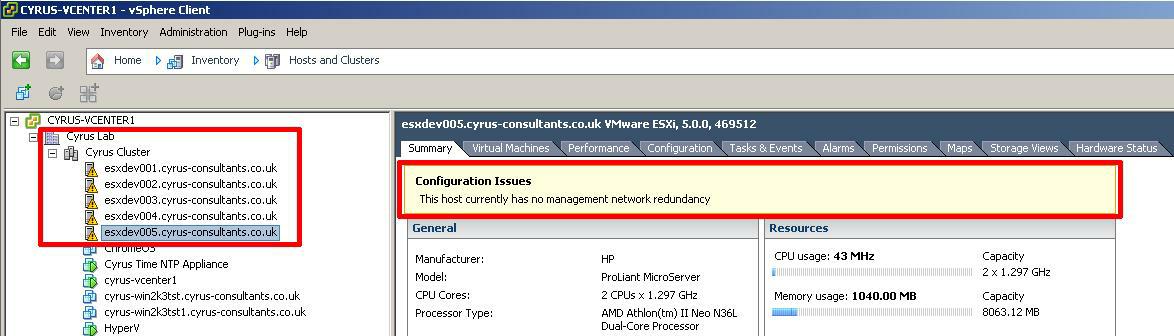
You may have noticed that after Turning On vSphere HA in Cluster settings from the vSphere Client that a Configuration Issues warning yellow box may appear on the Summary page of ALL host ESXi servers in the vSphere Cluster.

The Configuration Issue reports This host currently has no management network redundancy

The Configuration Issue reports This host currently has no management network redundancy

The Configuration Issues reports “This host currently has no management network redundancy”

You will also notice there is also a yellow/orange warning triangle displayed on ALL the vSphere ESXi host servers in the vSphere Cluster.

Warning trianles on hosts in vSphere Cluster

Warning trianles on hosts in vSphere Cluster

The only issue, is that the Warning triangle displayed in VMware vSphere vCenter can mask real warning events.

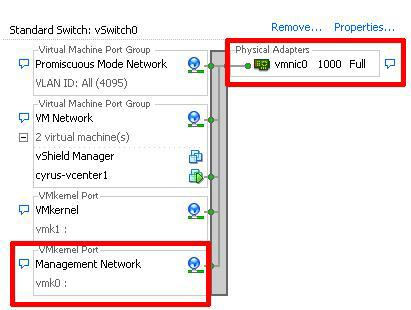
VMware vSphere HA will still function correctly, the configuration issue, is warning that there is only one physical network interface connected to the virtual vswitch which has the service console (ESX) or management network interface (ESXi) connected.

example vSwitch with single physical network interface vmnic0

vSwitch example

vSwitch example

These configuration issues and warnings alert triangles, can be suppressed as follows

1

Connect to the VMware vSphere vCenter Server

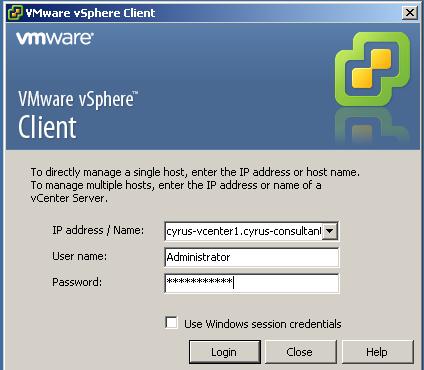
Using the VMware vSphere Client, Login and Connect to the VMware vSphere vCenter server, using IP address or hostname of the VMware vSphere vCenter server, using vCenter Server Administrator username and password credentials.

Using the VMware vSphere Client, Login and Connect to the VMware vSphere vCenter Server

Using the VMware vSphere Client, Login and Connect to the VMware vSphere vCenter Server

2

Select the Cluster in Inventory

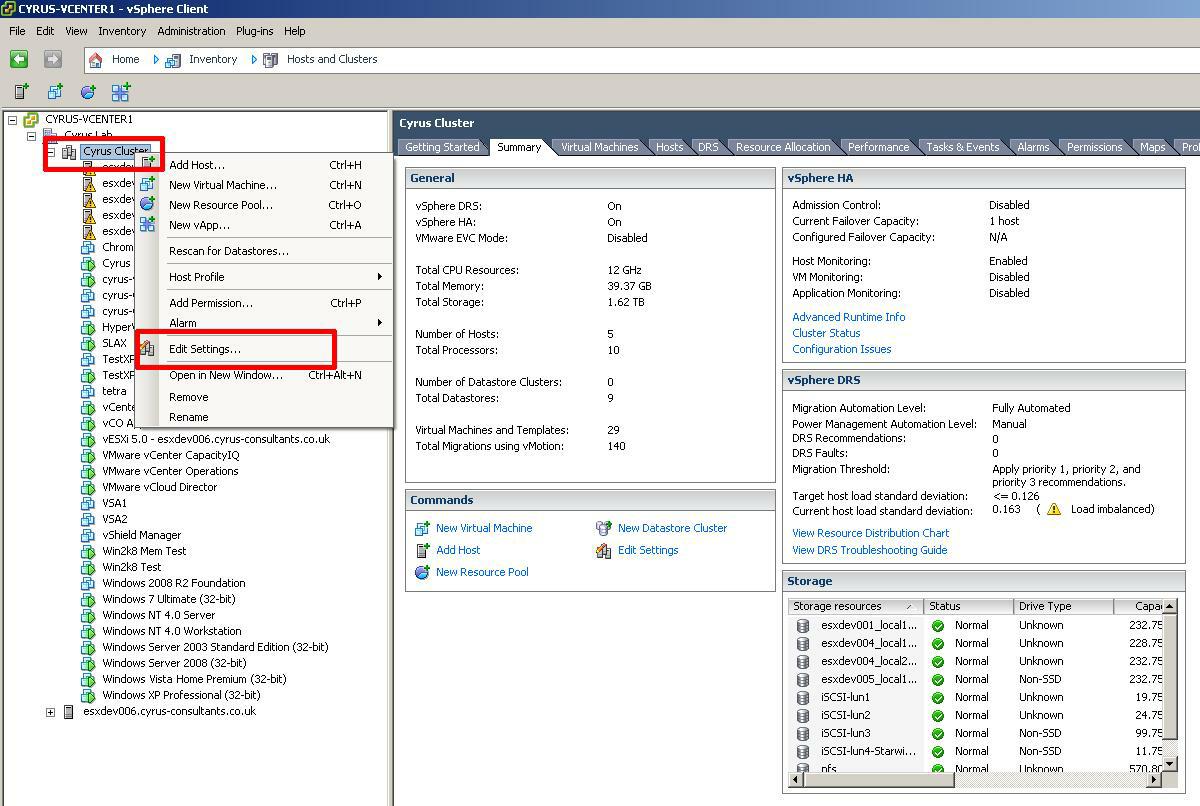
Select the Cluster in Inventory > Hosts and Clusters, Right Click the Cluster in the right hand panel, and select Edit Settings

Right Click the Cluster in the right hand panel, and select Edit Settings

Right Click the Cluster in the right hand panel, and select Edit Settings

The vSphere Cluster settings dialgoue box will be opened.

vSphere Cluster Settings

vSphere Cluster Settings

3

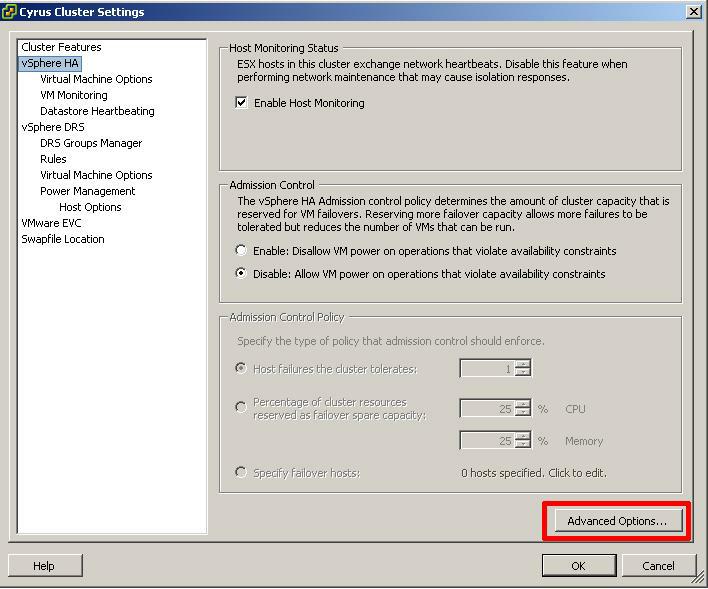
Select vSphere HA

Select vSphere HA and click Advanced Options, bottom right

vSphere HA Advanced Options

vSphere HA Advanced Options

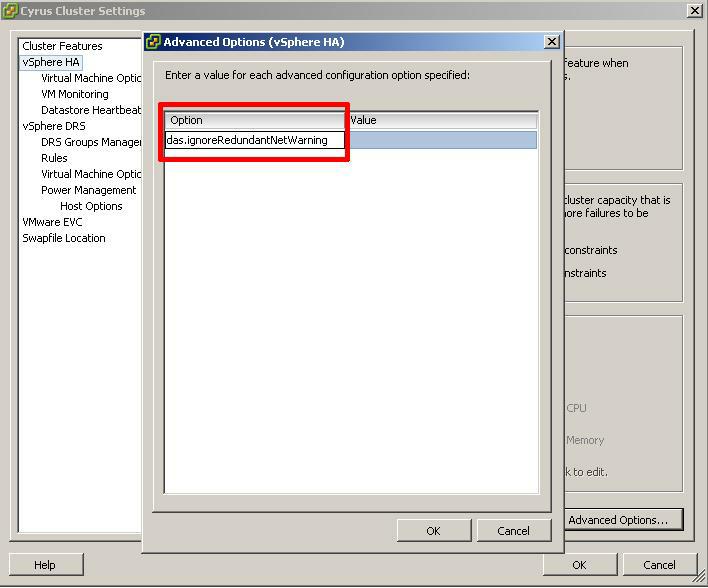
the Advanced Options (vSphere HA) diaglogue box will open.

vSphere HA Advanced Options

vSphere HA Advanced Options

4

Add ‘das.ignoreRedundantNetWarning’ value

To suppress the configuration issues box and warning triangles, the das.ignoreRedundantNetWarning needs to be added with a value of TRUE.

Click the left hand column under Option, and enter das.ignoreRedundantNetWarn

ing

enter das.ignoreRedundantNetWarning

enter das.ignoreRedundantNetWarning

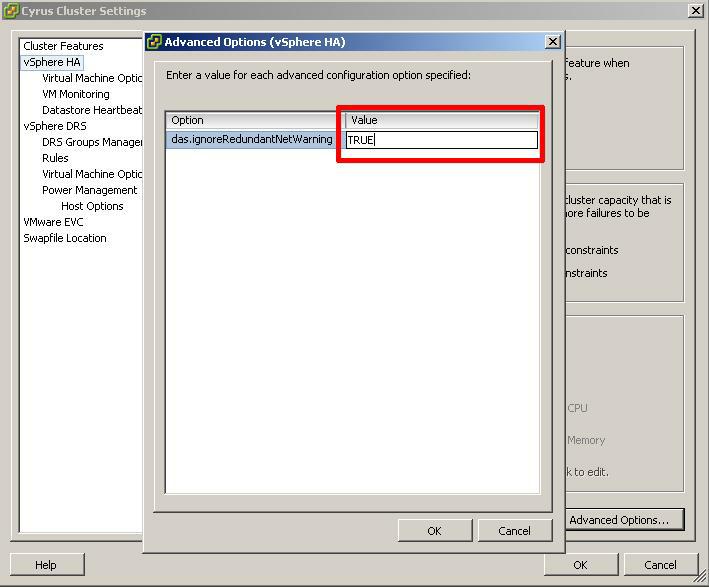
Click the right hand column under Value, and enter TRUE.

enter TRUE

enter TRUE

Click OK to return to Cluster Settings.

5

Click Cluster Features

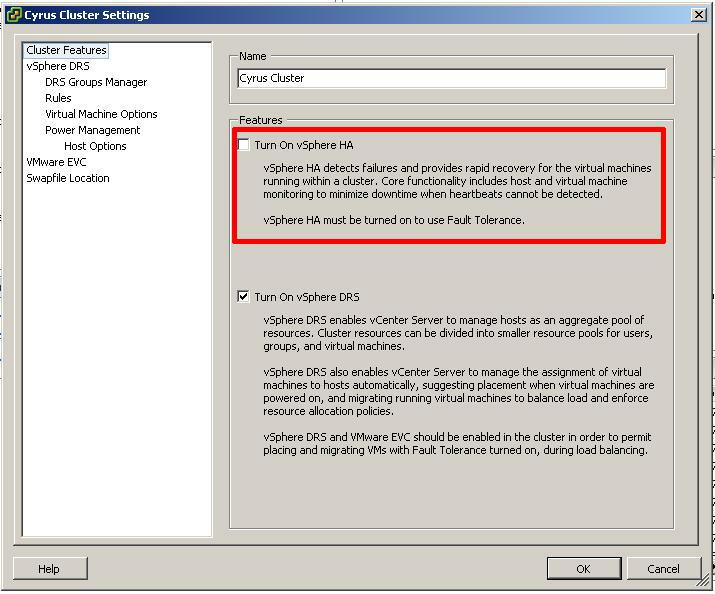
Click Cluster Features and remove the Tick from Turn On vSphere HA.

This action will disable HA on ALL ESX/ESXi hosts in the cluster. Please note I would recommend any changes to a production environment be carried out and schedule out of core SLA hours.

Turn OFF HA

Turn OFF HA

Click OK. The HA cluster will be reconfigured, this will take a few seconds.

6

Turn On vSphere HA

Select the Cluster in Inventory > Hosts and Clusters, Right Click the Cluster in the right hand panel, and select Edit Settings

Right Click the Cluster in the right hand panel, and select Edit Settings

Right Click the Cluster in the right hand panel, and select Edit Settings

The vSphere Cluster settings dialgoue box will be opened.

Turn OFF HA

Turn OFF HA

Select Turn ON vSphere HA (by clicking and ensuring a Tick appears in the box)

Turn ON vSphere HA

Turn ON vSphere HA

Click OK.

The HA cluster will be reconfigured, this will take a few seconds. (Tested with Five hosts takes 40 seconds).

HA Configuration Issues Suppressed

HA Configuration Issues Suppressed

The Configuration Issues yellow box in the Summary Page and Warning Triangle will disappear immediately.

Thank you for reading my article, please leave valuable feedback.

HOW TO: Suppress Configuration Issues and Warnings Alert displayed in Summary status for ESXi 4.1 U2 or ESXi 5.0 after enabling SSH or ESXi Shell

Tuesday, January 10th, 2012

In vSphere 4 1 and 5.0, you can enable both Remote SSH and the ESXi Shell for management of hosts from the vSphere Client and from the Direct Console User Interface.

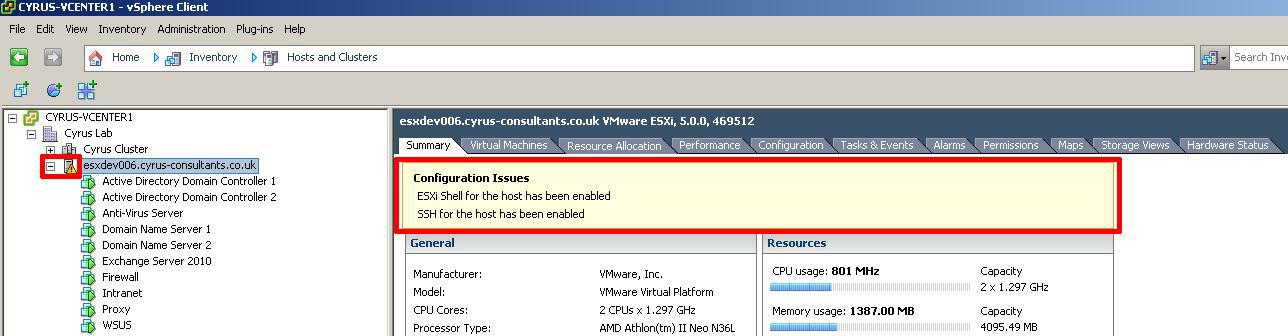
You may have noticed that on enabling both Remote SSH and the ESXi Shell for management of hosts from the vSphere Client and from the Direct Console User Interface that a Configuration Issues warning yellow box appears on the Summary page of the host ESXi server.

This Configuration Issues warning yellow box only appears when Remote SSH and/or ESXi shell has been enabled.

Configuration Issues, SSH and ESXi shell enabled

Configuration Issues, SSH and ESXi shell enabled

If you are also connected to a Windows vCenter Server using the vSphere Client, you will also notice there is also a yellow/orange warning triangle displayed on the host server.

vCenter Configuration Issue

vCenter Configuration Issue

There is no vSphere ESXi configuration issue, VMware vSphere Hypervisor (ESXi) and VMware vSphere vCenter server are indicating there is a possible security issue with your installation, you may not be aware that SSH and ESXi shell have been enabled.

VMware state “This message is a proactive security measure designed to ensure that administrators are aware that remote access has been enabled for the server.”

The only issue, is that the Warning triangle displayed in VMware vSphere vCenter can mask real warning events.

These configuration issues and warnings alert triangle, can be suppressed as follows

1

Connect to the VMware vSphere Hypervisor (ESXi) or VMware vSphere vCenter Server

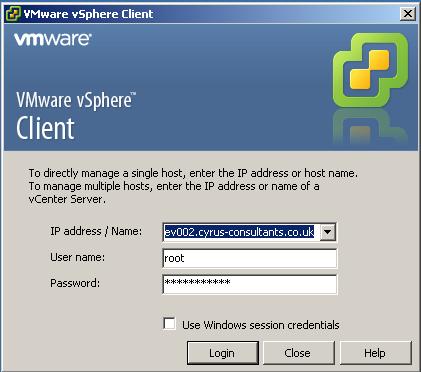
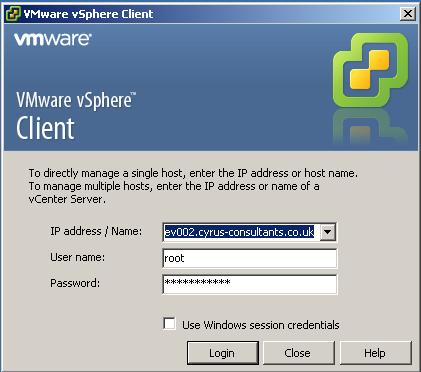
Using the VMware vSphere Client, Login and Connect to the ESXi server, using IP address or hostname of the ESXi server, using root username and password credentials. If you have a VMware vSphere vCenter server, you could also specify IP address or hostname of the vCenter server.

Using the VMware vSphere Client, Login and Connect to the ESXi server

Using the VMware vSphere Client, Login and Connect to the ESXi server

2

Select the Configuration Tab

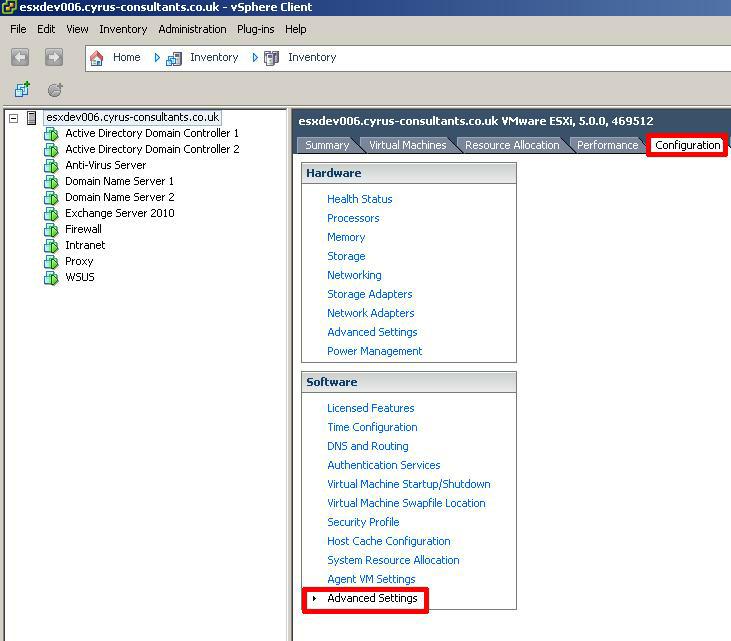
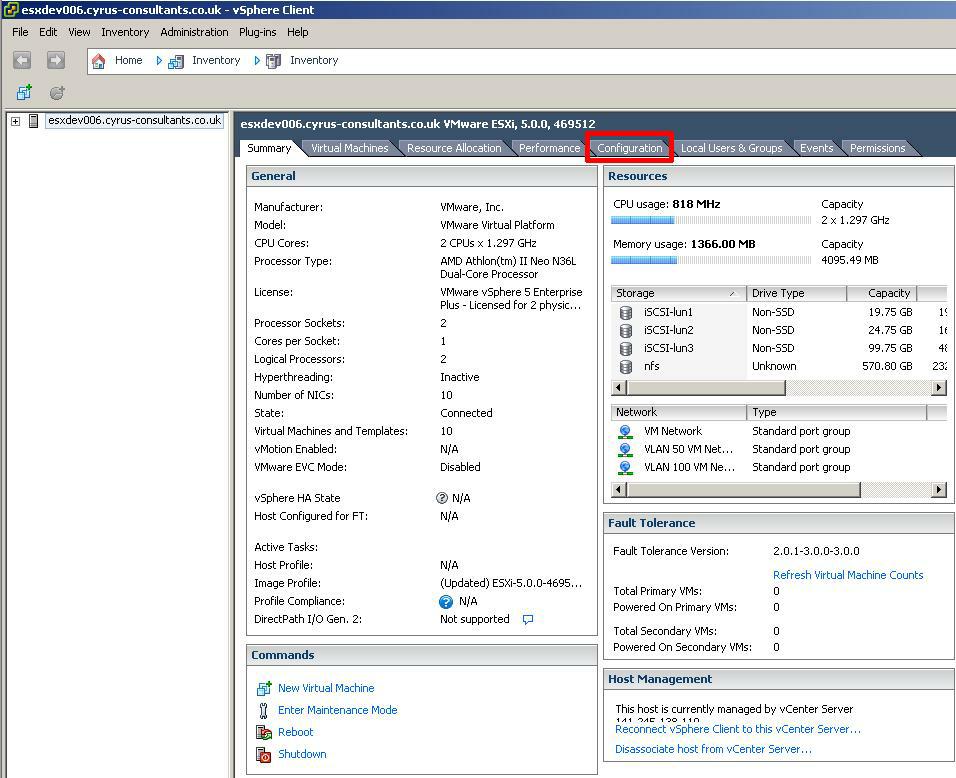
Once you are logged into and connected to the host ESXi or vCenter server, Select the host ESXi server, followed by the Configuration Tab.

Configuration Tab

Configuration Tab

3

Select the Advanced Settings option

Click the Advanced Settings option at the bottom of the list.

Advanced Settings

Advanced Settings

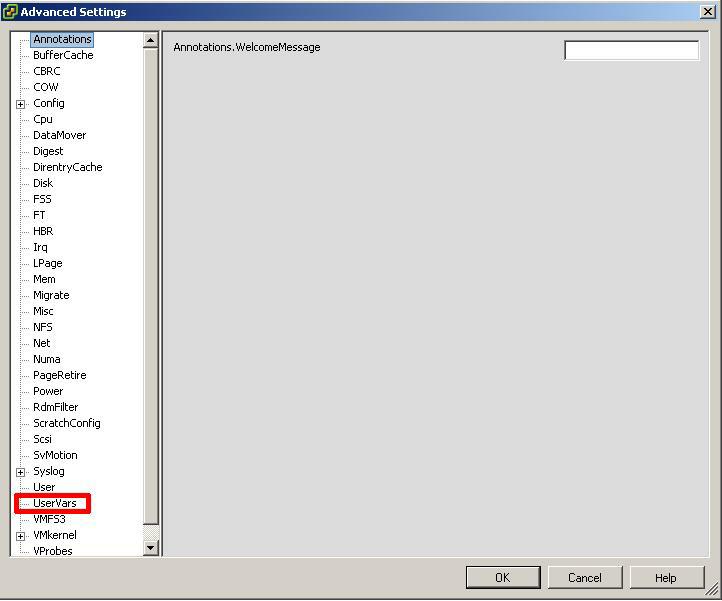
After Clicking Advanced Settings the following Advanced Settings dialogue box will open as shown in the following screenshot.

UserVars

UserVars

4

Navigate to the UserVars variable

Navigate to and Click the UserVars section.

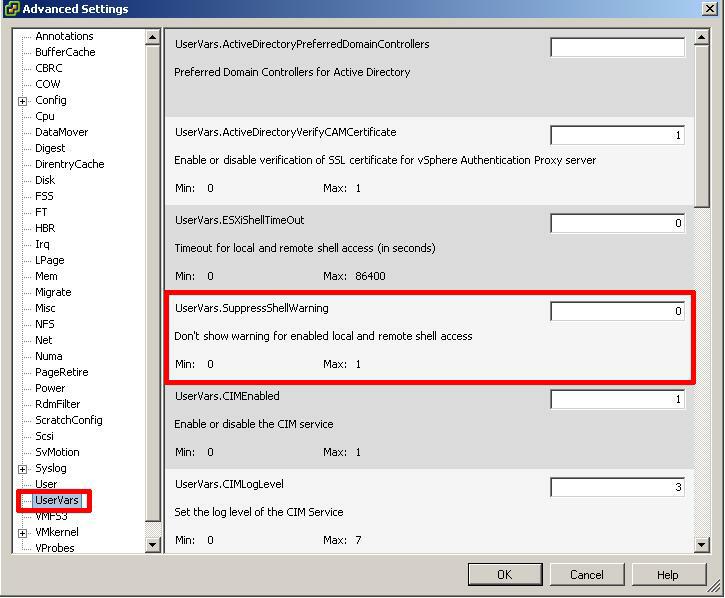
Set the value of  UserVars.SuppressShellWarning from 0 to 1.

Set the value of UserVars.SuppressShellWarning from 0 to 1.

Set the value of UserVars.SuppressShellWarning from 0 to 1.

UserVars.SuppressShellWarning set to 1

UserVars.SuppressShellWarning set to 1

Click OK.

The Configuration Issues yellow box in the Summary Page and Warning Triangle will disappear immediately.

Please note: the variable UserVars.SuppressShellWarning is only available in ESXi 4.1 U2, ESXi 5.0 and vCenter Server 4.1 U2 and 5.0 only.

HOW TO: Enable Jumbo Frames on a VMware vSphere Hypervisor (ESXi 5.0) host server using the VMware vSphere Client

Tuesday, January 10th, 2012

The original payload size or maximum transmission unit (MTU) of an ethernet frame is 1500 bytes. A jumbo frame has an ethernet frame size of 9000 bytes or over. Common Jumbo Frame sizes are 9000, 9216 bytes (example – HP switches).

Enabling Jumbo Frames may help reduce storage latency and increase storage throughput when used in conjunction with iSCSI or NFS storage network protocols with a VMware vSphere Hypervisor (ESXi 5.0) host server and a storage area network (SAN) or network attached storage (NAS) device.

Before enabling Jumbo Frames on an ESXi 5.0 server, check

(i) ensure the servers network interface card can support jumbo frames. Check with server or network manufacturer.
(ii) network switches support the use of jumbo frames, and enable jumbo frames on the network switches. Not all switches support the use of jumbo frames.
(iii) the SAN or NAS supports jumbo frames, and is enabled accordingly to manufacturers instructions.

The end to end network topology must support jumbo frames, otherwise ethernet frame packets will become fragmented, and performance will be degraded.

Connect to the VMware vSphere Hypervisor (ESXi 5.0) Server

Using the VMware vSphere Client, Login and Connect to the ESXi 5.0 server, using IP address or hostname of the ESXi 5.0 server, using root username and password credentials. If you have a VMware vSphere vCenter server, you could also specify IP address or hostname of the vCenter server.

Using the VMware vSphere Client, Login and Connect to the ESXi 5.0 server

Using the VMware vSphere Client, Login and Connect to the ESXi 5.0 server

2

Select the Configuration Tab

Once you are logged into and connected to the host ESXi 5.0 server, Select the Configuration Tab.

Select the Configuration Tab

Select the Configuration Tab

3

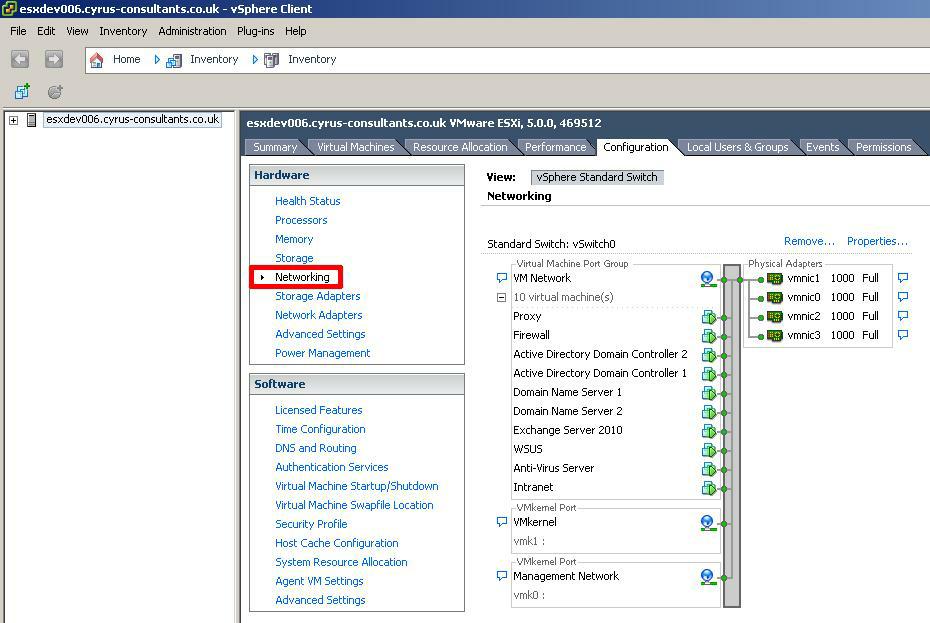
Select the Networking option

Click the Networking option to display the network vSwitches.

Click the Networking option to display the network vSwitches

Click the Networking option to display the network vSwitches

4

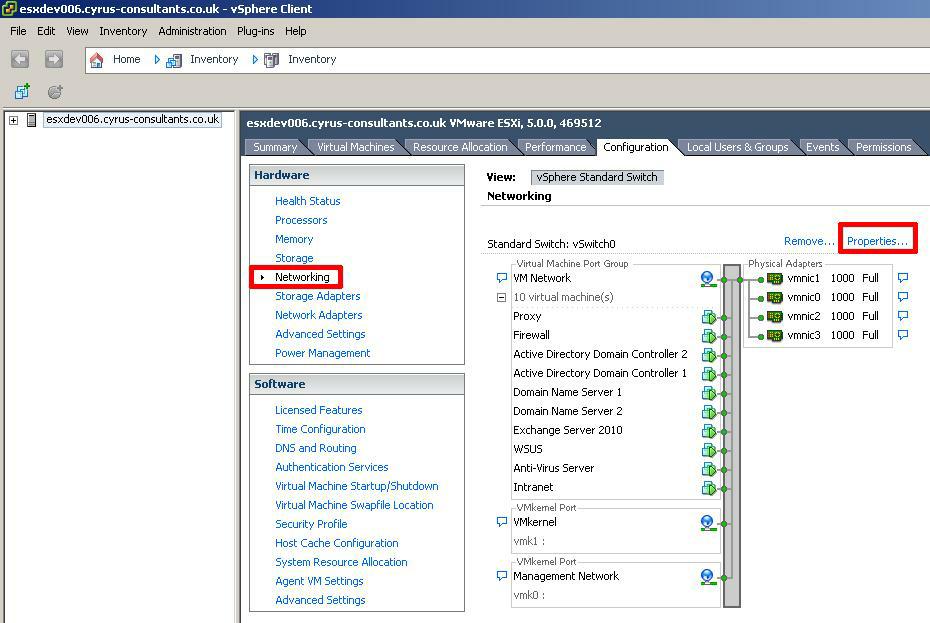
Select the Properties of the vSwitch you wish to enable jumbo frames

Properties of vSwitch0

Properties of vSwitch0

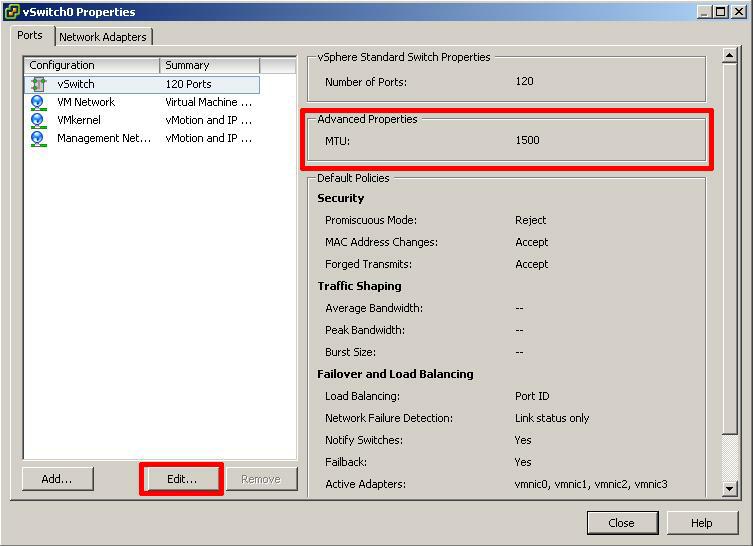
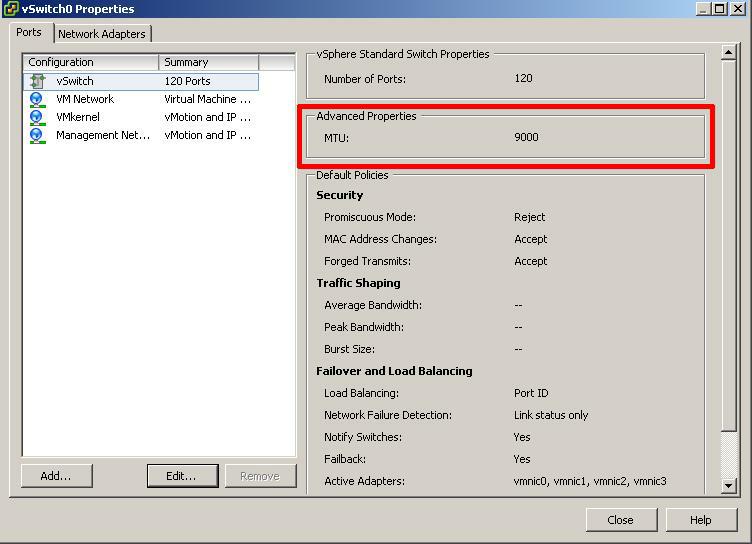
you can check the existing frame or MTU size of the vSwitch. In this example vSwitch0 is selected.

vSwitch0 Properties

vSwitch0 Properties

Click Edit

5

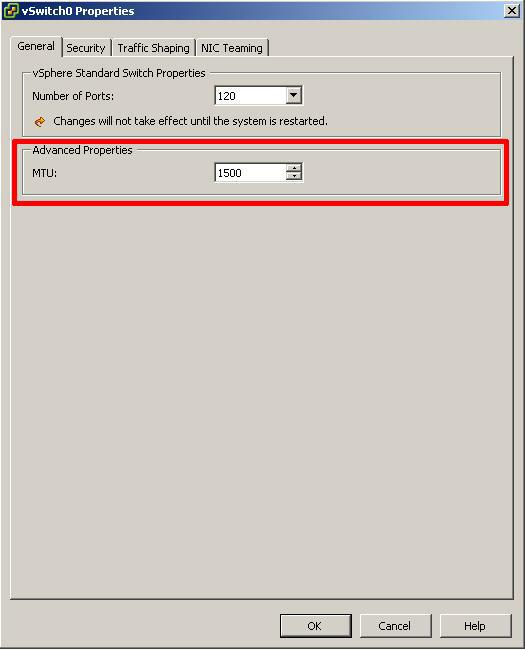
Change MTU value of the selected vSwitch

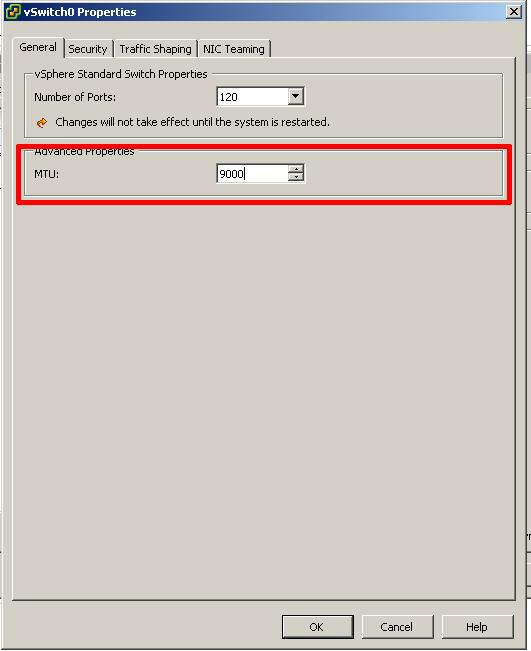
Default MTU size 1500

Default MTU size 1500

The default MTU (frame) size is 1500, enter the MTU (jumbo frame size) either 9000 (9216 if you switch is HP). Check with your network switch and SAN/NAS vendor for correct jumbo frame size.

Custom MTU size 9000

Custom MTU size 9000

Click OK and Close.

6

Jumbo Frames have been enabled successfully

Jumbo Frames configured successfully

Jumbo Frames configured successfully

You have successfully configured your vSwitch for jumbo frames.

7

Test Network Change

Once you have configured jumbo frames, it is important to test this change before commissioning any ESXi 5.0 server into production.

HOW TO: Improve the transfer rate of a Physical to Virtual (P2V), Virtual to Virtual Conversion (V2V) using VMware vCenter Converter Standalone 5.0

Sunday, January 8th, 2012

VMware vCenter Converter Standalone 5.0 is a FREE tool available from VMware upon registration, the purpose of this software tool is to easily convert physical or virtual computers, images of computers to VMware virtual machines. Server and Workstation operating systems are supported in the conversion.

Download VMware vCenter Converter Standalone 5.0 here
VMware vCenter Converter Standalone 5.0 Documentation
VMware vCenter Converter Standalone 5.0 User Guide

In September 2011, VMware released version 5.0 of VMware vCenter Converter Standalone 5.0, with many new features including partition alignment important for aligning partitions correctly on storage array networks (SAN).

BUT, we’ve noticed that completing conversions using VMware vCenter Converter Standalone 5.0 compared to using VMware vCenter Converter Standalone 4.3, were taking much longer, and the transfer rate of a conversion had become degraded when using version 5.0.

The following modification will improve the transfer rate when using VMware vCenter Converter Standalone 5.0, to similar transfer rates obtained when using VMware vCenter Converter Standalone 4.3 to perform conversions.

It would appear that VMware uses a proprietary VMware protocol called NFC, to image to destination, also by encrypting (SSL) the data payload transfers in version 5.0, this additional overhead causes transfer performance degradation. The result of which is a longer than expected conversion time, when compared to version 4.3.

Turning OFF SSL Encryption in VMware vCenter Converter Standalone 5.0 can improves transfer rates.

(if appropriate for your environment)

To turn OFF SSL Encryption in VMware vCenter Converter Standalone 5.0, please follow the following steps:-

  • Find and Edit converter-worker.xml

this file is location in the following locations

Windows Vista, Windows 7, Windows 2008
%ALLUSERSPROFILE%VMwareVMware vCenter Converter Standalone

Windows XP, Windows 2003, Windows 2000
%ALLUSERSPROFILE%Application DataVMwareVMware vCenter Converter Standalone

  • Change the SSL Key <useSsl> true </useSsl> to false

You may find it easier to edit the file using Microsoft XML Notepad 2007 to edit the XML file. But Notepad or Wordpad can edit the file, just ensure, you make a copy of the original file for backup before making any alterations. Using Microsoft XMP Notepad 2007, you do not have to scroll the contents of the file, and the <useSsl> section is quicker to find and alter, but whatever tool you find most comfortable to use to edit the file, is okay.

Change

<useSsl> true </useSsl>

to

<useSsl> false </useSsl>

save the XML file.

Using Microsoft XML Notepad 2007

Using Microsoft XML Notepad 2007

Using Microsoft XML Notepad 2007 to change to false

Using Microsoft XML Notepad 2007 to change to false

  • Restart Service

For changes to take effect – Restart “VMware vCenter Converter Standalone Worker” service.

  • Results

We have seen performance increases from at least 2x to 6x. So if you want to half the conversion time at least, then alter the encryption setting. If appropriate for your environment.

In the following example, a Windows 2003 Server was converted from Virtual Machine to Virtual Machine (V2V) using VMware vCenter Converter Standalone 5.0 installed on the server to be converted. In the first conversion (TaskId10) the SSL Key was left as the default TRUE, and encryption was used. In the second conversion (TaskId11), the SSL Key was set to false.

As can be seen from the following screenshots Average Transfer rate has increased from 2 MB/s to 6 MB/s and the conversion time has reduced from 1hr 38mins to 33mins.
.

Default encryption value of true 2MB/s transfer rate

Default encryption value of true 2MB/s transfer rate

Default encryption value of false 6MB/s transfer rate

Default encryption value of false 6MB/s transfer rate

A performance increase of 60%! just by chaning a value from true to false.

The Official email – 8th Annual Expert Awards @ExpertsExchange – Expert of the Year

Friday, January 6th, 2012

I think the other email was the Experts Exchange Community Newsletter, this is the Official email!

8th-annual-expert-awards-expert-of-the-year1banner-expert-of-the-year

It’s Official – 8th Annual Expert Awards – @ExpertsExchange – Andy is the Expert of the Year!

Thursday, January 5th, 2012

I received this email today….

I started with zero points, and a ranked outsider at 115,000th, to Expert of the Year with 4,688,803 points, and currently ranked 84th.

all this answering questions on VMware and Virtualisation!

A Happy VMware & Virtualisation year to you!

TOP AWARD! I AM THE Experts Exchange Expert of the Year 2011!

Monday, January 2nd, 2012

It’s been fun, a lot of hard work, approximately 3,500 VMware and Virtualisation Questions answered in 2011, and 20,000 posted comments at Experts Exchange. Expert of the Quarter,  Juggernaut and The Ally for Q2 and Q4 2011, and now I’ve just learnt

I AM THE EXPERT OF THE YEAR FOR 2011!


So not bad for 2011, VMware vEXPERT 2011, Experts Exchange EXPERT of the YEAR 2011!

Roll-on 2012!