Archive for the ‘All’ Category

Tom Heap from Countryfile, in Pocklington Costa Coffee – Pig Welfare!

Friday, February 15th, 2013

I was in Pocklington late this afternoon, before an appointment with the quack, in the latest change to the Pocklington High Street, Pocklington moves into the 21st Centry, with it’s very own Costa Coffee! It’s been open approximately two weeks.

and Lindsey spotted Tom Heap from Countryfile, finishing a Coffee, with a soundman, and production assistant. They had BBC Countryfile paperwork, on leaving I asked the production assistant, what Countryfile article they were filming, and she said “Pig Welfare!”, I replied “you’ll be lucky to find any pigs around here with the decline in Pig Farming” in East Riding of Yorkshire, due to low pig meat prices, I think we may only have 1 or 2 local Pig farmers in the area now, and hard working farmers they are as well!

On the way back to my car, the film crew had a tripod in front of my vechile, whilst Tom, did a walk towards camera….

countryfile-pigwelfare1

countryfile-pigwelfare2

countryfile-pigwelfare3

countryfile-pigwelfare4

so, tune into Countryfile this weekend!

Emergency in Andysworld! Sony 21″ CRT fails!

Thursday, February 14th, 2013

One of my Sony 21″ Multi scan GDM520PS failed today, so I’m on a backup 19″ Sony Multi scan GDM420GS, so I’m down to my last faithful Sony 21″ CRT, I always sworn, that the cost of these monitors in 1999, I would use them to end of days….I purchased six for office, use, and now only one is left! All of them have lasted beyond their 10 year lifetime, and they have been used approx 18 hours a day, for the last 10 years!

Maybe time to start reasearching this new TFT LCD technology!

IPv6 Testing

Saturday, February 9th, 2013

it’s a little technical this blog, unless you understand how computers comminicate via the Internet and Local Area Networks via TCP/IP.

currently it’s likely your current computers or mobile device is configured for IPv4 , you may have heard the expression IP Address, which is like a computers telephone number, which is unique, across the world, otherwise computers/mobile devices would not be able to commincate with each other. You current IP Address is probably an IPv4 IP Address, and the issue with IPv4 IP Addresses, is we are running out, or have ran out!

So a “new” IP Addressing scheme called IPv6 was created, the difference, IPv4 is a 32 bit address, IPv6 uses a 128-bit address, IPv6 is not new, and it’s been around for approximately 10 years, and may one day replace IPv4. At present only 1% of Internet traffic is IPv6. It’s not compatible with IPv4, so you maybe required to change your router of computer operating system. (in the future, if it ever takes off!)

so with a little additional configuration….PCs, networking, and router….later that day..

NO IPv6 Configured

NO IPv6 Configured, IPv4 ONLY

IPv6 Partially Configured

IPv6 Partially Configured

IPv6 CONFIGURED AND READY

IPv6 CONFIGURED AND READY

No.25 @ExpertsExchange

Tuesday, February 5th, 2013

Need to get back to writing articles and blogging, a little bit behind with the photographs…

ee-no-25When I first started answering VMware/Virtualisation Questions at Experts Exchange, approximately 2 years ago, I was a ranked outsider, this weekend, I’m now in the Top 25 Overall Experts, some of these experts are not very active at EE, so watch this space, hopefully within the Top 10, by the end of 2013!

HOW TO: Install and Configure VMware vSphere Hypervisor 5.1 (ESXi 5.1)

Sunday, January 20th, 2013
In my previous VMware Articles, most featured Intermediate VMware Topics, my next series of articles will concentrate on topics for the VMware Novice.

In these series of basic VMware articles, I’ll be showing you the basic skills required to install, configure and deploy virtual machines using VMware’s FREE VMware vSphere Hypervisor.

This article will show you how to install and configure the VMware vSphere Hypervisor 5.1 on a computer. VMware vSphere Hypervisor 5.1 is also known as ESXi 5.1.

The FREE version of ESXi 5.1 is limited to 32GB per server.

  • ESXi 5.1 will install and run only on servers with 64-bit x86 CPUs.
  • ESXi 5.1 requires a host machine with at least two cores.
  • ESXi 5.1 supports only LAHF and SAHF CPU instructions.
  • ESXi 5.1 requires the NX/XD bit to be enabled for the CPU in the BIOS.

A full list of the ESXi 5.1 Hardware Requirements can be found in the VMware ESXi 5.1 Install Guide

Check the VMware Hardware Compatability Lists (HCL), to discover if your computer is certified for use with ESXi 5.1.

If your computer is not listed on the VMware HCL, it may still be possible to install and run VMware ESXi 5.1 on your laptop, desktop, or server. The HCL exists because the server vendor and VMware have certified and tested ESXi 5.1 will function correctly, on the servers listed on the HCL.

Register with VMware.com and Download VMware vSphere Hypervisor 5.1

Open the following link in your web browser
https://my.vmware.com/web/vmware/evalcenter?p=free-esxi5&lp=default
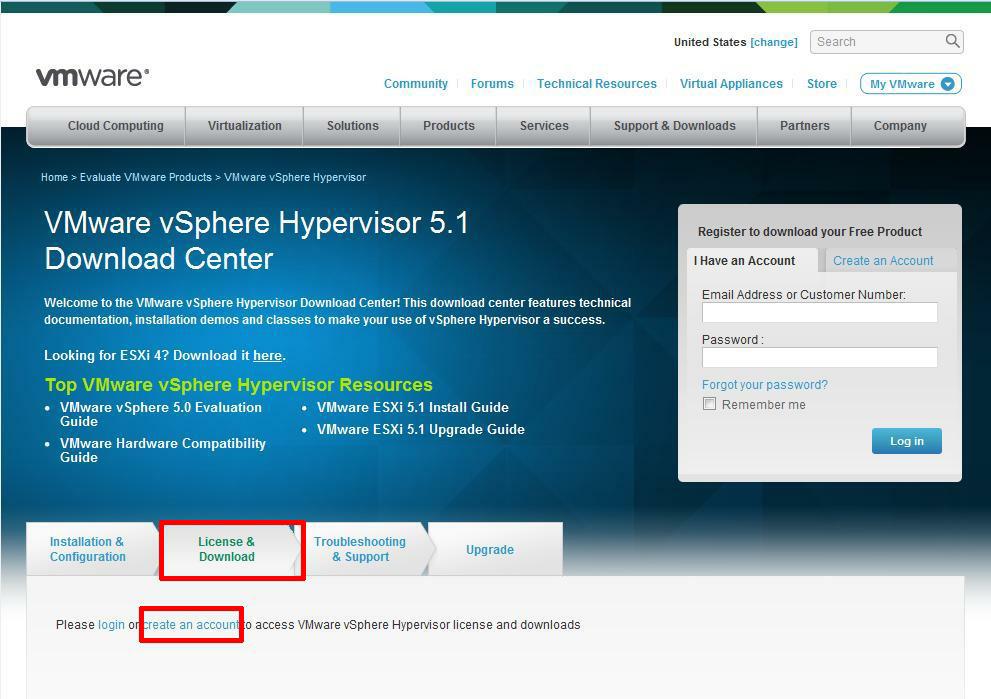
Click the License and Download Tab

  • VMware Download Center

VMware Download Center

Click Create an Account, to Create an Account and Login to the VMware Download Center. VMware will email you an Activation link which needs to be opened to create the account.

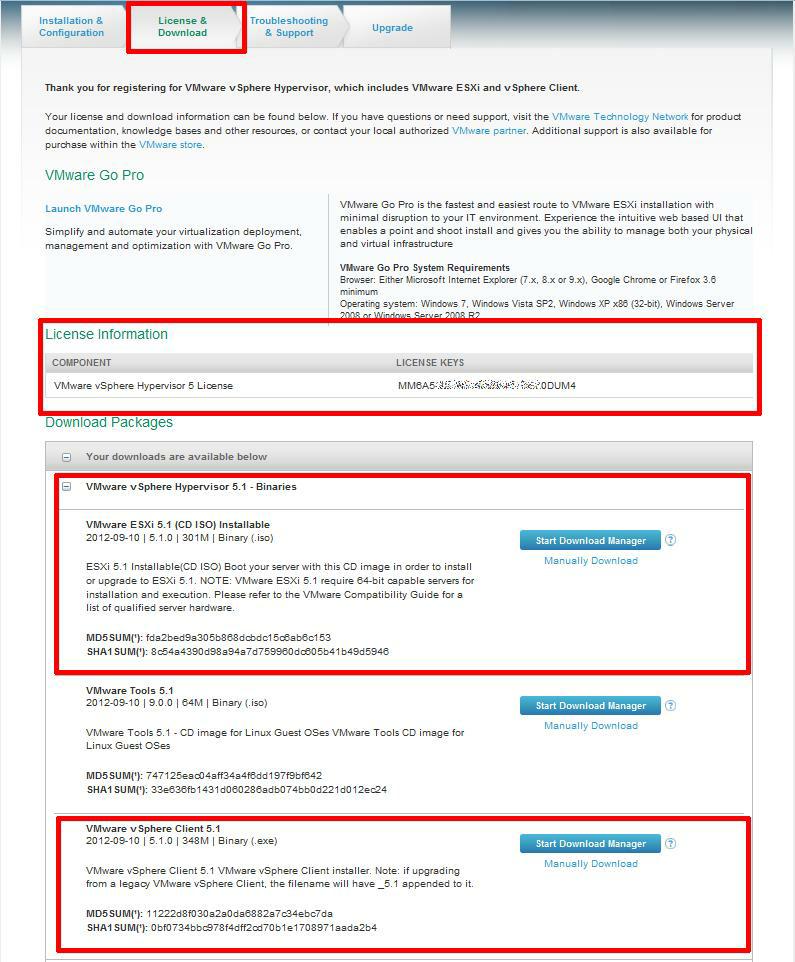
The following page will be displayed when you have successfully logged into the VMware Download Center.

  • VMware Download Center

VMware Download Center

Pay special attention to the FREE License information which is displayed, and record this License Number, this will be required in a later article.

Click the download link for VMware ESXi 5.1 (CD ISO) Installable to download the software required to install ESXi 5.1 and also download the VMware vSphere Client 5.1. The VMware vSphere Client 5.1 software is the client software that allows us to connect and manage the ESXi 5.1 server, this will be required in a later article.

Either use the Download Manager or Manually Download button (which uses your web browser). The CD ISO is only 301MB so should not take too long to download. We have a very slow internet connection, at approx 350 kB/sec, and it takes us approximately 10 minutes to download.

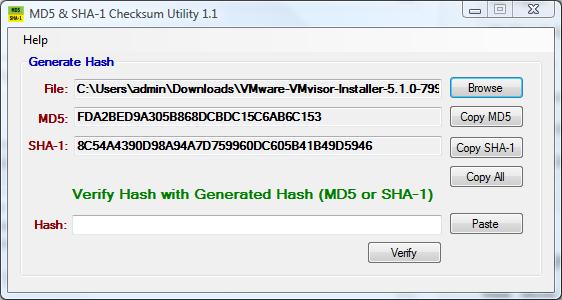
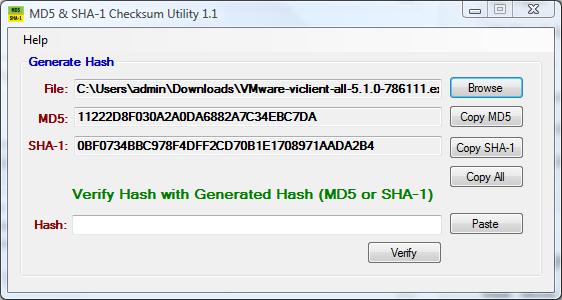
Once the downloads have been completed using your favourite MD5 and SHA1 checksum utility, confirm the downloads have been downloaded correctly, using the published MD5 and SHA1 checksums from the VMware website.  We use the MD5 & SHA-1 Checksum Utiliy 1.1 from http://raylin.wordpress.com/downloads/md5-sha-1-checksum-utility/.

Many VMware vSphere Hypervisor 5.1 installations fail due to corrupt downloads.

  • MD5 & SHA1 checksum confirmed with published checksums for VMware-VMvisor-Installer-5.1.0-799733.x86_64.iso

MD5 & SHA1 checksum confirmed with published checksums for VMware-VMvisor-Installer-5.1.0-799733.x86_64.iso

  • MD5 & SHA1 checksum confirmed with published checksums for VMware-viclient-all-5.1.0-786111.exe

MD5 & SHA1 checksum confirmed with published checksums for VMware-viclient-all-5.1.0-786111.exe

Installing VMware vSphere Hypervisor 5.1 (ESXi 5.1)

Write (Burn) the VMware-VMvisor-Installer-5.1.0-799733.x86_64.iso downloaded in Step 1, to a blank CDROM, using your favourite CD writing software. We use ISO Recorder (http://alexfeinman.com/isorecorder.htm). If you are using remote server utilities, e.g. HP iLo or Dell iDRAC,. you can attach the virtual CDROM drive in the server to the VMware-VMvisor-Installer-5.1.0-799733.x86_64.iso ISO, so there is no requirement to write a CDROM.

This is a step which is often missed, ensure the BIOS BOOT order is set to BOOT from the CDROM Device or ATAPI device in the server, otherwise the computer will not BOOT from the CDROM.

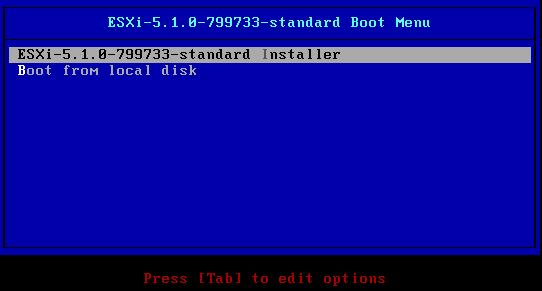
Power on the Computer, the computer will BOOT from the CDROM, and the following BOOT screen will be displayed

  • ESXi 5.1 BOOT from CDROM

ESXi 5.1 BOOT from CDROM

The default option is to BOOT ESXi-5.1.0-799733-standard Installer after 10 seconds, hit any key will pause the BOOT process.
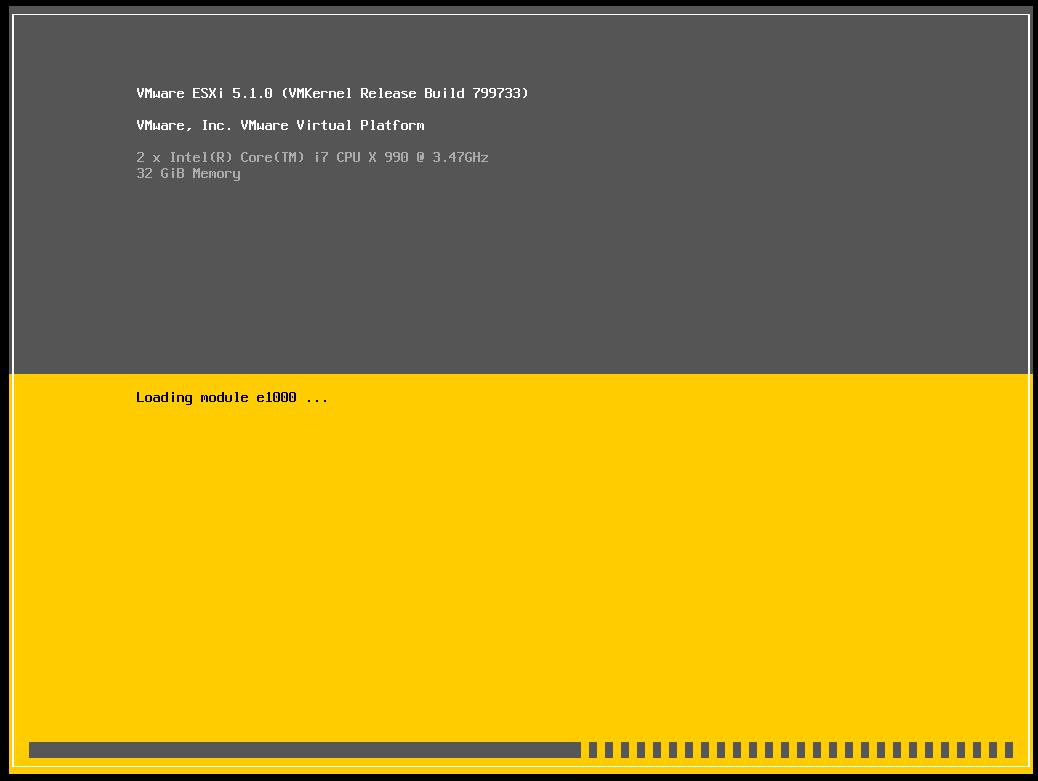
  • VMware ESXi 5.1 Startup

VMware ESXi 5.1 Startup

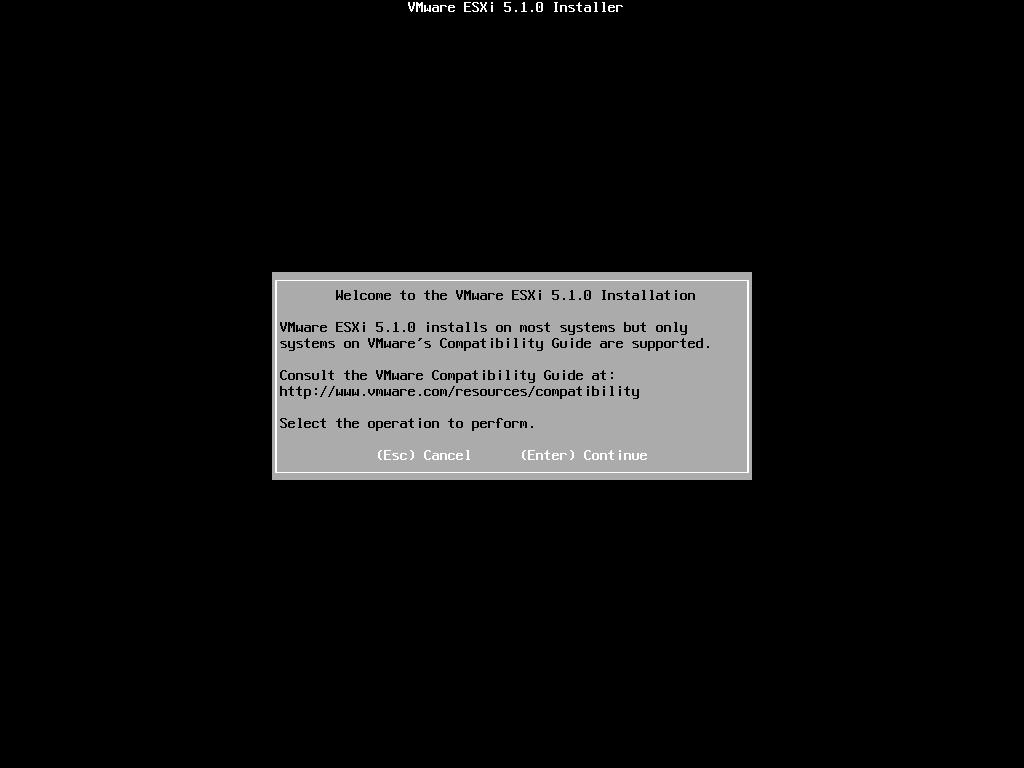
At the Welcome to the VMware ESXi 5.1.0 Installation screen Hit Enter to Continue the installation.
  • Welcome to the VMware ESXi 5.1.0 Installation screen

Welcome to the VMware ESXi 5.1.0 Installation screen

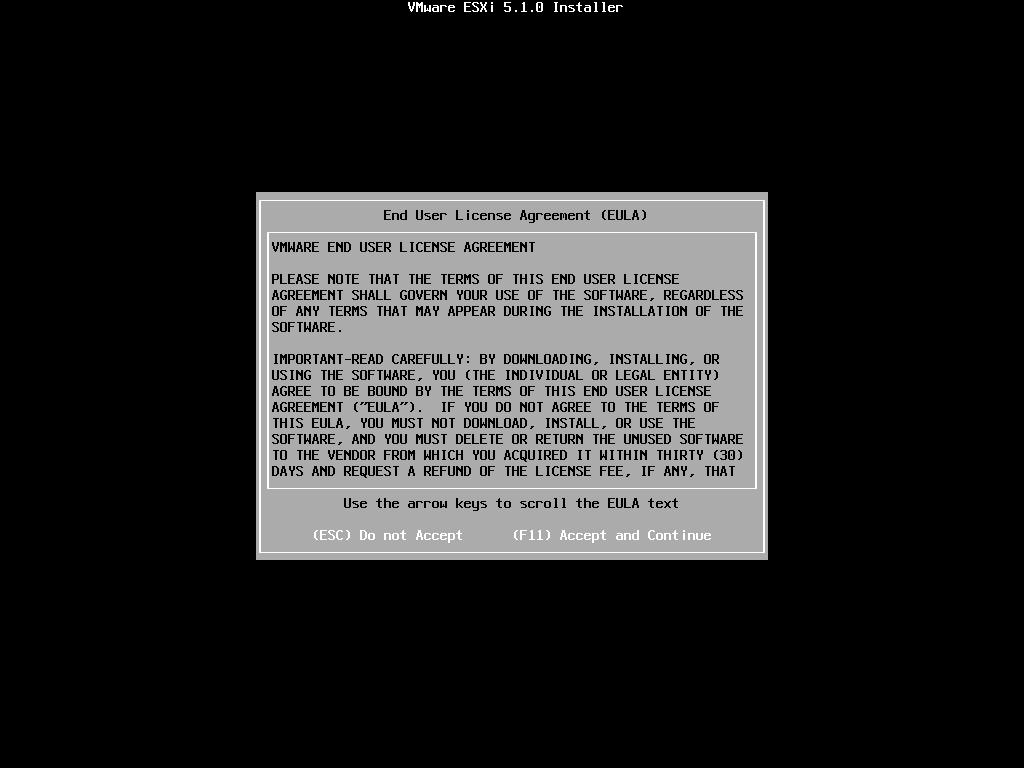
Press F11 (Function Key 11) to Accept the VMware End User License Agreement (EULA)
  • Press F11 (Function Key 11) to Accept the VMware End User License Agreement (EULA)

Press F11 (Function Key 11) to Accept the VMware End User License Agreement (EULA)

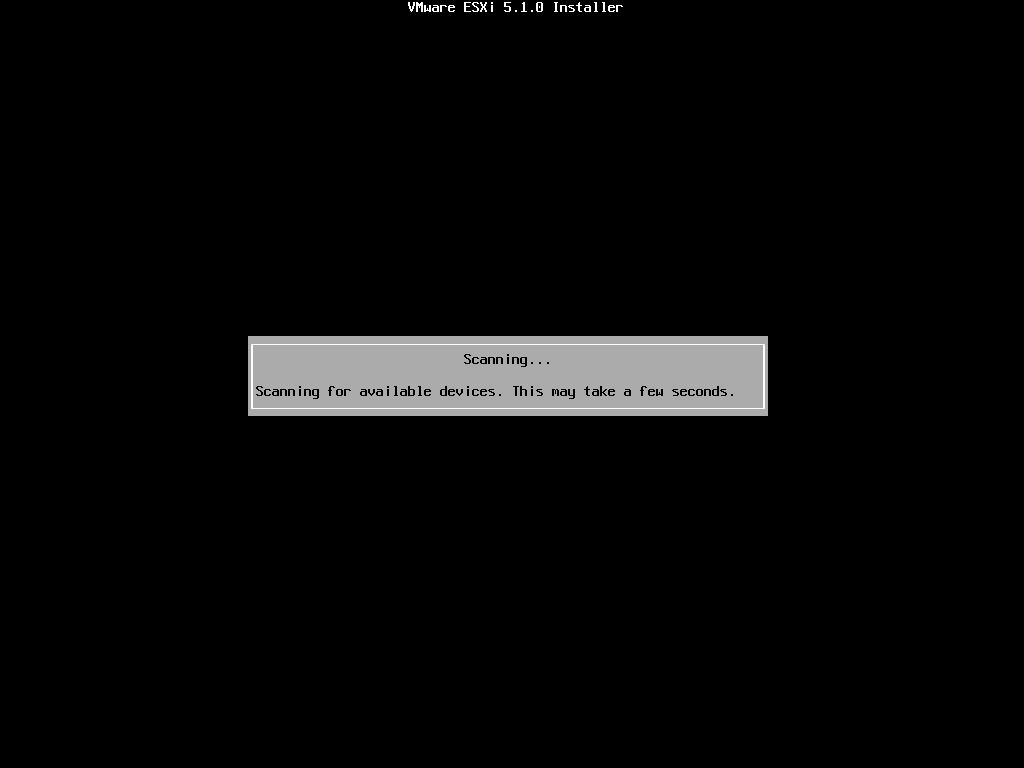
The ESXi installer will scan the computer storage controller for available devices to install ESXi.
  • Scanning for available devices

Scanning for available devices

ESXi can be installed on a USB flash drive, SD card attached to the computer, local SATA, local RAID Array, or Fibre Channel or iSCSI LUN. All these are supported options. As the footprint for ESXi is very small only 1GB is required for the ESXi OS installation.

We have written an Article here on How to Backup an ESXi installation on an USB Flash Drive or SD card, for security or redundancy. After you have completed the ESXi 5.1 installation, shutdown the server, remove the USB flash drive or SD card, and duplicate it using our Article.

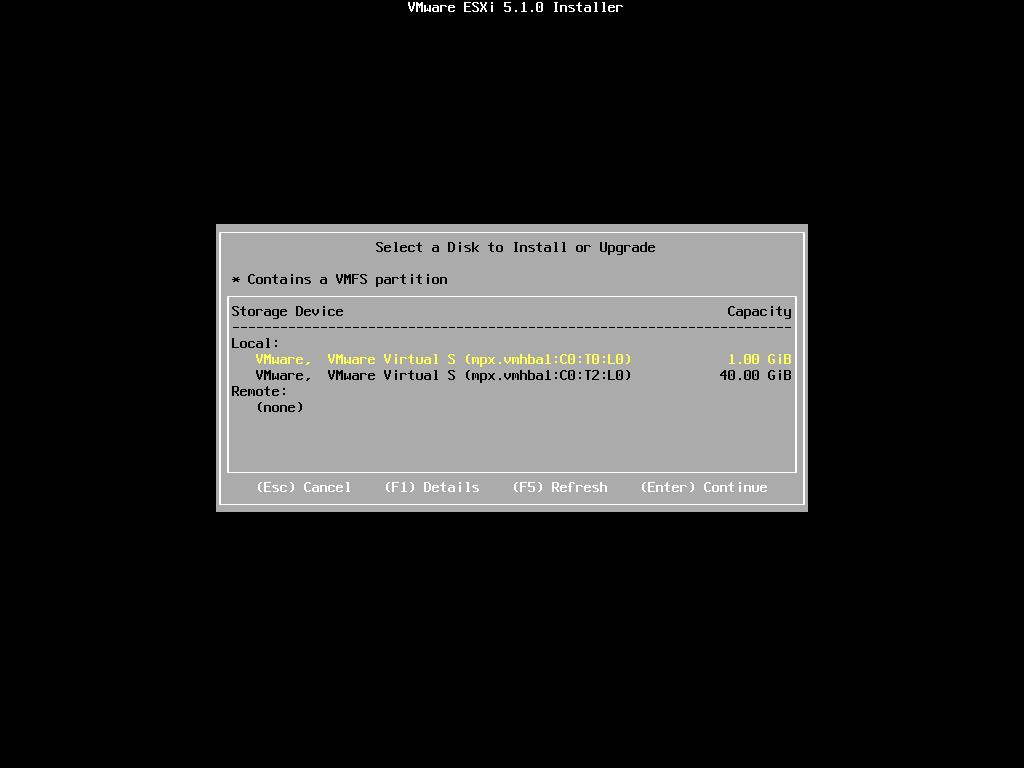
When prompted select a disk to install ESXi on, in the following example, we have two disks connected to this computer, a single 1GB disk, and a 40GB disk. We are going to use the small disk for the OS. The larger 40GB disk will be used later for the storage of virtual machines.

  • Select a Disk to Install

Select a Disk to Install

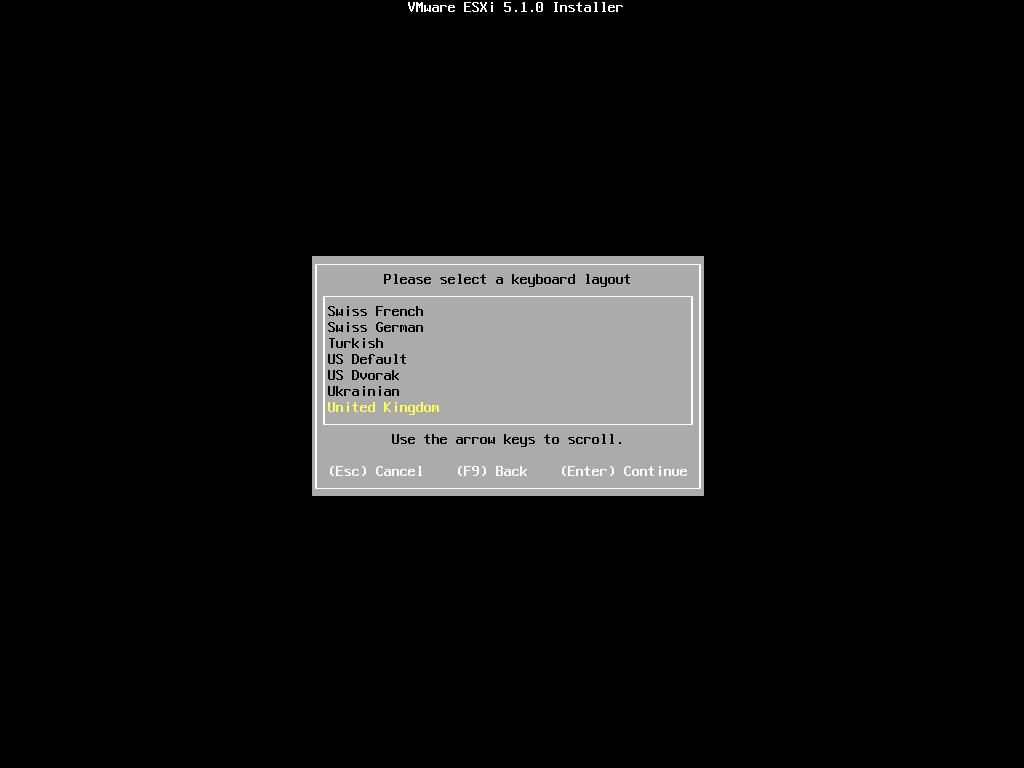
When prompted, select the keyboard layout and hit Enter to continue.
  • Please select a keyboard layout

Please select a keyboard layout

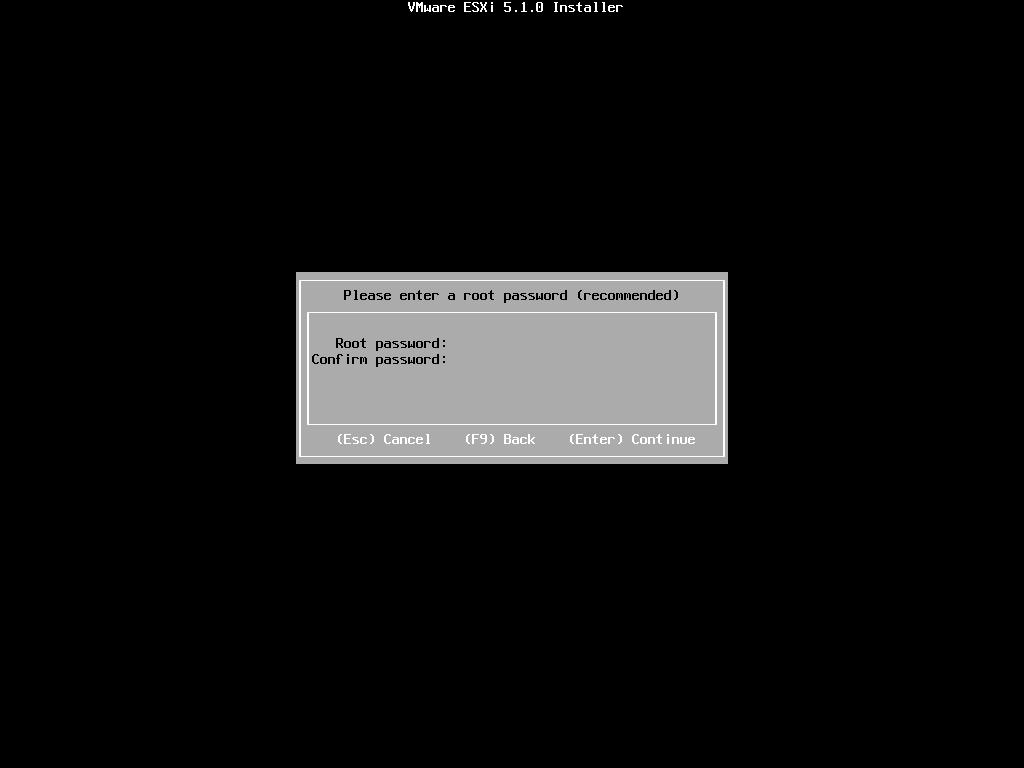
When prompted enter a root password, confirm the password and hit Enter to continue
  • Enter a root password

Enter a root password

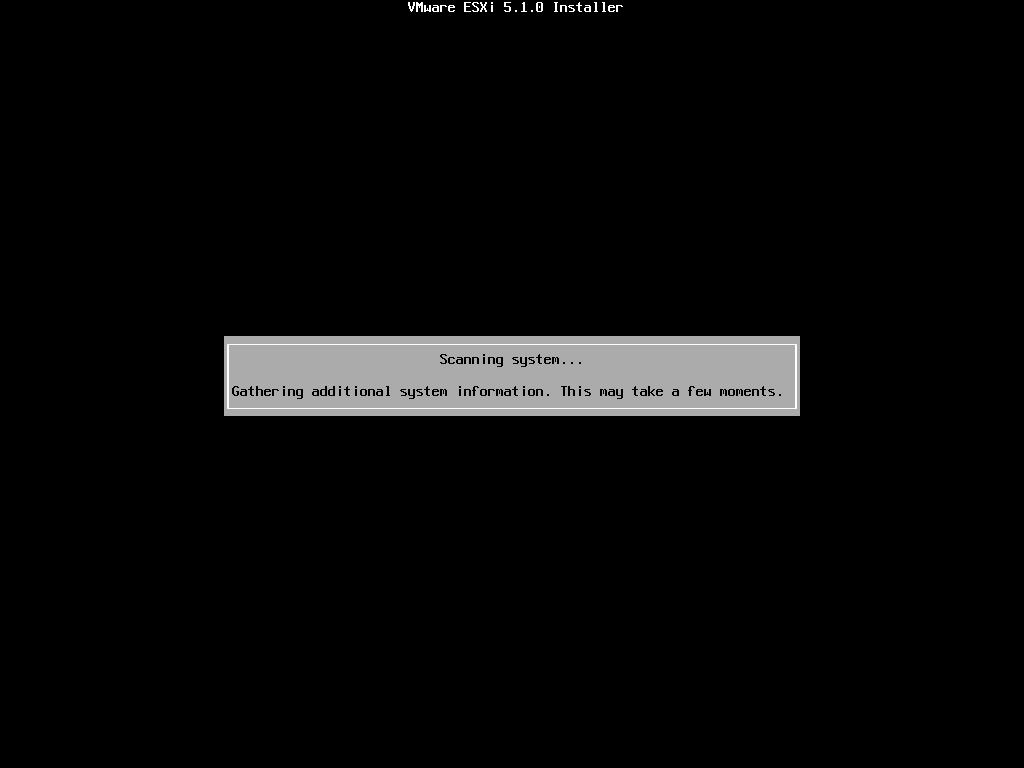
The following will be displayed
  • Gathering additional system information

Gathering additional system information

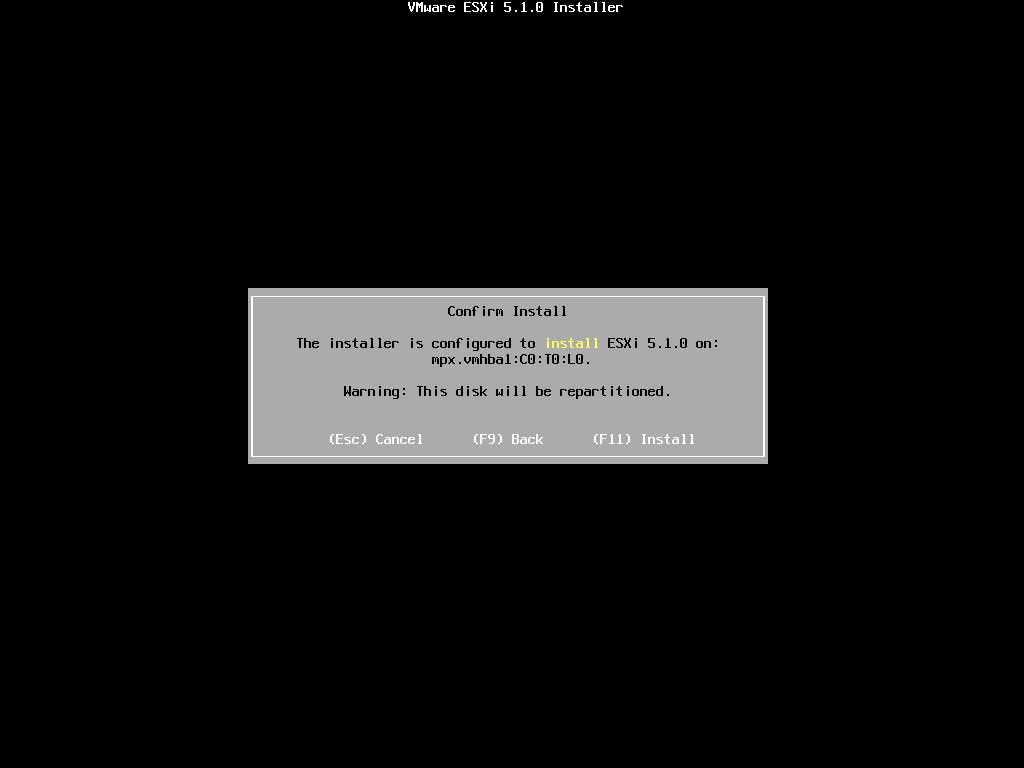
When prompted Confirm the Installation on the selected disk and press F11 (Install)
– Function Key 11
All data will be erase, as the disk will be repartitioned.
  • Confirm Install

Confirm Install

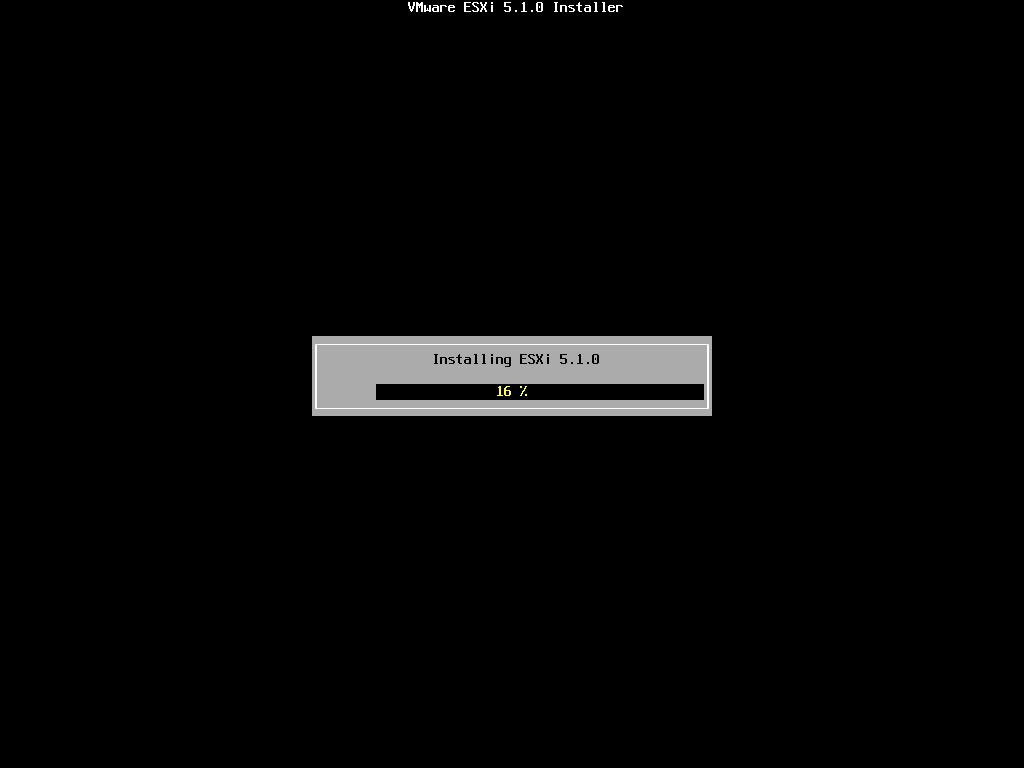
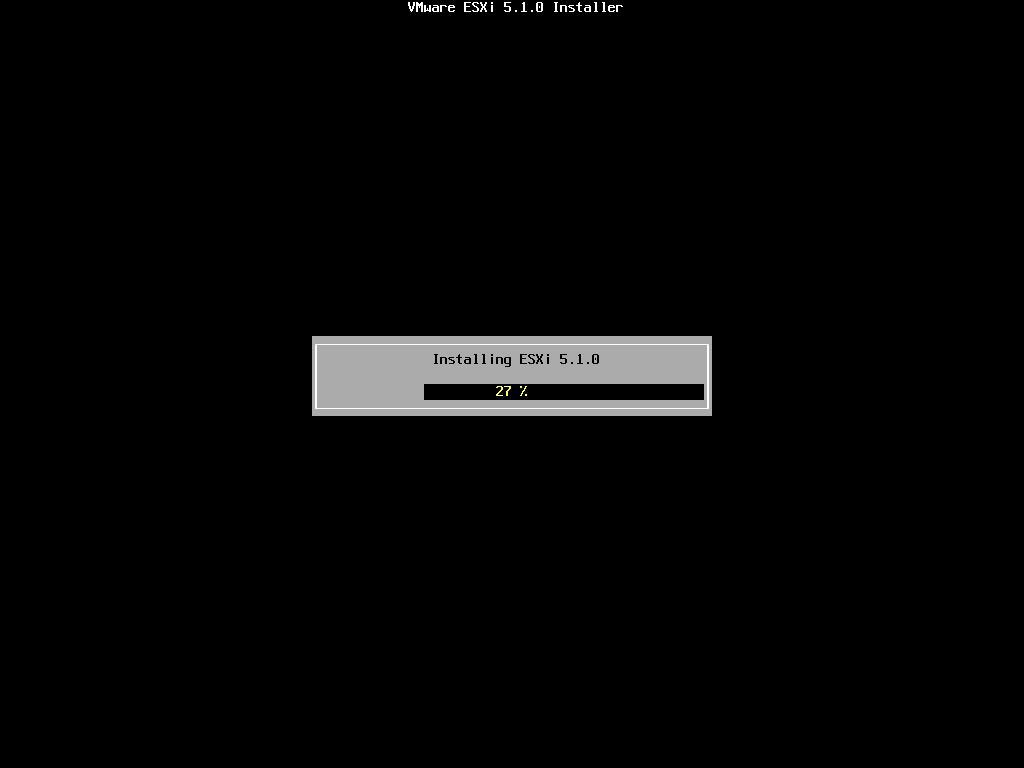
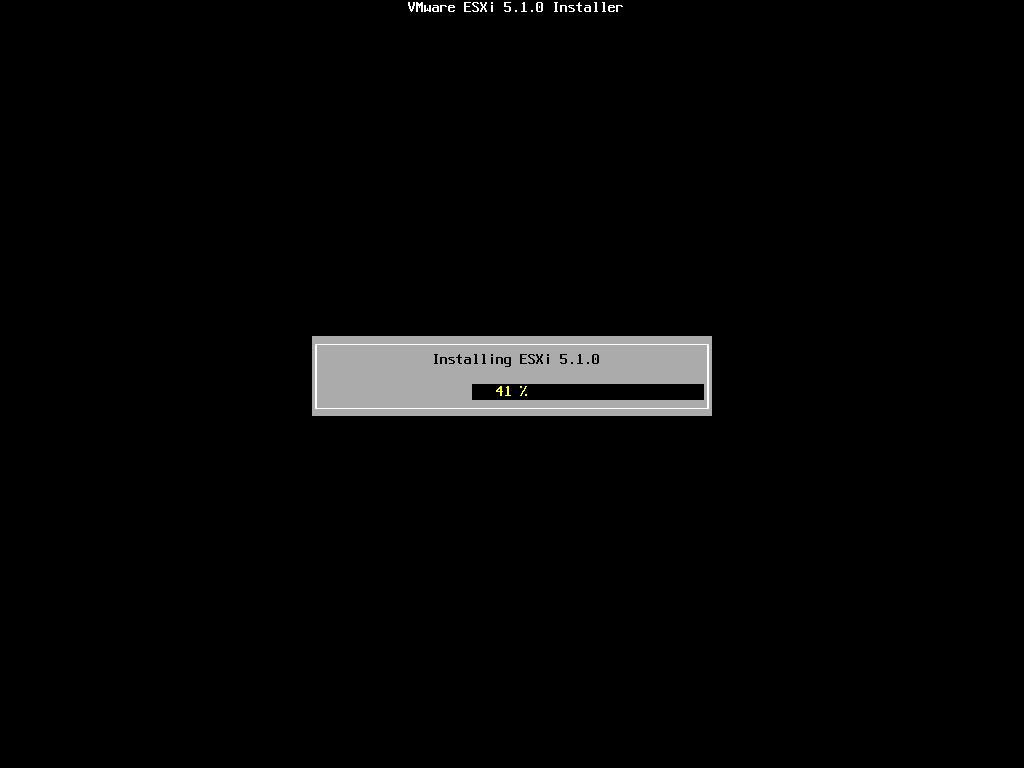
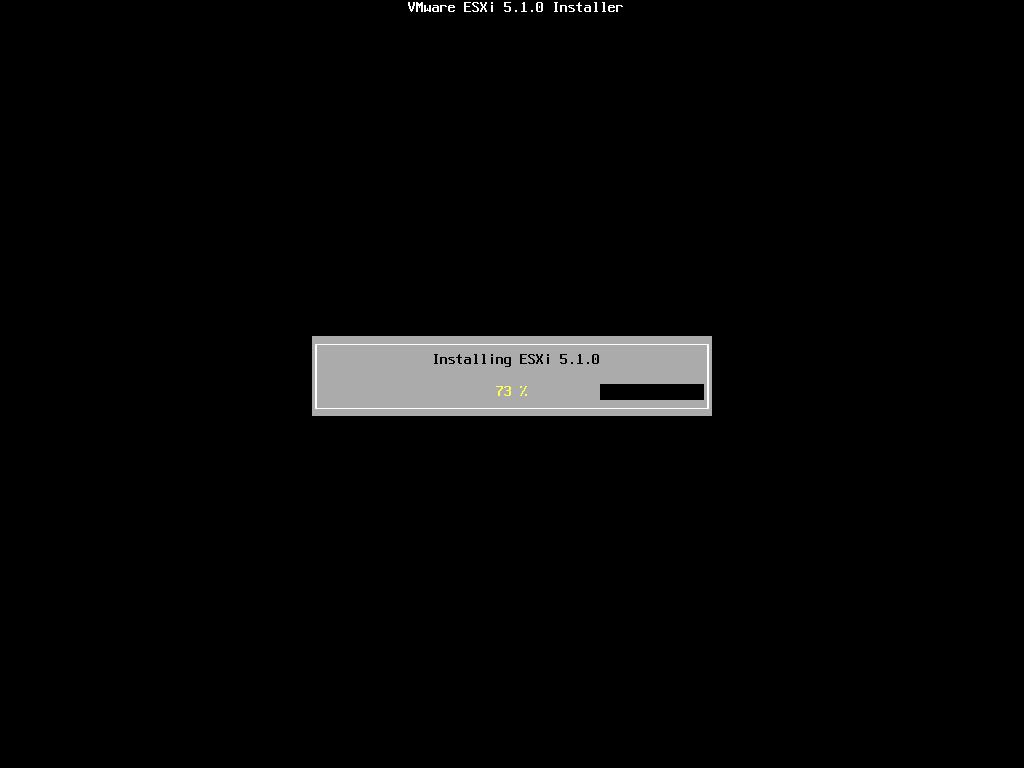
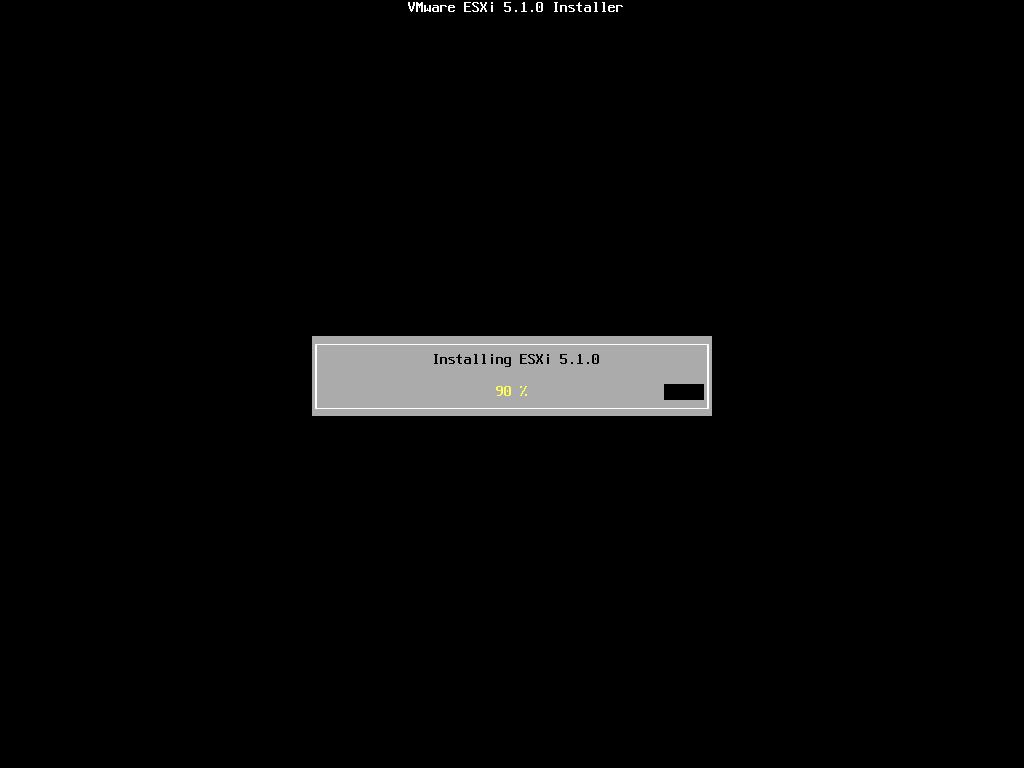
The Progress Bar will confirm installation progress.
  • The Progress Bar will confirm installation progress.

The Progress Bar will confirm installation progress.

  • The Progress Bar will confirm installation progress.

The Progress Bar will confirm installation progress.

  • The Progress Bar will confirm installation progress.

The Progress Bar will confirm installation progress.

  • The Progress Bar will confirm installation progress.

The Progress Bar will confirm installation progress.

  • The Progress Bar will confirm installation progress.

The Progress Bar will confirm installation progress.

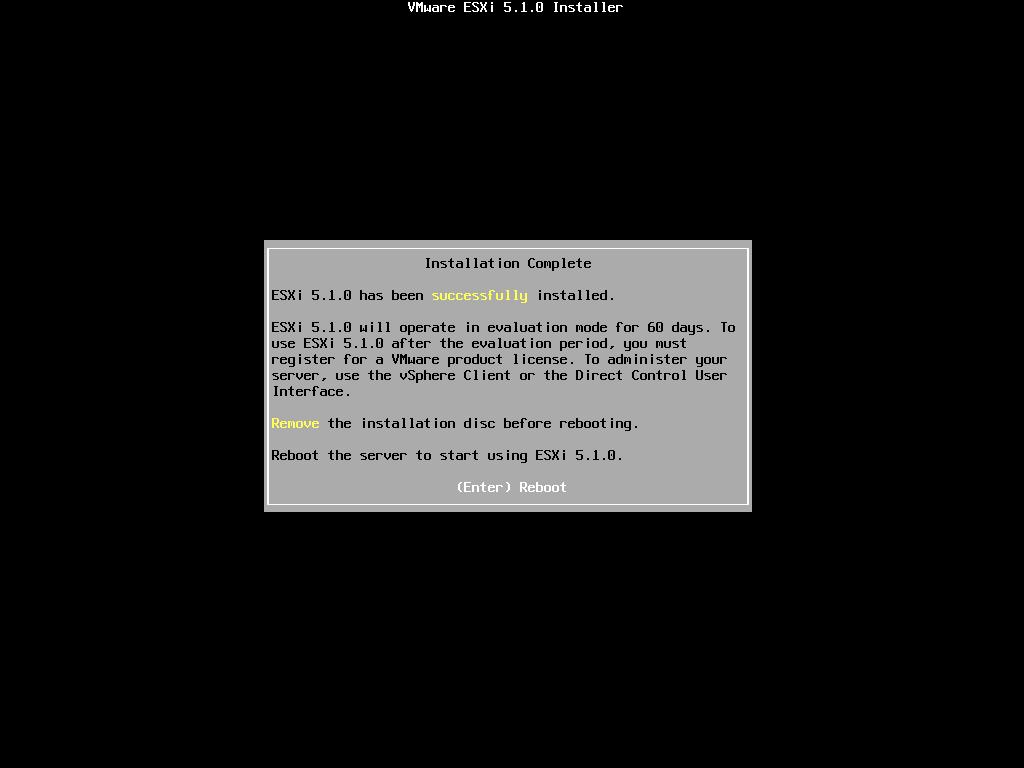
The installation only takes approximately 5-10 minutes, depending upon speed of storage. When the installation has completed the following screen will be displayed.
  • Installation Complete

Installation Complete

Remove the CDROM installation disk before rebooting. Hit Enter to Reboot. After hitting Enter the follow screen will be displayed and the computer will reboot.
  • Rebooting Server

Rebooting Server

ESXi 5.1.0 will operate in evaluation mode for 60 days. This is the same mode as a FULLY LICENSED ESXi 5.0 server. If you wish to evaluate all the bells and whistles that ESXi 5.0 has to offer, do not register your FREE license. for 60 days, this will allow you to evaluate ESXi 5.0 server fully. On day 59/60, Apply your FREE license to continue using the product, or you will not be able to power on any virtual machines.

Configuring VMware vSphere Hypervisor 5.1 (ESXi 5.1)

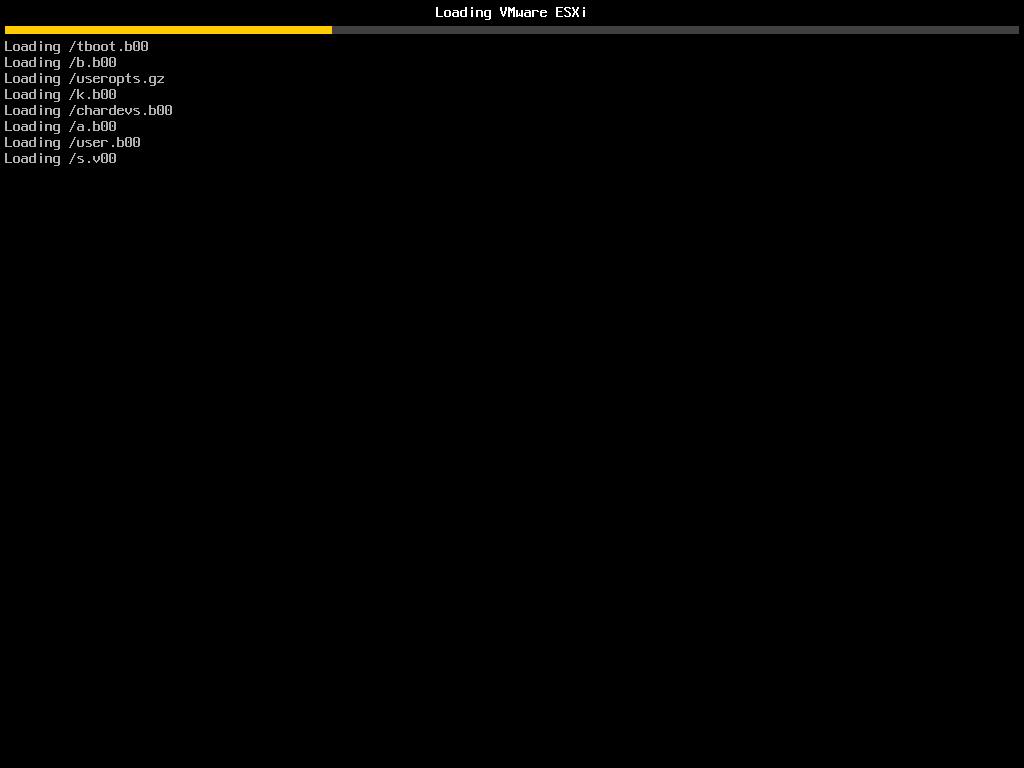
The following screen is displayed when VMware ESXi 5.1.0 first boots

  • Loading VMware ESXi

Loading VMware ESXi

  • VMware ESXi 5.1 Startup

VMware ESXi 5.1 Startup

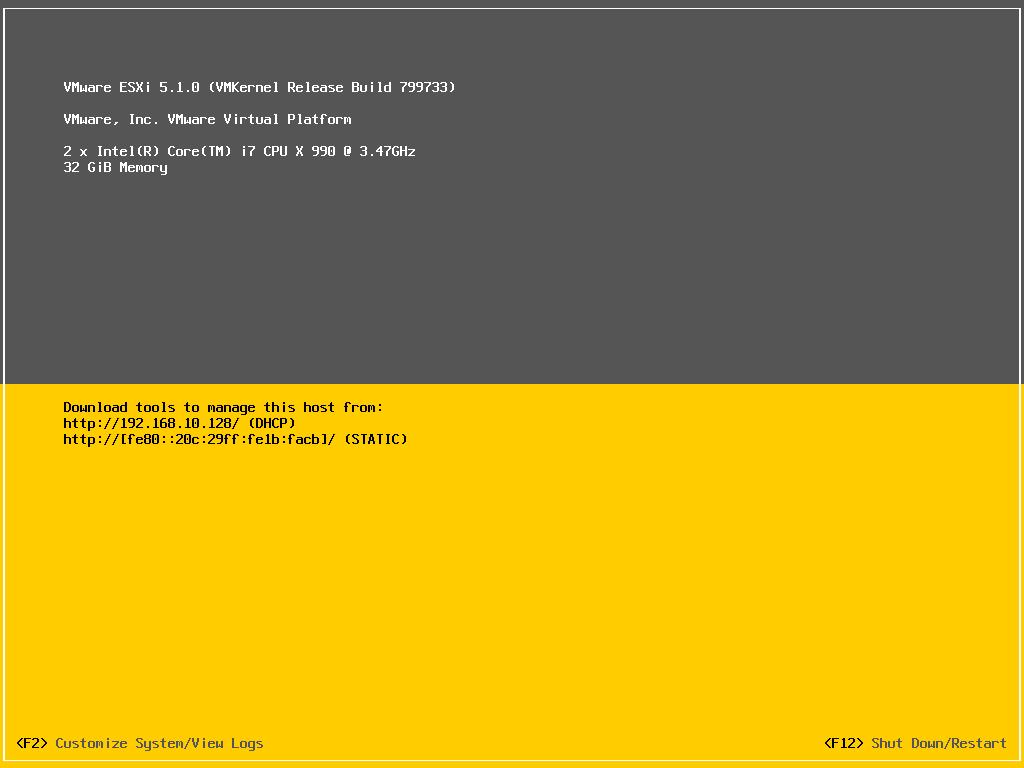
The server is fully booted when it displays the following screen
  • ESXi 5.1.0 fully booted

ESXi 5.1.0 fully booted

The default server configuration is to use DHCP, if you do not have a DHCP server issuing IP Addresses on your network you will need to assign an IP Address. We recommend you use a static IP Address for your ESXi Host Server.

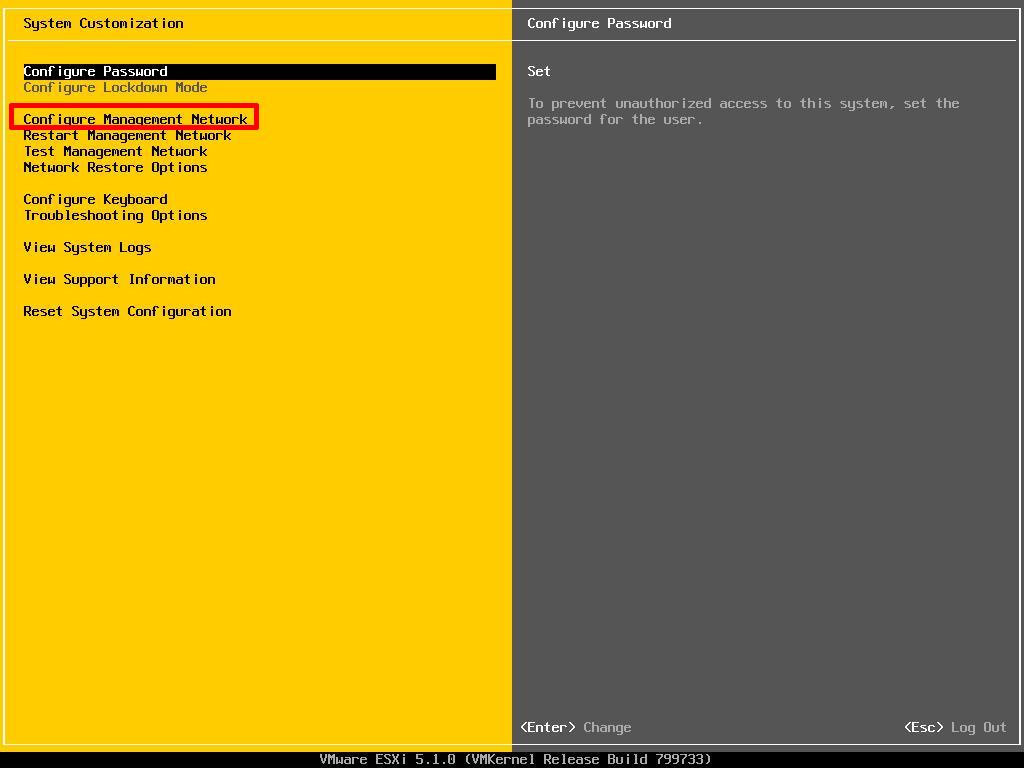
Press F2 to Customize System, you will be prompted to enter the root username and password.

  • Customize System > Configure Management Network

Customize System > Configure Management Network

Select Configure Management Network to change Network Parameters.
Select IP Configuration
  • Select IP Configuration

Select IP Configuration

Set the Static IP address and network configuration, Subnet Mask and Default Gateway, it’s important to set the correct Default Gateway, as this will be used later. Hit Enter to confirm and save the configuration.
  • Set static IP address

Set static IP address

Select DNS Configuration, enter the correct DNS information for your network, and enter a hostname for your server. Hit Enter to save the configuration.
  • DNS Configuration

DNS Configuration

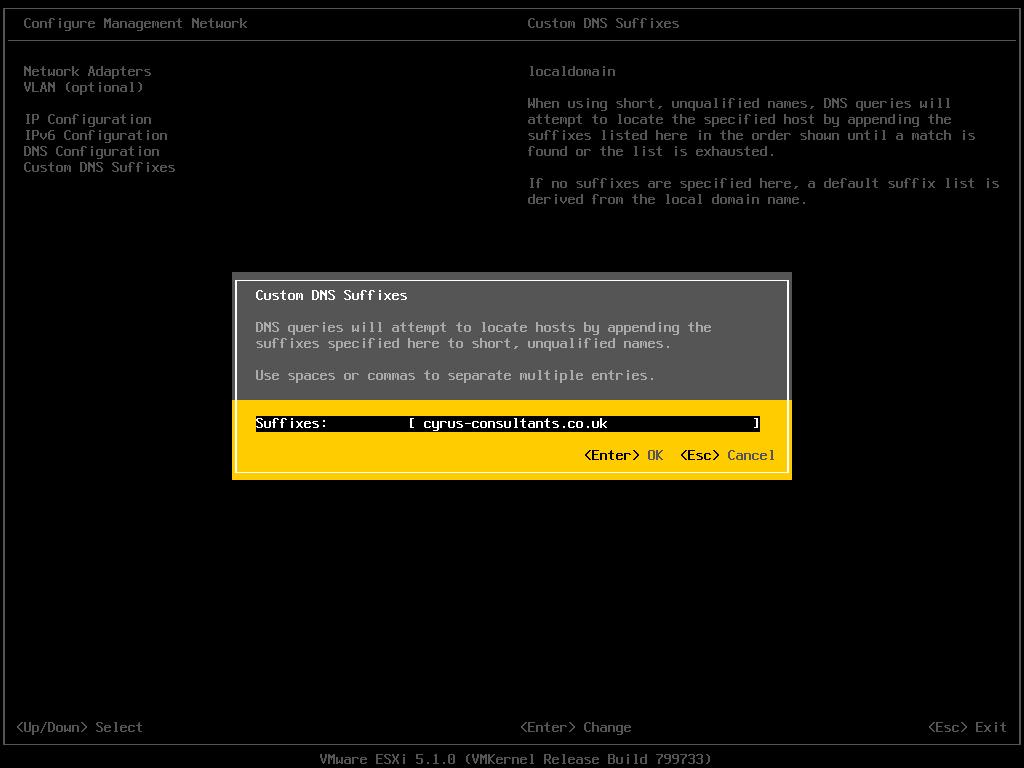
Select Custom DNS Suffixes
Enter your DNS suffix (the domain name for your network). Make sure you have created a DNS A Record in your DNS, so that this server can be resolved correctly through forward and reverse lookups.
  • Custom DNS Suffixes

Custom DNS Suffixes

Hit Enter to save your configuration.

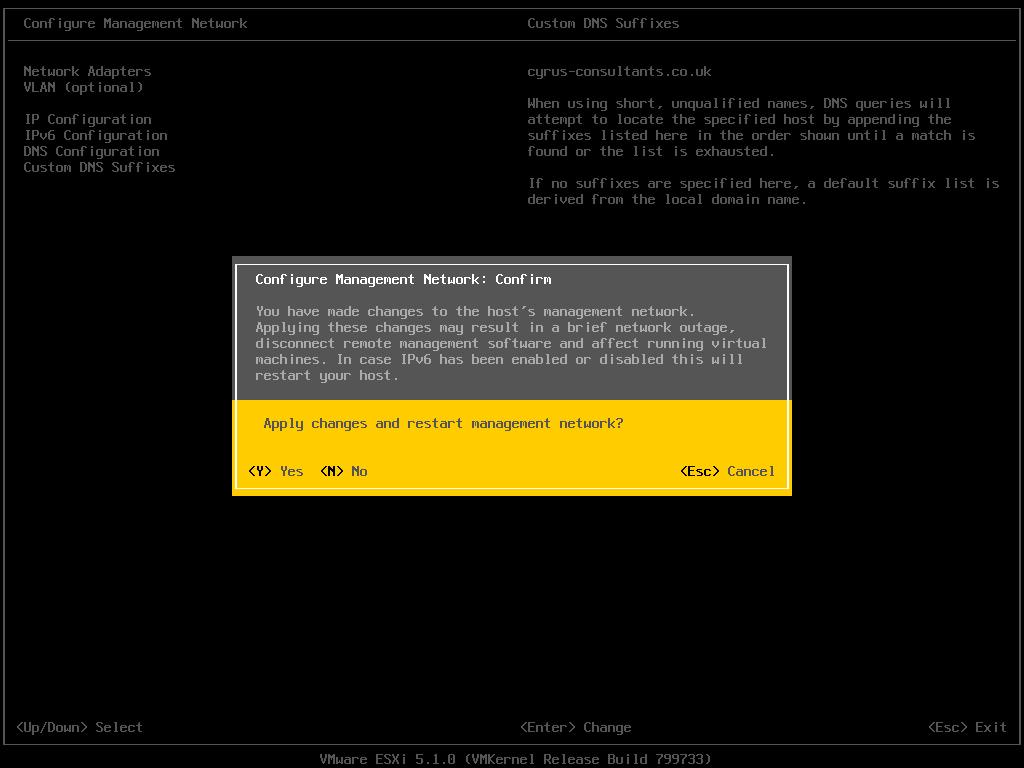
Press Escape, the following screen will appear, select Y(es) to apply changes.

  • Apply Changes and Restart Network Management.

Apply Changes and Restart Network Management.

Press Escape to Logout and return to the console screen.

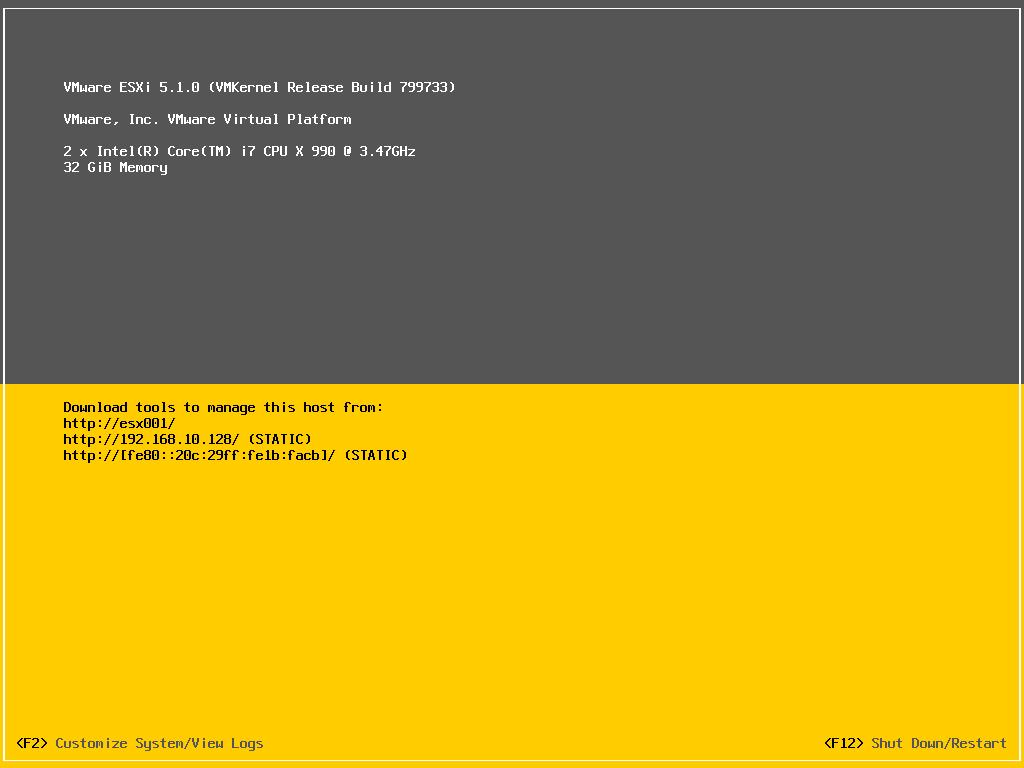
You will notice on the console screen, the server now has a hostname configured, and correct static IP Address.

  • Console Screen

Console Screen

Congratulations you have successfully installed and configured VMware vSphere Hypervisor 5.1.

In the next article in the series, we will connect and continue to configure the VMware vSphere Hypervisor 5.1.

Part 2 of the Series has now been published here

HOW TO: Connect to the VMware vSphere Hypervisor 5.1 (ESXi 5.1) using the vSphere Client

It’s Official – 9th Annual Expert Awards – @ExpertsExchange – Andy is the Expert of the Year, again for the Second Year!

Thursday, January 3rd, 2013

expertoftheyear2012c
expertoftheyear2012

It’s official, I received 7 emails last night, I’ve won six awards this year at Experts Exchange.com.in the 9th Annual Expert Awards, this is my second year as  Expert of the Year.

expertoftheyear2012b

I started the year with 4,688,803 points, and ranked 84th.

This year I totaled overall 5,369,940 this year and I’m currently Ranked 29th! I’ve been ahead for most of the year, with a clear, 2,500,000 points over 2nd place! 250,000 points ahead in the Articles (Authors), and No.1 in VMware and Virtualisation Zones. (by 5,500,000 and 2,000,000 points ahead of the No.2!)

expertoftheyear2012a

All this answering questions on VMware and Virtualisation ONLY!

A Happy VMware & Virtualisation year to you!

Merry Chrimbles!

Sunday, December 23rd, 2012

Merry Chrimbles everyone, and don’t eat too much this Christmas!

from everyone in Andysworld!

New Desktop Computer Part IV:- Complete – 7 TFLOPS

Tuesday, December 18th, 2012

it’s been a long and difficult birth for this PC, lots of testing and unknowns, to get this created, but here it is:-
andysnewpc12

So what does this computer do, well at idle it consumes approx 200 watts (measured) of electricity, at full load, it uses approx 850 watts (measured) of electricity  to drive an Intel Core i7 990X Extreme Edition processor, and two nVidia SLI GTX 590 3GB DDR5 RAM, that’s a total of 4 GPUs, and the machine’s number crunching performance is approx 7 TFLOPS. (GPU+CPU combined)  The GTX 590 were one of the worlds fastest graphics cards, recently surpassed by the nVidia GTX 690.

Yes, this rig runs very hot, and may need to be water cooled at a later date, or change of case and fans, or radiator based cooling for the CPU, still under testing and development……work in progress!

New Desktop Computer Part III: What is Andy going to do with 48GB of RAM in his Desktop PC?

Sunday, December 16th, 2012

48GB of RAM in a Desktop PC, that’s a server I here you say, other than virtualisation with VMware Player 5.0 or VMware Workstation 9.0, or Client Hyper-V in Windows 8.0, or Oracle Virtualbox 4.0, it does seem a bit extreme, even the latest games, or Adobe Photoshop, you will be hard pushed to utilise all the memory.

Those that are old enough, once upon a time, in year DOS! we used a driver called – ramdrive.sys, that you could load into system memory, and turn some system memory into a ramdrive. RAM was expensive years ago, and only a few kilobytes or megabytes could be used as a ramdrive, but system access was almost instantaneous.

about eight years ago, a company wrote a ramdrive driver for Windows 2000 for clients, to use as a Windows 2000 profile drive for the storage of user profiles for a large terminal server project, to speed up the logon and logoff of users. I’ve been searching for an updated version since, that works with the modern Windows OS, now I’ve found one.

Now with the cost of memory for desktop PCs falling, the following company DR Dataram have produced a new RAMDisk for modern operating systems, and it’s FREE, and allows you to create RAMDisks up to 4GB, if you want to create RAMDisks larger than 4GB, you will need to part with 18.99 USD! It supports Windows XP, Windows 7 and Windows 8, Windows Server 2008 and Windows Server 2012.
Install the software, specift the size

Install the software, specify the size

Specify Load, Save and Autosave options

Specify Load, Save and Autosave options

and Hey Presto! you’ve got a ramdrive, out of system memory, and the magic of a ramdrive compared to an SSD, checkout the following benchmarks!

Performance of DR Dataram RAMDisk versus 4 x SATA 3 Kingston 200v+ SSDs in RAID 10

Comparison SSD versus RAMDisk

Comparison SSD versus RAMDisk

and for the geeks in the audience, that like IOPS

Comparison of IOPS

Comparison of IOPS

Comparison of IOPS - the numbers!

Comparison of IOPS - the numbers!

So, this Christmas if you want a fast data disk for your OS, spend your money on RAM for your computer, and bin that SSD (they wear out anyway!)

@ExpertsExchange introduce New Experts Ranks: Ace and Prodigy

Thursday, December 13th, 2012

I was quite surprised to receive two emails from Experts Exchange late last night, Congratulations, you have earned a new rank! and noticed my new Eeple (avatar).

eeple1

Experts Exchange have introduced two new Ranks

Prodigy – 5,000,000 points

Ace – 3,000, 000 points

see here for details

So, I now have two new ranks,

Prodigy – VMware (the 1st Expert!), Ace – Virtualisation (the 1st Expert!), I also get two new T-Shirts for these as well!

eeple