In this video, I will show you how to HOW TO: Add a Synology NAS providing NFS Storge to VMware vSphere Hypervisor ESXi 7.0. I will show you the process of creating a storage pool followed by a btrfs volume, enabling NFS and Exporting the NFS volume and connecting to VMware vSphere Hypervisor ESXi 7.0, by creating a dedicated storage network using a VMkernel portgroup for NFS traffic.
I will show you how to troubleshoot and check using simple bash tools ping and vmkping, that NFS traffic can reach the NAS.
The syntax I’m using in this video to test network communications between VMkernel portgroups and NAS (NFS), and check for jumbo frames.
ping <IP address>
vmkping -I vmkX <IP address> -s 9000
where X is a number of your VMkernel portgroup
In this video, I make reference to the previous videos written articles
In this video, I will show you how to HOW TO: Cross vCenter Server vMotion (export) between standalone vCenter Servers 7.0 not linked to the current SSO domain. I will show you how to troubleshoot and check using simple bash tools ping and vmkping, that it will be possible to perform a Storage vMotion. I will touch briefly on Enhanced vMotion Compatibility (EVC), and migrate and demonstrate live a Storage vMotion between different generation processors, and create an EVC baseline per VM, and end with a Migration (cold).
The syntax I’m using in this video to test network communications between VMkernel portgroups
Hello everyone! I’m Andrew Hancock, a seasoned VMware Technical Architect from Yorkshire, UK. Over the past 23 years, I’ve accumulated a wealth of experience with VMware products and have written over 100 articles on Experts Exchange. Today, I’m sharing some valuable tips on handling VMware ESXi configuration issues, focusing on warning alerts after enabling SSH or the ESXi shell. Let’s dive in!
Understanding Configuration Issues after Enabling SSH
Common Configuration Warnings
Enabling SSH or ESXi shell on your VMware environment is a bit like setting up an alarm system at home. It keeps your house safe, but you’ll get some annoying beeps now and then. When you enable SSH, common warnings appear. They serve as reminders that you’ve opened a potential door to your system.
Immediately after enabling, you’ll notice these warnings. Personally, I like to leave these warnings in place as reminders. They remind me: “Hey, you’ve enabled SSH for troubleshooting or system checks.” Among these configuration warnings, the most common are:
Increased resource consumption
Potential security vulnerabilities
System performance impact
Why do they matter? Well, like a constantly beeping alarm can drive you nuts, these warnings can help you stay alert and handle issues promptly.
Impact on System Performance
Ever tried running a marathon with a sprained ankle? That’s how enabling SSH can impact your system’s performance! Your system has to work harder, and it might slow things down.
Not all systems will show a noticeable change, but it’s worth keeping an eye on these potential impacts:
Memory usage increases
CPU load may spike
I/O operations might slow down
For example, when I enable SSH on my ESXi host, I notice a small spike in memory usage. It’s like adding a new app to your smartphone – just another layer of demand.
Reasons for Enabling SSH on ESXi
Why would you want to enable SSH, anyway? Why open this potential can of worms? Well, it’s essential for troubleshooting.
For 23 years, I’ve worked with VMware, and for 11 of those years as a VMware vExpert. When things go wrong, SSH access can be your best friend. Here are a few reasons why you might enable SSH on an ESXi host:
Running scripts and commands that aren’t available via the GUI
System troubleshooting and diagnostics
Checking the signatures of ISOs uploaded to a datastore
In the words of a fellow expert, “If you cut Andy in half, it reads VMware like a sticker rock from Blackpool.” That’s how integral SSH can be.
Potential Security Risks
Here’s where the rubber meets the road. Enabling SSH opens up potential security risks. It’s like leaving a side window open for a bit of fresh air – good in the short term, risky long-term.
When you leave SSH enabled beyond what’s necessary, you might face:
Unauthorized access attempts
Data breaches
Malicious attacks on your network
Understanding these risks is key to balancing functionality with security. Always disable SSH when not in use. Consider additional protection measures like firewall rules or key-based authentication for heightened security.
Data Over the Years
Years
Experience
23
Working with VMware
11
As VMware vExpert
Being vigilant about warnings and understanding the implications of enabling SSH on your ESXi is critical. Here’s a pie chart to visualize the common configuration warnings triggered by enabling SSH on ESXi:
In the next sections, we’ll dive deeper into each topic, exploring practical solutions to mitigate these issues.
Suppressing Configuration Warnings on ESXi
Suppressing configuration warnings on ESXi can help streamline your workflow. But let’s face it, it can also bring dangers. Ignoring critical alerts can lead to serious problems. It’s all about balance and knowing when and how to suppress these warnings.
Steps to Suppress Warnings
Here, I’ll explain how you can suppress those pesky warnings on your ESXi host.
Log in to your ESXi host client.
Navigating to Manage and then Advanced Settings.
Search for the suppress shell warning option.
Set the value to 1.
Click Save and exit.
That’s it! A few clicks and that annoying warning is gone. But wait, there’s more to know.
Using ESXi Host Client
Using the ESXi host client makes life easier. And I trust you’ll find it more straightforward than ever before. In newer versions of ESXi, VMware has simplified the process drastically. Instead of diving into advanced settings, you can:
Click Actions from your host client.
Select Dismiss Notification.
Or simply hit the big X next to the warning.
As quoted correctly, “VMware made it a lot easier for us now, to suppress these warnings.” No more intricate steps, and no more digging through endless settings. It’s as simple as a click.
Changes in Newer Versions of ESXi
Suppressing warnings is easier in newer ESXi versions. Why? Because VMware has listened to its users. They’ve streamlined the process, eliminating the more tedious steps we used to navigate through. Now, even those less tech-savvy can manage it with ease.
Back in the day, in older versions of ESXi, we had to:
Step
Description
1
Navigate to Manage in the ESXi host client.
2
Select Advanced Settings.
3
Scroll to find the suppress shell warning setting.
4
Change the value to 1 and save.
Manual and Automated Suppression Techniques
You have manual and automated options for suppression. The manual approach, as we discussed, involves navigating to Manage and making changes in Advanced Settings. It’s straightforward, but could be time-consuming if you’re doing this on many hosts.
Automated options are available through the ESXi host client. These can save you a lot of time:
Automate using scripts or tools available in the community.
Leverage built-in automation features within VMware.
Beware of Ignoring Warnings
Suppressing warnings can mask other critical alerts. For instance, you could have a RAID failure on a disk, or a fan overheating. It’s essential to not blindly suppress all warnings. Always, always make sure you’re aware of what you’re silencing.
“Sometimes that actually can mask, another warning that may be actually present on the server for instance you could have a raid failure on a disk or you could have a fan failure or an overheat failure or temperature issue with the server, which would also give a warning as well and it’s somewhat masked.”
So remember: Be cautious and make sure you understand the implications of suppressing these alerts.
Flowchart of Steps to Suppress Warnings in ESXi
By following these steps and understanding the implications, suppressing configuration warnings on ESXi can be an effective tool in your IT arsenal. Stay informed, and manage your warnings wisely!
Balancing Security and Operational Efficiency
Importance of Monitoring Security Alerts
When managing server infrastructure, keeping an eye on security alerts is critical. Without monitoring, key issues may go unnoticed, leading to security breaches or operational downtime. Does it seem overwhelming to constantly track these alerts? Maybe. But it’s a necessary part of maintaining a secure and efficient environment.
Immediate response: Early detection allows for quick action.
Compliance: Some industries require stringent security practices, including alert monitoring.
Personally, I prefer to leave warnings enabled to remind me of active SSH or ESXi shell states. This way, I can remain vigilant about the status of my server’s security.
Risks of Disabled Alerts
Ignoring or disabling these alerts can be tempting, especially when dealing with a high volume of notifications. However, doing so can introduce significant risks. Without these alerts, one might miss critical warnings that could prevent a security incident.
“Leaving SSH open on an ESXi host server is paramount to reducing security.” This statement underscores the severity of ignoring such alerts. If SSH remains enabled without oversight, it opens a window to potential attacks and vulnerabilities.
Just imagine: would you leave your home with the front door unlocked? Disabling important security alerts is akin to doing just that. You’re creating an unnecessary risk for your server.
Best Practices for Enabling and Disabling SSH
Managing SSH access is a balancing act between security and operational needs. Here are some best practices that I follow:
Enable SSH only when necessary: Limit the duration SSH is enabled to reduce exposure.
Use strong authentication: Implement strong passwords or key-based authentication.
Log and monitor: Keep detailed logs of SSH access and review them regularly.
Restrict access: Limit which IP addresses can use SSH to connect to the server.
By following these steps, one can ensure that SSH access is as secure as possible without sacrificing the ability to manage the server effectively.
Personal Stance on Leaving Alerts Active
Let’s get a bit personal. Do you often dismiss alerts just to keep the dashboard clean? I used to do the same. Over time, though, I realized this was not the most prudent approach. When you dismiss alerts, they disappear from view. Out of sight, out of mind, right? But what if they alert you to something critical?
So now, I prefer keeping the warnings active. This way, I won’t forget to address any issues later. It’s like having a post-it note on your fridge reminding you of something important. You wouldn’t just throw it away, would you?
“Leaving SSH open on an ESXi host server is paramount to reducing security.”
This quote resonates with me. It serves as a constant reminder of why I keep those alerts visible. It’s a small inconvenience for greater peace of mind.
Impact of Leaving SSH Enabled
To better understand the implications of leaving SSH enabled, let’s look at a comparison:
Scenario
Security Risk
Operational Efficiency
SSH Disabled
Low
Moderate
SSH Enabled (Unmonitored)
High
High
SSH Enabled (Monitored)
Moderate
High
As you can see, enabling SSH increases operational efficiency but at a cost to security unless you actively monitor it. This data reinforces the idea that a balanced approach is necessary.
In summary, staying on top of security alerts and carefully managing SSH settings can provide both security and efficiency. This approach ensures that your server remains protected while still being accessible for critical tasks.
Real-Life Examples and Anecdotes
My Own Experiences with Configuration Issues
Configuration issues can be a real headache. I’ve learned this the hard way over my 11 years as a vExpert. Sometimes, it’s the small things that creep up on you. Like that one time when a simple misconfiguration masked critical alerts, causing an extremely stressful environment.
I remember vividly setting up a new environment and thinking everything was going smoothly. But, a few hours later, alerts began to blast, and no matter what I did, they wouldn’t stop. Frustrating, right? Little did I know, these were being masked by improper configurations.
Specific Examples from Professional Life
During one of my gigs, I was managing a large-scale VMware deployment. Imagine dealing with hundreds of VMs and then suddenly, critical alerts just vanished. Panic set in. After hours of trying to troubleshoot the issue, I discovered that the misconfigured thresholds and incorrect settings were hiding the alerts.
Another instance was when SSH was left enabled on several ESXi hosts. This led to a security vulnerability. A simple oversight, you might think, but the consequences could have been severe.
Solutions Implemented
So, how did I fix these issues? Well, practice and a bit of trial and error played a major role. Here’s what I did:
Thorough Monitoring: I ensured that all alerts and notifications were configured correctly. No stone left unturned.
Proper Configuration Management: Implementing a configuration management tool to automate and verify settings was crucial. This saved a lot of headaches.
Regular Audits: Regular system audits helped catch these issues before they blew up into bigger problems.
In reference to specific articles and guides, such as the one discussed in the VMware half-hour series: “Following the article that I’ve actually basically written, shows you how to suppress configuration issues and warnings.”
Lessons Learned
Failure is often the best teacher. Here are some lessons I took away from these experiences:
Never overlook the small stuff. Even minor configurations can lead to significant issues.
Document everything. Having thorough documentation makes it easier to backtrack and identify where things went wrong.
Stay updated. Technology evolves, and so should your knowledge and practices.
Real-life examples make the content relatable and sharing both successes and failures adds a touch of authenticity.
Examples from 11 Years as a vExpert
Being a vExpert for 11 years has provided me with numerous examples of how configuration issues can impact performance and security. Here’s a summary:
Year
Issue
Solution
2010
Masked alerts due to improper settings
Thorough reconfiguration and constant monitoring
2013
SSH left enabled, causing security risk
Implemented automated checks
2017
Incorrect thresholds on VM performance
Regular audits and updates
“I’ve faced several situations where configuration issues masked critical alerts, teaching me the importance of thorough monitoring.”
In conclusion, learning from real-life experiences helps in avoiding common pitfalls. No matter how small a configuration issue might seem, it can have a significant impact.
Looking Ahead: Future Topics in VMware ESXi
Introduction to Upcoming VMware Topics
If you’ve been following along with our previous discussions, you’re probably eager for what’s next. Buckle up! “In the next articles, we actually really start having some fun with virtual machines.” This is where things get truly exciting for all VMware enthusiasts.
Now, let’s dive into the juicy details of what’s ahead.
Installing Virtual Machines
Installing virtual machines is a critical step in mastering VMware ESXi. This process helps you to create isolated environments tailored to different projects or testing needs. To put it simply, think of it as creating multiple computers within a single physical machine. It’s a powerful capability that opens doors to endless possibilities.
Downloading the necessary ISO files.
Uploading those ISO files to the ESXi host server.
Creating virtual machine configurations.
Installing the operating systems within those virtual environments.
Each step is essential, and we’ll break them all down in Parts 7-9.
Connecting to ESXi Host Server
One of the fundamental skills you need is connecting to your ESXi host server. This might sound technical and a bit intimidating, but don’t worry. With a little guidance, you’ll master it in no time.
Connection involves:
Authenticating your credentials.
Navigating the ESXi web interface.
Manipulating host and virtual machine settings.
Think of this as the backbone of your VMware experience. Without mastering this, you’ll find it hard to manage and interact with your virtual machines.
Practical Applications of Learned Techniques
What’s theory without practice? The upcoming tutorials will not just tell you what to do but also why you’re doing it—and more importantly, how to apply these techniques in real-world scenarios.
Some Practical Application Examples Include:
Setting up a virtualized lab environment for software testing.
Creating isolated development environments within a single physical server.
Testing new software or patches in a safe, virtual sandbox.
By the end of parts 7-9, you’ll not only have created your virtual machine but also understood how to effectively utilize it.
Future Content Aims and Coverage
As we push forward, we aim to build on the foundation we’ve set in parts 1-6. Here’s a sneak peek at what to expect in the upcoming sections:
VMware Topics in Parts 7 to 9
Part
Topics
Goal
Part 7
Introduction and Preparation
Understand the prerequisites for installing VMs
Part 8
Uploading ISO Files and Initial Setup
Learn to upload and configure virtual machine components
Part 9
Final Configuration and VM Installation
Complete your VM setup and install the operating system
Conclusion
In summary, the upcoming sections aim to deepen your understanding of VMware ESXi, starting from the basics and moving towards more advanced topics. You’ll master the art of installing virtual machines, connecting to your ESXi host server, and applying these techniques in practical scenarios.
As a TL;DR: Expect hands-on instructions, practical insights, and a lot of “fun with virtual machines” in the upcoming articles!
“In the next articles, we actually really start having some fun with virtual machines.”
In this video presentation which is part of the Hancock’s VMware Half Hour I will show you HOW TO: Fix Synchronous Exception at 0x00000000XXXXXXX on VMware vSphere Hypervisor 7.0 (ESXi 7.0 ARM) on a Raspberry Pi 4.
It has been well documented that the Raspberry Pi 4 UEFI Firmware Image can cause this fault which renders the UEFI boot image corrupt. See here https://github.com/pftf/RPi4/issues/97
The UEFI firmware imaged used in the lab in this video is v1.37, it is debated as too whether this has been fixed in later releases v1.37, some suggest rolling back to v1.33 !
For the sake of continuity I’ve included previous EE Videos and Articles I’ve created here
These are my memory dump notes from working with a Failed upgrade, and Snapshot revert failed!
I’ve been meaning to upgrade my VMware vRealize Log Insight 8.14.1.0-22806512 appliance in the #homelab for a while, so I was surprised at first when trying to simply upgrade the PAK file it failed with not enough storage in /tmp, so I tried both these updates
VMware-vRealize-Log-Insight-8.16.0-23264422.pak
VMware-vRealize-Log-Insight-8.16.0-23364779.pak
but failed, so after SSHing into the appliance and checking all the storage, and removing older log files, I noticed that /tmp is defined as a “ram drive”.
So I increased the memory in the Appliance by 2GB, shutdown, changed the memory, and powered on. SSHed back to the appliance
SSH log insight storage space
Using the command
mount -o remount,size=5G /tmp/
Increased the size to 5GB, so at least the upgrade could complete correctly, I also used
tail -f /storage/var/loginsight/upgrade.log to check the upgrade status, but trying to apply the Scheme upgrade to Cassandra it failed, this is a stock VMware vRealize Log Insight 8.14.1.0-22806512, so not sure why it failed, and there is not much info on the Broadcom site about VMware vRealize Log Insight.
The GUI stated the Upgrade had failed, and although it stated reverting to 8.14.1.0-22806512 it failed.
So I reverted to the snapshot, I had taken before applying the upgrade, but to my surprise, reverting to a snapshot ended up with a completely non-working appliance, the GUI stopped responding. So reaching out for the backups to restore the appliance, quickly found this VM was missing from the jobs!
Duh! Oh shite, got to fix the appliance now, and this is how I fixed it.
1.SSH to appliance
2. service loginsight stop (be prepared to wait a long time!)
At this point I still did not have a working VMware vRealize Log Insight 8.14.1.0-22806512.
So I then applied the PAK manually.
8. /usr/lib/loginsight/application/sbin/loginsight-pak-upgrade.py /tmp/VMware-vRealize-Log-Insight-8.16.0-23364779.pak (this was already uploaded via WinSCP to /tmp)
and wait…
There’s alot of changes in the appliance from 8.14 to 8.16 as you can see above!
and now
Log Insight 8.16
Log Insight 8.16
So I hope my notes helps you upgrade your Appliance if you get stuck!
Oh, and I’ve added the VM to a backup job just in case for future, so snapshots don’t always save you!
•Online acceptance of the Master Software Beta Test Agreement will be required prior to visiting the Private Beta Community
•Install beta software within 3 days of receiving access to the beta product
•Provide feedback within the first 4 weeks of the beta program
•Submit Support Requests for bugs, issues and feature requests
•Complete surveys and beta test assignments
•Participate in the private beta discussion forum and conference calls
vSphere Beta Program Overview
We are excited to announce the upcoming VMware vSphere Beta Program. This program enables participants to help define the direction of the most widely adopted industry-leading virtualization platform. Folks who want to participate in the program can now indicate their interest by filling out this simple form. The vSphere team will grant access to the program to selected candidates in stages. This vSphere Beta Program leverages a private Beta community to download software and share information. We will provide discussion forums, webinars, and service requests to enable you to share your feedback with us.
You can expect to download, install, and test vSphere Beta software in your environment or get invited to try new features in a VMware hosted environment. All testing is free-form and we encourage you to use our software in ways that interest you. This will provide us with valuable insight into how you use vSphere in real-world conditions and with real-world test cases, enabling us to better align our product with your business needs.
Some of the many reasons to participate in this beta opportunity:
•Receive early access to the vSphere Beta products
•Interact with the vSphere Beta team consisting of Product Managers, Engineers, Technical Support, and Technical Writers
•Provide direct input on product functionality, configurability, usability, and performance
•Provide feedback influencing future products, training, documentation, and services
•Collaborate with other participants, learn about their use cases, and share advice and learnings
So in today’s, crude and experimental research I thought I would connect all our VMware vSphere Hypervisors (ESXi 5.5 build 1892794) to a NFS datastore presented to the ESXi Hosts from a Synology NAS, and we’ll try the following tests
I deployed a small Windows 7 template, onto the NFS datastore as follows
No Cache Enabled – 3 minutes 27 seconds to deploy
Read and Write Cache Enabled – 2 minutes and 40 seconds to deploy.
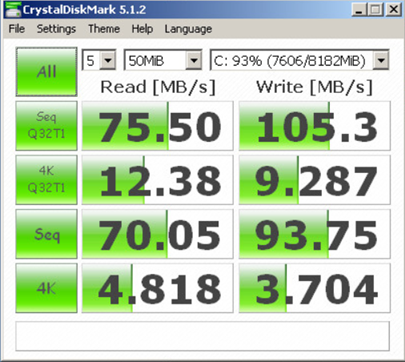
Time for some more testing – The template deployed to the datastore was converted to a virtual machine, and the following tests were performed using CrystalDiskMark 5.1.2 in the virtual machine.
NFS Exported volume No SSD Cache on the Synology NAS.
NFS Exported volume Read and Write SSD Cache on the Synology NAS.
NFS Exported volume Read only SSD Cache on the Synology NAS.
Some a bunch of very confusing results! And every time I test the results are similar.






![[Valid RSS]](http://andysworld.org.uk/images/valid-rss.png "Validate my RSS feed")