Archive for the ‘VMware’ Category

VMware vSphere Hypervisor (ESXi) 4.1 U1 testing on VMware Player 3.1.4

Monday, June 6th, 2011
VMware vSphere Hypervisor (ESXi) installed and operating in VMware Player 3.1.4

VMware vSphere Hypervisor (ESXi) 4.1 U1 installed and operating in VMware Player 3.1.4

So here’s the proof, it’s not a requirement to use VMware Workstation 7.1.4, to install and run VMware vSphere Hypervisor (ESXi). You can use the FREE VMware Player 3.1.4.

It’s also rather interesting is that ESX/ESXi is not a supported operating system, when you select the New Virtual Machine Wizard, there is no ESX Server 4.0 option to select, like with Workstaton 7.0.

But if you use the Easy Install option, it detects the ISO/CDROM as ESX Server 4.0 detected!

Mac OS X Virtualization Part III – Install Mac OS X 10.6.7 Snow Leopard

Tuesday, May 31st, 2011

In this final part, I look at virtualising Mac OS X Snow Leopard 10.6.7 on VMware Workstation 7.1.4. I don’t forsee any issues, with this as I’ve had Mac OS X 10.6.5 Snow Leopard running on VMware Workstation 6.5.3.

Over the next few days, I look at using the FREE VMware Player 3.0 to also virtualise and use these Mac OS X operating systems.

Apple Snow Leopard Software License Agreement (EULA)

It states under Section 2

2. Permitted License Uses and Restrictions.
A. Single Use License. Subject to the terms and conditions of this License, unless you have purchased a Family Pack or Upgrade license for the Apple Software, you are granted a limited non-exclusive license to install, use and run one (1) copy of the Apple Software on a single Apple-branded computer at a time. You agree not to install, use or run the Apple Software on any non-Apple-branded computer, or to enable others to do so. This License does not allow the Apple Software to exist on more than one computer at a time, and you may not make the Apple Software available over a network where it could be used by multiple computers at the same time.

Mac OS X Virtualization Part II – Install Mac OS X 10.7 Lion

Monday, May 30th, 2011

So in Part II of this series of Virtualising Mac OS X opertating systems using VMware Workstation 7.1.4 , I’m going to have a look at the pre-release of Apple Mac OS X “Lion”.

Using VMware Workstation 7.1.4 and the Mac OS X Server option, I was able to install Mac OS X 10.7 “Lion”. This time I’ve boosted the RAM requirement to 4GB and 2 virtual CPUs, so the virtual machine performs better. No installation issues were observed.

Apple Mac OS X Lion 10.7.1

Apple Mac OS X Lion 10.7.1

Apple Snow Leopard Software License Agreement (EULA)

It states under Section 2

2. Permitted License Uses and Restrictions.
A. Single Use License. Subject to the terms and conditions of this License, unless you have purchased a Family Pack or Upgrade license for the Apple Software, you are granted a limited non-exclusive license to install, use and run one (1) copy of the Apple Software on a single Apple-branded computer at a time. You agree not to install, use or run the Apple Software on any non-Apple-branded computer, or to enable others to do so. This License does not allow the Apple Software to exist on more than one computer at a time, and you may not make the Apple Software available over a network where it could be used by multiple computers at the same time.

Mac OS X Virtualization Part I – Install Mac OS X Server 10.6.7 Snow Leopard

Sunday, May 29th, 2011

Following up from my discovery in VMware Workstation 7.1.4

I thought I would trying virtualising a few Mac OS X systems for test and evaluation purposes.

Using VMware Workstation 7.1.4 and the Mac OS X Server option, I was able to install Mac OS X Server 10.6.7 ‘Snow Leopard’.

Apple Snow Leopard Software License Agreement (EULA)

It states under Section 2

2. Permitted License Uses and Restrictions.
A. Single Use License. Subject to the terms and conditions of this License, unless you have purchased a Family Pack or Upgrade license for the Apple Software, you are granted a limited non-exclusive license to install, use and run one (1) copy of the Apple Software on a single Apple-branded computer at a time. You agree not to install, use or run the Apple Software on any non-Apple-branded computer, or to enable others to do so. This License does not allow the Apple Software to exist on more than one computer at a time, and you may not make the Apple Software available over a network where it could be used by multiple computers at the same time.

Mac OS X Server Support in VMware Workstation 7.1.4

Wednesday, May 25th, 2011

I’ve been using VMware Workstation 6.5.3 for what seems like decades, but recently wanted to checkout some new Virtualisation features that are not currently available in VMware Workstation 6.5.3. and only available in VMware Workstation 7.1.4, so rather than break and upgrade my working version of 6.5.3, I thought I would install 7.1.4 on a new workstation in the office for experimental research and development work. In the early hours one morning, as the dawn chorus starts, poking around the code, I found the following…

New Virtual Machine Wizard - We have a Apple Mac OS X selection?

New Virtual Machine Wizard - We have a Apple Mac OS X selection?

Apple Mac OS X support – Interesting!!!

I’ve been able to run Apple Mac OS X on VMware Workstation 6.5.3. See below.

Mac OS X 6.5.2 in VMware Workstatiobn 6.5.3 Virtual Machine

Mac OS X 6.5.2 in VMware Workstatiobn 6.5.3 Virtual Machine

Although never had a specific option to select when creating a Virtual Machine before. It is rumoured that Mac OS X Server support will be available in vSphere 5.0.

Apple Snow Leopard Software License Agreement (EULA)

It states under Section 2

2. Permitted License Uses and Restrictions.
A. Single Use License. Subject to the terms and conditions of this License, unless you have purchased a Family Pack or Upgrade license for the Apple Software, you are granted a limited non-exclusive license to install, use and run one (1) copy of the Apple Software on a single Apple-branded computer at a time. You agree not to install, use or run the Apple Software on any non-Apple-branded computer, or to enable others to do so. This License does not allow the Apple Software to exist on more than one computer at a time, and you may not make the Apple Software available over a network where it could be used by multiple computers at the same time.

Some sites will not allow you to discuss this matter, because, the Apple software license does not allow Mac OS X to be used on hardware that is not “Apple-branded”. So I assume Apple will have to update their EULA in the future?

Time to try out some new installs, tomorrow.

Microsoft Hyper-V Server 2008: R2 testing in VMware Workstation 7.1.4

Tuesday, May 17th, 2011

Carrying on the nested hypervisor theme from the other day, when I tried VMware vSphere Hypervisor (ESXi), free download from VMware, on VMware Workstation 7.1.4, as it’s becoming common place for vendors to allow the use of Hypervisors for free, I downloaded the Microsoft Hyper-V Server 2008: R2 hypervisor for free to also try in VMware Workstation 7.1.4.

Here are the results

Microsoft Hyper-V Server 2008: R2 installs correctly, and looks like it’s going to function, but then Whoops, cannot power on any Virtual Machines!

Well these are the results I would expect from installing Hyper-V in a VMware Workstation 7.1.4 virtual machine, as often nested hypervisors do not function correctly. I just thought I would prove this.

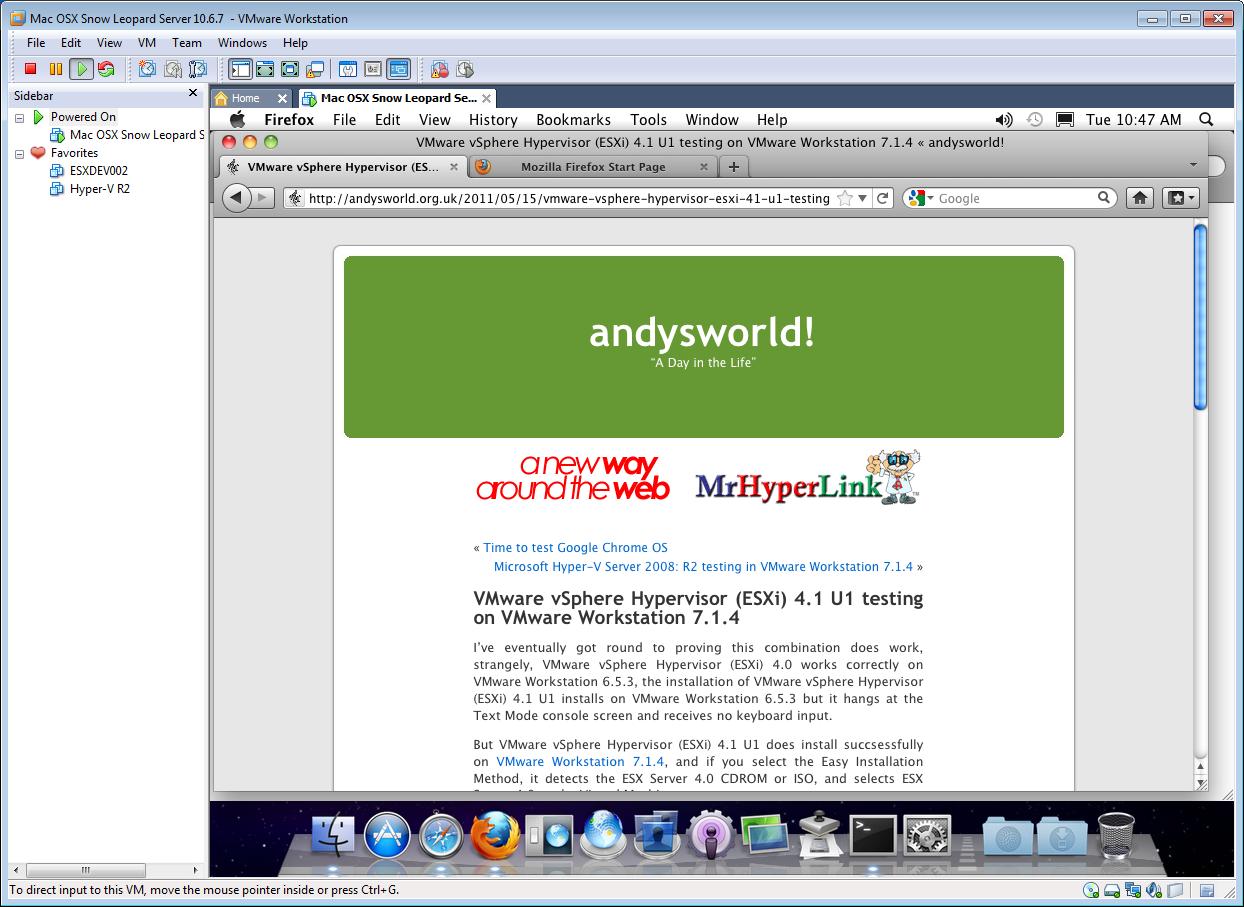
VMware vSphere Hypervisor (ESXi) 4.1 U1 testing on VMware Workstation 7.1.4

Sunday, May 15th, 2011

I’ve eventually got round to proving this combination does work, strangely, VMware vSphere Hypervisor (ESXi) 4.0 works correctly on VMware Workstation 6.5.3, the installation of VMware vSphere Hypervisor (ESXi) 4.1 U1 installs on VMware Workstation 6.5.3 but it hangs at the Text Mode console screen and receives no keyboard input.

But VMware vSphere Hypervisor (ESXi) 4.1 U1 does install succsessfully on VMware Workstation 7.1.4, and if you select the Easy Installation Method, it detects the ESX Server 4.0 CDROM or ISO, and selects ESX Server 4.0 as the Virtual Machine type.

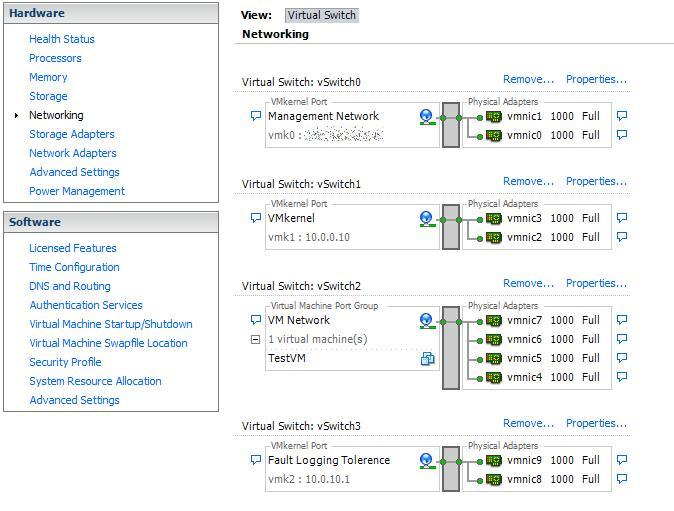
ESXi 4.1 Networking using 10 virtual network interfaces in VMware Workstation 7.1.4

ESXi 4.1 Networking using 10 virtual network interfaces in VMware Workstation 7.1.4

An example above of how a VMware vSphere Hypervisor (ESXi) 4.1 U1 Server should be setup for networking with team network interfaces for Management Interface, VMkernel (NFS and iSCSI traffic), Virtual Machines Network, and Fault Logging Tolerence network (if required).

Ideal for Lab testing VMware ESX 4.1 U1 for VCP Learning, using VMware Workstation 7.1.4.

Certified VMware Genius – Experts Exchange

Saturday, May 14th, 2011

Friday 13th may be un-lucky for some, but yesterday, I became a Certified VMware Genius at Experts Exchange. Here is a copy of my certificate.

Certified VMware Genius at Experts Exchange

Certified VMware Genius at Experts Exchange

Experts Exchange (EE) is a membership-based online “ask an expert” site for computer and IT related questions that was founded in 1996. Experts Exchange (EE)  enables people with technology problems to quickly and easily solve their problems by collaborating with experts from around the world.  Experts Exchange (EE) is the #1 resource on the web for solving IT related problems, pop over and take a test drive, and meet the Experts.

Checkout How it Works.

Catastrophic SAN HP MSA2324i failure

Wednesday, June 9th, 2010

Not my SAN, one of my clients had a Catastrophic SAN failure on a Hewlett Packard MSA2324i, the whole VMware vSphere 4.0 Enterprise virtual environment was on it, they been without service for two working days.

A power supply fan failed and within 3 minutes the other power supply failed, causing the MSA to start and then reset due to a thermal fault which then caused THREE disks to fail in the RAID6, vdisk! which then caused the vdisk to fail, and hence all the virtual machines!

I’ve just ended my day, after restoring Service!

Thats IT! and I love it!

Off to my bed now, before the dawn chrous!

Baby SAN (Storage Area Network)

Monday, May 31st, 2010

This is my new baby SAN (Storage Area Network), it’s a MSA 1000 (Modular Storage Array) with Active/Active Dual Controllers, Dual SanSwitch 2/8 connected to a MSA30 external storage box. Currently filled with 18.2 and 36.4GB disks to test and configure before moving any data.

Hewlett Packard MSA1000

Hewlett Packard MSA1000 - bright orange LED lit - Volume rebuilding!

This will replace my aging RA4100’s which are FC-AL, connected to host VMware servers at 1 Gbit/s to provide shared storage. using Compaq/HP Smart Array 5300 with FC-AL modules. Although the MSA1000 is now discontinued, it’s a real Fibre Channel SAN, and can be connected to Fibre Channel HBAs at 2Gbit/s, so potentially faster than iSCSI or NFS even with jumbo frames over gigabit networking, until I get some 10Gbit/s LAN switches! No longer supported by HP or VMware for vSphere 4.0, but then again neither are my RA4100’s!

Three Compaq RA4100s FC-AL Storage Arrays

Three Compaq RA4100s FC-AL Storage Arrays

The manual states, “Migration from RA4100 to MSA1000, removed all the discs from the RA4100, re-insert in MSA1000 in correct order, it will recognise the array configuration, and mount the volume, it should then be ready to present this LUN to your servers” – sounds too easy to me!

it uses a slightly unusual variation of an RJ45 connection, which further research indicates is called an RJ45Z. A normal RJ45 cable doesn’t work, because the Rj45Z has a special notch on it!