Archive for the ‘VMware’ Category

Poor Microsoft SQL Performance caused by Virtualisation – Not all servers are equal!

Sunday, June 26th, 2011

Some services just don’t perform well being virtualised, so always test. An example SQL application, which when a query is executed through the application causes the virtual CPUs in the Guest OS, to spike at 100% CPU until the query has finished, rendering the Guest VM un-usable. The query in the application in the example, takes 13 minutes to finish, on a small 500MB SQL database. To the right of the workstation executing the query is the actual CPU Utilisation performance graph for the virtual Microsoft SQL Server with hits over 3GHz for 13 minutes, during the duration of the query. I suspect in this case a badly designed SQL vendor database – because the queries are running in parallel. But when the database is not your own creation, and is supplied as a vendors application, there is no choice, but to move to a physical server.

[flv:https://andysworld.org.uk/wp-content/uploads/2011/06/SQL-Final1.flv 480 360]

(The application has been blured due to obscure sensitive data).

Confirmed virtualisation was the issue, by moving the SQL database to a physical server.

New HD Video – Adding iSCSI storage to a VMware vSphere ESX/ESXi 4.x host server

Friday, June 24th, 2011

The final installment of adding the iSCSI storage created by Starwinds iSCSI SAN Software on Windows 2008 R2 Standard in this article.

[flv:https://andysworld.org.uk/wp-content/uploads/2011/06/iscsi-part-2.flv 480 360]

I configure the software iSCSI initiator in vSphere ESXi server, connect to the iSCSI SAN, copy an ISO image from the previously create NFS datastore, to the new iSCSI LUN, and then create and boot a Windows XP guest on the iSCSI LUN, booting from the ISO image on the other LUN, it’s slow because it’s all running in Lab conditions, but you”ll get the idea, of how simple this is.

VMware vSphere 4.x (ESXi) does work when you remove the USB stick!

Thursday, June 23rd, 2011

VMware vSphere 4.x (ESXi) does work when you remove the USB stick!

[flv:https://andysworld.org.uk/wp-content/uploads/2011/06/esxi-4x-works-it-you-remove-the-usb-stick_.flv 480 360]

(Not recommended!)

UPDATE

I later tested the following with the USB stick removed.

  1. vMotion-ed 16 Windows XP workstations to the ESXi 4.1 U1 host with success.
  2. Migrated 16 additioanl Windows XP workstations to the ESXi 4.1 U1 host with success, and Powered-On.
  3. Re-configured and created new virtual switches.
  4. Added New Network Interface connections.
  5. vMotioned 16 Windows XP workstations off the ESXi 4.1 U1 host with success.
  6. Powered-Off and Migrated 16 additioanl Windows XP workstations off the host ESXi 4.1 U1 host with success.
  7. vMotioned Windows 2008 and Windows 2008 R2 servers with success.

At all times, there was no issues with virtual machines or host server. The only issue I had was trying to install VMware Tools, which hung the virtual machine I was trying to install VMware Tools on, only this machine was affected, and it timeout with this error:-

VMware Tools installtion issue with USB stick removed

VMware Tools installation issue with USB stick removed

But I would expect that error!

So is this document a “Dell Technical White Paper” a  load of bull!, it compares the Dell PowerEdge M910 and the HP Proliant BL685c G7 Blade, and suggests that if the USB stick falls out or is removed, or goes faulty ESXi 4.0 crashes!

New HD Video – Eazy Peezy Lemon Squeezy iSCSI Storage by StarWind iSCSI SAN Software

Wednesday, June 22nd, 2011

Continuing my theme on adding network/shared storage to VMware vSphere 4.0 (ESX/ESXi), I’ve done NFS in my previous short videos, my attention is turned to iSCSI, and one of the best products on the market, in my opinion is iSCSI SAN Software by StarWind Software. And an entry level version is FREE.

I thought rather than type lots of words, about how good iSCSI Storage by StarWind iSCSI SAN Software is, I would create a quick video, they do say, a picture is worth a thousand words. So here it is, how create an iSCSI SAN for FREE, in less than 10 minutes for use with Windows 2008 R2, VMware vSphere, Citrix XEN, Hyper-V, Windows XP, Windows 7 …. iPad if there was an iSCSI initiator!

[flv:https://andysworld.org.uk/wp-content/uploads/2011/06/starwind-iscsi-part-1.flv 480 360]

Free iSCSI Storage from those nics guys at StarWind iSCSI SAN SoftwareStarWind Free Edition – iSCSI SAN with Deduplication.  A little note if you are going to use this in serious Production Environment, and run all your Finacial Organisations Virtual Servers on it, please upgrade to the Enterprise Versions!

In my next quick video, I show you how to attach these iSCSI disks to vSphere ESX/ESXi 4.x.

New HD Video – Adding an NFS datastore to a VMware vSphere ESX/ESXi 4.x host server

Tuesday, June 21st, 2011

As I posted a video earlier, on Creating an NFS datastore for use with VMware vSphere ESX/ESXi 4.1 host server, I though I would complete the next part of the series, and show how to connect the datastore to VMware vSphere ESX/ESXi 4.x host server. I’ve also shown in the video, the mistake that lots of Administrators make when setting up, by not creating a VMKernel Portgroup for the NFS traffic, and the connection fails, the video shows the connection to the datastore, creating an iso folder on the datastore, confirmed by checking on the NFS server, and uploading a Windows XP iso image, connecting this image to a Virtual Machine, and booting the Virtual Machine from the iso image.

[flv:https://andysworld.org.uk/wp-content/uploads/2011/06/adding-an-nfs-datastore-to-a-vmware-vsphere-esxi-4x-host-server.flv 480 360]

New HD Video – Creating an NFS Server using Windows 2008 R2 for VMware vSphere ESX/ESXi 4.1

Tuesday, June 21st, 2011

I had a look at the You Tube video, and personally I think the quality was rubbish, so I’ve produced a new flash HD video here, which is much higher resolution, so you can see the important setup detail fo the NFS share, which is the issues for most NFS setups.

[flv:https://andysworld.org.uk/wp-content/uploads/2011/06/nfs-server-setup.flv 480 360]

Creating an NFS Server using Windows 2008 R2 for VMware vSphere ESX/ESXi 4.1

Tuesday, June 21st, 2011

I put this quick movie together, because some folk seem to have difficulty in setting up NFS on Windows 2008 R2 for VMware vSphere ESX/ESXi 4.1. I don’t know why, it takes me 60 seconds. They seem to get bogged down with User Mapping, Permissions etc – there’s no need! Don’t tick all the boxes, just because they are there! Anyway hope it helps!

Andysworld! new logo and identity on the internet

Tuesday, June 14th, 2011

I was getting bored with the stock template image, and although I had changed it from the default blue to green, I’ve been wanting to change it for a while. As you may have noticed we have a new “clickable Logo “. If you click it, it will return to the homepage (root of the website).

Andysworld New Logo and Indentity

Andysworld New Logo and Indentity

I’ve been testing VMware View 4.6 (Virtual Desktops using PCoIP) experimenting with Windows 7 64 bit Professional and Adobe Photoshop CS5 64 bit, using virtual desktop workstations. I wanted to test fully, so I spent a few hours testing Adobe Photoshop Cs5 (64 bit) and Corel Paint Shop Pro x3 to check what performance was like testing the in the Cloud! I think the performance was better than installing it on my standard PC.

As more web site traffic comes to Andysworld! than it did five years ago, I’ve decided it’s time for a facelift, so the logo is the start.

As you may have noticed I “borrowed” the theme for the logo, from a well known Search Engine, if it works for them! the random colours in the logo, reflect the choas in my life, from one day to the next!

“a day in the life’ – Andy

Mac OS X Virtualization Part V – Install Mac OS X 10.7 Lion on VMware Player 3.1.4

Tuesday, June 7th, 2011

Wow, it’s all happening at Apple, iCloud and now Mac OS X 10.7 Lion in July 2011!

OS X Lion coming to a store near you in July 2011

OS X Lion coming to a store near you in July 2011

I’ve just an email reminding me that Mac OS X 10.7 Lion, is available from July 2011.  So I thought I’d blog this now.

Oddly, when I try to un Mac OS X 10.7 Lion on VMware Player 3.1.4, I get the following error message!

Mac OS X Lion 10.7 running under VMware Player 3.1.4 'This is not a MAC'

Mac OS X Lion 10.7 running under VMware Player 3.1.4 'This is not a MAC'

More work required, when trying Mac OS X Lion 10.7, I get the error message “The guest operating system is not Mac OS X Server”.

Apple Snow Leopard Software License Agreement (EULA)

It states under Section 2

2. Permitted License Uses and Restrictions.
A. Single Use License. Subject to the terms and conditions of this License, unless you have purchased a Family Pack or Upgrade license for the Apple Software, you are granted a limited non-exclusive license to install, use and run one (1) copy of the Apple Software on a single Apple-branded computer at a time. You agree not to install, use or run the Apple Software on any non-Apple-branded computer, or to enable others to do so. This License does not allow the Apple Software to exist on more than one computer at a time, and you may not make the Apple Software available over a network where it could be used by multiple computers at the same time.

Mac OS X Virtualization Part IV – Install Mac OS X 10.6.7 Snow Leopard on VMware Player 3.1.4

Tuesday, June 7th, 2011
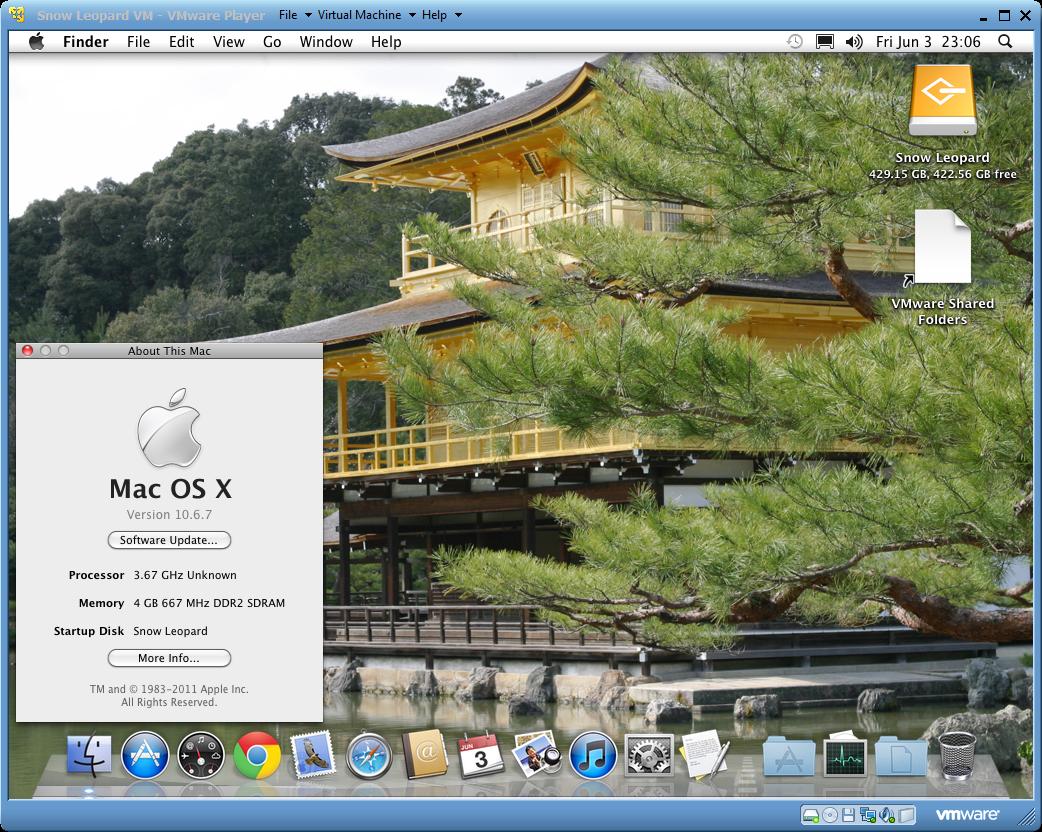
Mac OS-X-10.6.7 Snow Leopard installed and running using VMware Player 3.1.4

Mac OS-X-10.6.7 Snow Leopard installed and running using VMware Player 3.1.4

You can also use the FREE VMware Player 3.1.4. to also install and run Mac OS X 10.6.7 Snow Leopard. rather than VMware Workstation 7.1.4. But you’ll not have all the additional features that VMware Workstation 7.1.4 has included. VMware Player can play only one virtual machine at a time. You must close the virtual machine currently running in VMware Player before you can open another, also Snapshots are not supported in VMware Player.

Apple Snow Leopard Software License Agreement (EULA)

It states under Section 2

2. Permitted License Uses and Restrictions.
A. Single Use License. Subject to the terms and conditions of this License, unless you have purchased a Family Pack or Upgrade license for the Apple Software, you are granted a limited non-exclusive license to install, use and run one (1) copy of the Apple Software on a single Apple-branded computer at a time. You agree not to install, use or run the Apple Software on any non-Apple-branded computer, or to enable others to do so. This License does not allow the Apple Software to exist on more than one computer at a time, and you may not make the Apple Software available over a network where it could be used by multiple computers at the same time.