Archive for the ‘Virtualisation’ Category

HOW TO: “Live Migrate” VMware Virtual Machines between ESX/ESXi hosts and/or datastores for FREE without licenses for vMotion or Storage vMotion

Monday, September 24th, 2012
Migrate VMs between hosts and/or datastores for FREE without vMotion/Storage vMotion or Shared Storage

Not all organisation have access to VMware’s vMotion or VMware’s Storage vMotion technology because of budgetry constraints. I’ve written this article because it’s a question which appears on Experts Exchange at least every few weeks, and now there is an easy solution to the problem.

Scenario 1
First implementation of VMware vSphere Essentials without shared storage, later the organisation purchases shared storage (iSCSI or Fibre Channel SAN or NFS NAS), and then needs to migrate existing virtual machines with little downtime to the shared storage platform.

Scenario 2
Organisation purchases a second newer replacement VMware vSphere host, needs to migrate existing virtual machines with little downtime to new VMware vSphere host.

Traditionally we would use ESXi/ESX Backup and Restore techniques, VMware vCenter Converter Standalone 5.0, or Datastore browser to clone or copy see my previous Experts Exchange articles below, to address the above scenarios, (remember here that VMware’s vMotion or VMware’s Storage vMotion is NOT available, because it’s not available in our licensed version of VMware vSphere).

VMware ESX/ESXi Backup Guide

HOW TO: Clone or Copy a virtual machine in VMware vSphere Hypervisor ESX/ESXi 4.x or ESXi 5.0

HOW TO: Improve the transfer rate of a Physical to Virtual (P2V), Virtual to Virtual Conversion (V2V) using VMware vCenter Converter Standalone 5.0

HOW TO:  P2V, V2V for FREE – VMware vCenter Converter Standalone 5.0

Software Technology has improved and using Veeam Quick Migration, we can migrate Live VMs between hosts and datastores for FREE!

In the latest version of Veeam Backup Free Edition, there is a new function called Quick Migration. Veeam Backup Free Edition is the same download as Veeam Backup and Replication v6.1, but a Veeam license is not applied at installation time.

The Quick Migration utility in Veeam Backup Free Edition lets you migrate a live VM to any host or datastore—even if you don’t use clusters or shared storage.

Quick Migration leverages native VMware technology, as well as exclusive Veeam technology, to accommodate any migration scenario, including:

Migrating a VM from a local datastore to shared storage
Migrating a VM between 2 separate hosts and datastores

With Quick Migration’s point-and-click interface, you can easily move a live VM from any source to any destination, even if vMotion and vStorage Motion are not available. And with Veeam’s SmartSwitch technology, downtime is reduced to mere seconds.

Source
http://www.veeam.com/free-vmware-esxi-backup.html

In the following steps, I will demonstrate, how a Live virtual machine can be migrated from a Local Datastore attached to a VMware vSphere ESXi host, to an iSCSI LUN on a SAN and different VMware vSphere ESXi host. – this demonstrates a vMotion (migrate from one host to another host) and Storage vMotion. (from one datastore to new datastore) – using Veeam Quick Migration.

Prerequisites

1. VMware vCenter Server for Windows or VMware vCenter Appliance installed and configured with one or more VMware vSphere ESXi/ESX hosts. So you would need to have purchased at least VMware vSphere Essentials.

2. Veeam Backup Free Edition for VMware and Hyper-V installed on a virtual or physical server. We often install Veeam Backup and Replication v6.1 (same product) on a Microsoft Windows Server 2008 R2, with 2 vCPU and 8GB RAM. I’m not going to document the installation of Veeam Backup Free Edition, because it is simply, point and click; download the software, extract the software from the ZIP archive, Run the setup program, and Click Next…Next…Next…Finish.

1

Start Veeam Backup & Replication

Click the Veeam Backup & Replication icon to start the backup application.
  • Click the Veeam Backup & Replication icon

Click the Veeam Backup & Replication icon

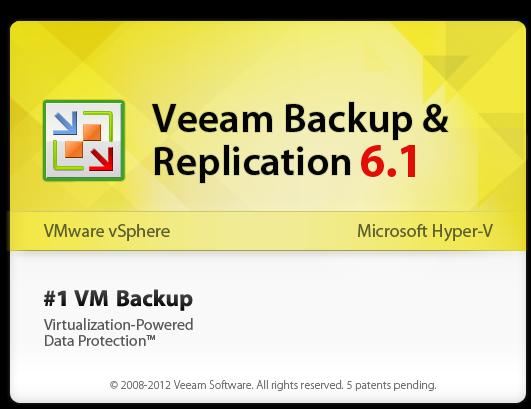
The application will start and display the following banner
  • Veeam Backup & Replication startup banner

Veeam Backup & Replication startup banner

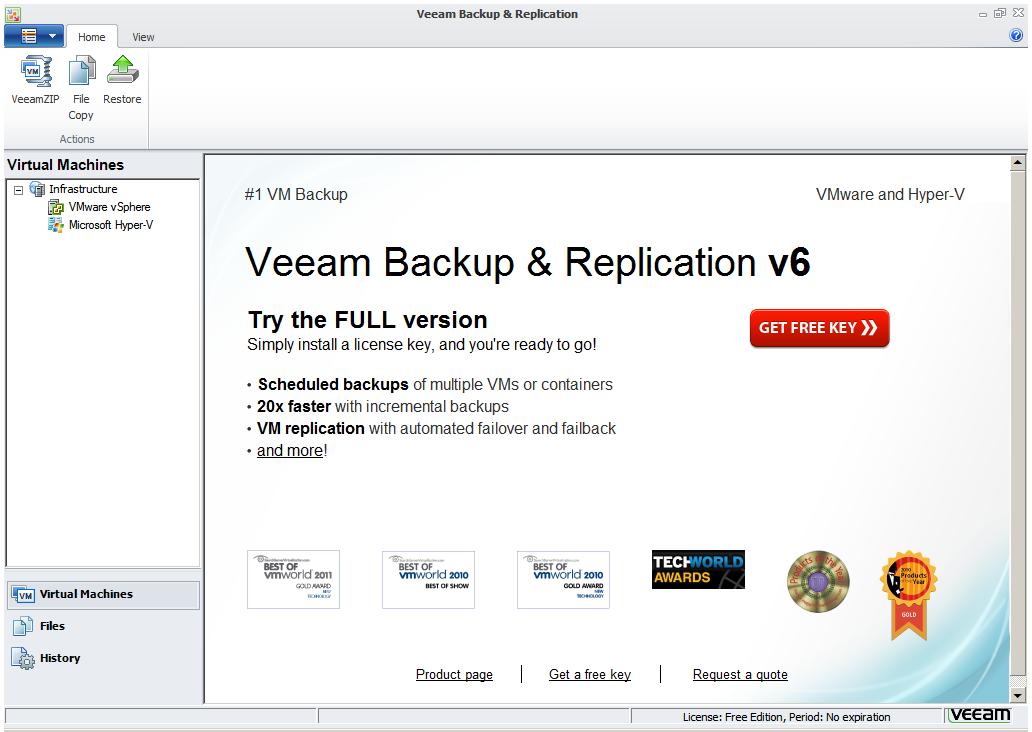
the following configuration screen will be displayed
  • Configuration Screen

Configuration Screen

2

Add VMware vSphere vCenter Server

Before using Veeam Backup Free Edition, you must register your virtual infrastructure. To start this process, Click the Add Server button in the ribbon, the following Add Server Dialogue box will be displayed.
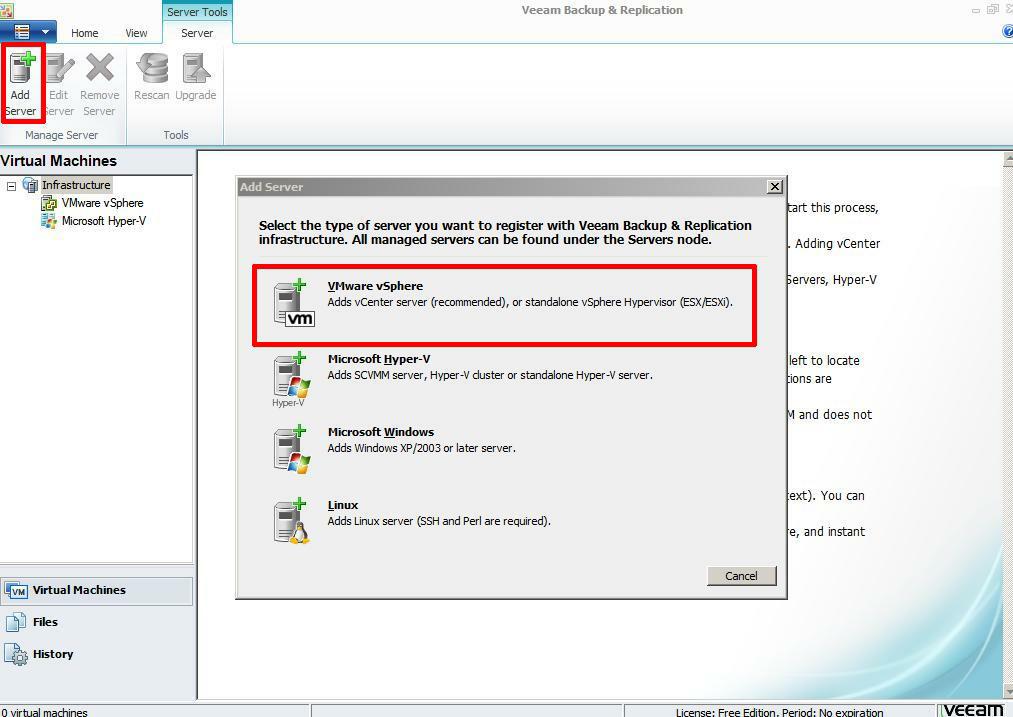
  • Add Server

Add Server

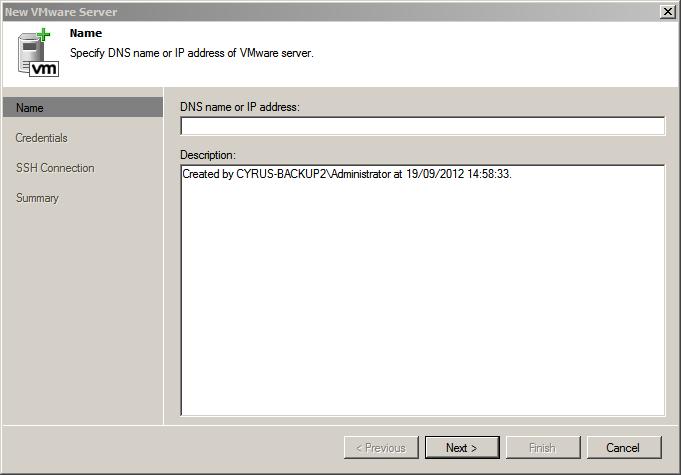
Select VMware vSphere, the following dialogue box will be displayed, add the DNS name or IP Address of your VMware vCenter Server. We always prefer to use DNS names, and to ensure that DNS is working correctly.
  • Enter DNS Name or IP Address

Enter DNS Name or IP Address

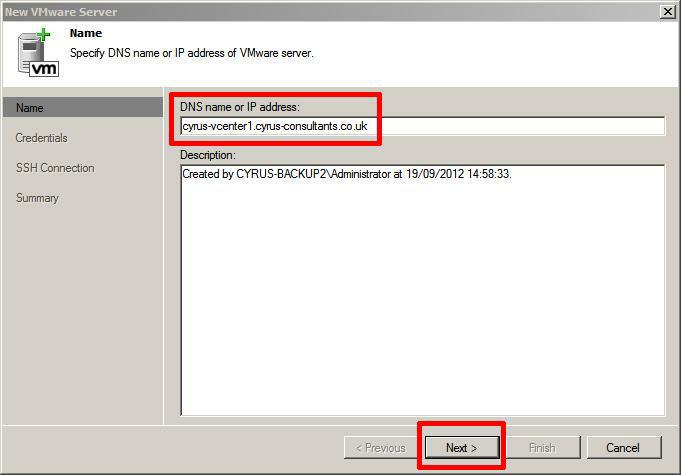
in this tutorial the vCenter Server for Windows we will be using is called cyrus-vcenter1.cyrus-consultants.co.uk. Enter the FQDN of the vCenter Server and Click Next
  • Enter vCenter Server DNS Name

Enter vCenter Server DNS Name

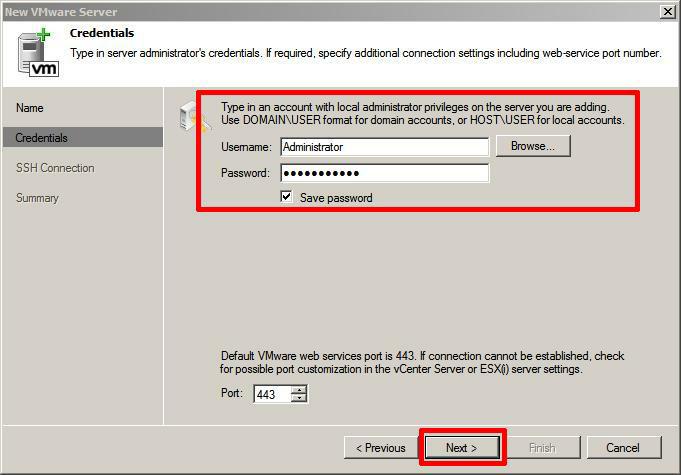
Enter an Administrator account and password which has access to vCenter Server, followed by Next.
  • Enter Administrator username and password

Enter Administrator username and password

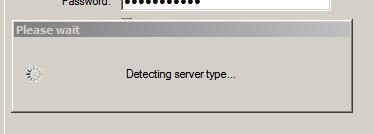
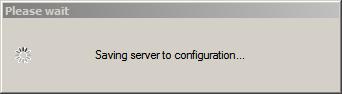
the following dialogue boxes will appear in turn
  • Detecting server type

Detecting server type

  • Saving server to configuration

Saving server to configuration

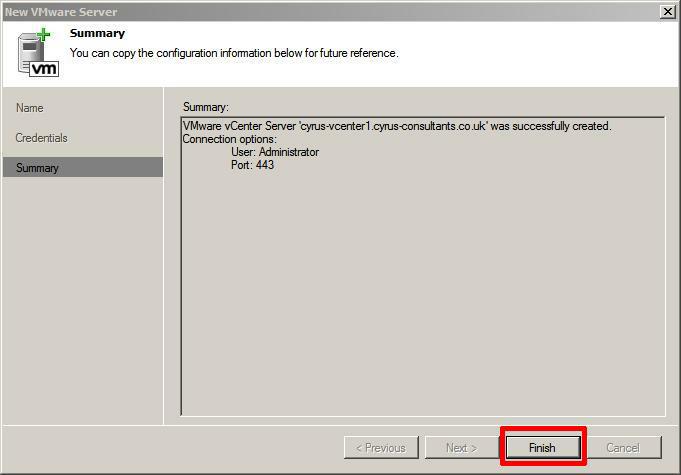
after a few seconds the final Summary dialogue appears, confirming Successful addition of the vCenter Server. Click Finish.
  • Successful Configuration

Successful Configuration

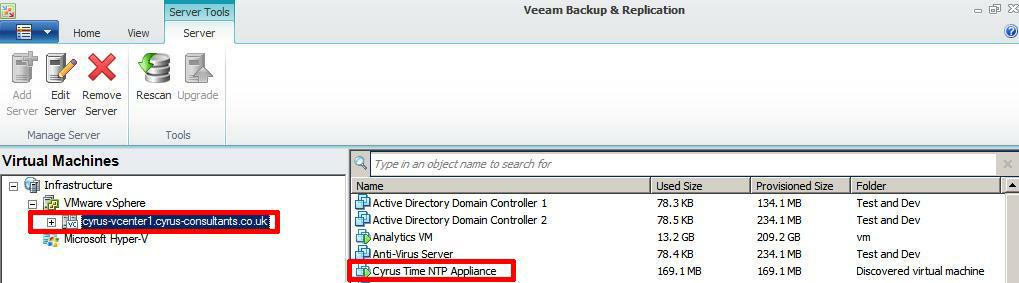
Click the “+” sign next to VMware vSphere, and expand, this will show the list of Virtual Machines registered on VMware vSphere vCenter.
  • Show Virtual Machines registered on vCenter Server

Show Virtual Machines registered on vCenter Server

3

Using the Veeam QuickMigration function

In this tutorial, we will Quick Migrate a Live virtual machine called “Cyrus Time NTP Appliance“, although this is a small virtual machine appliance it’s very important because this single appliance is responsible for providing correct time synchronisation for all servers, workstations, routers, switches and printers in our offices.

This virtual machine is currently hosted on an VMware vSphere Hypervisor ESXi 5.0 host called – esxdev005.cyrus-consultants.co.uk, and is stored on the hosts local datastore called esxdev005_local_vmfs5.
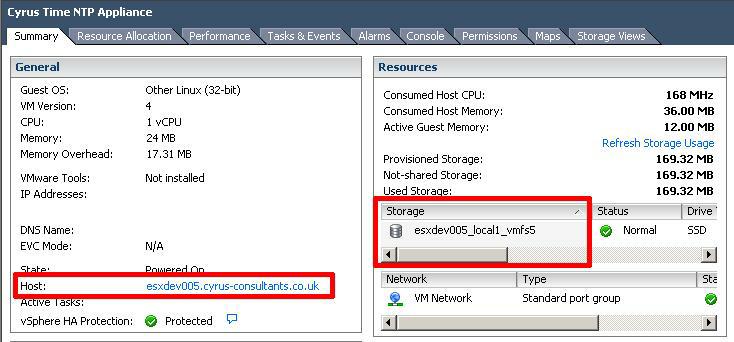
  • Virtual Machine to be Quick Migrated

Virtual Machine to be Quick Migrated

and in this tutorial we will Quick Migrate the Live virtual machine to a host called – esxdev004.cyrus-consultants.co.uk and a shared storage iSCSI LUN, formatted VMFS5 datastore called lun26_filer03. This is an iSCSI LUN, on a NetApp filer.

Right Click the Virtual Machine to be QuickMigrated and select Quick Migration

  • Select the Virtual Machine

Select the Virtual Machine

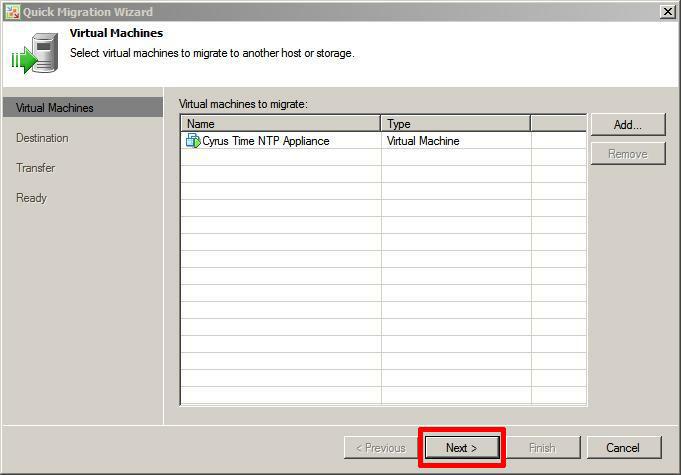
the following screen confirms the virtual machine you would like to Quick Migrate, Click Next to confirm
  • Confirm virtual machine for quick migration

Confirm virtual machine for quick migration

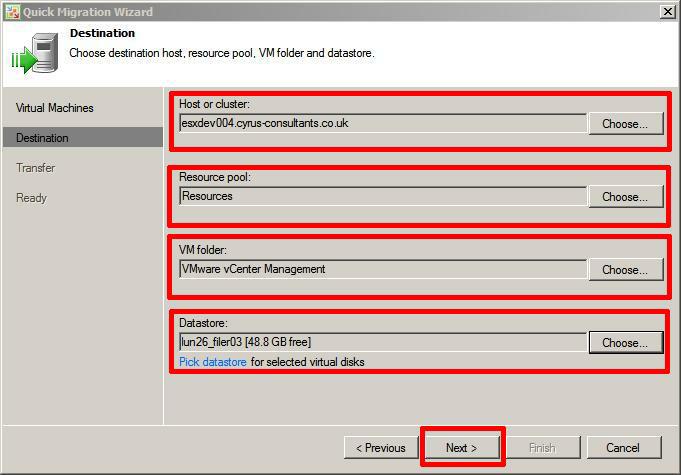
Select Destination host, resource pool, VM folder and datastore. In this tutorial the screeenshot shows the selection we have selected, followed by Next.
  • Select Destination host, resource pool, VM folder and datastore.

Select Destination host, resource pool, VM folder and datastore.

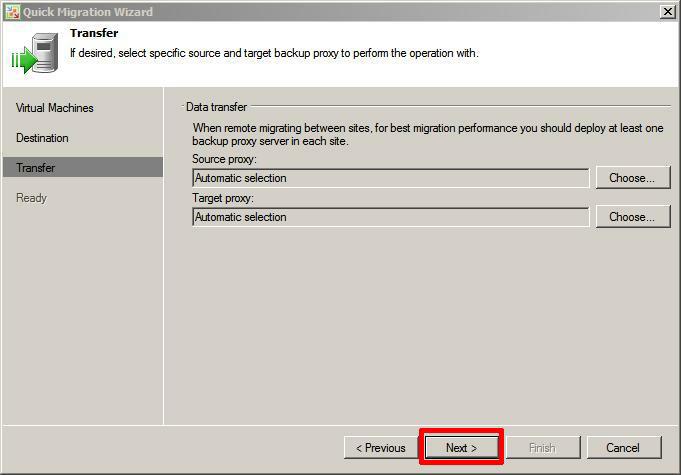
The next screen asks which proxy to use, with the Free Edition, there is only one Backup Proxy installed on the default server, so select Automatic, and click Next. In the licensed version of Veeam Backup & Replication, multiple Backup Proxys can increase transfer times.
  • Select Backup Proxy – leave as Automatic

Select Backup Proxy - leave as Automatic

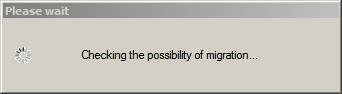
The following diaglogue boxes appears that
  • Checks the possibility of migration

Checks the possibility of migration

this ensures ESX/ESXi hosts are reachable, datastores, and networks are correct.

A confirmation screen is displayed which summarises the Migration, Click Finish to start the Quick Migration. You can also select that the source VM is deleted after a successful migration. (tick box)
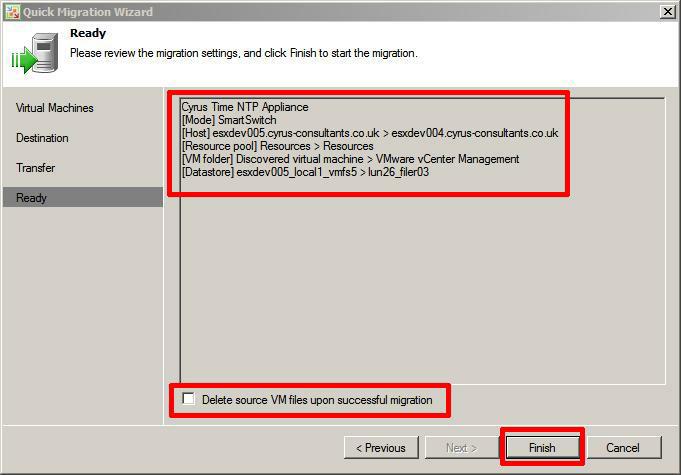
  • Ready for Quick Migration

Ready for Quick Migration

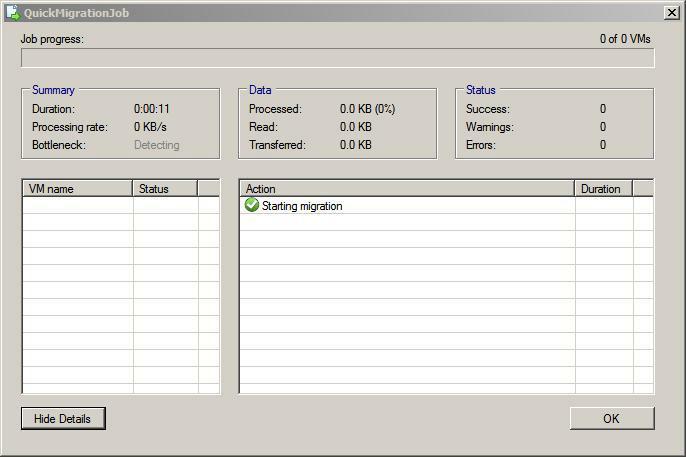
The Quick Migration in Progress
  • Quick Migration in Progress

Quick Migration in Progress

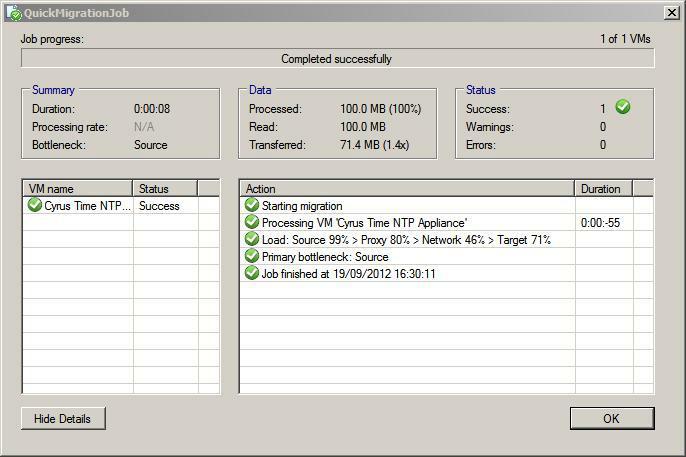
Quick Migration Completed successfully
  • Quick Migration Completed successfully

Quick Migration Completed successfully

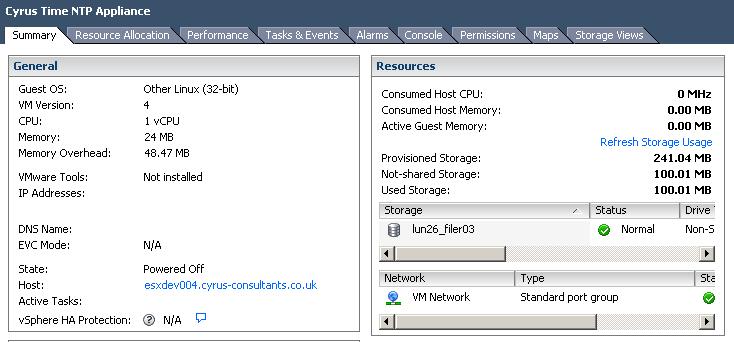
The following screenshot shows the Quick Migrated machine, on the correct host and datastore.
  • Quick Migrated Virtual Machine

Quick Migrated Virtual Machine

Finally, on inspection in the vSphere Client, you will find, you have a backup of the original VM called <vm name>_migrated and the migrated virtual machine on the host and datastore selected.

  • Quick Migrated Virtual Machines

Quick Migrated Virtual Machines

BUT, both VMs are Suspended, so just issue a Power-On Request to your original VM to resume service! (that’s CTRL+B)

I suspect there is a little bugget here with VMware vSphere Client because both VMs are suspended and should have Pause Symbols, but there is a Pause Symbol missing from the Migrated VM, I suspect it’s not refreshing after being Registered with vCenter Server, if you watch carefully, you will see a Pause symbol shortly after a Power-On is issued, and then changes to a Green Powered On Symbol.

In this tutorial article we have shown How To Migrate a Live Virtual Machine from an ESX/ESXi host, to another ESXi/ESX host, and migrate from local storage to shared storage for FREE using the Quick Migrate function in the latest version of Veeam Backup Free Edition.

Try it today, it’s free, and much easier than alternative methods.

Fantastic – Altaro Hyper-V Backup for Windows 2012 – because Andy! says so!

Friday, August 24th, 2012

Just a quick blog, about this fantastic Backup Software, now with Beta software you always expect some issue, does not work, you’ll spend many hours trying to get it to operate.

But I was so impressed within 120 seconds, from installation, it had installed, detected I was using Cluster Hyper-V 2012, installed two agents onto the Hyper-V Nodes in the Cluster, and started to Backup to a NAS with no issues!

and this is BETA! I cannot wait for the full version and release!

Download Link > http://www.altaro.com/hyper-v-backup/contest-download.php

Thumbs up Guys!, Well Done, puts many other software houses to shame, that have Hyper-V Backup Applications, do I have to name them!?

windows-2012-cluster1windows-2012-cluster2windows-2012-cluster3windows-2012-cluster4

Building End – User Computing Solutions with VMware View

Friday, August 3rd, 2012

screen-shot-2012-08-02-at-15-46-51

Barry Coombs and Mike Laverick’s new book Building End – User Computing Solutions with VMware View has just been published. It’s available here as an eBook.

I was fortunate enough as one of the VMware vExperts in the Community to proof read the book before publication. You can see my name in print on Page 6!

Needless to say, it’s an excellent book, and should be on all VMware View Admin Bookshelves!

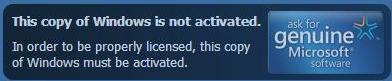
This copy of Windows is not activated.

Sunday, July 22nd, 2012

Been changing some VMware hardware, on some Windows Servers hosted on VMware vSphere, and this error popped up!

Virtual hardware on virtual servers of course!

activated1

VMware vEXPERT 2012 New Logo

Saturday, June 2nd, 2012

what more can I say here it is:-

vmw-logo-vexpert_2012_k

I’m a VMware vExpert 2012 for the second year #vExpert

Sunday, April 15th, 2012

No email as yet, but I’ve just heard via twitter, my name appears on the vExpert 2012 title holders have been announced in this document published today

Announcing vExpert 2012 title holders

VMware vExpert 2011

Andy’s new gadget courtesy of VMware – A Kindle Fire

Monday, April 9th, 2012

On April 2nd, I blogged here about a mysterious parcel from VMware that arrived by FedEx.

The parcel contained an Amazon Kindle Fire, not available in the UK. To be released later this year. I’ve not done the Android experience, being strictly an Apple iOS, Microsoft Windows CE/Mobile, and Nokia nerd. So it will be interesting to checkout what Android 2.3 ‘Gingerbread’ has to offer, compared to Apple iOS 5.1.

kindlefirekindlefire1

The Amazon Kindle Fire is a Full Colour 7 inch, multi-touch display, tablet, with WiFi, web, movies, music, apps, games, reading & more, and it runs Android 2.3 ‘Gingerbread’.

VMware sent me the gift, as a Thank You for providing feedback in the My VMware Beta program.

Thank You VMware!

8th Annual Experts Awards – Expert of the Year 2011 – Andy’s Platinum Plated Trophies – @ExpertExchange

Wednesday, April 4th, 2012

The Annual Expert Awards are announced at the beginning of each year to celebrate the best Experts throughout the years from a competitive field of Experts worldwide at Experts Exchange.

experts-exchange-platinum-trophy1

The award winner in each category receives the following:

  • Top Expert Shirt
  • Platinum Plated Trophy
  • Expert Awards Badge

I believe the Trophy is a cast of the original hard drive which recorded the first Question/Answer at Experts Exchange. Each Trophy weighs approx 2kg.

I was the Award winner in the following

  • Expert of the Year – The expert who earned the most points throughout the year.
  • Juggernaut – The expert that answered the most questions throughout the year.
  • The Ally – The expert who earned the most assist points throughout the year.

and this is what you receive from Experts Exchange if you are lucky enough on Being The Best of the Best!

8th-annual-experts-exchange-awards-1

8th-annual-experts-exchange-awards-2

oh, and a wardrobe full of Expert Exchange T-Shirts!

FedEx delivers VMware vExpert swag and what’s in this other box from VMware?

Monday, April 2nd, 2012

Got a surprise today when FedEx delivered not one, but two FedEx Boxes from VMware…A large box and a medium box. I happen to open the large box first!

The first large FedEx box contained my VMware vExpert swag, A VMware vExpert branded laptop bag, VMware vExpert luggage travel tag and my VMware vExpert Certificate.

Large and Medium Box from FedEx

Large and Medium Boxes from VMware, delivered by FedEx

VMware vExpert swag

VMware vExpert swag

Thanks to John and Alex that managed the VMware vExpert Program.

I’ll photograph, and blog tomorrow, what was in the other box!

HOW TO: Backup an ESXi installation on an USB Flash Drive or SD card, for security or redundancy.

Tuesday, January 10th, 2012

How to Backup ESXi installation on a USB flash drive or SD card.

Requirements

1. A valid ESXi installation on a USB flash drive or SD card.
2. A copy of Winimage for Windows.
3. A Windows computer.
4. Optional Blank DVD for making backup.
5. Optional USB flash drive or SD card for flash backup.

1

Download Winimage from the Internet

Using your internet browser, Internet Explorer or Mozilla, download a copy of Winimage from http://www.winimage.com/download.htm.

WinImage is a shareware product. You may copy, distribute, and try it for free, but if you use for longer than the evaluation period, you must register. You will receive a valid license, a registration code and the latest release.

2

Install Winimage

Install Winimage as per the vendors instructions on your Windows computer you need to backup the USB flash drive or SD card.

3

Insert the ESXi USB flash drive or in USB port on computer

Insert the ESXi USB flash drive or SD card inserted in a card reader into the computer you have installed Winimage on.

4

Start Winimage

Winimage Startup

Winimage Startup

Start Winimage from the Start Menu on your Windows computer.

5

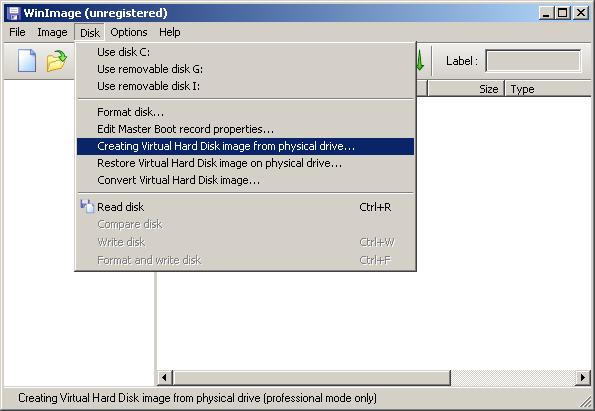
From the disk menu

Create Virtual Hard Disk

Create Virtual Hard Disk

From the disk menu, in Winimage, select Creating Virtual Hard Disk Image from Physical Drive.

6

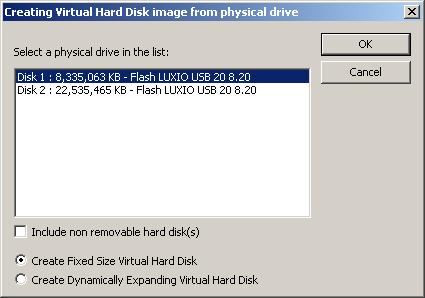
Select the USB flash drive or SD card

See picture below

Select a physical drive in the list

Select a physical drive in the list

Select the USB flash drive or SD card, from the list, in this example, I’m using a Flash LUXIO USB flash drive.

7

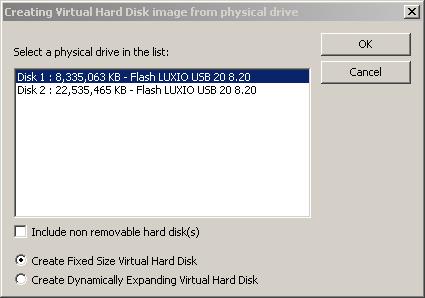
Select Create Fixed Size Virtual Hard Disk

Select usb flash drive

Select usb flash drive

Select the Fixed Size Virtual Hard Disk, ensure there is a dot in this selection. This ensures that the saved backup image is exactly the same size as the flash drive, you are copying example 2GB for a 2GB USB flash drive, 4GB fort a 4GB flash drive.

8

Click OK

Click OK

9

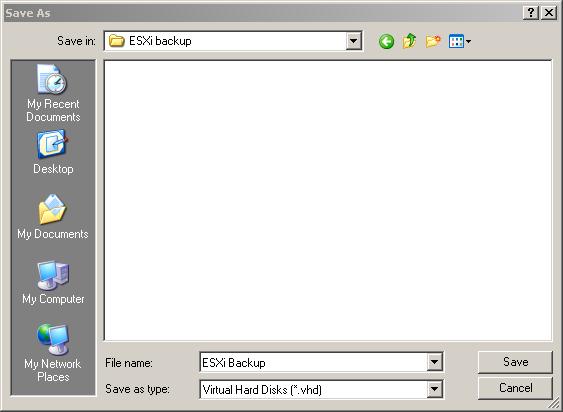
Specify a disk location and select Save

Select save location

Select save location

Once you have specified a location, a progress bar will continue on screen showing the progress of the copy.

Progress Bar

Progress Bar

10

Partiton to connect to

When prompted to connect to partition, click okay and Exit Winimage

11

The USB flash drive or SD contents will be saved as a complete image.

The contents will be saved to disk.

12

Complete.

The operation is complete and you can exist Winimage, and Safely remove your USB flash drives or SD cards, from the computer, by selecting the Safely remove hardware icon, in the system Smart tray.

13

Backup to DVD

If you image size is less than the size of a DVD (4.5GB), I also backup the USB/SD card installation image to a DVD, and if you have a spare USB flash drive, it doesn’t hurt writing the contens to another USB flash drive or SD card. (and make sure you label with date, time, and version and build of ESX, and what server it is for!)