In my previous Experts Exchange Articles, most have featured Basic and Intermediate VMware and Virtualisation Topics.
If you would like to read my Basic VMware articles, they are listed at the end of this article for your convenience.
This article will show you how to connect and complete some basic configuration of the VMware vSphere Hypervisor 6.0 on a computer. VMware vSphere Hypervisor 6.0 is also known as ESXi 6.0.
If you have missed the first article in the series, it’s here: HOW TO: Install and Configure VMware vSphere Hypervisor 6.0 (ESXi 6.0)
1. Download Tools to Manage the ESXi Host Server
 When the VMware vSphere Hypervisor (ESXi 6.0) server is fully BOOTED and started the above screen is displayed. This screen is called the Direct Console User Interface (DCUI). The majority of the management is performed remotely from another Windows computer using software tools called the VMware vSphere Client. You cannot manage or install virtual machines from the ESXi 6.0 server console; this must be completed remotely from another computer.
You can obtain the VMware vSphere Client software package (VMware-viclient-all-5.1.0-786111.exe) from the VMware website, as detailed in the first article of this series:
HOW TO: Install and Configure VMware vSphere Hypervisor 6.0 (ESXi 6.0) or you can download the software from the VMware vSphere Hypervisor (ESXi 6.0) .
Make a note of the IP Address of the server which is displayed on the console, and using a web browser, browse to the web URL http://192.168.10.128. (This is the IP Address displayed on the console screen; your IP address will be different).
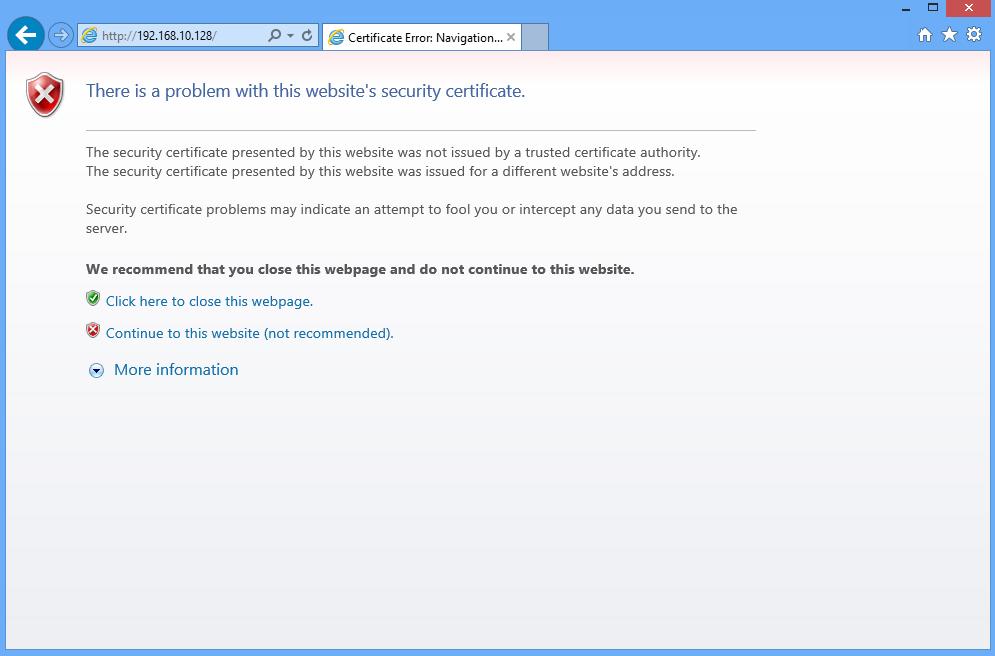
The following screen will be displayed, because VMware’s SSL certificate has been “self-signed” the warning is normal. Click Continue to this website. In this example we are using Internet Explorer 10.
 After clicking continue, the Welcome to VMware ESXi 6.0 screen will be displayed:
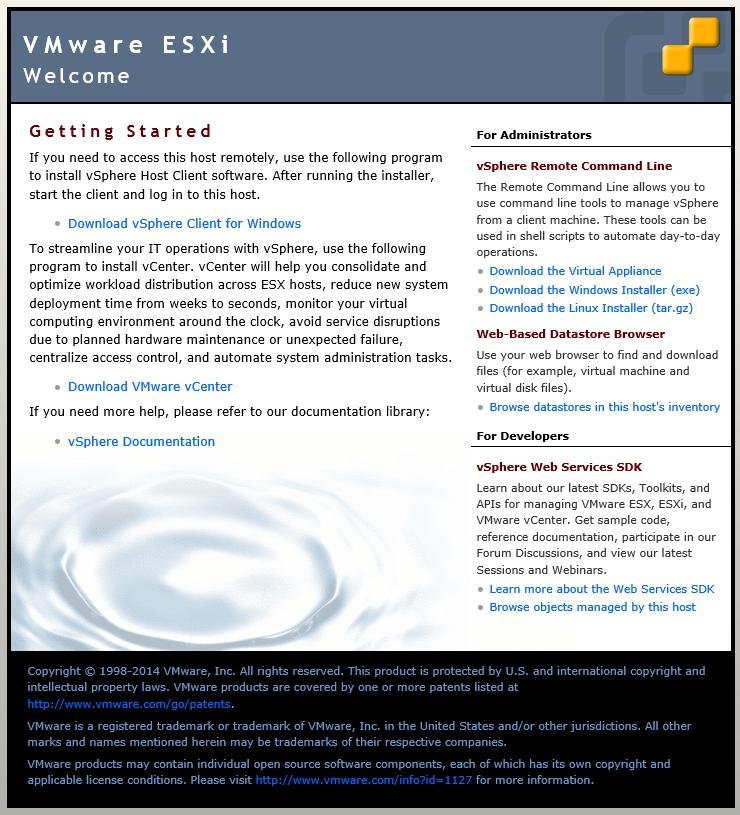 Click Download vSphere Client
This link used to download the vSphere Client from the ESXi Host server, is a link to the VMware web site. VMware Link (http://vsphereclient.vmware.com/vsphereclient/VMware-viclient-all-6.0.0.exe), so you can either download direct from VMware, or find the link through your ESXi 6.0 server. This does test that your ESXi 6.0 Host basic networking is working correctly.
For the sake of this article, we are going to download the vSphere Client from VMware, using the web link included on the Welcome to VMware ESXi 6.0 page. At the following prompt click Save.
 Depending upon your Internet download speed, this can take between two and 30 minutes, as it is approximately 350MB in size.
2. Installing the VMware vSphere Client
Once the download has been completed click Run. The setup files will be extracted, and the VMware vSphere 5.1 Client InstallShield Wizard will appear.
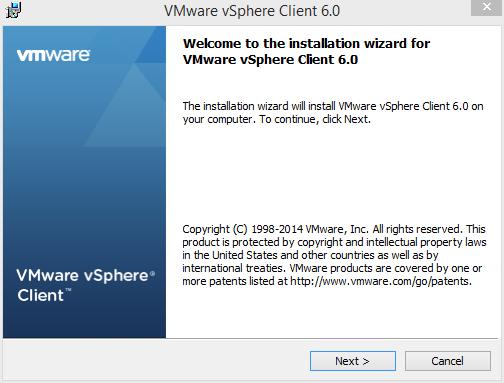
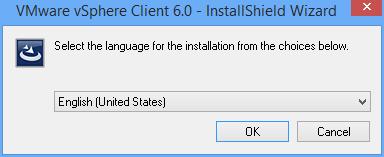 Click OK to Continue. The following Welcome screen will appear, Click Next to Continue.
 Select “I agree to the terms of the license agreement” on the VMware End User License Agreement screen and Click Next to Continue.
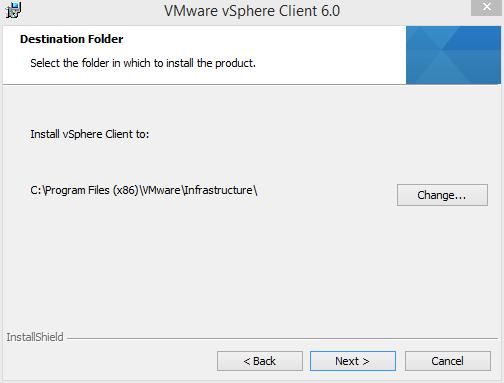
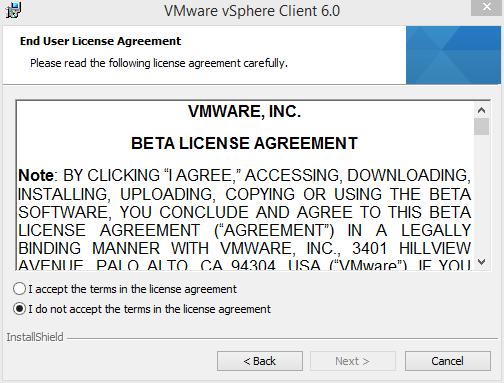 Select the Destination Folder. We recommend the Default location C:Program Files (x86)VMwareInfrastrucuturefollowed by Next to Continue. (The VMware vSphere Client in this Tutorial is being installed on a 64-bit version of Windows, so this is the reason for the x86 reference. Your location could read C:Program FilesVMwareInfrastrucuture).
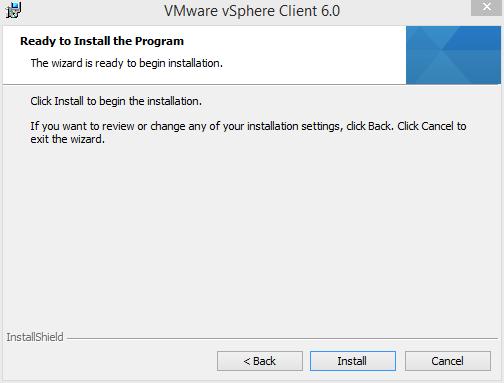
 Click Install to Continue at the Ready to Install the Program screen
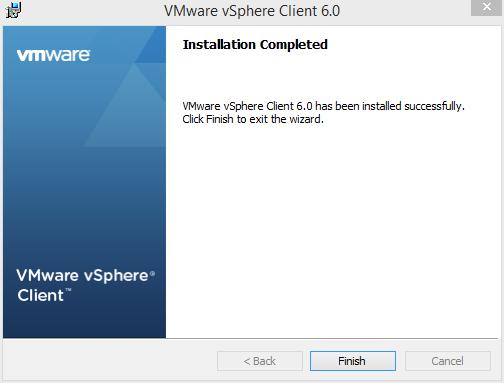
 Click Finish to Complete the installation of the VMware vSphere Client.
3. Connecting to the VMware vSphere Hypervisor ESXi 6.0 server
Click the VMware vSphere Client icon on your computer Desktop, or click Start > Programs > VMware > VMware vSphere Client icon
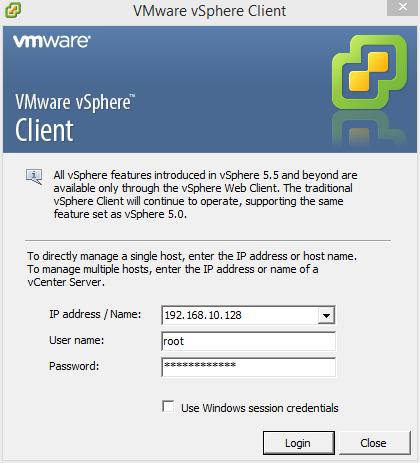
 Using the VMware vSphere Client, login and connect to the VMware vSphere Hypervisor ESXi 6.0 server, using the IP address or hostname of the ESXi server, using the root username and password credentials.
In this tutorial the IP address of the ESXi 6.0 server is displayed on the console in Step 1. The IP address is 192.168.10.128. Enter the IP address, and username root, followed by the password. Click Login.
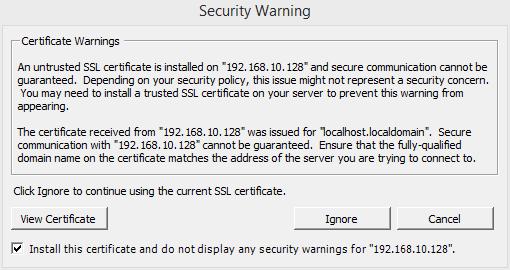
 A Security Warning will appear, stating an untrusted SSL certificate is installed on your server. This is normal, because it’s a VMware “self-signed” certificate and can be replaced. (We will cover this in a later article in the series). Click Ignore and Tick the box to Install.
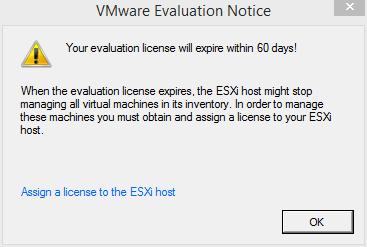
 Click OK to acknowledge the VMware Evaluation Notice
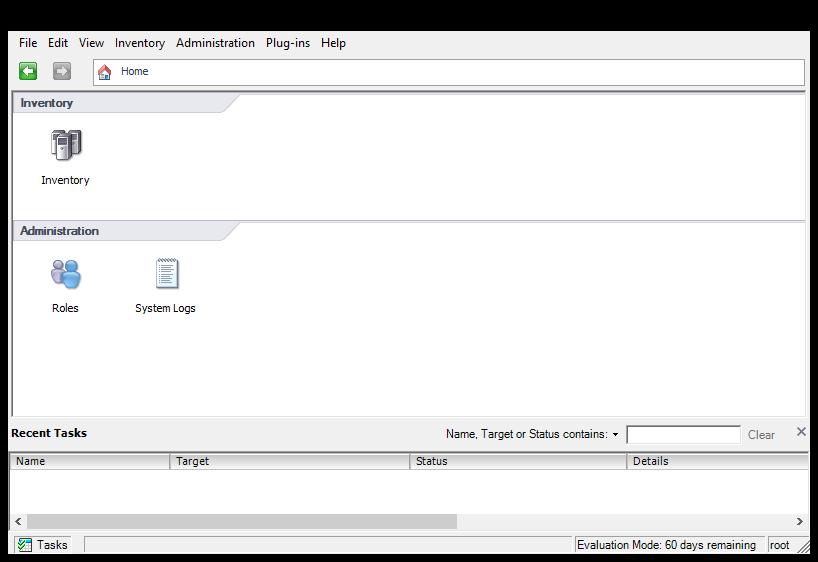
 You are now connected to the VMware vSphere Hypervisor ESXi 6.0 Server. Click the Inventory icon, to see the server’s Inventory.
 The following Inventory is displayed. You will notice it states The ESXi host does not have persistent storage. To store virtual machines (often referred to as Guests or VMs, the VMs must be stored and reside on an ESXi host datastore. The VMware vSphere Hypervisor ESXi server has a compatible filing system called VMFS (similar to Microsoft Windows NT/2000/XP/2003/2008/2012/7/8, which has its own filing system called NTFS). There are two versions of VMFS: VMFS-3 for earlier versions of vSphere e.g. 3.x and 4.x, and WMFS-5 for vSphere 5.x and 6.x.
4. Conducting a simple task using the VMware vSphere Client
In this step, we will complete a simple task using the vSphere Client, this task is to Create a new VMFS datastore, so we can store VMs. This is the minimum configuration requirement for your ESXi host.
 Click “Click here to create a datastore…”
At the Add Storage screen select Disk/LUN followed by Next to Continue, personally we feel the dialgoue box should be called Add New Storage e.g. it’s storage which has never been allocated or presented for use with a VMware ESXi host server.
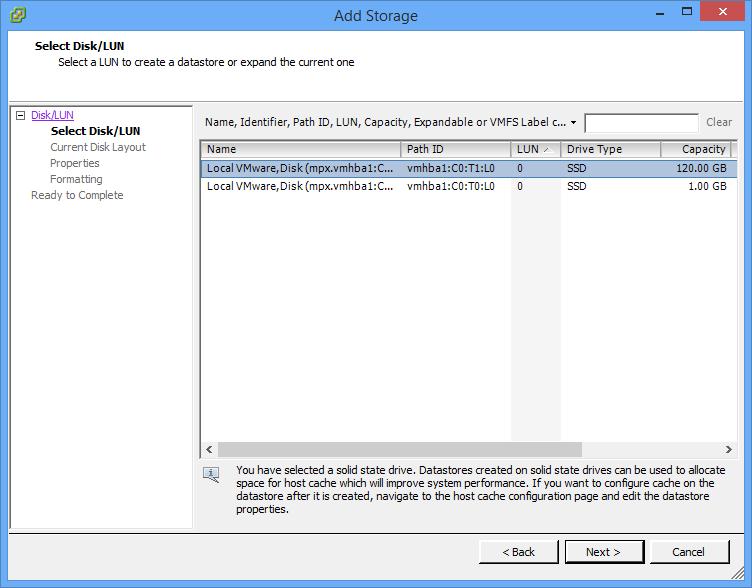
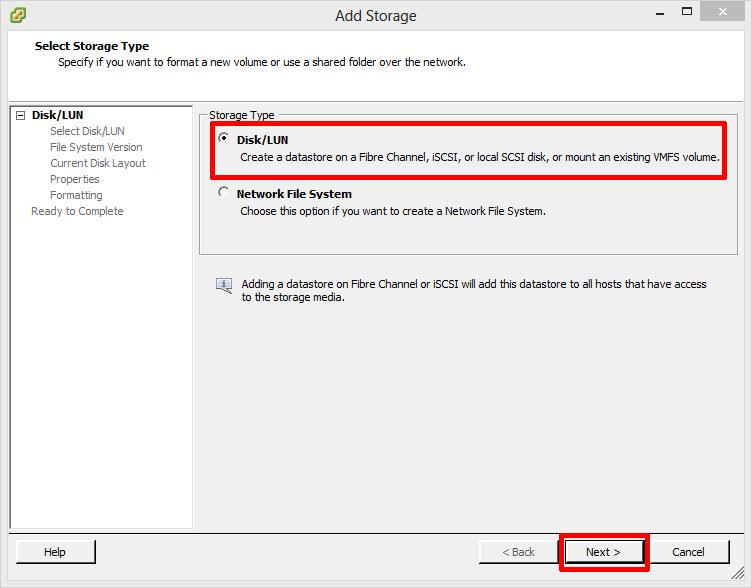 At the next screen select the actual Disk or LUN, pay special attention to the sizes shown. The size should match the size of disk, LUN or array size you have created for your VMFS datastore, followed by Next to Continue. In this tutorial we are going to select the 120GB Disk/LUN, the first entry in the list.
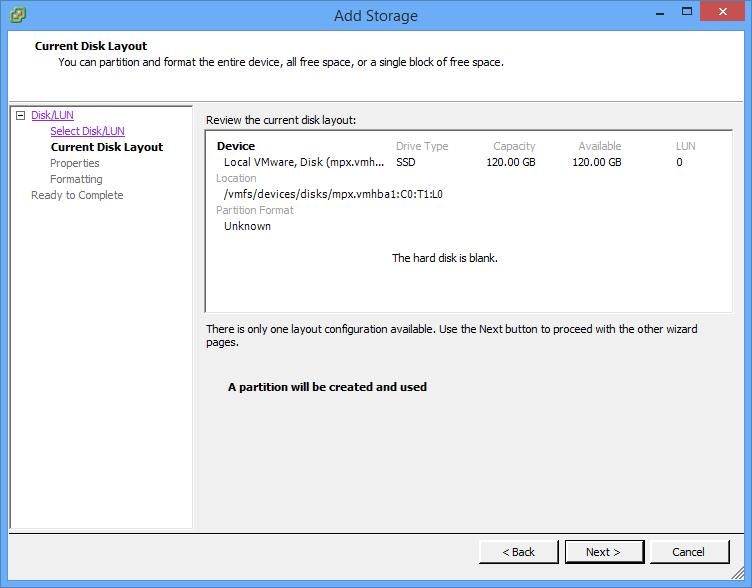
 The Current Disk Layout will be shown. If this is a used disk, it could show other partition types. (NTFS, FAT32, Linux, Swap, ext2, ext3) Click Next to Continue. This is a new disk in this tutorial, so A new partition will be created and used.
 At the next screen enter the name for the datastore (do not use / * # ! @ (non-alpha numeric characters); it will accept them, but you will have issues later. The dash and underscore are okay.) followed by Next to Continue
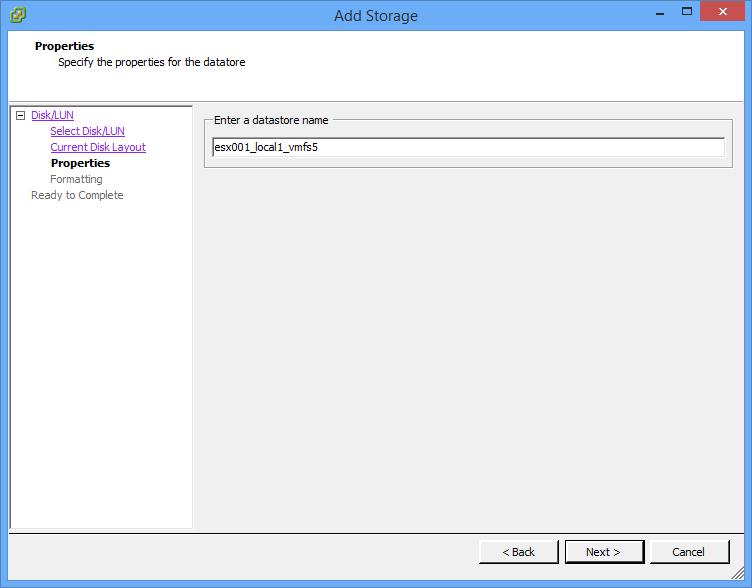
There are many different types of naming conventions. We like to use name of the server followed by underscore (_) local for local disk, iscsi for iscsi disk, nfs for nfs storage, fibre for fibre channel, a number to indicate disk or LUN id number, followed by VMFS type, e.g. 3 or 5. For example: esx001_local1_vmfs5
 At the Disk/LUN – Formatting screen, select Maximum available space, and click Next to Continue.
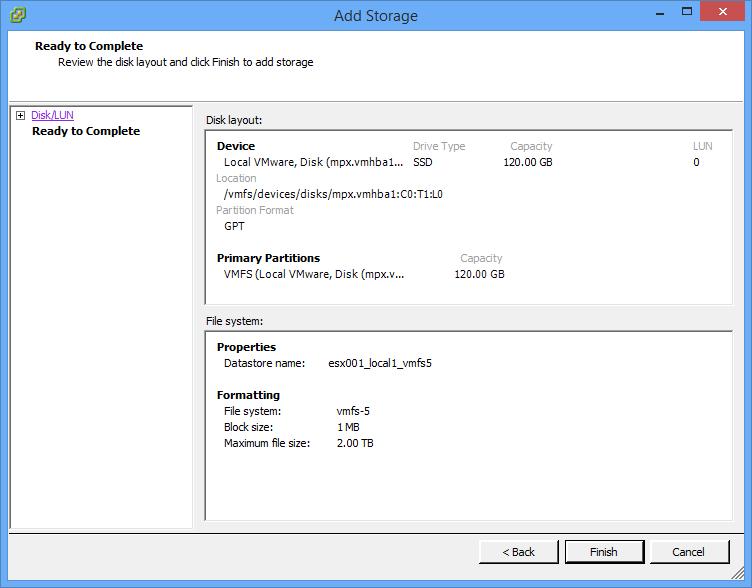 Check the Summary screen for the datastore you are about to create and Click Finish to create the datastore.
You are now ready to use your ESXi server.
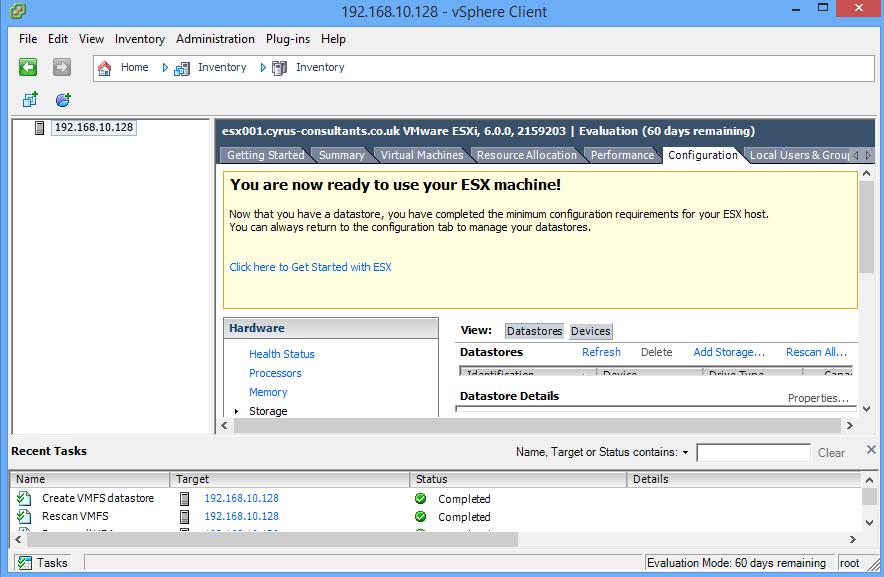 Congratulations you have successfully installed the VMware vSphere Client, Connected to your VMware vSphere Hypervisor 6.0 server, and Created your first VMware VMFS-5 datastore ready to store Virtual Machines.
Basic VMware Articles Series:
During this series of articles VMware released VMware vSphere 5.5 and VMware vSphere Hypervisor ESXi 5.5. These articles are also applicable to VMware vSphere Hypervisor ESXi 5.0 and 5.5. For consistency, I have used VMware vSphere Hypervisor ESXi 5.1 throughout this series.






![[Valid RSS]](http://andysworld.org.uk/images/valid-rss.png "Validate my RSS feed")