Posts Tagged ‘WiFi’

Unlocking a 3 Mobile Broadband MiFi (Huawei E585)

Sunday, August 8th, 2010

iPad Gadget of the Year – Huawei E585 – also called MiFi device.

The Huawei E585 MiFi Moble WiFi Wireless 3G Modem is currently exclusively only available on the Three network and it’s SIM-locked to this network, if you insert another SIM from another provider O2, Voda UK, Orange or T-Mobile you’ll receive an “Insert SIM”, “Bad Sim”, “Sim Lock”, “Invalid SIM” or similiar error. If you would like to use this fanastic 3G Wireless Router on another network you’ll need to remove the SIM-LOCK. This is where you need to be very careful, there are various different ways of removing the SIM-LOCK, the correct way and the wrong way, some hacks have re-written the firmware, the result removes the SIM-LOCK, but leaves you with a E585 modem with modified firmware, and you’ll not be able to change the firmware in the future.

This method reveals the true SIMLOCK code, and then you enter this SIMLOCK code into the E585 via the web interface.

Huawei 585 Hidden Unlock Menu

Huawei 585 Hidden Unlock Menu

The method is very simple

  1. Insert SIM card from another network.
  2. Turn on MiFi (E585) Invalid SIM will be displayed.
  3. Connect MiFi (E585) to computer.
  4. Read and download flash contents from MiFi (E585).
  5. Unlock code is hidden in flash contents.
  6. Enter Unlock code in hidden menu.
  7. UNLOCKED.
  8. For details on unlocking and software please make a 10 GBP donation via PayPal.
  9. and by return I’ll send you the PDF document and software to unlock your E585.
  10. The donation pays for the hosting of this website, and thousands of hits and free information I’ve provided on unlocking Three Mobile Modems.
Comments from happy blog readers from around the world, that have donated towards my hosting and bandwidth costs, that have successfully unlocked their ‘MiFi’ Huawei E585 using my information. Please note this is NOT an automated service, and I get many hundreds of emails a day about the information posted on andysworld.org.uk, please be patient!

“Daime u fast !!! Thanks andy u da man ! “
Nasser, Dubai, United Arab Emirates

“Brilliant, worked a treat. Thanks.”
Adam, Northumberland, United Kingdom

“It really works, Thanks Andy”
Anthony, Hong Kong

“Thank you it worked”
Kevin, London, United Kingdom

Followed all the great instructions and have unlocked device. Thanks Andy”
Paul, New Zealand

“it is up and working”
Chris, India

“Excellent. Thanks.”
Peter, Wales, United Kingdom

“Very quick, excellent unlock, thanks Andy”
Donny, USA

“Thank you so much Andrew. Now i can unlock my huawei e535.”
Thawatchai, Bangkok, Thailand

“Thank you!! It worked! Sucessfully unlocked. Great job!”
Eirc, South Africa

A breeding pair of Huawei E585 Unlocked for Orange and T-Mobile

A breeding pair of Huawei E585 Unlocked for Orange and T-Mobile

WiFi Charger software for PDA, iPhone and Smartphones

Thursday, April 1st, 2010

wifi-charger-softwareI found this new software app on the Internet that converts WiFi signals to electricity to charge your PDA, I understand the iPhone, iTouch applications will be in the AppStore shortly. I’m just having issues with using it with my old 802.11b access points, it doesn’t charge very well, but if I use on my new Belkin ‘N’ series, as you can see in the screenshot, it charges very fast. The only issue is my battery gets very hot, because it says it blast charges it, I think the instructions are not very well laid out, not written in good english. The software vendor WireFree A/S is appearing at Gadget Show 2010 Live next week on stand OZ56.

Why pay for Travelodge WiFi with all these FREE Access Points!

Friday, February 19th, 2010
3 Coverage HSDPA

3 Coverage HSDPA

No need for 3G, which at present I’m getting 5 bars good buddy, blowing me windows out on HSPDA! But why pay for Travelodge WiFi when there are 49 Access Points with un-secure WiFi Access in this area!

WiFi coverage at this location

WiFi coverage at this location

Wireless (WiFi) Remote Control of X10 Modules using USB Remote Access

Sunday, December 20th, 2009
  1. The Active Home Pro software is installed on/in a virtual Windows XP Professional computer, I don’t like cluttering up my main production Workstation which happens to be Vista 64-bit Ultimate.
  2. The CM15PRO Programmable Computer Interface is connected by USB to this computer. The Active Home Pro software is the software that drives the computer interface, I’ve saved the “house file” house.ahx on my NAS (network attached storage) device, so it can be easily shared on my network.
  3. This is the clever Tech bit, USB over Network by Fabula Tech, I’ve been using this software in the virtual work I do for a few years, and it allows you to share a USB device over your network, e.g. you can plug in you USB device on one computer, and connect to it on another via your network. Very handy… USB remote access!
  4. The USB over Network by Fabula Tech is installed on the computer connected to the CM15PRO Programmable Computer Interface. We will call this the server.
USB over network

USB over network

The above snapshot, shows the USB over Network server software running, and the current USB devices attached to the server, which can then be shared, just like any resource, disk, printer etc.

USB over network device shared waiting for connection

USB over network device shared waiting for connection

The device is shared, and is waiting for a client computer to connect to it.

USB device properties

USB device properties

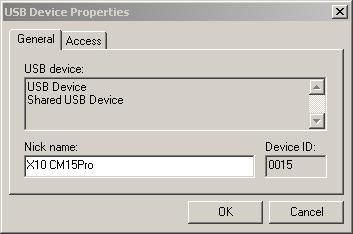
You can give the devices meaningful friendly names, that you’ll remember. On the client computer (remote computer), install another copy of Active Home Pro, making sure the drivers are installed for the CM15Pro. Run the USB over Network client software.

USB over Network client setup

USB over Network client setup

Select USB Device, Add, browser for the computer or enter IP address. You should see, a list of devices that can be connected to.

Client connecting...

Client connecting...

Right click the device, and click connect, if this is the first time you’ve connected to the device, you’ll get the usual, bing-bong tones, and plug N play will start and register the drives.

Now you can use your ActiveHome Pro software on another wireless (WiFi) computer, just open the *.AHX home file, from a shared location.

Client Connected to device

Client Connected to device