Archive for the ‘All’ Category

HOW TO: Install and Configure VMware vSphere Hypervisor 6.0 (ESXi 6.0)

Monday, February 2nd, 2015

In my previous Experts Exchange Articles, most have featured Basic and Intermediate VMware and Virtualisation Topics.

If you would like to read my Basic VMware articles, they are listed at the end of this article for your convenience.

This article will show you how to install and configure the VMware vSphere Hypervisor 6.0 on a computer.VMware vSphere Hypervisor 6.0 is also known as ESXi 6.0.

The FREE version of ESXi 6.0 is limited to 32GB per server.

  • ESXi 6.0 will install and run only on servers with 64-bit x86 CPUs.
  • ESXi 6.0 requires a host machine with at least two cores.
  • ESXi 6.0 supports only LAHF and SAHF CPU instructions.
  • ESXi 6.0 requires the NX/XD bit to be enabled for the CPU in the BIOS.

A full list of the ESXi 6.0 Hardware Requirements can be found in the VMware ESXi 6.0 Install Guide.

Check the VMware Hardware Compatability Lists (HCL), to discover if your computer is certified for use with ESXi 6.0.

If your computer is not listed on the VMware HCL, it may still be possible to install and run VMware ESXi 6.0 on your laptop, desktop, or server. The HCL exists because the server vendor and VMware have certified and tested ESXi 6.0 will function correctly, on the servers listed on the HCL.

1. Register with VMware.com and Download VMware vSphere Hypervisor 6.0

Open the following link in your web browser https://my.vmware.com/web/vmware/evalcenter?p=free-esxi5&lp=default

Click the License and Download Tab

VMware-DownloadCenter1.jpgClick Create an Account, to Create an Account and Login to the VMware Download Center. VMware will email you an Activation link which needs to be opened to create the account.

The following page will be displayed when you have successfully logged into the VMware Download Center.

VMware-DownloadCenter2.jpgPay special attention to the FREE License information which is displayed, and record this License Number, this will be required in a later article.

Click the download link for VMware ESXi 6.0 (CD ISO) Installable to download the software required to install ESXi 6.0 and also download the VMware vSphere Client 6.0. The VMware vSphere Client 6.0 software is the client software that allows us to connect and manage the ESXi 6.0 server, this will be required in a later article.

Either use the Download Manager or Manually Download button (which uses your web browser). The CD ISO is only 301MB so should not take too long to download. We have a very slow internet connection, at approx 350 kB/sec, and it takes us approximately 10 minutes to download.

Once the downloads have been completed using your favourite MD5 and SHA1 checksum utility, confirm the downloads have been downloaded correctly, using the published MD5 and SHA1 checksums from the VMware website.  We use the MD5 & SHA-1 Checksum Utiliy 1.1 from http://raylin.wordpress.com/downloads/md5-sha-1-checksum-utility/.

Many VMware vSphere Hypervisor 6.0 installations fail due to corrupt downloads.

MD5-SHA1-Checksum1.jpgMD5-SHA1-Checksum2.jpg

2. Installing VMware vSphere Hypervisor 6.0 (ESXi 6.0)

Write (Burn) the VMware-VMvisor-Installer-6.0.0-2159203.x86_64.iso downloaded in Step 1, to a blank CDROM, using your favourite CD writing software. We use ISO Recorder (http://alexfeinman.com/isorecorder.htm). If you are using remote server utilities, e.g. HP iLo or Dell iDRAC,. you can attach the virtual CDROM drive in the server to the VMware-VMvisor-Installer-6.0.0-2159203.x86_64.iso ISO, so there is no requirement to write a CDROM.

This is a step which is often missed, ensure the BIOS BOOT order is set to BOOT from the CDROM Device or ATAPI device in the server, otherwise the computer will not BOOT from the CDROM.

Power on the Computer, the computer will BOOT from the CDROM, and the following BOOT screen will be displayed
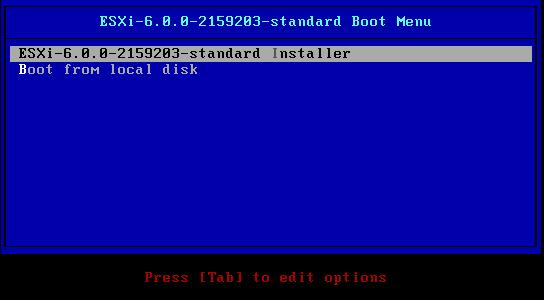
ESXi6.0-CDROM-BOOT.jpgThe default option is to BOOT ESXi-6.0.0-2159203-standard Installer after 10 seconds, hit any key will pause the BOOT process.

ESXi6.0-CDROM-BOOT1.jpgAt the Welcome to the VMware ESXi 6.0.0 Installation screen Hit Enter to Continue the installation.

2015-01-03-13-36-32-VMware-vSphere-2015-Press F11 (Function Key 11) to Accept the VMware End User License Agreement (EULA)
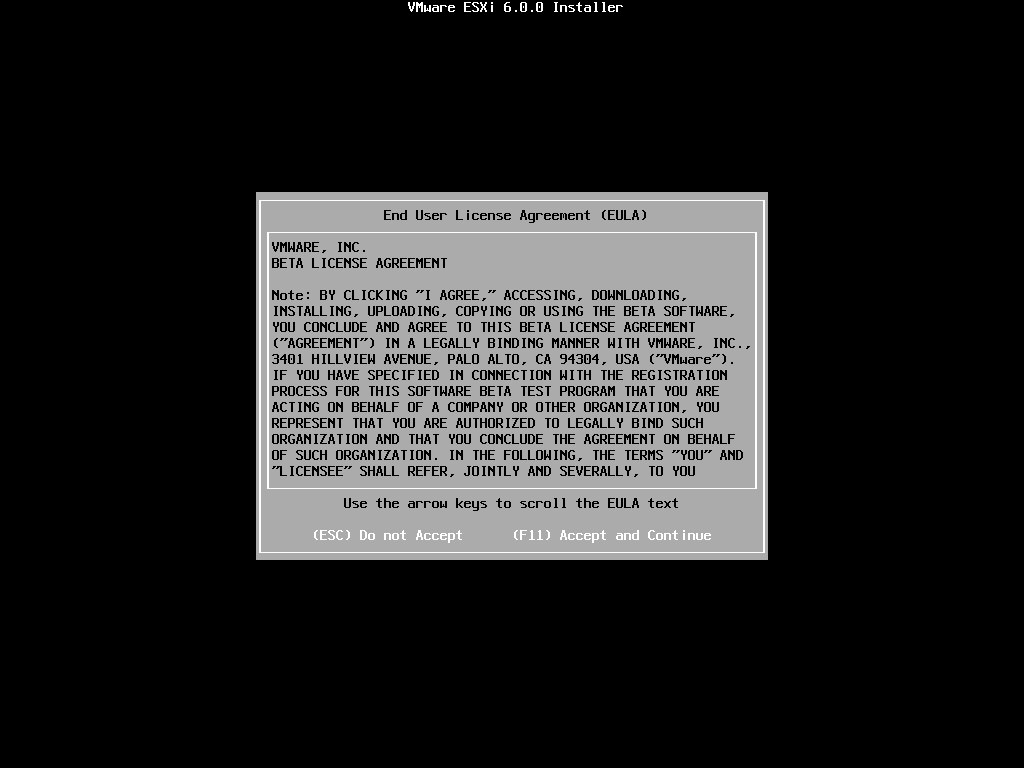
2015-01-03-13-39-16-Greenshot.pngThe ESXi installer will scan the computer storage controller for available devices to install ESXi.
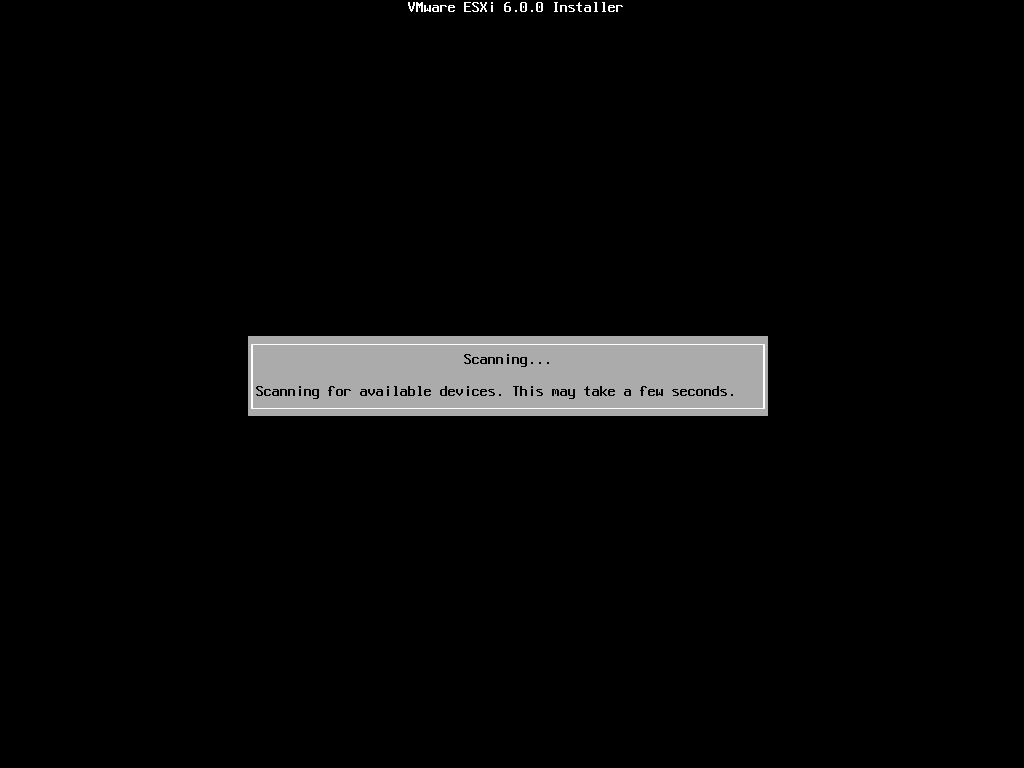
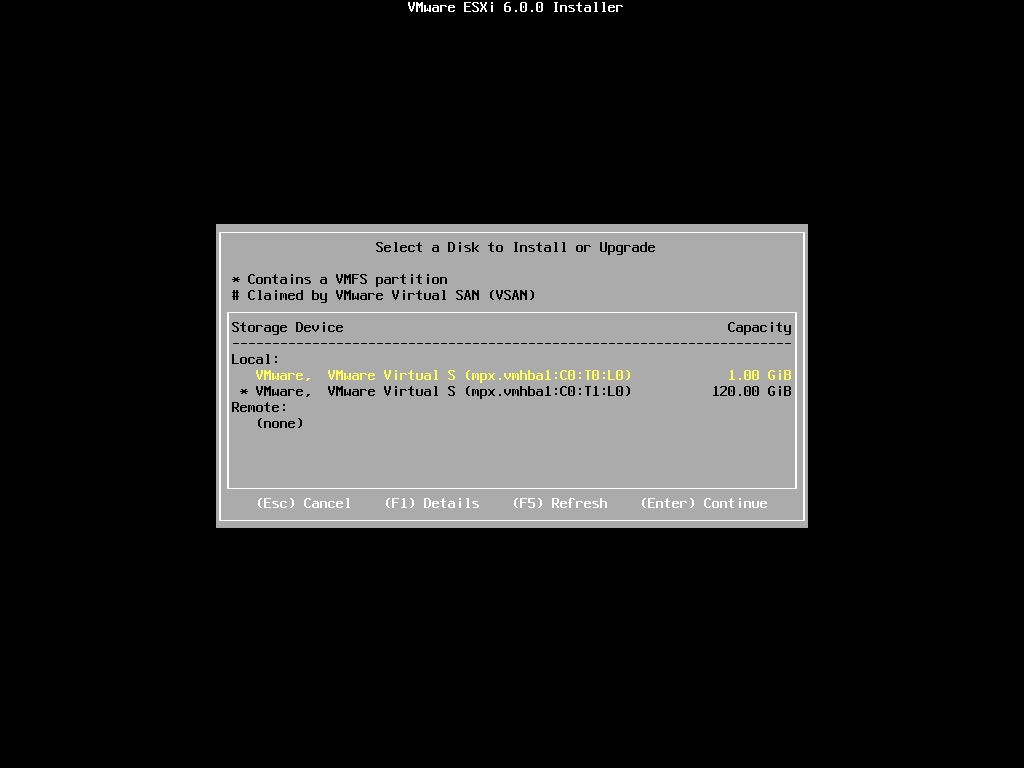
2015-01-03-13-39-51-Greenshot.pngESXi can be installed on a USB flash drive, SD card attached to the computer, local SATA, local RAID Array, or Fibre Channel or iSCSI LUN. All these are supported options. As the footprint for ESXi is very small only 1GB is required for the ESXi OS installation.

We have written an EE Article here on How to Backup an ESXi installation on an USB Flash Drive or SD card, for security or redundancy. After you have completed the ESXi 5.1 installation, shutdown the server, remove the USB flash drive or SD card, and duplicate it using our EE Article.

When prompted select a disk to install ESXi on, in the following example, we have two disks connected to this computer, a single 1GB disk, and a 120GB disk. We are going to use the small disk for the OS. (this simulates the USB flash drive!). The larger 120GB disk will be used later for the storage of virtual machines.
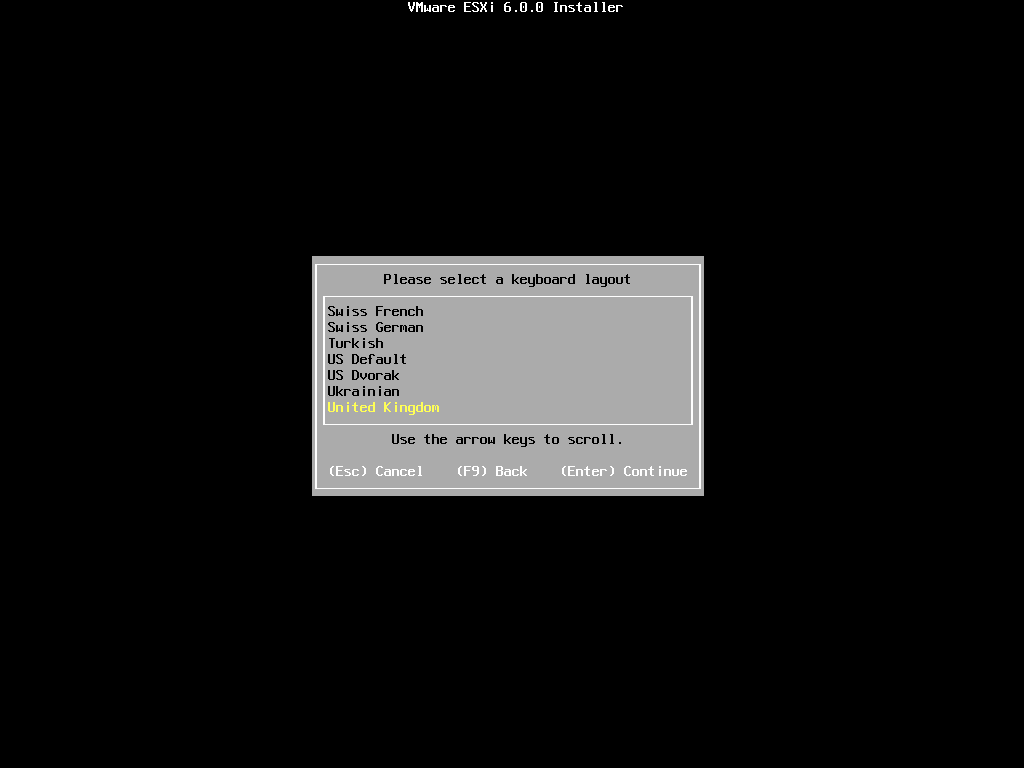
2015-01-03-13-47-10-Greenshot.pngWhen prompted, select the keyboard layout and hit Enter to continue. The default keyboard layout is US Default.
2015-01-03-13-49-10-Greenshot.png
When prompted enter a root password, confirm the password and hit Enter to continue
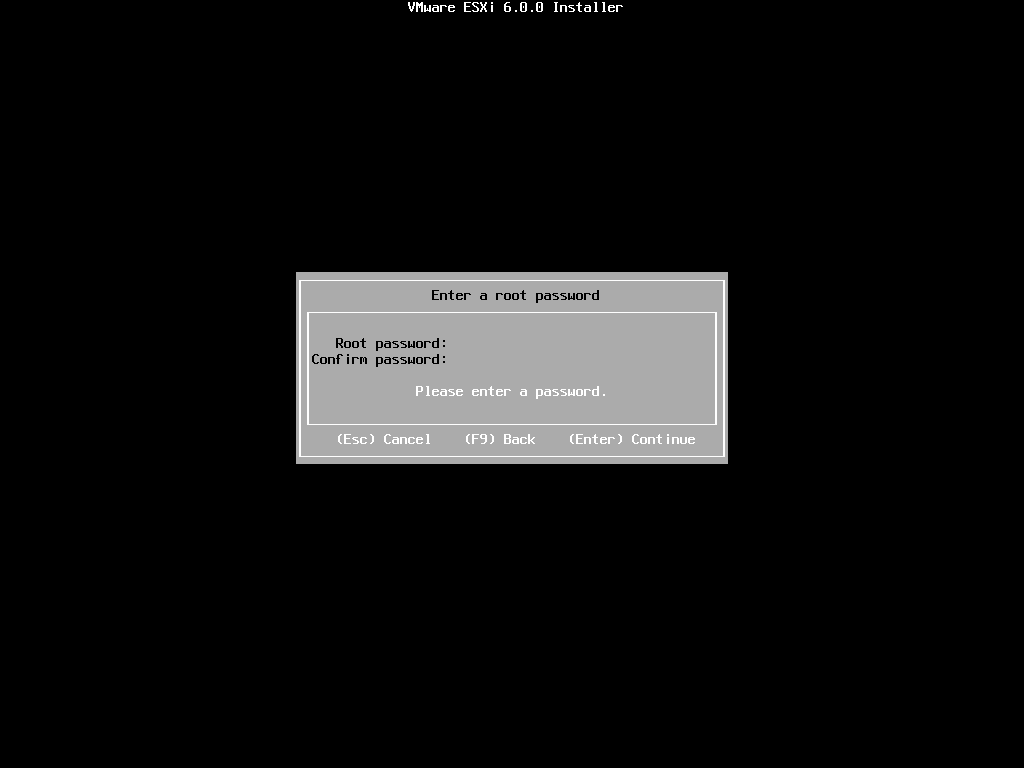
2015-01-03-14-08-47-Greenshot.pngThe following will be displayed

2015-01-03-14-09-26-Greenshot.pngWhen prompted Confirm the Installation on the selected disk and press F11 (Install)
– Function Key 11
All data will be erase, as the disk will be repartitioned.
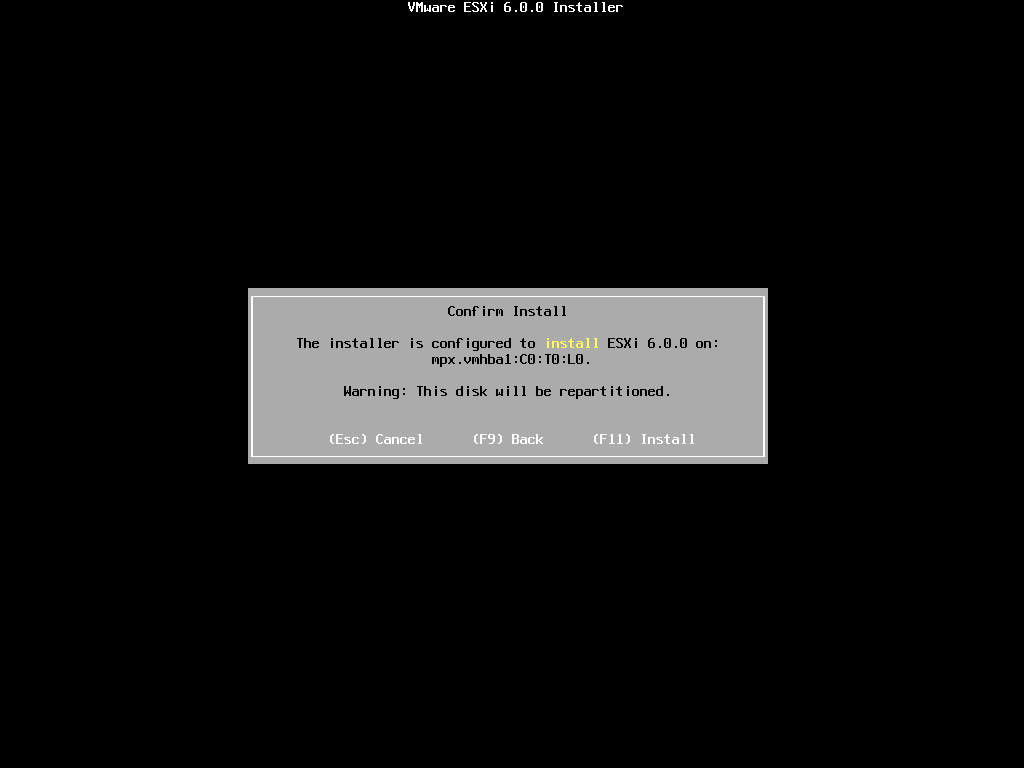
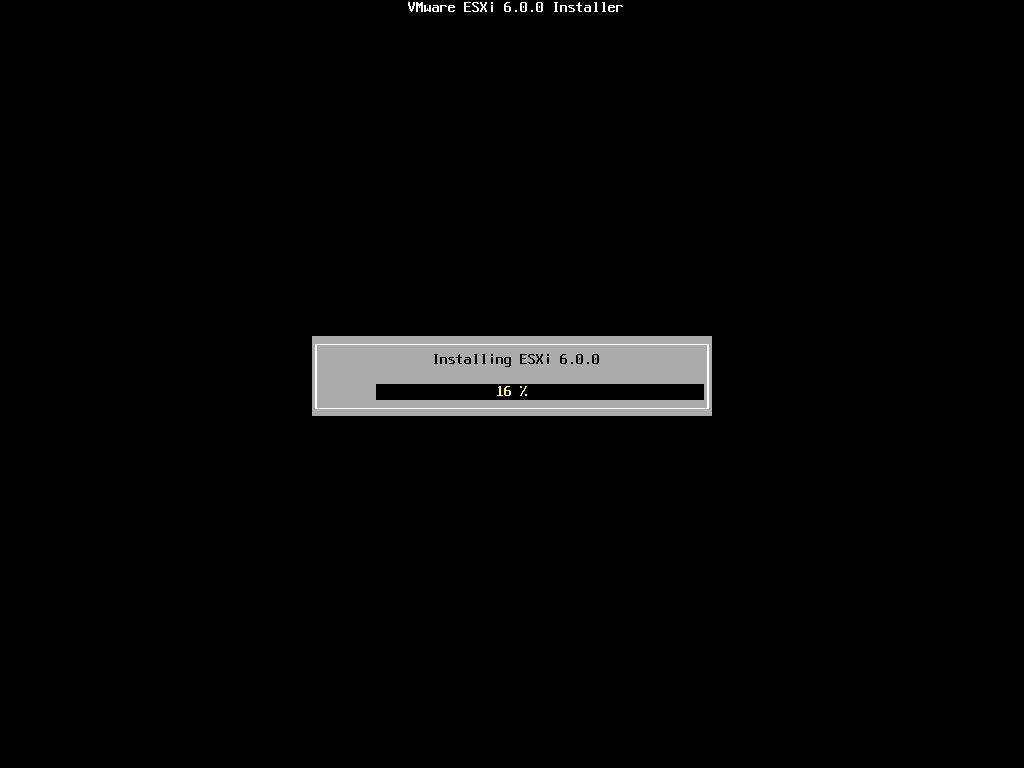
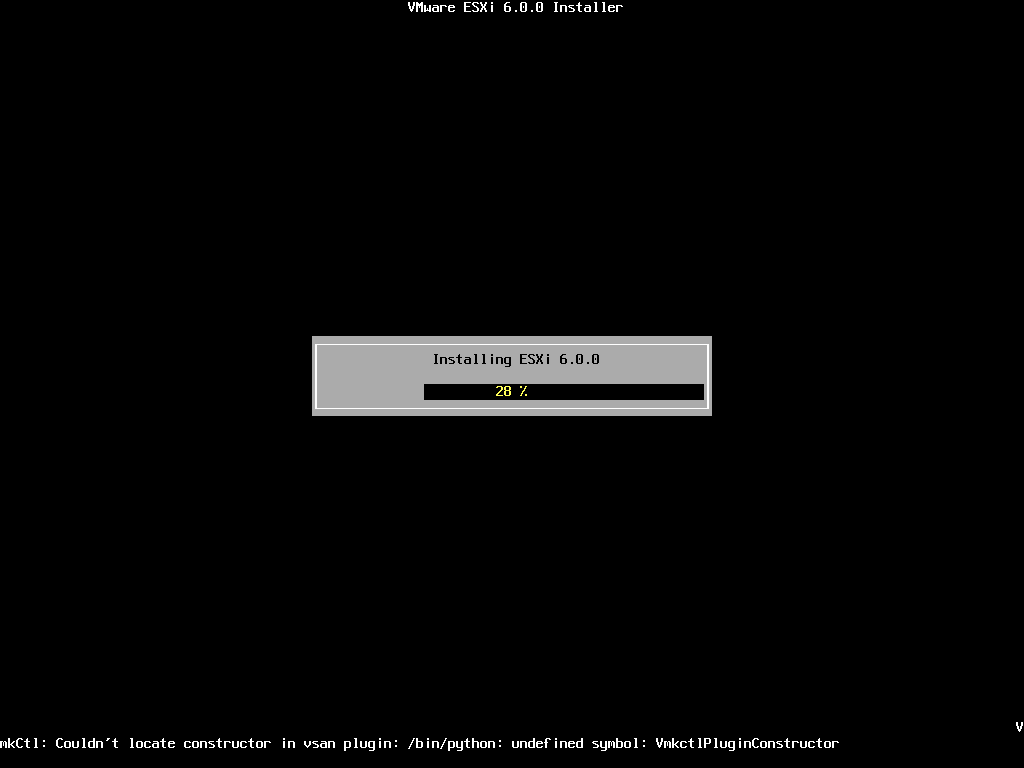
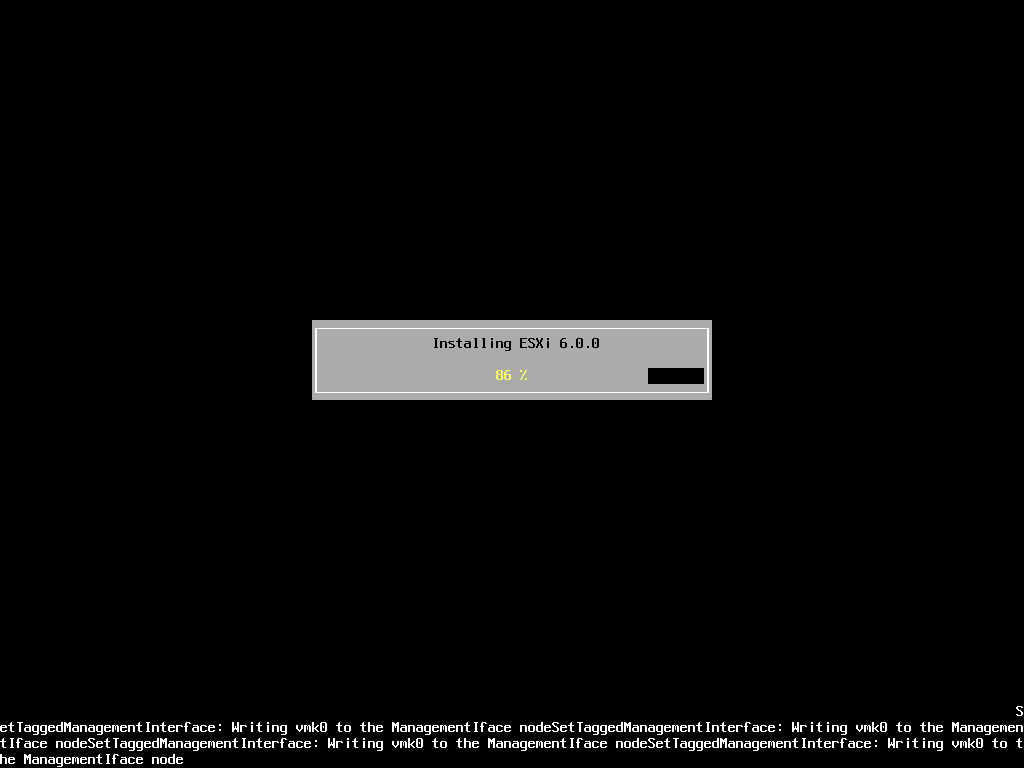
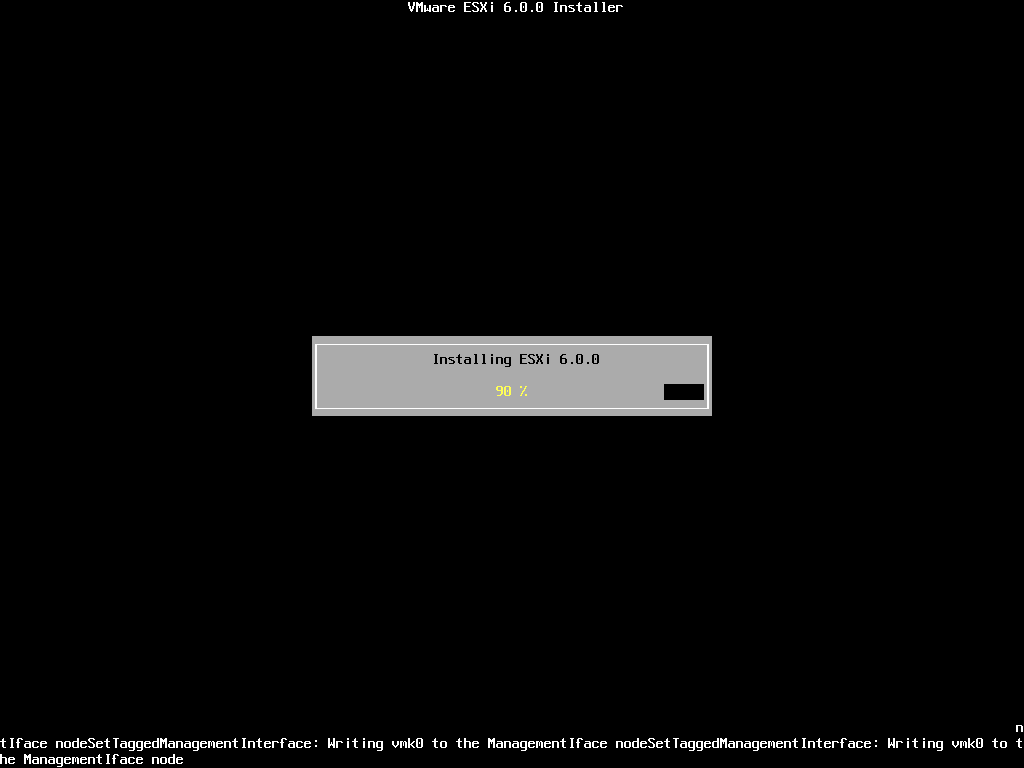
2015-01-03-14-10-56-Greenshot.pngThe Progress Bar will confirm installation progress.
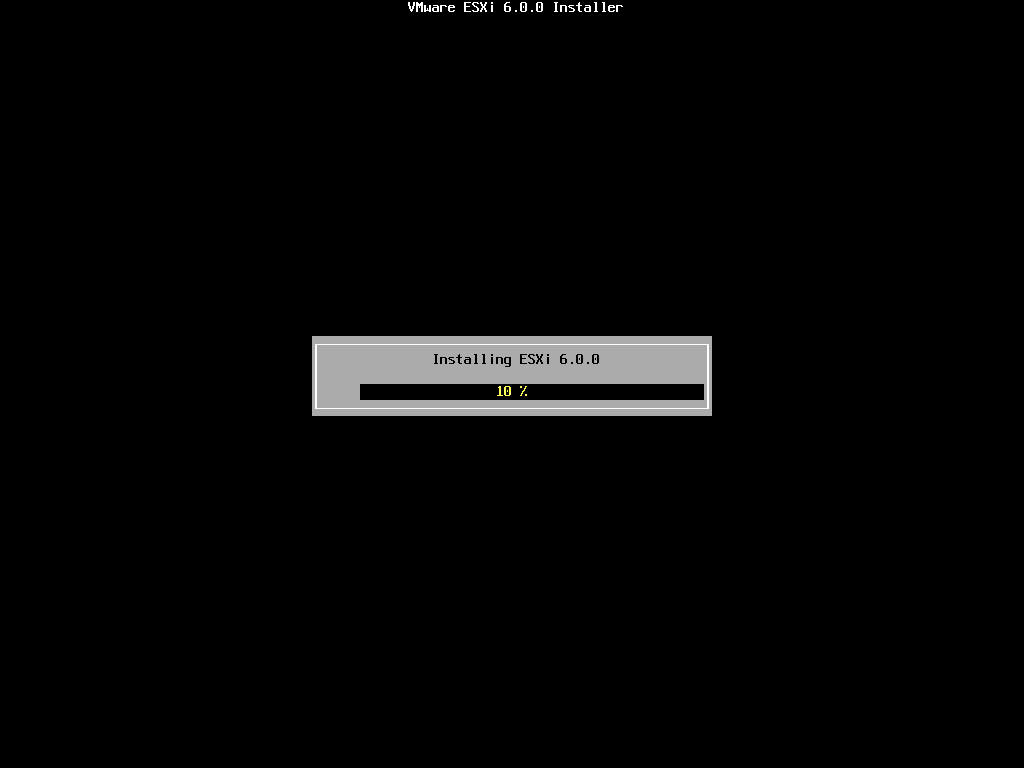
2015-01-03-14-11-42-Greenshot.png2015-01-03-14-11-49-Greenshot.png2015-01-03-14-11-56-Greenshot.png2015-01-03-14-12-09-Greenshot.png2015-01-03-14-12-31-Greenshot.png2015-01-03-14-12-38-Greenshot.png2015-01-03-14-12-42-Greenshot.pngThe installation only takes approximately 5-10 minutes, depending upon speed of storage. When the installation has completed the following screen will be displayed.
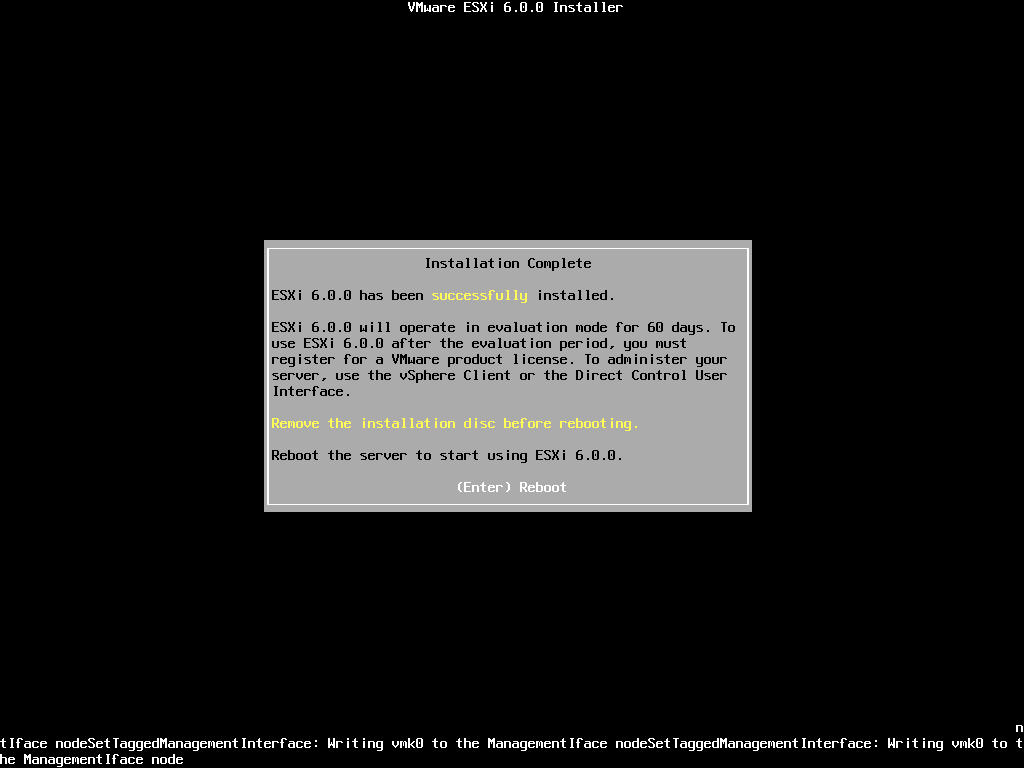
2015-01-03-14-12-48-Greenshot.pngRemove the CDROM installation disk before rebooting. Hit Enter to Reboot. After hitting Enter the follow screen will be displayed and the computer will reboot.
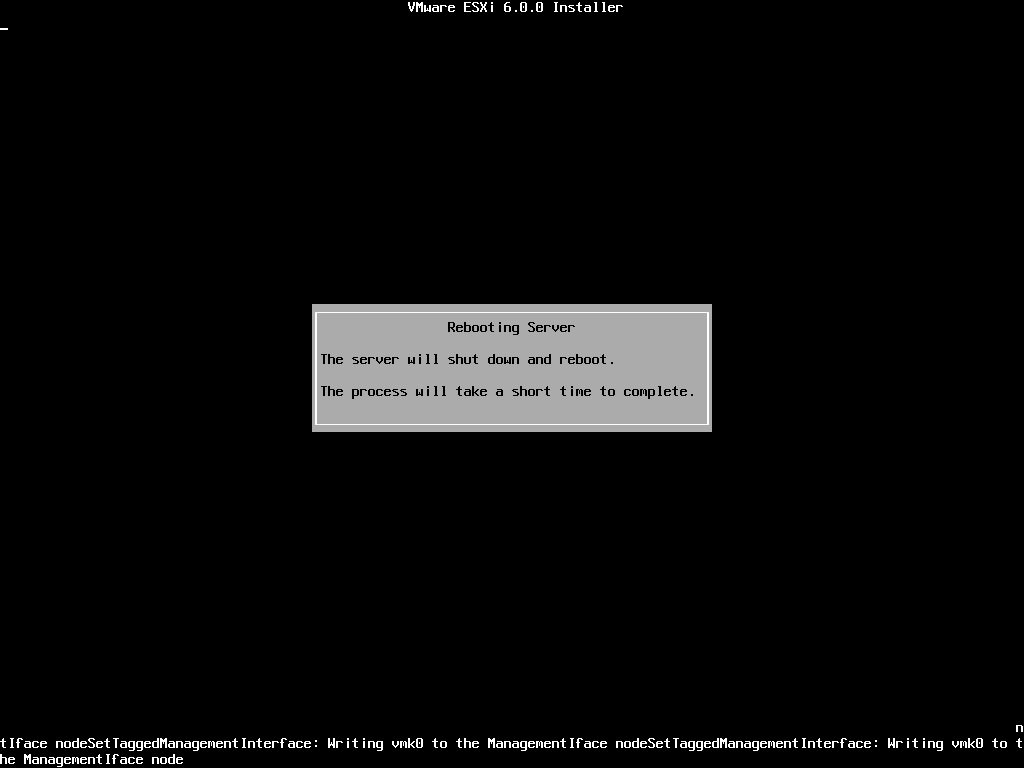
2015-01-03-14-15-04-Greenshot.pngESXi 6.0 will operate in evaluation mode for 60 days. This is the same mode as a FULLY LICENSED ESXi 6.0 server. If you wish to evaluate all the bells and whistles that ESXi 6.0 has to offer, do not register your FREE license. for 60 days, this will allow you to evaluate ESXi 6.0 server fully. On day 59/60, Apply your FREE license to continue using the product, or you will not be able to power on any virtual machines.

3. Configuring VMware vSphere Hypervisor 6.0 (ESXi 6.0)

The following screen is displayed when VMware ESXi 6.0 first boots

2015-01-03-14-21-54-Untitled---Notepad.p2015-01-03-14-22-10-Untitled---Notepad.p2015-01-03-14-22-13-Untitled---Notepad.pThe server is fully booted when it displays the following screen

2015-01-03-14-23-45-Greenshot.pngThe default server configuration is to use DHCP, if you do not have a DHCP server issuing IP Addresses on your network you will need to assign an IP Address. We recommend you use a static IP Address for your ESXi Host Server.

Press F2 to Customize System, you will be prompted to enter the root username and password.
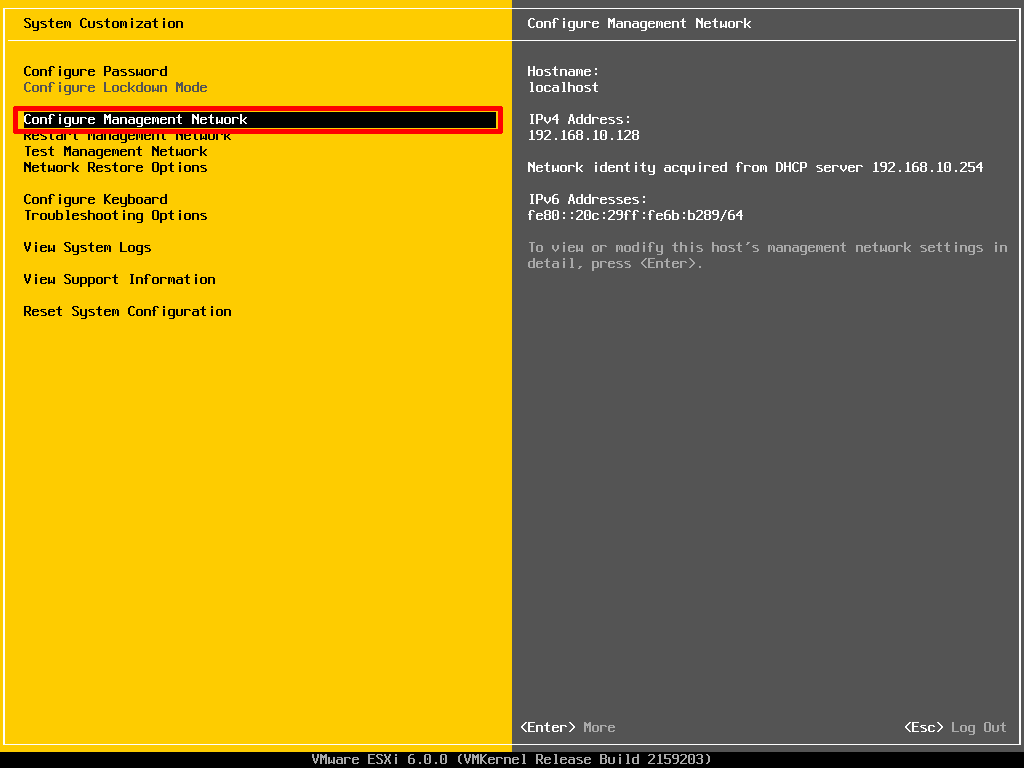
2015-01-03-14-25-24-Greenshot.pngSelect Configure Management Network to change Network Parameters.
Select IPv4 Configuration
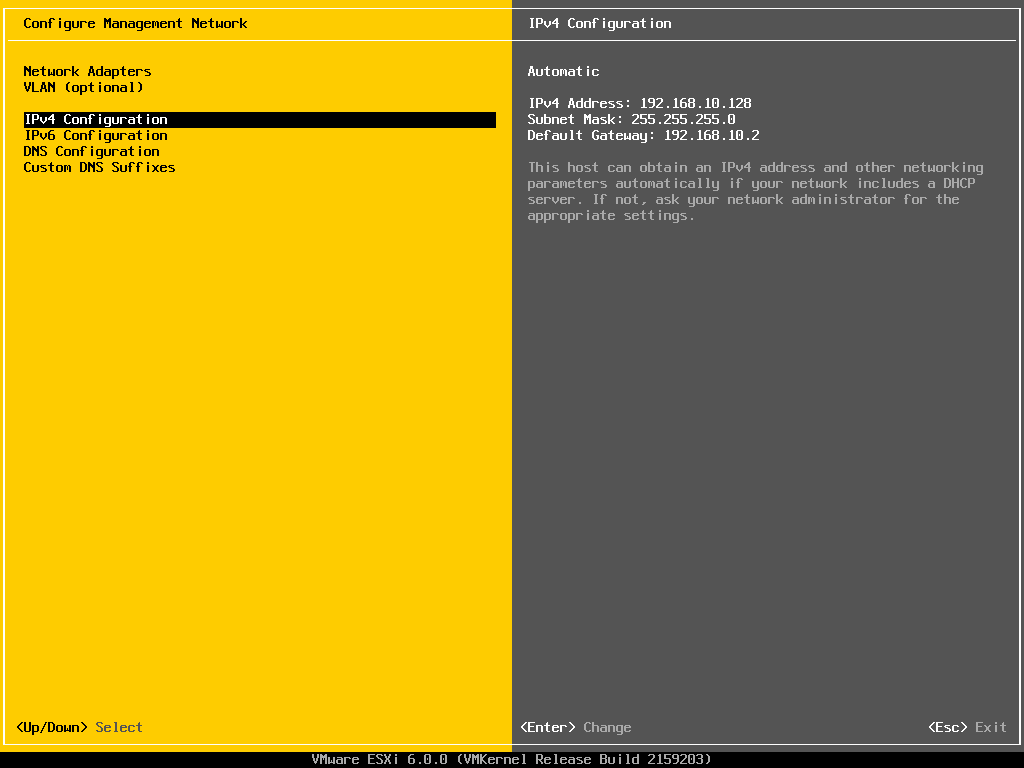
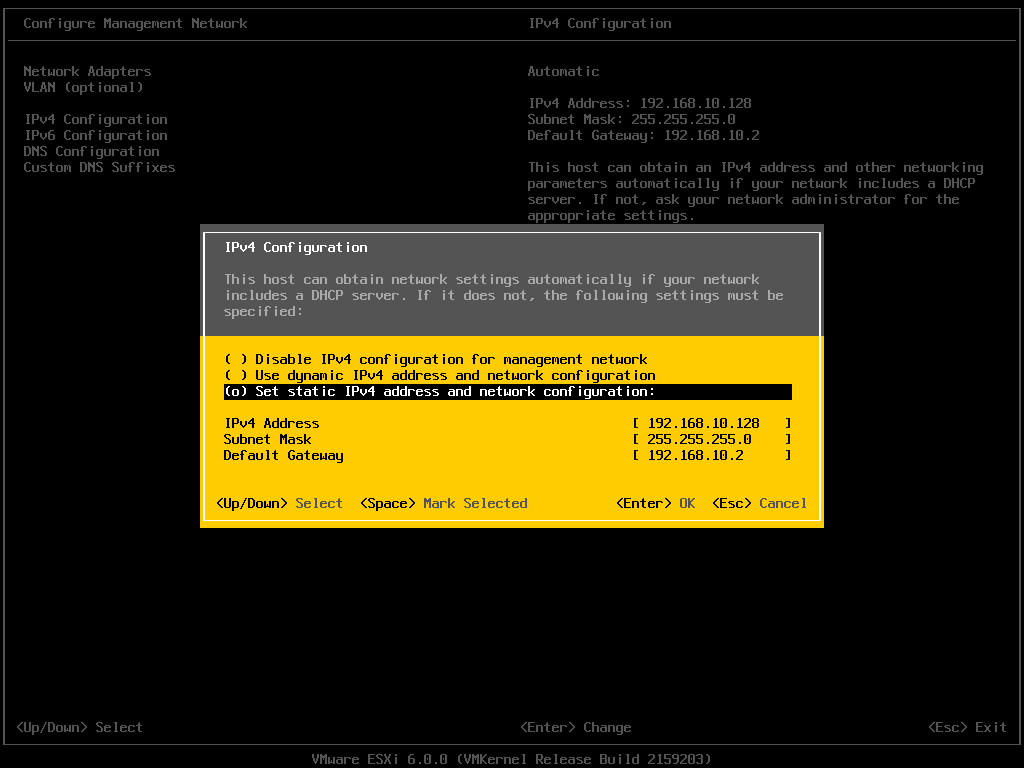
2015-01-03-14-27-43-Greenshot.pngSet the Static IPv4 address and network configuration, Subnet Mask and Default Gateway, it’s important to set the correct Default Gateway, as this will be used later. Hit Enter to confirm and save the configuration.
2015-01-03-14-28-34-Greenshot.pngSelect DNS Configuration, enter the correct DNS information for your network, and enter a hostname for your server. Hit Enter to save the configuration.
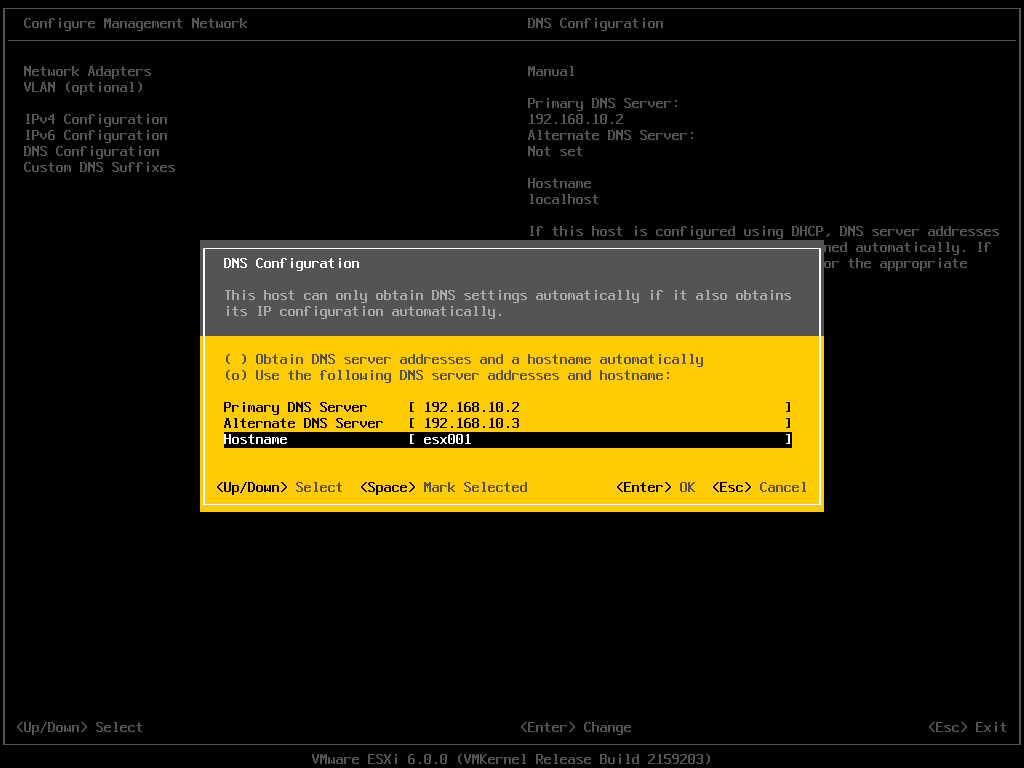
2015-01-03-14-29-59-Greenshot.pngSelect Custom DNS Suffixes
Enter your DNS suffix (the domain name for your network). Make sure you have created a DNS A Record in your DNS, so that this server can be resolved correctly through forward and reverse lookups.
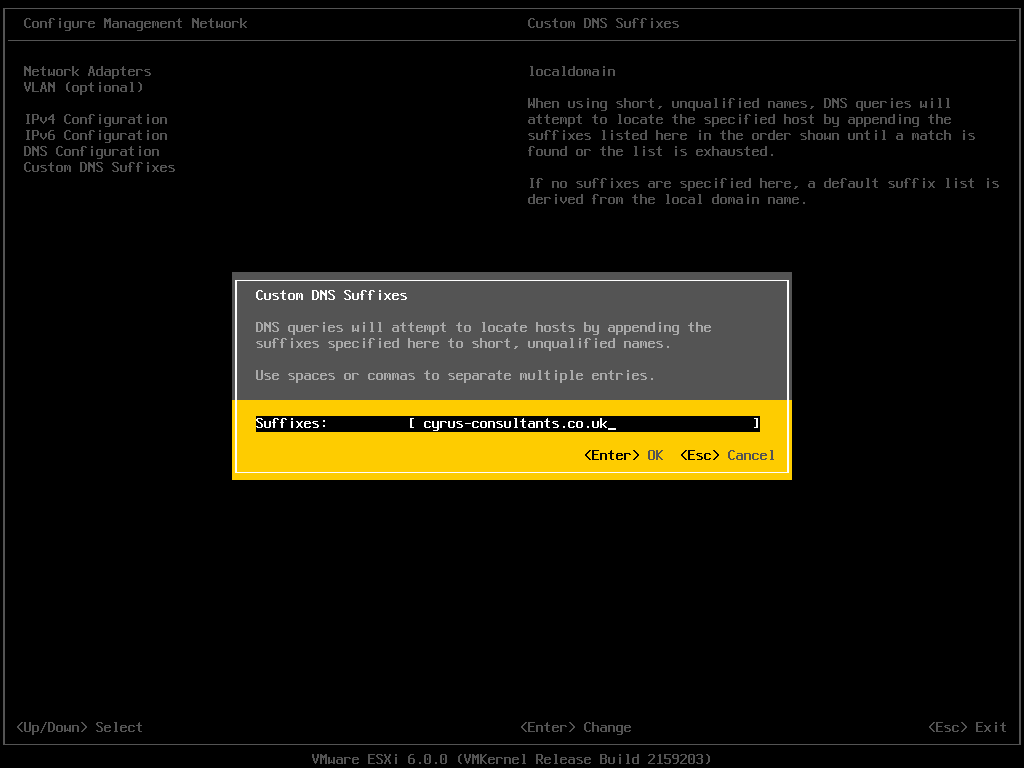
2015-01-03-14-30-42-Greenshot.pngHit Enter to save your configuration.

Press Escape, the following screen will appear, select Y(es) to apply changes.
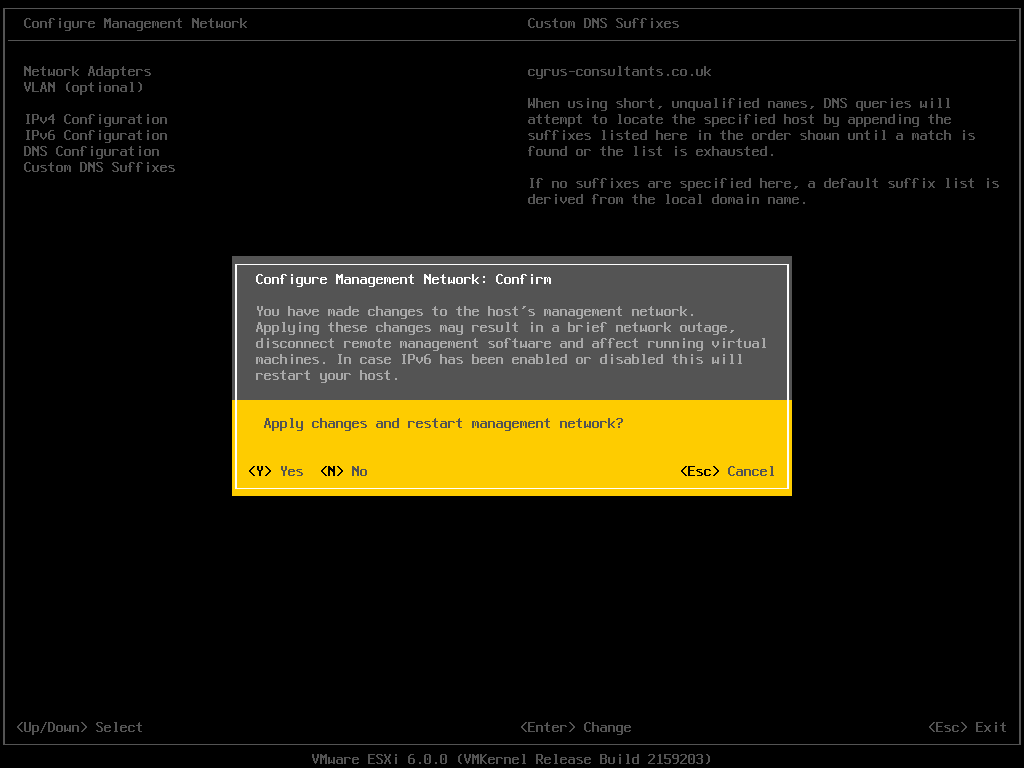
2015-01-03-14-31-32-Greenshot.pngPress Escape to Logout and return to the console screen.

You will notice on the console screen, the server now has a hostname configured, and correct static IP Address.
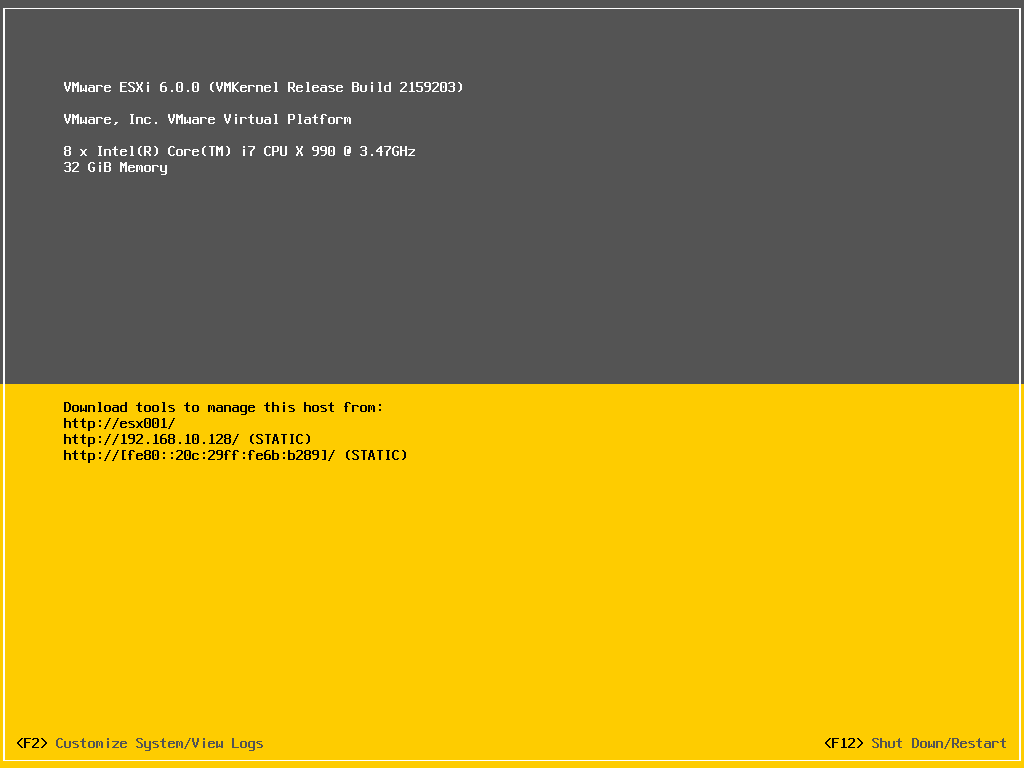
2015-01-03-14-32-49-Greenshot.png
Congratulations you have successfully installed and configured VMware vSphere Hypervisor 6.0.

In the next article in the series, we will connect and continue to configure the VMware vSphere Hypervisor 6.0.

Basic VMware Articles Series:
During this series of articles VMware released VMware vSphere 5.5 and VMware vSphere Hypervisor ESXi 5.5. These articles are also applicable to VMware vSphere Hypervisor ESXi 5.0 and 5.5. For consistency, I have used VMware vSphere Hypervisor ESXi 5.1 throughout this series.

HOW TO: Connect to the VMware vSphere Hypervisor 6.0 (ESXi 6.0) using the vSphere Client (C# client)

Monday, February 2nd, 2015

In my previous Experts Exchange Articles, most have featured Basic and Intermediate VMware and Virtualisation Topics.

If you would like to read my Basic VMware articles, they are listed at the end of this article for your convenience.

This article will show you how to connect and complete some basic configuration of the VMware vSphere Hypervisor 6.0 on a computer. VMware vSphere Hypervisor 6.0 is also known as ESXi 6.0.

If you have missed the first article in the series, it’s here: HOW TO: Install and Configure VMware vSphere Hypervisor 6.0 (ESXi 6.0)

1. Download Tools to Manage the ESXi Host Server

2015-01-03-14-32-49-Greenshot.pngWhen the VMware vSphere Hypervisor (ESXi 6.0) server is fully BOOTED and started the above screen is displayed. This screen is called the Direct Console User Interface (DCUI). The majority of the management is performed remotely from another Windows computer using software tools called the VMware vSphere Client. You cannot manage or install virtual machines from the ESXi 6.0 server console; this must be completed remotely from another computer.

You can obtain the VMware vSphere Client software package (VMware-viclient-all-5.1.0-786111.exe) from the VMware website, as detailed in the first article of this series:

HOW TO: Install and Configure VMware vSphere Hypervisor 6.0 (ESXi 6.0) or you can download the software from the VMware vSphere Hypervisor (ESXi 6.0) .

Make a note of the IP Address of the server which is displayed on the console, and using a web browser, browse to the web URL http://192.168.10.128. (This is the IP Address displayed on the console screen; your IP address will be different).

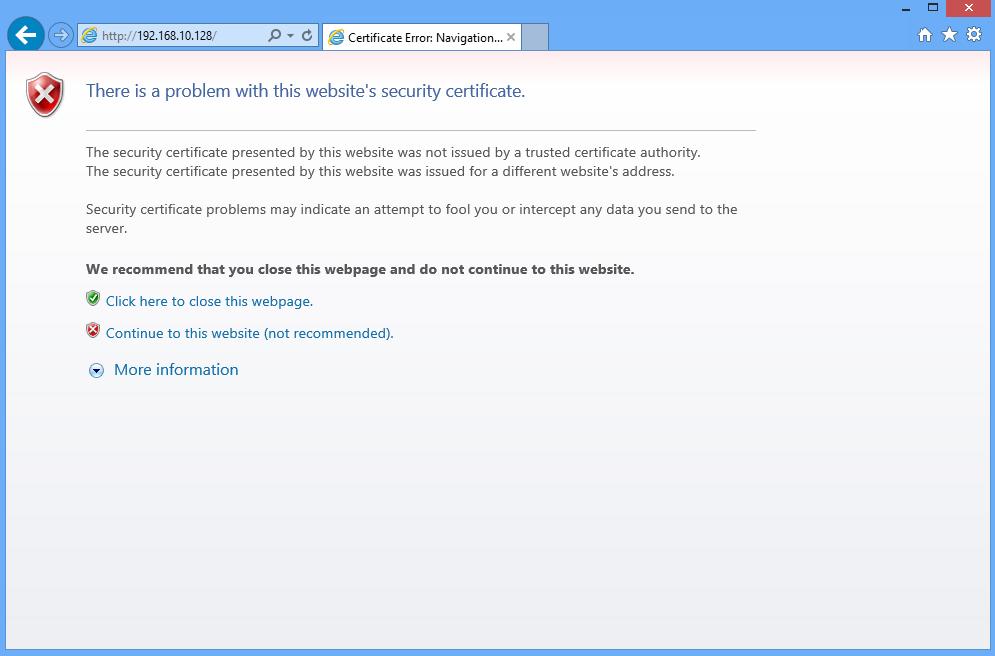
The following screen will be displayed, because VMware’s SSL certificate has been “self-signed” the warning is normal. Click Continue to this website. In this example we are using Internet Explorer 10.

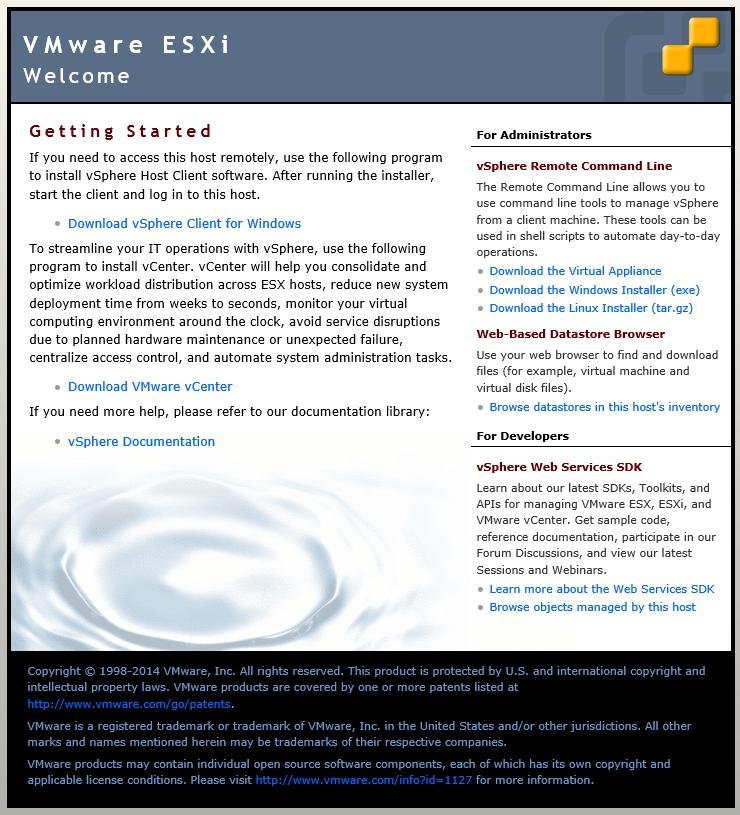
Connecting-to-vSphere-Hypervisor.jpgAfter clicking continue, the Welcome to VMware ESXi 6.0 screen will be displayed:

Connecting-to-vSphere-Hypervisor1.jpgClick Download vSphere Client

This link used to download the vSphere Client from the ESXi Host server, is a link to the VMware web site. VMware Link (http://vsphereclient.vmware.com/vsphereclient/VMware-viclient-all-6.0.0.exe), so you can either download direct from VMware, or find the link through your ESXi 6.0 server. This does test that your ESXi 6.0 Host basic networking is working correctly.

For the sake of this article, we are going to download the vSphere Client from VMware, using the web link included on the Welcome to VMware ESXi 6.0 page. At the following prompt click Save.

Connecting-to-vSphere-Hypervisor2.jpgDepending upon your Internet download speed, this can take between two and 30 minutes, as it is approximately 350MB in size.

2. Installing the VMware vSphere Client

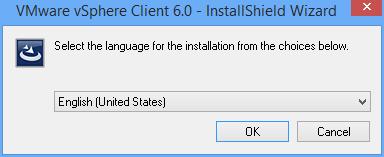
Once the download has been completed click Run. The setup files will be extracted, and the VMware vSphere 5.1 Client InstallShield Wizard will appear.

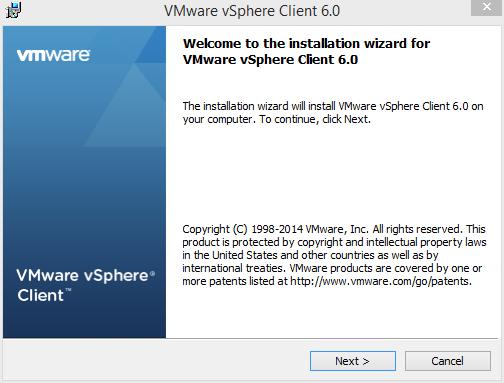
Installling-vSphere-Client6.0-1.jpgClick OK to Continue. The following Welcome screen will appear, Click Next to Continue.

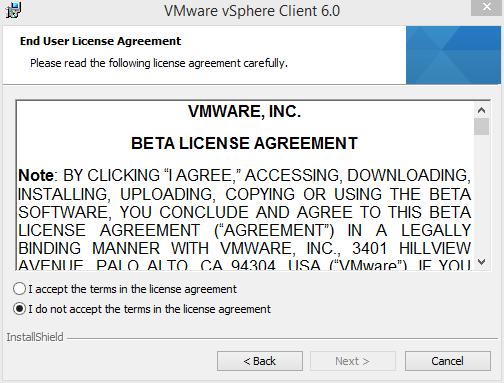
Installling-vSphere-Client6.0-2.jpgSelect “I agree to the terms of the license agreement” on the VMware End User License Agreement screen and Click Next to Continue.

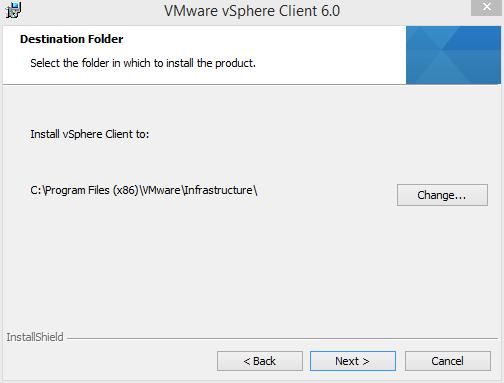
Installling-vSphere-Client6.0-3.jpgSelect the Destination Folder. We recommend the Default location C:Program Files (x86)VMwareInfrastrucuturefollowed by Next to Continue. (The VMware vSphere Client in this Tutorial is being installed on a 64-bit version of Windows, so this is the reason for the x86 reference. Your location could read C:Program FilesVMwareInfrastrucuture).

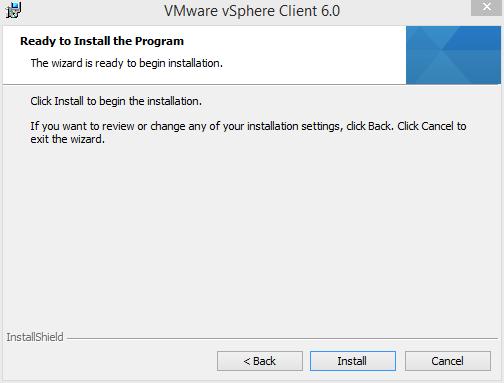
Installling-vSphere-Client6.0-4.jpgClick Install to Continue at the Ready to Install the Program screen

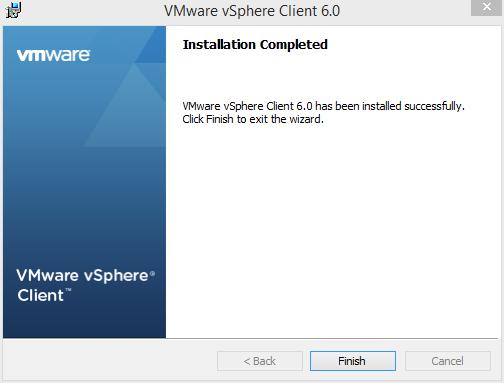
Installling-vSphere-Client6.0-5.jpgClick Finish to Complete the installation of the VMware vSphere Client.

Installling-vSphere-Client6.0-6.jpg

3. Connecting to the VMware vSphere Hypervisor ESXi 6.0 server

Click the VMware vSphere Client icon on your computer Desktop, or click Start > Programs > VMware > VMware vSphere Client icon

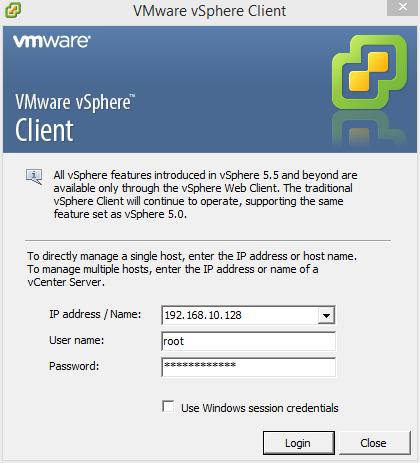
VMware-vSphere-Client-icon.jpgUsing the VMware vSphere Client, login and connect to the VMware vSphere Hypervisor ESXi 6.0 server, using the IP address or hostname of the ESXi server, using the root username and password credentials.

In this tutorial the IP address of the ESXi 6.0 server is displayed on the console in Step 1. The IP address is 192.168.10.128. Enter the IP address, and username root, followed by the password. Click Login.

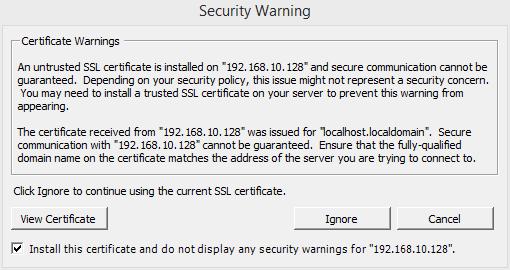
Installling-vSphere-Client6.0-7.jpgA Security Warning will appear, stating an untrusted SSL certificate is installed on your server. This is normal, because it’s a VMware “self-signed” certificate and can be replaced. (We will cover this in a later article in the series). Click Ignore and Tick the box to Install.

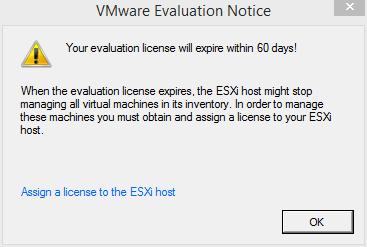
Installling-vSphere-Client6.0-8.jpgClick OK to acknowledge the VMware Evaluation Notice

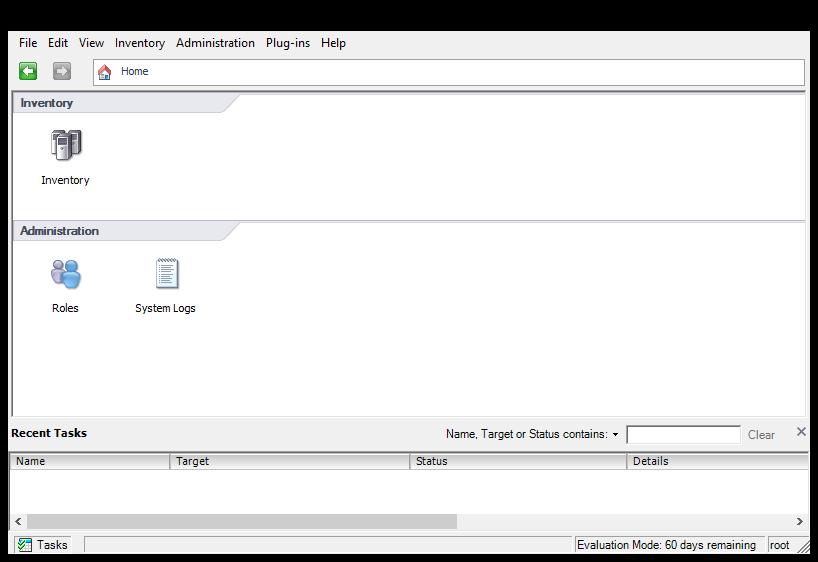
Installling-vSphere-Client6.0-9.jpgYou are now connected to the VMware vSphere Hypervisor ESXi 6.0 Server. Click the Inventory icon, to see the server’s Inventory.

Installling-vSphere-Client6.0-10.jpgThe following Inventory is displayed. You will notice it states The ESXi host does not have persistent storage. To store virtual machines (often referred to as Guests or VMs, the VMs must be stored and reside on an ESXi host datastore. The VMware vSphere Hypervisor ESXi server has a compatible filing system called VMFS (similar to Microsoft Windows NT/2000/XP/2003/2008/2012/7/8, which has its own filing system called NTFS). There are two versions of VMFS: VMFS-3 for earlier versions of vSphere e.g. 3.x and 4.x, and WMFS-5 for vSphere 5.x and 6.x.

4. Conducting a simple task using the VMware vSphere Client

In this step, we will complete a simple task using the vSphere Client, this task is to Create a new VMFS datastore, so we can store VMs. This is the minimum configuration requirement for your ESXi host.

vSphere-Client-Connected-to-ESXi.jpgClick “Click here to create a datastore…”

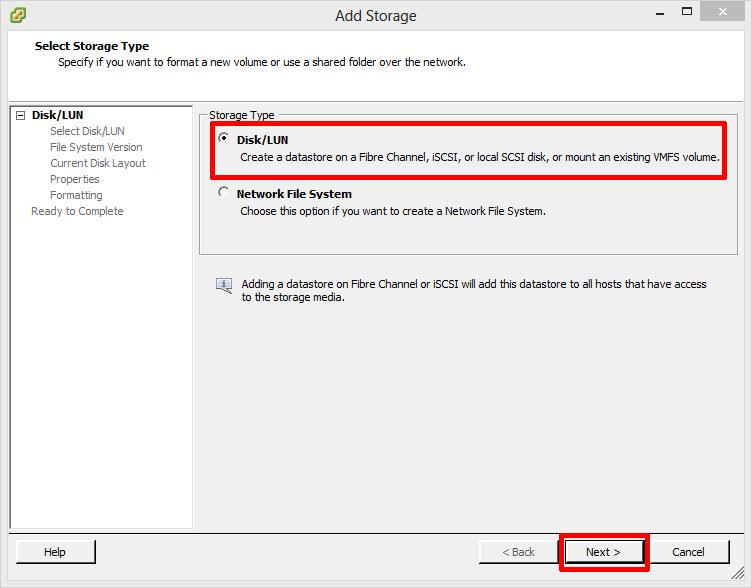
At the Add Storage screen select Disk/LUN followed by Next to Continue, personally we feel the dialgoue box should be called Add New Storage e.g. it’s storage which has never been allocated or presented for use with a VMware ESXi host server.

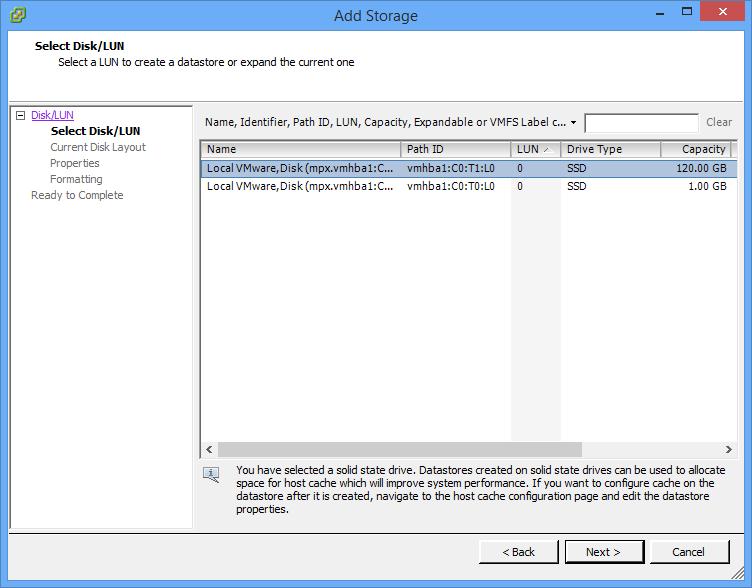
Select-Disk-LUN.jpgAt the next screen select the actual Disk or LUN, pay special attention to the sizes shown. The size should match the size of disk, LUN or array size you have created for your VMFS datastore, followed by Next to Continue. In this tutorial we are going to select the 120GB Disk/LUN, the first entry in the list.

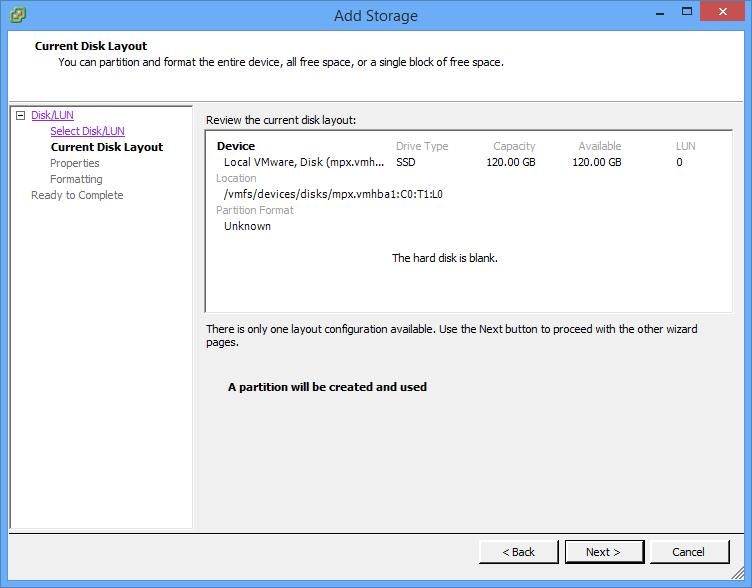
vSphere-Client-Connected-to-ESXi1.jpgThe Current Disk Layout will be shown. If this is a used disk, it could show other partition types. (NTFS, FAT32, Linux, Swap, ext2, ext3) Click Next to Continue. This is a new disk in this tutorial, so A new partition will be created and used.

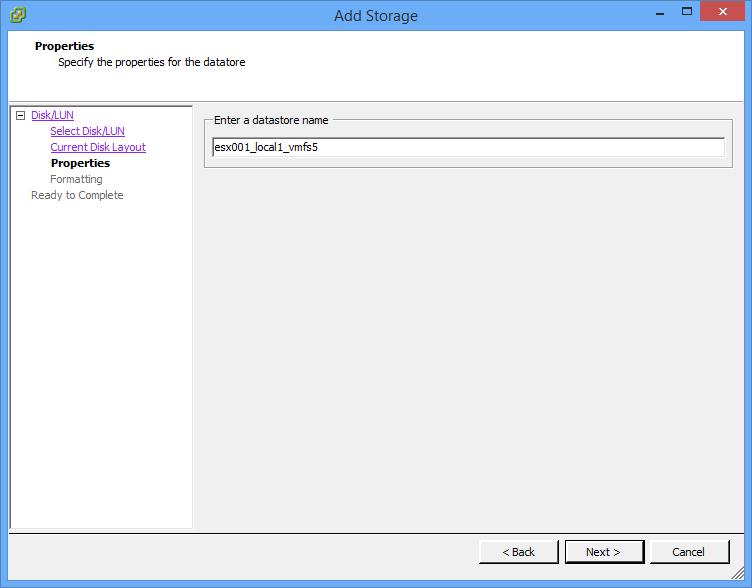
vSphere-Client-Connected-to-ESXi2.jpgAt the next screen enter the name for the datastore (do not use / * # ! @ (non-alpha numeric characters); it will accept them, but you will have issues later. The dash and underscore are okay.) followed by Next to Continue

vSphere-Client-Connected-to-ESXi3.jpg
There are many different types of naming conventions. We like to use name of the server followed by underscore (_) local for local disk, iscsi for iscsi disk, nfs for nfs storage, fibre for fibre channel, a number to indicate disk or LUN id number, followed by VMFS type, e.g. 3 or 5. For example: esx001_local1_vmfs5

vSphere-Client-Connected-to-ESXi4.jpgAt the Disk/LUN – Formatting screen, select Maximum available space, and click Next to Continue.

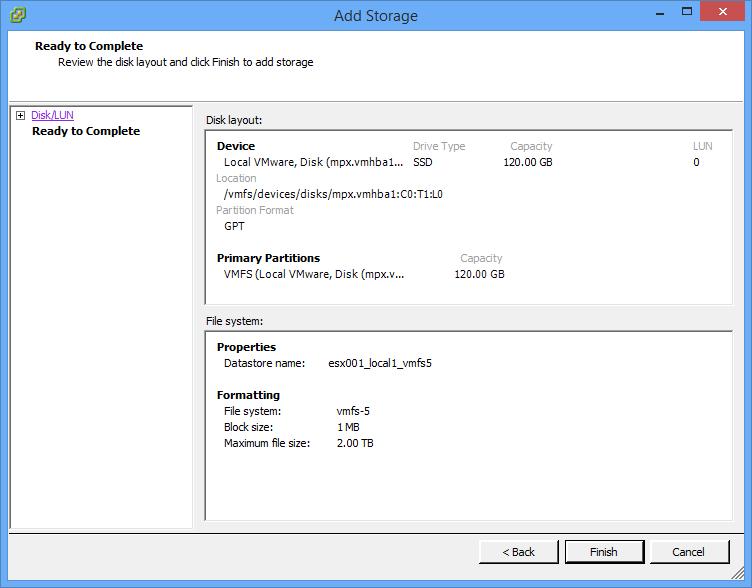
vSphere-Client-Connected-to-ESXi5.jpgCheck the Summary screen for the datastore you are about to create and Click Finish to create the datastore.

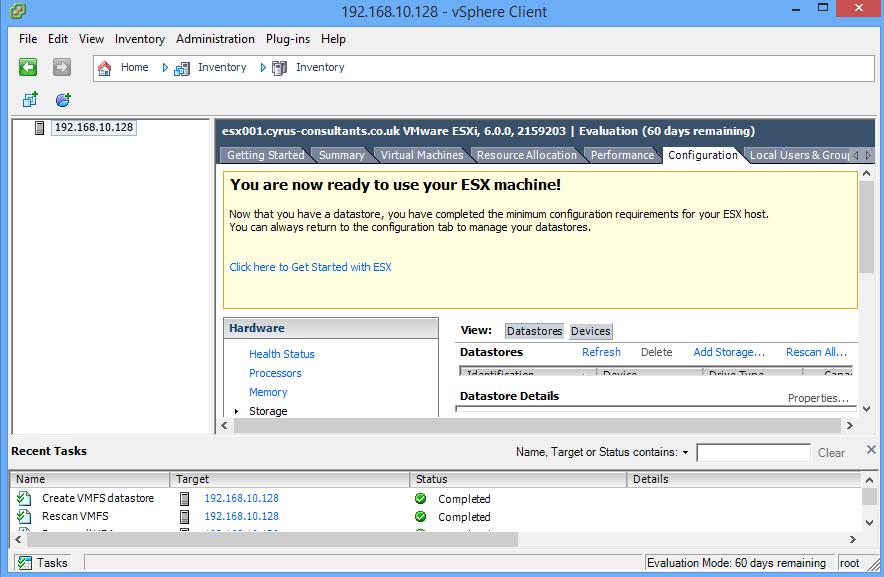
You are now ready to use your ESXi server.

vSphere-Client-Connected-to-ESXi6.jpgCongratulations you have successfully installed the VMware vSphere Client, Connected to your VMware vSphere Hypervisor 6.0 server, and Created your first VMware VMFS-5 datastore ready to store Virtual Machines.

Basic VMware Articles Series:
During this series of articles VMware released VMware vSphere 5.5 and VMware vSphere Hypervisor ESXi 5.5. These articles are also applicable to VMware vSphere Hypervisor ESXi 5.0 and 5.5. For consistency, I have used VMware vSphere Hypervisor ESXi 5.1 throughout this series.
Andy’s Mike Oldfield revival!

Tuesday, January 27th, 2015

I’ve renewed my interest in listening to Mike Oldfield again…so I’ve started off with

First

tubular_bells_2003_cd_front_cover

Mike Oldfield – Tubular Bells 2003

You will notice Mike Oldfield, has been removed from the cover of the 2003 edition, and it’s been re-worked, as Mike Oldfield, was unhappy with the original 1973 recording, stating it was rushed and out of tune!

Second

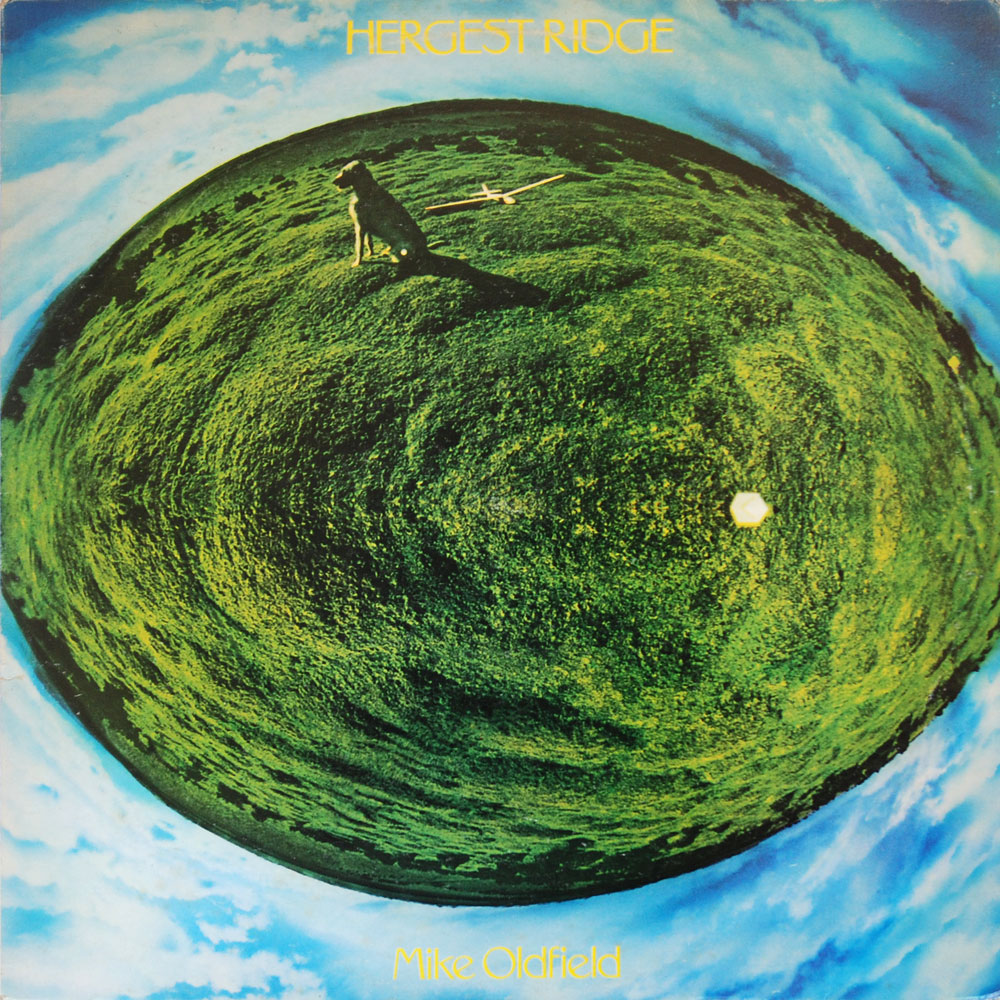
v2013-hergest-ridge-rear

Mike Oldfield – Hergest Ridge

This is the 2000 Digitally Remastered edition.

Third

mike-oldfield-ommadawn-front

Mike Oldfield – Ommadawn

This is the 2010 Digitally Remastered edition.

Breville Active Blend blender or liquidiser!

Tuesday, January 20th, 2015

In an effort to lose weight this year, I’ve stopped drinking Red Bull, cut down on the huge quantities of Diet Coke, stopped eating chocolate bars, and crisps daily….and started to eat daily breakfast!, and to help with breakfast…

I’ve purchased a new gadget, it’s called the Breville Active Blend blender, available from Tescos here, if you can find one, as they seem to be running Out of Stock, as the “New Year Resolution Get Fit Brigade De-Tox for the New Year!”

My Nan use to call them – Liquidisers, the modern name is Blender!

The real benefit of the Breville Active Blend , is you blend in the drinking bottle, so there is very little washing up,

  1. Just add the fruit and liquid to the drinking bottle
  2. Screw on the stainless steel cutting blades cap
  3. Whiz the blender for a 1 minute
  4. Remove the stainless steel cutting blades, run under hot water to clean.
  5. Screw on the drinking bottle cap
  6. Go to work, your done!

Some recipes I’ve been trying out

Green Tea, Spinach & Grape Smoothie

  • 300ml green tea
  • Handful spinach
  • ½ avocado
  • 2 tbsp honey
  • Bunch green grapes

Beetroot, Pomegranate & Pineapple Smoothie

  • 250ml pomegranate juice
  • 250ml orange juice
  • Fresh Pineapple
  • 1 beetroot
  • Handful ice

blender3

Spinach, Celery and Apple Smoothie

  • 300ml Chilled apple juice
  • 1 Stick of celery, chopped
  • 1 Small apple, cored and chopped
  • 1 tbsp Freshly squeezed lime juice, or to taste
  • 1 Handful of spinach leaves

blender1

blender2

If you are thinking or purchasing one, remember the additional bottles will cost £10.00 each from Breville direct, if you need more than a single bottle!

there are three versions of the product

Blend-Active® Single Bottle, Product Code: VBL075-01 – RRP £25, available for around £17.50 online.

Blend-Active® with 2 600ml Bottles , Product Code: VBL062-01 – RRP £29, available for around £25 online.

Blend-Active® Family Pack with 2 600ml Bottles, and 2 300 ml Bottles, Product Code: VBL096-01 – RRP £40, available for around £29 online.

(the family pack has the added value of 2  x 600ml and 2 x 300ml bottles, the 300ml bottles are not available separately!)

Blend-Active® 600ml Spare or Replacement Bottle , Product Code: VBL106-01 – RRP £10.

Andy’s Comment, it’s fun, and I get to eat more fruit on the go! The longest part of preparation is cutting up the fruit! Five Stars!

Andy makes the IT Pro New Year’s Honours List 2015!

Monday, January 5th, 2015

I can now reveal that I made the  IT Pro New Year’s Honours List 2015!

it-pro-new-yeare28099s-honours-list-2015ait-pro-new-yeare28099s-honours-list-2015bIT Pro New Year’s Honours List 2015

O Christmas Tree! O Christmas Tree!

Sunday, January 4th, 2015

ochristmastree

O Christmas Tree! O Christmas Tree!
Thy leaves are so unchanging;

The easiest way to get out of the house, recycle and dispose of it!

Happy New Year 2015 Folks!

Thursday, January 1st, 2015

Happy New Year 2015 Folks!

and I hope it’s a prosperous one!

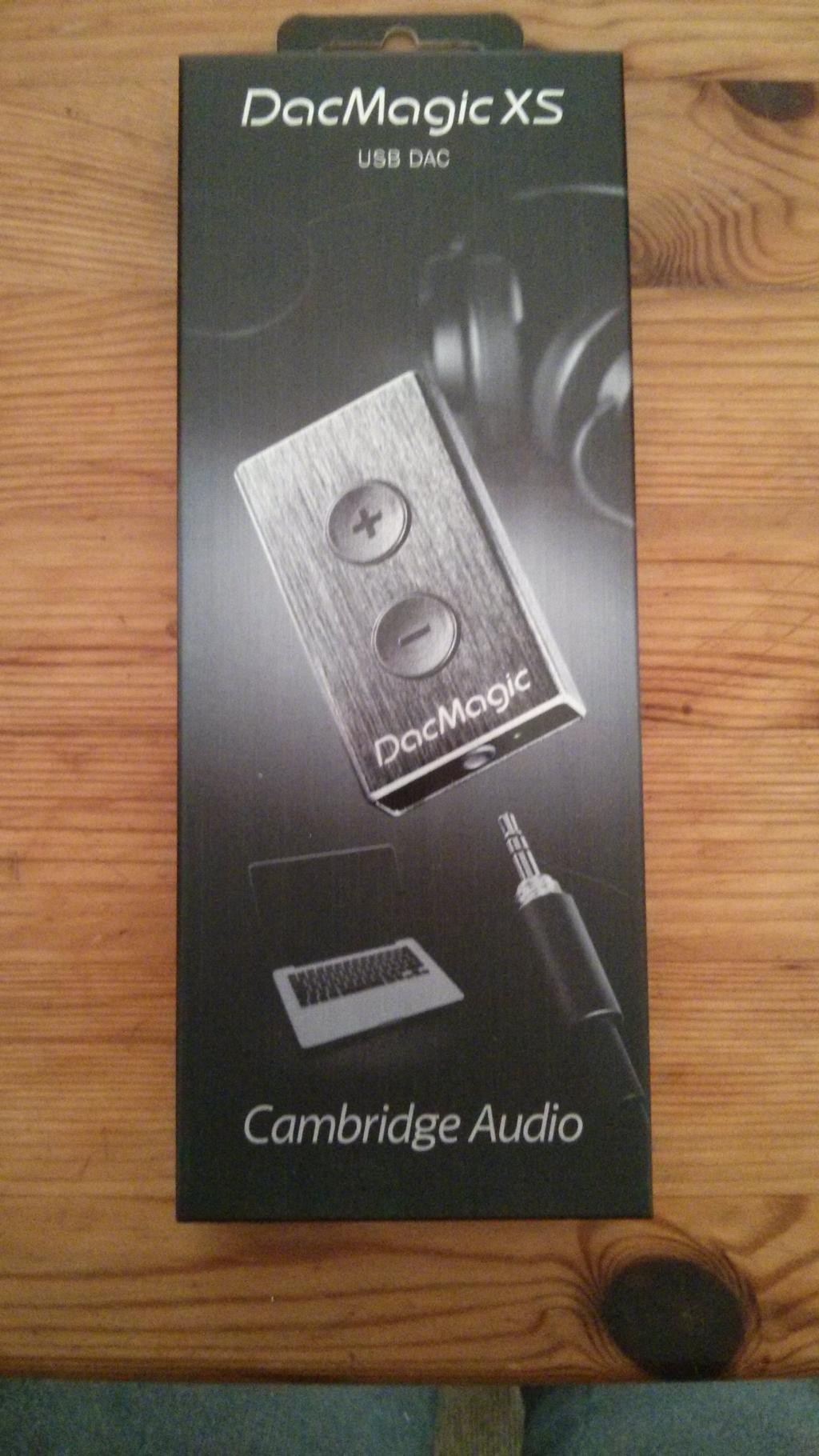
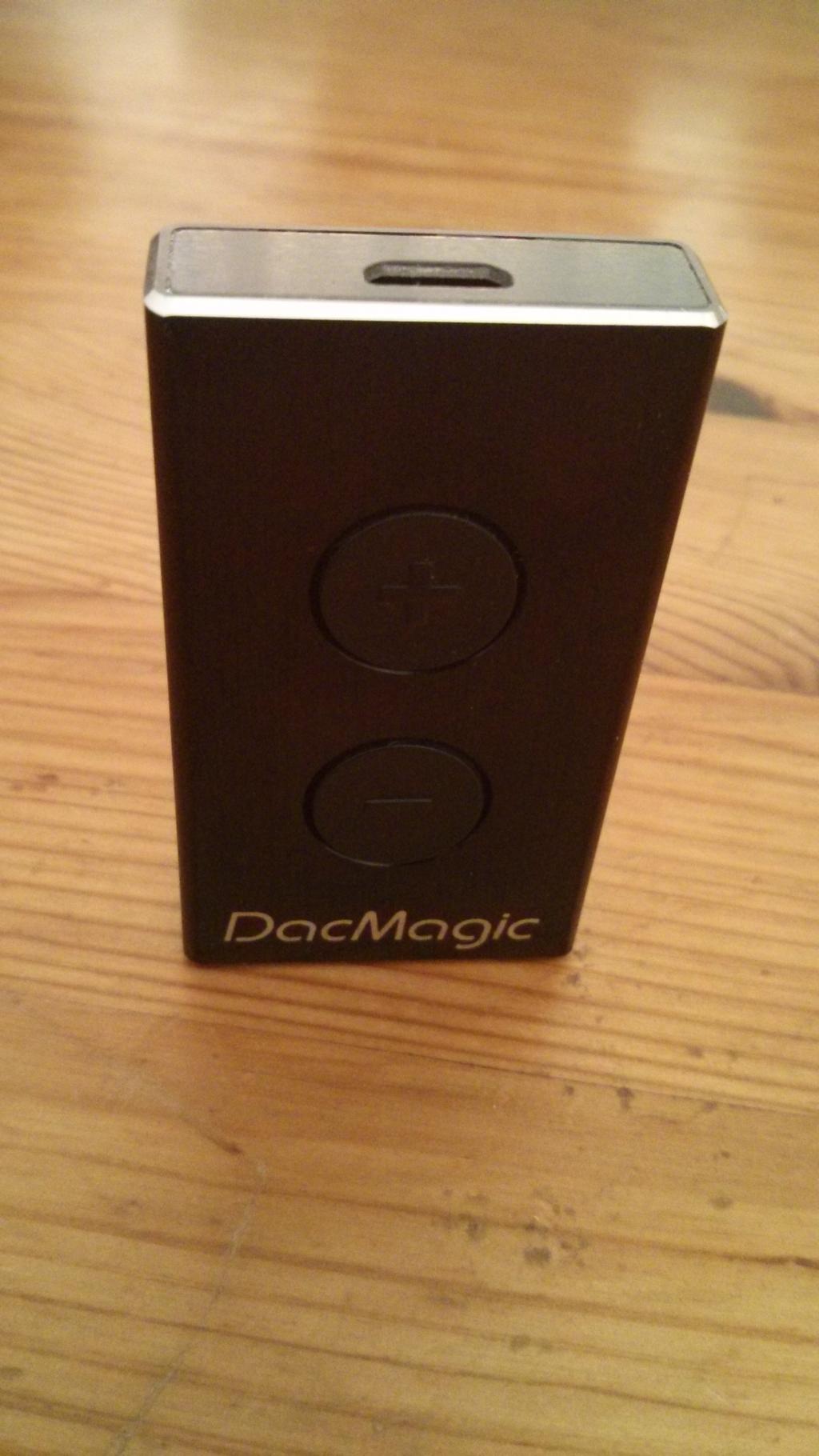
Present from Santa Claus! – a Cambridge Audio DacMagic XS

Monday, December 29th, 2014

Okay, I bought it for me!

I already own a few DACS, an Arcam Alpha Black Box DAC5, and two Cambridge Audio S700 ISOMagic, the later designed by John Westlake, of Pink Triangle fame, they do not support above 48KHz, (and they are also not portable!) so it was about time to purchase something new and fresh, which supports 88kHz, 96kHz, 176.4kHz and 192kHz

Enter the Cambridge Audio DacMagic XS USB DAC, which is an external offboard USB DAC for the computer (Windows PC or Apple MAC), also acts as a headphone amp as well, to drive those headphones correctly!

At present offers, more excellent value for money from Richer Sounds (just do not purchase from the Cardiff store – another blog tomorrow on that!).

I’ve just been listening to the excellent detail in Pink Floyd’s – The Endless River (on Spotify!)

Andysworld Merry Christmas!

Tuesday, December 23rd, 2014

My last post before Chrimbo!

So…..Merry Christmas, and take some time to spot your name!

andysworld-merry-christmas

Don’t forget vExpert Application Deadline 12th December 2014!

Thursday, December 11th, 2014

Merry Chrimbo VMware!

I’m busy st present, migrating virtual machines on VMware vSphere 4.1 from an old Fibre Channel 2GBps SAN, to VMware vSphere 5.5 vSAN.

and I’m wearing…

img_20141211_213331

it makes the migration faster you know!