
Archive for the ‘computing’ Category
Microsoft Windows 2012 Arrives! Start Downloading….
Tuesday, September 4th, 2012Looks like Microsoft Windows 2012 RTM is NOW available from Technet!
Tuesday, September 4th, 2012Downloading….

In less than 1 hour – Windows Server 2012 Arrives
Tuesday, September 4th, 2012
In less than 2 hours – Windows Server 2012 Arrives
Tuesday, September 4th, 2012
In less than 3 hours – Windows Server 2012 Arrives
Tuesday, September 4th, 2012
HOW TO: Create a Bootable USB Flash Drive of Microsoft Windows Server 2012
Tuesday, September 4th, 2012With the announcement of Microsoft Windows Server 2012 release in a few days time, I thought I would write an article on HOW TO: Create a Bootable USB Flash Drive of Microsoft Windows Server 2012 I have seen many internet articles on how to create a bootable copy of Windows Server, that seem very long winded and involved. This is the “Andy-method”, which is quick and easy, with free software provided by Microsoft.
This can help speed up a server installation, and does not require a blank DVD to be written with the DVD ISO that has been downloaded from Microsoft Technet or MSDN. The same procedure can be used for Windows 7 or Windows Server 2008 R2.
Prerequisites
- Windows 7 USB/DVD Download Tool
- Microsoft Windows Server 2012 ISO
- 4GB USB Flash or Thumb Drive (minimum)
- 1
-
Download the Windows 7 USB/DVD Download Tool
Using an Internet browser of your choosing download the Windows 7 USB/DVD Download Tool from HERE. Although this software product is designed to work with Windows 7, I have also tested with Windows Server 2008 R2 and Windows Server 2012 to create a bootable USB flash drives of Windows Server 2008 R2 and 2012.
- 2
-
Install the Windows 7 USB/DVD Download Tool
Double Click the Windows7-USB-DVD-tool.exe in your download folder and proceed to install the software product.
- 3
-
Start the Windows 7 USB DVD Download Tool application
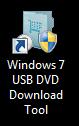
Start the Windows 7 USB DVD Download Tool application by double clicking the following icon on your Desktop
- 4
-
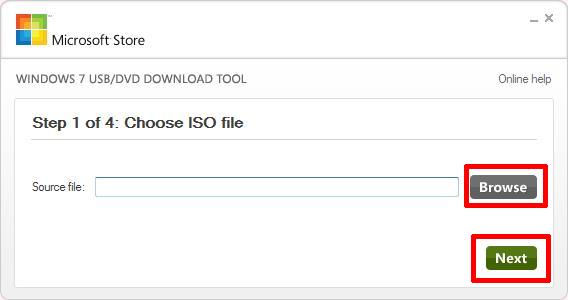
Choose the ISO file you have downloaded
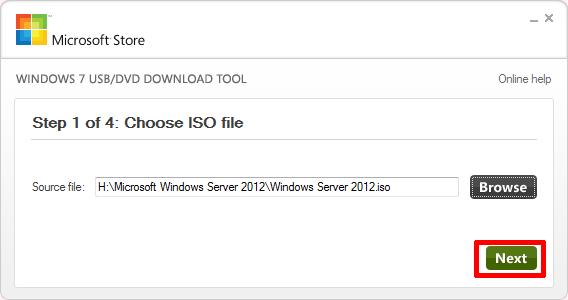
The following screen will appear, browse to the location of the Windows Server 2012 ISO file you have downloaded from Microsoft.
Select Next to continue,
- 5
-
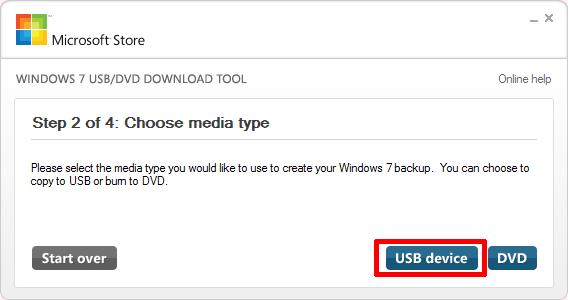
Choose media type
Ensure the USB flash or thumb drive is connected to the computer and select USB device.
- 6
-
Insert USB flash or thumb drive
Select the USB flash or thumb drive you want to prepare as a bootable copy of Windows Server 2012. Please exercise caution when selecting the USB device, the device will be formatted, and all the information will be lost.
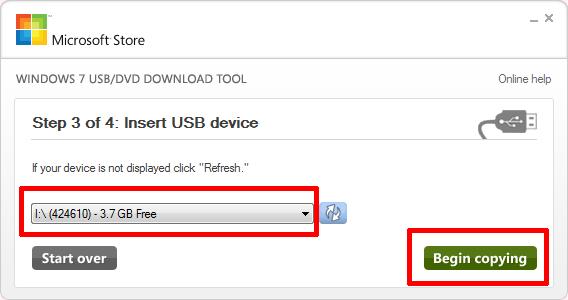
Select Begin copying
- 7
-
Creating bootable USB device
Sit back, grab a cup of coffee, whilst the USB flash or thumb drive is formatted, and the files are extracted from the ISO and copied to the flash drive.
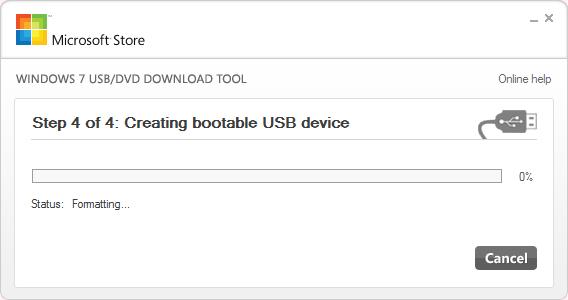
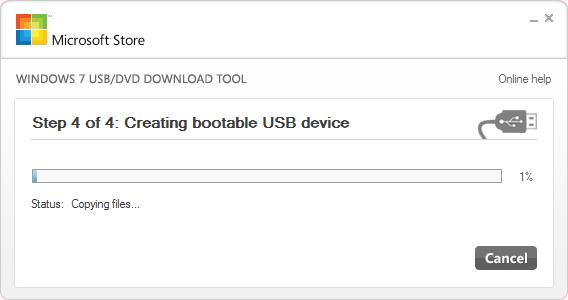
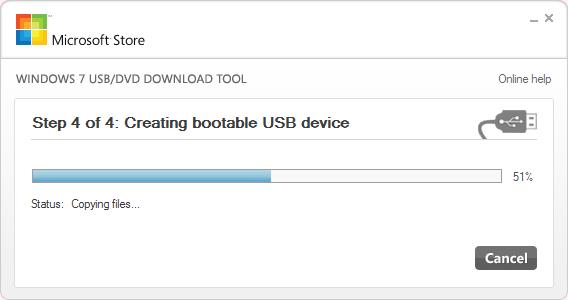
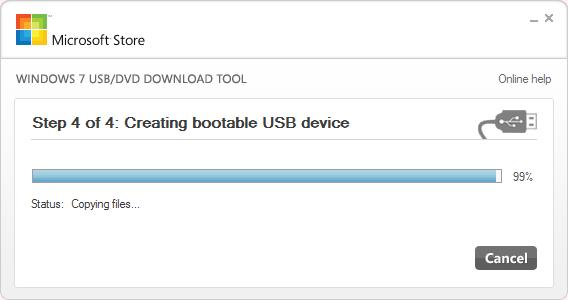
The process takes approximately 5 minutes to complete for a 3.5GB ISO.
- 8
-
Bootable USB device created successfully
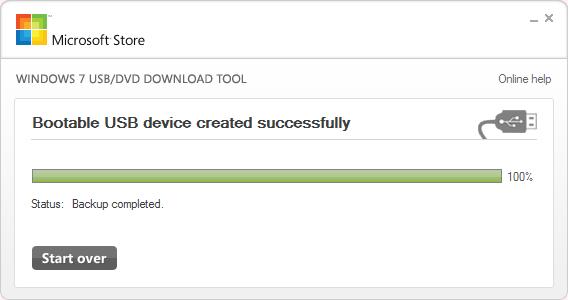
Safely Remove the USB flash or thumb drive from your computer.
You have successfully created a Windows Server 2012 bootable usb flash drive to install your operating system.
In less than 4 hours – Windows Server 2012 Arrives
Tuesday, September 4th, 2012
In less than 5 hours – Windows Server 2012 Arrives
Tuesday, September 4th, 2012
Fantastic – Altaro Hyper-V Backup for Windows 2012 – because Andy! says so!
Friday, August 24th, 2012Just a quick blog, about this fantastic Backup Software, now with Beta software you always expect some issue, does not work, you’ll spend many hours trying to get it to operate.
But I was so impressed within 120 seconds, from installation, it had installed, detected I was using Cluster Hyper-V 2012, installed two agents onto the Hyper-V Nodes in the Cluster, and started to Backup to a NAS with no issues!
and this is BETA! I cannot wait for the full version and release!
Download Link > http://www.altaro.com/hyper-v-backup/contest-download.php
Thumbs up Guys!, Well Done, puts many other software houses to shame, that have Hyper-V Backup Applications, do I have to name them!?


Whoops – nobody tests Ubuntu 12.04 releases anymore?
Wednesday, August 22nd, 2012 In this multi-disciplined world I fine myself, in using Unix, Linux and Windows.
Does nobody test Ubuntu releases on Intel anymore? works fine on 64 bit AMD!




![[Valid RSS]](http://andysworld.org.uk/images/valid-rss.png "Validate my RSS feed")